Create Catalyst SD-WAN NGFW security policies in Security Cloud Control Firewall Management using the Create NGFW policy workflow.
Before you begin
Make sure you have deployed and managed these devices using a configuration group. For more information about creating configuration groups, see Configuration Groups and Feature Profiles.
Follow these steps to create Catalyst SD-WAN NGFW security policies in Security Cloud Control Firewall Management using the Create NGFW policy workflow.
Procedure
| 1. | Choose . |
|||||||||||
| 2. | Click Add NGFW Policy on the Catalyst SD-WAN NGFW Policies page. This launches the Create NGFW policy workflow. |
|||||||||||
| 3. | On the Security Policy Name tab, enter Policy Name and Description, and under Device Solution, click the SDWAN radio button. |
|||||||||||
| 4. | Click Next. |
|||||||||||
| 5. | On the Select the optional Configuration Group to associate with the NGFW policy page, choose the configuration group to associate with the NGFW policy and click Next. |
|||||||||||
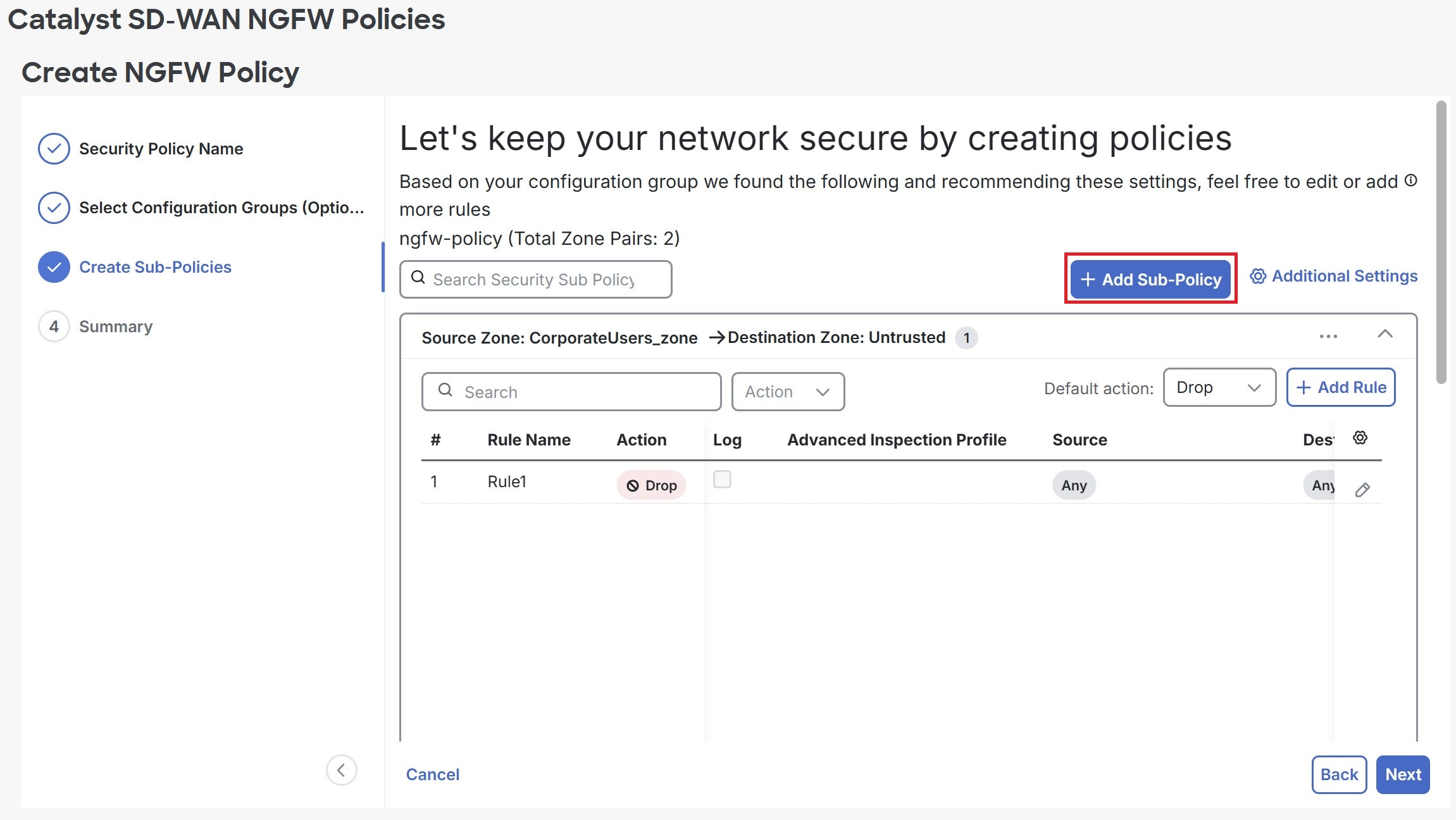
| 6. | On the Create Sub-Policies tab, click +Add Sub-Policy to add sub-policies for a security policy.
|
|||||||||||
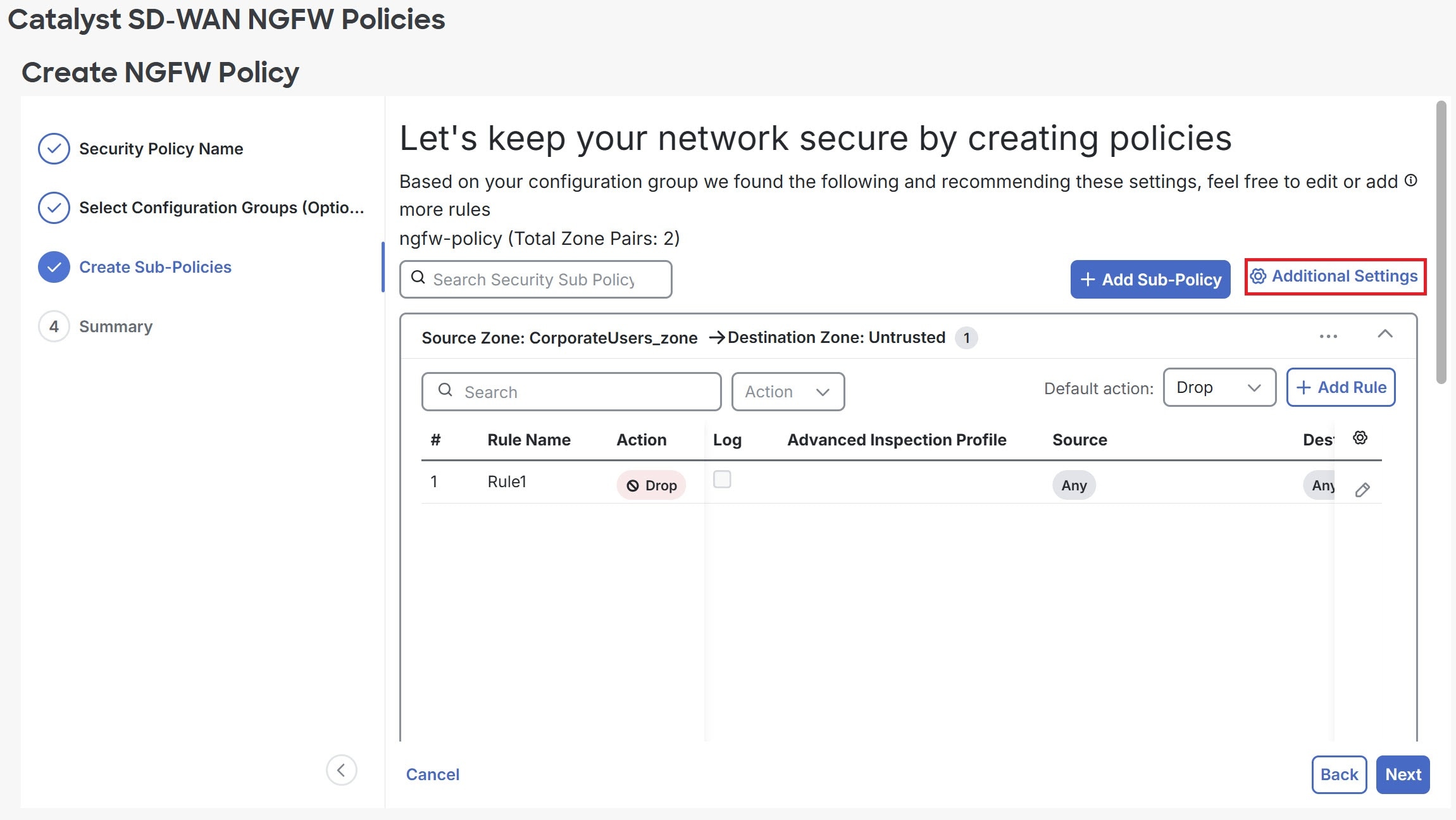
| 7. | Click Additional Settings to configure additional settings for a security policy. For more information about the steps used in the procedure, Configure NGFW Additional Settings. |
|||||||||||
| 8. | Click Save.
|
|||||||||||
| 9. | Click the ellipsis (...) at the top-left corner of the existing sub-policy to Edit, Delete, or Copy it. |
|||||||||||
| 10. | To add an NGFW policy rule to a sub-policy, navigate to the sub-policy and click + Add Rule.
|
|||||||||||
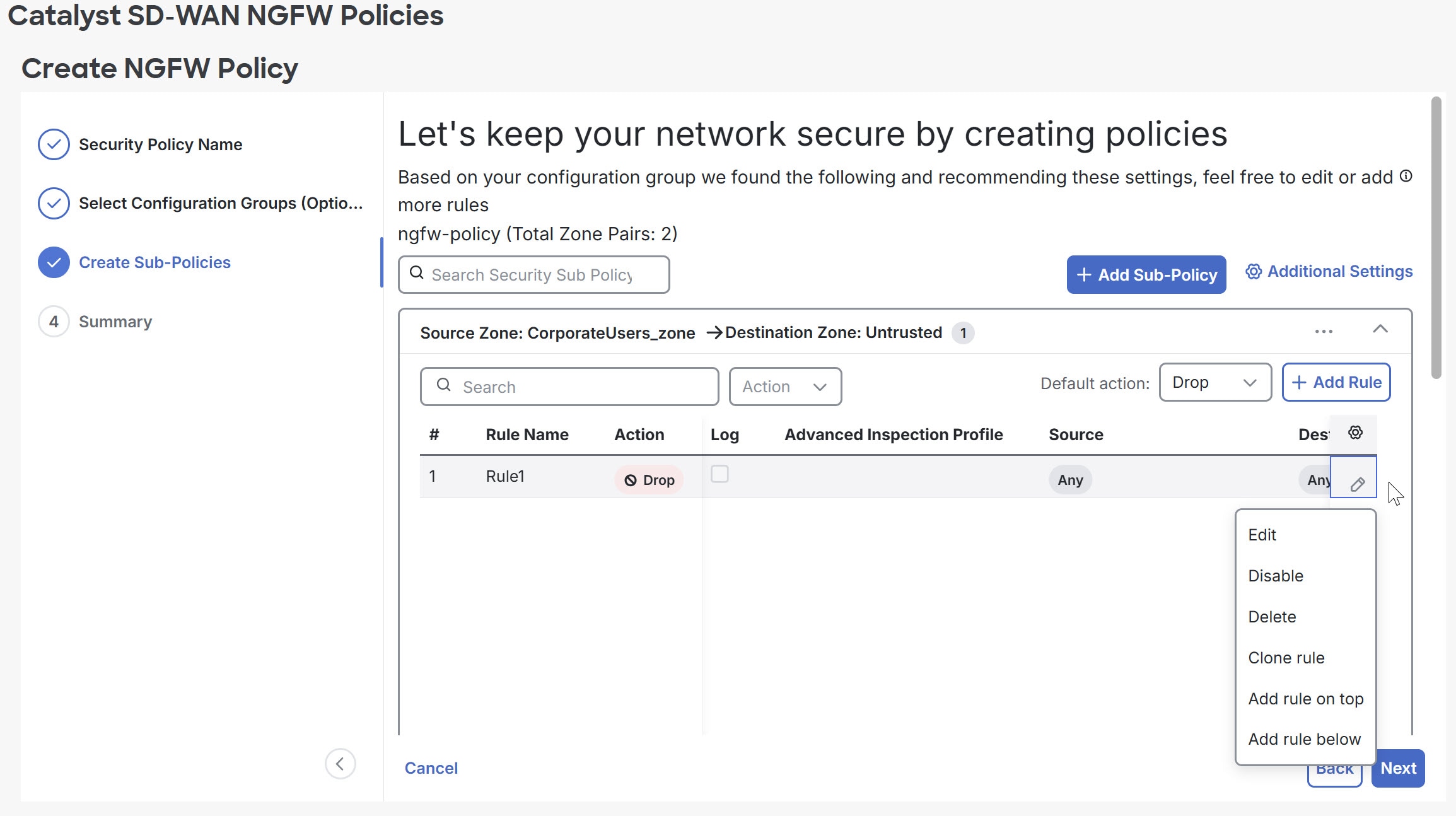
| 11. | To modify an existing rule, click the pencil icon to Edit, Disable, Delete, Clone rule, Add rule on top, or Add rule below.
|
|||||||||||
| 12. | Click Next. |
|||||||||||
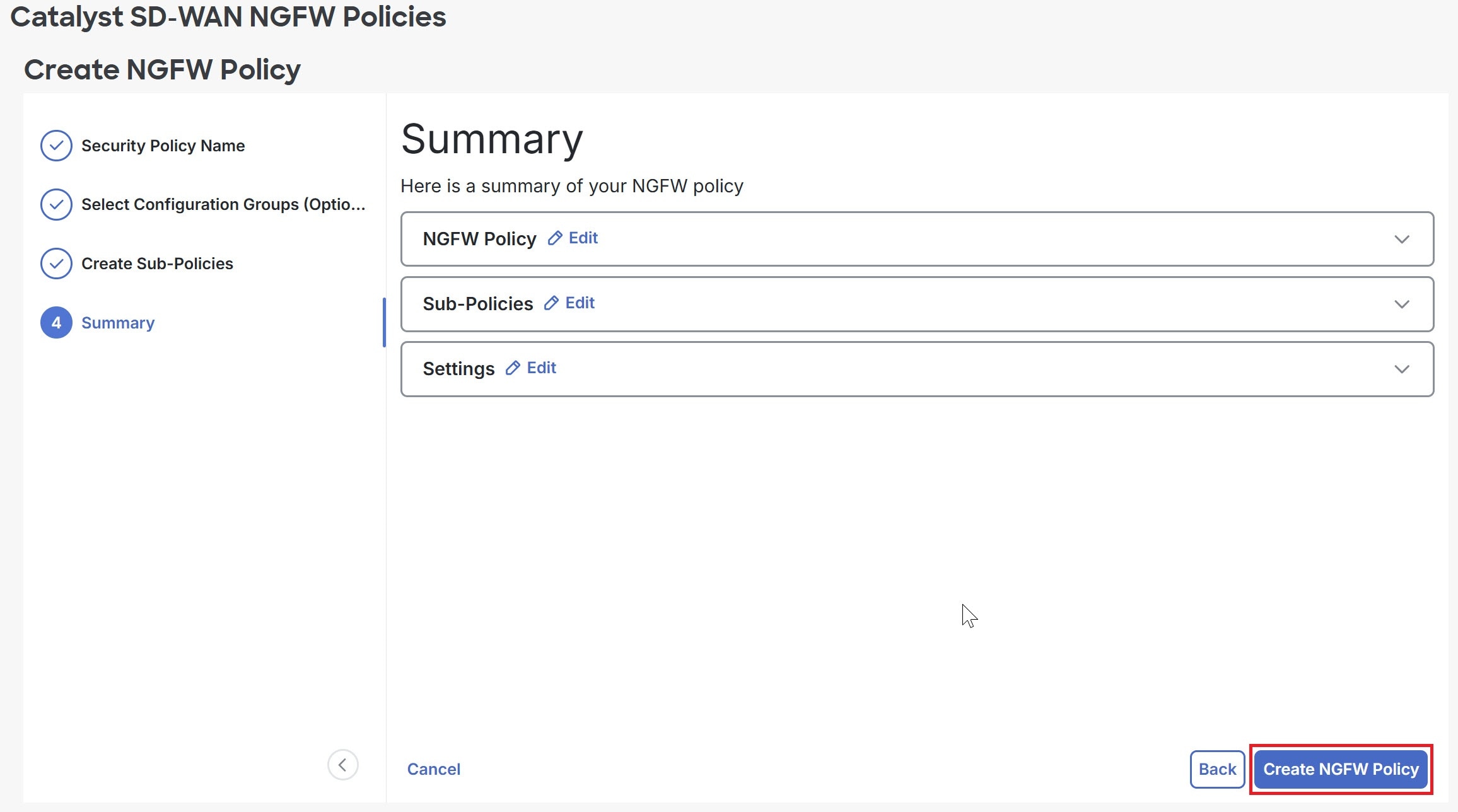
| 13. | Review the NGFW Policy, Sub-Policies, and Settings on the Summary page, and click Create NGFW Policy.
|