Learn how to create a Cisco Security Cloud Sign On account, set up Duo multi-factor authentication, optionally add Google Authenticator, and configure account recovery options.
The initial sign-on workflow is a four-step process. You need to complete all four steps.
Procedure
-
Sign Up for a New Cisco Security Cloud Sign On Account.
-
At the bottom of the sign in screen, click Sign up now.
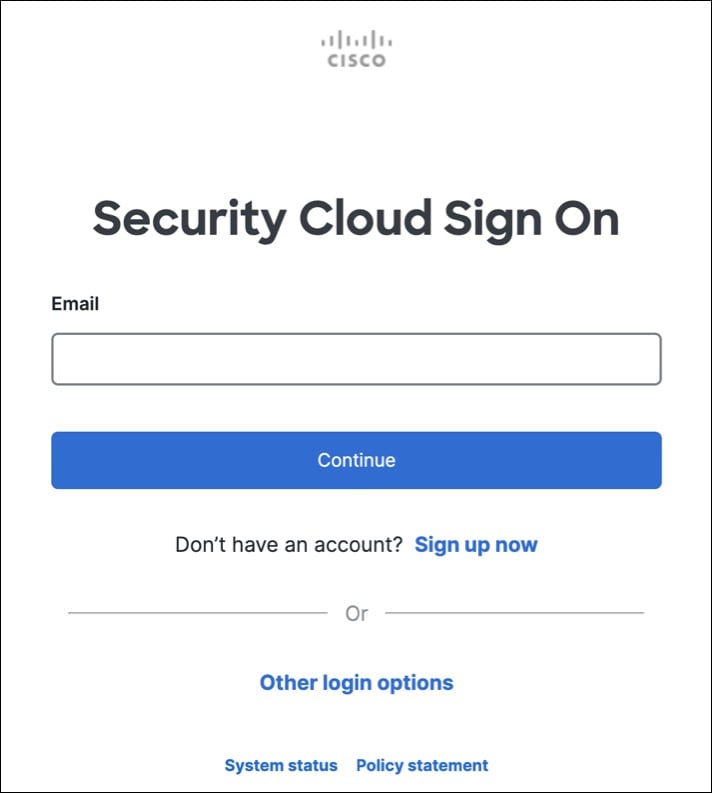
-
Provide the following information to create enterprise account.
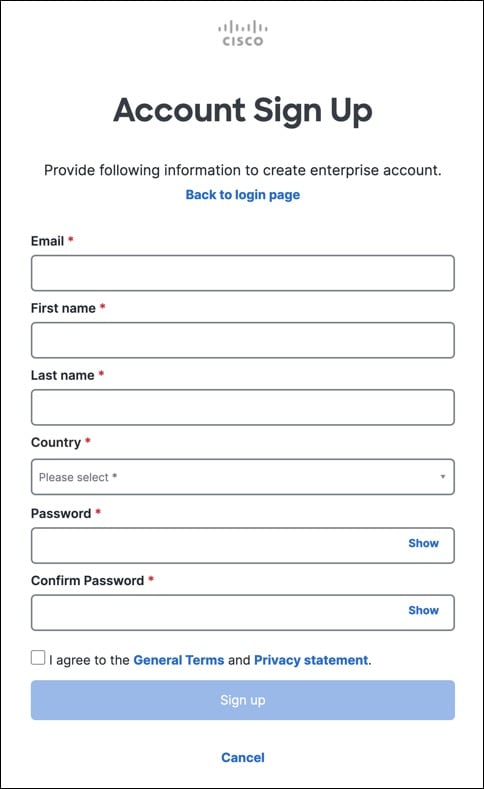
Here are some tips:
-
Email: Enter the email address that you will eventually use to log in to Security Cloud Control.
-
Password: Enter a strong password.
-
-
Click Sign up.
Cisco sends you a verification email to the address you registered with. Open the email and click Activate account.
-
Set up Multi-factor Authentication Using Duo
We recommend using a mobile device when setting up multi-factor authentication.
-
In the Set up multi-factor authentication screen, click Configure factor.
-
Click Start setup and follow the prompts to choose a mobile device and verify the pairing of that mobile device with your account.
For more information, see Duo Guide to Two Factor Authentication: Enrollment Guide. If you already have the Duo app on your device, you'll receive an activation code for this account. Duo supports multiple accounts on one device.
-
At the end of the wizard click Continue to Login.
-
Log in to Cisco Security Cloud Sign On with the two-factor authentication.
-
-
(Optional) Setup Google Authenticator as an additional authenticator
-
Choose the mobile device you are pairing with Google Authenticator and click Next.
-
Follow the prompts in the setup wizard to setup Google Authenticator.
-
-
Configure Account Recovery Options for your Cisco Security Cloud Sign On
-
Choose a recovery phone number for resetting your account using SMS.
-
Choose a security image.
-
Click Create My Account.
-