Cisco Security Cloud Control: Cisco Meraki Management

PDF

Cisco Security Cloud Control: Cisco Meraki Management

Use Security Cloud Control Firewall Management search functionality

Want to summarize with AI?

Log in

Learn how to search in Security Cloud Control Firewall Management using page-level search and global search to find devices, policies, objects, VPN entries, change logs, and jobs across your tenant.


The Security Cloud Control Firewall Management platform has a highly efficient search function that makes it easy to find anything you need. The search bar on each page is tailored to the content of that page, while the global search allows for a comprehensive search across the entire tenant. This saves time and effort, as you can quickly locate the necessary information.


The page-level search enables you to search specific items on the Security Devices, Policies, Objects, VPN, Change Log, and Jobs pages.

  • In the Security Devices space, you can simply start typing in the search bar, and devices that fit the search criteria will be displayed. You can type any partial part name of the device, IP address, or the serial number of the physical device to find the device.

  • In the Policies space, you can search policies by their name, components or objects used in them.

  • In the Objects space, you can search for an object by typing any partial part of the name of the object, or partial IP Address, port, or protocols.

  • In the VPN space, you can search by tunnel name, device name, and IP address used in the VPN policies.

  • In the Change log space, you can search logs based on events, device names, or actions.

Procedure

1.

Navigate to the search bar near the top of the interface.

2.

Type the search criteria into the Search Bar and the corresponding results will be displayed.


The global search feature allows you to quickly locate and navigate to devices managed by Security Cloud Control.

Note

Currently, Security Cloud Control supports global search for ASA, Cloud-Delivered Firewall Management Center, on-premises Firewall Management Center managed by Security Cloud Control, Firewall Threat Defense, and Meraki.

Global search is only available when Security Cloud Control Firewall Management has been onboarded to Security Cloud Control.

All search results are based on the indexing option you choose. These are the indexing options:

  • Full Indexing—Requires that you invoke the full indexing process. This process scans all the devices and objects in the system and displays them in the search index only after you invoke the indexing. To invoke full indexing, you must have administrative privileges.

    For more information, see Initiate Full Indexing.

  • Incremental Indexing—An event-based indexing process where the search index automatically updates each time that a device or an object is added, modified, or deleted.

The information that you enter in the search field is not case-sensitive. You can perform a global search using these entities:

  • Device Name—Supports partial device names, URL, IP address, or range.

  • Object Types—Supports object name, object descriptions, and configured values.

  • Policy Types—Supports policy name, policy description, rule name, and rule comments.

    Cloud-Delivered Firewall Management Center and on-premises Firewall Management Center managed in Security Cloud Control support the following policy types:

    • Access Control Policy

    • Prefilter Policy

    • Threat Defense NAT Policy

When you type a search expression, the interface begins to display search results and you do not need to press Enter to execute a search.

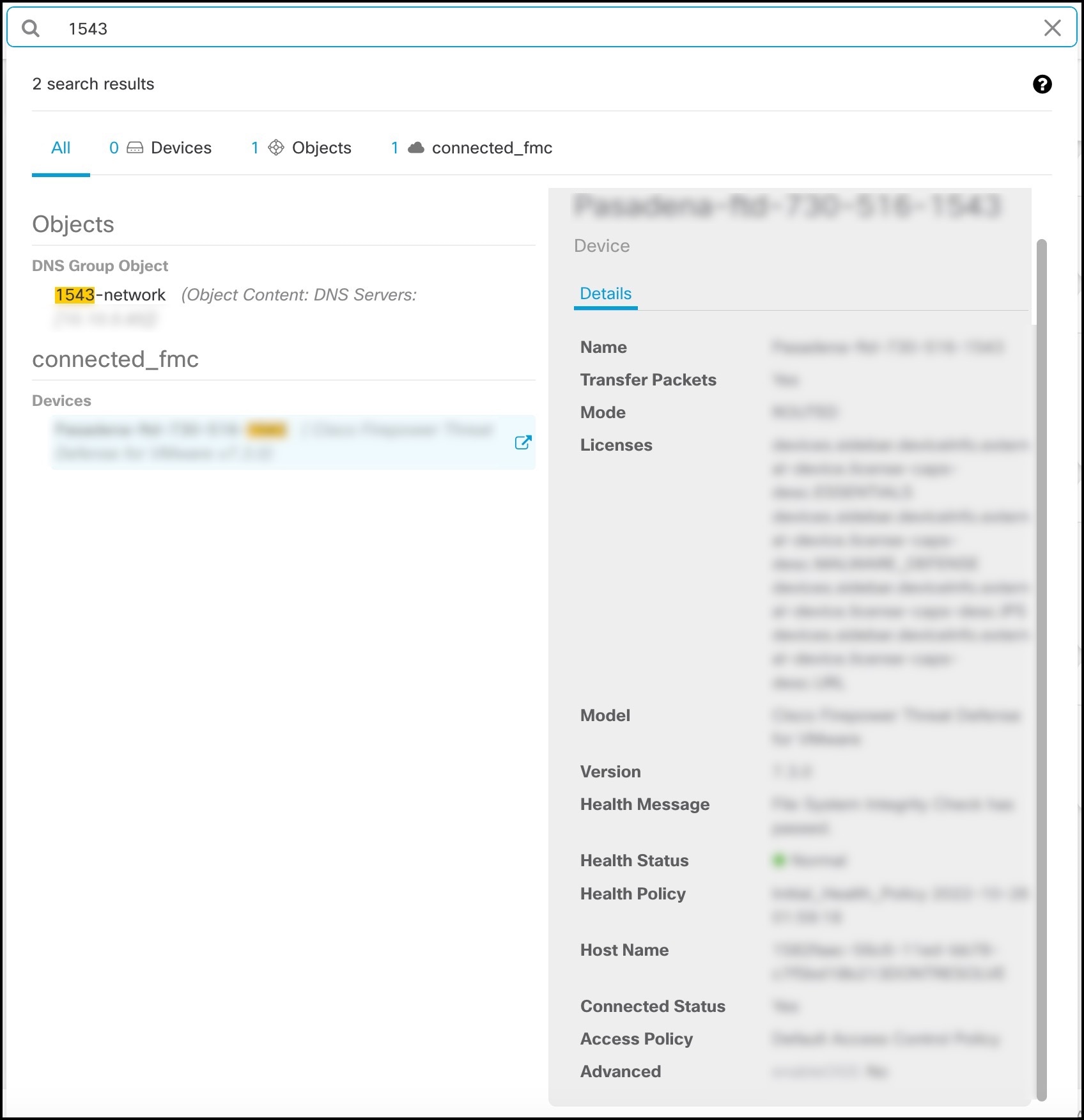
The search results display all devices and objects that match your search terms. If your search term matches more than one device or object, the results appear under categories such as devices, objects, and connected_fmc.

By default, the first item in the search result is highlighted and the related information for that item appears in the right pane. You can scroll through the search results and click any item to view the corresponding information. You can click the arrow icon besides the item to navigate to the corresponding page.

Note
  • Global search does not display duplicate search results. For objects, the unique identifier of the shared object is used to navigate to the Object view.

  • If you delete a device from Security Cloud Control, all associated objects are removed from the global search index.

  • If you delete an object from the policy and retain the device before you initiate full indexing, the object remains in the global search index because it is associated with the device.


Initiate Full Indexing

Procedure

1.

From the Security Cloud Control Home page, click Firewall.

2.

In the left pane, click Administration > General Settings.

3.

In Global Search, click Initiate Full Indexing to trigger indexing.

Note

Initiating full indexing clears existing indexing of the Security Cloud Control tenant.

4.

Click here to view the global search workflow.


Procedure

1.

Log into Security Cloud Control.

2.

Click the search icon in the Security Cloud Control page and enter the search strings in the search field that appears.

Alternatively, you can press and hold the Ctrl key and the / key simultaneously on Windows, or the Command key and / key on Mac, to open the search bar.

The search results display a list of possible items as you begin entering the search strings. The search results appear under four categories: All, Devices, Objects, Policies, and Cloud-Delivered Firewall Management Center. The right pane displays information for a selected search result.

3.

From the search result, select a device or an object, and click the arrow icon to navigate from the search results to the corresponding device and object page. From the search result, select an item, and click the arrow icon to navigate from the search results to the corresponding page.

Note

Selecting a search result for devices in the Cloud-Delivered Firewall Management Center, allows you to navigate to the Cloud-Delivered Firewall Management Center user interface within Security Cloud Control.

4.

Click X to close the search bar.