Cisco Catalyst SD-WAN Network-Wide Path Insight User Guide, Release 26.x and Later

PDF

Cisco Catalyst SD-WAN Network-Wide Path Insight User Guide, Release 26.x and Later

Use case 1: verify a Cisco cloud OnRamp for SaaS policy

Want to summarize with AI?

Log in

Describes how to use network-wide path insight to verify that Microsoft Office 365 traffic follows its expected path. Helps validate policy configuration and operation for branch-site SaaS access.


Use network-wide path insight to determine whether Microsoft Office 365 application traffic follows the expected network path and validate that the policy is programmed correctly and operates as intended.

Assume that you have a deployment that includes several branch sites. One of these sites, the SJC branch, with a site ID of 3, has two WAN links: an MPLS link, and a public internet link through which the Microsoft cloud can be accessed directly.

In addition, assume that a Cisco Catalyst SD-WAN Cloud OnRamp for SaaS policy, which is a part of an Application-Aware Routing (App-Route) policy, has been created and enabled for Microsoft Office 365 applications.

For this use case, we will follow these procedures to verify that Microsoft Office 365 traffic follows its expected path and the App-Route policy is operating as intended.
Start a trace

To begin, perform the following actions to start a trace in the SJC branch:

Procedure

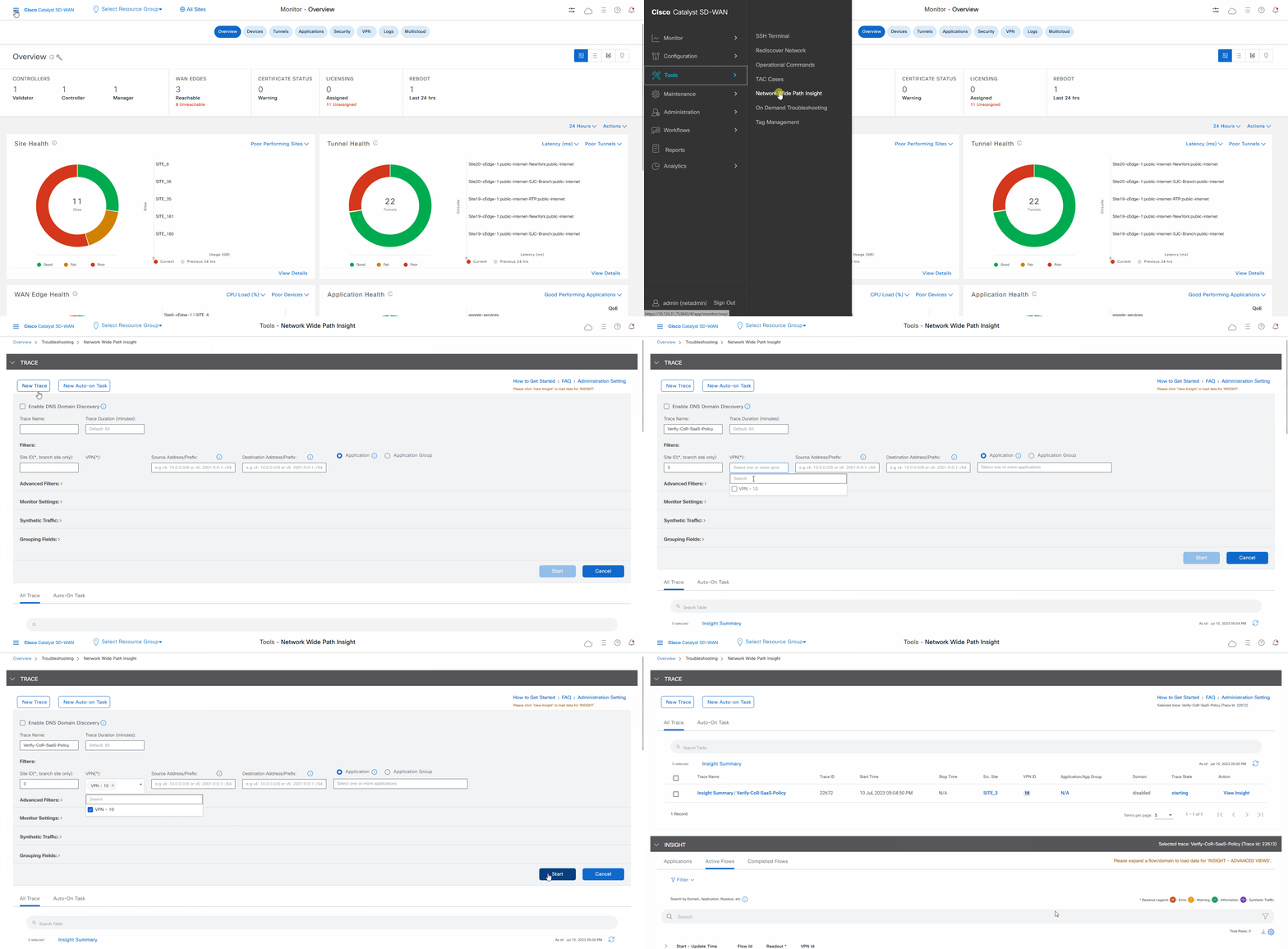
  1. From the Cisco Catalyst SD-WAN menu, choose, Tools > Network Wide Path Insight .

  2. Click New Trace .

  3. In the Trace Name field, enter a name for the trace.

    In this use case, we use the name Verify-Cor-Saas-Policy .

  4. From the VPN drop-down list, choose VPN - 10 .

  5. Click Start .

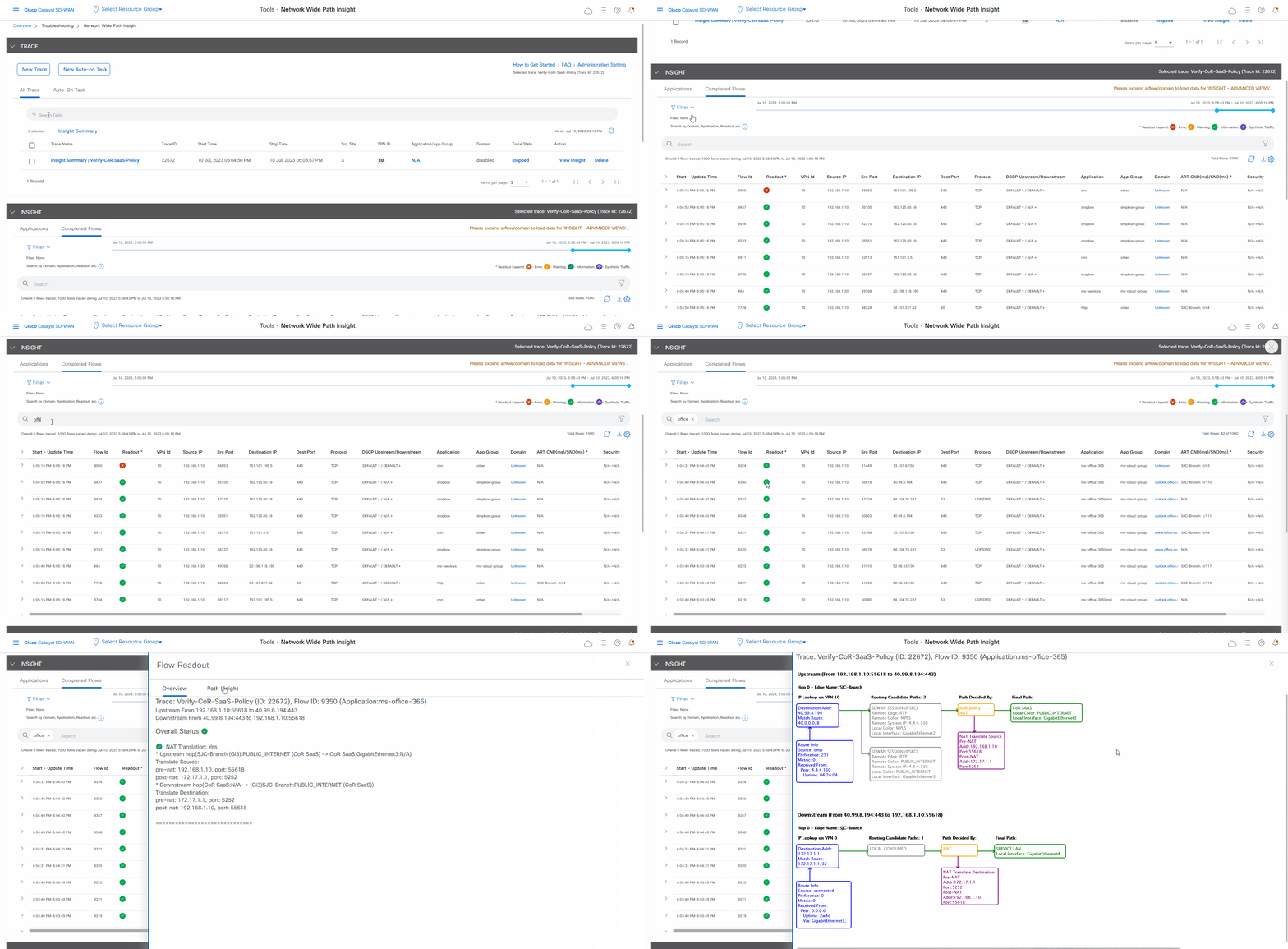
    Figure 1. Start a trace
    The Sankey diagram illustrates the network paths of Microsoft Office 365 applications traffic, allowing users to verify if the traffic follows the expected network path as per the Cisco cloud OnRamp for SaaS policy.

Display the upstream application path and performance Sankey chart

Let the trace run for approximately 5 minutes so that it can collect data.

Procedure

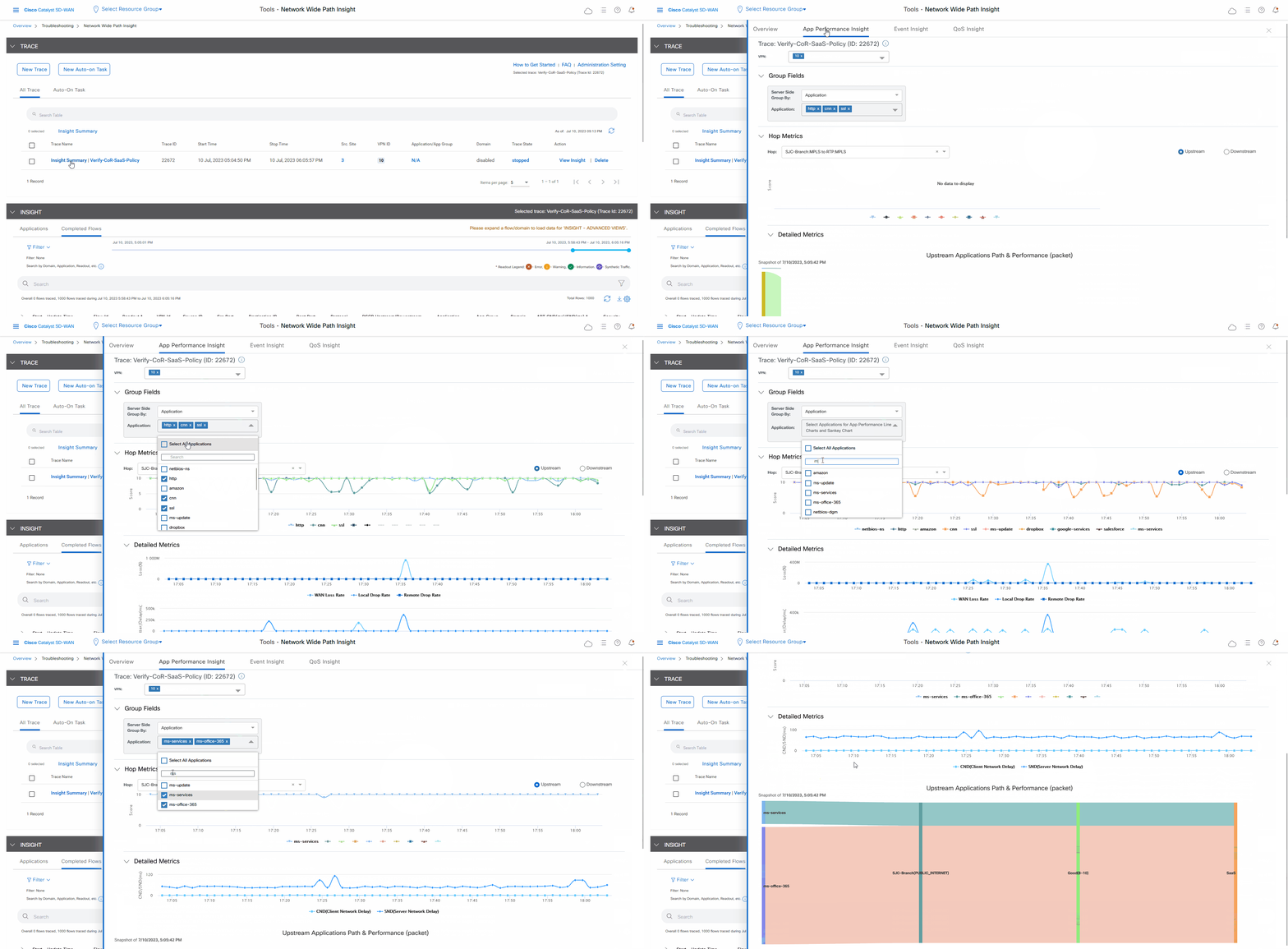
  1. In the list of traces in the All Trace tab, click Insight Summary in the row that shows the Verify-Cor-Saas-Policy trace.

  2. In the Insight Summary slide-in pane, choose the App Performance Insight tab and use the filters to see the Sankey chart that shows the network paths of Microsoft applications traffic.

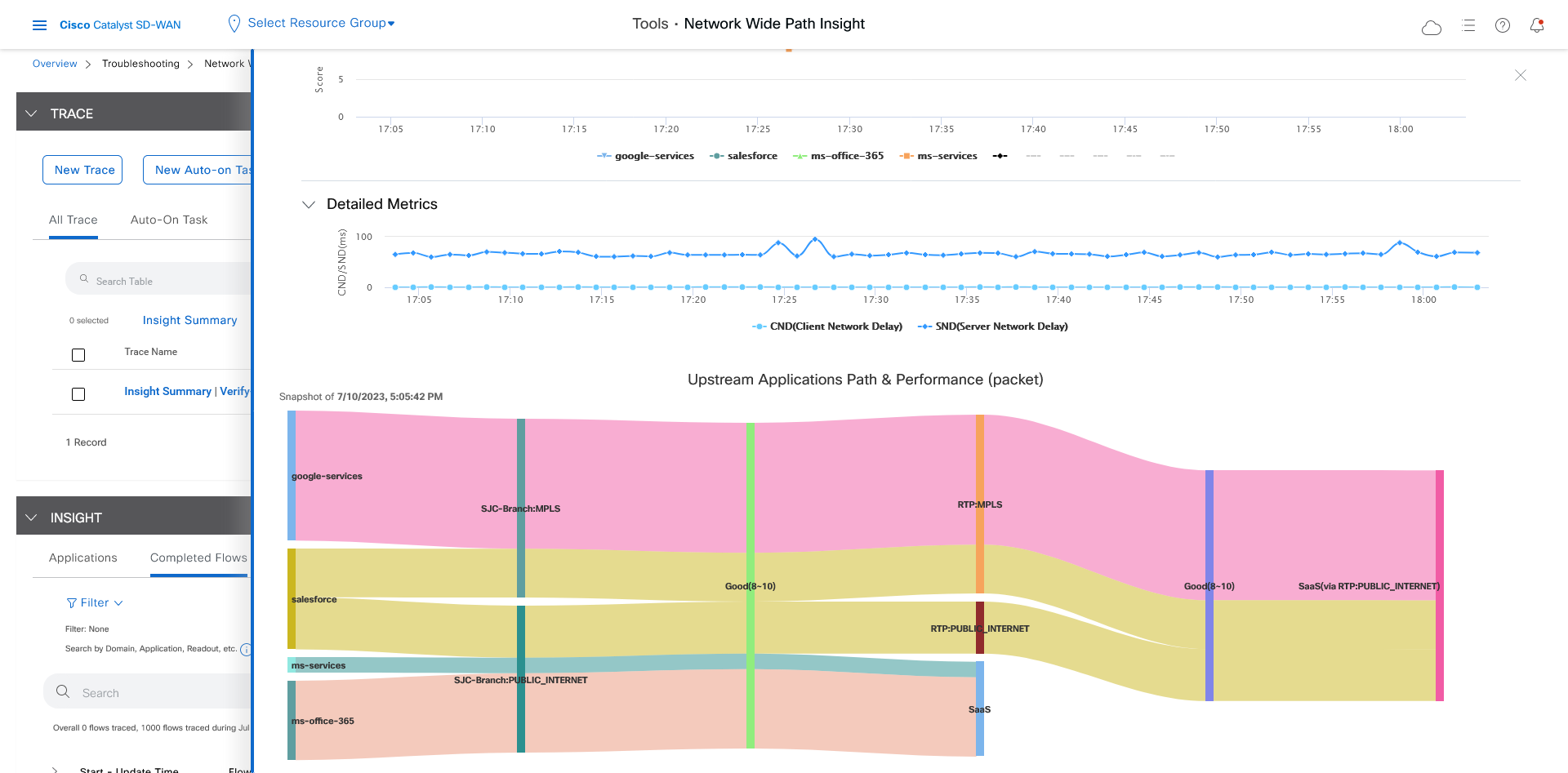
    The Sankey chart shows that this traffic flows directly from the SJC branch to the SaaS cloud-based host.

    Figure 2. Display the upstream application path and performance sankey chart
    The Sankey chart illustrates the network paths and performance of Microsoft applications traffic, showing the flow from the SJC branch to the SaaS cloud-based host.
    Figure 3. Upstream application path & performance sankey chart
    The Sankey chart illustrates the network paths and performance of Microsoft applications traffic, showing the direct flow from the SJC branch to the SaaS cloud-based host.

View flow-level information

After reviewing application-level data, you can check whether your Cisco Catalyst SD-WAN Cloud OnRamp for SaaS policy took effect for Microsoft Office 365 applications traffic. To do so, look at flow-level information for this traffic:

Procedure

  1. In the All Trace tab, go to the Completed Flows tab in the Insight area.

  2. Search for Office.

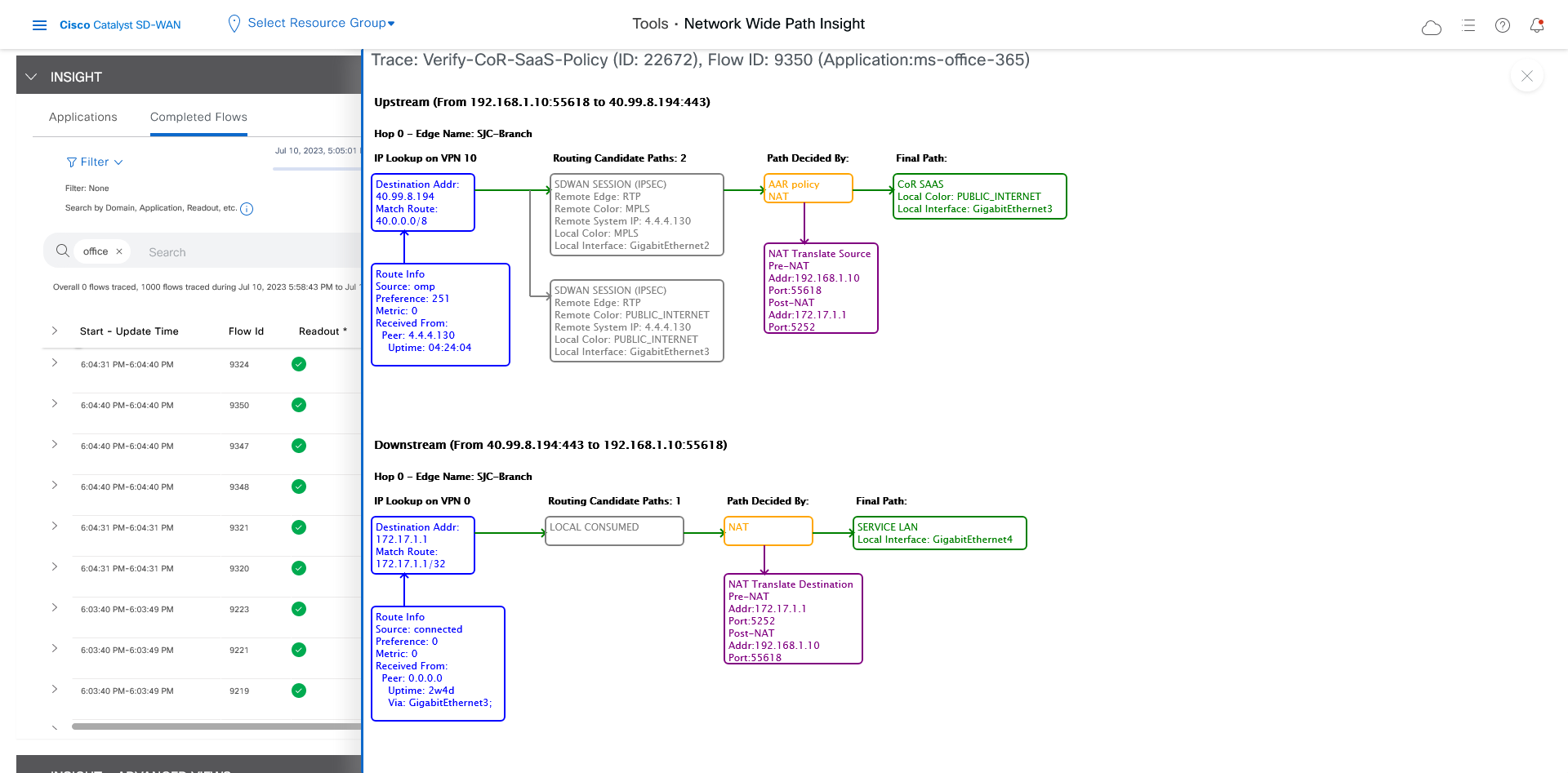
  3. For any Microsoft Office 365 flow, click the green check mark in the Readout column to display the Flow Readout slide-in pane.

  4. Click the Path Insight tab in the Flow Readout pane.

    Figure 4. View Flow-Level information
    Flow-Level information displays the details of Microsoft Office 365 traffic flows, confirming that they adhere to the programmed App-route policy.
    Figure 5. Flow-Level information
    Flow-Level information displays the details of the Microsoft Office 365 traffic flow, confirming that it adheres to the programmed App-route policy. This ensures that the application traffic is routed through the intended link as specified in the policy.

Confirm programming of the App-Route policy

Finally, you can confirm how the App-route policy is programmed. This information lets you validate that Microsoft Office 365 applications traffic flows through the link that is intended according to your Cisco Catalyst SD-WAN Cloud OnRamp for SaaS policy, which is a part of the App-route policy.

Procedure

  1. In the All Trace tab, go to the Completed Flows tab in the Insight area.

  2. Expand any Microsoft Office 365 flow by clicking the right-arrow icon at the beginning of the row.

  3. Scroll down to the Insight – Advanced Views area.

  4. In the Upstream Feature tab:

    1. Choose an event from the Event List drop-down list.
    2. Click Expand All Features to see detailed ingress and egress information about the features that are executed for the flow, then click Collapse All Features .
    3. In the Ingress Feature area, expand SDWAN App Route Policy to see policy information.
    4. Click View Policy next to SDWAN App Route Policy to see the policy programming.
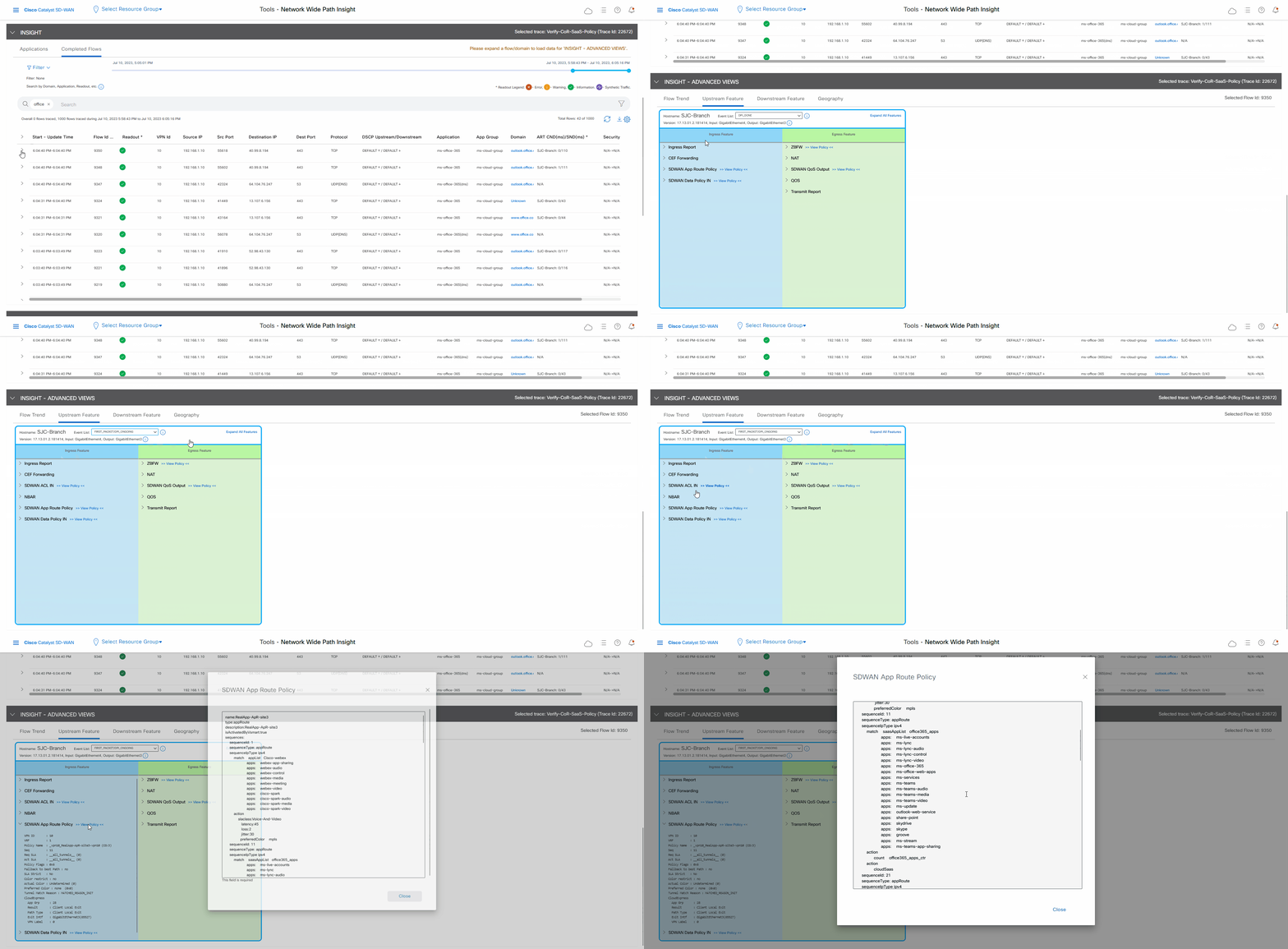
      Figure 6. Confirm the programming of the App-Route policy
      The App-Route policy programming details are displayed, showing the configuration settings and parameters for the Cisco cloud OnRamp for SaaS.
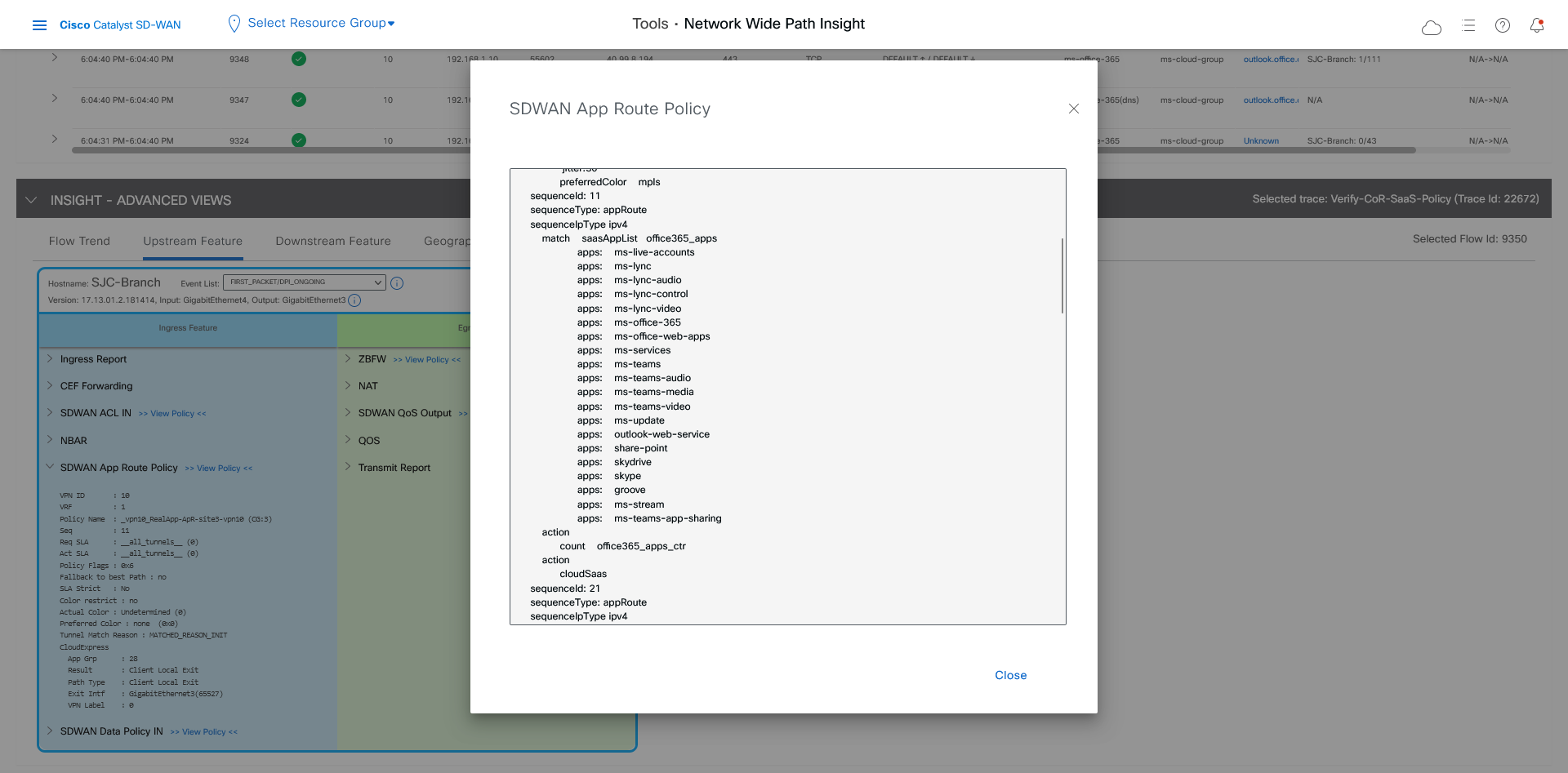
      Figure 7. Detailed information about the App-Route policy
      The App-Route policy details the configuration and settings for optimizing application traffic in a Cisco cloud OnRamp for SaaS environment.