ic3k>show
 ?
clock
dns
ida
interfaces
iox
ntp
operating-mode
tech-support
version
ic3k>

ic3k>show clock
Tue Aug 13 22:22:12 UTC 2019
ic3k>

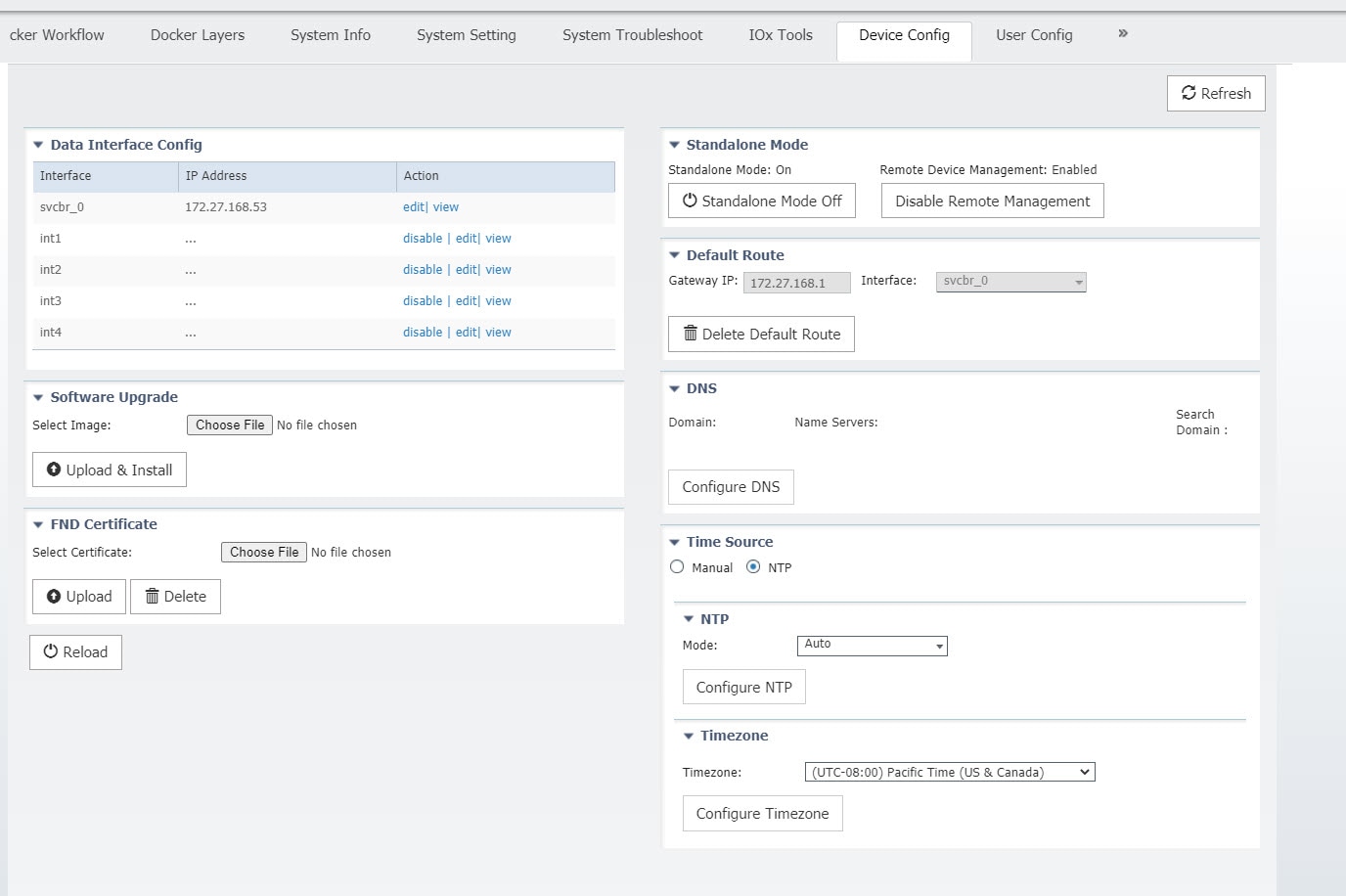
ic3k>show dns
# Dynamic resolv.conf(5) file for glibc resolver(3) generated by resolvconf(8)
#     DO NOT EDIT THIS FILE BY HAND -- YOUR CHANGES WILL BE OVERWRITTEN
nameserver 172.27.88.104
nameserver 173.36.131.10
search cisco.com example.com example.edu example.org
ic3k

ic3k>show dns manual-config
Nameserver 1 : 172.27.88.104
Nameserver 2 : 173.36.131.10
Domain : cisco.com
Search 1 : example.com
Search 2 : example.edu
Search 3 : example.org
ic3k>

ic3k>show dns mode
DNS Mode : Manual
ic3k>

ic3k>show ida status
IDA Version: 2.2.0
Status: Running
> The ida is running
Operation Mode: Standalone
> The device is in standalone mode
FND Host: 172.27.88.60:9121
> The device is connected to an FND host IP address
FND Connection Status: Connected
> The device is connected to FND
Periodic Metrics Interval: 300
> The device will update its metrics every 300 seconds
Heartbeat Interval: 60
> What is the heartbeat for?
Is Registered: True
> The device is registered with FND
HTTP Server Status: N/A (Stopped)
Remote Device Management: N/A

ic3k>show interfaces
 1: lo: <LOOPBACK,UP,LOWER_UP> mtu 65536 qdisc noqueue state UNKNOWN group default qlen 1000
    link/loopback 00:00:00:00:00:00 brd 00:00:00:00:00:00
    inet 127.0.0.1/8 scope host lo
       valid_lft forever preferred_lft forever
    inet6 ::1/128 scope host
       valid_lft forever preferred_lft forever
2: sit0@NONE: <NOARP> mtu 1480 qdisc noop state DOWN group default qlen 1000
    link/sit 0.0.0.0 brd 0.0.0.0
3: int1: <BROADCAST,MULTICAST,UP,LOWER_UP> mtu 1500 qdisc mq master dpbr_1 state UP group default qlen 1000
    link/ether d0:ec:35:cb:5e:23 brd ff:ff:ff:ff:ff:ff
    inet6 fe80::d2ec:35ff:fecb:5e23/64 scope link
       valid_lft forever preferred_lft forever
4: int2: <BROADCAST,MULTICAST,UP,LOWER_UP> mtu 1500 qdisc mq master dpbr_2 state UP group default qlen 1000
    link/ether d0:ec:35:cb:5e:24 brd ff:ff:ff:ff:ff:ff
    inet6 fe80::d2ec:35ff:fecb:5e24/64 scope link
       valid_lft forever preferred_lft forever
5: int3: <BROADCAST,MULTICAST,UP,LOWER_UP> mtu 1500 qdisc mq master dpbr_3 state UP group default qlen 1000
    link/ether d0:ec:35:cb:5e:25 brd ff:ff:ff:ff:ff:ff
    inet6 fe80::d2ec:35ff:fecb:5e25/64 scope link
       valid_lft forever preferred_lft forever
6: int4: <BROADCAST,MULTICAST,UP,LOWER_UP> mtu 1500 qdisc mq master dpbr_4 state UP group default qlen 1000
    link/ether d0:ec:35:cb:5e:26 brd ff:ff:ff:ff:ff:ff
    inet6 fe80::d2ec:35ff:fecb:5e26/64 scope link
       valid_lft forever preferred_lft forever
7: mgmt0: <BROADCAST,MULTICAST,UP,LOWER_UP> mtu 1500 qdisc mq master svcbr_0 state UP group default qlen 1000
    link/ether d0:ec:35:cb:5e:20 brd ff:ff:ff:ff:ff:ff
8: svcbr_0: <BROADCAST,MULTICAST,UP,LOWER_UP> mtu 1500 qdisc noqueue state UP group default qlen 1000
    link/ether d0:ec:35:cb:5e:20 brd ff:ff:ff:ff:ff:ff
    inet 172.27.168.53/25 brd 172.27.168.127 scope global svcbr_0
       valid_lft forever preferred_lft forever
    inet6 2001:face::d2ec:35ff:fecb:5e20/64 scope global dynamic mngtmpaddr
       valid_lft 2591980sec preferred_lft 604780sec
    inet6 fe80::d2ec:35ff:fecb:5e20/64 scope link
       valid_lft forever preferred_lft forever
9: dpbr_docker_n_0: <NO-CARRIER,BROADCAST,MULTICAST,UP> mtu 1500 qdisc noqueue state DOWN group default
    link/ether 02:42:00:9e:fa:8e brd ff:ff:ff:ff:ff:ff
    inet 192.168.10.65/27 brd 192.168.10.95 scope global dpbr_docker_n_0
       valid_lft forever preferred_lft forever
10: dpbr_n_0: <NO-CARRIER,BROADCAST,MULTICAST,UP> mtu 1500 qdisc noqueue state DOWN group default qlen 1000
    link/ether 52:54:00:c7:5a:5d brd ff:ff:ff:ff:ff:ff
    inet 192.168.10.1/27 brd 192.168.10.31 scope global dpbr_n_0
       valid_lft forever preferred_lft forever
11: dpbr_n_0-nic: <BROADCAST,MULTICAST> mtu 1500 qdisc pfifo_fast master dpbr_n_0 state DOWN group default qlen 1000
    link/ether 52:54:00:c7:5a:5d brd ff:ff:ff:ff:ff:ff
12: dpbr_0: <BROADCAST,MULTICAST,UP,LOWER_UP> mtu 1500 qdisc noqueue state UP group default qlen 1000
    link/ether 4a:0c:17:5b:48:e8 brd ff:ff:ff:ff:ff:ff
13: dpbr_0-nic: <BROADCAST,MULTICAST> mtu 1500 qdisc pfifo_fast master dpbr_0 state DOWN group default qlen 1000
    link/ether 52:54:00:1e:5d:42 brd ff:ff:ff:ff:ff:ff
14: veth1_0@veth0_0: <BROADCAST,MULTICAST,UP,LOWER_UP> mtu 1500 qdisc noqueue master dpbr_0 state UP group default qlen
1000
    link/ether 4a:0c:17:5b:48:e8 brd ff:ff:ff:ff:ff:ff
    inet6 fe80::480c:17ff:fe5b:48e8/64 scope link
       valid_lft forever preferred_lft forever
15: veth0_0@veth1_0: <BROADCAST,MULTICAST,UP,LOWER_UP> mtu 1500 qdisc noqueue master svcbr_0 state UP group default qlen
 1000
    link/ether fe:54:dd:a7:53:e1 brd ff:ff:ff:ff:ff:ff
    inet6 fe80::fc54:ddff:fea7:53e1/64 scope link
       valid_lft forever preferred_lft forever
16: dpbr_1: <BROADCAST,MULTICAST,UP,LOWER_UP> mtu 1500 qdisc noqueue state UP group default qlen 1000
    link/ether 52:54:00:83:c0:e3 brd ff:ff:ff:ff:ff:ff
17: dpbr_1-nic: <BROADCAST,MULTICAST> mtu 1500 qdisc pfifo_fast master dpbr_1 state DOWN group default qlen 1000
    link/ether 52:54:00:83:c0:e3 brd ff:ff:ff:ff:ff:ff
18: dpbr_2: <BROADCAST,MULTICAST,UP,LOWER_UP> mtu 1500 qdisc noqueue state UP group default qlen 1000
    link/ether 52:54:00:a1:1f:99 brd ff:ff:ff:ff:ff:ff
19: dpbr_2-nic: <BROADCAST,MULTICAST> mtu 1500 qdisc pfifo_fast master dpbr_2 state DOWN group default qlen 1000
    link/ether 52:54:00:a1:1f:99 brd ff:ff:ff:ff:ff:ff
20: dpbr_3: <BROADCAST,MULTICAST,UP,LOWER_UP> mtu 1500 qdisc noqueue state UP group default qlen 1000
    link/ether 52:54:00:a2:67:10 brd ff:ff:ff:ff:ff:ff
21: dpbr_3-nic: <BROADCAST,MULTICAST> mtu 1500 qdisc pfifo_fast master dpbr_3 state DOWN group default qlen 1000
    link/ether 52:54:00:a2:67:10 brd ff:ff:ff:ff:ff:ff
22: dpbr_4: <BROADCAST,MULTICAST,UP,LOWER_UP> mtu 1500 qdisc noqueue state UP group default qlen 1000
    link/ether 52:54:00:6a:bb:22 brd ff:ff:ff:ff:ff:ff
23: dpbr_4-nic: <BROADCAST,MULTICAST> mtu 1500 qdisc pfifo_fast master dpbr_4 state DOWN group default qlen 1000
    link/ether 52:54:00:6a:bb:22 brd ff:ff:ff:ff:ff:ff
ic3k>

ic3k>show iox summary

IOx Infrastructure Summary:
---------------------------
eid: IC3000-2C2F-K9+FCH2307Y02C
pfm: IC3000-2C2F-K9
s/n: FCH2307Y02C
images: Lnx: 0.10.481., IOx: 1.10.0:r/1.10.0.0:530203c
boot: 2019-11-09 01:10:38
time: 2019-11-15 01:14:04
load: 01:14:04 up 6 days, 3 min, 0 users, load average: 0.05, 0.05, 0.06
memory: ok, used: 1691/7795 (21%)
disk: ok, used: /:491560/549348 (89%), /software:351932/87462892 (0%)
process: ok, running: 5/5
networking: warning, failed: gateway
logs: warning, errors: caf (1)
apps: ok, CyberVisionSensor (R)

ic3k>show iox detail

IOx Infrastructure Summary:
---------------------------
eid: IC3000-2C2F-K9+FCH2307Y02C
pfm: IC3000-2C2F-K9
s/n: FCH2307Y02C
images: Lnx: 0.10.481., IOx: 1.10.0:r/1.10.0.0:530203c
boot: 2019-11-09 01:10:38
time: 2019-11-15 01:14:54
load: 01:14:54 up 6 days, 4 min, 0 users, load average: 0.19, 0.09, 0.07
memory: ok, used: 1691/7795 (21%)
disk: ok, used: /:491560/549348 (89%), /software:351932/87462892 (0%)
process: ok, running: 5/5
networking: warning, failed: gateway
logs: warning, errors: caf (1)
apps: ok, CyberVisionSensor (R)
Application Information:
------------------------
--Virsh--
Containers:
 Id    Name                           State
----------------------------------------------------
Virtual Machines:
 Id    Name                           State
----------------------------------------------------
 1     CyberVisionSensor              running
Networking Information:
-----------------------
--Address--
svcbr_0 UP 172.27.166.6/25 7000::d2ec:35ff:feca:1de0/64 fe80::d2ec:35ff:feca:1de0/64
--Interface Stats--
Iface MTU Met RX-OK RX-ERR RX-DRP RX-OVR TX-OK TX-ERR TX-DRP TX-OVR Flg
svcbr_0 1500 0 1653011 0 13236 0 27045 0 0 0 BMRU
dpbr_0 1500 0 1888079 0 13236 0 0 0 0 0 BMRU
dpbr_n_0 1500 0 0 0 0 0 0 0 0 0 BMU
--Bridge Info--
bridge name	    bridge id		            STP enabled	     interfaces
dpbr_0		       8000.525400b0d5d7	     no		              dpbr_0-nic
							veth1_0
							vnet0
dpbr_1		       8000.525400963909	     no		d             pbr_1-nic
							int1
							vnet1
dpbr_2		       8000.525400b2265b	     no		              dpbr_2-nic
							int2
							vnet2
dpbr_3		       8000.5254002c5c97     	no		              dpbr_3-nic
							int3
							vnet3
dpbr_4		       8000.5254005ddacd     	no		              dpbr_4-nic
							int4
							vnet4
dpbr_docker_n_0		  8000.0242b1138a88	  no              dpbr_n_0-nic
dpbr_n_0		        8000.525400483753	   no		               mgmt0
svcbr_0		        8000.d0ec35ca1de0	   yes		              veth0_0

--IP Routes--
Limit exceeded
Process Information:
--------------------
--Monit--
Process 'mhdserver'
 status Running
 pid 1707
 uptime 6d 0h 2m
 memory percent total 0.0%
 cpu percent total 0.0%
Process 'dockerd'
 status Running
 pid 1467
 uptime 6d 0h 2m
 memory percent total 1.0%
 cpu percent total 0.2%
Process 'igma'
 status Running
 pid 2109
 uptime 6d 0h 2m
 memory percent total 0.1%
 cpu percent total 0.0%
Process 'libvirtd'
 status Running
 pid 1638
 uptime 6d 0h 2m
 memory percent total 0.1%
 cpu percent total 0.0%
Process 'caf'
 status Running
 pid 2088
 uptime 6d 0h 2m
 memory percent total 0.7%
 cpu percent total 0.0%
--Process Info--
  PID STIME CMD
 1697 Nov09 /usr/bin/monit -s /var/run/monit.state
 2088 Nov09 python /home/root/iox/caf/scripts/startup.pyc /home/root/iox/caf/config/system-config.ini /home/root/iox/caf/config/log-config.ini
 1638 Nov09 /usr/sbin/libvirtd --daemon --listen
 2458 Nov09 /usr/sbin/sshd
 2109 Nov09 /usr/bin/igma
--PID info--
monit:1697
caf:2088
libvirtd:1638
sshd:2458
igma:2109
Disk Usage Information:
-----------------------
--Free Disk--
Filesystem 1024-blocks Used Available Capacity Mounted on
/dev/root 595000 491560 57788 90% /
/dev/sda2 92167844 351932 87110960 1% /software
--Mount--
/dev/ram on / type ext4 (rw,relatime,data=ordered)
/dev/sda2 on /software type ext4 (rw,relatime,data=ordered)
tmpfs on /run type tmpfs (rw,nosuid,nodev,mode=755)
tmpfs on /var/volatile type tmpfs (rw,relatime)
cgroup on /sys/fs/cgroup type tmpfs (rw,relatime,mode=755)
--Top Disk Usage--
/*:
430M	/usr
316M	/boot
/software/*:
288M	/software/caf
ic3k>

ic3k>show ntp

NTP Servers received from DHCP:
171.70.168.183
ic3k>
ic3k>show ntp manual-config
NTP-Server : 3.ntp.esl.cisco.com
NTP-Server : 10.81.254.202
NTP-Server : 10.81.254.131
NTP-Server : 7.ntp.esl.cisco.com
Preferred-Server : 172.27.88.109 Key : 11
Keys Configuration
Id Type Password
------------------
11  SHA1  pzybf0e2atybc612abb4b08d459f652acudad8eb9
ic3k>
ic3k>show ntp association
     remote           refid                     st   t   when poll reach   delay   offset  jitter
==============================================================================
 127.127.1.0     .LOCL.                  14    l  27h   64    0        0.000    0.000   0.000
*172.27.88.109   171.68.38.65       2    u  167 1024  377    0.450   -0.012   0.228
+10.81.254.202   .GNSS.               1    u  902 1024  377   72.843    0.062   0.274
-10.81.254.131   .GNSS.                1    u  769 1024  377   72.367    0.385   0.217
+171.68.38.65    .GNSS.                1    u  708 1024  317    2.389   -0.085   0.279
+72.163.32.44    .GNSS.                1    u  909 1024  377   43.472    0.042   0.216
-144.254.15.78   .GNSS.                1    u  228 1024  377  164.244    4.440   0.440
ind assid status  conf reach  auth   condition  last_event         cnt
===========================================================
  1 37781  8013   yes    no   none     reject       unreachable       1
  2 37782  f61a   yes   yes     ok       sys.peer      sys_peer         1
  3 37783  9414   yes   yes   none   candidate   reachable         1
  4 37784  9314   yes   yes   none     outlier       reachable         1
  5 37785  9414   yes   yes   none   candidate   reachable         1
  6 37786  9414   yes   yes   none   candidate   reachable         1
  7 37787  9314   yes   yes   none     outlier       reachable         1
* master (synced), # master (unsynced), + selected, - candidate, ~ configured
ic3k>

ic3k>show ntp status
Clock is synchronized, stratum 3,reference is 172.27.88.109
nominal freq is 100.0000HZ, precision is 2**21
reference time is E0FDB617.0D1C5651 (22:20:07.051000 Tue Aug 13 2019)
clock offset is -0.011554 msec, root delay is 2.861 msec
root dispersion is 60.971 msec, peer dispersion is 15.260 msec
ic3k>

ic3k>show ntp mode
NTP Mode : Manual
ic3k>

ic3k>show operating-mode

Operating-mode: Standalone
Remote Device Management: Enabled
ic3k>

ic3k>show version

Version: 1.2.1
Platform ID: IC3000-2C2F-K9
Hardware ID: FOC2227Y304
ic3k>

ic3k>help standalone-mode

In standalone mode, the IC3000 is an unmanaged device. It will be controlled via Local Manager and ioxclient.
1. Connect the Management interface on the IC3000 to your Computer with a network cable.
2. Assign "169.254.x.x (netmask 255.255.0.0)" IP address to the network interface on your computer. NOTE: Use any IP address other than 169.254.128.2 within 169.254.x.x subnet.
4. The IC3000 will be ready to operate in standalone mode in 30 seconds (The delay of 30 seconds only occurs the first time the IC3000 is booted up. All subsequent reloads will immediately take the IC3000 to standalone mode without delay).
5. Access "https://169.254.128.2:8443" from your browser on the computer.
6. Login using the default user and password.
7. Change the default password; user will be logged out of the Local Manager.
8. Login using the default user and the password you set in the previous step.
ic3k>

ic3k>help managed-mode

In managed mode, the IC3000 is managed by the IoT Field Network Director (FND).
1. Setup a DHCP server for assigning an IP address to the management interface.
2. DHCP server MUST provide "option 43" to the IC3000 for FND discovery.
         - Option 43 string must carry "I<fnd ip or host>". Example - "I172.27.133.25"
3. Connect the management interface to the DHCP server.
4. Claim the IC3000 on the FND setup suitable configurations. Follow FND User Guide from Cisco's website.
5. The IC3000 will connect with FND after the DHCP discovery process is completed.
ic3k>



 Feedback