LEDs

The LEDs on the XGS-PON ONT communicates the operational status of the ONT.

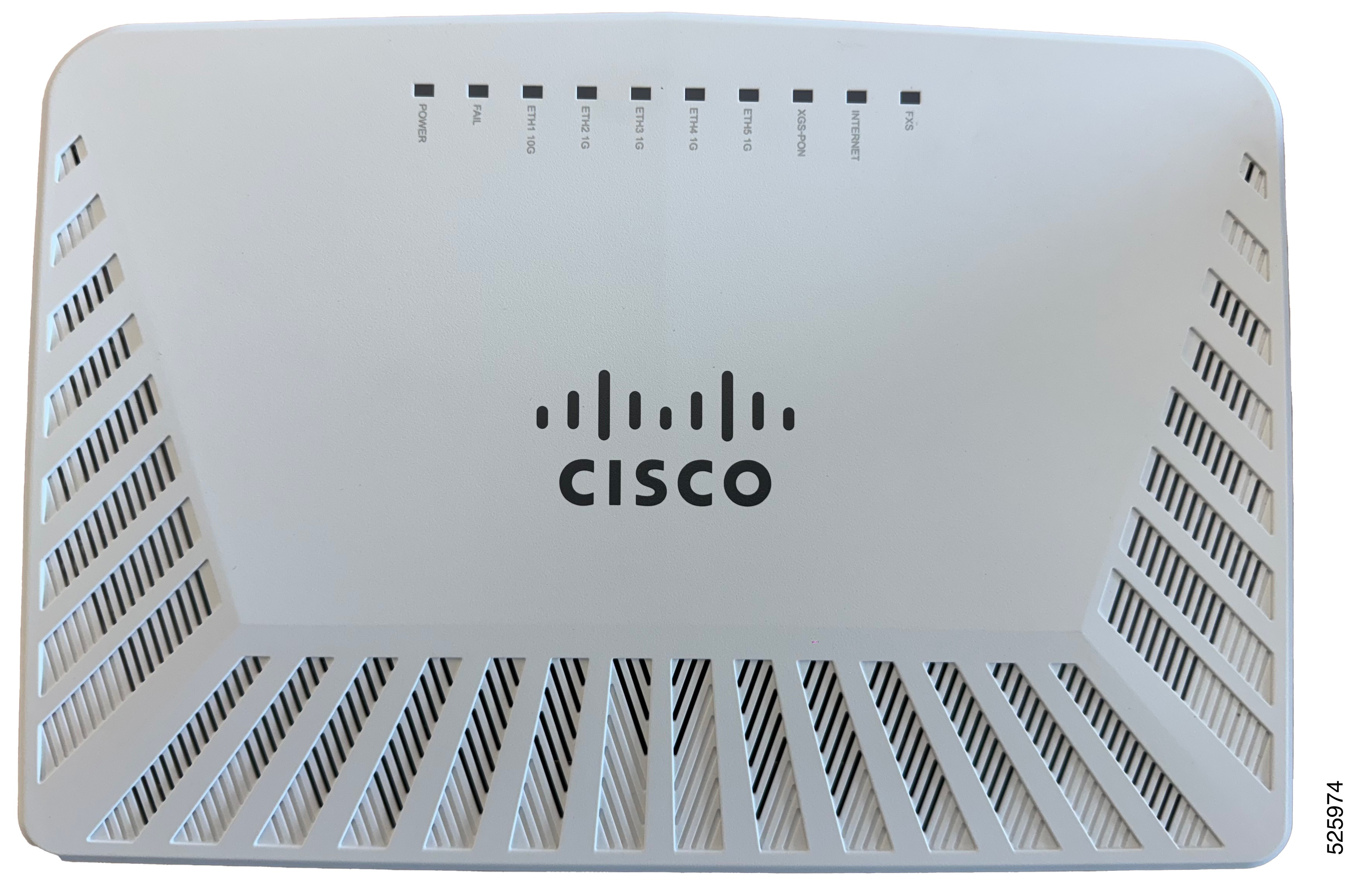
ENC-10G-ONT-14A XGS-PON ONT LEDs

There are ten LEDs to indicate the status.

The following figure shows the location of the LEDs on the ONT.

Figure 1. ENC-10G-ONT-14A XGS-PON ONT LEDs with status
Table 1. ENC-10G-ONT-14A XGS-PON ONT - Status LEDs

LED

Indication

Description

POWER Steady green Indicates that the power source is adapter.
Steady orange Indicates that the power source is UPS.
Off Indicatesthat the power source is removed.
FAIL Steady red Indicates that the temperature or optical powercrossed the upper threshold or the ONT is stuck at u-boot.
Blinking red Indicates that the ONT is booting.
Off Indicates that the ONT is operationaland functional.
ETH110G Steady orange Indicates that ETH1 link betweenthe ONT and the CPE router is up at 1G or less.
Blinking orange Indicates that the ONT data is passed between the ETH1 and the CPE router(link speed is 1G or less).
Steady green Indicates that ETH1 link betweenthe ONT and the CPE router is up at 2.5G or more.
Blinking green Indicates that the ONT data is passed between the ETH1 and the CPE router(link speed is 2.5G or more).
Off Indicates that ETH1 link betweenthe ONT and the CPE router is down.
ETH21G Steady green Indicates that ETH2 link betweenthe ONT and the CPE router is up at 1G or less.
Blinking green Indicates that the ONT data is passed between the ETH2 and the CPE router(link speed is 1G or less).
Off Indicates that the ETH2 linkbetween the ONT and the CPE router is down.
ETH31G Steady green Indicates that ETH3 link betweenthe ONT and the CPE router is up at 1G or less.
Blinking green Indicates that the ONT data is passed between the ETH3 and the CPE router(link speed is 1G or less).
Off Indicates that the ETH3 linkbetween the ONT and the CPE router is down.
ETH41G Steady green Indicates that ETH4 link betweenthe ONT and the CPE router is up at 1G or less.
Blinking green Indicates that the ONT data is passed between the ETH4 and the CPE router(link speed is 1G or less).
Off Indicates that the ETH4 linkbetween the ONT and the CPE router is down.
ETH51G Steady green Indicates that ETH5 link betweenthe ONT and the CPE router is up at 1G or less.
Blinking green Indicates that the ONT data is passed between the ETH5 and the CPE router(link speed is 1G or less).
Off Indicates that the ETH5 linkbetween the ONT and the CPE router is down.
XGS-PON Steady green Indicates that the ONT is capable of receiving data from the OLT.
Blinking green Indicates that the ONT is ranging or synchronizing with the OLT.
Steady red Indicates a loss of signal (LOS) is detected on the PON.
Internet Steady green Indicates that the ONT is capable of passing data traffic from ETH ports to WAN port in Routing mode.
Off When ONT is in Routing mode - Indicates that the ONT is not capable of passing data traffic from ETHports to WAN port or ONT is in Bridge mode.
FXS Steady green Indicates that VoIP is registered.
Blinking green Indicates a voice activity.
Off Indicates that VoIP is not registered.

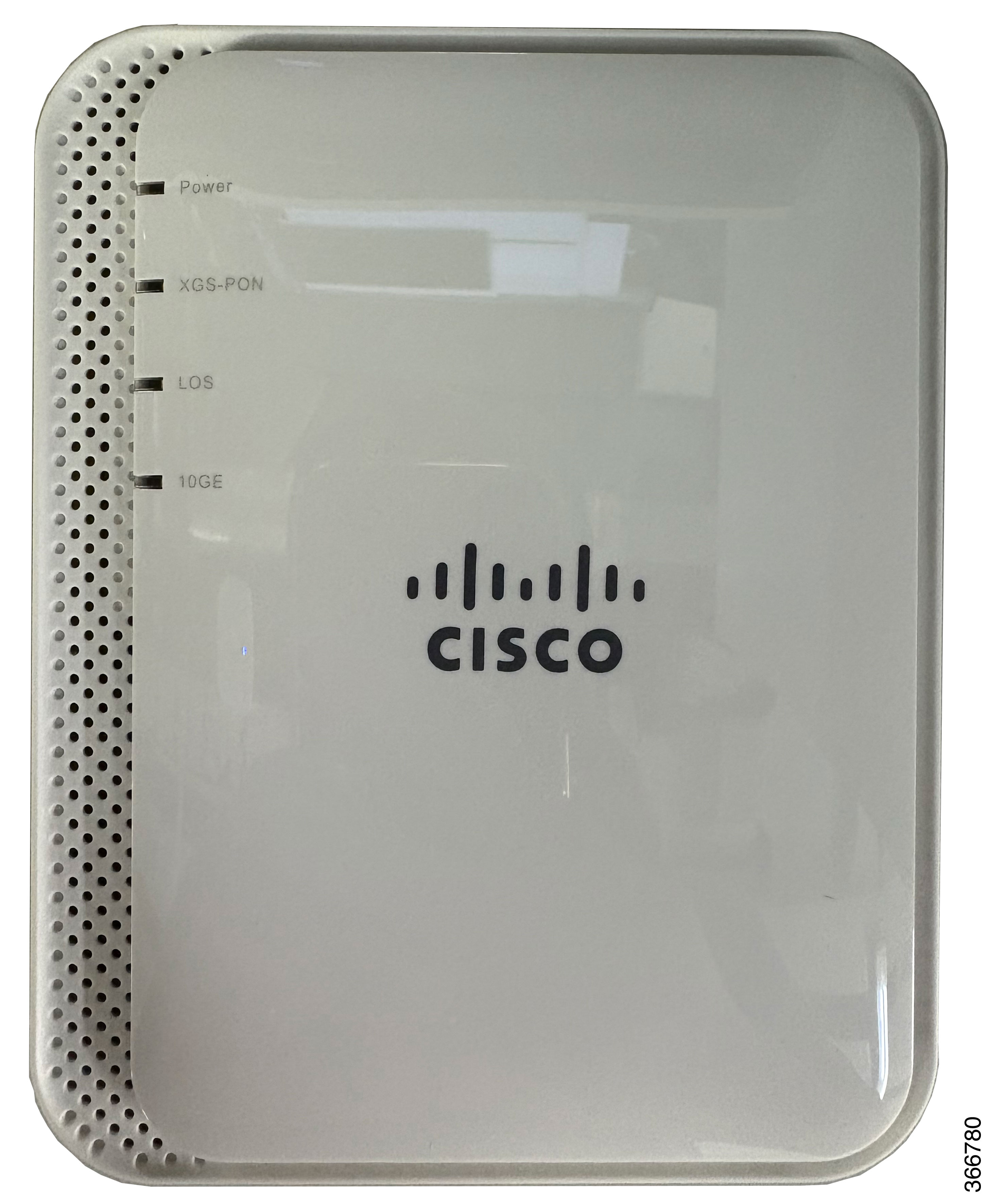
ENC-10G-ONT-10 XGS-PON ONT LEDs

There are four LEDs to indicate the status.

The following figure shows the location of the LEDs on the ONT.

Figure 2. ENC-10G-ONT-10 XGS-PON ONT LEDs with status
Table 2. ENC-10G-ONT-10 XGS-PON ONT - Status LEDs

LED

Indication

Description

POWER Blinking green Indicates that the system is operating from an AC power source.
Off Indicates that the power source is removed.
XGS-PON Blinking green Indicates that the system is fully operational.
Blinking fast at a speed of two blinks per second

Indicates that the system is ranging and activating.

Blinking slow at a speed of one blink per second

Indicates that the system software is updating.

Off

Indicates that the system has not started ranging.

LOS Red Indicates a loss of signal (LOS) is detected on the system.
Off Indicates no LOS signal.
10GE Green Indicates that the Ethernet link is active.
Blinking Indicates data transmission.
Off Indicates that the Ethernet link is down.

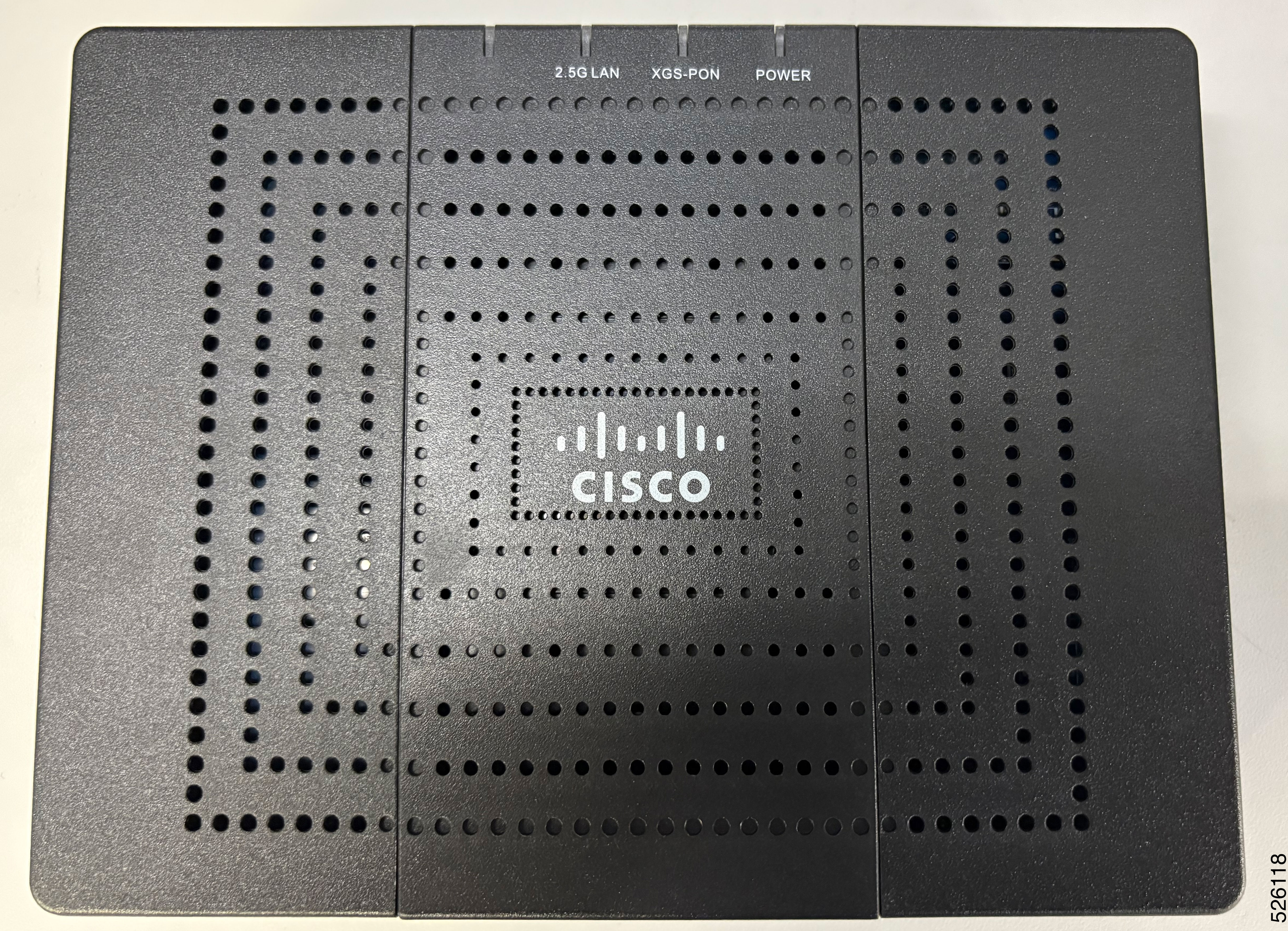
ENC-10G-ONT-01PR XGS-PON ONT LEDs

There are three LEDs to indicate the status.

The following figure shows the location of the LEDs on the ONT.

Figure 3. ENC-10G-ONT-01PR XGS-PON ONT LEDs with status

Note


The first LED from the left though indicates lights, it is not used and the light indicators does not have any function.


Table 3. ENC-10G-ONT-01PR XGS-PON ONT - Status LEDs

LED

Indication

Description

POWER Steady green Indicates that the ONT is powered on.
Off Indicates that the ONT has no power.
XGS-PON Steady green Indicates that the ONT is registered.
Blinking green

Indicates that the ONT is in registering.

Steady red

Indicates the loss of optical signal.

2.5GLAN Steady Green Indicates that the Ethernet link is active.
Blinking green Indicates data transmission.
Off Indicates that the Ethernet link is down.

Verify the optical signal

Requirements: Keep an optical meter handy to assess the received optical power reading.

Overview: The LOS LED stays red when the ONT does not detect optical signals from the OLT.

Before you begin

You must verify the optical signal to determine the reason for the loss of signal.

Procedure


Step 1

Ensure that the fiber is securely plugged into the ONT.

If

Then

The LOS LED is off.

You have completed this procedure.

The LOS LED is not off.

Go to step 2.

Step 2

Remove optical fiber from PON port of ONT and connect it to an Optical power meter to check and fix the received optical power reading.

If

Then

The optical power reading is -40 dBm or less

Check the fiber connection for any cut between the ONT and the OLT.

The optical power reading is less than -28 dBm.

Remove the attenuation between the ONT and the OLT to increase the received optical power reading.

The optical power reading is more than -8 dBm.

Add an attenuation between the ONT and the OLT to decrease the received optical power reading.

The received optical power reading must be in the range of -8 dBm to -28 dBm.

Step 3

Determine whether the LOS LED is off.

If

Then

The LOS LED is off

You have completed this procedure.

The LOS LED is not off.

Go to step 4.

Step 4

Check the optical status of the OLT.


Verify the Ethernet service

Before you begin

Verify the Ethernet service if no service is provided to the ONT despite plugging the available Ethernet service into the LAN port.

Procedure


Step 1

Ensure that there is an uninterrupted power supply to the ONT.

  1. Ensure that the POWER LED is on.

  2. Ensure that the power supply is plugged into the ONT, and the power supply connections are secure.

  3. Ensure that the AC power source is on.

Step 2

Ensure that the ONT is correctly registered with the OLT.

  1. Ensure that the PON LED is blinking green.

  2. If the LED blinks green for 30 seconds or more, then use the serial number written at the back of the ONT to check its registration status from the OLT.

Step 3

Verify the optical connection. For the procedure, refer to the section Verifying the optical signal.


Verify the ATA connection

Before you begin

Verify the ATA connection if no service is provided to the ONT despite plugging the available ATA connector into the FXS port.

Procedure


Step 1

Ensure that there is an uninterrupted power supply to the ONT.

  1. Ensure that the POWER LED is on.

  2. Ensure that the power supply is plugged into the ONT, and the power supply connections are secure.

  3. Ensure that the AC power source is on.

Step 2

Ensure that the ONT is correctly registered with the OLT.

  1. Ensure that the PON LED is blinking green.

  2. If the LED blinks green for 30 seconds or more, then use the serial number written at the back of the ONT to check its registration status from the OLT.

Step 3

Ensure that the VoIP service provider is correctly registered with the OLT.

  1. Ensure that the FXS LED is steady green.

  2. If the LED is off, use the serial number written at the back of the ONT to check its registration status from the OLT.

Step 4

Verify the optical connection. For the procedure, refer to the section Verifying the optical signal.


Reboot or reset the ONT

Requirements: Ensure the ONT is plugged in and powered on.

Overview: A reboot restarts the ONT keeping the configuration intact, while a reset brings the ONT back to its factory settings.

Before you begin

Reboot and reset the ONT manually using the reset button.

Procedure


Step 1

To reboot, press the reset button once using a paper clip or needle and release within ~1 second. All the LEDs except POWER will flash (on then off) once, and then the ONT begins rebooting.

Step 2

To factory-reset, press and hold the reset button using a paper clip or needle for ~10 seconds, then release the button. Once the factory-reset has completed, all LEDs (except POWER) will turn off and the system begins rebooting.