Configure sFlow to monitor network traffic using sampled data.
Enable sFlow to monitor network traffic by collecting sampled data from network devices.
sFlow provides visibility into network traffic patterns and supports efficient monitoring.
sFlow is used to monitor network traffic by collecting sampled data from network devices, allowing administrators to analyze traffic patterns and optimize network performance.
This task guides you through configuring sFlow on network devices.
Monitoring sampled data helps identify network issues and supports troubleshooting.
Before you begin
Ensure you have access to the device configuration interface and the necessary privileges to modify sFlow settings.
Verify that the device supports sFlow and that you have administrative access.
Follow these steps to configure sFlow for network traffic monitoring.
Procedure
1.
Access the device configuration interface.
Example:
Access the CLI or GUI configuration interface for the network device.
Ensure you are connected to the device and have the required privileges.
Administrative access is required to configure sFlow.
If...
Then...
The device supports sFlow.
Proceed with configuration steps.
You lack administrative privileges.
Request access from your network administrator.
The device does not support sFlow.
Consult device documentation for alternative monitoring options.
The device configuration interface is accessible for sFlow setup.
2.
Enable sFlow on the desired interfaces.
Example:
Enable sFlow on each interface where traffic monitoring is required.
Choose interfaces based on monitoring needs.
Enabling sFlow on multiple interfaces increases visibility.
If...
Then...
You enable sFlow on all interfaces.
All traffic is monitored using sampled data.
You enable sFlow on selected interfaces.
Only traffic on those interfaces is monitored.
No interfaces are selected.
sFlow does not monitor any traffic.
sFlow is enabled on the specified interfaces.
3.
Specify the sampling rate and collector destination.
Example:
Configure the sampling rate and set the collector IP address and port.
Adjust the sampling rate to balance accuracy and resource usage.
Lower sampling rates provide more detailed data but use more resources.
If...
Then...
The sampling rate is set low.
More detailed traffic data is collected.
The sampling rate is set high.
Less detailed data is collected, reducing resource usage.
The collector destination is not configured.
sFlow data is not exported for analysis.
Sampling rate and collector destination are configured for sFlow.
4.
Save the configuration to apply changes.
Example:
Save the device configuration to activate sFlow monitoring.
Saving the configuration ensures sFlow settings persist after device reboot.
Unsaved changes may be lost if the device restarts.
If...
Then...
Configuration is saved.
sFlow settings are applied and persist after reboot.
Configuration is not saved.
sFlow settings may be lost after device restart.
Device supports automatic saving.
Changes are applied without manual intervention.
sFlow configuration is saved and monitoring begins.
sFlow is enabled and begins monitoring network traffic using sampled data.
What to do next
Verify sFlow operation by checking traffic statistics and collector reports.
Review collected data to ensure sFlow is functioning as expected.
sFlow guidelines and limitations
Describes the guidelines and limitations for configuring and operating sFlow on Cisco platforms.
The following list outlines the general guidelines and limitations for sFlow configuration and operation on Cisco platforms:
When egress sFlow is enabled, the Layer 2 information of ingress packets is captured instead of the egress interface. This behavior is not supported on the 88-LC1-12TH24FH-E and 88-LC1-52Y8H-EM line cards.
sFlow samples are combined into UDP packets and forwarded to sFlow collectors for analysis. UDP is a connectionless protocol and does not ensure delivery of data. Using sFlow as a flow source could lead to inaccurate representations of traffic volumes, bidirectional flows, and a reduction in alerting capabilities.
Only one sampler configuration per router is allowed.
A sampling interval of 1 out of 262,144 packets as the maximum is supported.
Only one active sampler per router is supported. Multiple sampler maps that are not used in flow configuration are allowed.
The following guidelines apply to flow exporter configuration:
When sFlow is on a bundle with members located on different line cards (LCs), flows are exported with the same ifindex id for the bundle interface. However, they have distinct sub-agent ids and sequence numbers.
A maximum of 8 export destinations per monitor map for both IPv4 and IPv6 are allowed.
The following guidelines apply to flow monitor configuration:
Ingress sFlow is supported on Cisco 8200 and Cisco 8800 Series Routers.
Egress sFlow is supported only on Cisco 8200 Series Routers.
The following guidelines apply to interface support:
Up to 2000 L3 interfaces are supported.
Tunnel and Ethernet PseudoWire (PW) interfaces are not supported.
ARP, multicast, broadcast, and IP-in-IP packets are excluded from the sampling process.
The following guideline applies to load balancing sFlow traffic:
Cisco 8000 modular routers do not load balance sFlow traffic across multiple ECMP paths. When more than one path is available, the router selects only one. Typically, sending sFlow traffic over a single path is sufficient, and load balancing is not necessary.
To enable load balancing across all ECMP paths, configure the router to use multiple UDP source ports for sFlow export packets. This method, known as "source-port entropy," uses a hashing-based algorithm to select paths, resulting in multiple ECMP paths being used. This approach does not provide statistics on the number of sFlow packets per path, as the sFlow process does not know the outgoing interface used. To configure multiple source ports, use the transport udp source-port multiple command.
Configure sFlow on a router
Configure sFlow to monitor network traffic by sampling packets and exporting data to a collector for analysis.
Enable sFlow monitoring to collect traffic data from ingress and egress ports.
Export sampled data using version 5 format to a centralized sFlow analyzer.
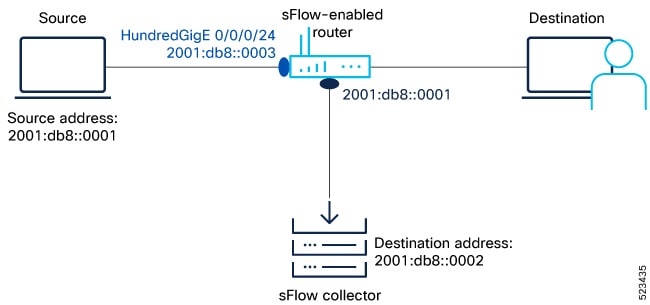
To enable sFlow monitoring, configure the sFlow agent to use a sampling mechanism that forwards traffic data from both ingress and egress ports to a centralized data collector, also known as the sFlow analyzer. The sampled data is sent using the version 5 export format. This task provides instructions for configuring sFlow on the router. The following topology is used as a reference for configuring sFlow.
Figure 1. sFlow Configuration
Before you begin
Ensure you have the following details before configuring sFlow:
IP address of the source: 2001:db8::0001
IP address of the sFlow collector (destination address): 2001:db8::0002
Interface of the router where sFlow will be enabled: HundredGigE 0/0/0/24
sFlow version used to transport the data to the collector: version 5
Follow these steps to configure sFlow on the router.
Procedure
1.
Configure the flow exporter using the flow exporter-map command to specify where and how the packets should be exported.
Example:
Router(config)# flow exporter-map EXP-MAP
Router(config-fem)# version sflow v5
Router(config-fem)# packet-length 9000
Router(config-fem)# transport udp 6343
Router(config-fem)# source HundredGigE 0/0/0/1
Router(config-fem)# source-address 192.127.10.1
Router(config-fem)# destination 192.127.0.1
Router(config-fem)# dfbit set
The following attributes can be configured while creating exporter map:
Export destination IP address (IPv4 or IPv6 address). The same packets can be exported to multiple IPv4 or IPv6 destinations.
DSCP value
Source interface and its IP address
Transport protocol
UDP port number, where the collector listens to the packets
Maximum datagram length
Don't Fragment bit (DF-bit). The DF-bit within the IP header is supported only on IPv4 transport and determines whether the router is allowed to fragment a packet.
Verify the flow exporter configuration using the show flow exporter-map command.
Enable sFlow on the RP or line card to activate sFlow monitoring.
If...
Then...
If sFlow is enabled on the RP or line card
sFlow monitoring is activated for the specified location.
If the location is not specified
sFlow may not be enabled on the intended hardware.
If sFlow is not enabled
No sFlow monitoring occurs.
sFlow is enabled on the RP or line card.
6.
Reload the line card using the hw-module reset auto command.
Example:
Router# reload location 0/0/CPU0
With this configuration, sFlow is enabled on the line card.
If...
Then...
If the line card is reloaded
sFlow configuration is applied and enabled.
If the reload command is not issued
sFlow may not be active on the line card.
If sFlow is enabled after reload
Traffic monitoring begins on the line card.
sFlow is enabled and active on the line card.
7.
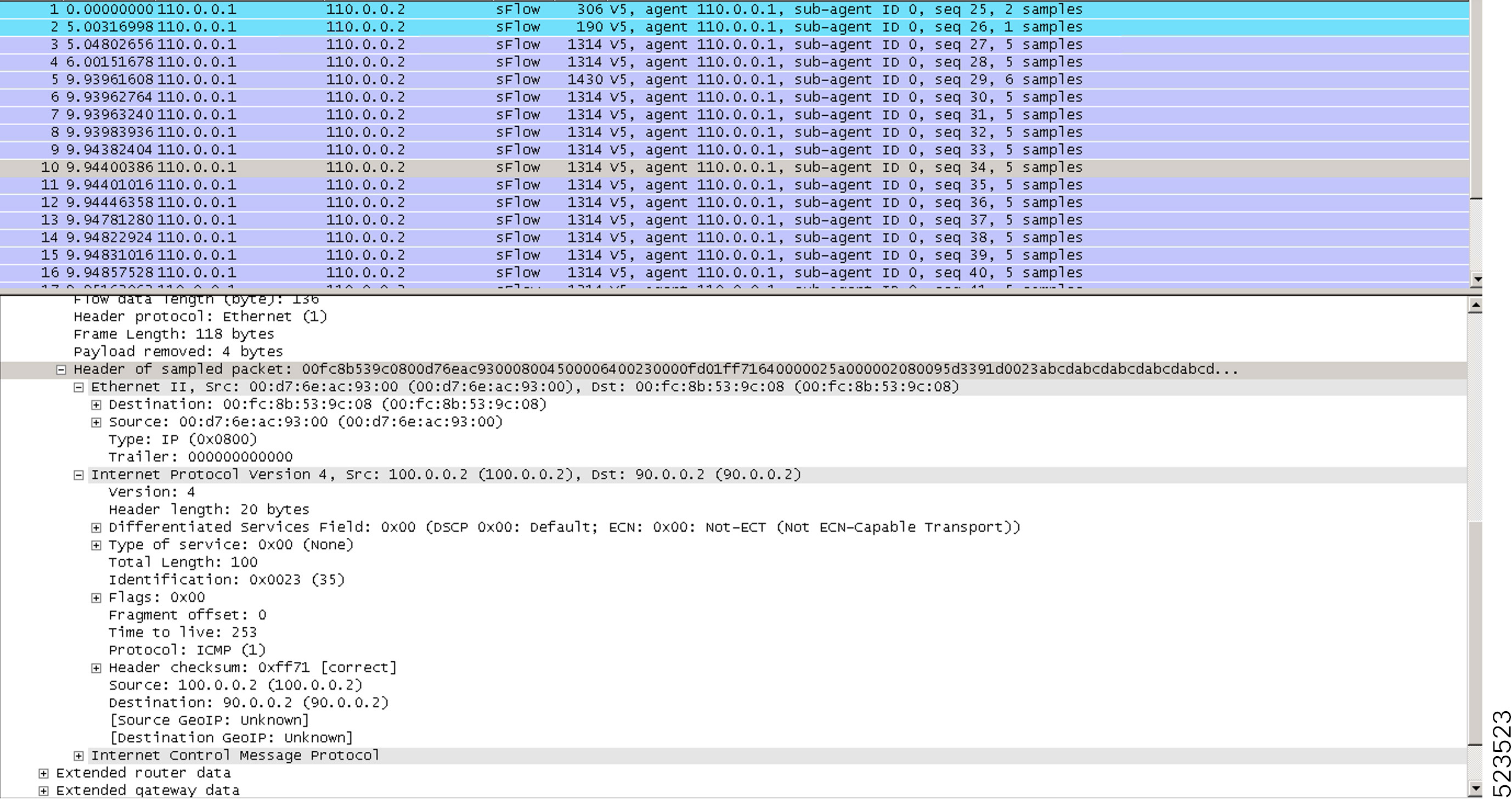
Verify the statistics of exported traffic flow at the producer and exporter using show flow platform producer statistics location and show flow exporter commands.