NetFlow and sFlow Configuration Guide on Cisco 8000 Series Routers, Cisco IOS XR Releases

PDF

NetFlow and sFlow Configuration Guide on Cisco 8000 Series Routers, Cisco IOS XR Releases

NetFlow Version 9 protocols

Want to summarize with AI?

Log in

Explains NetFlow Version 9 as a template-based protocol that provides flexible record formats and enables enhancements to NetFlow services.


A NetFlow Version 9 protocol is a network feature that

  • uses a template-based approach for flexible record formats,

  • enables enhancements to NetFlow services without altering the basic flow-record format, and

  • supports extensibility for future NetFlow features.

Attributes and enhancements of NetFlow Version 9 protocols

Describes the key attributes and enhancements provided by NetFlow Version 9 protocols.

NetFlow Version 9 protocols offer the following features:

  • uses a template-based approach for flexible record formats,

  • enables enhancements to NetFlow services without altering the basic flow-record format, and

  • supports extensibility for future NetFlow features.


NetFlow options templates

A NetFlow options template is a network feature that

  • communicates the format of metadata associated with NetFlow operations,

  • provides information about the NetFlow process rather than individual IP flows, and

  • enables the export of additional tables such as sampler options, interface options, and VRF (Virtual Routing and Forwarding) tables.

Role and structure of NetFlow options templates

Describes the function and exported metadata of NetFlow options templates, including sampler options, interface options, and VRF tables.

NetFlow options templates are template records that communicate the format of metadata associated with NetFlow operations. They provide information about the NetFlow process rather than individual IP flows and enable the export of additional tables such as sampler options, interface options, and VRF (Virtual Routing and Forwarding) tables.

Distinct options templates include the sampler options template and the interface options template. The NetFlow process exports these two tables, as well as the VRF table, to provide comprehensive metadata about the NetFlow operation.


Sampler tables

A sampler table is a network feature that:

  • organizes information about active samplers,

  • provides key attributes such as sampler ID, mode, interval, and name, and

  • enables collectors to estimate the sampling rate for individual data flows.

Sampler table attributes and usage

Explains how sampler tables organize and present information about active samplers and their attributes.

The sampler table is part of the Sampler Options Template, which, along with Interface Option Templates, helps organize and present information for collectors. Enabling these options simplifies the process for the collector to determine data flow information.

The sampler table provides the following information for each sampler:

Element ID Field Name Value

48

SamplerID

This ID is assigned to the sampler. It is used by the collector to retrieve information about the sampler for a data flow record.

49

SamplerMode

This field indicates the mode in which the sampling has been performed.

50

SamplerRandomInterval

This field indicates the rate at which the sampling is performed.

84

SamplerName

This field indicates the name of the sampler.


Interface tables

An interface table is a network feature that

  • stores information about interfaces monitored for data flow,

  • enables the collector to derive interface names linked to the data flow, and

  • contains fields that map SNMP indexes to interface names.

Information stored in interface tables

Provides details about the fields and values contained in interface tables used for monitoring data flow.

The interface table contains the following information:

Field Name Value

ingressInterface

This field indicates the SNMP index assigned to the interface. By matching this value to the Ingress interface in the data flow record, the collector is able to retrieve the name of the interface.

interfaceDescription

This field indicates the name of the interface.


VRF tables

A VRF table is a network feature that

  • maps VRF IDs to VRF names

  • enables collectors to determine the required VRF name, and

  • is exported at intervals specified by the optional timeout keyword, which can be configured manually

VRF table mapping and export intervals

Describes how VRF tables map VRF IDs to names and how collectors use this information to determine the required VRF name. It also outlines the export intervals and configuration options.

The VRF table consists of mappings between VRF IDs and VRF names. Using this information, the collector determines the name of the required VRF.

The VRF table is exported at intervals specified by the optional timeout keyword, which can be configured manually. The default value is 1800 seconds.

The VRF table consists of the following information:

Field Name Value

ingressVRFID

The identifier of the VRF with the name in the VRF-Name field.

VRF-Name

The VRF name has the VRFID value ingressVRFID. The value "default" indicates that the interface is not assigned explicitly to a VRF.

The data records contain ingressVRFID as an extra field in each record. The values of these fields are used to look up the VRF table to find the VRF names. A value of 0 in these fields indicates that the VRF is unknown.


Configure NetFlow Version 9

Configure NetFlow Version 9 to monitor and export network traffic data by setting up flow exporter, monitor, and sampler maps.

  • Enable traffic monitoring and export for IPv4, IPv6, MPLS, BGP, SRv6, and GTP-U packets.

  • Support up to eight exporters in a single flow monitor map.

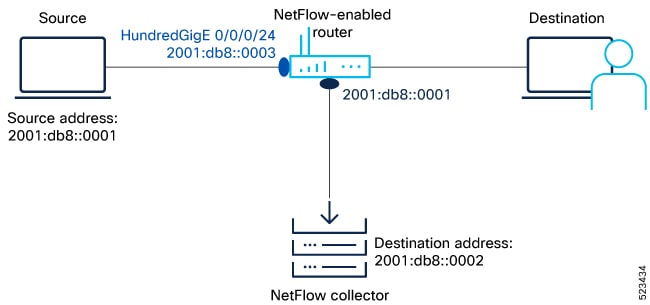
This task uses the following topology to configure NetFlow.

Figure 1. NetFlow Version 9 Configuration
Configuring NetFlow Version 9 for traffic monitoring

To monitor traffic, configure one or more flow exporter maps and associate them to a flow monitor map. Enable NetFlow on the interface in either egress or ingress direction. Optionally, configure a sampler map to set the sampling rate for flow samples.

  • Configure exporter maps to specify export destinations.

  • Associate exporter maps with flow monitor maps for traffic monitoring.

  • Enable NetFlow in ingress or egress direction as required.

Before you begin

Before you begin, gather these details to enable NetFlow on a router:

  • Source IP address: 2001:db8::0003

  • NetFlow Collector (destination) IP address: 2001:db8::0002

  • Router interface for NetFlow: HundredGigE 0/0/0/24

  • NetFlow version for export: version 9

Follow these steps to configure NetFlow Version 9 for traffic monitoring and export.

Procedure

1.

Configure a Flow Exporter using the flow exporter-map command to specify where and how the packets should be exported.

Example:

Router# configure
Router(config)# flow exporter-map Expo1
Router(config-fem)# source-address 2001:db8::0003
Router(config-fem)# destination 2001:db8::0002
Router(config-fem)# transport udp 1024
Router(config-fem)# version v9
Router(config-fem-ver)# options interface-table
Router(config-fem-ver)# commit
Router(config-fem-ver)# root
Router(config)# exit
          

Use the flow exporter-map command to define export parameters such as source address, destination address, transport protocol, and NetFlow version.

  • Configure export options for interface-table and other templates as needed.

If...

Then...

If you need to export NetFlow data to a collector, configure the destination IP address and transport protocol.

Packets are exported to the specified collector using the defined protocol.

If you want to use version 9 for export, set the version parameter accordingly.

NetFlow data is exported in version 9 format.

If you require interface-table options, configure them under the exporter map.

Interface-table information is included in the exported NetFlow data.

Flow exporter is configured and ready for use in NetFlow monitoring.

2.

Create a Flow Monitor using the flow monitor-map command to define the type of traffic to be monitored. You can include one or more exporter maps in the monitor map. A single flow monitor map can support up to eight exporters.

The record type specifies the type of packets that are sampled as the packets pass through the router. MPLS, IPv4, and IPv6 packet sampling is supported.

  • Choose the record type based on the traffic you want to monitor (IPv4, IPv6, MPLS, BGP, SRv6, GTP-U).

If...

Then...

If you want to monitor IPv6 packets, use the record ipv6 command.

IPv6 traffic is monitored and exported.

If you want to monitor MPLS packets, use the record mpls ipv6-fields labels command.

MPLS traffic is monitored and exported.

If you want to monitor BGP packets, use the record ipv6 peer-as command and configure option bgpattr.

BGP traffic is monitored and exported with AS path and community string.

Examples for recording IP packets, MPLS packets, BGP packets, SRv6, and GTP-U packets:

  • 
    Router# configure
    Router(config)# flow monitor-map fmm-ipv6
    Router(config-fmm)# record ipv6
    Router(config-fmm)# cache entries 500000
    Router(config-fmm)# cache timeout active 60
    Router(config-fmm)# cache timeout inactive 20
    Router(config-fmm)# exporter Expo1
    Router(config-fmm)# commit
    Router(config-fmm)# root
    Router(config)# exit
                
  • MPLS Packet Monitoring: Create a flow monitor map to record MPLS packets.

    
    Router(config)# flow monitor-map fmm-mpls-ipv6
    Router(config-fmm)# record mpls ipv6-fields labels 3
    Router(config-fmm)# exporter Expo1
    Router(config-fmm)# cache entries 2000000
    Router(config-fmm)# exit
                
  • BGP Packet Monitoring: Create a flow monitor map to record BGP packets with a permanent cache.

    
    Router(config)# router bgp 50
    Router(config-bgp)# address-family ipv6 unicast
    Router(config-bgp-af)# bgp attribute-download
    Router(config-bgp-af)# root
    Router(config)# flow monitor-map fmm-bgp
    Router(config-fmm)# record ipv6 peer-as
    Router(config-fmm)# exporter Expo1
    Router(config-fmm)# cache entries 2000000
    Router(config-fmm)# exit
                
    Note

    Starting from Cisco IOS XR Software Release 24.2.1, in NetFlow Version 9, to fetch the BGP AS path and community string, configure the option bgpattr command under the flow monitor-map configuration.

  • SRv6 Packet Monitoring: Starting from Cisco IOS XR release 7.10.1, create a flow monitor map to record SRv6 packets.

    
    Router# configure
    Router(config-fem)# flow monitor-map MON
    Router(config-fmm)# record ipv6 srv6
    Router(config-fmm)# exporter EXP
    Router(config-fmm)# cache timeout inactive 5
    Router(config-fmm)# sampler-map SAMP
    Router(config-fmm)# random 1 out-of 1000
    Router(config-fmm)# interface GigabitEthernet0/1/0/0
    Router(config-fmm)# ipv6 address 2002:1::1/64
    Router(config-fmm)# flow ipv6 monitor M1 sampler SAMP ingress
                

Flow monitor map is configured for the desired packet types and ready for use.

3.

Configure a Flow Sampler using the sampler-map command to define the rate at which packet sampling should be performed at the interface where NetFlow is enabled. Use the same sampler map configuration on sub-interfaces and physical interfaces under a port.

Example:


Router(config)# configure
Router(config)# sampler-map fsm1
Router(config-sm)# random 1 out-of 262144
Router(config)# exit
Router(config)# commit
Router(config)# exit
Router#
          

Set the sampling rate to control the number of packets sampled for NetFlow monitoring.

  • Apply the sampler map to all relevant interfaces for consistent sampling.

If...

Then...

If you want to sample 1 out of every 262144 packets, configure random 1 out-of 262144.

Sampling rate is set to 1 out of 262144 packets.

If you apply the sampler map to sub-interfaces and physical interfaces, sampling is consistent across the port.

All interfaces under the port use the same sampling configuration.

If you need to change the sampling rate, modify the random value in the sampler-map configuration.

Sampling rate is updated as per the new configuration.

Flow sampler map is configured and ready for use in NetFlow monitoring.

4.

Apply a Flow Monitor Map and a Flow Sampler to a physical interface using the flow command to enable NetFlow on the router. You can enable IPv4, IPv6, or MPLS-aware NetFlow on the interface. Enable NetFlow in the ingress direction to monitor incoming packets.

Note

Consider these points before applying the sampler map:

  • Remove any existing NetFlow or sFlow configurations before applying a new Flow sampler on an interface using the no form of the command.

  • Use the same sampler map configuration on sub-interfaces and physical interfaces under a port.

  • Enable NetFlow in ingress direction for monitoring incoming packets.

  • Apply flow monitor and sampler map to the interface as required.

If...

Then...

If you apply the flow monitor and sampler map to the interface, NetFlow monitoring is enabled.

Traffic is monitored and sampled as per configuration.

If you enable NetFlow in ingress direction, incoming packets are monitored.

NetFlow collects data for incoming traffic.

If you remove existing NetFlow or sFlow configurations before applying a new sampler map, configuration conflicts are avoided.

Sampler map is applied without issues.

Example:


Router# configure
Router(config)# interface HundredGigE 0/0/0/24
Router(config-if)# flow ipv6 monitor fmm-ipv6 sampler fsm1 ingress
Router(config-if)# commit
Router(config-if)# root
Router(config)# exit
          

NetFlow monitoring and sampling are enabled on the interface.

5.

View the running configuration to verify the configuration.

Example:


Router# show run

flow exporter-map Expo1
 version v9
  options interface-table
 !
 transport udp 1024
 source-address 2001:db8::3
 destination 2001:db8::2
!         
flow monitor-map fmm-ipv6
 record ipv6
 exporter Expo1
 cache entries 500000
 cache timeout active 60
 cache timeout inactive 20
!         
sampler-map fsm1
 random 1 out-of 262144
!         
       
interface HundredGigE0/0/0/24
 shutdown 
 flow ipv6 monitor fmm-ipv6 sampler fsm1 ingress
!              
end       
          

Verify that the exporter, monitor, sampler, and interface configurations are present in the running configuration.

  • Check for correct source and destination addresses, export version, and sampling rate.

If...

Then...

If the running configuration shows all NetFlow settings, the setup is complete.

NetFlow is ready for traffic monitoring and export.

If any configuration is missing, review and update the settings as needed.

Configuration is corrected and verified.

If you need to verify specific parameters, use show commands for exporter, monitor, and sampler maps.

Detailed configuration is displayed for review.

Running configuration is verified for NetFlow setup.

6.

Verify the above configurations using these steps:

  1. Verify the Flow Exporter configuration using the show flow exporter-map command.

    Example:

    
    Router# show flow exporter-map Expo1
    Flow Exporter Map : Expo1
    -------------------------------------------------
    Id                  : 1
    Packet-Length       : 1468
    DestinationIpAddr   : 2001:db8::2
    VRFName             : default
    SourceIfName        : 
    SourceIpAddr        : 2001:db8::3
    DSCP                : 0
    TransportProtocol   : UDP
    TransportDestPort   : 1024
    Do Not Fragment     : Not Enabled
    
    Export Version: 9
      Common Template Timeout : 1800 seconds
      Options Template Timeout : 1800 seconds
      Data Template Timeout : 1800 seconds
      Interface-Table Export Timeout : 1800 seconds
      Sampler-Table Export Timeout : 0 seconds
      VRF-Table Export Timeout : 0 seconds
                  
  2. Verify the Flow Monitor configuration using the show flow monitor-map command.

    Example:

    
    Router# show flow monitor-map fmm-ipv6
    
    Flow Monitor Map : fmm-ipv6
    -------------------------------------------------
    Id:                1
    RecordMapName:     ipv6
    ExportMapName:     Expo1
    CacheAgingMode:    Normal
    CacheMaxEntries:   500000
    CacheActiveTout:   60 seconds
    CacheInactiveTout: 20 seconds
    CacheUpdateTout:   N/A
    CacheRateLimit:    2000
    HwCacheExists:     False
    HwCacheInactTout:  50
                  
  3. Verify the sampler map configuration using the show sampler-map command.

    Example:

    
    Router# show sampler-map fsm1
    
    Sampler Map : fsm1
    -------------------------------------------------
    Id:      1
    Mode:    Random (1 out of 262144 Pkts)
    Router#
                  

Use show commands to verify exporter, monitor, and sampler map configurations.

  • Confirm that all NetFlow components are configured and operational.

If...

Then...

If show commands display correct configuration, NetFlow is ready for use.

Traffic monitoring and export are operational.

If any configuration is incorrect, update the settings and verify again.

Configuration is corrected and NetFlow is operational.

If you need to troubleshoot, review show command outputs for errors or missing parameters.

Issues are identified and resolved.

NetFlow configuration is verified and ready for traffic analysis.

NetFlow Version 9 is configured to monitor and export network traffic data. You can now verify and analyze traffic flows using a NetFlow analyzer.

What to do next

You can now analyze the exported data using a NetFlow analyzer.
  • Review traffic statistics and flow records for network analysis.


Verify NetFlow Version 9

Use this task to confirm that NetFlow Version 9 is capturing and exporting flow data as expected, including specialized records for SRv6 L2, QoS, and GTP-U services.

  • Ensure that flow data is accurately captured and exported for advanced services.

NetFlow Version 9 provides detailed flow monitoring and export capabilities, supporting advanced service records such as SRv6 L2, QoS, and GTP-U. This task helps validate that these records are present and correct in the exported cache.

Use this task after configuring NetFlow to verify operational status and exported data integrity.

  • Perform this verification as part of routine monitoring or troubleshooting.

Before you begin

Ensure NetFlow Version 9 is configured and operational on the device.

  • Access to the device CLI is required.

Follow these steps to verify NetFlow Version 9 flow capture and export.

Procedure

Verify the flows captured using the command.

Example:


Router# show flow monitor fmm-ipv6 cache summary location 0/0/CPU0
Cache summary for Flow Monitor monitor1:
Cache size: 1000000
Current entries: 295
Flows added: 184409
Flows not added: 0
Ager Polls: 9824
 - Active timeout 183855 
 - Inactive timeout 259
 - Immediate 0
 - TCP FIN flag 0
 - Emergency aged 0
 - Counter wrap aged 0
 - Total 184114
Periodic export:
- Counter wrap 0
- TCP FIN flag 0
Flows exported 184114
          

Review the cache summary to confirm the number of flows added and exported. Analyze the cache records for specialized services as needed.

  • Cache summary: In this example, verify the amount of flows added and exported.

If...

Then...

Cache summary shows flows added and exported.

NetFlow is capturing and exporting flows as expected.

SRv6 L2 service records are present.

SRv6 L2 flows are being monitored and exported.

QoS and GTP-U records are present in cache.

Advanced service flows are being captured and exported.

  • Review cache summary for flow statistics.

    
    Router# show flow monitor fmm-ipv6 cache summary location 0/0/CPU0
    Cache summary for Flow Monitor monitor1:
    Cache size: 1000000
    Current entries: 295
    Flows added: 184409
    Flows not added: 0
    Ager Polls: 9824
     - Active timeout 183855 
     - Inactive timeout 259
     - Immediate 0
     - TCP FIN flag 0
     - Emergency aged 0
     - Counter wrap aged 0
     - Total 184114
    Periodic export:
    - Counter wrap 0
    - TCP FIN flag 0
    Flows exported 184114
                  

Cache records for SRv6 L2, QoS, and GTP-U services are verified and exported as expected.

NetFlow Version 9 is confirmed to be capturing and exporting flow data, including advanced service records. You can now analyze the exported data using a NetFlow analyzer.

What to do next

You can now analyze the exported data using a NetFlow analyzer.

  • Review exported flow records for further troubleshooting or reporting.


Modify NetFlow Configuration

You can modify only the following flow attributes that is already applied to an interface for a monitor map, exporter map, or a sampler map.

Note that when you modify the flow attributes, the cache counters are cleared and results in resetting of the counters. As a result there could be flow accounting mismatch.

Table 1. Flow Entities and Flow Attributes that can be altered

Flow Entity

Flow Attribute

Command

Monitor map

cache timeout

  • active

  • inactive

  • update

  • rate-limit

exporter

cache entries

cache permanent

options outphysint | bgpattr | filtered | outbundlemember

Exporter Map

source <source interface>

destination <destinaiton address>

dscp <dscp_value>

version v9 | ipfix

Sampler Map

sampling interval