Connect Router to the Network


Note


The images in this chapter are only for representation purposes, unless specified otherwise. The chassis' actual appearance and size may vary.


Secure the cables around the cable management brackets

Procedure


Step 1

Gather cables from the interface modules (IM) on the left side of the chassis and secure them with velcro. Repeat this process with the MPAs on the right side, the cables from the RSPs and the cables from the PEM.

Step 2

Secure the cables around the cable management brackets.


Connect the router to the network

This section describes the various ways to connect the router to the network.

Connect console cables


Note


You cannot use the USB and RS232 console ports at the same time; if you insert the USB cable into the router, the RS232 port is disabled.

Connect to the serial port using Microsoft Windows

This procedure shows how to connect to the serial port using Microsoft Windows.


Note


Install the USB device driver before establishing a physical connection between the router and the PC, by using the USB Console cable plugged into the USB serial port. Otherwise, the connection will fail. For more information, see the Installing the Cisco Microsoft Windows USB Device Driver.
Procedure

Step 1

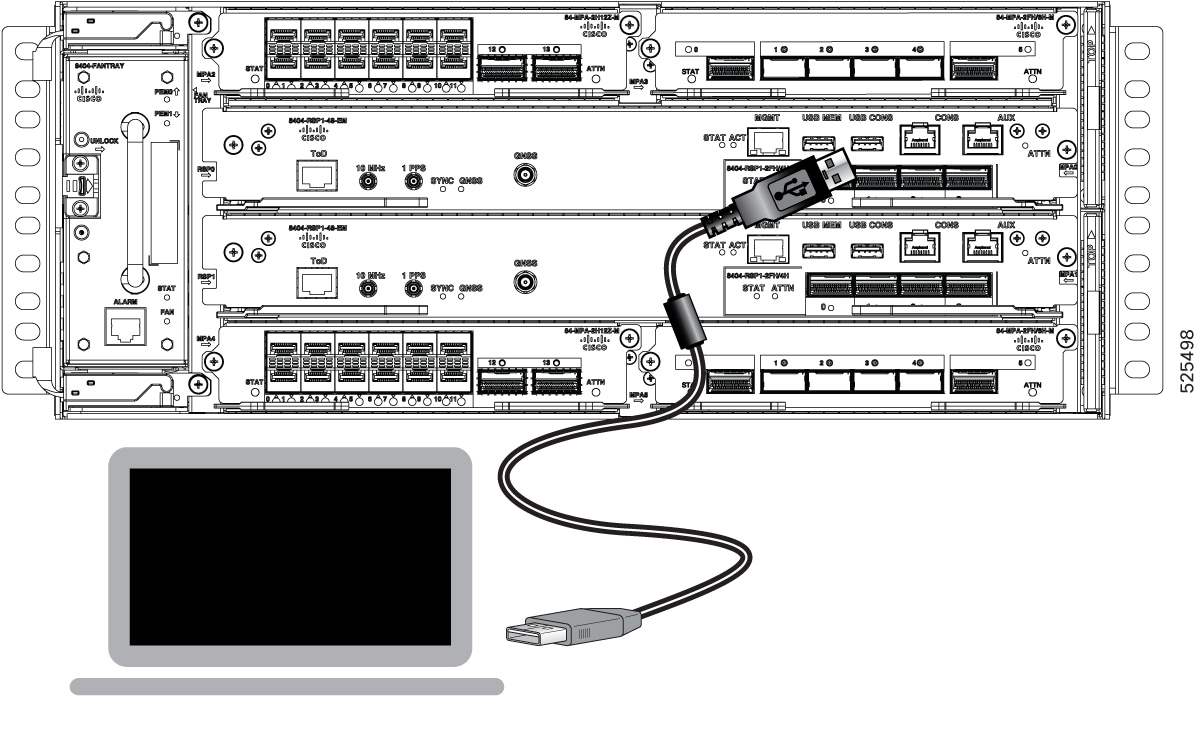
Connect the end of the console cable with the RJ45 connector to the light blue console port on the router. or Connect a USB Type A-to-Type A cable to the USB console port. If you are using the USB serial port for the first time on a Windows-based PC, install the USB driver now according to the instructions in the following sections.

  • Installing the Cisco Microsoft Windows XP USB Driver

  • Installing the Cisco Microsoft Windows 2000 USB Driver

  • Installing the Cisco Microsoft Windows Vista USB Driver

Note

 
You cannot use the USB port and the EIA port concurrently. See Connecting to the Auxiliary Port section. When the USB port is used it takes priority over the RJ45 EIA port.

Note

 
The USB Type A-to-Type A cable is not included with the Cisco 8404-SYS-D router; it is ordered separately.

Step 2

Connect the end of the cable with the DB-9 connector (or USB Type-A) to the terminal or PC. If your terminal or PC has a console port that does not accommodate a DB-9 connector, you must provide an appropriate adapter for that port.

Step 3

To communicate with the router, start a terminal emulator application, such as Microsoft Windows HyperTerminal. This software should be configured with the following parameters:

  • 115200 baud

  • 8 data bits

  • no parity

  • 2 stop bits

  • no flow control

Figure 1. Connecting the USB Console Cable to the Cisco 8404-SYS-D router

Connect to the console port using Mac OS X

This procedure describes how to connect a Mac OS X system USB port to the console using the built in OS X Terminal utility.

Procedure

Step 1

Use the Finder to go to Applications → Utilities → Terminal.

Step 2

Connect the OS X USB port to the router.

Step 3

Enter the following commands to find the OS X USB port number:

Example:

macbook:user$ cd /dev
macbook:user$ ls -ltr /dev/*usb*
crw-rw-rw-  1 root    wheel       9,  66 Apr  1 16:46 tty.usbmodem1a21 DT-macbook:dev user$

Step 4

Connect to the USB port with the following command followed by the router USB port speed

Example:

macbook:user$ screen /dev/tty.usbmodem1a21 9600

To disconnect the OS X USB console from the Terminal window enter Ctrl-a followed by Ctrl-\.


Connect to the console port using Linux

This procedure shows how to connect a Linux system USB port to the console using the built in Linux Terminal utility.

Procedure

Step 1

Open the Linux Terminal window.

Step 2

Connect the Linux USB port to the router.

Step 3

Enter the following commands to find the Linux USB port number

Example:

root@usb-suse# cd /dev
root@usb-suse /dev# ls -ltr *ACM*
crw-r--r--    1 root     root     188,   0 Jan 14 18:02 ttyACM0
root@usb-suse /dev#

Step 4

Connect to the USB port with the following command followed by the router USB port speed

Example:

root@usb-suse /dev# screen /dev/ttyACM0 9600

To disconnect the Linux USB console from the Terminal window enter Ctrl-a followed by : then quit


Connect to the auxiliary port

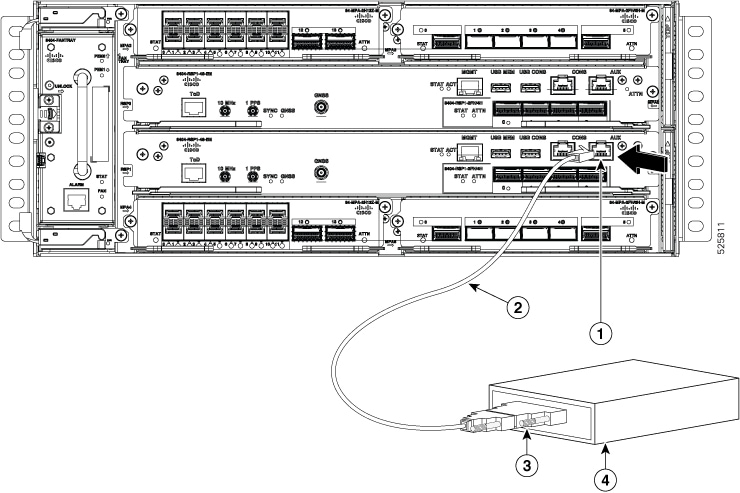
When a modem is connected to the auxiliary port, a remote user can dial in to the router and configure it. Use a light blue console cable and the DB-9-to-DB-25 connector adapter.


Note


The console cable and DB-9-to-DB-25 connector are not included with the Cisco 8404-SYS-D router; they are ordered separately.

To connect a modem to the router, follow these steps:

Procedure


Step 1

Connect the RJ45 end of the adapter cable to the black AUX port on the router, as shown in the figure below.

Figure 2. Connecting a Modem to the Cisco 8404-SYS-D router

1

RJ45 AUX port

3

RJ45 to DB-9

2

DB-9 to DB-25 adapter

4

Modem

Step 2

Connect the DB-9 end of the console cable to the DB-9 end of the modem adapter.

Step 3

Connect the DB-25 end of the modem adapter to the modem.

Step 4

Make sure that your modem and the router auxiliary port are configured for the same transmission speed (up to 115200 bps is supported) and for mode control with data carrier detect (DCD) and data terminal ready (DTR) operations.


Connect a management Ethernet cable

When using the Ethernet Management port in the default mode (speed-auto and duplex-auto) the port operates in auto-MDI/MDI-X mode. The port automatically provides the correct signal connectivity through the Auto-MDI/MDI-X feature. The port automatically senses a crossover or straight-through cable and adapts to it.

However, when the Ethernet Management port is configured to a fixed speed (100 or 1000 Mbps) through command-line interface (CLI) commands, the port is forced to MDI mode.

When in a fixed-speed configuration and MDI mode:

  • Use a crossover cable to connect to an MDI port

  • Use a straight-through cable to connect to an MDI-X port


Warning


To comply with the Telcordia GR-1089 NEBS standard for electromagnetic compatibility and safety, connect the Management Ethernet ports only to intra-building or unexposed wiring or cable. The intrabuilding cable must be shielded and the shield must be grounded at both ends. The intra-building port(s) of the equipment or subassembly must not be metallically connected to interfaces that connect to the OSP or its wiring. These interfaces are designed for use as intra-building interfaces only (Type 2 or Type 4 ports as described in GR-1089-CORE) and require isolation from the exposed OSP cabling. The addition of Primary Protectors is not sufficient protection in order to connect these interfaces metallically to OSP wiring.


Connect cables to SFP modules

For information on connecting cables to Cisco optical and Ethernet SFP interfaces, see

Connect a USB flash device

To connect a USB flash device to the Cisco 8404 router, insert the memory stick in the USB port labeled MEM. The Flash memory module can be inserted in only one way, and can be inserted or removed regardless of whether the router is powered up or not.

Connect time cables

The following sections describe how to connect timing cables to the Cisco 8404 router:


Note


When installing the cabling to the RSPs, we recommend that you leave a service loop of extra cabling sufficient to allow for fan tray removal.

Note


10 MHz and 1 PPS connectors must be configured as inputs through CLI.


Connect cables to the input 10Mhz or 1PPS interface

Procedure

Step 1

Connect one end of a mini-coax Y-cable to the GPS unit.

Step 2

Connect one end of the split-side Y-cable mini-coax to the 10Mhz or 1PPS port on the primary RSP of the router.

Step 3

Connect the other end of the split-side Y-cable mini-coax to the 10Mhz or 1PPS port on the backup RSP of the router.

Note


In the Cisco 8404-sys-D router, there is single port (mini coax DIN 1.0 or 2.3) for 1PPS or 10 MHz work as input and output. Configure the mode according to the use case through CLI


Connect cables to the ToD interface

Procedure

Step 1

Connect one end of a straight-through Ethernet cable to the GPS unit.

Step 2

Connect one end of the split-side Y-cable Ethernet to the ToD port on the primary RSP of the router.

Step 3

Connect the other end of the split-side Y-cable Ethernet to the ToD port on the backup RSP of the router.

Note

 
For instructions on how to configure clocking, see the Timing and Synchronization Configuration Guide for Cisco 8000 Series Routers, Cisco IOS XR Releases.

Warning


To comply with the Telcordia GR-1089 NEBS standard for electromagnetic compatibility and safety, connect the ToD ports only to intra-building or unexposed wiring or cable. The intrabuilding cable must be shielded and the shield must be grounded at both ends. The intra-building port(s) of the equipment or subassembly must not be metallically connected to interfaces that connect to the OSP or its wiring. These interfaces are designed for use as intra-building interfaces only (Type 2 or Type 4 ports as described in GR-1089-CORE) and require isolation from the exposed OSP cabling. The addition of Primary Protectors is not sufficient protection in order to connect these interfaces metallically to OSP wiring.


Connect cables to a GNSS interface

The following sections describe how to connect cables from the Cisco 8404 router to a GPS unit for input or output timing of frequency.


Note


A Y-cable is required to connect to a primary and backup RSP in order to ensure that the router continues to transmit timing signals in the event of a network failure. For a mini-coax connection, this Y-cable can be part number CAB-BNC-7INY (7 inch BNC Y-cable). For an Ethernet connection, this Y-cable can be a RJ45 Cat5 1-to-2 splitter (3 female port RJ45 connector).

Note


When installing the cabling to the RSPs, we recommend that you leave a service loop of extra cabling sufficient to allow for fan tray removal.

Connect a cable to the GNSS antenna interface

Procedure

Step 1

Connect one end of a shielded coaxial cable to the GNSS RF IN port.

Step 2

Connect the other end of the shielded coaxial cable to the GNSS antenna after the primary protector.

Note

 
The GNSS RF In port should have a primary protector installed to meet the Local Safety guidelines.

Note

 
The GNSS RF In coaxial cable shield must be connected to the Facility Equipment Ground through the chassis. The chassis must have the ground wire connected to the Facility Equipment Ground.
Figure 3. GNSS antenna port integrated in RSP

Create the Initial Router Configuration

You must assign an IP address to the router management interface so that you can then connect the router to the network.

When you initially power up the router, it boots up and asks a series of questions to help configure the router. To enable you to connect the router to the network, you can use the default choices for each configuration except for the IP address, which you must provide.

Before you begin

  • A console device must be connected with the router.

  • The router must be connected to a power source.

Procedure


Step 1

Power up the router.

The LEDs on each PEM light up (green) when the PEM units are sending power to the router, and the software asks you to specify a password to use with the router.

Step 2

When the system is booted up for the first time, a new username and a password is to be created. The following prompt appears:


!!!!!!!!!!!!!!!!!!!! NO root-system username is configured. Need to configure root-system username. !!!!!!!!!!!!!!!!!!!!

--- Administrative User Dialog ---


Enter root-system username:
% Entry must not be null.

Enter root-system username: root
Enter secret:
Use the 'configure' command to modify this configuration.
User Access Verification

Username: root
Password:


RP/0/RP0/CPU0:ios#

Step 3

Enter a new password to use for this router.

The software checks the security strength of it and rejects your password if it is not considered to be a strong password. To increase the security strength of your password, make sure that it adheres to the following guidelines:

  • At least eight characters

  • Minimizes or avoids the use of consecutive characters (such as "abcd")

  • Minimizes or avoids repeating characters (such as "aaa")

  • Does not contain recognizable words from the dictionary

  • Does not contain proper names

  • Contains both uppercase and lowercase characters

  • Contains both numbers and letters

Note

 
Clear text passwords cannot include the dollar sign ($) special character.

Tip

 
If a password is trivial (such as a short, easy-to-decipher password), the software rejects the password configuration. Be sure to configure a strong password as described by the guidelines in this step. Passwords are case sensitive.

If you enter a strong password, the software asks you to confirm the password.

Step 4

Reenter the password.

When you enter the same password, the software accepts the password.