Compliance Audit for Network Devices

Compliance overview

Compliance in Catalyst Center enables administrators to efficiently monitor, assess, and manage the network’s adherence to intended policies and configurations. With recent enhancements, the compliance feature now delivers a powerful, unified dashboard that provides a comprehensive, network-wide view of compliance status across all managed devices.

The Compliance Dashboard allows you to:

  • Network wide compliance summary: View the health of your entire network from a single interface, with visual indicators for non-compliant devices and outstanding violations.

  • Review consolidated compliance categories: Compliance data is organized into three primary categories—Configuration Compliance, Hardware and Software Compliance, and Vulnerability Compliance, making it easier to address specific issues.

  • Filter and analyze compliance data: Quickly filter compliance results by site, device, or category, and drill down to see which devices are non-compliant and the specific reasons for violations.

  • Perform bulk compliance operations: Efficiently acknowledge or unacknowledged multiple violations at once, either network-wide or for selected devices, streamlining large-scale compliance workflows.

  • Compare start-up and running configurations: Use the dedicated view to compare startup and running configurations for selected devices, helping to identify and resolve discrepancies due to unsaved changes.

Compliance checks can be:

  • Automated: Using the latest collected device data and real-time notifications from Catalyst Center services.

  • Manual: Triggered on demand by the administrator for immediate assessment.

  • Scheduled: Run automatically each day, with jobs ensuring that all devices are checked at least once every seven days.

Catalyst Center continues to report compliance only for the entities it actively manages, flagging the removal or modification of previously managed configuration elements. New out-of-band additions may not be reported for compliance until they are managed by Catalyst Center.

Compliance categories

The Compliance Dashboard categorizes device compliance violations into three primary types:

  • Configuration Compliance: Tracks deviations from intended configuration settings, including network settings and startup versus running configuration discrepancies.

  • Hardware and Software Compliance: Monitors software image versions and EOX (End of Life/End of Sale) status for hardware and modules.

  • Vulnerability Compliance: Highlights devices affected by high-priority security advisories, allowing for prioritized remediation.

Compliance type Compliance check Compliance status

Configuration compliance

Network Profile

Catalyst Center allows you to define its intent configuration using network profiles and push the intent to the device. If any violations are found at any time due to changes in-band, out-of-band or triggered by another catalyst center service, this check identifies, assesses, and flags it off. The violations are shown to the user under Network Profiles in the compliance summary window.

Note

 
Network profile compliance is applicable for routers, switches, and wireless controllers.
  • Non-compliant: The device is not running the intent configuration of the profile.

  • Compliant: While applying a network profile to the device, the device configurations that are pushed through Catalyst Center are actively running on the device.

  • Error: The compliance could not compute the status because of an underlying error. For details, see the error log.

Network Settings

Catalyst Center allows you to define its intent configuration settings using network settings and to push the intent to the device. If any violations are found at any time due to out-of-band or any other changes, the compliance check identifies, assesses, and flags it off.

You can view the violations under Policy in the Configuration Compliance window.

Note


Post UI upgrade, compliance for network settings will get triggered after 6 hours.

  • Non-compliant: The device is not running the intent configuration.

  • Compliant: The intent configuration that was pushed is actively running on the device.

  • NA (Not Applicable): The device is not configured with network settings, or the device is not assigned to the site.

Rule-based compliance

Catalyst Center allows you to define custom compliance rules using CLI regular expressions. This provides flexibility to check for specific configuration patterns or values unique to your environment.

  • Non-compliant: The device is not running the intent configuration.

  • Compliant: The intent configuration that was pushed is actively running on the device.

  • NA (Not Applicable): The device is not configured with network settings, or the device is not assigned to the site.

Startup versus Running Configuration

This compliance check helps in identifying whether the startup and running configurations of a device are in sync. If the startup and running configurations of a device are out of sync, compliance is triggered and a detailed report of the out-of-band changes is displayed. The compliance for startup vs. running configurations is triggered within 2 minutes of any out-of-band changes.

Note


Catalyst Center must be configured as a syslog server in the Design > Network Settings > Telemetry > Syslogs window for syslog-based collection to work.

  • Non-compliant: The startup and running configurations are not the same. In the detailed view, the system shows different startup vs. running between or running vs. previous running.

  • Compliant: The startup and running configurations are the same.

  • NA (Not Applicable): The device, such as AireOS, is not supported for this compliance type.

Software and hardware compliance

Software Image

This compliance check helps a network administrator to see if the tagged golden image in Catalyst Center is running on the device. It shows the difference between the golden image and the running image for a device. When there is a change in the software image, the compliance check is triggered immediately without any delay.

  • Non-compliant: The device is not running the tagged golden image of the device family.

  • Compliant: The device is running the tagged golden image of the device family.

  • NA (Not Applicable): The golden image is not available for the selected device family.

For Fabric Devices:

  • Non-compliant: The device is not running the tagged golden image of the device family, or the current software image version is not compatible for the network device.

    See the Cisco SD-Access Compatibility Matrix for the supported and recommended software image versions for your device.

  • Compliant: The device is running the tagged golden image of the device family, or the current software image version is compatible with the device.

  • NA (Not Applicable): The golden image is not available for the selected device family, or the device is not added to a fabric site.

For Cisco Switch Stacks: Catalyst Center allows the network administrator to check if the tagged golden image is running on the primary switch and members of switch stacks.

  • Non-compliant: The tagged golden image is not running on the primary switch and member switches.

    Also, the device will be non-compliant if golden tagging is not applicable for the device and the member switches are not running on the image version as that of the primary switch.

  • Compliant: The tagged golden image is running on the primary switch and member switches.

    Also, the device will be compliant if no golden tagging is applicable for the device and the member switches are running on the same image version as that of the primary switch.

  • NA (Not Applicable): The golden image is not applicable for the device, and the device is not a stacked switch.

EoX - End of Life

Catalyst Center allows you to check the compliance status for the hardware, software, and module of EoX devices. You can check the EoX compliance status from the Compliance Summary > EoX - End of Life tile.

You can also view the EoX status of devices from the Inventory window, under the EoX Status column.

Note


To enable access to the EoX feature, authorize the CX Cloud Consent to Connect agreement through the Catalyst Center dashboard.

  • Non-compliant: The device is non-compliant if the last date of support has ended.

  • Compliant: The device is compliant if enough time remains until the last date of support.

  • Compliant with Warning: The device is compliant with warning if the last date of support is nearing.

Vulnerability compliance

Critical Security (PSIRT)

This compliance check enables a network administrator to check whether the network devices are running without critical security vulnerabilities.

  • Non-compliant: The device has critical advisories. A detailed report displays various other information.

  • Compliant: There are no critical vulnerabilities in the device.

  • NA (Not Applicable): The security advisory scan has not been done by the network administrator in Catalyst Center, or the device is not supported.

Intent compliance

Fabric (SDA)

This feature is in beta.

Fabric compliance helps to identify fabric intent violations, such as any out-of-band changes for fabric-related configurations.

The fabric compliance status does not participate in determining the overall compliance status of the device, as the feature is in the beta stage.

  • Non-compliant: The device is not running the intent configuration.

  • Compliant: The device is running the intent configuration.

SD-Access Unsupported Configuration

This feature is in beta.

This compliance check enables you to identify unsupported SD-Access configurations. When a device is added to a fabric site, the compliance check is triggered immediately.

To view the unsupported SD-Access configurations on a noncompliant device, click Unsupported Configuration. Under the Unsupported Configuration area, unsupported SD-Access configurations are highlighted in red.

Note


For devices that are not added to a fabric site, this compliance check is not used.

  • Non-compliant: The device is running some configurations that are not supported for SD-Access.

  • Compliant: The device is running the configurations that are supported for SD-Access.

Policy Intent Compliance

Application Visibility

Catalyst Center allows you to create an application visibility intent and provision it to a device through CBAR and NBAR. If there is an intent violation on the device, this check identifies, assesses, and shows the violation as compliant or noncompliant under the Application Visibility window.

The automatic compliance checks are scheduled to run after 5 hours of receiving traps.

  • Non-compliant: The CBAR/NBAR configuration is not running on the device.

  • Compliant: The intent configuration of CBAR/NBAR is running on the device.

Model Config

This compliance check enables the network administrator to check any mismatch from the designed intent of Model Config. The mismatch is shown under Network Profile in the Compliance Summary window.

  • Non-compliant: There is a mismatch in the actual and intended value of the attributes in Model Config.

  • Compliant: The attributes in Model Config match the intended value.

CLI Template

Catalyst Center allows the network administrator to compare the CLI template with the running configuration of the device. The mismatch in the configuration is flagged. This mismatch is shown under Network Profile in the Compliance Summary window.

To view the flagged CLI commands:

  1. Click the Network Profile tile.

  2. From the CLI Deviations area, choose the CLI template for which you want to view the mismatch.

  3. The CLI commands are displayed in the Realize Template area, and the flagged commands are highlighted in red.

    Note


    Click the View CLI Template Best Practices link to view some of the best practices that must be used in a CLI template to minimize compliance issues.

The running configuration for CLI template compliance is taken from the latest archive that is available for the device. Event-based archive takes at least 2 minutes to update after traps are received. For accurate results, we recommend that you wait at least 2 minutes before running compliance manually after a configuration change.

Catalyst Center must be configured as a syslog server in the Design > Network Settings > Telemetry > Syslogs window for syslog-based collection to work.

Note


There are some limitations in CLI template compliance. See Limitations in CLI template compliance.

  • Non-compliant: There is a mismatch between the CLI template and the running configuration of the device.

  • Compliant: There is no mismatch between the CLI template and the running configuration of the device.

Monitor the network compliance

Use this dashboard to gain a high-level understanding of your network's compliance status. The dashboard is refreshed periodically; however, you can trigger a manual refresh to view the most current data.

Before you begin

  • Ensure you have the necessary administrative privileges.

Follow these steps to monitor the network compliance.

Procedure


Step 1

From the main menu, choose Policy > Compliance Overview.

Step 2

(Optional) Click the Global selector to filter the dashboard by a specific site.

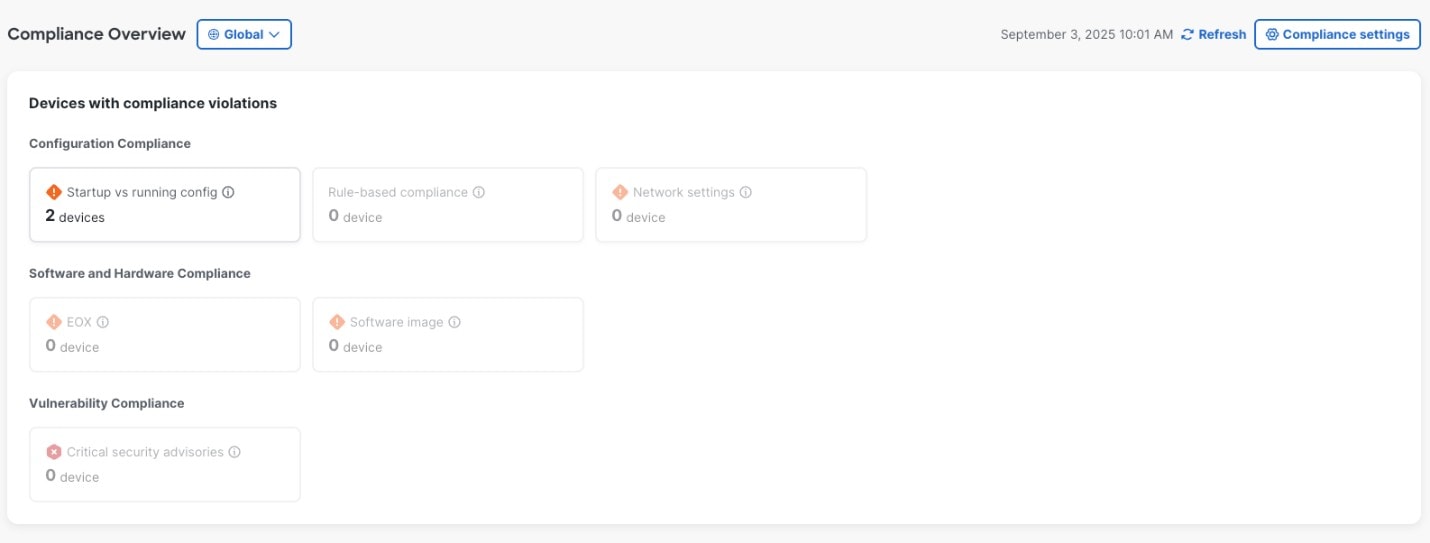
In the Devices with compliance violations area, you can view the three primary categories of compliance violations:

  • Configuration Compliance: Tracks deviations from established configuration baselines, including startup versus running configuration discrepancies, network profiles, and global settings.

  • Software and Hardware Compliance: Monitors software image versions and EOX (End of Life/End of Sale) status for hardware and modules.

  • Vulnerability Compliance: Highlights devices impacted by critical security advisories.

Step 3

Click on any compliance type to see a list of violations and non-compliant devices on the device table.

For more information on how to manage configuration compliance, see Manage Configuration Compliance.

Step 4

(Optional) Click Refresh to update the dashboard with the latest compliance data.

Step 5

Click Compliance settings in the top-right corner to open the settings window. You can enable or disable the violation check and set up customized compliance severity levels for different types of compliance violations.

The dashboard displays the current compliance status, allowing for targeted remediation of non-compliant devices.


Manage configuration compliance

Enable users to efficiently identify configuration drift, review active and acknowledged violations, and perform compliance audits to maintain network assurance..

Before you begin

  • Ensure that you have the Super Admin role to modify compliance configuration.

  • Set the dashboard scope to Global or a specific site to ensure the data reflects the desired network segment.

  • Check the top-right corner of the dashboard to ensure the last compliance audit timestamp is current.

Use this procedure to analyze, acknowledge, and monitor configuration violations.

Procedure


Step 1

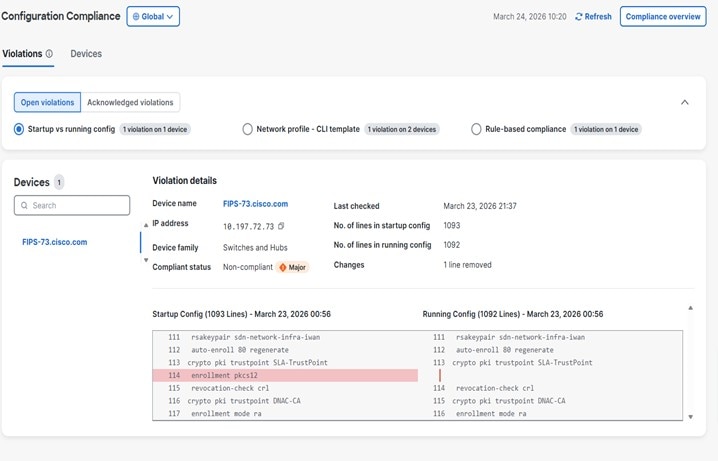
From the main menu, choose Policy > Configuration Compliance.

The compliance configuration dashboard appears.

Figure 1. Configuration Compliance

Step 2

Click the Violations tab to manage and view the violations.

  1. Select the compliance type from the radio list such as Rule-based compliance, Network profile - CLI template, or Startup vs running config.

Step 3

Use the Open violations and Acknowledged violations toggle buttons to review the violations.

Option Description
Open violations Displays violations that are currently active and require attention.
Acknowledged violations Displays violations that have been reviewed and acknowledged.
  1. Review the violation details in the table for violation model name, affected devices, compliance type, sub-type, attribute, intended value, and actual value.

  2. Click the value in the On devices column to view the devices affected by the violation.

  3. Click View details in the Intended value column to compare the intended configuration with the actual device configuration.

Step 4

To manage compliance alert noise by acknowledging acceptable deviations or reverting previous acknowledgments do these:

  1. Click the Open Violations tab.

  2. Choose the violation and click Acknowledge violations on the top of the table.

  3. To acknowledge the violations in bulk, check the check box at the top of the table, or choose multiple violations and click Acknowledge violations.

  4. In the confirmation window, click Confirm. The violation is moved under Acknowledged Violations tab.

  5. Click Un-Acknowledge violations to revert the status and return the items to the Open violations list.

Step 5

To monitor Device-level compliance to granular visibility into individual network nodes.

  1. Click the Devices tab and select a compliance type focus to view and bulk manage the devices with compliance violations.

Step 6

Review the device table to identify:

  1. Device name and IP address: The specific network node.

  2. Compliance status: Use the drop-down list to filter the compliance status such as Compliant, Non- compliant, Error, NA, Not available, Aborted, In progress, Remediation in progress.

  3. Severity: Use the drop-down list to filter the severity levels such as Critical, Major, Minor, and Informational

  4. Config violations: Use the drop-down list to filter the types of configuration violations.

Step 7

(Optional) Select a device and click Run compliance check to trigger an immediate, manual audit of that device’s configuration.


What to do next

  • If a device remains non-compliant after a manual audit, click the hyperlinked Device name to open the Device 360 view.

  • In Device 360 view, navigate to the Compliance tab to perform deep-dive troubleshooting and initiate configuration remediation.

Configure compliance settings

The primary purpose of configuring compliance settings is to establish a standardized framework for network health and security. By customizing these settings, administrators can:

  • Enforce Organizational Standards: Ensure that all network devices adhere to predefined configuration, software, and vulnerability policies.

  • Mitigate Risk: Identify and address non-compliant devices that may pose security threats or operational instability.

  • Optimize Visibility: Tailor the compliance dashboard to focus on the metrics that matter most to your specific network architecture, reducing "noise" from irrelevant alerts.

  • Automate Governance: Transition from manual auditing to automated, policy-driven monitoring, ensuring consistent oversight across the entire network infrastructure.

Before you begin

  • Ensure you have the required administrative privileges to modify compliance settings.

  • Understand that changes to these settings apply to all future compliance audits across the network.

Procedure


Step 1

From the main menu, choose Policy > Compliance Settings.

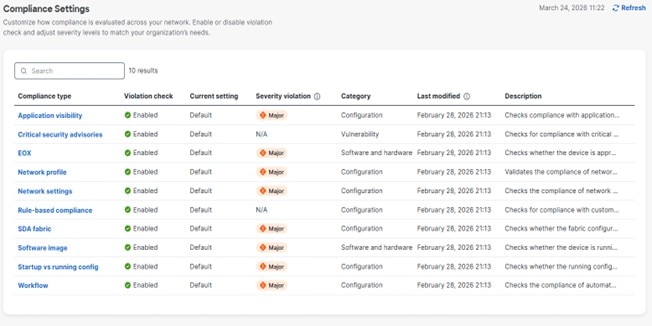
Figure 2. Compliance Settings dashboard

Step 2

(Optional) Use the Search box to locate a specific compliance type.

Step 3

Review the Compliance Settings table for each item:

  • Violation check: Indicates if the check is Enabled or Disabled.

  • Current setting: Displays the configuration status.

  • Severity violation: Shows the assigned impact level.

  • Category: Indicates the compliance area such as Configuration, Vulnerability, Software and hardware).

  • Last modified: Displays the last modified time.

  • Description: Description of the compliance.

Step 4

Click the hyperlinked Compliance type to enable or disable the violation check for the respective compliance types open the slide-in pane.

Step 5

In the configuration slide-in pane,

You can enable or disable the violation check. (Enabled by default.) If the violation check is enabled, you can customize its severity level to: Critical, Major (the default setting), Minor, and Informational (no violations).

  1. Click Edit and toggle the Violation check to enable or disable the check. If you disabled a check, the corresponding category will no longer contribute to the non-compliant device count on the dashboard.

  2. Adjust the Severity violation level.

    Options include:
    • Critical: For high-priority issues.

    • Major (Default): The standard level of severity.

    • Minor: For lower-priority issues.

    • Informational: For status updates or non-critical logs.

  3. Click Save to apply your changes.

  4. If you wish to return all settings to their original state, click the Reset to default button.


View compliance summary

The inventory page shows an aggregated status of compliance for each device.

Procedure


Step 1

From the main menu, choose Provision > Inventory.

The compliance column shows the aggregated compliance status of each device.

Step 2

Click the compliance status to launch the compliance summary window, which shows these compliance checks applicable for the chosen device:

  • Startup versus Running Configuration

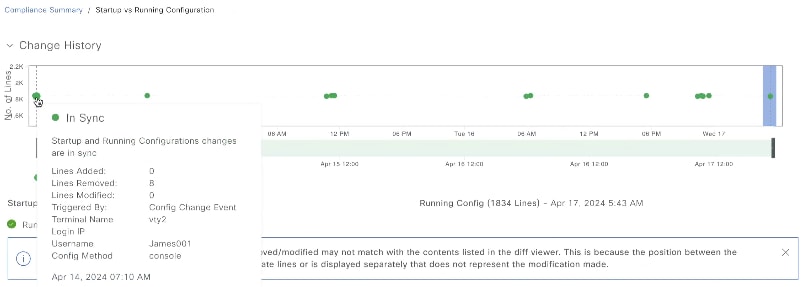
    Catalyst Center allows you to view the details of the out-of-band configuration changes for Startup versus Running Configuration. Hover the cursor over the bubble in the Change History area to view the details.

    This image shows the Startup vs Running Configuration view.

    These details are for out-of-band changes:

    • Lines Added, Removed, Modified: Shows the number of lines that were added, removed, or modified.

    • Triggered By: Displays the configuration change event. For information on events, see Configuration Drift of a Device.

    • Terminal Name, Login IP, Username: Displays the users terminal name, login IP, and username.

    • Config Method, Timestamp: Displays the configuration method and timestamp of the change done.

      Note


      If the Config Method is memory, it indicates that the device self-generated the configuration.

  • Rule- Based Compliance Policies

  • Software Image

  • Critical Security Vulnerability

  • Network Profile

  • Network Settings

  • Fabric

  • SD-Access Unsupported Configuration

  • Application Visibility

  • EoX - End of Life

  • Cisco Umbrella

Note

 
Network Settings, Network Profile, Fabric, SD-Access Unsupported Configuration, and Application Visibility are optional and display only if the device is provisioned with the required data.

Manual compliance run

You can trigger a compliance check manually in Catalyst Center.

Procedure


Step 1

From the main menu, choose Provision > Inventory.

Step 2

To run a bulk compliance check:

  1. Choose all the applicable devices.

  2. From the Actions drop-down list, choose Compliance > Run Compliance.

Step 3

To run a per-device compliance check:

  1. Choose the devices for which you want to run the compliance check.

  2. From the Actions drop-down list, choose Compliance > Run Compliance.

  3. Alternatively, click the compliance column (if available) and then click Run Compliance.

Step 4

To view the latest compliance status of a device:

  1. Choose the device and inventory. See Resynchronize device information.

  2. From the Actions drop-down list, choose Compliance > Run Compliance.

Note

 
  • A compliance run cannot be triggered for unreachable or unsupported devices.

  • If compliance is not run manually for a device, the compliance check is automatically scheduled to run after a certain period of time, which depends on the type of compliance.

  • CLI Template Compliance compares the realized templates against the running configuration of the device. The running configuration is taken from the latest archive that is available for the device.

  • Event-based archive takes at least 2 minutes to update after traps are received. For accurate results, we recommend that you wait for at least 2 minutes before running compliance manually after a configuration change.

  • Catalyst Center must be configured as a Syslog server in Design > Network Settings > Telemetry > Syslogs window for Syslog based collection to work.


Generate a compliance audit report for network devices

Catalyst Center allows you to retrieve a consolidated compliance audit report that shows the compliance status of individual network devices. With this report, you can get complete visibility of your network.

For more information, see "Run a compliance report" in the Cisco Catalyst Center Platform User Guide.

Acknowledge compliance violations

Catalyst Center lets you acknowledge less-important compliance violations of the device and opt-out the violations from the compliance status calculation. If required, you can also choose to opt-in the violation for the compliance status calculation.

Procedure


Step 1

From the main menu, choose Provision > Inventory.

Step 2

Click the device name to open a dialog box that provides high-level information for that device. Click View Device Details link in the dialog box.

The device details window displays.

Step 3

In the left pane, choose Compliance > Summary.

Step 4

In the Compliance Summary window, click the compliance tile for which you want to acknowledge the violations.

You can view the information under Open Violations and Acknowledged Violations table, including:

  • Model Name

  • Attribute

  • Status: This column shows one of the status states:

    • Added: The attribute is added in the device.

    • Changed: The intent value does not match the device value.

    • Removed: The intent is removed from the device.

  • Intended Value: Shows the intended value as configured by Catalyst Center.

  • Actual Value: Shows the value currently configured on the device.

  • Action: Shows Acknowledge link for open violations and Move to Open Violations link for acknowledged violations.

To opt-out the violation from the compliance status calculation:

  1. Click the Open Violations tab.

  2. Choose the violation and click Acknowledge in the Actions column.

  3. To acknowledge the violations in bulk, check the check box at the top of the table, or choose multiple violations and click Acknowledge.

  4. In the confirmation window, click Confirm.

    The violation is moved to the Acknowledged Violations tab.

To opt-in the violation for the compliance status calculation:

  1. Click the Acknowledged Violations tab.

  2. Choose the violation and click Move to Open Violations in the Actions column.

  3. To move the violations in bulk, check the check box at the top of the table, or choose multiple violations and click Move to Open Violations.

  4. In the confirmation window, click Confirm.

    The violation is moved to Open Violations tab.

Step 5

To see a list of attributes that you opted out from the Compliance status calculation, click the View Preference for Acknowledged Violations link in Compliance Summary window.

Step 6

In the Acknowledge Violation Preferences slide-in pane, opt-in the attribute for the compliance status calculation:

  1. Choose the attribute and click Unlist in the Actions column.

  2. For bulk selection, check the check box at the top of the table, or choose multiple violations and click Unlist.

The Models tab shows attributes that are acknowledged for Model Config, Routing, Wireless, Application Visibility, or Fabric. Acknowledged templates are shown under the Templates tab.

Note

 
  • In Acknowledge Violation Preferences window, a model with an empty (-) attribute means that the entire model, including its child attributes, are acknowledged.

  • When a violation with the status, Added or Removed is acknowledged, Catalyst Center automatically acknowledges similar attributes and their child attributes.

  • An acknowledged child attribute cannot be moved to open violations when a similar violation with the status, Added or Removed is overriding.


Synchronize startup and running configurations of a device

When there is a mismatch in the startup and running configurations of a device, you can do a remediation synchronization to match the configurations.

Procedure


Step 1

From the main menu, choose Provision > Inventory.

Step 2

To do a bulk remediation:

  1. Choose all the applicable devices.

  2. From the Actions drop-down list, choose Compliance > Write Running Config to Startup Config.

To do a per-device remediation:

  1. Choose the devices for which you want to do a remediation synchronization.

  2. From the Actions drop-down list, choose Compliance > Write Running Config to Startup Config.

    Alternatively, click the link under Compliance column and then choose Compliance Summary > Startup vs Running Configuration > Sync Device Config.

Step 3

To view the remedial status of the device:

  1. From the main menu, choose Provision > Inventory.

  2. From the Actions drop-down list, choose Compliance > Check Startup Config Write Status.


Fix compliance violations

Catalyst Center allows you to maintain a compliant network by providing an automated fix for device compliance violations. Any deviation from the intent in the device that is identified in the Catalyst Center compliance check is fixed with this procedure.

Procedure


Step 1

From the main menu, choose Provision > Inventory.

The compliance column shows the aggregated compliance status of each device.

Step 2

Click the compliance status to launch the Compliance Summary window.

Step 3

Click Fix All Configuration Compliance Issues link, at the top of the window.

The Fix Configuration Compliance Issues slide-in pane is displayed.

Note


The link for fixing compliance violations is visible only if the supported category has violations. Otherwise, the link is not shown.

Step 4

In Fix Configuration Compliance Issues slide-in pane, do these steps:

  1. In the Summary of Issues to be Fixed area, review the compliance violations for the network devices. The Issues Identified column lists the aggregated count of open and acknowledged violations. Click Schedule the Fix.

  2. Schedule the task for deployment.

    Depending on Visibility and Control of Configurations settings, you can either:

Step 5

On the Tasks window, monitor the task deployment.

Note

 
  • Routing, Wireless Controller HA Remediation, Software Image, Security Advisories, and Workflow-related compliance issues are not addressed in this fix. You can address these separately by using the actions in their respective sections.

  • CLI template compliance has some limitations, because of which some CLI templates may remain noncompliant. For more information, see Limitations in CLI template compliance.

  • In Catalyst Center Release 2.3.7 and later, the intent is updated on Catalyst Center instead of pushing the configuration directly to the device for these changes:

    • For IPDT, if protocol endpoint is discovered.

    • For SNMP trap configuration, if SNMP user group change is detected from the system.

    IPDT configuration is pushed directly to the device for any device role change.


Compliance behavior after device upgrade

  • A compliance check for all applicable devices (devices for which compliance never ran in the system) is triggered after successful device upgrade.

  • Compliance calculates and shows the status of the devices in the inventory, except the Startup vs Running type.

  • After upgrade, the Startup vs Running tile shows as NA with the text "Configuration data is not available."

  • After a day of successful upgrade, a one-time scheduler runs and makes configuration data available for devices. The Startup vs Running tile starts showing the correct status (Compliant/Noncompliant) and detailed data.

  • If any traps are received, the config archive service collects configuration data and the compliance check runs again.


Note


In the upgrade setup, ignore any compliance mismatch for the Flex Profile interface. For the interface name, 1 maps to management.


Limitations in CLI template compliance

Catalyst Center allows you to compare a CLI template with the running configuration of the device, so as to identify any mismatch from the intent. Comparator engine limitations include:

  • The CLI Template comparator supports use of uppercase letters for variables and values. But, you must avoid using uppercase letters for command keywords.

  • The CLI Template comparator supports use of aliases.

  • Avoid using abbreviated or shorthand commands, which are flagged as noncompliant.

  • If a command is missing and it is at the section level, the section-level commands succeeding the missing command are also flagged. To avoid this problem, use indentation.

    For example, this CLI Template comparator output shows commands without indentation:

    Realized template Running configuration Output
    #interface Vlan111
    #description SVI interface kan-111
    #ip address 111.2.3.4 255.255.255.0
    #ip helper-address 7.7.7.8
    #no mop enabled
    #no mop sysid
    #!
    #interface Vlan111
    # description SVI interface kan-111
    # ip address 111.2.3.4 255.255.255.0
    # ip helper-address 7.7.7.7
    # ip helper-address 7.7.7.8
    # no mop enabled
    # no mop sysid
    #!
    These commands are marked as missing:
    
     # ip helper-address 7.7.7.7
     # ip helper-address 7.7.7.8
     # no mop enabled
     # no mop sysid
    

    This CLI Template comparator output shows commands with indentation:

    Realized template Running configuration Output
    #interface Vlan111
    # description SVI interface kan-111
    # ip address 111.2.3.4 255.255.255.0
    # ip helper-address 7.7.7.8
    # no mop enabled
    # no mop sysid
    #!
    #interface Vlan111
    # description SVI interface kan-111
    # ip address 111.2.3.4 255.255.255.0
    # ip helper-address 7.7.7.7
    # ip helper-address 7.7.7.8
    # no mop enabled
    # no mop sysid
    #!
    The comparator flags only the missing command:
    
     #ip helper-address 7.7.7.7
     
  • Interactive and enable mode commands are not compared for compliance. You can use an alternative form of interactive commands by mentioning all the options and values with the commands.

    For example, if the template code is as follows, where #ENABLE and #INTERACTIVE mode command are given together, the commands are not compared.

    #MODE_ENABLE
     #INTERACTIVE
        mkdir <IQ>Create directory<R>xyz
     #ENDS_INTERACTIVE
     #MODE_END_ENABLE
    #end
  • Avoid using ranges in commands, which are flagged by the comparator. Ranges must be used in expanded form.

  • Overriding commands within the same template are flagged. You can avoid mismatch by enclosing the commands within ignore - compliance syntax, as shown in this example.

    Realized template Running configuration Output
    #no banner motd #Welcome to Cisco .:|:.#
    #banner motd #Welcome to Cisco .:|:.#
    #banner motd ^CWelcome to Cisco .:|:.^C 
    • This command is flagged as missing:
      
       no banner motd #Welcome to Cisco .:|:.#
    • This command is also marked as missing, because the running command is already compared with the preceding command.
      
       banner motd #Welcome to Cisco .:|:.#

    To avoid mismatch:

    Realized template Running configuration Output
    #! @start-ignore-compliance
     #no banner motd #Welcome to Cisco .:|:#
    #! @end-ignore-compliance
    #banner motd #Welcome to Cisco .:|:.#
    #banner motd ^CWelcome to Cisco .:|:.^C 

    There is no mismatch, because the command enclosed in the syntax is not compared.

  • For later releases of Cisco IOS XE, some default commands are shown only when show run all command is issued, instead of the show run command. Therefore, these commands do not appear in the running configuration and are flagged as noncompliant.


    Note


    To ignore these default commands from compliance check, open a support case with the Cisco Technical Assistance Center (TAC).


  • Password-bearing commands are flagged by the comparator, because they are stored in encrypted form on the device.


Note


You can avoid a mismatch for password-bearing commands and some default commands by enclosing the commands in this syntax:
! @start-ignore-compliance
! @end-ignore-compliance

Then, reprovision the template for the changes to appear.


To avoid a mismatch between the CLI template and the running configuration of the device, we recommend that you use commands similar to the running configuration.