Get Started with Catalyst Center

Catalyst Center overview

Using Catalyst Center, you can centrally manage your network. You can easily and quickly design, provision, and apply policies. You gain network visibility across the entire environment by using the Catalyst Center GUI. You can use network insights to improve performance.

Log in

Access Catalyst Center by entering its network IP address in your browser. Review the list of compatible browsers in the Cisco Catalyst Center Release Notes. This IP address connects to the external network and is configured during the Catalyst Center installation. For more information about installing and configuring Catalyst Center, see the Cisco Catalyst Center Installation Guide.

You can configure the idle session timeout as an administrator option. See "Account Lockout" in the Cisco Catalyst Center Administrator Guide for steps to configure the idle session timeout.

Procedure


Step 1

Enter an address in your web browser address bar in this format: server-ip. The server-ip represents the IP address or the hostname of the server where you installed Catalyst Center.

https://server-ip

Example: https://192.0.2.1

Depending on your network setup, you might need to update your browser configuration to trust the Catalyst Center server security certificate. Doing this ensures a secure connection between your client and Catalyst Center.

Step 2

Enter the Catalyst Center username and password assigned to you by the system administrator. Catalyst Center displays its home page.

If your user ID has the SUPER-ADMIN-ROLE and you are the first to log in with this role, a first-time setup wizard appears instead of the home page.

Step 3

You can log out by clicking your displayed username in the top-right corner, then selecting Log Out.


First-time setup

This section provides instructions for setting up Catalyst Center for first-time production use after you've completed the installation and configuration of your Catalyst Center appliance. It covers the initial GUI access, admin user setup, and Catalyst Center setup options.

To set up Catalyst Center for first-time production use, you'll need to:

  1. Log in to Catalyst Center for the first time and create a new admin user. For instructions, refer to Log in to Catalyst Center for the first time.

  2. Complete the Catalyst Center setup using either the Quick Start workflow or one of the enhanced setup methods. For instructions, refer to Complete the Quick Start workflow and Catalyst Center setup methods.

Log in to Catalyst Center for the first time

After you have installed and configured the Catalyst Center appliance, follow these steps to log in to its GUI for the first time. You will log in for the first time as the admin superuser (with the username admin and the SUPER-ADMIN-ROLE assigned).


Note


Use a compatible, HTTPS-enabled browser when accessing Catalyst Center. For more information, refer to "Compatible browsers" in the "Complete First-Time Setup" chapter of the Cisco Catalyst Center Installation Guide.


Before you begin

Make sure that you have this information on hand, so you can log in to Catalyst Center:

  • The admin superuser username and password that you specified while configuring your Catalyst Center appliance.

  • The information described in "Required first-time setup information" in the "Plan the Deployment" chapter of the Cisco Catalyst Center Installation Guide.

Procedure


Step 1

Access the Catalyst Center GUI:

  1. After the Catalyst Center appliance reboot completes, do one of these tasks:

    • If you used the browser-based configuration wizard: Click Open Catalyst Center Virtual Appliance on the last page of the wizard.

    • If you used the Maglev Configuration wizard: Launch a compatible, HTTPS-enabled browser. Then enter the host IP address to access the Catalyst Center GUI, using HTTPS:// and the IP address of the Catalyst Center GUI, which appears at the end of the configuration process.

    One of these messages appears (depending on the browser you are using):

    • Google Chrome: Your connection is not private

    • Mozilla Firefox: Warning: Potential Security Risk Ahead

  2. Click Advanced to continue.

    One of these messages appears:

    • Google Chrome:
      This server could not prove that it is GUI-IP-address; its security certificate is not trusted by your computer's
       operating system. This may be caused by a misconfiguration or an attacker intercepting your connection.
    • Mozilla Firefox:
      Someone could be trying to impersonate the site and you should not continue.
      Websites prove their identity via certificates.
      Firefox does not trust GUI-IP-address because its certificate issuer is unknown,
      the certificate is self-signed, or the server is not sending the correct intermediate certificates.

    These messages appear because the controller uses a self-signed certificate. For information about how Catalyst Center uses certificates, refer to "Certificate and private key support" in the Cisco Catalyst Center Administrator Guide.

  3. Do one of these tasks to continue:

    • Google Chrome: Click the Proceed to GUI-IP-address (unsafe) link.

    • Mozilla Firefox: Click Accept the Risk and Continue.

Step 2

Log in to Catalyst Center:

  1. After the Catalyst Center login window opens, do one of these configuration wizard completion tasks:

    • With Maglev configuration wizard completion and selection of the Start using DNAC pre manufactured cluster option, enter the admin username (admin) and password (P@ssword9).

    • With Maglev configuration wizard completion and selection of the Start configuration of DNAC in advanced mode option, enter the admin username (admin) and password that you configured for your Catalyst Center appliance.

    • With Install configuration wizard completion, enter the admin username (admin) and paste the password (P@ssword9) that you copied from the last wizard window.

    • With Advanced Install configuration wizard completion, enter the admin username (admin) and password that you set when you configured your Catalyst Center appliance.

  2. Click Log In.

Step 3

Configure a new admin user, as a security measure:

  1. Enter this information:

    • Roles: Confirm that the SUPER-ADMIN role is already set.

    • New Username: Enter the admin user username.

    • Email: Enter the admin user email address.

    • New Password and Confirm Password: Enter the admin user password. Ensure that this password complies with the password requirements. Refer to "Password requirements" in the "Plan the Deployment" chapter of the Cisco Catalyst Center Installation Guide.

      Note


      Changing the default password is critical to network security, especially when the people who set up the appliance are not the same people who will serve as its administrators.

  2. Click Submit.

Catalyst Center logs you out.

Step 4

Log back in to Catalyst Center:

  1. Click Log In.

  2. Enter the new admin username and password that you just configured.

  3. Click Log In.

You are prompted to authenticate using your cisco.com credentials, which are used to register software downloads and receive system communications.

Step 5

Click Authenticate.

Note


If you don't want to authenticate now, click Skip instead.

Step 6

Confirm that an activation code is listed in the Activate your device pop-up window, then click Next.

The Terms & Conditions screen opens, providing links to the software End User License Agreement (EULA) and any supplemental terms that are currently available.

Step 7

Review the documents and click Next to accept the EULA.

The Quick Start Overview slider opens. Click > to view a description of the tasks that the Quick Start workflow will help you complete in order to start using Catalyst Center.


What to do next

You can continue with the first-time setup by completing either the Quick Start workfow or one of the enhanced setup methods. For more information, refer to Complete the Quick Start workflow and Catalyst Center setup methods.

Complete the Quick Start workflow

Complete this workflow to discover the devices that Catalyst Center will manage and enable the collection of telemetry from those devices.


Note


Alternatively, you can set up Catalyst Center using one of the enhanced setup methods. For more information, refer to Catalyst Center setup methods.


After you log in for the first time as the admin superuser (with the username admin and the SUPER-ADMIN-ROLE assigned), the Quick Start workflow automatically starts.

Before you begin

Ensure that you meet these prerequisites:

  • Initial setup: You successfully logged in to Catalyst Center for the first time and created a new admin user. For more information, refer to Log in to Catalyst Center for the first time.

  • Required information: You have the information described in "Required first-time setup information" in the "Plan the Deployment" chapter of the Cisco Catalyst Center Installation Guide on hand.

    This includes:

    • User access planning: A list of users who need access to the system, including their roles, unique passwords, and privilege settings.

    • Service integration (optional): If you plan to use an IPAM server or Cisco Identity Services Engine (ISE), have the relevant URL and login information ready.

Procedure


Step 1

In the Quick Start Overview slider, select Let's Do it.

Step 2

In the Discover Devices: Provide IP Ranges screen, enter this information and then select Next:

  • The name for the device discovery job.

  • The IP address ranges of the devices you want to discover. Select + to enter additional ranges.

  • Specify whether you want to designate your appliance's loopback address as its preferred management IP address. For more information, refer to Preferred management IP address.

Step 3

In the Discover Devices: Provide Credentials screen, enter the information described in Device credential information for the type of credentials you want to configure and then select Next.

Step 4

In the Create Site screen, group the devices you are going to discover into one site in order to facilitate telemetry and then select Next.

You can enter the site's information manually or select the location you want to use in the provided map.

Step 5

In the Enable Telemetry screen, check the network components that you want Catalyst Center to collect telemetry for and then select Next.

Note


If both the Enable Telemetry and Disable Telemetry options are grayed out, this indicates that either devices are not capable of supporting telemetry or devices are running an OS version that does not support telemetry enablement.

Step 6

In the Summary screen, review the settings that you have entered and then do one of these tasks:

  • If you want to make changes, select the appropriate Edit link to open the relevant screen.

  • If you're happy with the settings, select Start Discovery and Telemetry. Catalyst Center validates your settings to ensure that they will not result in any issues. After validation is complete, the screen updates.

    Catalyst Center begins the process of discovering your network's devices and enabling telemetry for the network components you selected. The process will take a minimum of 30 minutes (more for larger networks).


A message appears at the top of the home page after the Quick Start workflow has completed.

What to do next

  • Select View Discovery to open the Discovery page and confirm that the devices in your network have been discovered.

  • Select the Go to Network Settings link to open the Device Credentials page. From here, you can verify that the credentials you entered previously have been configured for your site.

  • Select the View Activity Page link to open the Tasks page and view any tasks (such as a weekly scan of the network for security advisories) that Catalyst Center has already scheduled to run.

  • Select the Workflow Home link to access guided workflows that will help you set up and maintain your network.

Device credential information

This table describes the information you need to enter in the Discover Devices: Provide Credentials screen when completing the Quick Start workflow.

Table 1. Description of device credential fields

Field

Description

CLI (SSH) Credentials

Username

Username used to log in to the CLI of the devices in your network.

Password

Password used to log in to the CLI of the devices in your network. The password you enter must be at least eight characters long.

Name/Description

Name or description of the CLI credentials.

Enable Password

Password used to enable a higher privilege level in the CLI. Configure this password only if your network devices require it.

SNMP Credentials: SNMPv2c Read tab

Note


Catalyst Center does not support SNMPv2c credentials when FIPS mode is enabled. You'll need to enter SNMPv3 credentials instead. For more information regarding FIPS mode, refer to "Configure the primary node using the Maglev wizard" in the "Configure the Appliance Using the Maglev Wizard" chapter of the Cisco Catalyst Center Installation Guide.

Name/Description

Name or description of the SNMPv2c read community string.

Community String

Read-only community string password used only to view SNMP information on the device.

SNMP Credentials: SNMPv2c Write tab

Name/Description

Name or description of the SNMPv2c write community string.

Community String

Write community string used to make changes to the SNMP information on the device.

SNMP Credentials: SNMPv3

Name/Description

Name or description of the SNMPv3 credentials.

Username

Username associated with the SNMPv3 credentials.

Mode

Security level that SNMP messages require:

  • No Authentication, No Privacy (noAuthnoPriv): Does not provide authentication or encryption.

  • Authentication, No Privacy (authNoPriv): Provides authentication, but does not provide encryption.

  • Authentication and Privacy (authPriv): Provides both authentication and encryption.

    Note


    When FIPS mode is enabled, Catalyst Center only supports Authentication and Privacy mode.

Authentication Password

Password required to gain access to information from devices that use SNMPv3. The password must be at least eight characters in length. Note the following points:

  • Some wireless controllers require that passwords be at least 12 characters long. Be sure to check the minimum password requirements for your wireless controllers. Failure to ensure these required minimum character lengths for passwords results in devices not being discovered, monitored, or managed by Catalyst Center.

  • Passwords are encrypted for security reasons and are not displayed in the configuration.

Authentication Type

Hash-based Message Authentication Code (HMAC) type used when either Authentication and Privacy or Authentication, No Privacy is set as the authentication mode:

  • SHA: HMAC-SHA authentication.

  • MD5: HMAC-MD5 authentication.

    Note


    Catalyst Center does not support this authentication type when FIPS mode is enabled.

Privacy Type

Privacy type. (Enabled if you select Authentication and Privacy as Mode.) Choose one of the following privacy types:

  • AES128: 128-bit CBC mode AES for encryption.

  • CISCOAES192: 192-bit CBC mode AES for encryption on Cisco devices.

  • CISCOAES256: 256-bit CBC mode AES for encryption on Cisco devices.

Note


For the Catalyst Center third-generation appliance:

  • Privacy types CISCOAES192 and CISCOAES256 are supported only for use with Discovery and Inventory features. Assurance features are not supported.

  • Privacy type AES128 is supported for Discovery, Inventory, and Assurance.

For Catalyst Center on ESXi:

  • Privacy types AES192 and AES256 are supported only for use with Discovery and Inventory features. Assurance features are not supported.

  • Privacy type AES128 is supported for Discovery, Inventory, and Assurance.

Privacy Password

SNMPv3 privacy password that is used to generate the secret key for encrypting messages are exchanged with devices supported with AES128, AES192, and AES256 encryption standards. Passwords (or passphrases) must be at least eight characters long.

Note

 
  • Some wireless controllers require that passwords be at least 12 characters long. Be sure to check the minimum password requirements for your wireless controllers. Failure to ensure these required minimum character lengths for passwords results in devices not being discovered, monitored, or managed by Catalyst Center.

  • Passwords are encrypted for security reasons and are not displayed in the configuration.

NETCONF

Port

The NETCONF port that Catalyst Center should use in order to discover wireless controllers that run Cisco IOS-XE.

Catalyst Center setup methods

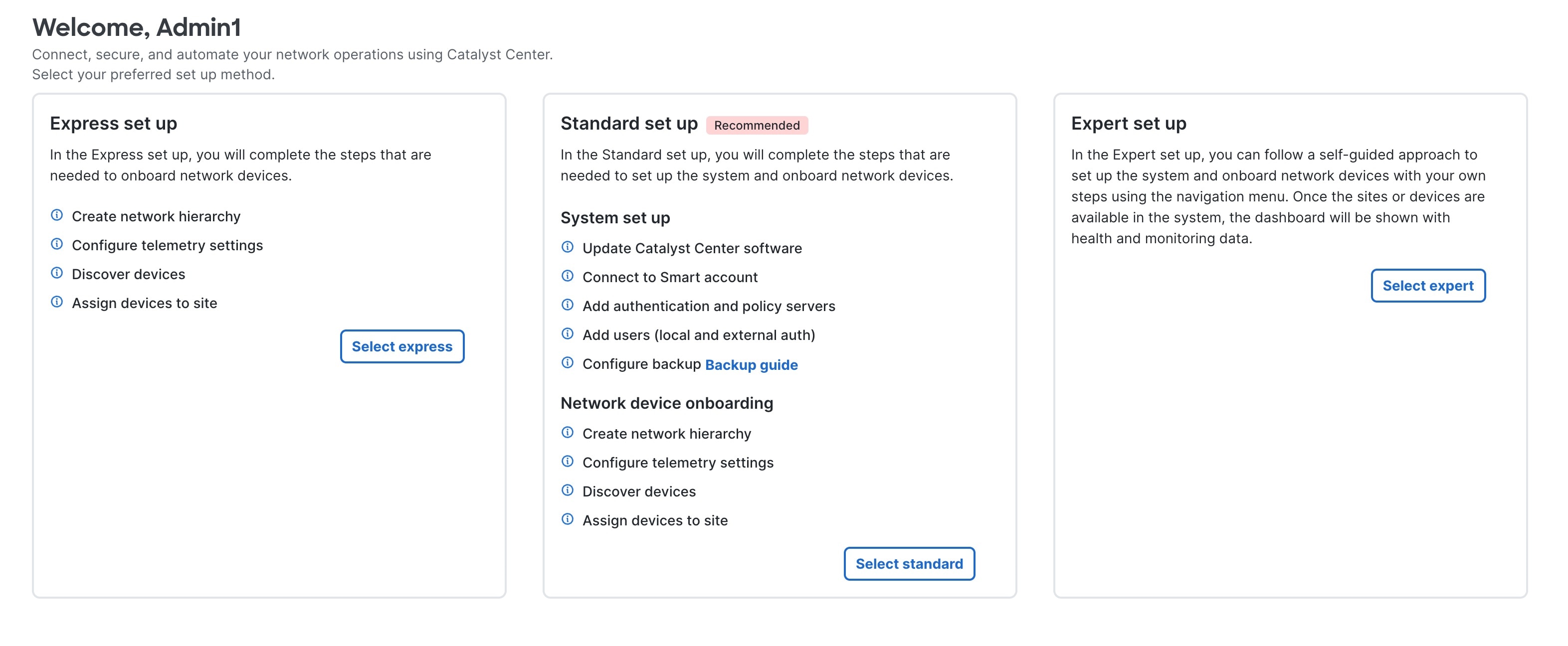
When you log in for the first time, the Quick Start workflow automatically starts. To view the enhanced setup methods, exit the Quick Start workflow and go to the default home page. The default home page displays the available setup methods.

The Catalyst Center home page displays the available setup methods: express setup, standard setup, and expert setup.

If you have SUPER-ADMIN-ROLE or NETWORK-ADMIN-ROLE permissions, you can set up Catalyst Center using one of these methods:

  • Express setup: This setup helps you onboard network devices. For instructions, see Complete the express setup method.

  • Standard setup: This recommended setup helps you set up the system and onboard network devices. For instructions, see Complete the standard setup method.

  • Expert setup: This self-directed setup allows you to independently set up the system and onboard network devices. We recommend this option for expert users only. For instructions, see Complete the expert setup.


Note


If you start one setup method and later decide that you'd prefer to use a different setup method, you can change your selected method. Return to the default home page and click Select <setup method name> to start a different setup method.


Complete the express setup

Follow these steps to set up Catalyst Center using the express setup method.

Before you begin

Ensure that you successfully completed Log in to Catalyst Center for the first time.

Procedure

Step 1

From the home page, click Select express.

The express setup method starts and opens the Design > Network Hierarchy page. The Express set up slide-in pane displays the steps to complete this setup method.

Tip

 
  • We recommend that you complete the steps in the order that they are presented.

  • You can view the relevant page for any step by clicking Go to this step.

  • You can close the Express set up slide-in pane at any time by clicking Exit. In the dialog box, click Exit again.

  • After you complete at least one of the listed steps, you can reopen this slide-in pane by clicking Express set up in the top-right portion of Catalyst Center.

  • You can view all completed steps by scrolling to the end of this slide-in pane and opening the <Number of> steps completed section. To mark a completed step as incomplete, check the Mark as complete check box for that step. The step becomes incomplete, and the progress bar updates to reflect this change.

Step 2

Complete the create network hierarchy step.

  1. On the Design > Network Hierarchy page, create the network hierarchy—including areas, buildings, and floors.

    For instructions, refer to Design the Network Hierarchy.

  2. Under Create network hierarchy, check the Mark as complete check box for this step.

    The progress bar updates and indicates that one of four steps is complete.

Step 3

Complete the telemetry settings step.

  1. Under Configure telemetry settings, click Go to this step.

  2. On the Design > Network Settings page for Telemetry, configure the required telemetry settings for telemetry data collection.

    For instructions, refer to Configure syslog, SNMP traps, NetFlow Collector servers, and wired client data collection using telemetry.

  3. Under Configure telemetry settings, check the Mark as complete check box for this step.

    The progress bar updates and indicates that two of four steps are complete.

Step 4

Complete the discover devices step.

  1. Under Discover devices, click Go to this step.

    The onboard devices workflow begins.

  2. Discover your devices by completing the onboard devices workflow.

    For instructions, refer to Do Discovery.

  3. Under Discover devices, check the Mark as complete check box for this step.

    The progress bar updates and indicates that three of four steps are complete.

Step 5

Complete the assign devices to site step.

  1. Under Assign devices to site, click Go to this step.

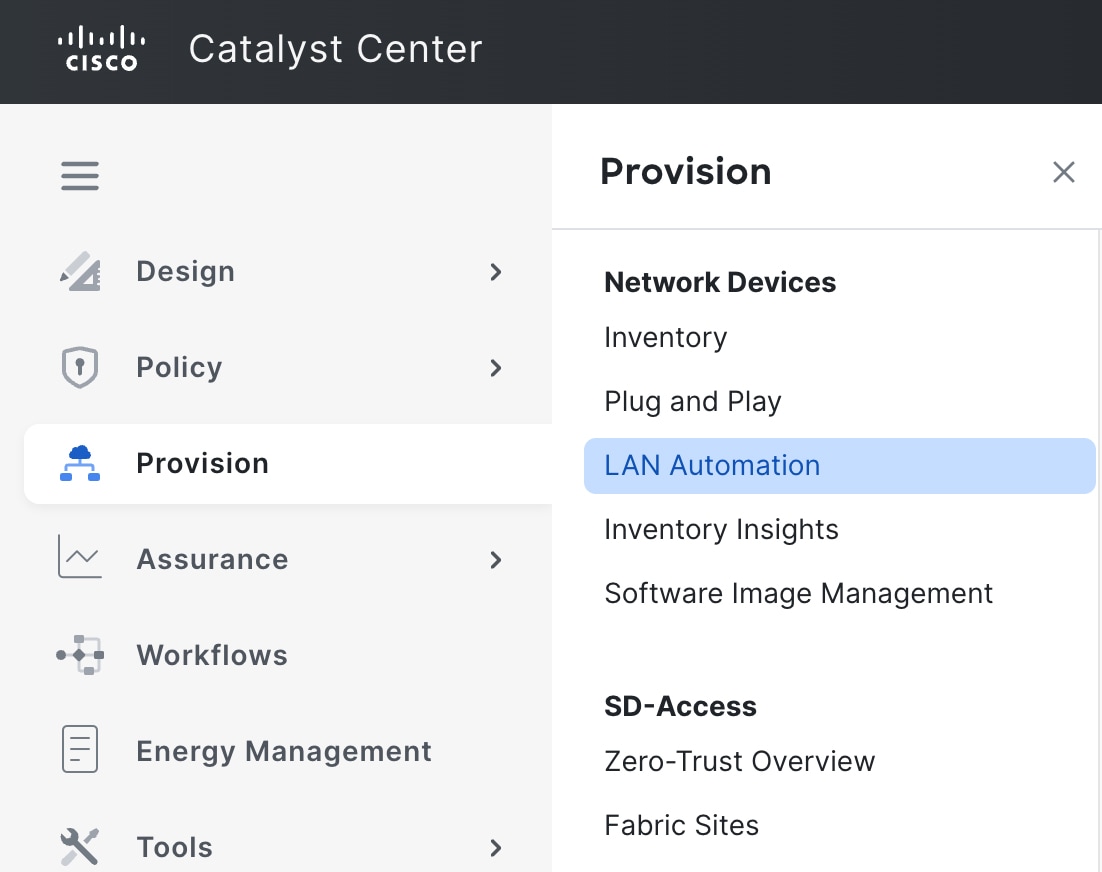
  2. On the Provision > Inventory page, assign your devices to the relevant sites.

    For instructions, refer to Assign an unprovisioned device to a site and Assign a provisioned device to a different site.

  3. Under Assign devices to site, check the Mark as complete check box for this step.

    The progress bar updates and indicates that four of four steps are complete. A completion message summarizes the number of created sites and discovered devices.

Step 6

Click Launch home page to complete the express setup of Catalyst Center.

The home page displays when the express setup of Catalyst Center is complete.

Note


The system may take some time to display discovered devices on the home page.


Complete the standard setup

Follow these steps to set up Catalyst Center using the standard setup method.

Before you begin

Ensure that you successfully completed Log in to Catalyst Center for the first time.

Procedure

Step 1

From the home page, click Select standard.

The standard setup method starts and opens the System > Software Management page. The Standard set up slide-in pane displays the steps to complete this setup method.

Tip

 
  • We recommend that you complete the steps in the order that they are presented.

  • You can view the relevant page for any step by clicking Go to this step.

  • You can close the Standard set up slide-in pane at any time by clicking Exit. In the dialog box, click Exit again.

  • After you complete at least one of the listed steps, you can reopen this slide-in pane by clicking Standard set up in the top-right portion of Catalyst Center.

  • You can view all completed steps by scrolling to the bottom of this slide-in pane and opening the <Number of> steps completed section. To mark a completed step as incomplete, check the Mark as complete check box for that step. The step becomes incomplete, and the progress bar updates to reflect this change.

Step 2

Complete the update the Catalyst Center software step.

  1. On the System > Software Management page, update the Catalyst Center software to the latest recommended version.

    For instructions, refer to the Cisco Catalyst Center Upgrade Guide.

  2. Under Update Catalyst Center software, check the Mark as complete check box for this step.

    The progress bar updates and indicates that one of nine steps is complete.

Step 3

Complete the connect to smart account step.

  1. Under Connect to Smart account, click Go to this step.

  2. On the Smart Account page, connect your Cisco Smart Account to your Smart Licensing account.

    For instructions, refer to "Configure Smart Account" in the Cisco Catalyst Center Administrator Guide.

  3. Under Connect to Smart account, check the Mark as complete check box for this step.

    The progress bar updates and indicates that two of nine steps are complete.

Step 4

Complete the add authentication and policy servers step.

  1. Under Add authentication and policy servers, click Go to this step.

  2. On the Authentication and Policy Servers page, add either a Cisco Identity Services Engine (Cisco ISE) or AAA server.

    Catalyst Center uses AAA servers for user authentication or Cisco ISE for both user authentication and access control. For instructions, refer to "Configure authentication and policy servers" in the Cisco Catalyst Center Administrator Guide.

  3. Under Add authentication and policy servers, check the Mark as complete check box for this step.

    The progress bar updates and indicates that three of nine steps are complete.

Step 5

Complete the add users step.

  1. Under Add users (local and external auth), click Go to this step.

  2. On the User Management page, add the required users, so they can access Catalyst Center.

    For instructions, refer to "Create an internal user" in the Cisco Catalyst Center Administrator Guide.

  3. If your network requires using an external server for authentication and authorization of external users, enable external authentication.

    For instructions, refer to "Configure external authentication" in the Cisco Catalyst Center Administrator Guide.

  4. Under Add users (local and external auth), check the Mark as complete check box for this step.

    The progress bar updates and indicates that four of nine steps are complete.

Step 6

Complete the configure backup step.

  1. Under Configure backup, click Go to this step.

  2. On the System > Backup & Restore page, configure a remote server to back up your automation and Assurance data from Catalyst Center and connect a remote server to restore automation and Assurance data from Catalyst Center.

    For instructions, refer to "Configure the location to store backup files" and "Restore data from backups" in the Cisco Catalyst Center Administrator Guide.

  3. Under Configure backup, check the Mark as complete check box for this step.

    The progress bar updates and indicates that five of nine steps are complete.

Step 7

Complete the create network hierarchy step.

  1. Under Create network hierarchy, click Go to this step.

  2. On the Design > Network Hierarchy page, create the network hierarchy—including areas, buildings, and floors.

    For instructions, refer to Design the Network Hierarchy.

  3. Under Create network hierarchy, check the Mark as complete check box for this step.

    The progress bar updates and indicates that six of nine steps are complete.

Step 8

Complete the telemetry settings step.

  1. Under Configure telemetry settings, click Go to this step.

  2. On the Design > Network Settings page for Telemetry, configure the required telemetry settings for telemetry data collection.

    For instructions, refer to Configure syslog, SNMP traps, NetFlow Collector servers, and wired client data collection using telemetry.

  3. Under Configure telemetry settings, check the Mark as complete check box for this step.

    The progress bar updates and indicates that seven of nine steps are complete.

Step 9

Complete the discover devices step.

  1. Under Discover devices, click Go to this step.

    The onboard devices workflow begins.

  2. Discover your devices by completing the onboard devices workflow.

    For instructions, refer to Do Discovery.

  3. Under Discover devices, check the Mark as complete check box for this step.

    The progress bar updates and indicates that eight of nine steps are complete.

Step 10

Complete the assign devices to site step.

  1. Under Assign devices to site, click Go to this step.

  2. On the Provision > Inventory page, assign your devices to the relevant sites.

    For instructions, refer to Assign an unprovisioned device to a site and Assign a provisioned device to a different site.

  3. Under Assign devices to site, check the Mark as complete check box for this step.

    The progress bar updates and indicates that nine of nine steps are complete. A completion message summarizes the number of created sites and discovered devices.

Step 11

Click Launch home page to complete the standard setup of Catalyst Center.

The home page displays when the standard setup of Catalyst Center is complete.

Note


The system may take some time to display discovered devices on the home page.


Complete the expert setup

Follow these steps to set up Catalyst Center using the expert setup method.

Before you begin


Note


We recommend that only expert network administrators use this setup method. This method does not provide detailed setup instructions. The express and standard setup methods provide step-by-step instructions. For more information, see Catalyst Center setup methods.


Before you begin

Ensure that you successfully completed Log in to Catalyst Center for the first time.

Procedure

Step 1

From the home page, click Select expert.

Step 2

In the Expert set up dialog box, click Ok to continue.

Step 3

Set up Catalyst Center as required for your network.

For general instructions on setting up your network, consider referring to this information:

After you complete device discovery, the default home page is displayed—indicating that you completed the expert setup of Catalyst Center.


User profile roles and permissions

Catalyst Center supports role-based access control (RBAC). Your user role determines your permissions. Catalyst Center has these three main default user roles:

  • SUPER-ADMIN-ROLE

  • NETWORK-ADMIN-ROLE, and

  • OBSERVER-ROLE.

The SUPER-ADMIN-ROLE allows comprehensive access and supports creating and assigning custom roles in the Catalyst Center GUI. The user roles for NETWORK-ADMIN-ROLE and OBSERVER-ROLE provide limited access.

You can create access groups that limit access to certain network sites. An access group combines a role and a site. You can log in to a specific access group at any time.

Catalyst Center supports these default access groups:

  • NW-ADMIN_Global - For global access to the role NW-ADMIN

  • OBSERVER_Global - For global access to the role OBSERVER, and

  • SUPER-ADMIN_Global - For global access to the role SUPER-ADMIN.

The behavior of Catalyst Center features depends on the user role and site specified in the access group. For more information, see Configure site-based, role-based access control in the Cisco Catalyst Center Administrator Guide.

Default home page

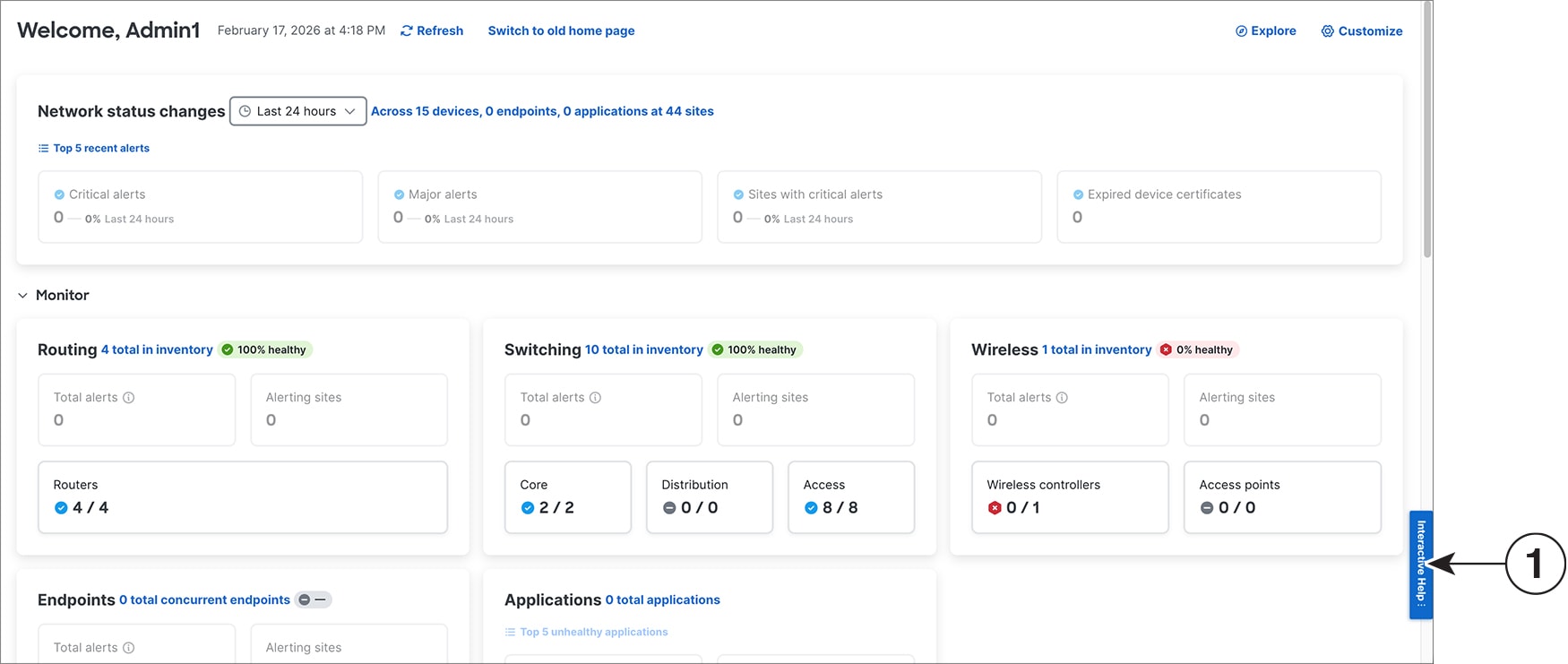
After you log in, you see the Catalyst Center home page. This page provides a granular summary view of your network, allowing you to quickly assess its overall performance, status, and health. The main menu, icons in the top-right portion of the window, and Interactive Help work the same as they did on the previous home page.

Different views of the home page

The home page can vary depending on different stages of Catalyst Center and what role is used to log in.

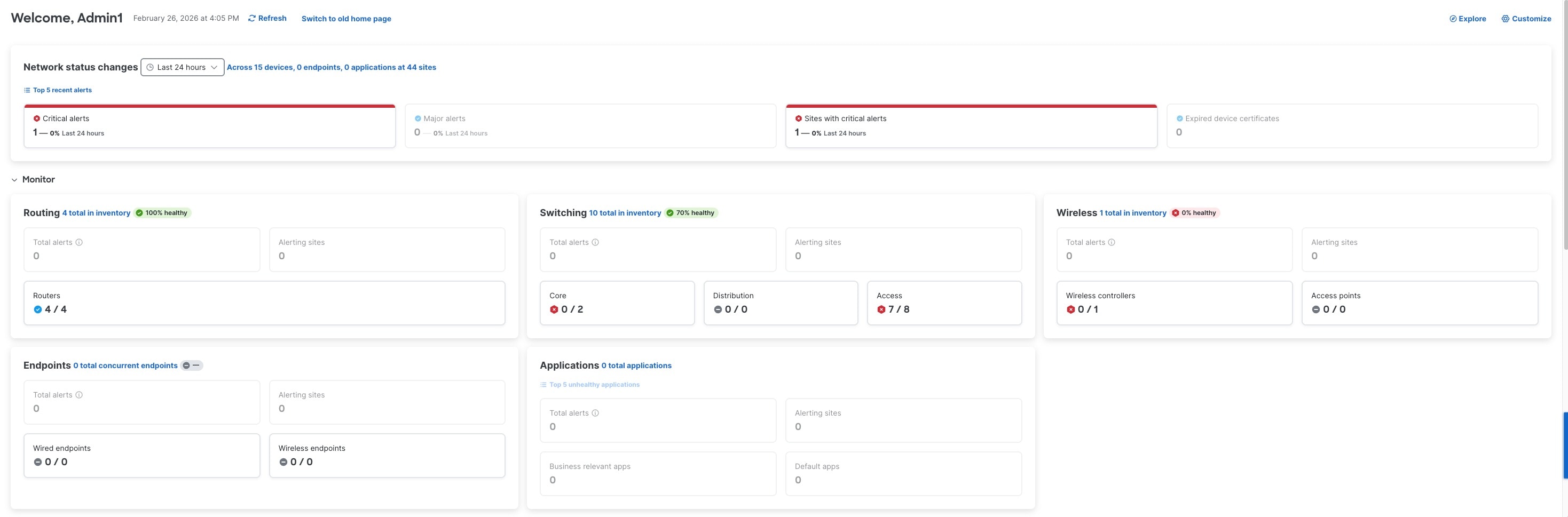
For example, the day-n view of the Catalyst Center home page displays when there are devices in inventory.

Figure 1. The day-n view of the Catalyst Center home page
The day-n view of the Catalyst Center home page displays a snapshot of your network with devices in inventory.

Quick actions

You can:

  • Click Refresh at the top of the page to manually update the home page data.

  • Click Switch to old home page at the top of the page to view the previous home page.

    At the top of the old home page, click Switch to new home page to return to the default home page.

  • Click Explore in the top-right corner of the page to view the Catalyst Center journey map on the Explore page. For more information, see Catalyst Center journey map.

Toolbar icons and help options

The top-right portion of the Catalyst Center window is the toolbar. You can click the icons in this toolbar to do common tasks. This table describes these icons.

Icon Description

Search: Search for devices, users, hosts, menus, and other items that are stored anywhere in the Catalyst Center database.

Favorite: Add any window on Catalyst Center to your favorites to navigate to it easily and quickly. For more information, see Add a window to your favorites.

Help: View a list of help options. For more information, see Help menu options.

Software Updates: See a list of available software updates. Click the Go to Software Updates link to view system and application updates.

Notifications: View event notifications and set notification preferences. A red circle next to the notification icon shows that new notifications are available.

Help options

In the toolbar, click the help icon to view the help options. This table describes these options.

Option

Description

About

Displays the current Catalyst Center software version.

  • Click Release Notes to launch the release notes in a separate browser tab.

  • Click Packages to view the system and application package versions.

  • Click Serial number to view the serial number of the Catalyst Center appliance.

  • Click Member ID to view the member ID.

API Reference

Open the Catalyst Center platform API documentation in Cisco DevNet.

Developer Resources

Open Cisco DevNet, where you can access developer tools.

Contact Support

Open a support case with Cisco Technical Assistance Center (TAC).

Remote Support Authorization

Grant remote access to a Cisco specialist to access Catalyst Center for troubleshooting your network. For more information, see View the remote support authorization dashboard.

Help

Open context-sensitive online help in a separate browser tab.

Cisco CX Cloud Success Tracks

Access the Cisco CX cloud success tracks website in a new window.

Keyboard Shortcuts

Display the keyboard shortcut names, shortcut keys, and shortcut key combinations for shortcut groups.

Make a Wish

Submit your comments and suggestions to the Catalyst Center product team.

Default sections on the home page

The home page is organized into these default sections:

Each section has interactive and noninteractive elements. You can click an interactive element in a section, such as hyperlinked text or a card, to go to the relevant Catalyst Center page for more information or management tasks.

Network status changes

This section displays recent data for alerts and expired device certificates.

This table describes how you can filter and view the recent network status data in the Network status changes section.

If you want to...

Then...

filter the data in this section for a specific time range,

from the Last <time range> drop-down list, choose a time range option to view the network status changes for that time range.

The data in this section is updated based on your time range selection.

view the devices with recent network status changes based on your time range selection,

click Across <number of> devices, <number of> endpoints, <number of> applications at <number of> sites.

The Provision > Inventory page appears.

view the top five recent alerts,

click Top 5 recent alerts.

The slide-in pane opens and lists the top five recent critical and major alerts, along with their priority, name, site, and severity.

This table describes the cards in the Network status changes section.


Note


Understand these definitions for critical and major issues:

  • P1: Critical issues that need immediate attention before they cause a wider impact on network operations.

  • P2: Major issues that can potentially impact multiple devices or clients.


Card name

Description

Critical alerts

Displays the number of critical alerts.

Click this card to view all open critical (P1) issues on the Assurance > Issues and Events dashboard. Refer to "View and Manage Issues" in the Cisco Catalyst Assurance User Guide.

Major alerts

Displays the number of major alerts.

Click this card to view all open major (P2) issues on the Assurance > Issues and Events dashboard. Refer to "View and Manage Issues" in the Cisco Catalyst Assurance User Guide.

Sites with critical alerts

Displays the number of sites with critical alerts.

Click this card to view the sites impacted by critical (P1) issues on the Assurance > Issues and Events dashboard. Refer to "View and Manage Issues" in the Cisco Catalyst Assurance User Guide.

Expired device certificates

Displays the number of expired device certificates.

Monitor

This collapsible section displays network monitoring data for routing, switching, wireless, endpoints, applications, and Software-Defined Access (Cisco SD-Access).

This table describes the dashlets in the Monitor section.


Note


If there are no routing, switching, or wireless devices in inventory, the system displays Add devices instead of <Number of> total in inventory in the relevant dashlet.


Dashlet name

Description

Routing

Displays the total number of alerts, alerting sites, and routers.

Click <Number of> total in inventory to view all routers in inventory on the Provision > Inventory page. Refer to Manage Your Inventory.

Switching

Displays the total number of alerts, alerting sites, and switches (core, distribution, and access).

Click <Number of> total in inventory to view all switches in inventory on the Provision > Inventory page. Refer to Manage Your Inventory.

Wireless

Displays the total number of alerts, alerting sites, wireless controllers, and access points (APs).

Click <Number of> total in inventory to view all APs and wireless controllers in inventory on the Provision > Inventory page. Refer to Manage Your Inventory.

Endpoints

Displays the total number of alerts, alerting sites, and wired and wireless endpoints.

Click <Number of> total concurrent endpoints to go to the Assurance > Health dashboard for client health. Refer to "Monitor and Troubleshoot Client Health" in the Cisco Catalyst Assurance User Guide.

Applications

Displays the total number of alerts, alerting sites, and business-relevant and default applications.

  • Click <Number of> total applications to go to the Assurance > Health dashboard for application health.

  • Click Top 5 unhealthy applications to view a slide-in pane that lists the top five unhealthy applications affected by any critical and major alerts.

Refer to "Monitor Application Health" in the Cisco Catalyst Assurance User Guide.

Software-Defined Access

Note


This dashlet is visible only if the Cisco SD-Access package is installed.

Displays the total number of alerts, fabric sites, Layer 3 virtual networks, and Cisco SD-Access transits.

Click <Number of> total fabric sites to go to the Assurance > Health dashboard for Cisco SD-Access health. Refer to "Monitor and Troubleshoot SD-Access Health" in the Cisco Catalyst Assurance User Guide.

Compliance and other notices

This collapsible section displays notice data for software image management (SWIM), compliance, security, licensing, system, and recent activity.

This table describes the dashlets in the Compliance and other notices section.

Dashlet name

Description

Software Images

Displays the number of devices with high and critical advisories, devices without a standard image, and devices that failed image updates.

Click <Number of> total software images to go to the Provision > Software Image Management page. Refer to Manage Software Images.

Security

Note


This dashlet is visible only if the Rogue and aWIPS package is installed.

Displays the number of rogue threats, aWIPS threats, total unique rogue clients, critical advisories, and high advisories.

Config Compliance

Displays the number of devices without network settings and devices with conflicting configurations.

Click <Number of> total of non compliant devices to go to the Provision > Inventory page. On this page, the system has automatically filtered for all noncompliant devices. Refer to Compliance Audit for Network Devices.

Recent Activities

Displays the number of

  • successful, in-progress, and failed activities

  • provisioning tasks in the last seven days

  • image upgrades in the last seven days, and

  • configuration compliance remediations in the last seven days.

Click <Number of> total activities in last 7 days or the number of successful, in-progress, or failed activities to go to the Activities > Tasks page. On this page, the system has automatically filtered for all relevant activities from the last seven days. Refer to "View, edit, stop, and delete tasks" and "View and discard work items" in the Cisco Catalyst Center Administrator Guide.

Licenses

Displays the number of

  • devices that need registration

  • devices that are out of compliance, and

  • licenses that will expire in one month.

Click <Number of> total devices with licenses or the number of devices needing registration to go to the Tools > License Manager page. Refer to "Manage Licenses" in the Cisco Catalyst Center Administrator Guide.

System

This dashlet displays two types of data:

Device advanced features

This collapsible section displays device data for network bugs, field notices, and end-of-life (EoX) alerts.

This table describes the dashlets in the Device advanced features section.

Dashlet name

Description

Network Bugs

Displays the number of network bugs with critical or high severity.

Click <Number of> total network bugs to go to the Tools > Network Bug Identifier page. Refer to Identify Network Bugs.

Field Notices

Displays the number of hardware and software field notices that affect devices in your network.

Click <Number of> total field notices to go to the Tools > Field Notices page. Refer to Identify Network Field Notices.

EoX Milestones

Displays the number of EoX alerts and the number of EoX alerts for the hardware, software, and module components of the devices in inventory.

Click <Number of> total EoX alerts to go to the Provision > Inventory page. Refer to Display information about your inventory.

Network and activity status icons

On the home page, you can view status icons in the sections to quickly assess various network metrics. This table describes each status icon.

Icon

Description

Example

Green circle with a check mark

Healthy, successful, or connected

For example, when the Routing dashlet displays this status with a percentage, it indicates that the routers in inventory are healthy. When the Recent Activities dashlet displays this status, it indicates that a specific number of activities are successfully completed.

Blue circle with a check mark

Connected

For example, when the Critical Alerts dashlet displays this status, it indicates that there are no recent critical alerts.

Blue circle with an ellipsis

In progress

For example, when the Recent Activities dashlet displays this status, it indicates that a specific number of tasks are in progress.

Red octagon with an x

Unhealthy, failed, or out of compliance

For example, when the Wireless dashlet displays this icon with a percentage, it indicates that the wireless devices are not healthy. When the Software Images dashlet displays this icon, it indicates that a specific number of device families do not have a standard image applied to them.

Gray circle with a dash

Status is not available

For example, when the Endpoints dashlet displays this status, it indicates that the status of endpoints in inventory is not available.

Interactive Help

Interactive Help contains walkthroughs for specific tasks in Catalyst Center. The walkthroughs provide onscreen guidance to help you complete the task.

You can open Interactive Help by using one of these methods:

  • Click the Help icon and choose Interactive Help.

  • Click the Interactive Help widget displayed by default in the bottom-right corner of the Catalyst Center window.

Figure 4. Interactive Help widget
The Catalyst Center window displays the Interactive Help widget in the bottom-right corner by default.

This table describes the callout for Interactive Help widget figure.

1

Interactive Help widget

You can move the Interactive Help widget (callout 1) from the default location to other locations on the GUI window. Drag and drop the widget to the possible locations, which are indicated by green dotted-line rectangles.

You can move Interactive Help pop-ups by dragging their top border and dropping them in a new location on the GUI window. However, if the Interactive Help pop-up is associated with a specific menu option, you cannot move it.

Customize the home page

Use this procedure to customize the Catalyst Center home page.

Procedure


Step 1

On the home page, click Customize in the top-right corner.

Step 2

In the Customize slide-in pane, do these steps:

  1. Customize the home page using any of these actions:

    • Click rename next to a section name to rename it.

    • Click the delete icon (a trash can) to delete a section.

    • Click the toggle button next to a dashlet name to show or hide that dashlet on your home page.

    • Drag and drop the drag-and-drop icon (a grid of six dots) next to a section or dashlet name to reorganize your home page.

    • From the + Add Section drop-down list, choose New Section to add a new section on your home page. Then use the + Add Dashlet drop-down list to add a dashlet to this new section.

  2. After making your changes, click Apply to update the home page layout.


Reauthenticate Cisco.com and Smart Account credentials

Cisco has implemented a new authentication infrastructure. As a result, if you upgraded to Catalyst Center Release 2.3.7.9 or later, a message at the top of the home page indicates that the cisco.com and Smart Account credentials that were configured previously have expired. Click the Cisco.com Credentials and Smart Account links to open the relevant Catalyst Center window and reauthenticate these credentials.

Catalyst Center journey map

The Catalyst Center journey map shows various capabilities provided by Catalyst Center and its use.

Procedure


Step 1

To launch the Catalyst Center journey map, do any one of these tasks:

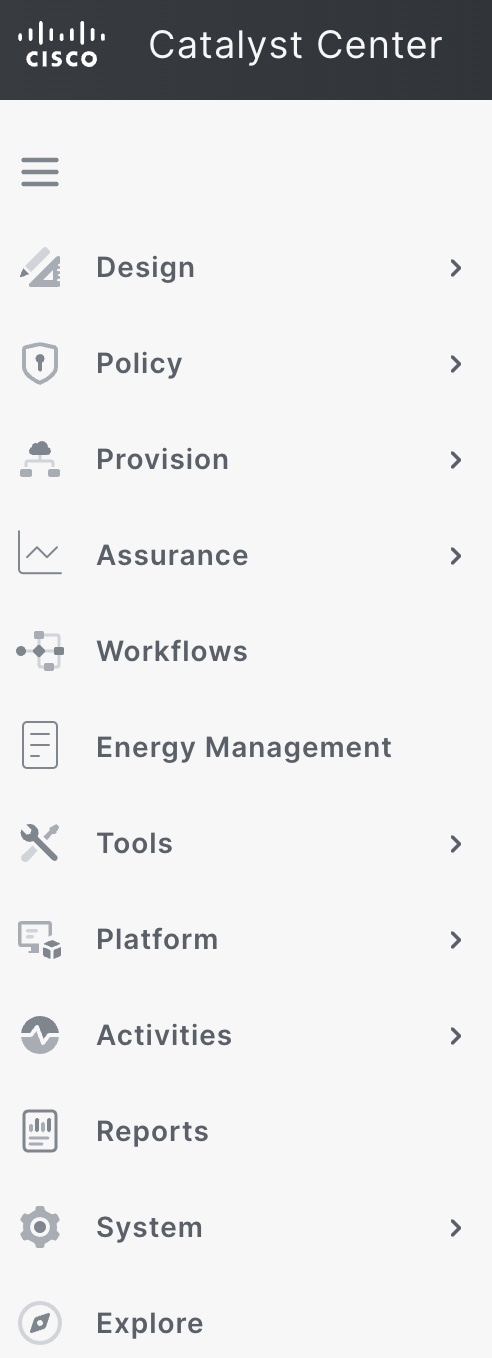
  • From the main menu, choose Explore.

  • In the Catalyst Center home page, click Explore.

In the Catalyst Center journey map, the various features (capabilities) provided by Catalyst Center are grouped into tabs, including AIOps, NetOps, DevOps, and SecOps. Hover your cursor over the icon to view details about each tab.

Step 2

Click the icon to view the journey map in a pie chart.

The pie chart shows the details of the chosen tab. A number next to a step (for example, ) indicates the suggested order of the recommended steps within a segment for your journey map. You can do these actions in the pie chart:

  • Hover your cursor over the features displayed in the pie chart to view a brief description about the feature and its status.

  • If a feature is installed or in use, click the feature name in your journey map to view its configuration or settings page.

  • To view the details about a segment, click the segment name in the pie chart. To return to the previous view containing all the segments, click the segment name again.

Step 3

Click the icon to view the journey map in a table format.

The table shows the details of the chosen tab. Hover your cursor over the feature name to view a brief description about the feature and its status.

Step 4

Check the Completed check box to view information about the completed and incomplete steps in the journey map.

  • If you click Completed, the completed steps are highlighted with green borders.

  • If you click Incomplete, the incomplete steps are highlighted with orange borders.


View the remote support authorization dashboard

Remote support authorization allows you to grant remote access to a Cisco specialist to access Catalyst Center and troubleshoot your network.


Note


The Catalyst Center remote support authorization is supported only with RADKit version 1.2.1 and later.


Procedure


Step 1

From the top-right corner, click the help icon () and choose Remote Support Authorization.

In the Remote Support Authorization dashboard, the SUMMARY area shows the total, current, and past remote support authorizations. The Remote Support Cloud service connectivity status shows in the top-right corner as:

  • A green check mark indicates that the remote support authorization is connected to the Remote Support Cloud service.

  • An exclamation point indicates that the remote support authorization is not connected to the Remote Support Cloud service.

Step 2

In the Create New Authorization tab, click Create a Remote Support Authorization to create a new authorization. For more information, see Create a remote support authorization.

Step 3

Click the Current Authorizations tab to view the current remote support authorization tiles with various statuses, including:

  • All: Displays all the scheduled and active remote support authorizations.

  • Scheduled: Displays the scheduled remote support authorizations.

  • Active: Displays the active remote support authorizations.

For troubleshooting purposes, the support authorization tile shows the schedule and duration of the Cisco specialist's access to Catalyst Center.

Step 4

To revoke an authorization, click Revoke Authorization in the respective support authorization tile.

Step 5

Click the Past Authorizations tab to view the past authorizations.

The Past Authorizations table shows the support authorization based on Case Number, Date, Session Status, Cisco Specialist, and Log and lists these statuses for past authorizations:

  • All: Lists all the expired and revoked remote support authorizations.

  • Expired: Lists all the expired remote support authorizations.

  • Revoked: Lists all the revoked remote support authorizations.

Using the search bar, you can search for past authorizations by case number.

Step 6

To view the remote support authorization logs, click View Logs for the desired authorization.

The Audit Logs window is displayed. For more information, see "View Audit Logs" in the Cisco Catalyst Center Administrator Guide.


Use global search

Use the global search function to find items in these categories anywhere in Catalyst Center:

  • Activities: Search for Catalyst Center menu items, workflows, and features by name.

  • Applications: Search for them by name.

  • Application Groups: Search for them by name.

  • Authentication template: Search for them by name or type.

  • Devices: Search for them by collection status, reachability status, location, or tag.

  • Fabric: Search by fabric name.

  • Feature Templates: Search for them by feature template name or parameter name.

  • Help: Search for topics that include your search string.

  • Hosts and Endpoints: Search for them by name, IP address, or MAC address.

  • IP Pools: Search for them by name or IP address.

  • Network Devices: Search for them by name, IP address, serial number, software version, platform, product family, or MAC address.

  • Network Profiles: Search by profile name.

  • Network Settings

    • Device Credentials: Search by name.

    • IP Address Pools: Search for them by group name or pool CIDR.

    • Service Provider Profiles: Search for them by profile name, WAN provider, or model.

    • Wireless Network Settings: Search for them by wireless network settings name or parameter name.

  • Policy: Search for them by name or description.

  • Sites: Search for them by name.

  • Traffic copy: Search for them by name and description.

  • Transits: Search by transit name.

  • Users: Search for the system settings and users by username. Case-insensitivity and substring search are not supported for usernames.

  • Workflows: Search for them by task name or parameter name.

  • Other items, as new versions of Catalyst Center are released.

To start a global search, click the search icon () in the top-right corner of any Catalyst Center window. Catalyst Center displays a global search window, with a search field where you can begin entering identifying information about an item.

You can enter all or part of the item's name, address, serial number, or other identifying information. The search field is case-insensitive and can contain any character or combination of characters.

As you begin entering your search string, Catalyst Center displays a list of possible search targets that match your entry. If more than one category of item matches your search string, Catalyst Center sorts them by category, with a maximum of five items in each category. The first item in the first category selects automatically, and summary information for that item is displays in the summary panel on the right.

You can scroll the list as needed, and click any of the suggested search targets to see information for that item in the summary panel. If there are more than five items in a category, click View All next to the category name. To return to the categorized list from the complete list of search targets, click Go Back.

As you add more characters to the search string, global Search automatically narrows the displayed list.

Catalyst Center allows you to search for a device using its entire IPv6 address or any abbreviated form of the IPv6 address.

For example, to search for 2001:0db8:85a3:0000:0000:8a2e:0370:7334, you can use these search entries:

  • 2001:0db8:85a3:0000:0000:8a2e:0370:7334 (using the full IPv6 address)

  • 2001:db8:85a3:0:0:8a2e:0:7334 (truncating leading zeros)

  • 2001:db8:85a3::8a2e:0:7334 (compressing consecutive zeros with a double colon)

  • 2001:db8:85a3 (using a portion of the IPv6 address)

Catalyst Center allows you to search for an IPv6 address by using the double colon in the IPv6 address with prefix, postfix, or any combination.

For example, to search for 2001:db8:85a3::8a2e:0:7334, you can use these search entries:

  • :: (using double colon alone)

  • 85a3::8a2e (using prefix and postfix with double colon)

  • 85a3:: (using prefix with double colon)

  • ::8a2e (using postfix with double colon)

You can search for devices in Catalyst Center by entering their MAC addresses in any format (with a hyphen or colon).

When users with scope-based access permissions search for network devices by device name or client ID or IP address, no device details are displayed. However, searching by MAC address shows device data limited to the device or client 360 cross-launch link.

Global search can display five results per category at a time.

The search occurs on data that is synchronized every 10 minutes. Therefore, after a change occurs, the search results reflect the change after up to 10 minutes.

Set the clock format to 12 hours or 24 hours

You can set a 12-hour or 24-hour display format for time across the GUI.

Procedure


Step 1

From the top-right corner, click your displayed username and choose My Profile and Settings > Display Settings.

Step 2

In the Set Clock Format area, click 12 hours or 24 hours.

Step 3

Click Save.


Apply light or dark appearance in Catalyst Center

You can view Catalyst Center in light (default) or dark appearance.

Procedure


Step 1

From the top-right corner, click your displayed username and choose My Profile and Settings > Display Settings.

Step 2

In the Set Appearance area, click Light or Dark to view Catalyst Center in light appearance or dark appearance.

Step 3

Click Save.

Catalyst Center caches the appearance you choose in the browser storage. Therefore, in these scenarios where the browser cache that stores the appearance is not available, the Catalyst Center GUI displays in light appearance for several seconds:

  • You log in to Catalyst Center from a different browser.

  • In a three-node cluster, you log in to the second or third Catalyst Center node for the first time after dark appearance is applied in a primary node.

When dark appearance is enabled, the Catalyst Center GUI displays like this example:

The Catalyst Center GUI displays a black background when dark appearance is enabled.

Enable localization

You can view the Catalyst Center GUI windows in English (the default), Chinese, Japanese, or Korean.

To change the default language:

Procedure


Step 1

In your browser, change the locale to one of the supported languages: Chinese, Japanese, or Korean.

  • From Google Chrome:

    1. Click the icon in the top-right corner, and then select Settings.

    2. Click Languages.

    3. Click Add languages.

    4. In the Add languages dialog box, select Chinese, Japanese, or Korean, and then click Add.

  • From Mozilla Firefox:
    1. Click the icon in the top-right corner, and then select Settings.

    2. From the Language and Appearance > Language area, click Choose.

    3. From the Select a language to add drop-down list, select Chinese, Japanese, or Korean.

    4. Click OK.

Step 2

Log in to Catalyst Center.

The GUI shows in the selected language.


Add a window to your favorites

You can add any window on Catalyst Center to your favorites (the list of your favorited windows). With your favorites, you can navigate to favorited windows more easily and quickly.

You can also add different views of the same window to your favorites if the view has a unique URL. For example, on the Tasks window, you can add this window to your favorites when it’s filtering tasks or work items with the Success status and, separately, when it’s filtering tasks or work items with the Last Updated 24 hours status.

Procedure


Step 1

Navigate to the window that you want to add to your favorites.

Step 2

On the window, in the top-right corner, click the star icon () to add the window to your favorites.

Step 3

On the This window is favorited dialog box, in the Name field, you can either:

  1. Keep the autopopulated name as the title of your favorited window.

  2. Delete the autopopulated name and type a new name.

Step 4

(Optional) To view the list of your favorited windows, click View my favorites.

The My Favorites slide-in pane displays all your favorited windows.

Tip

 
To quickly display the My Favorites slide-in pane from any window on Catalyst Center, use the keyboard shortcut q + f.

Step 5

Click Done to save any edits to the favorited window name and to close the dialog box.

Step 6

(Optional) To remove a window from your favorites, you can either remove it from the This window is favorited dialog box or the Favorites Preferences window.

  1. Navigate to the favorited window that you want to remove, and then click the star icon (). In the This window is favorited dialog box, click Remove.

  2. To remove a window from your favorites, see Manage your favorites.


Manage your favorites

You can manage your favorited windows on the Favorites Preferences window. For information about adding a window to My Favorites, see Add a window to your favorites.

Procedure


Step 1

From the top-right corner, click your displayed username and choose My Profile and Settings > Favorites Preferences.

The Favorites Preferences window displays the list of your favorited windows.

Step 2

(Optional) To remove a favorited window:

  1. Locate the favorited window that you want to remove from the list.

  2. Click the star icon () next to the favorited window to remove it from the list.

Step 3

(Optional) To go to a favorited window:

  1. Locate the favorited window that you want to go to.

  2. Under the favorited window, click its hyperlinked pathway.


Subscribe to Catalyst Center Insights

You can subscribe to Catalyst Center Insights, which contains product announcements, network highlights, information about your network performance, and more. The Catalyst Center Insights publication is sent in PDF format to the email address that you specify.


Note


If your Catalyst Center appliance is deployed in a secure, air-gapped network, certain metrics are omitted from Catalyst Center Insights. To view the complete Catalyst Center Insights, you must have internet and telemetry connectivity, which aren't available in air-gapped environments.


Before you begin

  • Under System > Settings > Integration Settings, enter your callback URL hostname or IP address. For more information, see "Configure Integration Settings" in the Cisco Catalyst Center Administrator Guide.

  • Under System > Settings > External Services > Destinations > Email, configure the SMTP servers that you will use to receive the publication.

Procedure


Step 1

From the top-right corner, click your displayed username and choose My Profile and Settings > Communication Preferences.

Step 2

Click the Subscription Off toggle button to Subscription On.

Step 3

Enter the email address where you want to receive Catalyst Center Insights, and click Save.

Insights are archived for up to one year. You can read past publications by choosing Actions > Download PDF for the desired date range.

Step 4

(Optional) To change the email address, click the pencil icon.

Step 5

(Optional) To unsubscribe from Catalyst Center Insights, click the Subscription On toggle button to Subscription Off.