Zero Touch Provisioning

This section contains the following topics:

Zero Touch Provisioning concepts

The ZTP allows you to ship factory-fresh devices to a branch office or remote location and provision them when physically installed. Local operators can cable these devices to the network without installing an image or the need to fully configure them. To use ZTP, you first establish an entry for each device in the DHCP server and in ZTP. You can then activate ZTP processing by connecting the device to the network and powering it on or reloading it. The device will download and apply a software image and configurations to the device automatically (you can also apply configurations only). When configured, ZTP onboards the new device to the Cisco Crosswork device inventory. You can then use other Crosswork Network Controller functionalities to monitor and manage the device.

ZTP uses the following basic terms and concepts:

  • Evaluation License Countdown : You can use ZTP to onboard devices without licenses for 90 days. After this evaluation period expires, you cannot use ZTP to onboard new devices until you purchase and install a license bundle with enough capacity to cover all prior devices onboarded using ZTP, as well as your projected future needs.

  • Image file : A binary software image file, used to install the network operating system on a device. For Cisco devices, these files are the supported versions of Cisco IOS images. Software image installation is an optional part of ZTP processing. When configured to do so, the ZTP process downloads the image from the Crosswork Network Controller to the device, and the device installs it. If you must also install SMUs, ZTP can install them as part of configuration processing in Classic and Secure ZTP (SMUs are not supported in PnP ZTP).

  • Configuration handling method : A Secure ZTP user option. It allows you to specify whether you want to merge a new configuration into the existing device configuration or to overwrite it.

  • Credential profile : Collections of passwords and community strings that are used to access devices via SNMP, SSH, HTTP, and other network protocols. Crosswork Network Controller uses credential profiles to access your devices, automating device access. All credential profiles store passwords and community strings in encrypted format.

  • Bootfile name : The explicit path to and name of a software image that is stored in the ZTP repository. For each device you plan to onboard using ZTP, specify the bootfile name as part of the device configuration in DHCP.

  • HTTPS/TLS : Hypertext Transport Protocol Secure (HTTPS) is a secure form of the HTTP protocol. It wraps an encrypted layer around HTTP. This layer is the Transport Layer Security (TLS) (formerly Secure Sockets Layer, or SSL).

  • iPXE : The open-source boot firmware iPXE is the popular implementation of the Preboot eXecution Environment (PXE) client firmware and boot loader. iPXE allows devices without built-in PXE support to boot from the network. The iPXE boot process is a normal part of Classic ZTP processing.

  • UUID : The Universal Unique Identifier (UUID) identifies a device when it is onboarded.

  • Image ID : The image ID uniquely identifies an image file that you have uploaded to Crosswork Network Controller. You use the image ID of the software image file in the DHCP bootfile URL with Classic and Secure ZTP.

  • ZTP asset : ZTP requires access to several types of files and information in order to onboard new devices. We refer to these files and information collectively as "ZTP assets." You load these assets as part of the ZTP setup, before initiating ZTP processing.

  • ZTP profile : Crosswork Network Controller storage construct that combines (normally) one image and one configuration into a single unit. Crosswork Network Controller uses ZTP profiles to automate imaging and configuration processes. Using ZTP profiles is optional, but we recommended them. They are an easy way to organize ZTP images and configurations around device families, classes, and roles, and help maintain consistency.

  • ZTP repository : The location where the Crosswork Network Controller stores image and configuration files.

Types of ZTP processes

  • Secure ZTP : A secure process to download and apply software images and configuration files to devices. It uses secure transport protocols and certificates to verify devices and perform downloads, which makes it more suitable for use over public networks.

  • Classic ZTP : A process to download and apply software and configuration files to devices. It uses iPXE firmware and HTTP to boot the device and perform downloads. As it does not use secure communications, it is not suitable for use over public networks.

  • PnP ZTP : A secure process to download and apply software images and configuration files to Cisco IOS-XE devices. It uses Cisco Plug and Play (Cisco PnP) to verify devices and perform downloads over a secure, encrypted channel. It offers much the same level of security as Secure ZTP, but only for Cisco IOS-XE devices.

Certificates and ownership

  • Owner Certificate : The Certificate Authority (CA)-signed end-entity certificate for your organization, which binds a public key to your organization. You install Owner Certificates on your devices as part of Secure ZTP processing.

  • Ownership Voucher : The Ownership Voucher is used to identify the owner of the device by verifying the Owner Certificate that is stored in the device. Cisco supplies Ownership Vouchers in response to requests from your organization. For information on how to get the Ownership Vouchers from Cisco, see Ownership voucher requirements .

  • SUDI : The Secure Unique Device Identifier (SUDI) is a certificate with an associated key pair. The SUDI contains the device's product identifier and serial number. Cisco inserts the SUDI and key pair in the device hardware Trust Anchor module (TAm) during manufacturing, giving the device an immutable identity. During Secure ZTP processing, the back-end system challenges the device to validate its identity. The router responds using its SUDI-based identity. This exchange, and the TAm encryption services, permit the back-end system to provide encrypted image and configuration files. Only the validated router can open these encrypted files, ensuring confidentiality in transit over public networks.

  • SUDI Root CA certificates : A root authority certificate for SUDIs, issued and signed by a Certificate Authority (CA), used to authenticate subordinate SUDI certificates.

Cisco Plug and Play (Cisco PnP)

Cisco Plug and Play: Cisco's proprietary ZTP, bundled in most IOS software images. Cisco PnP uses a software PnP agent and a PnP server to distribute images and configurations to devices. To ensure that communications are secure, the server and agent communicate using HTTPS.

  • Cisco PnP agent : A software agent embedded in Cisco IOS-XE devices. Whenever a device that supports the PnP agent powers up for the first time without a startup configuration file, the agent tries to find a Cisco PnP server. The agent can use various means to discover the server's IP address, including DHCP and DNS.

  • Cisco PnP server : A central server for managing and distributing software images and configurations to Cisco PnP-enabled devices. ZTP has an embedded PnP server, which is configured to communicate with PnP agents using HTTPS.

Configuration file

  • A file used to set the operating parameters of the newly imaged or re-imaged device. Depending on the ZTP mode you plan to use, the file may be a Python script, Linux shell script, or a sequence of Cisco IOS CLI commands stored as ASCII text (not all of these are supported in all ZTP modes). The ZTP process downloads the configuration file to the newly imaged device, which then executes it. The ZTP process requires a single configuration file. The secure ZTP process supports up to three different configuration files, which are applied during onboarding in the following order:

    • Pre-configuration: A preconfiguration file is a file used to set the initial operating parameters of a newly imaged or re-imaged device. The preconfiguration file is essential for automating the setup process, allowing the device to be configured without manual intervention.

    • Day-zero: A day-zero file is a configuration file that is used to set up a newly imaged or re-imaged device right from the start, often referred to as "day zero." The day-zero file is crucial for automating the initial configuration process, enabling the device to be operational without manual setup.

    • Post-configuration: A post-configuration file is used to apply additional settings and configurations to a device after the initial setup has been completed. This file can include advanced configurations, updates, or custom scripts that further refine the device's operation. The post-configuration file ensures that the device meets specific operational requirements and is fully optimized for its intended use.

    The pre-configuration and post-configuration may have references to the day-zero configuration file, which indicates that the pre and post- configuration files require the UUID from the day-zero file.

License consumption for ZTP onboarding

Provide an overview of how ZTP licenses are consumed and managed during device onboarding and evaluation periods.

The ZTP licensing follows a consumption-based model with licenses that are sold in blocks. To regain the ability to onboard devices using ZTP, you must install a license block that covers both the number of devices you onboarded during the trial period as well as the new devices you expect to onboard with ZTP in the future. For example: If you onboard 10 devices during the trial and then install a license bundle for 10 devices on day 91, you have no licenses that are left to use, and must install at least one more license block before onboarding another device. You can add more license blocks as needed. Operators should monitor license consumption to avoid running out of licenses unexpectedly. To see how many licenses you have used and are still available, check Cisco Smart Licensing site .

Your onboarded ZTP devices are always associated with either:

  • A serial number, or

  • For IOS-XR devices: The values of the Option 82 location ID attributes (remote ID and circuit ID).

Serial numbers and location IDs form an "allowed" list. ZTP uses this list when deciding to onboard a device and assign it a license. If you delete an onboarded ZTP device from inventory, and then onboard it again later, use the same serial number or location ID. If you use a different serial number or location ID, you may consume an extra license. The current release provides no workaround for this scenario. In any case, you can't have two different ZTP devices with the same serial number or location ID active at the same time.

Platform support for ZTP

For the most accurate and up-to-date list of hardware and software versions that Classic ZTP, Secure ZTP, and PNP ZTP supports, refer to the Cisco Crosswork Network Controller Essentials Supported Devices.


Important


ZTP does not support third-party devices.


Requirements for provisioning third-party devices with secure ZTP

Secure ZTP supports provisioning for third-party devices only if the third-party devices:

  • Are 100 percent compliant with the Secure ZTP RFC 8572.

  • Match the Cisco format guidelines for serial numbers in device certificates and ownership vouchers.

Guidelines for third-party device certificates and ownership vouchers

Secure ZTP processing for any device starts with a successful HTTPS/TLS handshake between the device and Crosswork Network Controller. After the handshake, Secure ZTP must extract a serial number from the device certificate. Secure ZTP then validates the extracted serial number against its internal "allowed" list of serial numbers. You create the allowed list by uploading device serial numbers to Cisco Crosswork. A similar serial-number validation step occurs later, when Crosswork uses ownership vouchers to validate downloads.

Unlike Cisco IOS-XR devices, the format of the serial number in third-party vendors' device certificates is not standardized across vendors. Typically, a third-party vendor's device certificate has a Subject field or section. The Subject contains multiple key-value pairs that the vendor decides upon. One of the keys is usually serialNumber. This key's value contains the actual device serial number as a string, which is preceded by the string SN:. For example: Let's suppose that the third-party device certificate's Subject section contains the following key and value: serialNumber = PID:NCS-5501 SN:FOC2331R0CW. Secure ZTP will take the value after the SN: string and attempt to match that to one of the serial numbers in the allowed list.

If the third-party vendor's device certificate has a different format, validation failures can occur. The degree of failure depends on the degree of difference. The vendor certificate may not match this format at all. The certificate's Subject field may not contain a serialNumber key with a value that contains the SN: string. In this case, Secure ZTP processing falls back to using the whole string value of the serialNumber key (if present) as the device serial number. It will then try to match that value to one in the allowed list of serial numbers. These two methods – string matching and the fallback – are the only means Secure ZTP has for determining the third-party device's serial number. If the vendor certificate differs from this expectation, Secure ZTP is unable to validate the device.

Secure ZTP has similar format expectations for ownership vouchers (OVs). Cisco tools generate ownership vouchers with filenames in the format SerialNumber.vcj, where SerialNumber is the device's serial number.

Secure ZTP extracts the serial number from the filename and then attempts to match it to one in the allowed list. For multivendor support, we assume that third-party vendor tools generate OV files with file names in the same format. If this expectation isn't met, validation fails.

Comparison of ZTP implementation modes

ZTP offers a range of implementation choices and cost versus benefit tradeoffs worth considering in advance. As a best practice, always choose the most secure implementation that is supported by your devices.

  • Classic ZTP is easier to implement than Secure ZTP. It needs no Pinned Domain Certificate (PDC), owner certificates, or ownership vouchers. It’s less subject to processing errors, as device and server verification is less stringent and setup is less complex. It’s your only choice if your Cisco devices run IOS-XR versions earlier than 7.3.1, as Secure and PnP ZTP are not supported on earlier versions of the software. Although Classic ZTP includes a device serial-number check, it remains unsecured at the transport layer. It's not recommended if routes to your remote devices cross a metro or otherwise unsecured network.

  • Use Secure ZTP when:

    • Your ZTP traffic must traverse unsecured public networks.

    • Your Cisco IOS-XR devices support Secure ZTP and are at the required software level.

    The additional security that Secure ZTP provides requires a more complex setup than either Classic or PnP ZTP. This complexity can make configuration error-prone if you’re new to the setup tasks. Secure ZTP setup also requires a PDC, owner certificates and ownership vouchers from Cisco.

    Consider using Secure ZTP if your devices are from third-party manufacturers; Classic and PnP ZTP don't support third-party hardware. Third-party devices and their software must be 100 percent compliant with RFCs 8572 and 8366 . Device certificates for third-party devices must contain the device serial number. Third-party ownership vouchers must be in a format that uses the device serial number as the filename. Cisco doesn't guarantee Secure ZTP compatibility with all third-party devices. For more details on third-party device support, see Platform support for ZTP.

    Secure ZTP offers more flexibility with compatible devices because it offers pre-configuration, day-zero, and post-configuration script execution capability. While both Classic and Secure ZTP modes can chain configuration files, Classic ZTP's ability to execute additional scripts is limited to the support for script execution allowed on specific devices. PnP ZTP can only execute CLI commands, which don't allow for script execution.

  • Use PnP ZTP when you want a secure provisioning setup for Cisco IOS-XE devices that support the Cisco PnP protocol. PnP ZTP is less complicated to set up than Secure ZTP, but only slightly more complicated than Classic ZTP.

  • Use ZTP With imaged devices when you do not have to specify a software image when using any of the ZTP modes. This feature allows you the option of shipping to your remote location one or more devices on which you have already installed a software image. Later, connect to these devices and trigger the ZTP processing remotely. You can then apply:

    • A configuration file

    • One or more images or SMUs, with more configurations.

    In all cases, the result is to onboard the device. Once onboarded to Crosswork Network Controller, you want to avoid using ZTP to configure the device again. See Options for reconfiguring onboarded ZTP devices for details.

Methods for ensuring consistency:

  • Organize your configurations : Keep your configurations as consistent as possible across devices. Start by ensuring that all devices from the same device family and with similar roles have the same or similar basic configurations.

  • Define the role that a device plays depends on your organization, its operational practices, and the complexity of your network environment. For example: Suppose that your organization is a financial services enterprise. It has three types of branches: Sidewalk ATMs, retail branches open during standard business hours, and private trading offices. You could define three sets of basic profiles covering all the devices at each type of branch. You can map your configuration files to each of these profiles.

  • Develop basic script configurations for similar types of devices, then use the script logic to call, or chain, other scripts for devices with special roles. If you’re using Classic ZTP, the script is in the specified configuration file. To extend our example, that script would apply a common configuration, then download and apply other scripts depending on the branch type. If using Secure ZTP, you have even more flexibility, as you can specify pre-configuration and post-configuration scripts in addition to the day-zero configuration script.

ZTP processing logic

When initiated by a device reset or reload, the ZTP process proceeds automatically. Crosswork Network Controller also updates the Devices window with status messages showing the state that each device reaches as it is processed. When a device has reached the Onboarded state, there are additional steps to perform that are beyond the scope of ZTP processing (see, for example, Update ZTP device information).

The scripts used to configure the devices must include notifications of state changes in order for Crosswork Network Controller to accurately report progress as shown in the diagrams. To see examples of these calls, select Device Management > Zero Touch Provisioning > Configuration files, then click Download sample script (XR). For information on the sample configuration file, see the Download the sample configuration file section in Prepare and Load Configuration Files.

ZTP processing differs depending on the Classic ZTP, Secure ZTP, or PnP ZTP implementation. The details on each step of ZTP processing for each ZTP mode are explained in these sections:

Classic ZTP processing

The following illustration shows the process logic that Classic ZTP uses to provision and onboard devices. The device state transitions are represented by blocks in the shades of green, positioned on the left side of the illustration.
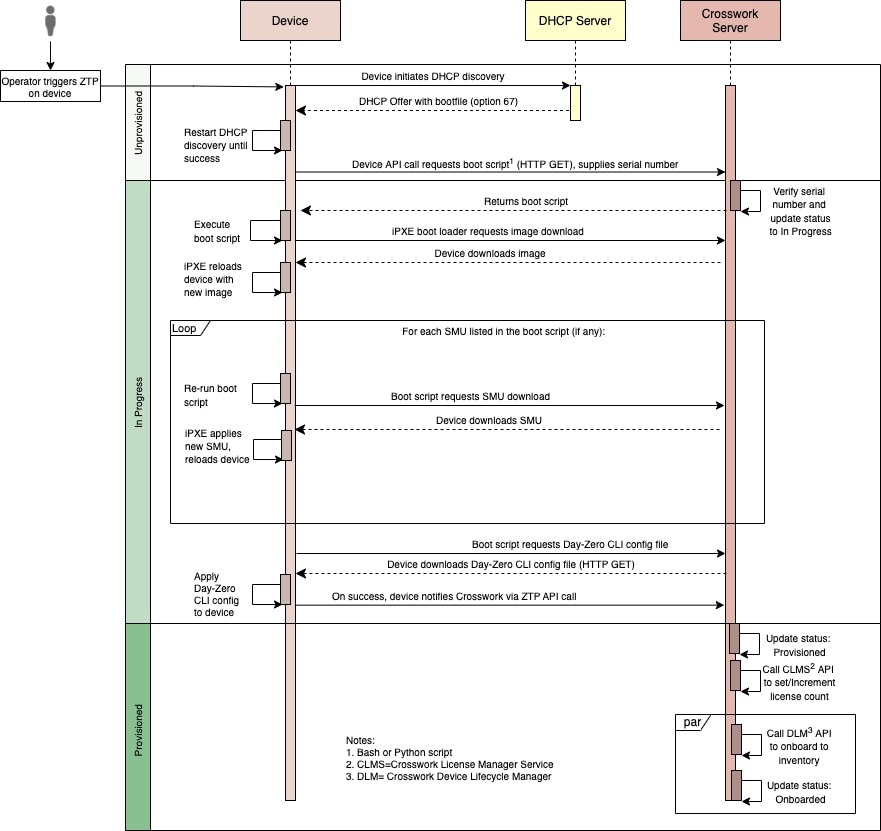
Figure 1. Classic ZTP Processing
Classic ZTP Processing

The DHCP server verifies the device identity based on the device serial number, then directs the device to download the boot file and image. Once ZTP images the device, the device downloads the configuration file and executes it.

Secure ZTP processing

The following illustration shows the process logic that Secure ZTP uses to provision and onboard devices. The device state transitions are represented by blocks in the shades of green, positioned on the left side of the illustration.
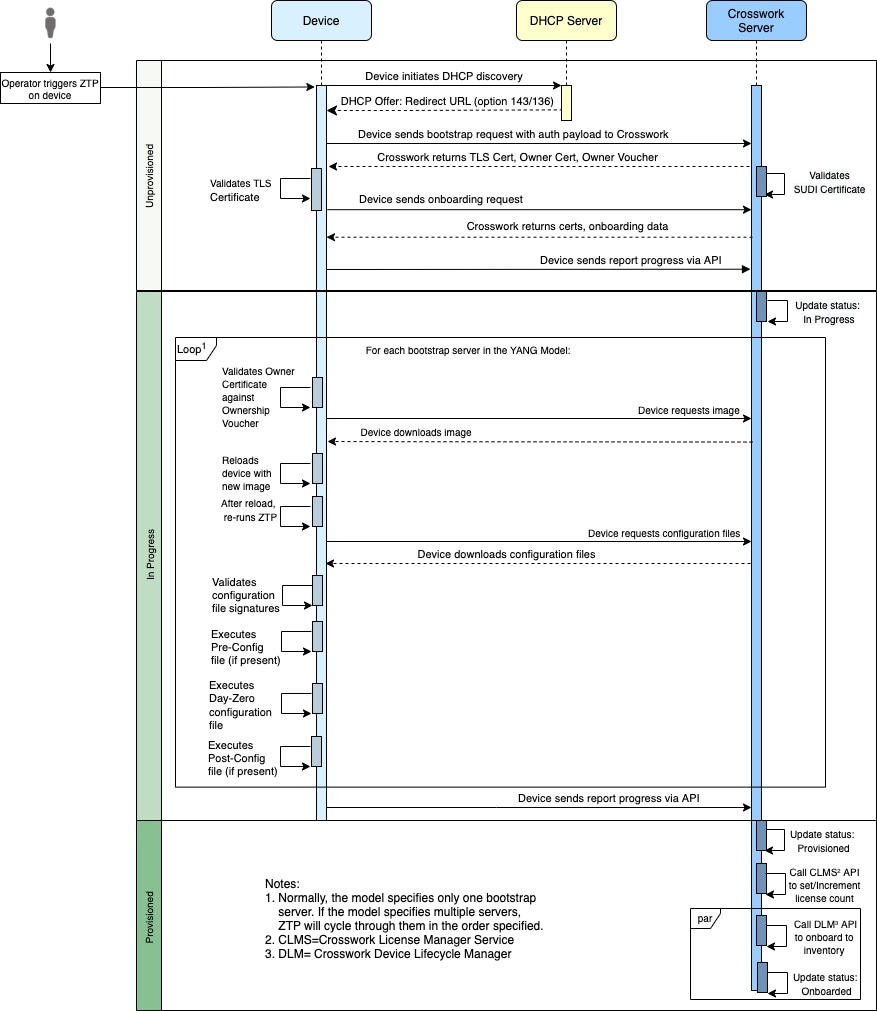
Figure 2. Secure ZTP Processing
Secure ZTP Processing

The device and the ZTP bootstrap server authenticate each other using the Secure Unique Device Identifier (SUDI) on the device and server certificates over TLS/HTTPS. Over a secure HTTPS channel, the bootstrap server lets the device download-signed image and configuration artifacts. These artifacts must adhere to the RFC 8572 YANG schema. When the device installs the new image (if any) and reloads, the device downloads configuration scripts and executes them.

PnP ZTP processing

The following illustration shows the process logic that PnP ZTP uses to provision and onboard devices. The device state transitions are represented by blocks in the shades of green, positioned on the left side of the illustration.
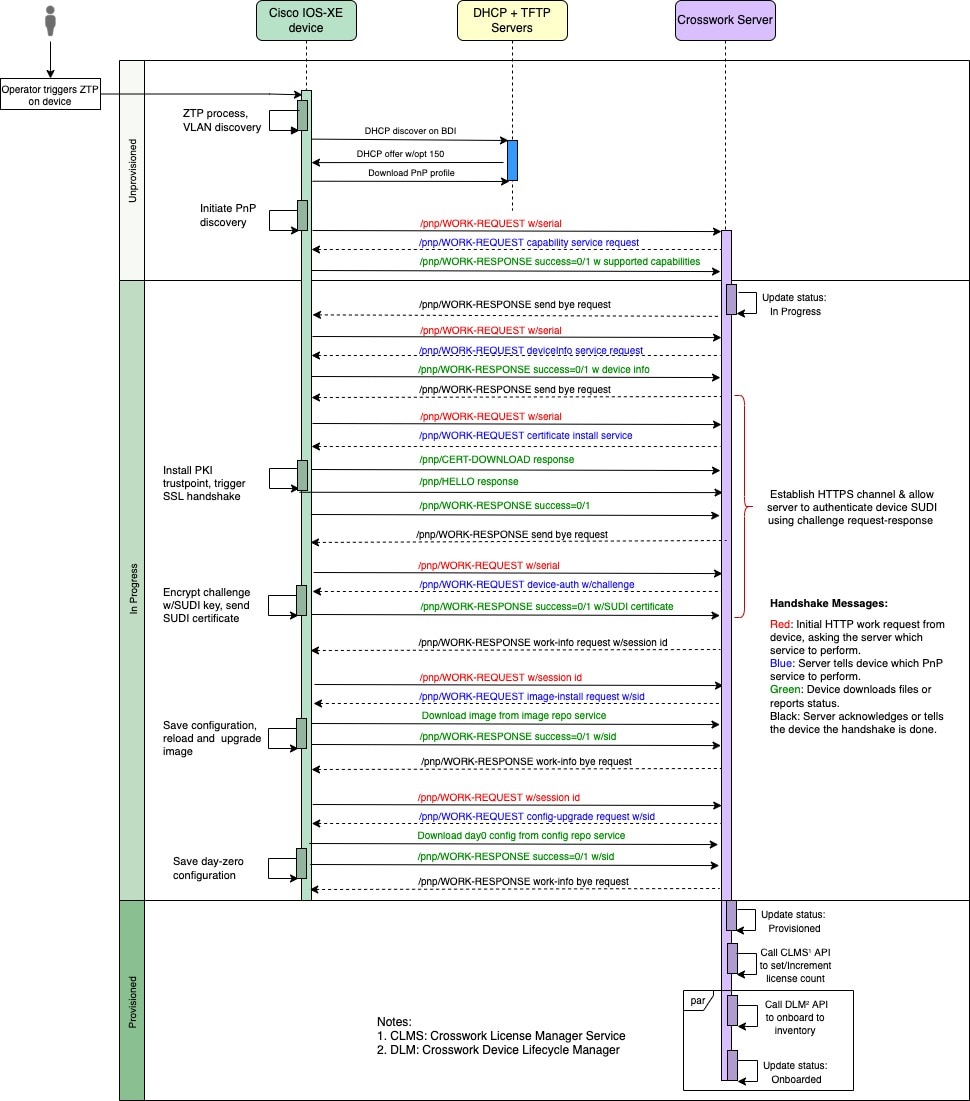
Figure 3. PnP ZTP Processing
PnP ZTP Processing

Once an operator triggers PnP ZTP processing, the device performs VLAN discovery and creates a BDI interface, on which DHCP discovery is initiated. The DHCP discovery response provided to the device during DHCP must include Option 150 which directs the device to the TFTP server hosted on the CNC. The device downloads the PnP Profile from the TFTP server without authentication and copies it to the device's running configuration. The PnP Profile is a CLI text file. The profile activates the device's PnP agent and sends work requests to the embedded Crosswork Network Controller PnP server over HTTP on port 30620. The PnP server then validates the device's serial number against Crosswork Network Controller's "allowed" list of serial numbers (previously uploaded to Crosswork Network Controller) and then initiates a PnP capability service request. A successful PnP work response from the device changes the device provisioning status from Unprovisioned to In Progress. Thereafter, the PnP server initiates a series of service requests, including requests for device information, certificate installation, image installation, configuration upgrade, and so on. Each of these service requests involves a four-way handshake between the PnP server and the PnP agent. As part of the certificate-install request, the Crosswork Network Controller PnP server shares its certificate with the device. Successful installation of this trustpoint on the device changes the PnP profile configuration to start using HTTPS and port 30603 on Crosswork Network Controller. Subsequent image and config download requests use HTTPS to secure transactions. There is currently no SUDI certificate authentication support on the device. Once the device downloads and installs a new image (if any) and reloads, the PnP process continues to download CLI configuration files and apply them to device running configuration. The device status is then set to Provisioned and the license count is updated in Crosswork Network Controller. The device status is then set to Onboarded, and the device stops communicating with the PnP server.

Requirements for ZTP setup

ZTP setup configuration

ZTP requires the completion of these setup tasks and configuration:

  1. Assemble and load the types of assets that ZTP needs for processing to Crosswork Network Controller. When uploading a configuration file that references additional files or assets, ensure that those files or assets are also uploaded to Crosswork Network Controller. See Checklist for assembling ZTP assets.

  2. (Optional) Create ZTP profiles, which can help you simplify and standardize device imaging and configuration during the onboarding process. See Create ZTP profiles.

  3. Create ZTP device entries. ZTP uses these device entries as database "anchors" when onboarding devices to the Crosswork Network Controller device inventory. If you have many devices to onboard, create the entries in bulk by importing a CSV file (see Upload ZTP device entries). If you have only a few devices to onboard, it's more convenient to prepare these entries one by one, using the Crosswork Network Controller UI (see Prepare single ZTP device entries). You can also use Crosswork APIs to onboard devices (see the ZTP API reference on the Crosswork Network Controller DevNet Page).


Attention


To perform ZTP activities such as adding a device, create a configuration file, or establish a ZTP profile, it's essential that you have the read/write access permissions for both ZTP-related roles and Inventory APIs.


Prerequisites for ZTP compatibility in a multicluster and single VM deployment

To ensure compatibility with ZTP in a multicluster and single VM deployment, your setup must meet these prerequisites:

  1. Onboard to NSO: If you want ZTP to onboard your devices to Cisco NSO, configure NSO as a Crosswork Network Controller provider. Be sure to set the NSO provider property key to forward and the property value to true.

  2. Confirm device reachability: The Crosswork Network Controller cluster nodes must be reachable from the devices, and the nodes from the devices, over either an out-of-band management network or an in-band data network. For a general indication of the scope of these requirements, see the Crosswork Network Controller Installation Guide for your version of the product. Enabling this kind of access may require you to change firewall configurations.

  3. Set up static routes: If your Crosswork Network Controller cluster nodes and the devices you want to onboard using ZTP are in different subnets, you need to set up one or more static routes from your Crosswork Network Controller cluster nodes to each separate device subnet. To do this from the Crosswork Network Controller main menu, select Administration > Settings > Device connectivity management > Routes. Click the Add icon, enter the destination subnet IP address and mask (in slash notation), then click Add.

  4. Set up TFTP server for PnP ZTP: If you plan to use PnP ZTP, you must add a TFTP server as a Crosswork Network Controller provider. The TFTP server can be configured with a generic profile such as:

    pnp profile test-profile 
        transport http ipv4 192.168.100.205 port 30620
  5. Set boot-level license levels on IOS-XE devices: If you plan on using PnP ZTP, check that the minimum license boot-level on each IOS-XE device is set to metroipaccess or advancedmetroipaccess. Be sure to perform this check before you trigger ZTP processing. If the boot level has been set properly, the output of the IOS-XE #sh run | sec license CLI command on the device should contain statements showing either of these two license levels: license boot level advancedmetroipaccess or license boot level metroipaccess. If the command output shows any other license level, especially one lower than these two, the Cisco PnP cryptographic functionality will not be enabled. This will cause certificate installation to fail, which will then cause PnP ZTP device provisioning to fail.

  6. Avoid IPv6 SLAAC IP address conflicts: Incorrect DHCPv6 and IPv6 gateway configuration can cause IP address assignment conflicts with Stateless Address Autoconfiguration (SLAAC). These conflicts result in a variety of ZTP failures, including preventing image upgrade on a destination device. If you plan to use ZTP on an IPv6 network, ensure that:

    • Your DHCPv6 subnet range specifies a /64 prefixlen. This simple specification can prevent many failures.

    • The default gateway is configured to avoid SLAAC IP assignment and uses DHCPv6 and stateful IP configuration only.

    • The VMs used to host DHCPv6 allow Router Advertisements but do not allow autoconfig IPs.

Checklist for assembling ZTP assets

The term "ZTP Assets" refers to the software and configuration files, credentials, certificates, and other assets. The number of assets you need to prepare and load into Crosswork Network Controller will vary, depending on whether they are required for the ZTP mode you want to use, the state of your devices at the time you begin onboarding them, and other factors.

We recommend that you prepare and load these assets in the order that is given in the ZTP asset checklist. For details on how to prepare and then load each asset, including optional assets like software images, see the linked topic in the checklist's last column. If an asset references additional files or assets, make sure that those files or assets are also loaded into Crosswork Network Controller to prevent errors when applying configuration files to a device.

Many organizations maintain libraries of ZTP assets such as serial numbers and configuration files. If your organization has libraries like this, ensure that they are easily accessible from your desktop. Doing so makes it easier for you to complete the ZTP setup.

For more background on using Secure ZTP with IOS-XR devices, see System Setup and Software Installation Guide for Cisco NCS 540 Series Routers, IOS XR Release 7.3.x.

Crosswork Network Controller supplies its own TLS certificate, with Crosswork Network Controller as the Certificate Authority, for IOS-XR devices. You need not supply or upload your own TLS CA certificate chain, as IOS-XR devices do not perform X.509 validation on the Crosswork TLS server certificate.

Table 1. ZTP asset checklist

Order

Asset

Classic ZTP

Secure ZTP

PnP ZTP

For Details, see

1

Software image

Optional

Optional

Optional

A software image is required if the device has no software image installed. Software images

2

Configurations

Required

Required. Supports multiple configurations.

Required

Prepare and load configuration files

3

Software Maintenance Updates (SMUs)

Optional

Optional

Not Supported

Software maintenance updates

4

Device Credentials

Required

Required

Required

Create credential profiles for ZTP in bulk

5

Serial Numbers

Required

Required

Required

Serial numbers of imaged IOS devices

6

Pinned Domain Certificate (PDC), Owner Certificates (OCs) and Owner Key

Not Used

Required

Not used

Update the default PDC, owner certificates, and owner key.

7

Ownership Vouchers

Not Used

Required

Not used

Ownership voucher requirements.

8

SUDI Root Certificate

Not used

Required

Required for IOS-XE devices only

Prepare and load the SUDI root certificate

Software images

A software image is a network operating system file that:

  • enables network devices to function by providing the required system software,

  • is distributed in formats such as BIN, TAR, ISO, or RPM depending on the platform, and

  • is specific to a device's family and release version.

Cisco distributes IOS-XR images as TAR, ISO, BIN, or RPM files. Cisco distributes IOS-XE images as BIN files only. Each Cisco image file represents a single release of the given network OS for a given device platform or family.

Downloading software image files for ZTP

Software image loading is optional for all ZTP modes, although it is required if the device you are onboarding has no software image installed. You are not required to apply a software image to a device that is already imaged. You can also apply configuration files to a device without loading an image. Loading images is required only when the device you want to onboard does not have an image that is installed on it, or when you want to upgrade the network OS at the same time as you onboard the device.

Download software image files from the Cisco Support & Downloads page. During the download, record the file's MD5 checksum. You can also generate your own MD5 checksum for an image file you want to upload. Crosswork Network Controller uses the MD5 checksum to validate the integrity of the file.

Adding software image files

Refer to the section, Add a software image to the image repository for steps to add a software image file. When adding the software image files to Crosswork Network Controller one at a time, enter the MD5 checksum for each file during the load.

Prepare and load configuration files

Configuration files are script files that configure the features of the installed software image on a given device. They are required for all ZTP modes.

Configuration files that are used with Classic and Secure ZTP modes can be Linux shell scripts (SH), Python scripts (PY), or device operating system CLI commands stored in an ASCII text file (TXT). For Cisco IOS-XR devices and with Classic or Secure ZTP only, you can also use configuration files to upgrade an installed network OS software version using an SMU (see Upoad SMU files).

Classic ZTP supports only one day-zero configuration file per device. Secure ZTP allows you to apply up to three configuration files during onboarding: one for preconfiguration preparation, a second that is the day-zero or main configuration, and a third postconfiguration file to be applied after the day-zero configuration is complete. Only the day-zero configuration is required. The order of application is fixed.

Cisco PnP ZTP supports only day-zero configuration TXT files on Cisco ASR 900 and Cisco NCS 520 devices. Your PnP ZTP configuration files must use IOS-XE CLI commands. PnP ZTP does not support Linux shell (SH) or Python (PY) script files.

Your organization or Cisco consultants can create configuration files. The following sections provide guidelines for preparing configuration files for use when onboarding devices using any of the ZTP modes, as well as how to load these files into the Crosswork Network Controller.


Note


When entering configuration filenames in Crosswork Network Controller, be sure to enter the filename extension in lowercase letters only (for example: myConfig.py, not myConfig.PY). The Crosswork Network Controller screens for and will only accept configuration filenames with all-lowercase filename extensions.


Guidelines for testing configuration scripts

Replaceable parameters: Usage and requirements

The contents of your configuration script file varies greatly, depending on the devices you use and how your organization uses them. A complete description of all the options available to you is therefore beyond the scope of this document.

The main guidelines to remember are:

  • Your custom configuration code can use both default and custom replaceable (or "placeholder") parameters. This allows you to insert values at run-time using the Configuration details field when importing device entries in bulk or creating them one at a time.

  • You can create new, custom replaceable parameters as needed. You can name them anything that you like, as long as they do not use the same names as the default parameters and follow the variable naming conventions that are discussed in this topic. If you do use the default replaceable parameters, their run time values will be inserted from the sources described in the "Use Default Replaceable Parameters in Configuration Files" section of this topic, instead of the values you set in the device entry's Configuration details field.

  • Replaceable parameter names are case-sensitive, and must include the braces and dollar sign. They must not include spaces (use underscores instead).

  • Be sure all your custom replaceable parameters have a run-time value that is specified in the Configuration details field. If you fail to specify a run-time value for even one of your custom replaceable parameters, the device configuration process fails.

  • If you’re using Secure ZTP, you can use custom replaceable parameters for the day-zero configuration only. Custom replaceable parameters are not supported for pre-configuration and post-configuration files.

Configuration files: Referencing, API calls, and naming standards

  • If your configuration file refers to another asset or file, ensure that the referred assets or files are uploaded before loading the original file. For example, when devices are located at the network edge, the operator uses a configuration script that is called Edge_Script to load a configuration file named Edge_Config. The operator must add the Edge_Config file to the system, and Crosswork Network Controller will assign a UUID to the file. After which, the operator enters the UUID into the configuration script. When that's done, the configuration script can be loaded into the Crosswork Network Controller, which creates a UUID for the script.

  • Your configurations must use Cisco Crosswork API calls to complete some tasks. In particular, the code must use API calls to notify the Crosswork Network Controller server when the device transitions from one ZTP state to another.

  • While any configuration file can call another configuration file and run it (if it can be successfully downloaded to the device), only Secure ZTP lets you specify separate pre-configuration, post-configuration, and day-zero configuration files as part of the initial, secure download.

  • Configuration filenames cannot contain more than one period, and must use underscores in place of spaces.

Understanding ZTP configuration examples

For examples of how to use the replaceable parameters and API calls, see the sample ZTP configuration file for Cisco IOS-XR devices supplied with ZTP. To download the sample ZTP configuration file from Crosswork Network Controller, select Device Management > Zero Touch Provisioning > Configuration files, then click Download sample script (XR). The sample configuration script is commented and provides examples of the more commonly used API calls and replaceable parameters.

For more details on replaceable parameters, see the following sections, "Use Default Replaceable Parameters in Configuration Files", and "Use Custom Replaceable Parameters in Configuration Files".

For details on Crosswork API calls, see the section on ZTP device and configuration APIs in the "Crosswork API References" menu, available on the Cisco Developer Network (DevNet) site for Cisco Crosswork.

The section "Sample ZTP Configuration Scripts", later in this topic, provides examples of how to use replaceable parameters and APIs.


Note


  • Review the comments in the configuration file to understand which substitutions are allowed. If the comments are unclear to you, contact Cisco Support.


Configuration file syntax preview

To preview the contents of any configuration file previously uploaded to Crosswork Network Controller, select Device Management > Zero Touch Provisioning > Configuration files, then click the configuration filename. The pop-up preview includes code syntax styling for important code features, as shown in the table.

Table 2. Code syntax colors in ZTP config file preview

These code features...

… are shown in this color

Punctuation, Operator, Entity, URL, Variable, Class Name, Constant

Black

Comment

Gray

Property, Tag, Boolean, Function Name, Symbol

Orange

Selector, Attribute Name, Char, Builtin, Inserted

Dark Green

Function

Purple

Keyword, Attribute Value

Blue

Regex, Important

Brown

String

Green

Number, Ethernet Address, MAC Address

Magenta

Default replaceable parameters in configuration files

The table lists the default replaceable parameters you can use in your custom configuration files. At runtime, for each of these placeholders, Crosswork Network Controller substitutes the appropriate values for each device. For an example of the use of these placeholders, download the sample configuration script from Crosswork Network Controller: Device Management > Zero Touch Provisioning > Configuration files > Download sample script (XR).

Table 3. Default Parameters in ZTP Configuration Files

Crosswork Network Controller substitutes this placeholder...

Using the value from the...

{$HOSTNAME}

Host name of the device as specified in the ZTP device entry.

{$IP_ADDRESS}

IP address of the device as specified in the ZTP device entry.

{$SSH_USERNAME}

The value of the User Name field in the credential profile (when the Connectivity Type is SSH).

{$SSH_PASSWORD}

The value of the Password field in the credential profile (when the Connectivity Type is SSH).

{$SSH_ENPASSWORD}

The value of the Enable Password field in the credential profile (when the Connectivity Type is SSH)

{$SNMP_READ_COM}

The value of the Read Community field in the credential profile (when the Connectivity Type is SNMPv2).

{$SNMP_WRITE_COM}

The value of the Write Community field in the credential profile (when the Connectivity Type is SNMPv2).

{$SNMP_SEC_LEVEL}

The value of the Security Level field in the credential profile (when the Connectivity Type is SNMPv3).

{$SNMP_USERNAME}

The value of the User Name field in the credential profile (when the Connectivity Type is either SNMPv2 or SNMPv3).

{$SNMP_AUTH_TYPE}

The value of the User Name field in the credential profile (when the Connectivity Type is SNMPv3 and Security Level is AUTH_NO_PRIV) or AUTH_PRIV).

{$SNMP_AUTH_PASS}

The value of the User Name field in the credential profile (when the Connectivity Type is SNMPv3 and Security Level is AUTH_NO_PRIV or AUTH_PRIV).

{$SNMP_PRIV_TYPE}

The value of the User Name field in the credential profile (when the Connectivity Type is SNMPv3 and Security Level is AUTH_PRIV).

{$SNMP_PRIV_PASS}

The value of the Priv Password field in the credential profile (when the Connectivity Type is SNMPv3 and Security Level is AUTH_PRIV).

Custom replaceable parameters in configuration files

You can create your own custom replaceable parameters in configuration files, as shown in the sample. You can also use custom and default replaceable parameters in the same configuration file, as shown in the sample.

You can assign any name you want to a custom replaceable parameter, so long as you:

  • Follow the given variable definition format (for example, {$MyParm})

  • Substitute an underline character in place of spaces in the parameter name.

  • Don't re-use the same names and capitalization as any of the default replaceable parameters.

  • Supply values for each of your custom parameters in the Configuration details field in the device entry file. To use the following sample CLI configuration file and its custom parameters with a ZTP device entry file, you would need to specify a value for the {$LOOPBACK0_IP} custom parameter in each device's Configuration details field in the ZTP device entry file. If you forget to specify values for any custom parameter, the configuration fails.

If you’re using Secure ZTP, custom replaceable parameters are supported for the day-zero configuration file only.

The first line in this sample script is required in CLI scripts for IOS-XR devices. It allows ZTP to verify whether the file is a CLI script or a bash/Python script. Be sure to update the version number as appropriate. No such line is required for IOS-XE devices.

In these scripts, the mandatory parameters are in bold.

Figure 4. Sample IOS-XR CLI Configuration Script with Mixed Replaceable Parameters
!! IOS XR Configuration 7.3.1
!
hostname {$HOSTNAME}
username {$SSH_USERNAME}
 group root-lr
 group cisco-support
 password 0 {$SSH_PASSWORD}
!
cdp
!
line console
exec-timeout 0 0
!
line default
exec-timeout 0 0
session-timeout 120
!

call-home
 service active
 contact smart-licensing
 profile CiscoTAC-1
  active
  destination transport-method http
 !
!
interface Loopback0
 ipv4 address {$LOOPBACK0_IP} 255.255.255.255
!
interface MgmtEth0/RP0/CPU0/0
 description OOB Management ZTP
 ipv4 address {$IP_ADDRESS}
!     
end
Sample ZTP configuration scripts

This section provides examples of configuration scripts for ZTP.

Figure 5. Classic ZTP: Day-Zero Configuration Script for IOS XR Devices
#!/bin/bash

#################################################################################
#
# ztpSampleScriptFile.sh
#
# Purpose: This sample script is required to notify Crosswork of the status of
# ZTP processing on an IOS XR device, and to update the device's IP address and
# hostname in Crosswork. It is also used to download a day0 config file from
# Crosswork config repository and apply this initial configuration to the device.
#
# To use: Modify the sample script as needed, following the comment guidance.
# Then upload the modified script to the Crosswork config repository.
# Next, copy the URL of this file from the repository and set that
# value in the DHCP server boot filename for ZTP config download. When ZTP is
# triggered on the device, it will download and run the script, then notify
# Crosswork.
#
# Replace the following variables with valid values & upload to Crosswork config
# repository. Sample values are provided for reference.
# - XRZTP_INTERFACE_NAME: e.g., MgmtEth0/RP0/CPU0/0 interface where ZTP triggered
# - CW_HOST_IP: Crosswork VM management or data network IP address
# - CW_PORT: 30604 for HTTP & 30603 only for HTTPS download of config file
# - CW_CONFIG_UUID: Replace with UUID of day0 config file from Crosswork repo,
#   assuming user has already uploaded device day-0 config file.
#
# This script has been tested and is known to work on Cisco NCS5501, NCS540l,
# ASR9901, and 8800 routers.
#
#################################################################################


export LOGFILE=/disk0:/ztp/customer/user-script.log

XRZTP_INTERFACE_NAME="<MgmtEth0/RP0/CPU0/0>"
# ZTP helper library is assumed to be installed in IOS-XR linux shell
source /pkg/bin/ztp_helper.sh
interfacedata=$(xrcmd "show interface ${XRZTP_INTERFACE_NAME}")

CW_HOST_IP="<EnterIPv4AddressHere>"
CW_PORT="<30604>"
CW_CONFIG_UUID="<e04661f8-0169-4ad3-82b8-a7c26c4f2565>"

# Send logging information to log file on device disk0:/ztp/user-script.log
function ztp_log() {

    echo "$(date +"%b %d %H:%M:%S") "$1 >> $LOGFILE
}

#
# Get chassis serial number of the device, required by ZTP process.
# This works on Cisco NCS5501, NCS540l, 8800 series routers.
#
function get_serialkey(){

    local sn=$(dmidecode | grep -m 1 "Serial Number:" | awk '{print $NF}');
    if [ "$sn" != "Not found" ]; then
           ztp_log "Serial $sn found.";
           # The value of $sn from dmidecode should be same as serial number
           # of XR device chassis.
           DEVNAME=$sn;
           return 0
    else
        ztp_log "Serial $sn not found.";
        return 1
    fi
}

#
# Get chassis serial number of the device, required by ZTP process.
# This is tested and works on Cisco ASR 9901, but not other devices.
#
function get_serialkey_asr9901(){

     udi=$(xrcmd "show license udi")
     sn="$(cut -d':' -f4 <<<"$udi")"
     pid="$(cut -d':' -f3 <<<"$udi")"
     pid="$(cut -d',' -f1 <<<"$pid")"
     echo "Serial Number $sn"
     echo "product id $pid"
}

#
# Get IP address and subnet mask from device. IP address is assigned from DHCP
# server on interface where ZTP was triggered.
#
function get_ipaddress(){

    local ipvar=($(echo $interfacedata | awk -F "Internet address is " '{sub(/ .*/,"",$2);print $2}'));
    local ipv4addr=$(xrcmd "sh run interface ${XRZTP_INTERFACE_NAME} | i ipv4 address" | awk '{print $3}')
    local ipv6addr=$(xrcmd "sh run interface ${XRZTP_INTERFACE_NAME} | i ipv6 address" | awk '{print $3}')
    local ipaddress=($(echo $ipvar | awk -F "/" '{sub(/ .*/,"",$1);print $1}'));
    local mask=($(echo $ipvar | awk -F "/" '{sub(/ .*/,"",$2);print $2}'));
    local maskv6=($(echo $ipv6addr | awk -F "/" '{sub(/ .*/,"",$2);print $2}'));

    ztp_log "### Value of interfacedata => $interfacedata ###"
    ztp_log "### Value of ipvar => $ipvar ###"
    ztp_log "#####IPv4 address $ipaddress and mask $mask found. #####";

    IPADDR=$ipaddress
    MASK=$mask
    MASKV6=$maskv6

    return 0
}

#
# Fetch hostname from device configuration.
#
function get_hostname(){

    hostnamedata=$(xrcmd "show running-config hostname")
    local hostname=($(echo $hostnamedata | awk -F "hostname " '{sub(/ .*/,"",$2);print $2}'));

    ztp_log "#####hostname $hostname found.";
    HOSTNAME=$hostname;
    return 0;
}

#
# Download day-0 config file from Crosswork config repository using values
# set for CW_HOST_IP, CW_PORT and CW_CONFIG_UUID.
# The MESSAGE variable is optional, can be used to display a suitable message
# based on the ZTP success/failure log.
#
function download_config(){

    ztp_log "### Downloading system configuration ::: ${DEVNAME} ###";
    ztp_log "### ip address passed value ::: ${IPADDR} ###";
    ip netns exec global-vrf /usr/bin/curl -k --connect-timeout 60 -L -v --max-filesize 104857600 http://${CW_HOST_IP}:${CW_PORT}/crosswork/configsvc/v1/configs/device/files/${CW_CONFIG_UUID} -H X-cisco-serial*:${DEVNAME} -H X-cisco-arch*:x86_64 -H X-cisco-uuid*: -H X-cisco-oper*:exr-config -o /disk0:/ztp/customer/downloaded-config 2>&1

    if [[ "$?" != 0 ]]; then
        STATUS="ProvisioningError"
        ztp_log "### status::: ${STATUS} ###"
        ztp_log "### Error downloading system configuration, please review the log ###"
        MESSAGE="Error downloading system configuration"
    else
        STATUS="Provisioned"
        ztp_log "### status::: ${STATUS} ###"
        ztp_log "### Downloading system configuration complete ###"
        MESSAGE="Downloading system configuration complete"
    fi
}

#
# Apply downloaded configuration to the device and derive ZTP status based on
# success/failure of ZTP process. The MESSAGE variable is optional, can be used
# to display a suitable message based on the ZTP success/failure log.
#
function apply_config(){
    ztp_log "### Applying initial system configuration ###";
    xrapply_with_reason "Initial ZTP configuration" /disk0:/ztp/customer/downloaded-config 2>&1 >> $LOGFILE;
    ztp_log "### Checking for errors ###";
    local config_status=$(xrcmd "show configuration failed");
    if [[ $config_status ]]; then
        echo $config_status  >> $LOGFILE
        STATUS="ProvisioningError"
        ztp_log "### status::: ${STATUS} ###"
        ztp_log "!!! Error encountered applying configuration file, please review the log !!!!";
        MESSAGE="Error encountered applying configuration file, ZTP process failed"
    else
       STATUS="Provisioned"
       ztp_log "### status::: ${STATUS} ###"
       ztp_log "### Applying system configuration complete ###";
       MESSAGE="Applying system configuration complete, ZTP process completed"
   fi
}

#
# Call Crosswork ZTP API to update device ZTP status, IP address, hostname.
# Without this function, device status will remain in "In Progress" and not
# be updated in Crosswork.
#
# Using this API, device SSH/SNMP connectivity details can also be updated.
# Values for connectivity details values can be added as part of
# "connectivityDetails" array in below curl command. Sample snippet provided:
#
#   "connectivityDetails": [{
#     "protocol": "SSH",
#     "inetAddr": [{
#       "inetAddressFamily": "IPV4/IPV6",
#       "ipaddrs": "<ssh/snmp ipaddress>",
#       "mask": <ipaddress mask(Integer).>,
#       "type": "CONNECTIVITYINFO"
#     }],
#     "port": <ssh/snmp port(Integer)>,
#     "timeout": <ssh/snmp timeout(Integer). default to 60sec>
#   }]
#
function update_device_status() {

     echo "'"$IPADDR"'"
     echo "'"$MASK"'"
     echo "'"$DEVNAME"'"
     echo "'"$STATUS"'"
     echo "'"$HOSTNAME"'"
     echo "'"$MESSAGE"'"


    curl -d '{
       "ipAddress":{
            "inetAddressFamily": "IPV4",
            "ipaddrs": "'"$IPADDR"'",
            "mask":  '$MASK'
        },
       "serialNumber":"'"$DEVNAME"'",
       "status":"'"$STATUS"'",
       "hostName":"'"$HOSTNAME"'",
       "message":"'"$MESSAGE"'"
   }' -H "Content-Type: application/json" -X PATCH http://${CW_HOST_IP}:${CW_PORT}/crosswork/ztp/v1/deviceinfo/status
}


# ==== Script entry point ====
STATUS="InProgress"
get_serialkey;
#get_serialkey_asr9901; // For Cisco ASR9901, replace get_serialkey with get_serialkey_asr9901.
ztp_log "Hello from ${DEVNAME} !!!";
get_ipaddress;
ztp_log "Starting autoprovision process...";
download_config;
apply_config;
get_hostname;
update_device_status;

ztp_log "Autoprovision complete...";
exit 0
Figure 6. Secure ZTP: Simple Day-Zero Configuration Script
!! IOS XR
!
hostname ztpdevice1
!
interface MgmtEth0/RP0/CPU0/0
 ipv4 address dhcp
!
Figure 7. Secure ZTP: Day-Zero Configuration Script Using Replaceable Parameters
!! IOS XR
!
hostname {$hname}
!
interface MgmtEth0/RP0/CPU0/0
 ipv4 address {$mgmt_ipaddr} {$mgmt_subnet_mask}
!
Figure 8. Secure ZTP: Post-Configuration Script
#!/bin/bash

#################################################################################
#
#SZTP post script to update hostname and ipaddress for the device
# input -  serial key and crosswork host and port
# 
#################################################################################


export LOGFILE=/disk0:/ztp/customer/user-script.log

XRZTP_INTERFACE_NAME="<MgmtEth0/RP0/CPU0/0>"
# ZTP helper library is assumed to be installed in IOS-XR linux shell
source /pkg/bin/ztp_helper.sh
interfacedata=$(xrcmd "show interface ${XRZTP_INTERFACE_NAME}")

CW_HOST_IP="<EnterIPv4AddressHere>"   #update from the post script prepare code
CW_PORT="<30603>"           #update from the post script prepare code


# Send logging information to log file on device disk0:/ztp/user-script.log
function ztp_log() {

    echo "$(date +"%b %d %H:%M:%S") "$1 >> $LOGFILE
}


# 
# Get IP address and subnet mask from device. IP address is assigned from DHCP 
# server on interface where ZTP was triggered.
#
function get_ipaddress(){

    local ipvar=($(echo $interfacedata | awk -F "Internet address is " '{sub(/ .*/,"",$2);print $2}'));
    local ipv4addr=$(xrcmd "sh run interface ${XRZTP_INTERFACE_NAME} | i ipv4 address" | awk '{print $3}')
    local ipv6addr=$(xrcmd "sh run interface ${XRZTP_INTERFACE_NAME} | i ipv6 address" | awk '{print $3}')
    local ipaddress=($(echo $ipvar | awk -F "/" '{sub(/ .*/,"",$1);print $1}'));
    local mask=($(echo $ipvar | awk -F "/" '{sub(/ .*/,"",$2);print $2}'));
    local maskv6=($(echo $ipv6addr | awk -F "/" '{sub(/ .*/,"",$2);print $2}'));

    ztp_log "### Value of interfacedata => $interfacedata ###"
    ztp_log "### Value of ipvar => $ipvar ###"
    ztp_log "#####IPv4 address $ipaddress and mask $mask found. #####";

    IPADDR=$ipaddress
    MASK=$mask
    MASKV6=$maskv6

    return 0
}

#
# Fetch hostname from device configuration.
#
function get_hostname(){

    hostnamedata=$(xrcmd "show running-config hostname")
    local hostname=($(echo $hostnamedata | awk -F "hostname " '{sub(/ .*/,"",$2);print $2}'));

    ztp_log "#####hostname $hostname found.";
    HOSTNAME=$hostname;
    return 0;
}


# 
# Call Crosswork ZTP API to update device ZTP status, IP address, hostname.
# Without this function, device status will remain in "In Progress" and not 
# be updated in Crosswork.
#
# Using this API, device SSH/SNMP connectivity details can also be updated.
# Values for connectivity details values can be added as part of 
# "connectivityDetails" array in below curl command. Sample snippet provided:
#
#   "connectivityDetails": [{
#     "protocol": "SSH",
#     "inetAddr": [{
#       "inetAddressFamily": "IPV4/IPV6",
#       "ipaddrs": "<ssh/snmp ipaddress>",
#       "mask": <ipaddress mask(Integer).>,
#       "type": "CONNECTIVITYINFO"
#     }],
#     "port": <ssh/snmp port(Integer)>,
#     "timeout": <ssh/snmp timeout(Integer). default to 60sec>
#   }]
#
function update_device_status() {

     echo "'"$IPADDR"'"
     echo "'"$MASK"'"
     echo "'"$SERIAL_KEY"'"
     echo "'"$HOSTNAME"'"


    curl -d '{
       "ipAddress":{
            "inetAddressFamily": "IPV4",
            "ipaddrs": "'"$IPADDR"'",
            "mask":  '$MASK'
        },
       "serialNumber":"'"$SERIAL_KEY"'", 
       "hostName":"'"$HOSTNAME"'",
       "message":"Post config script updated succssfully"
   }' -H "Content-Type: application/json" -X PATCH http://${CW_HOST_IP}:${CW_PORT}/crosswork/ztp/v1/deviceinfo/status
}

function get_sudi_serial() {
   local rp_card_num=`ip netns exec xrnns /pkg/bin/show_platform_sysdb | grep Active  | cut -d ' ' -f 1`
   echo $rp_card_num
   xrcmd "show platform security tam all location $rp_card_num" > tamfile.txt
   local sudi_serial=$(sed -n -e '/Device Serial Number/ s/.*\- *//p' tamfile.txt)
   echo $sudi_serial
   SERIAL_KEY=$sudi_serial
   return 0
}

function ztp_disable()
{
	xrcmd "ztp disable noprompt"
}

function ztp_enable()
{
	xrcmd "ztp enable noprompt"
}

# ==== Script entry point ====
get_sudi_serial;
ztp_log "Hello from ${SERIAL_KEY} !!!";
get_ipaddress;
get_hostname;
update_device_status;

ztp_log "Autoprovision complete...";
ztp_log "Disabling secure mod"
ztp_disable;
exit 0
Load configuration files

Add the configuration files to be used in the planned ZTP run.

Before you begin

The configuration file can become lengthy if it includes many different settings. If this file fails to load, it can be challenging to determine where the failure occurred. To address this, we recommend building and testing the script in smaller sections before fully loading it into the Crosswork Network Controller.

Procedure

Step 1

Launch Crosswork Network Controller.

Step 2

From the main menu, select Device Management > Zero Touch Provisioning > Configuration files.

Step 3

Click Add.

Step 4

Click Browse to select a configuration file.

Step 5

Enter the required configuration information:

For Classic and PnP ZTP, always select Day0-config in the Type drop-down.

If you’re using Secure ZTP, use the Type drop-down to specify whether the configuration file you are adding is a Pre-config, Day0-config, or Post-config.

Step 6

Click Add to finish adding the configuration file.

Step 7

Repeat as needed until you have loaded all the configuration files to be used in the planned ZTP run.


Asset requirements for ZTP mode

Upload the appropriate ZTP assets based on the requirements of your selected ZTP mode.

Classic ZTP requires the following assets:

  • Configuration files (TXT, SH, or PY files)

  • Device serial numbers

Secure ZTP requires the following assets:

  • Configuration files (TXT, SH, or PY files)

  • Device serial numbers

  • Pinned domain certificate

  • Ownership certificates

  • Ownership Vouchers

  • SUDI Root Certificates

PnP ZTP requires the following assets:

  • Configuration files (TXT files only)

  • Device serial numbers

If you plan to image, reimage, or update the device operating system software as part of ZTP onboarding, you must also load software images and SMUs.

  • Classic ZTP: TAR, ISO, BIN, or RPM image files, and SMUs

  • Secure ZTP: TAR, ISO, BIN, or RPM image files, and SMUs

  • PnP ZTP: BIN only. SMUs are not supported.

Load ZTP assets

Upload the ZTP assets that you assembled, per the requirements of the ZTP mode you want to use.

You may use a mapped network drive to upload software images, SMUs, and configuration files. You can upload them in any order.

Crosswork Network Controller checks uploaded serial numbers for duplicates and merges them into single entries automatically. Crosswork Network Controller also associates all uploaded ownership vouchers with existing serial numbers automatically.


Attention


  • Load certificates and ownership vouchers only after loading serial numbers.

  • When entering filenames in Crosswork Network Controller, be sure to enter the filename extension in lowercase letters only (for example: myConfig.py, not myConfig.PY). Crosswork Network Controller screens for and will only accept configuration filenames with all-lowercase filename extensions.


Procedure

Step 1

(Optional) Upload software images and SMUs:

  1. From the main menu, select Device Management > Software Management and then click Add icon .

  2. Enter the required image or SMU file information and then click Add .

    (Optional) Enter the MD5 checksum for the file.

    You can also click Browse to select the software image file.

  3. Click Add icon again and repeat step 1b until you have loaded all the image and SMU files.

Step 2

Upload configuration files:

  1. From the main menu, select Device Management > Zero Touch Provisioning > Configuration files and then click Add icon .

  2. Enter the required configuration information and then click Add .

    Click Browse to select a configuration file.

    If you’re implementing Secure ZTP, use the Type drop-down to specify whether the configuration file you are adding is a Pre-config , Day0-config , or Post-config . For Classic and PnP ZTP, always select Day0-config .

  3. Click Add icon again and repeat step 2b until you have loaded all the configuration files.

Step 3

(Optional) Copy the UUID of the configuration file that you have uploaded.

Step 4

(Optional) Edit the configuration scripts to include the UUID or image ID for any configuration files, images, or SMUs that are uploaded.

Step 5

Upload device serial numbers:

  1. From the main menu, select Device Management > Zero Touch Provisioning > Serial Numbers & Ownership Vouchers , then click Add serial number(s) .

  2. Click Upload CSV , then click the serialnumber.csv link to download the sampleSerialnumber.csv template file.

  3. Using your choice of CSV file editor, enter into the template the serial numbers for all the devices you plan to onboard using ZTP. Save the updated CSV template under a new filename.

  4. Select Add serial number(s) again and select the Upload CSV radio button. Click Browse to select the updated CSV file, then click Add serial number(s) to import the serial numbers from the updated CSV template file.

Step 6

Continue with the following steps only if you plan to implement Secure ZTP.

Step 7

Update the pre-installed default Secure ZTP ownership certificate with your Pinned Domain Certificate, Owner Certificate, Owner Key, and Owner Passphrase:

  1. From the main menu, select Administration > Certificate Management .

  2. In the Name column, find the pre-installed Crosswork-ZTP-Owner certificate.

  3. Click More icon in the same row as Crosswork-ZTP-Owner , then click Update certificate .

  4. Next to the Pin domain CA certificate field, click Browse . Browse to and select the PDC file (PEM or CRT) and then click Save .

  5. Next to the Owner certificate field, click Browse . Browse to and select the Owner Certificate file (PEM or CRT) and then click Save .

  6. Next to the Owner key field, click Browse . Browse to and select the Owner Key file (PEM, KEY, CRT), then click Save .

  7. In the Owner passphrase field, enter the owner passphrase.

  8. Click Save to update the default owner certificate with your uploads.

Step 8

Update the preinstalled default Secure ZTP SUDI device certificate with your SUDI certificate:

  1. From the main menu, select Administration > Certificate Management .

  2. In the Name column, find the preinstalled Crosswork-ZTP-Device-SUDI certificate.

  3. Click More icon in the same row as Crosswork-ZTP-Device-SUDI , then click Update certificate .

  4. Next to the Cisco M2 CA certificate field, click Browse . Browse to and select the Cisco M2 CA certificate file (PEM or CRT), then click Save .

Step 9

Upload additional ownership vouchers, as needed:

  1. From the main menu, select Device Management > Zero Touch Provisioning > Serial Numbers & Ownership Vouchers .

  2. Click Add voucher(s) .

  3. Click Browse to browse to and select the TAR or VCJ voucher files you want to upload. Note that Crosswork Network Controller supports both compressed and uncompressed TAR files.

    When uploading vouchers, ensure that the uploaded VCJ file or files in the TAR follow the name convention serial .vcj , where serial is the serial number of the corresponding device. Crosswork Network Controller requires this type of naming to map the ownership voucher to the device.

  4. Click Upload .


Software maintenance updates

A software maintenance update is a Cisco software package that

  • provides point fixes for critical issues in a specific release of a Cisco network operating system image,

  • is distributed in a nonbootable format with a readme.txt file explaining the issues addressed, and

  • is rolled into the next maintenance release of the software image.

For more information, see the Cisco IOS XR documentation.

As with software images, download SMU files from the Cisco Support & Downloads page.

SMU device support for ZTP onboarding

Applying an SMU to a device during ZTP onboarding is supported for Classic and Secure ZTP only, and then only during application of a configuration file (see Prepare and load configuration files).

SMUs are not supported for Cisco IOS-XE devices or for PnP ZTP.

Upoad SMU files

Load SMUs to Crosswork Network Controller one at a time.

Before you begin

When you download the software images, record the SMU file's MD5 checksum. Crosswork Network Controller uses the MD5 checksum to validate the integrity of the SMU file.

Procedure

Step 1

Launch Crosswork Network Controller.

Step 2

From the main menu, select Device Management > Software Management .

Step 3

Click the Add icon.

Step 4

In the Software image field, enter or click Browse to select, the name of the SMU file you want to upload (ISO, TAR, or RPM).

Step 5

In the MD5 checksum field, enter the checksum you recorded when you downloaded the SME file. Complete the other fields as required.

Step 6

Click Add to finish adding the SMU.

Step 7

Repeat these steps as needed until you have loaded all the SMU files to be used in the planned ZTP run.


Create credential profiles for ZTP in bulk

Add multiple credential profiles to Cisco Crosswork ZTP at once using a CSV file to streamline device access and configuration.

ZTP requires credential profiles in order to access and configure your devices. Credential profiles allow you to specify different credentials for each protocol the device supports. You can import profiles in bulk with a CSV file or add them individually in the GUI.

Before you begin

  • Download and review the sample CSV template for credential profiles.

  • Provide only credentials for the protocols enabled on your devices (for example, only add SNMPv3 credentials if SNMPv3 is enabled).

  • Use semicolons to separate multiple entries in fields, and ensure the order matches across relevant columns. The first entry in one column will map to the first entry in the next column, and so on.

  • Either enter actual passwords in the CSV file or use asterisks as placeholders and update them later in the GUI.

    We recommend using asterisks to fill the Password column in the CSV file and then importing it.
  • For security, delete the CSV file if it contains real passwords after importing.

  • Delete any sample data rows in the CSV before saving. You can ignore the column header row.

Follow these steps to import credential profiles for ZTP in bulk:

Procedure

Step 1

From the main menu, choose Device Management > Credential Profiles .

Step 2

Click Import icon .

Step 3

Click the Download sample 'credential template (*.csv)' file link and save the CSV file template locally.

Step 4

Open the CSV template using your preferred editor. Begin adding rows to the file, one row for each credential profile you want to create.

Step 5

Save the CSV file to a new name.

Step 6

If necessary, choose Device Management > Credential Profiles again, then click Import icon .

Step 7

Click Browse to navigate to the CSV file and select it.

Step 8

With the CSV file selected, click Import .

Step 9

When the import is complete:

  1. With the Credential Profiles window displayed, click the selection box next to the profile you want to update, then click Edit icon .

  2. Enter the passwords and community strings for the credential profile and then click Save .

  3. Repeat these steps as needed until you have entered all passwords and community strings for all the credential profiles needed to access your devices.


Credential profiles are imported and updated. Your devices can now be accessed and configured by ZTP using these profiles.

If you enter in Password type this list of password types: ROBOT_USERPASS_SSH;ROBOT_USERPASS_TELNET;ROBOT_USERPASS_NETCONF . You then enter in the User name column Tom;Frank;Harry; and in the Password column root;MyPass;Turtledove;. The order of entry in these columns sets the following mapping between the three password types and the three user names and three passwords you entered:

  • ROBOT_USERPASS_SSH; Tom ; root

  • ROBOT_USERPASS_NETCONF; Frank ; MyPass

  • ROBOT_USERPASS_TELNET; Harry; Turtledove

Serial numbers of imaged IOS devices

Device serial numbers are required for all ZTP modes. Most organizations maintain a database of network device serial numbers as part of their inventory records. When adding new devices to the network, these serial numbers are typically added to the database at the time of purchase. This database is the first place to check when you need serial numbers for devices you plan to onboard using ZTP.

If the serial number is not available in your asset database, you can also contact Cisco Support for help getting the serial numbers for newly purchased devices.

For a Cisco IOS device that is already imaged, log in to the device console and run the show inventory CLI command. In the command output, look for a device name and description section like these:

RP/0/RP0/CPU0:ios#sh inv
Wed May 18 13:33:53.674 UTC
NAME: "0/RP0", DESCR: "NC5501 w/o TCAM Route Processor Card"
PID: NCS-5501          , VID: V01, SN: FOC23297HGS

NAME: "Rack 0", DESCR: "NCS5501 w/o TCAM 1RU Chassis"
PID: NCS-5501          , VID: V01, SN: FOC2332R014
...

For devices with line cards or similar options, ensure that you record the serial numbers for both the chassis and any installed cards.

Load device serial numbers

Load device serial numbers to Crosswork Network Controller.

Procedure

Step 1

From the main menu, select Device Management > Zero Touch Provisioning > Serial Numbers & Ownership Vouchers .

Step 2

Click Add serial number(s) .

Step 3

Click Upload CSV , then click the serialnumber.csv link to download the sampleSerialnumber.csv template file.

Step 4

Using your choice of CSV file editor, enter into the template the serial numbers for all the devices you plan to onboard using ZTP. Save the updated CSV file template under a new name.

Step 5

Select Add serial number(s) again.

Step 6

Click Browse to select the updated CSV file.

Step 7

Click Add serial number(s) to import the serial numbers.


Owner certificates and pinned domain certificate requirements

The pinned domain certificate (PDC), owner certificates (OC), and owner key are security credentials required only for Secure ZTP in Crosswork Network Controller. Classic ZTP and PnP ZTP do not use these credentials.
  • In test environments, you can use the default PDC, OCs, and owner key generated by Crosswork Network Controller during installation. These default credentials rely on Cisco as the certificate authority and are intended for use only in protected, sandboxed environments where there is no exposure to security risks.

  • In production environments, you must pin the domain certificate, generate intermediate OCs, and sign the owner key using your organization’s certificate authority or a trusted external CA.

  • Organizations with dedicated certificate management staff can use their own CA processes and staff to generate the required credentials.

  • For step-by-step replacement instructions, see Update the default PDC, owner certificates, and owner key.

  • For guidance on generating certificates, see Generate owner certificates and pinned domain certificate using OpenSSL.

Update the default PDC, owner certificates, and owner key

Update the default test credentials with production credentials for Secure ZTP in Cisco Crosswork.

Production deployments require secure, organization-issued credentials for Secure ZTP. Default credentials provided by Cisco are intended only for testing and do not meet production security requirements.

Before you begin

Obtain the Pinned Domain Certificate (PEM or CRT), Owner Certificate (PEM or CRT), and Owner Key (PEM, KEY, or CRT) issued by your organization or trusted certificate authority.

Procedure

Step 1

From the main menu, select Administration > Certificate Management.

Step 2

Under the Name column, find the Crosswork-ZTP-Owner certificate. Then click the More icon in the same row and select Update certificate.

Step 3

Next to the Pin domain CA certificate field, click Browse and select your Pinned Domain Certificate file (PEM or CRT only). With the file selected, click Save.

Step 4

Next to the Owner certificate field, click Browse and select your Owner Certificate file (PEM or CRT only). With the file selected, click Save.

Step 5

Next to the Owner key field, click Browse and select your Owner Key file (PEM, KEY, CRT). With the file selected, click Save.

Step 6

Click Save to update the default certificates and key.


Generate owner certificates and pinned domain certificate using OpenSSL

Create the PDC, OCs, and a signed owner key for Cisco Crosswork using OpenSSL and a Linux shell.

If your organization does not have automated PKI tools, you can generate the required certificates and keys manually by following these steps. For detailed reference, see the public resource OpenSSL Certificate Authority.

Procedure

Step 1

Create a set of directories to manage the certificate and other files you will use or generate.

Example:
#!/bin/sh
mkdir ./ca
mkdir ./ca/certs
mkdir ./ca/crl
mkdir ./ca/newcerts
mkdir ./ca/private
chmod 700 ./ca/private
touch ./ca/index.txt
echo 1000 > ./ca/serial
mkdir ./ca/intermediate
mkdir ./ca/intermediate/certs
mkdir ./ca/intermediate/crl
mkdir ./ca/intermediate/csr
mkdir ./ca/intermediate/newcerts
mkdir ./ca/intermediate/private
chmod 700 ./ca/intermediate/private
touch ./ca/intermediate/index.txt
echo 1000 > ./ca/intermediate/serial
echo 1000 > ./ca/intermediate/crlnumber

Step 2

Generate the root key.

Example:
#!/bin/bash
cd ca
openssl genrsa -aes256 -out private/ca.key.pem 4096
chmod 400 ./private/ca.key.pem

Step 3

Create the root certificate.

Example:
#!/bin/bash
cd ca
##-subj "/C=us/ST=nc/L=rtp/O=cisco/OU=cx/CN=cisco.com" \
openssl req -config openssl.cnf -key ./private/ca.key.pem -new -x509 -days 7300 -sha256 -subj "/C=us/ST=nc/L=rtp/O=cisco/OU=cx/CN=cisco.com" -extensions v3_ca -out certs/ca.cert.pem
chmod 444 ./certs/ca.cert.pem

Step 4

Verify the root certificate.

Example:
#!/bin/bash
cd ca
openssl x509 -noout -text -in certs/ca.cert.pem

Step 5

Generate the intermediate key.

Example:
#!/bin/bash
cd ca
openssl genrsa -aes256 -out intermediate/private/intermediate.key.pem 4096
chmod 400 ./intermediate/private/intermediate.key.pem

Step 6

Create the intermediate certificate.

Example:
#!/bin/bash
cd ca
##-subj "/C=us/ST=nc/L=rtp/O=cisco/OU=cx/CN=cisco.com" \
openssl req -config intermediate/openssl.cnf -new -sha256 \
      -key intermediate/private/intermediate.key.pem \
      -out intermediate/csr/intermediate.csr.pem \
      -subj "/C=us/ST=nc/L=rtp/O=cisco/OU=cx/CN=intermediate.cisco.com"
chmod 444 ./certs/ca.cert.pem
© 2022 GitHub, Inc.

Step 7

Sign the intermediate key.

Example:
#!/bin/bash
cd ca
openssl ca -config openssl.cnf -extensions v3_intermediate_ca \
      -days 3650 -notext -md sha256 \
      -in intermediate/csr/intermediate.csr.pem \
      -out intermediate/certs/intermediate.cert.pem
chmod 444 ./intermediate/certs/intermediate.cert.pem

Step 8

Verify the intermediate certificate.

Example:
#!/bin/bash
cd ca
openssl x509 -noout -text -in intermediate/certs/intermediate.cert.pem

Step 9

Create the certificate chain.

Example:
#!/bin/bash
cd ca
cat intermediate/certs/intermediate.cert.pem \
      certs/ca.cert.pem > intermediate/certs/ca-chain.cert.pem
chmod 444 intermediate/certs/ca-chain.cert.pem

You have generated a trusted PDC, OCs, and owner key for Crosswork Secure ZTP. Use these credentials to replace the default credentials.

What to do next

Sign the Certificate Revocation List (CRL) to generate user or server certificates as required for your deployment. For example:
#!/bin/bash
mycsr=$1
myip=$2
export SAN="IP:${myip}"
echo $SAN
cd ca
openssl ca -config intermediate/openssl.cnf \
      -extensions usrSrv_cert -days 750 -notext -md sha256 \
      -in intermediate/csr/${mycsr}.csr.pem \
      -out intermediate/certs/${mycsr}.cert.pem
chmod 444 intermediate/certs/${mycsr}.cert.pem

Ownership voucher requirements

Ownership Vouchers (OVs) are digital credentials used exclusively for Secure Zero Touch Provisioning (ZTP) in Cisco Crosswork. OVs are not used with Classic or PnP ZTP deployments.

Cisco supplies OVs either on request or via download in the form of VCJ (containing a single voucher) or TAR (an archive of multiple vouchers) files. Once you have the voucher files in either format, you can upload them directly to Crosswork.

Get Ownership vouchers from Cisco

Download OVs in bulk from Cisco's MASA (Manufacturer Authorized Signing Authority) server: https://masa.cisco.com.

  • A customer login is required.

  • Alternatively, request OVs from Cisco Support. You must provide:

    • A Pinned Domain Certificate (PDC): A trusted digital certificate pinned by you.

    • The serial numbers for each device you plan to onboard.

    • For details on preparing your PDC, see your product documentation on owner certificates.

    • To find device serial numbers, refer to the device serial number guide.

Cisco will respond by sending:

  • A VCJ file for each individual device, or

  • A TAR file containing multiple VCJ files if you requested OVs for more than one device.

  • File exchange should use a secure, mutually agreed method.

  • Each VCJ file, regardless of source, must have the serial number as the filename (for example: JADA123456789.VCJ).

Sample OV request for a single device:

{
    "expires-on": "2016-10-21T19:31:42Z",
    "assertion": "verified",
    "serial-number": "JADA123456789",
    "idevid-issuer": "base64encodedvalue==",
    "pinned-domain-cert": "base64endvalue==",
    "last-renewal-date": "2017-10-07T19:31:42Z"
 ​}
Get ownership vouchers from third party manufacturers

For third-party devices, request VCJ files directly from the device manufacturer.

  • Files must follow the naming convention: <serial>.vcj, where <serial> is the device serial number.

  • Cisco Crosswork requires this naming to map OVs to devices.

  • Review your platform documentation for any restrictions on using third-party vouchers.

Supported import formats and naming
  • You may upload OVs to Crosswork as VCJ or TAR files.

  • If you upload a TAR file, Crosswork extracts individual VCJ files during import.

  • Ensure each VCJ filename exactly matches the device serial number.

Load ownership vouchers

Upload ownership voucher files to enable device authentication and association in ZTP.

Procedure

Step 1

From the main menu, select Device Management > Zero Touch Provisioning > Serial Numbers & Ownership Vouchers .

Step 2

Click Add voucher(s) .

Step 3

Enter the name of, or click Browse to select, the VCJ or TAR file containing the vouchers you want to upload.

Step 4

Click Upload to finish uploading the OVs. If you upload a TAR file, Crosswork Network Controller will extract each of the VCJ files from the archive during the load.


Prepare and load the SUDI root certificate

Enable device authentication for Secure ZTP and PnP ZTP onboarding by uploading the SUDI root certificate to Crosswork Network Controller.

Uploading the SUDI root certificate allows Crosswork Network Controller to authenticate devices during the Secure ZTP or PnP ZTP process by matching each device’s built-in SUDI certificate to the trusted certificate authority. This is required for IOS-XE device onboarding using PnP ZTP and for all devices using Secure ZTP. Classic ZTP does not use the SUDI root certificate.

Before you begin

Procedure

Step 1

Download the "Cisco Root CA 2048" and "Cisco Root CA 2099" files, in PEM format, from Cisco PKI: Policies, Certificates, and Documents.

Step 2

Open both PEM files in an ASCII text editor.

Step 3

Combine the contents of both PEM files into a single file, in the format:

-----BEGIN CERTIFICATE-----
                            MIIDQzCCAiugAwIBAgIQX/h7KCtU3I1CoxW1aMmt/zANBgkqhkiG9w0BAQUFADA1
                            ....
                            kxpUnwVwwEpxYB5DC2Ae/qPOgRnhCzU=
                            -----END CERTIFICATE-----
                            -----BEGIN CERTIFICATE-----
                            MIIDITCCAgmgAwIBAgIJAZozWHjOFsHBMA0GCSqGSIb3DQEBCwUAMC0xDjAMBgNV
                            ...
                            PKkmBlNQ9hQcNM3CSzVvEAK0CCEo/NJ/xzZ6WX1/f8Df1eXbFg==
                            -----END CERTIFICATE-----

Step 4

From the main menu in Crosswork Network Controller, select Administration > Certificate Administration. >

Step 5

Under the Name column, find the Crosswork-ZTP-Device-SUDI certificate. Then click the in the same row and select Update certificate.

Step 6

In the Cisco M2 CA certificate field: Either enter, or click Browse and select, the SUDI Root Certificate file (PEM or CRT only) you prepared.


Devices onboarded using Secure ZTP or PnP ZTP are authenticated using the trusted SUDI root certificate

Create ZTP profiles

Use ZTP profiles to help organize defined sets of image and configuration files that you can then apply to devices in a particular class or device family.

Crosswork Network Controller uses ZTP profiles to automate imaging and configuration processes. While ZTP profiles are optional, we recommend creating them, as they can help simplify and routinize the ZTP imaging and configuration process.

If you’re implementing Classic ZTP, each ZTP profile can have only one image file and one configuration file associated with it. Secure ZTP allows you to specify preconfiguration, postconfiguration, and day-zero configuration files.

ZTP profiles don’t require that you specify a software image file.

You can create as many ZTP profiles as you like. We recommend that you create only one ZTP profile for each device family, use case, or network role.

Procedure


Step 1

From the main menu, choose Device Management > Zero Touch Provisioning > ZTP profiles .

Step 2

Click + Create ZTP Profile .

Step 3

Enter the required values for the new ZTP profile. You don't need to specify a software image for the profile.

Step 4

If you’re implementing Secure ZTP, select the Secure ZTP check box. Then enter the names of the pre- and postconfiguration files.

The Secure ZTP check box is unselected by default. The check box selection is not available if you select IOS-XE in the OS platform field.

Step 5

Click Save to create the new ZTP profile.


ZTP device entry file requirements

Crosswork Network Controller uses ZTP device entries to let you specify in advance and then import the IP addresses, protocols, and other information for the devices you want to provision. Crosswork Network Controller populates these imported entries with more information once ZTP processing completes successfully.

The fastest way to create multiple ZTP device entries is to import them in bulk, using a device-entry CSV file. You can download a template for this CSV file from Crosswork. We recommend that you experiment with the device entry CSV file format until you get used to it. Download and make a copy of the template, modify the copy to add just one or two device entries, then import it. You can then see how to get the results you want.

The following topics explain how to download and use a device entry CSV file to create properly formatted ZTP device entries in bulk.

You can also create ZTP device entries one by one, using the Crosswork Network Controller UI, as explained in Prepare Single ZTP Device Entries.

Download and edit the ZTP device entry CSV template

  1. From the main menu, choose Device Management > Zero Touch Provisioning > Devices .

  2. Click Import icon .

  3. Click the Download 'devices import' template (.csv) link and then Save it to a local storage resource. Click Cancel to clear the dialog box.

  4. Open the CSV template with the application of your choice and save it to a new name. In each row of the template copy, create an entry for each device you plan to onboard using ZTP. Refer to the next topic, "ZTP Device Entry CSV Template Reference", for help with the values to enter in each column.

  5. Once you have completed preparing your ZTP device entry files, load them to Crosswork using the steps in Upload ZTP Device Entries .

ZTP device entry CSV template reference

The following table explains how to use the columns in the device entry template. We mark columns that require entries with an asterisk (*) next to the column name.

The four "Connectivity" columns allow multiple entries, so you can specify multiple connectivity protocols for a single device. If you use this option, use semicolons between entries, and enter the values in the next three columns in the same order. For example: Suppose you enter SSH;NETCONF; in the Connectivity Protocol column. If you enter 23;830; in the Connectivity Port column, the entries in the two columns map like this:

  • SSH: 22

  • NETCONF: 830

Table 4. ZTP device entry template column reference

Template Column

Usage

Serial Number *

Enter the device serial number. You can enter up to three serial numbers for the same device. These must be the same serial number for each device that you loaded into Crosswork Network Controller previously.

ZTP requires a serial number entry for all normal deployments. If you’re using DHCP option 82 to implement a relay agent, you can leave this field blank, but you must specify a Remote Id and Circuit ID to identify the device.

Location Enabled

Enter TRUE if you plan to identify the device using a location ID. Enter FALSE if you plan to identify it by serial number. If you enter TRUE, enter a Remote ID and a Circuit ID in the corresponding columns. If you enter FALSE, enter a Serial Number in the corresponding column.

Remote ID *

If implementing Secure ZTP and using option 82: Identify the name of the remote host acting as the bootstrap server.

If you’re using DHCP option 82 to implement a relay agent, this entry is required. You must enter a combination of the device RemoteID and CircuitID.

If you’re not using option 82, you can leave this field blank but you must specify the device serial number.

Circuit ID *

If implementing Secure ZTP and using option 82: Identify the interface or VLAN on which the bootstrap server receives requests.

If you’re using DHCP option 82 to implement a relay agent, this entry is required. You must enter a combination of the device RemoteID and CircuitID.

If you’re not using option 82, you can leave this field blank but you must specify the device serial number.

Host Name *

Enter the host name you want to assign to the device.

Credential Profile *

Enter the name of the credential profile you want Crosswork Network Controller to use to access and configure the device. The name you enter must match the name of the credential profile as specified in Crosswork Network Controller.

OS Platform *

Enter the OS platform for the device. For example: IOS XR. Note that you must enter Cisco IOS platform names with a space, not a hyphen.

Version *

Enter the OS platform version for the device software image. The platform version should be the same version as the ones specified for the image and configuration files you use to provision it.

Required only if you don’t specify a ZTP profile in the Profile Name column.

Device Family *

Enter the device family for the device. The device family must match the device family in the image and configuration files ZTP uses to provision it.

Required only if you don’t specify a ZTP profile in the Profile Name column.

Config ID *

Enter the Crosswork Network Controller-assigned ID for the configuration file you want to use when configuring the device. Crosswork Network Controller assigns a unique ID for every configuration file during upload.

Required only if you don’t specify a ZTP profile in the Profile Name column.

Profile Name *

Enter the name of the ZTP profile you want to use to provision this device.

Required only if you want to use a ZTP profile to specify things like the configuration ID, image ID, OS platform, and so on.

Product ID *

Enter the Cisco-assigned PID (product identifier) coded into the device hardware. You can retrieve the PID from the UDI (Unique Device Identifier) information printed on the label affixed to every Cisco networking device when it leaves the factory.

Please note that, in this release, no verification is performed on the PID. We recommend that you supply a correct PID anyway, in case of future requirements.

Vendor

This identifies the device manufacturer and is used to define ZTP choices and validations.

For example, IOS XR, IOS XE, and NX-OS belong to the vendor 'Cisco Systems.'

UUID

You can choose to generate and specify a Universally Unique Identifier (UUID) to be assigned to the device when it is onboarded. If you choose this option, enter the 128-bit UUID in this column. Otherwise, leave the field blank and Crosswork Network Controller will assign a random UUID when it onboards the device.

MAC Address

Enter the device's MAC address.

IP Address

Enter the device's IP address (IPv4 or IPv6), along with its subnet mask in slash notation.

Configuration Attributes

Enter the values you want Crosswork Network Controller to use for the custom replaceable parameters in the configuration file for the device. If you are using only the default replaceable parameters, leave this field blank. If you’re using Secure ZTP, you can use custom replaceable parameters only for day-zero configuration file parameters. For help using replaceable parameters, see Prepare and Load Configuration Files .

Connectivity Protocol

The connectivity protocols needed to monitor the device or to support Crosswork Network Controller applications and features. Choices are: SSH , SNMPv2 , NETCONF , TELNET , HTTP , HTTPS , GRPC , and SNMPv3 . For help selecting the correct mix of protocols, see the table in the following topic, "Crosswork Connectivity Protocol Requirements".

Connectivity IP Address

Enter the IP address (IPv4 or IPv6) and subnet mask for the connectivity protocol. Required only if you chose to set up a connectivity protocol.

Connectivity Port

Enter the port used for this connectivity protocol. Each protocol maps to a port. Be sure to enter the port number that maps to the protocol you chose.

Specify at least one port and protocol for every device, except if you want to:

  • Set the status of the onboarded device as unmanaged or down.

  • Disable Crosswork Network Controller reachability checks for the onboarded device.

You may need to specify more than one protocol and port per device. The number of protocols and ports you specify depends on how you have configured Crosswork Network Controller and the Crosswork applications you’re using. For help selecting the correct mix of protocols, see the table in the following section, "Crosswork Connectivity Protocol Requirements".

Connectivity Timeout

Enter the elapsed time (in seconds) before an attempt to communicate using this protocol times out. The default value is 30 seconds; the recommended timeout value is 60 seconds.

Provider Name

Enter the name of the provider to which you want to onboard the new ZTP devices. The name you enter must match exactly the name of the provider managing the device, as specified in Crosswork Network Controller.

Inventory ID

Enter the inventory ID you want to assign to the device.

Secure ZTP Enabled

Enter TRUE if you want to provision the device using Secure ZTP, or FALSE if not.

Secure ZTP Encrypted

Currently unsupported. Enter FALSE.

Image ID

Crosswork Network Controller assigns a unique ID for every software image file during upload.

Enter the Crosswork Network Controller-assigned ID for the software image file you want to install on the device.

Required only if you want to include installation of a software image during onboarding, and you did not specify a ZTP profile with this software image in the Profile Name column.

PreConfig ID

Crosswork Network Controller assigns a unique ID for every configuration file during upload.

Enter the Crosswork Network Controller ID of the configuration script you want to run before running the configuration file specified in the Config ID column.

Required only if you want to run a pre-configuration file during onboarding.

PostConfig ID

Crosswork Network Controller assigns a unique ID for every configuration file during upload.

Enter the Crosswork Network Controller ID of the configuration script you want to run immediately after running the configuration file specified in the Config ID column.

Required only if you want to run a post-configuration file during onboarding.

SZTP Config Mode

Enter merge if you want Secure ZTP to merge the configuration files you specify in the Config ID, PreConfig ID, and PostConfig ID columns with a pre-existing configuration on the device. Leave this column blank if you want to overwrite any existing configuration with the content of the specified configuration files (overwrite is the default specified by leaving the column blank).

Version ID

The version ID of the configuration.

Required only if you specified a pre-configuration and a post-configuration file to run during onboarding.

routingInfo.globalospfrouterid

If implementing OSPF on the device: Enter the OSPF Router ID for the device. Otherwise, leave this field blank.

routingInfo.globalisissystemid

If implementing IS-IS on the device: Enter the IS-IS System ID for the device. Otherwise, leave this field blank.

routingInfo.teRouterid

If implementing Traffic Engineering on the device: Enter the TE router ID for the device. Otherwise, leave this field blank.

routingInfo.ipv6routerid

Traffic Engineering IPv6 router ID for the respective IGP in the SRV6 topology. This field is configurable and cannot be auto-discovered by Crosswork Network Controller.

Crosswork connectivity protocol requirements

Crosswork Network Controller applications require you to enable a range of connectivity protocols for each device. The following table identifies these requirements for each supported connectivity protocol. If you use the applications listed in this table, be sure to enable these protocols on your devices. You must enable at least one of these protocols on each device in order to onboard it; you cannot onboard a device without at least one of these protocols.

Table 5. Connectivity protocol requirements for applications and features

Protocol

Port

Crosswork Application

Application Feature

GRPC

9090

  • Crosswork Network Controller

  • Crosswork Network Controller Change Automation and Health Insights

  • Crosswork Network Controller Optimization Engine

Crosswork Network Controller API communication

HTTP

80

  • Crosswork Network Controller

  • Crosswork Network Controller Change Automation and Health Insights

  • Crosswork Network Controller Optimization Engine

Onboarding of the device to Cisco Network Services Orchestrator

HTTPS

443

  • Crosswork Network Controller

Onboarding of the device to Cisco Network Services Orchestrator

NETCONF

830

  • Crosswork Network Controller

  • Crosswork Network Controller Change Automation and Health Insights

  • Crosswork Network Controller Optimization Engine

Onboarding of the device to Cisco Network Services Orchestrator

SNMPv2

161

  • Crosswork Network Controller

  • Crosswork Network Controller Change Automation and Health Insights

  • Crosswork Network Controller Optimization Engine

SNMPv2 data collection

SNMPv3

161

  • Crosswork Network Controller

  • Crosswork Network Controller Change Automation and Health Insights

  • Crosswork Network Controller Optimization Engine

SNMPv3 data collection

SSH

22

  • Crosswork Network Controller

  • Crosswork Network Controller Change Automation and Health Insights

  • Crosswork Network Controller Optimization Engine

  • CLI data collection

  • SSH access to devices

Prepare single ZTP device entries

Use the ZTP user interface to create single ZTP device entries.

If you have only a few devices to onboard using ZTP, you may find it easiest to create the device entries one by one.

The ZTP device entries you create using this method always appear in the Devices tab with their Status set to Unprovisioned . They remain Unprovisioned until you trigger ZTP processing.

After ZTP onboards your device entries, Cisco Crosswork will display fields calling for more information about the device, such as its geographical location. You will need to supply this additional information by editing the device's inventory record, as explained in Complete Onboarded ZTP Device Information .

Procedure


Step 1

From the main menu, choose Device Management > Zero Touch Provisioning > Devices .

Step 2

Click the Add devices tab.

Step 3

Enter values for the new ZTP device entry.

For help with the types of information called for in each device entry field, see the template reference in Prepare single ZTP device entries .

Step 4

Click Save .


ZTP Provisioning Workflow

When you complete ZTP setup, you can provision your devices and maintain them as follows:

  1. Set up DHCP so that the Crosswork Network Controller can download image and configuration software securely after you trigger ZTP processing.

  2. Upload the ZTP device entry CSV file that you created to Crosswork Network Controller. Importing the file creates the device entries that ZTP populates during onboarding. If you’re onboarding only a few ZTP devices, create device entries using the ZTP user interface instead.

  3. Trigger ZTP processing by power-cycling or performing a CLI reboot for each device.

  4. Complete the information for the onboarded devices. Edit them and supply (for example) geographical location information that ZTP couldn’t discover during provisioning.

After completing this core workflow, you can perform ongoing maintenance of your ZTP devices using the advice and methods in the following topics:

  • Update ZTP devices with additional information.

  • Reconfigure your ZTP devices after onboarding, using other applications or by deleting and re-onboarding the devices.

  • Retire or replace ZTP devices without consuming more device licenses.

  • Perform housekeeping on the ZTP assets that you used to onboard your devices.

  • Troubleshoot issues with ZTP processing and devices.

Upload ZTP device entries

Create multiple ZTP device entries by importing ZTP device-entry CSV files.

Imported ZTP device entries always appear in the Devices tab with their Status set to Unprovisioned . They remain Unprovisioned until you trigger ZTP processing.

After ZTP onboards your device entries, Cisco Crosswork will display fields calling for more information about each device, such as its geographical location. You will need to supply this additional information by editing the device's inventory record, as explained in Update ZTP device information.

Before you begin

Prepare device entry files in, as explained in Prepare single ZTP device entries .

Procedure


Step 1

From the main menu, choose Device Management > Zero Touch Provisioning > Devices .

Step 2

Click the Import icon.

Step 3

Click Browse to navigate to the ZTP device entry CSV file you created and then select it.

Step 4

With the CSV file selected, click Import .


DHCP configurations for ZTP

A DHCP configuration for ZTP is a network service configuration that

  • facilitates automatic device onboarding by providing essential connection and boot information to new network devices,

  • enables Crosswork Network Controller to communicate with devices and respond to requests for configuration downloads, and

  • requires different parameter settings depending on the ZTP mode chosen (Classic, Secure, or PnP).

Related configuration details

DHCP configuration for Classic ZTP

Classic ZTP requires specific DHCP configuration to permit automated onboarding and provisioning of supported devices on your network. The DHCP server must identify ZTP devices and the associated software, enabling Crosswork Network Controller to respond to requests for network connection and file downloads.
Figure 9. Classic ZTP DHCP context (ISC)

The configuration example shows a typical DHCP context for the Internet Systems Consortium (ISC) DHCP server:

#
authoritative;

default-lease-time 7200;
max-lease-time 7200;

subnet 192.168.100.0 netmask 255.255.255.0 {
  option routers 192.168.100.1;
  option domain-name "cisco.com";
  option domain-name-servers 171.70.168.183;
  option subnet-mask 255.255.255.0;
  range 192.168.100.105 192.168.100.195;
}
Download protocols and URLs
  • Cisco devices that are supported by Classic ZTP allow iPXE software image downloads via HTTP only. These same devices support download of configuration files via either HTTP or HTTPS. These options require entry of DHCP bootfile URLs in the DHCP server configuration for your organization.

  • If you want to use HTTP for both image and configuration file downloads, these URLs must specify the HTTP protocol and port 30604. For help, see the examples in figures 1 and 2.

  • If you want to use HTTPS for configuration file downloads only, the URL must specify the HTTPS protocol and port 30603. Specify the -k option before the HTTPS protocol in the URL. For help, see the examples in figures 3 and 4.

  • ZTP permits the use of DHCP option 82 for configuration downloads. Option 82, also known as the DHCP Relay Agent Information Option, helps protect your devices from attacks using IP and MAC spoofing or DHCP address starvation. Option 82 allows you to specify an intermediary, or relay, router located between the device you're onboarding and the DHCP server resolving device requests. To use this option, specify a location ID. The location ID consists of a circuit ID (interface or VLAN ID) and remote ID (hostname). Specify these values as parameters of the configuration download URL, as shown in the examples in figures 2 and 4. For more information about option 82, see RFC 3046.

When creating bootfile URLs:

  • Replace <CW_HOST_IP> with the IP address of your Crosswork Network Controller cluster.

  • Replace <IMAGE_ID> with the image ID of the software image file in the ZTP repository. Configuration files do not require image IDs.

Figure 10. Classic ZTP DHCP setup, using HTTP
host cztp1 {
 hardware ethernet 00:a7:42:86:54:f1;
  if exists user-class and option user-class = "iPXE" {
     filename = "http://<CW_HOST_IP>:30604/crosswork/imagesvc/v1/device/files/<IMAGE_ID>";
  } else if exists user-class and option user-class ="exr-config" {
     filename = "http://<CW_HOST_IP>:30604/crosswork/configsvc/v1/file";
  }
}
Figure 11. Classic ZTP DHCP setup, using HTTPS
host cztp3 {
 hardware ethernet 00:a7:42:86:54:f3;
  if exists user-class and option user-class = "iPXE" {
     filename = "http://<CW_HOST_IP>:30604/crosswork/imagesvc/v1/device/files/<IMAGE_ID>";
  } else if exists user-class and option user-class ="exr-config" {
     filename = "-k https://<CW_HOST_IP>:30603/crosswork/configsvc/v1/file";
  }
}

DHCP option 82 enables you to designate a relay router (by interface/VLAN and hostname) between the onboarding device and the DHCP server. This option protects devices against IP/MAC spoofing and DHCP starvation attacks. Specify circuitid and remoteid in the configuration file download URL as parameters.

For details on option 82, see RFC 3046.

Figure 12. Classic ZTP DHCP setup, using HTTP and option 82
host cztp2 {
 hardware ethernet 00:a7:42:86:54:f2;
  if exists user-class and option user-class = "iPXE" {
     filename = "http://<CW_HOST_IP>:30604/crosswork/imagesvc/v1/device/files/<IMAGE_ID>";
  } else if exists user-class and option user-class ="exr-config" {
     filename = "http://<CW_HOST_IP>:30604/crosswork/configsvc/v1/file?circuitid=Gig001&remoteid=MAR1";
  }
}
Figure 13. Classic ZTP DHCP setup, using HTTPS and option 82
host cztp4 {
 hardware ethernet 00:a7:42:86:54:f4;
  if exists user-class and option user-class = "iPXE" {
     filename = "http://<CW_HOST_IP>:30604/crosswork/imagesvc/v1/device/files/<IMAGE_ID>";
  } else if exists user-class and option user-class ="exr-config" {
     filename = "-k https://<CW_HOST_IP>:30603/crosswork/configsvc/v1/file?circuitid=Gig001&remoteid=MAR1";
  }
}

The code samples show examples of the type of host entries that you would make for Classic ZTP in the /etc/dhcp/dhcp.conf configuration file of an Internet Systems Consortium (ISC) DHCP server.

Other third-party DHCP servers differ in overall implementation, but many use options and formats similar to these ISC examples.

Reload or restart the ISC DHCP server when you have finished creating these new entries.

Figure 14. Classic ZTP ISC IPv4 DHCP configuration example

host NCS5k-l
{
    option dhcp-client-identifier "FOC2302R09H";
    hardware ethernet 00:cc:fc:bb:be:6a;
    fixed-address 105.1.1.16;
    if exists user-class and option user-class = "iPXE" {
        filename = "http://<CW_HOST_IP>:30604/crosswork/imagesvc/vl/device/files/
           <IMAGE_ID>
    } else if exists user-class and option user-class = "exr-config" {
        filename = "http://<CW_HOST_IP>:30604/crosswork/configsvc/vl/file";
    }
}
Figure 15. Classic ZTP ISC IPv6 DHCP configuration example

host 5501
{
    host-identifier option dhcp6.client-id 00:02:00:00:00:09:46:4f:43:32:33:30:38:52:30:53:33:00;
    fixed-address6 fc00:15:2::36;
    if exists dhcp6.user-class and substring(option dhcp6.user-class, 2, 4) = "iPXE" {
      option dhcp6.bootfile-url "http://<CW_HOST_IP>:30604/crosswork/imagesvc/v1/device/files/
        <IMAGE_ID>";
    } else {if exists dhcp6.user-class and substring(option dhcp6.user-class, 0, 10) = "exr-config" {
      option dhcp6.bootfile-url "http://<CW_HOST_IP>:30604/crosswork/crosswork/configsvc/vl/file";
    } 
}

The table describes each line in the IPv4 ISC DHCP device entry examples that are given, and the source of the values used. Descriptions for the entries in the IPv6 example are identical, but adapted for the IPv6 addressing scheme.

Table 6. ISC IPv4 DHCP configuration host entries and values for Classic ZTP

IPv4 Entry

Description

host NCS5k-l

The device entry hostname. The hostname can be the same as the actual assigned hostname, but need not be.

option dhcp-client-identifier

The unique ID of the device entry. The value "FOC2302R09H" shown in the IPv4 example is the serial number of the device. You can find the serial number on the device chassis. If you don’t have physical access to the device, the IOS-XR show inventory command provides the serial number.

hardware ethernet 00:cc:fc:bb:be:6a

The MAC address of the Ethernet NIC port on the device. This address is the address on which you trigger the ZTP process. The address can be a management or data port, as long as it’s reachable from Crosswork Network Controller .

fixed-address 105.1.1.16

The IP address to be assigned to the device during configuration. The example is for a static IP, but you can also use standard DHCP IP pool assignment commands.

option user-class = "iPXE" and filename =

This line checks that the incoming ZTP request contains the "iPXE" option. Classic ZTP uses this option to image the device. If the request includes this option, then the device downloads the image file matching the image ID and path specified in the filename = parameter.

option user-class = "exr-config" and ffl filename =

This line checks that the incoming ZTP request contains the "exr-config" option. ZTP uses this option to configure the device. If the request includes this option, then the device downloads the configuration file matching the path that is specified in the filename = parameter.

When modifying your DHCP server configuration file, specify the bootfile name and image ID for each software image. You can quickly copy both to your clipboard directly from the list of software images that you have already uploaded to Crosswork Network Controller. No ID or image ID is required for configuration files.

To copy software image bootfile names and image ID:

  1. From the main menu, choose Device Management > Software Management.

  2. If you want to copy:

    • The bootfile name and image ID of the software image: Click the copy icon in the Configuration Name column.

    • Only the Image ID of the software image: Click the copy icon  in the Image ID column.

    Crosswork Network Controller copies the bootfile name or image ID, or both to your clipboard. You can now paste it into your DHCP host entry.

    When using the copied file path to create DHCP host entries, replace the IP variable with the IP address and port of your Crosswork Network Controller server.

Set Up DHCP for Secure ZTP

Before triggering the Secure ZTP process, update your DHCP configuration file with information that identifies your ZTP devices and the software that is applied to them. This information permits Crosswork Network Controller and DHCP to identify the ZTP devices and respond to requests for network connection and file downloads.

The following provides an example showing how to update the DHCP server configuration file to meet this requirement. The example assumes you are using an Internet Systems Consortium (ISC) DHCP server. The line enabling the sztp-redirect option is required for Secure ZTP.

The device sends the user-class option xr-config along with the option 143, so this needs to be configured as shown as part of the host block.

Figure 16. Secure ZTP DHCP Configuration File (ISC)
# dhcpd.conf
#
# Sample configuration file for ISC dhcpd
#
# Attention: If /etc/ltsp/dhcpd.conf exists, it will be used as the
# configuration file instead of this file.
#

# option definitions common to all supported networks...
option domain-name "cisco.com";
option domain-name-servers 192.168.100.101, 171.70.168.183;
option sztp-redirect code 143 = text;
option subnet-mask 255.255.255.0;
default-lease-time 600;
max-lease-time 7200;
INTERFACES="ens192";

# The ddns-updates-style parameter controls whether or not the server will
# attempt to do a DNS update when a lease is confirmed. We default to the
# behavior of the version 2 packages ('none'), since DHCP v2 does not
# have support for DDNS.
#ddns-update-style none;

# If this DHCP server is the official DHCP server for the local
# network, uncomment the "authoritative" directive below.
#authoritative;

# Use this to send dhcp log messages to a different log file (you also
# have to hack syslog.conf to complete the redirection).
#log-facility local7;

# No service will be given on this subnet, but declaring it helps the 
# DHCP server to understand the network topology.

subnet 192.168.100.0 netmask 255.255.255.0 {
 option routers 192.168.100.100;
 range 192.168.100.105 192.168.100.150;
}

host sztpdevice {
 hardware ethernet 08:4f:a9:0e:43:c8;
 fixed-address 192.168.100.153;
  if exists user-class and option user-class ="xr-config" {
# If you want to use a remote circuit ID to identify a remote host
# comment out the first option line and uncomment the second.
     option sztp-redirect "https://<CrossworkHostIP>:30617/restconf/operations/ietf-sztp-bootstrap-server:get-bootstrap-data";
     #option sztp-redirect "https://<CrossworkHostIP>:30617/restconf/operations/ietf-sztp-bootstrap-server:get-bootstrap-data?remoteid=MAR1&circuitid=Gig001";
  }
}

Set Up DHCP and TFTP for PnP ZTP

Before triggering the PnP ZTP process, you must:

  1. Set up an external TFTP server that is reachable by your IOS-XE devices.

  2. Upload PnP profile to the external TFTP server.

  3. Update your DHCP configuration file with information pointing to the location of the PnP server.

The following topics provide examples showing how to perform each of these tasks.

Set Up the External TFTP server

An external TFTP server is required for all of the supported IOS-XE routers. The server must be active on port 69 UDP. If your organization does not already have a TFTP server, see (for example) the guidance here.

Upload the PnP Profile to TFTP

The PnP profile is a simple generic configuration file. Uploading the PnP profile to the configuration service on the TFTP repository is a one-time activity.

The profile's contents must specify use of the Crosswork Network Controller cluster's virtual data port. In this example, the IP address 192.168.100.211 is the data VIP for the embedded PnP server and 30620 is the PnP server external port.

Figure 17. Example: Generic PnP Profile
pnp profile cwpnp-data
transport http ipv4 192.168.100.211 port 30620
Configure the DHCP Server

The DHCP entry redirects traffic from the PnP agent on the device to the IP address of the external TFTP server.

Figure 18. Sample PnP ZTP DHCP Setup
option tftp code 150 = text;
host cztp1 {
 hardware ethernet 00:a7:42:86:54:f1;
  option tftp150 "192.168.100.205":
   }

Classic ZTP DHCP configuration scripts for Cisco Prime Network Registrar

Classic ZTP DHCP configuration scripts automate the addition of device, image, and configuration file entries for Classic ZTP clients in the Cisco Prime Network Registrar (CPNR) DHCP server. These scripts streamline the configuration process for both IPv4 and IPv6 environments.


Note


The following scripts are for use with Classic ZTP only. You can't use them with Secure ZTP or PnP ZTP.


Script deployment
  1. Copy and paste the contents of the scripts into local text files with the names given here.

  2. Modify the device, image, and configuration entries in the ztp-v4-setup-vi-nrcmd.txt script, or the ztp-v6-setup-vi-nrcmd.txt script, to fit your needs, as explained in the script comments.

  3. Copy the script files you want to use to the root folder of your local CPNR server.

  4. Execute the scripts on the CPNR server using the following command:

    [root@cpnr-local ~]#/opt/nwreg2/local/usrbin/nrcmd -N username -P password <ztp-IPVersion-setup-vi-nrcmd.txt>

    Where:

    • username is the name of a user ID with administrator privileges on the CPNR server.

    • password is the password for the corresponding CPNR admin user ID.

    • IPVersion is either v4 for the IPv4 version of the scripts, or v6 for the IPv6 version of the scripts.

Scripts of IPv4
Figure 19. IPv4 script 1 of 3: ztp-v4-setup-vi-nrcmd.txt
#
# Create the scope
#
scope ztp-ncs-5501-mgmt create 192.0.20.0/24
 
# Add the dynamic range
scope ztp-ncs-5501-mgmt addrange 200 225
 
# Default the routers option. Note: No need to do subnet-mask. It is automatically provided.
scope-policy ztp-ncs-5501-mgmt setoption routers 10.10.10.1
 
# Set the lease time for clients on this scope
scope-policy ztp-ncs-5501-mgmt setoption dhcp-lease-time 216000
#
# Load the option 43 definitions
import option-set ztp-v4-option-set.txt
#
# Set the client classing expression and enable use of client-class
dhcp set client-class-lookup-id=@ztp-v4-client-class-expr.txt
dhcp enable client-class
#
# Load the client classes - these are used to lookup the correct client details 
# depending on whether an iso or script is requested by the client.
client-class ztp-iso create
client-class ztp-iso set client-lookup-id="(or (try (concat (as-string 
    (request get option 61)) \"-iso\")) (request macaddress-string))"
#
client-class ztp-script create
client-class ztp-script set client-lookup-id="(or (try (concat (as-string 
    (request get option 61)) \"-script\")) (request macaddress-string))"
#
# Clients that are not ztp will fall into the ztp-none class
# and should not be offered service so they are excluded.
#
client-class ztp-none create
client-class ztp-none set action=exclude
#
# Create a default client that will prevent service to unknown clients.
client default create
client default set action=exclude
#
# Create some ZTP clients
#
# For each ZTP client we create two clients based on their serial number.
# (See above for the client-lookup-id expressions.)
# One has "-iso" added to the end that will be used when the client's
# request includes "iPXE" in option 77.
# The other has "-script" added to the end that will be used when the
# client's request includes "exr-config" in option 77.
#
 
### Device-1 Settings ####
client <device-1-serial-num>-iso create
client-policy <device-1-serial-num>-iso set packet-file-name=
   "http://<cw-ipv4-address>:30604/crosswork/imagesvc/v1/device/files/cw-image-id-d3930e13-b081-4905-b2e5-051249d9b0cb"
 
client <device-1-serial-num>-script create
client-policy <device-1-serial-num>-script set packet-file-name=
   "http://<cw-ipv4-address>:30604/crosswork/configsvc/v1/configs/device/files/d1d7b441-3a27-47d1-aef0-39c3087d34c1"
client-policy <device-1-serial-num>-script setvendoroption 43 Cisco-ZTP "(1 exr-config)(2 0)"
 
### Device-2 Settings ####
client <device-2-serial-num>--iso create
client-policy <device-2-serial-num>-iso set packet-file-name=
   "http://<cw-ipv4-address>:30604/crosswork/imagesvc/v1/device/files/cw-image-id-d3930e13-b081-4905-b2e5-051249d9b0cb"
 
client <device-2-serial-num>-script create
client-policy <device-2-serial-num>-script set packet-file-name=
   "http://<cw-ipv4-address>:30604/crosswork/configsvc/v1/configs/device/files/d1640deb-8252-47b6-aab1-a843c0c7757b"
client-policy <device-2-serial-num>-script setvendoroption 43 Cisco-ZTP "(1 exr-config)(2 0)"
 
#
# Create more as needed using the above as models.
# Note: For those that need option 67 (boot file), you can use:
#   client-policy <name> setoption boot-file "<file-url>"
#
# The next line is optional. Uncomment it if you want to log what the script is doing.
# dhcp set log-settings=+incoming-packet-detail,outgoing-packet-detail,client-detail

# Assure that the server is up-to-date with this configuration
dhcp reload
Scripts of IPv6
Figure 20. IPv4 script 2 of 3: ztp-v4-setup-vi-nrcmd.txt
#
# Create the scope
#
scope ztp-ncs-5501-mgmt create 192.0.20.0/24
 
# Add the dynamic range
scope ztp-ncs-5501-mgmt addrange 200 225
 
# Default the routers option. Note: No need to do subnet-mask. It is automatically provided.
scope-policy ztp-ncs-5501-mgmt setoption routers 10.10.10.1
 
# Set the lease time for clients on this scope
scope-policy ztp-ncs-5501-mgmt setoption dhcp-lease-time 216000
#
# Load the option 43 definitions
import option-set ztp-v4-option-set.txt
#
# Set the client classing expression and enable use of client-class
dhcp set client-class-lookup-id=@ztp-v4-client-class-expr.txt
dhcp enable client-class
#
# Load the client classes - these are used to lookup the correct client details 
# depending on whether an iso or script is requested by the client.
client-class ztp-iso create
client-class ztp-iso set client-lookup-id="(or (try (concat (as-string 
    (request get option 61)) \"-iso\")) (request macaddress-string))"
#
client-class ztp-script create
client-class ztp-script set client-lookup-id="(or (try (concat (as-string 
    (request get option 61)) \"-script\")) (request macaddress-string))"
#
# Clients that are not ztp will fall into the ztp-none class
# and should not be offered service so they are excluded.
#
client-class ztp-none create
client-class ztp-none set action=exclude
#
# Create a default client that will prevent service to unknown clients.
client default create
client default set action=exclude
#
# Create some ZTP clients
#
# For each ZTP client we create two clients based on their serial number.
# (See above for the client-lookup-id expressions.)
# One has "-iso" added to the end that will be used when the client's
# request includes "iPXE" in option 77.
# The other has "-script" added to the end that will be used when the
# client's request includes "exr-config" in option 77.
#
 
### Device-1 Settings ####
client <device-1-serial-num>-iso create
client-policy <device-1-serial-num>-iso set packet-file-name=
   "http://<cw-ipv4-address>:30604/crosswork/imagesvc/v1/device/files/cw-image-id-d3930e13-b081-4905-b2e5-051249d9b0cb"
 
client <device-1-serial-num>-script create
client-policy <device-1-serial-num>-script set packet-file-name=
   "http://<cw-ipv4-address>:30604/crosswork/configsvc/v1/configs/device/files/d1d7b441-3a27-47d1-aef0-39c3087d34c1"
client-policy <device-1-serial-num>-script setvendoroption 43 Cisco-ZTP "(1 exr-config)(2 0)"
 
### Device-2 Settings ####
client <device-2-serial-num>--iso create
client-policy <device-2-serial-num>-iso set packet-file-name=
   "http://<cw-ipv4-address>:30604/crosswork/imagesvc/v1/device/files/cw-image-id-d3930e13-b081-4905-b2e5-051249d9b0cb"
 
client <device-2-serial-num>-script create
client-policy <device-2-serial-num>-script set packet-file-name=
   "http://<cw-ipv4-address>:30604/crosswork/configsvc/v1/configs/device/files/d1640deb-8252-47b6-aab1-a843c0c7757b"
client-policy <device-2-serial-num>-script setvendoroption 43 Cisco-ZTP "(1 exr-config)(2 0)"
 
#
# Create more as needed using the above as models.
# Note: For those that need option 67 (boot file), you can use:
#   client-policy <name> setoption boot-file "<file-url>"
#
# The next line is optional. Uncomment it if you want to log what the script is doing.
# dhcp set log-settings=+incoming-packet-detail,outgoing-packet-detail,client-detail

# Assure that the server is up-to-date with this configuration
dhcp reload
Figure 21. IPv4 script 3 of 3: ztp-v4-client-class-expr.txt

(or
   (if (equal (as-string (request get-blob option 77)) "iPXE") "ztp-iso")
   (if (equal (as-string (request get-blob option 77)) "exr-config") "ztp-script")
   "ztp-none"
)
Figure 22. IPv6 script 1 of 5: ztp-v6-setup-vi-nrcmd.txt

#
# create prefix for mgmt
prefix prefix-for-mgmt create 2001:DB8:10e:201a::/64
#
# Set the client classing expression and enable use
# of client-class
#
dhcp set v6-client-class-lookup-id=@ztp-v6-client-class-expr.txt
dhcp enable client-class
#
# Load the client classes - these are used to lookup the correct
# client details depending on whether an iso or script is requested
# by the client.
#
client-class ztp-iso create
client-class ztp-iso set v6-client-lookup-id=@ztp-v6-iso-lookup-expr.txt
#
client-class ztp-script create
client-class ztp-script set v6-client-lookup-id=@ztp-v6-script-lookup-expr.txt
client-class-policy ztp-script set v6-reply-options=17
#
# Delete option set (may not exist and ok if fails)
#
option-set dhcp6-cisco-custom delete
#
import option-set ztp-v6-options.txt
#
# Clients that are not ztp will fall into the ztp-none class
# and should not be offered service so they are excluded.
#
client-class ztp-none create action=exclude
#
# Create a default client that will prevent service to
# unknown clients.
#
client default create
client default set action=exclude
#
# Create some ZTP clients
#
# For each ZTP client we create two clients based on their mac-address.
# One has "-iso" added to the end that will be used when the client's
# request does not include the "exr-config" in option 77.
# The other has "-script" added to the end that will be used when the
# client's request does include "exr-config" in option 77.
#
client <device-serial-no>-iso create
# Set the vendor options using blob format as option definitions are for different data
client-policy <device-serial-no>-iso setV6VendorOption 17 dhcp6-cisco-custom "(1 exr-config)(2 0)"
# Escape the [ and ] as nrcmd (which uses tcl interpreter) will otherwise fail command
client-policy <device-serial-no>-iso setv6option bootfile-url 
   "http://\[cw-ipv6-address\]:30604/crosswork/imagesvc/v1/device/files/cw-image-id-aec596
      a1-7847-4254-966a-2456aa5"
#
client <device-serial-no>-script create
# Set the vendor options using blob format as option definitions are for different data
client-policy <device-serial-no>-script setV6VendorOption 17 dhcp6-cisco-custom "(1 exr-config)(2 0)"
# Escape the [ and ] as nrcmd (which uses tcl interpreter) will otherwise fail command
client-policy <device-serial-no>-script setv6option bootfile-url 
   "http://\[cw-ipv6-address\]:30604/crosswork/configsvc/v1/configs/device/files/8eb6b7e1
      -bd54-40bb-84e0-89f11a60128b"
#
 
# Assure the server is up-to-date with this configuration
dhcp reload
 
Figure 23. IPv6 script 2 of 5: ztp-v6-client-class-expr.txt

(or (try (if (equal (as-string (request get option 15)) "exr-config") "ztp-script"))
    (try (if (equal (as-string (request get option 15)) "iPXE") "ztp-iso"))
   "ztp-none"
)
Figure 24. IPv6 script 3 of 5: ztp-v6-iso-lookup-expr.txt

(let (id)
  (setq id (request get option 1))
  (or
# First try extracting the serial number from DUID
      (try (if (equali (substring id 0 6) 00:02:00:00:00:09)
               (concat (as-string (substring id 6 128)) "-script")
           )
      )
# If that fails, use normal client-id (DUID) lookup
     (concat (to-string id) "-iso")

  )
)
Figure 25. IPv6 script 4 of 5: ztp-v6-script-lookup-expr.txt

(let (id)
  (setq id (request get option 1))
  (or
# First try extracting the serial number from DUID
      (try (if (equali (substring id 0 6) 00:02:00:00:00:09)
               (concat (as-string (substring id 6 128)) "-script")
           )
      )
# If that fails, use normal client-id (DUID) lookup
     (concat (to-string id) "-script")
  )
)
Figure 26. IPv6 script 5 of 5: ztp-v6-options.txt

# Option Definition Set Export/Import Utility
# Version: 1
#
{
  ( name = dhcp6-cisco-custom )
  ( desc = Cisco Systems, Inc. )
  ( vendor-option-enterprise-id = 9 )
  ( id-range = 2 )
  ( option-list = [
    {
      ( name = cisco-17 )
      ( id = 17 )
      ( base-type = AT_VENDOR_OPTS )
      ( flags = AF_IMMUTABLE )
      ( sepstr = , )
      ( option-list = [
        {
          ( name = clientID )
          ( id = 1 )
          ( base-type = AT_NSTRING )
          ( sepstr = , )
          ( desc = ZTP - clientID )
        }
        {
          ( name = authCode )
          ( id = 2 )
          ( base-type = AT_INT8 )
          ( sepstr = , )
          ( desc = ZTP - authCode )
        }
        {
          ( id = 3 )
          ( name = md5sum )
          ( base-type = AT_NSTRING )
          ( desc = ZTP - md5sum )
        }
        {
          ( name = cnr-leasequery )
          ( id = 13 )
          ( base-type = AT_BLOB )
          ( flags = AF_IMMUTABLE )
          ( sepstr = , )
          ( option-list = [
            {
              ( name = oro )
              ( id = 1 )
              ( base-type = AT_SHORT )
              ( flags = AF_IMMUTABLE )
              ( repeat = ZERO_OR_MORE )
              ( sepstr = , )
            }
            {
              ( name = dhcp-state )
              ( id = 2 )
              ( base-type = AT_INT8 )
              ( flags = AF_IMMUTABLE )
              ( sepstr = , )
            }
            {
              ( name = data-source )
              ( id = 3 )
              ( base-type = AT_INT8 )
              ( flags = AF_IMMUTABLE )
              ( sepstr = , )
            }
            {
              ( name = start-time-of-state )
              ( id = 4 )
              ( base-type = AT_TIME )
              ( flags = AF_IMMUTABLE )
              ( sepstr = , )
            }
            {
              ( name = base-time )
              ( id = 5 )
              ( base-type = AT_DATE )
              ( flags = AF_IMMUTABLE )
              ( sepstr = , )
            }
            {
              ( name = query-start-time )
              ( id = 6 )
              ( base-type = AT_DATE )
              ( flags = AF_IMMUTABLE )
              ( sepstr = , )
            }
            {
              ( name = query-end-time )
              ( id = 7 )
              ( base-type = AT_DATE )
              ( flags = AF_IMMUTABLE )
              ( sepstr = , )
            }
            {
              ( name = client-class-name )
              ( id = 8 )
              ( base-type = AT_NSTRING )
              ( flags = AF_IMMUTABLE )
              ( sepstr = , )
            }
            {
              ( name = partner-last-transaction-time )
              ( id = 9 )
              ( base-type = AT_TIME )
              ( flags = AF_IMMUTABLE )
              ( sepstr = , )
            }
            {
              ( name = client-creation-time )
              ( id = 10 )
              ( base-type = AT_TIME )
              ( flags = AF_IMMUTABLE )
              ( sepstr = , )
            }
            {
              ( name = limitation-id )
              ( id = 11 )
              ( base-type = AT_BLOB )
              ( flags = AF_IMMUTABLE )
              ( sepstr = , )
            }
            {
              ( name = binding-start-time )
              ( id = 12 )
              ( base-type = AT_TIME )
              ( flags = AF_IMMUTABLE )
              ( sepstr = , )
            }
            {
              ( name = binding-end-time )
              ( id = 13 )
              ( base-type = AT_STIME )
              ( flags = AF_IMMUTABLE )
              ( sepstr = , )
            }
            {
              ( name = fwd-dns-config-name )
              ( id = 14 )
              ( base-type = AT_NSTRING )
              ( flags = AF_IMMUTABLE )
              ( sepstr = , )
            }
            {
              ( name = rev-dns-config-name )
              ( id = 15 )
              ( base-type = AT_NSTRING )
              ( flags = AF_IMMUTABLE )
              ( sepstr = , )
            }
            {
              ( name = lookup-key )
              ( id = 16 )
              ( base-type = AT_BLOB )
              ( flags = AF_IMMUTABLE )
              ( sepstr = , )
            }
            {
              ( name = user-defined-data )
              ( id = 17 )
              ( base-type = AT_NSTRING )
              ( flags = AF_IMMUTABLE )
              ( sepstr = , )
            }
            {
              ( name = prefix-name )
              ( id = 18 )
              ( base-type = AT_NSTRING )
              ( flags = AF_IMMUTABLE )
              ( sepstr = , )
            }
            {
              ( name = failover-state-serial-number )
              ( id = 19 )
              ( base-type = AT_INT )
              ( flags = AF_IMMUTABLE )
              ( sepstr = , )
            }
            {
              ( name = reservation-key )
              ( id = 20 )
              ( base-type = AT_BLOB )
              ( flags = AF_IMMUTABLE )
              ( sepstr = , )
            }
            {
              ( name = failover-partner-lifetime )
              ( id = 21 )
              ( base-type = AT_STIME )
              ( flags = AF_IMMUTABLE )
              ( sepstr = , )
            }
            {
              ( name = failover-next-partner-lifetime )
              ( id = 22 )
              ( base-type = AT_STIME )
              ( flags = AF_IMMUTABLE )
              ( sepstr = , )
            }
            {
              ( name = failover-expiration-time )
              ( id = 23 )
              ( base-type = AT_STIME )
              ( flags = AF_IMMUTABLE )
              ( sepstr = , )
            }
            {
              ( name = client-oro )
              ( id = 24 )
              ( base-type = AT_SHORT )
              ( flags = AF_IMMUTABLE )
              ( repeat = ZERO_OR_MORE )
              ( sepstr = , )
            }
          ] )
        }
        {
          ( name = failover )
          ( id = 21 )
          ( base-type = AT_BLOB )
          ( flags = AF_NO_CONFIG_OPTION,AF_SUPPORTS_ENCAP_OPTION,AF_IMMUTABLE )
          ( sepstr = , )
          ( option-list = [
            {
              ( name = server-state )
              ( id = 1 )
              ( base-type = AT_INT8 )
              ( flags = AF_IMMUTABLE )
              ( sepstr = , )
            }
            {
              ( name = server-flags )
              ( id = 2 )
              ( base-type = AT_INT8 )
              ( flags = AF_IMMUTABLE )
              ( sepstr = , )
            }
            {
              ( name = binding-status )
              ( id = 3 )
              ( base-type = AT_INT8 )
              ( flags = AF_IMMUTABLE )
              ( sepstr = , )
            }
            {
              ( name = binding-flags )
              ( id = 4 )
              ( base-type = AT_INT8 )
              ( flags = AF_IMMUTABLE )
              ( sepstr = , )
            }
            {
              ( name = start-time-of-state )
              ( id = 5 )
              ( base-type = AT_DATE )
              ( flags = AF_IMMUTABLE )
              ( sepstr = , )
            }
            {
              ( name = state-expiration-time )
              ( id = 6 )
              ( base-type = AT_DATE )
              ( flags = AF_IMMUTABLE )
              ( sepstr = , )
            }
            {
              ( name = failover-expiration-time )
              ( id = 7 )
              ( base-type = AT_DATE )
              ( flags = AF_IMMUTABLE )
              ( sepstr = , )
            }
            {
              ( name = bndupd-serial )
              ( id = 8 )
              ( base-type = AT_INT )
              ( flags = AF_IMMUTABLE )
              ( sepstr = , )
            }
            {
              ( name = bndack-serial )
              ( id = 9 )
              ( base-type = AT_INT )
              ( flags = AF_IMMUTABLE )
              ( sepstr = , )
            }
            {
              ( name = client-flags )
              ( id = 10 )
              ( base-type = AT_INT )
              ( flags = AF_IMMUTABLE )
              ( sepstr = , )
            }
            {
              ( name = vpn-id )
              ( id = 11 )
              ( base-type = AT_INT )
              ( flags = AF_IMMUTABLE )
              ( sepstr = , )
            }
            {
              ( name = lookup-key )
              ( id = 12 )
              ( base-type = AT_BLOB )
              ( flags = AF_IMMUTABLE )
              ( sepstr = , )
              ( option-list = [
                {
                  ( name = type )
                  ( id = 0 )
                  ( base-type = AT_INT8 )
                  ( flags = AF_IMMUTABLE )
                  ( sepstr = , )
                }
                {
                  ( name = data )
                  ( id = 0 )
                  ( base-type = AT_BLOB )
                  ( flags = AF_IMMUTABLE )
                  ( sepstr = , )
                }
              ] )
            }
            {
              ( name = user-defined-data )
              ( id = 13 )
              ( base-type = AT_BLOB )
              ( flags = AF_IMMUTABLE )
              ( sepstr = , )
            }
            {
              ( name = reconfigure-data )
              ( id = 14 )
              ( base-type = AT_BLOB )
              ( flags = AF_IMMUTABLE )
              ( sepstr = , )
              ( option-list = [
                {
                  ( name = time )
                  ( id = 0 )
                  ( base-type = AT_DATE )
                  ( flags = AF_IMMUTABLE )
                  ( sepstr = , )
                }
                {
                  ( name = key )
                  ( id = 0 )
                  ( base-type = AT_BLOB )
                  ( flags = AF_IMMUTABLE )
                  ( sepstr = , )
                }
              ] )
            }
            {
              ( name = requested-fqdn )
              ( id = 15 )
              ( base-type = AT_BLOB )
              ( flags = AF_IMMUTABLE )
              ( sepstr = , )
              ( option-list = [
                {
                  ( name = flags )
                  ( id = 0 )
                  ( base-type = AT_INT8 )
                  ( flags = AF_IMMUTABLE )
                  ( sepstr = , )
                }
                {
                  ( name = domain-name )
                  ( id = 0 )
                  ( base-type = AT_DNSNAME )
                  ( flags = AF_IMMUTABLE )
                  ( sepstr = , )
                }
              ] )
            }
            {
              ( name = forward-dnsupdate )
              ( id = 16 )
              ( base-type = AT_NSTRING )
              ( flags = AF_IMMUTABLE )
              ( sepstr = , )
            }
            {
              ( name = reverse-dnsupdate )
              ( id = 17 )
              ( base-type = AT_NSTRING )
              ( flags = AF_IMMUTABLE )
              ( sepstr = , )
            }
            {
              ( name = partner-raw-cltt )
              ( id = 18 )
              ( base-type = AT_DATE )
              ( flags = AF_IMMUTABLE )
              ( sepstr = , )
            }
            {
              ( name = client-class )
              ( id = 19 )
              ( base-type = AT_NSTRING )
              ( flags = AF_IMMUTABLE )
              ( sepstr = , )
            }
            {
              ( name = status-code )
              ( id = 20 )
              ( base-type = AT_BLOB )
              ( flags = AF_IMMUTABLE )
              ( sepstr = , )
              ( option-list = [
                {
                  ( name = status-code )
                  ( id = 0 )
                  ( base-type = AT_SHORT )
                  ( flags = AF_IMMUTABLE )
                  ( sepstr = , )
                }
                {
                  ( name = status-message )
                  ( id = 0 )
                  ( base-type = AT_NSTRING )
                  ( flags = AF_IMMUTABLE )
                  ( sepstr = , )
                }
              ] )
            }
            {
              ( name = dns-info )
              ( id = 21 )
              ( base-type = AT_BLOB )
              ( flags = AF_IMMUTABLE )
              ( sepstr = , )
              ( option-list = [
                {
                  ( name = flags )
                  ( id = 0 )
                  ( base-type = AT_SHORT )
                  ( flags = AF_IMMUTABLE )
                  ( sepstr = , )
                }
                {
                  ( name = host-label-count )
                  ( id = 0 )
                  ( base-type = AT_INT8 )
                  ( flags = AF_IMMUTABLE )
                  ( sepstr = , )
                }
                {
                  ( name = name-number )
                  ( id = 0 )
                  ( base-type = AT_INT8 )
                  ( flags = AF_IMMUTABLE )
                  ( sepstr = , )
                }
              ] )
            }
            {
              ( name = base-time )
              ( id = 22 )
              ( base-type = AT_DATE )
              ( flags = AF_IMMUTABLE )
              ( sepstr = , )
            }
            {
              ( name = relationship-name )
              ( id = 23 )
              ( base-type = AT_NSTRING )
              ( flags = AF_IMMUTABLE )
              ( sepstr = , )
            }
            {
              ( name = protocol-version )
              ( id = 24 )
              ( base-type = AT_INT )
              ( flags = AF_IMMUTABLE )
              ( sepstr = , )
            }
            {
              ( name = mclt )
              ( id = 25 )
              ( base-type = AT_INT )
              ( flags = AF_IMMUTABLE )
              ( sepstr = , )
            }
            {
              ( name = dns-removal-info )
              ( id = 26 )
              ( base-type = AT_BLOB )
              ( flags = AF_IMMUTABLE )
              ( sepstr = , )
              ( option-list = [
                {
                  ( name = host-name )
                  ( id = 1 )
                  ( base-type = AT_RDNSNAME )
                  ( flags = AF_IMMUTABLE )
                  ( sepstr = , )
                }
                {
                  ( name = zone-name )
                  ( id = 2 )
                  ( base-type = AT_DNSNAME )
                  ( flags = AF_IMMUTABLE )
                  ( sepstr = , )
                }
                {
                  ( name = flags )
                  ( id = 3 )
                  ( base-type = AT_SHORT )
                  ( flags = AF_IMMUTABLE )
                  ( sepstr = , )
                }
                {
                  ( name = forward-dnsupdate )
                  ( id = 4 )
                  ( base-type = AT_NSTRING )
                  ( flags = AF_IMMUTABLE )
                  ( sepstr = , )
                }
                {
                  ( name = reverse-dnsupdate )
                  ( id = 5 )
                  ( base-type = AT_NSTRING )
                  ( flags = AF_IMMUTABLE )
                  ( sepstr = , )
                }
              ] )
            }
            {
              ( name = max-unacked-bndupd )
              ( id = 27 )
              ( base-type = AT_INT )
              ( flags = AF_IMMUTABLE )
              ( sepstr = , )
            }
            {
              ( name = receive-timer )
              ( id = 28 )
              ( base-type = AT_INT )
              ( flags = AF_IMMUTABLE )
              ( sepstr = , )
            }
            {
              ( name = hash-bucket-assignment )
              ( id = 29 )
              ( base-type = AT_BLOB )
              ( flags = AF_IMMUTABLE )
              ( sepstr = , )
            }
            {
              ( name = partner-down-time )
              ( id = 30 )
              ( base-type = AT_DATE )
              ( flags = AF_IMMUTABLE )
              ( sepstr = , )
            }
            {
              ( name = next-partner-lifetime )
              ( id = 31 )
              ( base-type = AT_DATE )
              ( flags = AF_IMMUTABLE )
              ( sepstr = , )
            }
            {
              ( name = next-partner-lifetime-sent )
              ( id = 32 )
              ( base-type = AT_DATE )
              ( flags = AF_IMMUTABLE )
              ( sepstr = , )
            }
            {
              ( name = client-oro )
              ( id = 33 )
              ( base-type = AT_SHORT )
              ( flags = AF_IMMUTABLE )
              ( repeat = ZERO_OR_MORE )
              ( sepstr = , )
            }
            {
              ( name = requested-prefix-length )
              ( id = 34 )
              ( base-type = AT_INT8 )
              ( flags = AF_IMMUTABLE )
              ( sepstr = , )
            }
          ] )
        }
      ] )
    }
  ] )
}


Bootstrap devices using ZTP

Initiate ZTP on multiple devices to enable automated device onboarding and configuration in Crosswork Network Controller.

Use this task after completing the required device entries and network configuration for ZTP in your Crosswork Network Controller environment.

Before you begin

  • Complete all ZTP preliminary setup tasks.

  • Create ZTP device entries for each device.

  • Configure DHCP (and TFTP if using PnP ZTP), as appropriate to your deployment.

  • For secure ZTP:

    • Telnet to each device console: telnet <device IP> <userID><password>

    • Check Secure ZTP is enabled:

      • On IOS-XR ≤7.5.2: pyztp2 --ztp-mode

      • On IOS-XR >7.5.2: show ztp information

    • Clean logs and configs:
      ios# ztp clean
      ios# config terminal
      ios(config)# commit replace
      ios(config)# end
  • For PnP ZTP:

    • Set the minimum license boot-level on each IOS-XE device to metroipaccess or advancedmetroipaccess.

    • Verify using: show run | section license

    • Ensure cryptographic functionality is enabled.

Procedure


Step 1

Initiate ZTP processing as appropriate for the ZTP mode you are using:

  • For Classic ZTP, use one of these options:

    • Power-cycle the device to restart it.

    • Using a pin, press the chassis reset button at the back of the device. Press for 15 seconds, or until the power light on the device starts flashing.

    • For a previously imaged device: Connect to the device console via Telnet, then issue the ztp initiate command.

  • For Secure ZTP, use one of these options:

    • Power-cycle the device to restart it.

    • Using a pin, press the chassis reset button at the back of the device. Press for 15 seconds, or until the power light on the device starts flashing.

    • For a previously imaged device: Connect to the device console via Telnet, then issue the following commands (the ztp initiate interface value given here starts Secure ZTP on the device management port):

      ztp enable noprompt

      ztp initiate debug verbose interface MgmtEth 0/RP0/CPU0/0

  • For PnP ZTP, use the option appropriate for your devices:

    • On Cisco ASR 903, ASR 907, and NCS 520 devices: Connect to it via Telnet, then issue a write erase command, followed by a reload command.

    • On Cisco ASR 920 devices: Press the ZTP button on the chassis for 8 seconds.

Repeat this step as needed for each of the devices you plan to provision during this session. You can restart all or as few devices as needed during a single session.

Step 2

Repeat step 1 for each device you wish to provision in this session.

Step 3

Monitor the progress of ZTP processing using the Zero Touch Provisioning status tile shown in the figure. To view the tile, click the Dashboard on the main menu.

ZTP Status Tile

The tile provides a summary view of your current ZTP processing status. It gives a count of all the ZTP profiles, images, and configuration files currently in use. The tile also shows the number of devices in each of the possible ZTP processing states.


Update ZTP device information

Edit and complete device inventory records for ZTP-onboarded devices individually or in bulk.

Some device inventory information, such as geographical data (building address or GPS coordinates), is either unnecessary or unavailable through automation. Other inventory details, like tags or device-associated policies, support network management and integration with various tools. These details can enhance automation and simplify operations in certain network management solutions. You can add this information using other Crosswork Network Controller applications, providers, or ZTP.

The ZTP devices, once onboarded, are automatically part of the shared Crosswork Network Controller device inventory. You can edit them like any other device.

Before you begin

Determine if you are updating a single device or multiple devices.

For bulk updates, use the export function to back up existing inventory records in CSV format before making changes.

Procedure


Step 1

Follow these steps to update ZTP device information for a single device:

  1. From the main menu, choose Device Management > Zero Touch Provisioning > Devices.

  2. Select the device you want to update.

  3. Change the value of the Status field to Unprovisioned.

  4. Edit the other values configured for the device, as needed.

  5. Click Save.

Step 2

Follow these steps to update ZTP device information in bulk:

  1. From the main menu, choose Device Management > Zero Touch Provisioning > Devices.

  2. Click Export and save the CSV file.

  3. Open the CSV template with the application of your choice and edit the device information you want to add or update. It’s a good idea to delete rows for devices you don’t want to update.

  4. When you’re finished, save the edited CSV file.

  5. Click Import.

  6. Click Browse, select the updated CSV file, and click Import.


The device inventory records are updated with new or corrected information.

Options for reconfiguring onboarded ZTP devices

ZTP is designed to quickly onboard new devices through automated imaging and initial configuration, eliminating the need to send technical experts to remote sites. While ZTP can run scripts as part of the device configuration, it is not a general-purpose tool for ongoing or large-scale device configuration changes.

If you must reconfigure a device onboarded using ZTP, use:

  • A Change Automation Playbook, which allows you to roll out configuration changes to devices on demand.

  • The configuration change functions of Cisco Network Services Orchestrator (Cisco NSO), or any of the other Cisco Crosswork providers you’re using.

  • A direct connection to the device and the device OS CLI.

If you can't use any of these methods, the best approach is to delete the device. You can onboard the device again, this time with the correct configuration.

To delete a ZTP device, select Device Management > Devices > Zero Touch Provisioning > Devices, select the device and click the delete icon.

Retire and replace devices onboarded with ZTP

Remove a device or module that was onboarded using Zero Touch Provisioning (ZTP) from Crosswork Network Controller inventory, and onboard a replacement device or module without consuming an additional license.

Device licenses are associated with device or module serial numbers entered during ZTP onboarding. This applies to devices with a chassis, line cards and other pluggable device modules. Each of these modules has its own serial number. Before adding a replacement (such as during RMA), you must remove the old device or module from inventory to keep license usage accurate.

Note


Crosswork Network Controller does not allow two active devices with the same license.


Before you begin

  • Identify the device or module you need to retire and obtain its serial number.

  • Note the serial number of the replacement device or module, if applicable.

Follow these steps to retire and replace a device onboarded with ZTP:

Procedure


Step 1

Select Device Management > Zero Touch Provisioning > Devices.

Step 2

Locate the old device in the table and note its serial number.

Step 3

Select the device and and delete it from the inventory.

After you delete the device, Crosswork Network Controller will still count the license that is associated with this serial number as consumed. Track this license as part of any new or RMA replacement device purchase, so you can return the license for the old device to active use.

Step 4

If you are onboarding a replacement device or module:

  1. Create a new ZTP entry for the replacement and provide both the new and old serial numbers.

  2. If you’re using Secure ZTP, submit both the old and new device serial numbers with the Ownership Voucher request for the new device. This links the original license to the new serial number.

  3. Onboard the new device. Only the old device license is used.


The old device or module is removed from inventory, and the replacement is successfully onboarded. The license remains allocated and is not duplicated for the new serial number.

What to do next

  • Verify that the replacement device or module is active and correctly listed in inventory.

  • Ensure there are no duplicate serial numbers associated with active devices.

Recommendation: Retain or delete ZTP assets

We recommend that after completing device onboarding with ZTP, you review which ZTP assets you should retain and which you can safely delete, following your organization's policies and best practices.

You can consider these recommendations:

  • ZTP profiles: You can safely delete ZTP profiles after onboarding is complete. To delete a ZTP profile, go to Device Management > Zero Touch Provisioning > ZTP profiles . Select the ZTP profile you want to delete, click the options icon, and choose Delete.

  • ZTP device entry CSV file: Consider keeping an offline copy of this file as a template, especially if you have multiple branch offices sharing the same network architecture and device types. Otherwise, you can simply delete it from the file system. You can download a CSV template anytime or export a backup CSV file containing all your ZTP device data by going to Device Management > Zero Touch Provisioning > Devices and selecting the export option.

  • Software images and SMUs: Retain the production versions of these files offline, and delete older ones according to the policies of your organization. Do not delete the uploaded image files from Crosswork Network Controller if you plan to use them to image more devices of the same family.

  • Configuration files: You do not need to retain configuration files that are already uploaded to Crosswork Network Controller unless your organization's policy requires it. Do not delete uploaded configuration files if you plan to configure more devices of the same family using ZTP. When configurations change, you can update the stored version by going to Device Management > Zero Touch Provisioning > Configuration files. If a configuration becomes obsolete, you can delete it using the same location.

  • Credential profiles: You may delete an imported credential profile CSV file immediately, but do not delete uploaded credential profiles. When user names and passwords change, update the credential profiles by going to Device Management > Credentials, and editing the relevant profile.

ZTP issues and troubleshooting resources

ZTP automates device onboarding, but various issues may arise during the process. This reference summarizes typical ZTP issue categories and outlines approaches for diagnosing problems.

Remedies for common ZTP issues

The following table identifies remedies for common issues that can occur with any of the ZTP modes. For details on ZTP processing for all three ZTP modes, see ZTP processing logic .

Table 7. Common ZTP issues and remedies

Phase

Issue

Symptoms

Remedy

Setup

Image, configuration, or SMU file upload fails

Error messages displayed in the user interface during upload

Make sure that the MD5 checksum for the file is correct. If the file information is correct, image uploads can still fail due to slow network connections. If you’re running into this problem, retry the upload.

Uploaded files aren’t in the drop-down menu when creating ZTP device entries or ZTP profiles

Files missing from the dropdown list

The drop-down menu selects files based on the device family and IOS release number you specify in your device entry or ZTP profile. Make sure that the file information matches the information for the device entry or profile you're creating.

Errors during device entry CSV file import

Varies; see error log

If devices in inventory have the same serial numbers as the devices you’re importing, check that the devices are in the Unprovisioned state before import. All the devices imported using CSV files have their status set to Unprovisioned on import.

Before import, make sure the configurations, images, and ZTP profiles mentioned in the CSV file exist. You can edit device image and configuration files by exporting a device CSV file and reimporting it with changes. If you use this edit method, make sure the CSV file has the correct UUIDs before import.

Unprovisioned

DHCP is unresponsive or offer execution fails

ZTP processing hangs

Test access to the DHCP server from the Crosswork Network Controller server, using ping and similar tools

In Progress

Image or SMU file download fails

ZTP processing hangs

Check that there’s network connectivity between Crosswork Network Controller and the device. Make sure that the device is getting its IP address from the DHCP server. Ensure that the image ID of the software image given in the configuration file of the DHCP server is correct.

If you must correct the image ID specified in the configuration file, make sure you restart the DHCP server before initiating ZTP processing again.

Configuration file download fails

Logged errors

Check that there’s network connectivity between Crosswork Network Controller and the device. Make sure that the device is getting its IP address from the DHCP server. Ensure that the image ID of the software image given in the DHCP server configuration file is correct. If you must correct the image ID specified in the DHCP configuration file, make sure you restart the DHCP server before re-initiating ZTP processing. Make sure that the device serial number matches the serial number on the chassis of the device.

Ensure that the status of the device is either Unprovisioned or In Progress before initiating ZTP processing. Configuration downloads continue to fail as long as the device is in any other state.

Onboarded

Device state is showing Onboarded and not Provisioned

Status column did not show Provisioned

Provisioned is an intermediate state in ZTP processing. When the device state changes to Provisioned , Crosswork Network Controller attempts to onboard the device immediately. The status changes to Onboarded or Onboarding Error after.

Onboarding Error

Status column shows Onboarding Error

The default Crosswork Network Controller device life-cycle management (DLM) policy for identifying devices uniquely is the IP address. If you import a new device with an IP address that matches an existing device, the device status changes to Provisioned , then to Onboarding Error . If the IP address of the new device is blank, you get the same result. These same issues apply if your installation uses an OSPF ID, ISIS ID, or other DLM policy for determining device IDs. Onboarding can only succeed when you fill all the DLM policy fields with unique, non-blank values. If onboarding fails, inspect the popup error message, update the corresponding fields and retry onboarding.

Diagnose ZTP issues using the Alarms window

Use the Crosswork Network Controller Alarms window to view summary and detail information for any ZTP-related error, whether propagated as an alarm or an event. The alarm details contain information about the likely cause of the error and, where appropriate, how to recover from it.

  1. Select Administration > Alerts to display the Alarms and Events window.

  2. If the ZTP error is propagated only as an event: From the Show drop-down, choose Events to view the event. If the event has a correlated alarm, view the Correlated column. To to view the details for the correlated alarm, click the event ID.

  3. For ZTP errors propagated as alarms: From the Show drop-down, choose Alarms to view the alarms. Click the alarm in the Alarms ID column to view the ZTP error whose details you want to see. The Alarms window displays Alarm details on the right panel, as shown in the illustration below.

    Figure 27. Alarms View with Detail Window
    ZTP Alarm in Crosswork Alarm Window, With Details

To view the supported alarms and events within ZTP, access the Cisco Crosswork Supported Alarms and Events. This document contains a detailed list of the alarms and events that are compatible with the Cisco Crosswork platform.

Diagnose ZTP issues using the status column

Use the Devices tab on the Zero Touch Provisioning window to view summary and detail information for any ZTP-related error. The alarm details contain information about the likely cause of the error and, where appropriate, how to recover from it.

  1. Select Device Management > Zero Touch Provisioning > Devices . The Devices window displays a list of all the devices that were onboarded using ZTP.

    The Status column displays the Details icon next to every device entry which ZTP processing finished with a Provisioning Error , Onboarding Error or (for Secure ZTP only) ZTP Error .
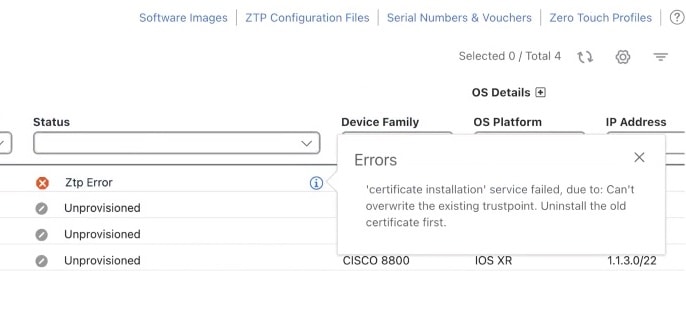
  2. Click Details icon to display a pop-up window with information about the error, like the one shown in the following example.

    Figure 28. Error pop-up window
    Error Popup Window

Diagnose ZTP issues using error logs

View or request copies of ZTP error log files using a showtech request

Diagnose ZTP issues by viewing ZTP error logs. You can view or request error logs directly from the Crosswork Network Controller user interface, using a showtech request. You can also download error logs using an SSH login to one or more of the virtual machines running Crosswork Network Controller and the instance of the ZTP service running on that VM.
  1. Using an ID with administrator privileges, log into the Crosswork Netwotk Controller user interface.

  2. Select Administration > Crosswork Manager.

  3. With the Crosswork Summary page displayed, click on the Element Management Functions tile. Crosswork displays details for ZTP.

  4. With the application details displayed, select Showtech options > Request logs . Then select Showtech requests . You can retrieve your log files from the dashboard when the request is completed.

You can also choose to view the most recent log files by selecting Showtech options > View Showtech logs .


Tip


If ZTP processing seems to be completing successfully but you are having issues with the onboarding phase, you may want to see logs for the Crosswork device inventory manager application (known as dlminvmgr ) in addition to the logs for the ZTP service. You can do that by selecting Platform Infrastructure instead of Element Management Functions on the Crosswork Summary page (during step 3, above).
  1. Log in to the VM using an Secure Shell command like the following:

    sshadmin @ VMIP

    Where:

    • admin is the Crosswork administrator ID. For example: cw-admin.

    • VMIP is the IP address of the virtual machine running Crosswork. For example: 192.168.100.102.

  2. Access the cw-ztp-service Kubernetes pod using a command like the following:

    # kubectl exec -it PodID# bash

    Where PodID# is the ID of the cw-ztp-service Kubernetes pod. Change the pod ID number as needed to match the number of the pod you want to access (pod 0 is always the first). For example: cw-ztp-service-0 , cw-ztp-service-1 , cw-ztp-service-2 , and so on.

  3. 3. Change to the log folder with a command like the following:

    cd /var/log/robot/. You can then open any of the following ZTP-specific files in the folder:

    • cw-image-service_stdout.log

    • cw-image-service_stderr.log

    • cw-config-service_stdout.log

    • cw-config-service_stderr.log

Troubleshoot classic ZTP issues

The table identifies remedies for issues that can occur during Classic ZTP processing.

Table 8. Classic ZTP Issues and Remedies

Phase

Issue

Symptoms

Remedy

Unprovisioned

Crosswork cannot verify the device serial number

Status column does not show "In Progress"

ZTP supports addition of multiple serial numbers irrespective of how many devices there are to be added. While creating a device entry, make sure to assign the correct serial number. ZTP is initiated based on the serial number, and the connected device entry will start to show state changes based on it.

In Progress

Boot script execution fails

Processing hangs. See error log.

Examine the boot script for errors, correct them and try again.

iPXE reload fails

Processing hangs. See error log.

This is likely due to an temporary issue with the device. Try again. If the process fails repeatedly, contact the Cisco device support team.

Unprovisioned, In Progress

Device progress report API call fails

Processing hangs. See error log.

Make sure the API call is properly formatted and has correct values. Correct them and try again. May also be the result of temporary connectivity loss due to network issues.

Troubleshoot PnP ZTP issues

The table identifies remedies for issues that can occur during PnP ZTP processing.

Table 9. PnP ZTP issues and remedies

Phase

Issue

Symptoms

Remedy

Unprovisioned

PnP profile download fails

Device stays in Unprovisioned state

The download may have failed due to packets being dropped or similar network traffic issues. First ensure that the PnP profile has the correct file name, protocol, IP address, and port specified. Ensure that the TFTP server is up and reachable. Then try triggering ZTP from the device again.

Unprovisioned, In Progress

Capability service request fails

ZTP device entry is moved to error state with the message "service 'capability check' failed". Reason: Device doesn't support the minimum required capabilities.

For PnP ZTP to work, the XE device being provisioned must support the following minimum Cisco IOS-XE capabilities:

  • device-info

  • certificate-install

  • image-install

  • config-upgrade

  • backoff

If you are having trouble with this requirement, contact the Cisco device support team.

In Progress

Certificate install fails

ZTP device goes into error state with the message "certificate installation service failed."

First, log in to the XE device and clean up trustpoint "CrossworkPnP" if it already exists. Then, from the Crosswork GUI, move the device back to the UnProvisioned state and re-trigger ZTP from the beginning.