View and Manage Devices

This section contains the following topics:

Onboarded devices

An onboarded device is a network entity that

  • appears in the consolidated device list after onboarding,

  • displays detailed information through status, alarms, inventory, and history tabs, and

  • enables actions such as editing, deleting, and syncing inventory.

The Network Devices window consolidates all onboarded devices, displaying their current status and providing access to tabs for device detail, alarms, inventory, and history.

For controlling or restricting device access for users, see Manage Device Access Groupsin the Cisco Crosswork Network Controller 7.2 Administration Guide .

Device details in the Network Devices window

The Network Devices window in the interface displays all onboarded devices and their current operational status. You can view the Network Devices window by selecting Device Management > Network Devices from the main menu.
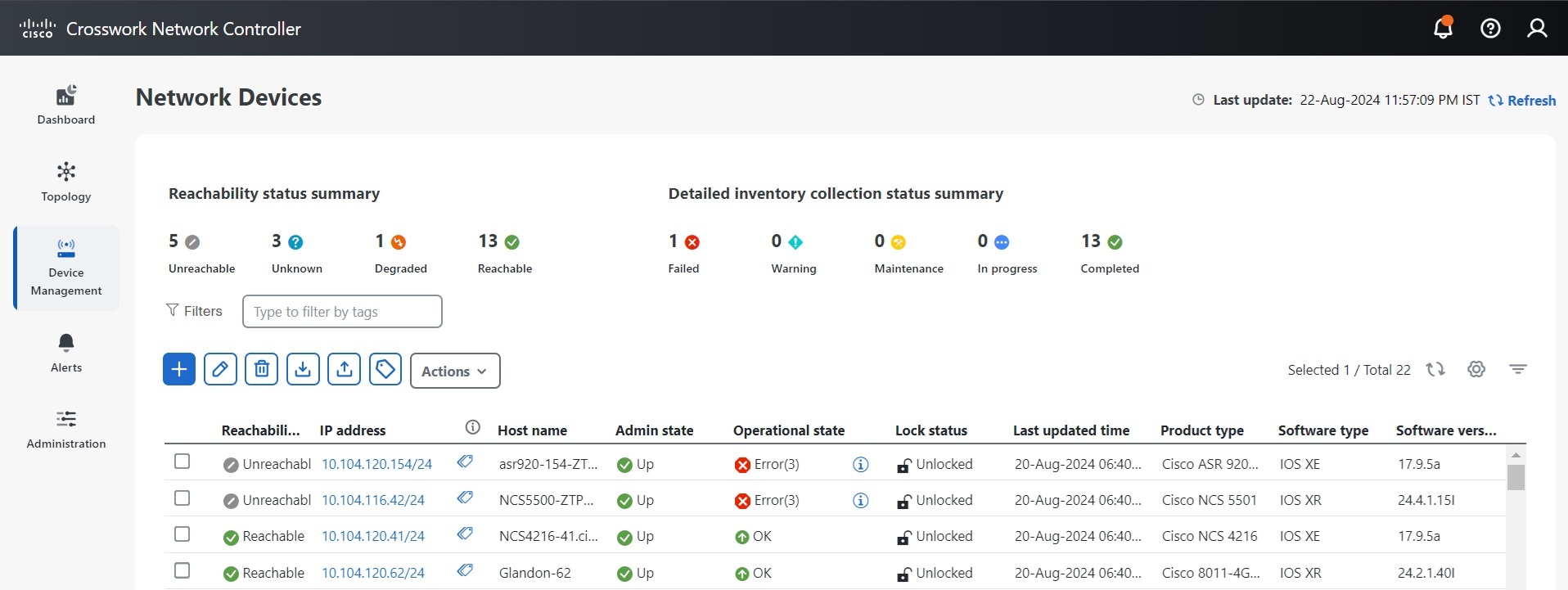
Figure 1. Network Devices

Clicking on the IP address link of a device displays information about each device in the pop-up window. Each onboarded device record contains the following details:

  • A Details tab with device specifications, onboarding time, connectivity details, routing information and detailed inventory collection. On this tab, devices with a supported SysOID are marked as Certified . If the SysOID is missing from the certified list, the support type is Uncertified . Incomplete discovery or no CDG connection sets it to Unknown .

    Refer to the Cisco Crosswork Network Controller Essentials Supported Devices for a list of supported OIDs for devices.

  • An Alarms tab with detailed information on alarms, including their severity, the source (Syslog, Trap, or gNMI), the category, and the current condition of each alarm. The tab allows you to customize the displayed columns.

  • An Inventory tab displaying the product name, product ID, admin status, operational status, and serial number. You can customize the columns according to your preferences.


    Note


    A component of a device lacking a serial number is not displayed in the Inventory tabs within the Crosswork UI. Additionally, the tree structure in the Detailed Inventory window also excludes components without serial numbers.


  • A History tab with detailed information about device performance, including various performance metrics.


    Note


    Average values for all performance metrics are displayed under the History tabs in the Crosswork Network Controller UI. However, the relevance of the average values may vary across different metrics. Assess the context of each metric before using the average values in your analysis.


Device states

Crosswork Network Controller computes the reachability state of the devices it manages, as well as the operational and NSO states of reachable managed devices. It indicates these states using the icons in the following table. By monitoring the reachability and operational states of devices, you can get real-time information about their connectivity status, enabling you to quickly identify and resolve any connectivity issues.

At the top of the Network Devices window, you can view a summary of the reachability status of your devices. Additionally, the list of devices displays the reachability state, admin state, and operational state for each device.

Table 1. Device Status Icons
This Icon... Indicates...

Reachability State icons indicate if a device is reachable. This state is computed when the device is configured as UP. It is not computed if the device is DOWN or UNMANAGED.

  • REACHABLE: At least one route and the device is discoverable.

  • UNREACHABLE: No routes or the device does not respond.

  • UNKNOWN: The device is UNMANAGED.

Unreachable icon

Reachable: The device can be reached by all configured protocols.

Degraded icon

Reachability Degraded: The device can be reached by at least one protocol, but is not reachable by one or more of the other protocols configured for it.

Unreachable icon

Unreachable: The device cannot be reached by any protocol configured for it.

Reachability Unknown icon

Reachability Unknown: Crosswork Network Controller cannot determine if the device is reachable.

Operational State icons show if a device is operational.

  • Computed only if the device is UP, not if DOWN or UNMANAGED.

  • It can be either OK or ERROR.

  • Operational=OK if the device is REACHABLE and discoverable; otherwise, it is ERROR.

Up icon

The device is operational and under management, and all individual protocols are "OK" ( also known as "up").

Down icon

The device is not operational ("down"). The same icon is used when the device has been set "administratively down" by an operator.

Reachability Unknown icon

The device's operational state is unknown.

Degraded icon

The device's operational state is degraded.

Error icon

The device's operational state is in an error condition. It is either not up, or unreachable, or both, due to errors encountered while attempting to reach it and compute its operational state. The number in the circle shown next to the icon indicates the number of recent errors. Click on the number to see a list of these errors. (Note that the icon badging for errors is not available in the topology map.)

Checking icon

The device's operational state is currently being checked.

Deleting icon

The device is being deleted.

Unmanaged icon

The device is unmanaged.

NSO State icons show whether a device is synced with Cisco NSO.

Note


In the initial sync between Crosswork Network Controller and NSO after onboarding a device, the NSO state column in the device remains blank. This occurs because Crosswork has not determined if the device needs to sync with NSO based on the policy, and cannot select the default state in the initial sync.

Synced

The device is in sync with Cisco NSO.

Out of Sync

The device is out of sync with Cisco NSO.


Note


  • For XR or XE devices only, Operational=OK also requires that clock drift difference between the Crosswork Network Controller host and the device clocks is less than or equal to the default drift value of 2 minutes.

  • Some timezone settings are known to result in clock drift errors when no clock drift actually exists. To work around this issue set your devices to use UTC time.


Filter network devices by tags

Quickly locate and group network devices by applying one or more tag filters.

Use this task to find devices that share specific attributes, such as location or administrator, based on assigned tags. You can also use tags to find and group devices with the same or similar tags in any window that lists devices.

Before you begin

Confirm that tags have already been created and assigned to the devices you want to filter.

Procedure


Step 1

From the main menu, go to Device Management > Network Devices.

Step 2

In the Type to filter by tags field, enter all or part of a tag name.

The Type to filter by Tags bar has a type-ahead feature: As you start typing, the field shows a drop-down list of tags that match all the characters you have typed so far. To view all available tags, enter an asterisk (*).

Step 3

Select a tag from the drop-down list.

The table or map shows only the devices with that tag.

Step 4

To filter on more than one tag, repeat Steps 2 and 3 for each additional tag you want to set as part of the filter.

After selecting your tags, the table or map shows devices that match at least one of the selected tags.

Step 5

To clear tag filters, click the X next to that tag in the filter bar.


The system displays only those devices matching all selected tags. The filter remains in effect until cleared or changed.

What to do next

To see how tags can be managed for assignment to the devices in your network, refer to the section Manage tags in the Cisco Crosswork Network Controller 7.2 Administration Guide.

Edit device settings

Modify settings for onboarded network devices.

Use this task to ensure device configurations remain current as network requirements change.

Before you begin

  • Ensure that you have administrative access and consider any network impact when you make changes.

  • Export a CSV backup of the devices you plan to change to avoid potential data loss.

  • For a list of the fields you can edit through the Crosswork Network Controller UI, refer the section, Field descriptions for new device addition.

Procedure


Step 1

From the main menu, choose Device Management > Network Devices.

Step 2

(Optional) Filter the list of devices by filtering specific columns.

Step 3

Select the check box of the device you want to change, then click Edit.

Step 4

Update the device settings as needed.

  • ISIS System ID and OSPF Router ID are user-configured parameters. Crosswork Network Controller does not auto-discover them, so these fields may be blank. The topology page for the same device displays the parameters.

  • The Data Gateway field is view-only.

    Caution


    Do not change the TE Router ID after onboarding a device. To update the TE Router ID:

    1. Remove the device from Crosswork Network Controller.

    2. Remove all SR-PCE Providers.

    3. Onboard the device again with the new TE Router ID.

    4. Add the SR-PCE providers again.

    5. Update the TE Router ID under the Routing info segment.

Step 5

Click Save. The Save button is enabled only after all required fields are complete.

Step 6

Resolve any errors and confirm device reachability.


Device settings are updated and saved successfully.

Delete a device

Remove a device from Crosswork Network Controller so it is no longer monitored or managed. Device deletion may be necessary if a device is being withdrawn, reassigned, replaced, or was added by mistake.

Perform this task when you need to clean up your network inventory by eliminating devices that are not active or no longer required.

Before you begin

  • Export a backup CSV file containing the devices that you plan to delete.

  • If you set the auto-onboard property as managed or unmanaged for an SR-PCE provider, set auto-onboard as off for one or more SR-PCEs.

  • Confirm that the device is disconnected and powered off before deleting the device.

  • If devices are mapped to Cisco NSO with MDT capability and have active telemetry configurations, those configurations will be removed during deletion.

  • If auto-onboard is not set to off and it is still functional and connected to the network, the device is rediscovered as unmanaged when it is deleted.

Procedure


Step 1

From the main menu, choose Device Management > Network Devices.

Step 2

(Optional) Filter the device list by entering text in the Search field or applying column filters to locate devices for deletion.

Step 3

Select the check box for the devices you want to delete.

Step 4

Click the Delete icon.

Step 5

In the confirmation dialog box, confirm the deletion.


The selected devices are removed from Crosswork Network Controller and are no longer monitored or managed within the platform.

Detailed inventory collection

An inventory collection status is a network management indicator that

  • shows the current state of the device inventory collection process,

  • uses status icons to convey progress, errors, or maintenance states, and

  • helps users quickly assess device data completeness or issues in Cisco Crosswork Network Controller.

You can see the summary of inventory collection statuses for all devices at the top of the Network Devices window in Crosswork Network Controller. For each device, click its link to view detailed inventory collection information under the Details tab.

Inventory collection status

The table illustrates the standard inventory collection statuses and their meanings.

This icon

Indicates

Completed: The device inventory collection process has finished.

Failed: The device inventory collection process has encountered an error and did not complete.

In Progress: The device inventory collection is in progress and the system is currently in the process of collecting and updating inventory data for network elements.

Maintenance: Operation for detailed inventory collection is suspended. It may not be possible to initiate new inventory collection processes, or the data displayed might not reflect the most recent state of the network elements.

Warning: The inventory collection process has encountered some issues that may not have completely prevented the process from completing but could still affect the accuracy or completeness of the data collected. After addressing the causes of the warnings, the inventory collection process may need to be rerun to confirm that all issues have been resolved and that the collected data is both accurate and complete.


Note


For Cisco ASR 9000 Series devices operating as Large Routers, with 1,000 or more interfaces migrated from a prior release to Crosswork Network Controller 7.2, the Completed state is not achieved automatically. To finalize the device's status, add the gNMI credentials and then perform a detailed inventory synchronization.


Change granular inventory status

Enable or disable granular inventory on selected devices to manage device data detail and system resource usage.

Granular inventory in Crosswork Network Controller provides detailed device data for enhanced monitoring and troubleshooting. Enabling granular inventory provides more detailed data but may consume additional system resources and storage. Disabling it can improve performance, especially in large networks.

The inventory sync process includes several automated steps. A nightly sync updates the inventory system, while any failed features for devices prompt a sync attempt every 30 minutes. Newly added devices in the UP state and existing devices transitioning from DOWN to UP state also trigger inventory syncs. The automatic synchronization occurs when there are configuration or state changes on a device. The device notifies these changes through traps or syslogs.

Before you begin

  • Ensure you have the required permissions to modify device inventory settings.

  • Confirm all devices you wish to modify are in the same current state. The devices should either all be enabled or all disabled for a granular inventory update.

Procedure


Step 1

To enable granular inventory:

  1. Go to the Network Devices page.

  2. Select the devices for which you want to enable granular inventory.

  3. From the Actions menu, choose Enable Granular Inventory.

  4. Confirm the action to enable granular inventory on the selected devices.

Step 2

To disable granular inventory:

  1. Go to the Network Devices page.

  2. Select devices with granular inventory currently enabled.

  3. From the Actions menu, choose Disable Granular Inventory.

    This disables granular inventory only for the selected devices. Other devices remain unaffected.

  4. Confirm the action to disable granular inventory on the selected devices.


Selected devices have their granular inventory status changed as specified. A nightly synchronization will update details for those with granular inventory enabled.

Perform detailed inventory sync

Ensure that the system maintains an up-to-date view of all network devices by synchronizing detailed inventory information.

Perform this task when network changes occur, such as adding new devices, removing devices, or updating device configurations. An on-demand inventory sync captures and updates these changes in the system.

Before you begin

Follow these steps to synchronize the network device inventory:

Procedure


Step 1

From the main menu, choose Device Management > Network Devices.

Step 2

Select one or more devices to synchronize.

Step 3

Click Actions > Detailed inventory sync to sync and reflect the current state of the network devices.

  • If a device is attached to a Data Gateway during a pool change, detailed inventory collection for devices that have synced in the last 60 minutes is not performed. This ensures that devices with recent inventory data are not processed unnecessarily. Devices requiring synchronization still undergo detailed inventory collection as usual.

  • Detailed inventory collection does not run when a device is detached from and reattached to a Crosswork Data Gateway if the previous detailed inventory collection occurred within the last 60 minutes. The collection runs only if the previous detailed inventory collection was performed more than 60 minutes earlier.

  • If the inventory collector pods go down during a device sync, the devices in the process of syncing remain in their previous state. You can manually rerun the sync, or affected devices automatically recover during the next scheduled nightly sync.


Device groups

A device group is a device category that

  • organizes devices into logical collections based on user-defined criteria,

  • enables filtering and visualization of data from specific sets of devices, and

  • simplifies monitoring by reducing screen clutter and focusing attention on relevant device data.

Create device groups

Organize devices into groups to simplify management, policy assignment, and bulk operations within your network platform.

Device groups let you manage related devices together. You can create groups manually or set up automatic grouping rules (see Create rule for dynamic device grouping). Note that each device can belong to only one device group.

Procedure


Step 1

From the main menu choose Device Management > Device Groups.

Only the devices belonging to that device group are listed in the devices table in the right pane.

Step 2

To create a new group, select the parent group and choose Add group.

Step 3

Enter the required details for the group and select Create.

The new group appears under the selected parent device group.

Create dynamic device group rules

Automatically organize unassigned devices into dynamic groups using rules based on device host names or IP addresses.

You can create a rule to dynamically create device groups and automatically add unassigned devices to these groups using a Regular Expression (regex) on the device host name or IP address.

Before you begin

Dynamic rules do not apply to devices that already belong to groups. Move devices already in other groups to "Unassigned Devices" if you want the rule to apply to them.

Procedure


Step 1

From the main menu choose Device Management > Device Groups.

Step 2

Click next to All Locations > Manage Location Dynamic Groups.

Step 3

Click Show more details and examples to help you fill out the required host name or IP address.

Step 4

If there are any existing devices in the Unassigned Devices group, test your rule to preview potential group assignments.

Step 5

Enable the rule to start automatically assigning matching unassigned devices to dynamic groups.

The system checks for unassigned devices every minute and applies your rule.

Step 6

Save your changes.

Step 7

Review the newly created groups under Unassigned Groups and move groups into your preferred hierarchy as needed.


Unassigned devices matching your rule criteria are automatically placed into the correct dynamic groups.

Modify device group details

Change the name, parent group, or description of an existing device group to keep your network structure up to date.

Modify device groups when reorganizing devices or updating administrative records.

Procedure


Step 1

From the main menu choose Device Management > Device Groups.

Step 2

Select the device group you want to update.

Step 3

Edit the group details, and description as needed.

Step 4

Save your changes.


Delete a device group

Remove an existing device group and make its devices available for assignment to other groups.

Use this task when you need to delete a device group that is no longer required. Deleting a group will unassign all devices from that group, and make them available for reassignment.

Before you begin

Procedure


Step 1

From the main menu choose Device Management > Device Groups.

Step 2

Select the device group you want to delete.

Step 3

Open the actions menu for the group and choose Delete group.

Step 4

In the confirmation dialog, click Delete to confirm and complete the deletion.


The device group is deleted, and its devices are unassigned and available for reassignment to other groups.

Move devices from one group to another

Transfer devices to a different group to reorganize network assets and adjust policies or administrative boundaries as needed.

Use this task to efficiently regroup devices. This is useful during organizational changes, policy updates, or network scaling.

Before you begin

Identify the devices and the target group for the transfer.

Procedure


Step 1

From the main menu choose Device Management > Device Groups .

Step 2

Select the source group from which you wish to move the devices.

Step 3

Select the devices to transfer.

Step 4

Click Move, then choose the target group from the drop-down and confirm.

If devices do not appear on device maps after moving, update your display settings:

  • Go to Administration > Settings, then click the User settings tab.

  • Options include:

    • Automatically switch to the device group that will show all participating devices - Ensures all relevant devices for a service or policy are shown.

    • Don't switch the device group automatically - Keeps your current device group selection, even if all devices are not shown.

    • Ask me each time - Prompts you when a device could be missing from the map.


The devices are now part of the new group and visible in the target group's listing.

Import multiple device groups

Import multiple device groups at once and update existing ones in bulk by uploading a CSV file.

When you import device groups from a CSV file, new device groups are created for entries not already in the database. Existing groups are updated if the imported data matches them.

Importing device groups may overwrite current data, so exporting a backup of current device groups before importing is recommended.

Before you begin

  • Prepare a CSV file containing your device group data, using the provided template format.

  • Back up your current device groups to prevent accidental data loss.

Procedure


Step 1

From the main menu, choose Device Management > Device Groups .

Step 2

Click Import groups to open the dialog box.

Step 3

If you have not prepared a device groups CSV file:

  1. Download the device groups CSV template to a local storage resource.

  2. Open the template in your preferred editor and add one row for each device group.

    Use a semicolon to separate multiple entries in the same field. Use two semicolons with no space between them to indicate that you are leaving the field blank.

  3. Remove all sample data rows, leaving only the column header row.

  4. When you are finished, save the new CSV file.

Step 4

Click Browse and select your completed CSV file.

Step 5

With the CSV file selected, click Import .

Note

 
Wait for the import to complete before clicking Import again to avoid duplicate device group entries.

The selected device groups are imported and updated as needed.

Export multiple device groups

Export the details of your device groups to a CSV file for record-keeping or bulk updates.

Use this task to create an export of all device groups in the system. You can modify the CSV file and import it again to update device group data.

Procedure


Step 1

From the main menu, choose Device Management > Device Groups.

Step 2

Click the export icon to download the device group details in CSV format.


The CSV file containing all device groups is downloaded in your systems download folder.

External data destinations

An external data destination is a configurable endpoint that allows you to:

  • receive data from Crosswork Data Gateway collection jobs and applications

  • support integration with platforms like Kafka or external gRPC, and

  • allow management through Crosswork Network Controller interface.

Characteristics of external data destinations

Each data destination has a unique identifier (UUID), which is automatically generated by Crosswork Network Controller when a destination is created.

  • When creating collection jobs via the Crosswork Network Controller UI, select the destination from a drop-down list of configured destinations.

  • When creating a collection job via the API, use the UUID of the destination the collector should send data to.

The Data destinations page allows users to:

  • add new data destinations

  • update settings for existing data destinations, and

  • delete data destinations.

The Data destinations page displays all approved data destinations that collection jobs can use to deposit data.

To view details of a data destination in the Data destinations page, click Info icon next to the name of the data destination you want to view.
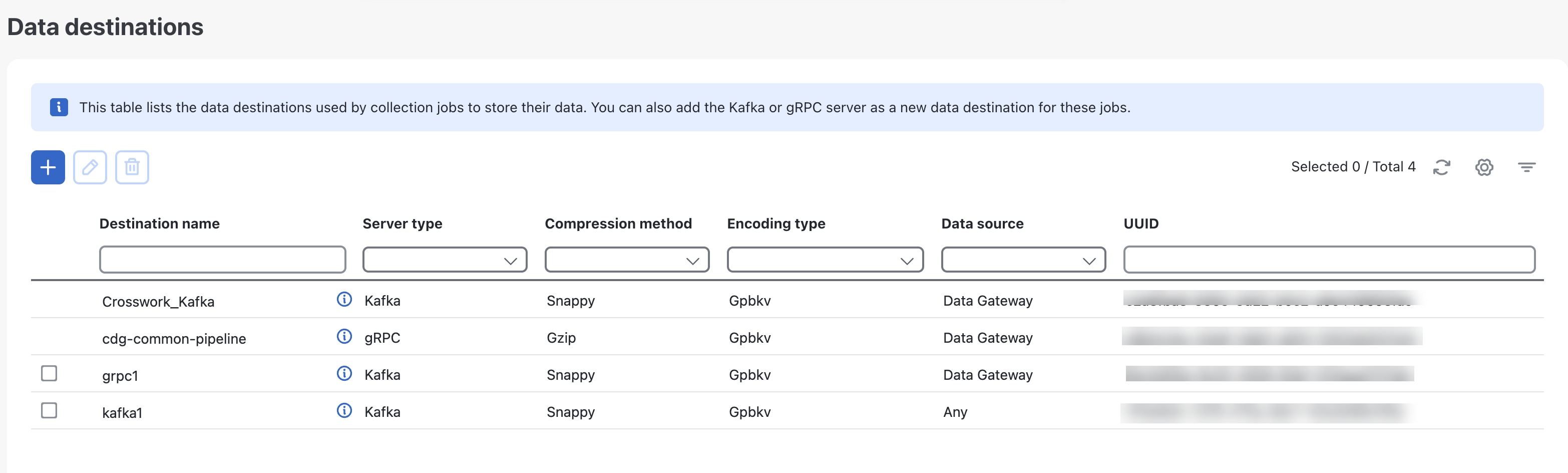
Figure 2. Data destinations

Add or edit a data destination

Add a new data destination or edit an existing one to ensure proper data collection and secure communication for your Crosswork Data Gateway environment.

Use these steps to add or edit a data destination:

Procedure


Step 1

Access the data destination configuration:

  1. Go to Administration > Data Destinations.

Step 2

Add or edit a destination:

Note


Updating a data destination causes Data Gateway using it to reestablish a session with that data destination. Data collection will be paused and resumes once the session is reestablished.

  1. To add a new destination, click Add New Destination and fill in the required fields.

  2. To edit an existing destination, click the Edit icon icon.

Step 3

Enter the required destination details. For information about the fields, see Parameters for configuring data destinations.

For telemetry-based collection, it is recommended to use the destination settings of Batch size as 16,384 bytes and Linger as 500 ms, for optimal results.

Step 4

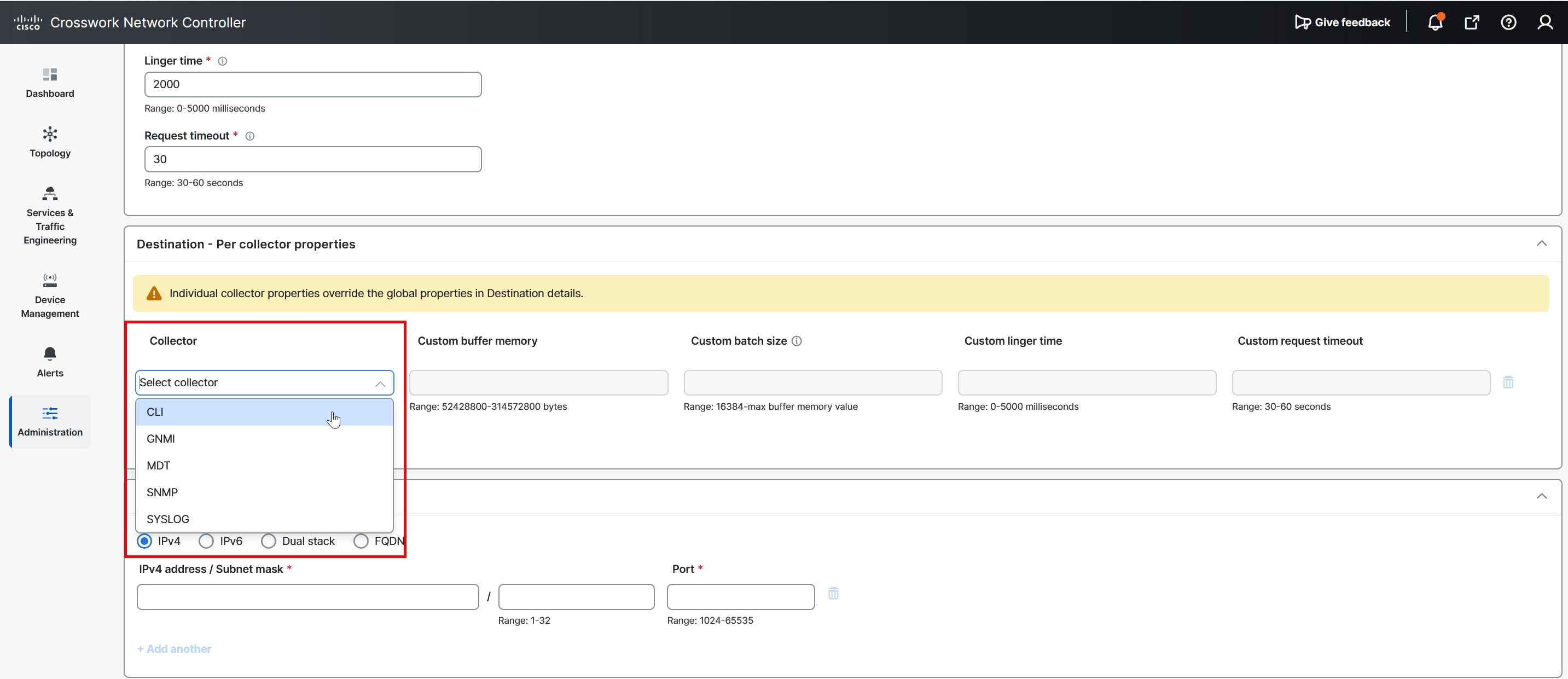
If you selected Data Gateway or Any as the data source and the server is set to Kafka, you can configure custom values for individual collectors when needed. To override the global properties for a Kafka destination, use the settings in the Destination – Per Collector Properties pane.

  1. Select a Collector.

  2. Enter the values as:

    • Custom buffer memory

    • Custom batch size

      Note

       
      The Custom batch size cannot exceed the value of the Custom buffer memory at run time. In case, you do not provide a value in the Custom buffer memory field, the Custom batch size will be validated against the value in the Buffer memory field.
    • Custom linger

    • Custom request timeout

    Figure 3. Add destination
    Add Destination Window
  3. Click + Add another to repeat this step and add custom settings for another collector.

Note

 
Properties entered here for individual collectors take precedence over the global settings entered in Step 3. If you do not enter values in any field here, the values for the same will be taken from the Global properties entered in Step 3.

Step 5

Select the protocol and host details in the Connection details sections. The supported protocols are IPv4, IPv6, dual stack, and FQDN. For information about the accepted range, see Parameters for configuring data destinations.

Note


The FQDN addresses are supported only for the Kafka destinations.

Step 6

Complete the Connection details fields as described in the following table. The fields displayed vary with the connectivity type you chose. The values you enter must match the values configured on the external Kafka or gRPC server. For information about the connection details, see Parameters for configuring data destinations.

Note


You can modify the port numbers only for user-defined destinations and not for system-created destinations.

If the IP and port (or FQDN and port) connectivity details match an existing destination, you'll be prompted with a confirmation message for creating a duplicate destination.

Step 7

(Optional) Enable security configurations.

  1. If the data source is set to Data Gateway, the Enable secure communication check box is displayed. To connect securely to a Kafka or gRPC-based data destination, select this check box. Then select the type of authentication process from the available options.

    • Mutual-Auth: Authenticates external server and the Crosswork Data Gateway collector after the CA certificate, and Intermediate certificate or Key is uploaded to the Crosswork UI. Mutual-Auth is the default authentication process.

      Note


      Crosswork supports mutual authentication only for destinations with the data source set to Application or Any.

    • Server-Auth: Authenticates external server and the Crosswork Data Gateway collector after the CA certificate is uploaded to the Crosswork UI.

  2. If the data source is set to Any or Application, the Enable secure communication with mutual auth check box is displayed. Select this check box to enable the security feature.

Step 8

Click Save.


What to do next

  1. This step applies if you have selected the data source as Data Gateway or Any.

    Ensure that the required Kafka topics exist:

    • The topics must exist in the external Kafka at the time of data dispatch; otherwise, Crosswork logs may display an exception:

      destinationContext: topicmdt4
      org.apache.kafka.common.errors.UnknownTopicOrPartitionException: This server does not host this topic-partition.
  2. If you have enabled secure communication when adding the destination, go to the Certificate Management page in the UI and add the relevant certificate for the newly added data destination. This step is mandatory to establish a secure communication to the device.


    Note


    When the data source is set to Data Gateway or Any, a missing or incomplete certificate causes the destination to enter an error state. The associated collection job is marked as Degraded. For details about certificate requirements and management, see your platform’s certificate management documentation.


Requirement to prepare external servers for data destination

To use an external Kafka server as a data destination in Crosswork Data Gateway, ensure these requirements are met:

  • Determine the data source for your destination as Data Gateway or application (Element Management Function, Service Health, and so on). If you are unsure, you can select Any. The form shows or hides specific fields depending on the selected data source. For example, encoding types and security details. Be prepared to provide the fields that apply to your chosen source.

  • Configure the external Kafka server with these properties:

    • num.io.threads = 8

    • num.network.threads = 3

    • message.max.bytes = 30000000

    Refer to the official Kafka documentation for details on these property configurations.

  • Confirm that the external Kafka server is reachable and that port connectivity is properly established.

  • If security is enabled, provide certificates in PEM-encoded format and use PKCS#8 format for key files.

  • For client authentication, ensure the required certificate, key files, and password (if necessary) are available.

  • Use the same IP protocol (IPv4 or IPv6) on the external destination as specified during the Crosswork Network Controller deployment.

Best practice for adding external data destinations

When configuring an external data destination like a Kafka server, consider these behaviors and practices:

  • If you reinstall an existing Kafka destination using the same IP address, restart collectors for the changes to take effect.

  • Secure the communication channel between the management system and the destination; enabling security may impact performance.


    Note


    Enabling security may impact performance.


  • If the external destination requires TLS, prepare these configurations in advance:

    • Public certificate for server authentication

    • Client certificate and key files for mutual authentication

    • If the client key is password-encrypted, configure the password during data destination provisioning.

  • Verify port connectivity for the external destination; if unreachable, data collection fails.

  • Configure custom values for a Kafka destination in the destination properties; this is not supported for gRPC destinations.

  • Mandatory global properties specified in the Destination Details panel apply to all Kafka destinations, but collector-level custom values override them for that collector.

  • Match the IP version (IPv4 or IPv6) between the external destination and the deployment settings.

  • Changes to hostname-to-IP mappings only take effect after the DNS TTL expires; to apply changes immediately, reboot the VM.

Parameters for configuring data destinations

These tables list and describe the parameters required for adding or editing the data destinations.
Table 2. Parameters and their descriptions
Parameters Description Available in

gRPC

Available in

Kafka

Destination name

Enter a descriptive name (up to 128 characters). Valid characters include letters, numbers, hyphens (-), underscores (_), and periods (.). Avoid all other special characters.

If you have many data destinations, choose an informative name to allow for easier identification later.

Yes

Yes

Data source

Identifies which Crosswork component or application will use the external Kafka or gRPC destination to send data. This field determines the available configuration options, validation rules, and security features for the destination.

Select one of the data sources

  • Data Gateway: destination exclusively used by Crosswork Data Gateway for telemetry and network data collection.

  • Application: destination exclusively used by Crosswork applications for data such as alarms, inventory notifications, performance monitoring. The application could be Element Management Function or Crosswork Optimization Engine.

  • Any: destination can be shared by both Data Gateway and Applications.

Note

 
  • If you do not choose the data source, it defaults to Data Gateway.

  • If you set the data source to Any, you cannot change it later. To select a different data source, delete the destination and create a new one.

  • When you change the data source from Data Gateway to Any during editing a destination, Crosswork automatically switches the authentication type to mutual authentication and displays a warning message.

  • Crosswork Data Gateway does not monitor the availability of Kafka destinations configured with the dispatch source as Application (Dispatch Source="application"). If a destination becomes unreachable, applications such as Service Health fail to detect the issue or notify users, which can result in silent data loss.

  • When upgrading from Crosswork 7.1 or earlier, all destinations default to Data Gateway.

  • Destinations that have Application as the data source are removed after the upgrade.

Yes

Yes

Server type

Select the server type as Kafka or gRPC of your data destination.

Yes

Yes

Encoding type

Note


This field appears only when the data source is set to Data Gateway or Any.

Choose the compression method as either Json or Gpbkv.

Yes

Yes

Compression method

Choose the desired compression type.

Yes

Supported compression types are snappy, gzip, and deflate.

Yes

Supported compression types are snappy, gzip, zstd, and none.

Note


zstd compression type is supported only for Kafka 2.0 or higher.

Dispatch type

This parameter is available when the Server Type field is set to gRPC.

Select stream or unary as the dispatch method. By default, unary is used. Crosswork Data Gateway sends the collected data using either data streams or unary transmission.

Yes

No

Maximum message size

Enter the maximum message size in bytes.

  • Default value: 100000000 bytes/100 MB

  • Min: 1000000 bytes/1 MB

  • Max: 100000000 bytes/100 MB

No

Yes

Buffer memory

Enter the buffer memory required, in bytes.

  • Default value: 52428800 bytes

  • Min: 52428800 bytes

  • Max: 314572800 bytes

No

Yes

Batch size

Enter the required batch size in bytes.

  • Default value: 1048576 bytes/1.048576 MB

  • Min: 16384 bytes/16.38 KB

  • Max: 314572800 bytes/6.4 MB

No

Yes

Linger time

Enter the required linger time in milliseconds.

  • Min: 0 ms

  • Max: 5000 ms

No

Yes

Request timeout

Enter the duration that the request waits for a response. When the configured duration is reached, the request expires.

  • Default value: 30 ms

  • Min: 30 ms

  • Max: 60 ms

No

Yes

Table 3. Connection details
Connectivity Type Fields

Available in gRPC

Available in Kafka

IPv4

Enter the required IPv4 address, subnet mask, and port. You can add multiple IPv4 addresses by clicking +Add another.

IPv4 subnet mask ranges from 1 to 32 and port range from 1024 to 65535.

Yes

Yes

IPv6

Enter the required IPv6 address/Subnet mask, and Port. You can add multiple IPv6 addresses by clicking +Add another.

IPv6 subnet mask ranges from 1 to 128.

Yes

Yes

Dual stack

Enter the IPv4 address/Subnet mask, IPv6 address/Subnet mask, and Port. You can add multiple addresses by clicking + Add another.

IPv4 subnet mask ranges from 1 to 32 and port range from 1024 to 65535.

IPv6 subnet mask ranges from 1 to 128.

Note


The Dual Stack option is available only when your system supports this configuration.

Yes

Yes

FQDN

Enter the required Host name, Domain name, and Port.

The supported port range is from 1024 to 65535.

You can add multiple FQDN addresses by clicking + Add another.

Yes

Yes

Subscription APIs

After configuring data destinations, data subscriptions must be created to define what data gets sent where.

Data subscription types include data such as alarms, inventory changes and performance metrics.

API details

API endpoint: POST /crosswork/notification/v2/subscription


*destinationName*: Name of an existing data destination
*destinationType*: Type of destination ('Kafka' or 'gRPC')
*subscriptionDataType*: Type of data subscription
  - 	Possible types for Kafka: Inventory_Changes, Alarm, System_Audit, Device_Performance_Monitoring, Network_Performance_Monitoring, Service_Health_Monitoring
  - 	Possible types for gRPC: Device_Performance_Monitoring, Network_Performance_Monitoring
*subscriptionData*: policy_instance=performance monitoring policy (Example: Device health or Interface health)
*topicName*: Kafka or gRPC topic name
*filter*: Optional filter criteria applicable only for Inventory_Changes data type (set to 'null' if not required)

A success response is returned when the request is completed.

Subscription validation criteria

Successful subscription for Kafka or gRPC destination types is validated using a unique combination of the following four parameters:

  • destinationTypee

  • subscriptionDataType

  • subscriptionData

  • topicName

Examples:

  • For Kafka:

    • destinationType: "Kafka"

    • subscriptionDataType: "Service_Health_Monitoring"

    • subscriptionData: "PCA_Probes"

      topicName: "sh.tracker.topic.PCA_probes"

  • For gRPC:

    • destinationType: "gRPC"

    • subscriptionDataType: "Network_Performance_Monitoring"

    • subscriptionData: "SR_PM_Policy"

    • topicName: "pmdata-test-grpc-NPM"

A subscription is considered successful only if this parameter combination, along with a unique topic name, is validated.

Sample: Kafka subscription request for alarms

This sample creates a Kafka data subscription for alarm monitoring:
POST /crosswork/notification/v2/subscription
{
  "destinationName": "kafka-alarm-destination",
  "destinationType": "Kafka",
  "subscriptionDataType": "Alarm",
  "subscriptionData": null,
  "topicName": "topic_name",
  "filter": null
}

Sample: Kafka subscription request for performance monitoring

This sample creates a Kafka data subscription for performance monitoring.


Note


subscriptionData is applicable only for device performance monitoring subscriptions in Kafka.


POST /crosswork/notification/v2/subscription
{
  "destinationName": "kafka-alarm-destination",
  "destinationType": "Kafka",
  "subscriptionDataType": "Device_Performance_Monitoring",
   "subscriptionData": "policy_instance=device_health",
   "topicName": "pm-topic",
   "filter": null
}

Sample: gRPC subscription request for device performance monitoring

This sample creates a gRPC data subscription for device performance monitoring:
POST /crosswork/notification/v2/subscription
{
  "destinationName": "grpc-device-perf-destination",
  "destinationType": "gRPC",
  "subscriptionDataType": "Device_Performance_Monitoring",
  "subscriptionData": "policy_instance=device_health",
  "topicName": "device-perf-context-001",
  "filter": null
}

Sample: gRPC subscription request for network performance monitoring

This sample creates a gRPC data subscription for network performance monitoring:
POST /crosswork/notification/v2/subscription
{
"destinationName": "grpc-secure",
"destinationType": "gRPC",
"filter": null,
"subscriptionData": "SR_PM_Policy",
"subscriptionDataType": "Network_Performance_Monitoring",
"topicName": "pmdata-test-grpc-NPM"
}

Sample: Service health PCA_probes and Y1731_probes payloads

This sample creates a Service_Health_Monitoring subscription for PCA_probes and Y1731_probes:

PCA_probes
{
"destinationName": "kafka-fqdn",
"destinationType": "KAFKA",
"subscriptionDataType": "Service_Health_Monitoring",
"subscriptionData": "PCA_Probes",
"topicName": "sh.tracker.topic.PCA_probes",
"filter": null
}


Y1731_probes
{
"destinationName": "kafka-test",
"destinationType": "KAFKA",
"subscriptionDataType": "Service_Health_Monitoring",
"subscriptionData": "Y1731_Probes",
"topicName": "sh.tracker.topic.Y1731",
"filter": null
}

Refer to Crosswork Network Controller APIs for more details about adding an external Kafka or gRPC subscription.

Manage data subscriptions

Use the Data subscriptions option to view or delete active Kafka or gRPC subscriptions.

Procedure


Step 1

From the main menu, choose Administration > Users and Roles.

Step 2

Click Data subscriptions.

Step 3

Filter subscriptions by selecting the destination type and data type from the available options.

Step 4

To delete a subscription, choose the subscription you want to remove and click the Delete icon.


Delete a data destination

Remove data destinations that are no longer required for data gateway configuration.

Delete a data destination to remove outdated or unused endpoints from your Data Gateway settings. Default destinations, such as Crosswork_Kafka, cannot be deleted.

Procedure


Step 1

Select the data destinations you want to remove.

Step 2

Delete the selected destinations.

When prompted, confirm the deletion.


The selected data destinations are removed from your configuration and the corresponding data subscriptions are also deleted.

What to do next

Review the configuration to confirm that no necessary data destinations have been deleted by mistake.

Inventory parameter collection

An inventory parameter collection job is a REST API-driven mechanism that:

  • enables the gathering of specific device parameters, including physical inventory, interface details, software image management (SWIM), and flash/storage partition data.

  • streams the collected data to an external Kafka destination for consumption by external applications.

  • supports automated inventory retrieval for a targeted subset of devices or the entire network.

Unlike other Kafka-based data streaming in Crosswork Network Controller, there is no requirement to manually create or subscribe to a topic for inventory parameter collection. The system automatically creates the required Kafka topic at runtime and deletes it internally once the job is completed.

Supported interface types for inventory streaming

The table lists the interface types supported for inventory parameter collection and streaming.

Table 4. Supported interface types

Interface type

Description

BridgeVirtualInterface Virtual bridge interfaces.
EthernetSubInterface Logical sub-interfaces on physical Ethernet ports.
EthrntPrtclEndpntExtndd Extended Ethernet protocol endpoints.
LAG8023adAggPort Link Aggregation Group (LAG) member ports (802.3ad).
LAGBaseAggPort Base Link Aggregation Group interfaces.
LoopbackInterface Software-defined loopback interfaces.
ServiceModuleInterface Interfaces associated with hardware service modules.
SwitchPort Physical or logical switch port interfaces.
InterfaceProtocolEndpoint Supported when IfType is 195 or 261.

Data representation in proto responses

The system applies specific formatting rules for null or empty values within the database to ensure consistent streaming output.

  • String types: If a parameter is null or empty in the database, the proto response will return "N/A" as the value.

  • Integer types: If a parameter has a value of 0, the parameter itself will be omitted from the proto response.

Constraints for inventory parameter collection

To ensure system stability and successful data streaming, observe the following constraints:

  • Single job limit: Only one inventory parameter collection job can be active at any time. Attempting to initiate a new job while a previous one is running will result in an error.

  • Input limits: You can specify up to 100 individual Device IDs as input for a job, or use the ALL parameter to collect data for all managed devices.

  • Device groups: This feature does not currently support device groups as an input.

  • Third-party devices: For third-party devices, only the interfaces listed in table, Supported interface types are supported for streaming via Generic DP. Other interfaces modeled and visible in the user interface will not be included in the data stream.

Create an inventory parameter collection job

Initiate an inventory parameter collection job using the Crosswork Network Controller REST API and stream job results to a Kafka destination.

Perform this task to gather up-to-date inventory parameters from network devices for analytics or monitoring purposes.

Before you begin

Ensure the target devices are onboarded and in the UP state.

Procedure


Step 1

Identify the Device IDs for all devices you want to collect parameters from.

Step 2

Use the Crosswork Network Controller REST API to trigger a collection job for the selected Device IDs. For detailed information on REST API endpoints, see API documentation on Devnet.

Step 3

Monitor the status of the collection job by checking the API response.

Step 4

If the job status indicates a failure, review internal logs and troubleshoot any connectivity or data destination issues.


Inventory parameter collection proto details

These proto definitions enable consistent and accurate inventory reporting across multiple domains: Physical, Interface, SWIM, and StoragePartition by providing a clear structure for message requests and responses sent to external systems such as Kafka. Use these specs to ensure correct implementation and integration with Cisco's inventory streaming APIs.

Physical inventory proto definition

This describes messages and fields relating to device physical inventory details.

syntax = "proto3";

package physicalinventoryreportapi;

option java_multiple_files = true;
option java_outer_classname = "reportPhysicalInventoryApi";
option java_package = "com.cisco.ems.report.physical.inventory.proto";
option go_package = "github3.cisco.com/ROBOT/robot-api/golang/reportinventory/physical";


message FilterParameters {
	string key = 1;
	string value = 2;
}

enum SortOrderEnum {
    ASC = 0;
    DSC = 1;
}

enum PageLimitEnum {
    FALSE = 0;
    TRUE = 1;
}

message QueryParameters {
	repeated FilterParameters filter = 1;
	string sort = 2;
	SortOrderEnum sortOrder = 3;
	uint32 page = 4;
	uint32 pageLimit = 5;
	PageLimitEnum noPageLimit = 6;
}

message PhysicalInventoryGetRequest {
        string deviceName          = 1;
	string deviceIpAddress     = 2;
	string equipmentName       = 3;
	string equipmentType       = 4;
	string operationStatus     = 5;
	string actualEquipmentType = 6;
	string physicalLocation    = 7;
	string cleiCode            = 8;
	string hwPartNumber        = 9;
	string manufacturedDate    = 10;
	string serialNumber        = 11;
	string productId           = 12;
	string versionId           = 13;
	QueryParameters queryDetails = 14;
}

message PhysicalInventoryGetResponse {
	string deviceName          = 1;
	string deviceIpAddress     = 2;
	string equipmentName       = 3;
	string equipmentType       = 4;
	string operationStatus     = 5;
	string actualEquipmentType = 6;
	string physicalLocation    = 7;
	string cleiCode            = 8;
	string hwPartNumber        = 9;
	string manufacturedDate    = 10;
	string serialNumber        = 11;
	string productId           = 12;
	string versionId           = 13;
}

Interface details proto definition

This defines data structure for reporting device interface inventory.

syntax = "proto3";

package reportinventory;

option java_multiple_files = true;
option java_outer_classname = "reportInventoryApi";
option java_package = "com.cisco.ems.report.inventory.proto";
option go_package = "github3.cisco.com/ROBOT/robot-api/golang/reportinventory";

message FilterParameters {
	string key = 1;
	string value = 2;
}

enum SortOrderEnum {
    ASC = 0;
    DSC = 1;
}

enum PageLimitEnum {
    FALSE = 0;
    TRUE = 1;
}

enum InterfaceIfOperStatus {
    NOT_APPLICABLE = 0;
    OPER_UP = 1;
    OPER_DOWN = 2;
    OPER_TESTING = 3;
    OPER_UNKNOWN = 4;
    DORMANT = 5;
    NOTPRESENT = 6;    // some component is missing
    LOWERLAYERDOWN = 7;     // lower layer down
}

enum InterfaceIfAdminStatus {
    ADMIN_UNKNOWN = 0;
    ADMIN_UP = 1;
    ADMIN_DOWN = 2;
    ADMIN_TESTING = 3;
    NOTAPPLICABLE = 4;
    DOWN_FOR_MAINTENANCE = 5;
}

message QueryParameters {
	repeated FilterParameters filter = 1;
	string sort = 2;
	SortOrderEnum sortOrder = 3;
	uint32 page = 4;
	uint32 pageLimit = 5;
	PageLimitEnum noPageLimit = 6;
}
message InterfaceDetailGetRequest {
        string deviceName           = 1;
	string deviceIpAddress      = 2;
        string interfaceIpAddress   = 3;
	string portName             = 4;
        string portDescription      = 5;
        InterfaceIfOperStatus operationalStatus  = 6;
	InterfaceIfAdminStatus adminStatus       = 7;
        string macAddress        = 8;
	string ifType            = 9;
        uint32 mtu               = 10;
	string speed             = 11;
	QueryParameters queryDetails = 12;
}

message InterfaceDetailGetResponse {
	string deviceName           = 1;
	string deviceIpAddress      = 2;
        string interfaceIpAddress   = 3;
	string portName             = 4;
        string portDescription      = 5;
        InterfaceIfOperStatus operationalStatus  = 6;
	InterfaceIfAdminStatus adminStatus       = 7;
        string macAddress        = 8;
	string ifType            = 9;
        uint32 mtu               = 10;
	string speed             = 11;
}

SWIM inventory proto definition

This structures the data format for reporting software images and versions managed on devices.

syntax = "proto3";

package swiminventoryreportapi;

option java_multiple_files = true;
option java_outer_classname = "reportSwimInventoryApi";
option java_package = "com.cisco.ems.report.swim.inventory.proto";
option go_package = "github3.cisco.com/ROBOT/robot-api/golang/reportinventory/swim";

message FilterParameters {
	string key = 1;
	string value = 2;
}

enum SortOrderEnum {
    ASC = 0;
    DSC = 1;
}

enum PageLimitEnum {
    FALSE = 0;
    TRUE = 1;
}

message QueryParameters {
	repeated FilterParameters filter = 1;
	string sort = 2;
	SortOrderEnum sortOrder = 3;
	uint32 page = 4;
	uint32 pageLimit = 5;
	PageLimitEnum noPageLimit = 6;
}

message SwimInventoryGetRequest {
  string deviceName       = 1;
  string deviceIpAddress  = 2;
  string imageName        = 3;
  string description      = 4;
  string softwareVersion  = 5;
  string imageType        = 6;
  string imageFamily      = 7;
  QueryParameters queryDetails = 8;
}

message SwimInventoryGetResponse {
  string deviceName       = 1;
  string deviceIpAddress  = 2;
  string imageName        = 3;
  string description      = 4;
  string softwareVersion  = 5;
  string imageType        = 6;
  string imageFamily      = 7;
}

Storage partition proto definition

This defines the data format for collecting inventory about storage partitions on network devices.

syntax = "proto3";

package storagepartitionreportapi;

option java_multiple_files = true;
option java_outer_classname = "reportStoragePartitionApi";
option java_package = "com.cisco.ems.report.storage.partition.proto";
option go_package = "github3.cisco.com/ROBOT/robot-api/golang/reportinventory/storagepartition";

message FilterParameters {
	string key = 1;
	string value = 2;
}

enum SortOrderEnum {
    ASC = 0;
    DSC = 1;
}

enum PageLimitEnum {
    FALSE = 0;
    TRUE = 1;
}

message QueryParameters {
	repeated FilterParameters filter = 1;
	string sort = 2;
	SortOrderEnum sortOrder = 3;
	uint32 page = 4;
	uint32 pageLimit = 5;
	PageLimitEnum noPageLimit = 6;
}

message StoragePartitionGetRequest {
  string deviceName              =1;
  string deviceIpaddress         =2;
  string partitionName           =3;
  int32 partitionIndex           =4;
  uint64 capacity                =5;
  uint64 freeSpace               =6;
  QueryParameters queryDetails   =7;
}

message StoragePartitionGetResponse {
  string deviceName              =1;
  string deviceIpaddress         =2;
  string partitionName           =3;
  int32 partitionIndex           =4;
  uint64 capacity                =5;
  uint64 freeSpace               =6;
}

Device details available from the topology map

The topology map displays comprehensive information about network devices, including:
  • Device specifications,

  • Routing configurations, and

  • Device links

    You can use the topology map to monitor and manage your network devices efficiently.

View basic device details

View essential information about a networking device and its connectivity in a graphical topology map.

Use this task when you need to identify device details such as host name, status, IP address, and type within the topology view. The topology map allows you to visually explore device connections and adjust your view as needed. If you are viewing the HTML version of this guide, click on the images to view them in full-size.


Note


Starting from Crosswork Network Controller version 7.2, interface names are not discovered if any communication protocol on a device is in a degraded state, even if SNMP and SSH protocols are working. If one protocol such as Telnet fails, the device is marked as degraded, preventing interface discovery and causing the link icon to remain blue. Removing the failing protocol allows interface names to be discovered and the link icon to turn green. Interface names are then populated and links show green if SNMP and SSH are functional, despite other protocol failures.


Procedure


Step 1

From the main menu, choose Topology .

Step 2

In the topology map, locate the device you want to inspect.

Step 3

Hover over the device icon, to quickly view the host name, reachability state, IP address and type of device.

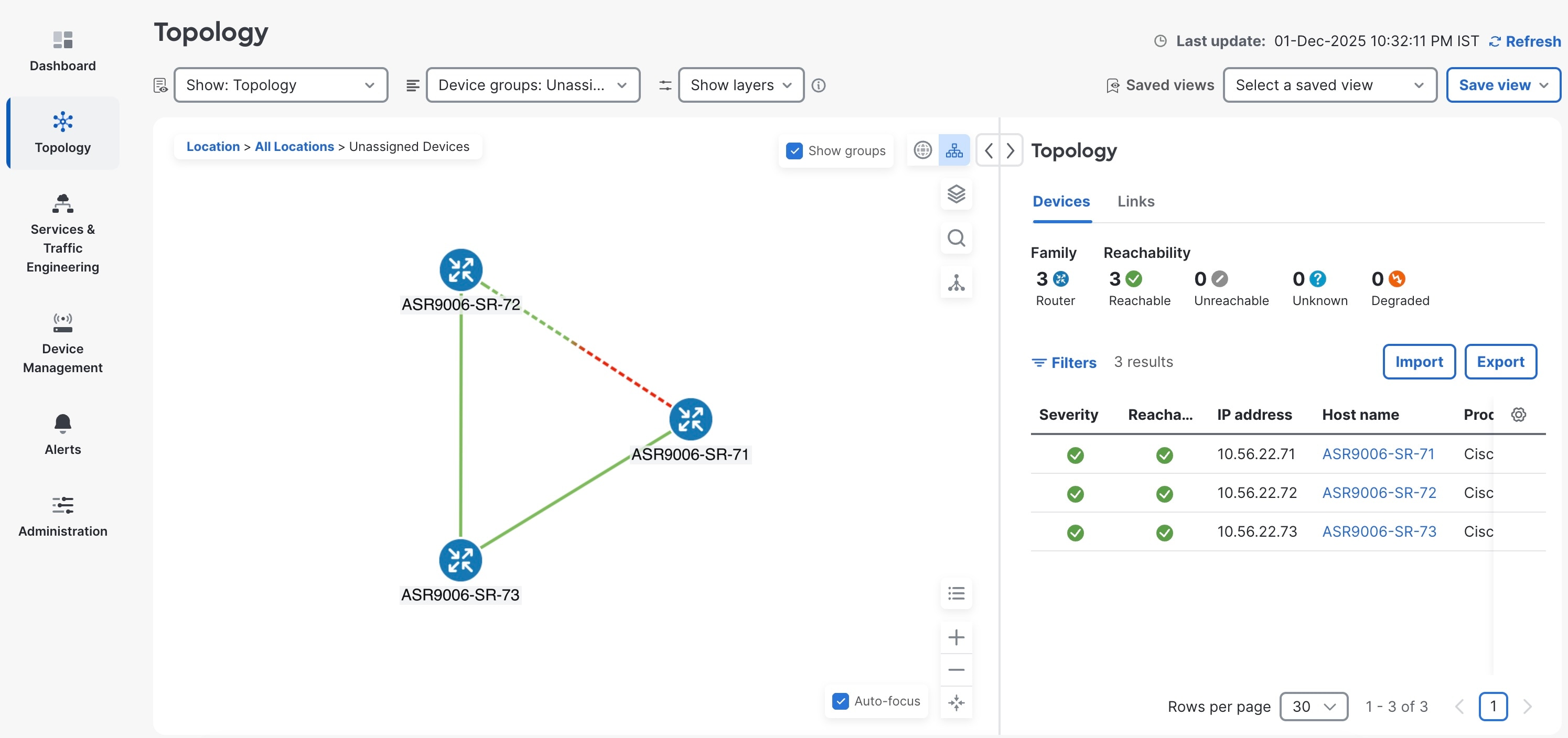
Figure 4. Basic device details

Step 4

(Optional) Adjust the map view by zooming, panning, or rotating as needed for clarity.


You see basic device information, helping you quickly understand device status and network placement.

View all device details

Display comprehensive device information from the topology map, including its location, the type of device, and the date it was last updated.

Perform this task when you need to assess or troubleshoot a device directly from the topology view.

Before you begin

(Optional) Element Management Functions must be installed to view extended device details.

Follow these steps to view device details:

Procedure


Step 1

From the main menu choose Topology .

Step 2

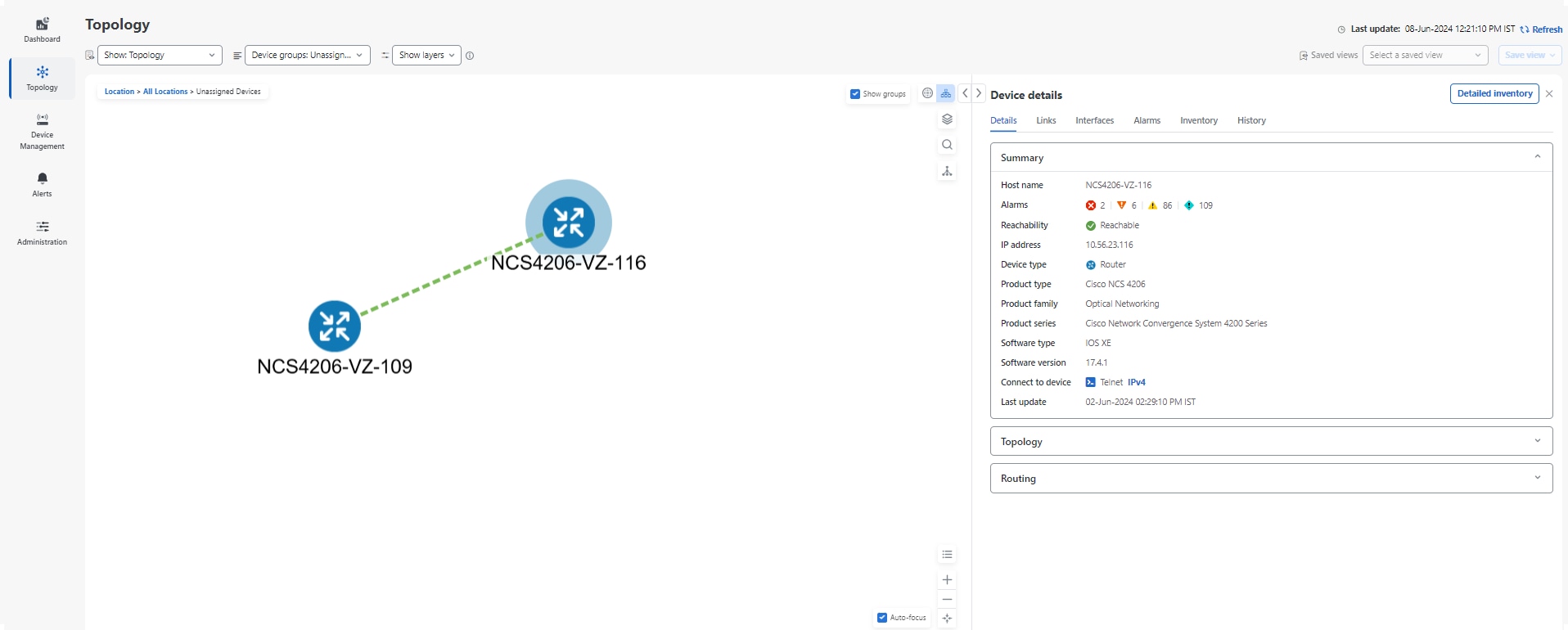
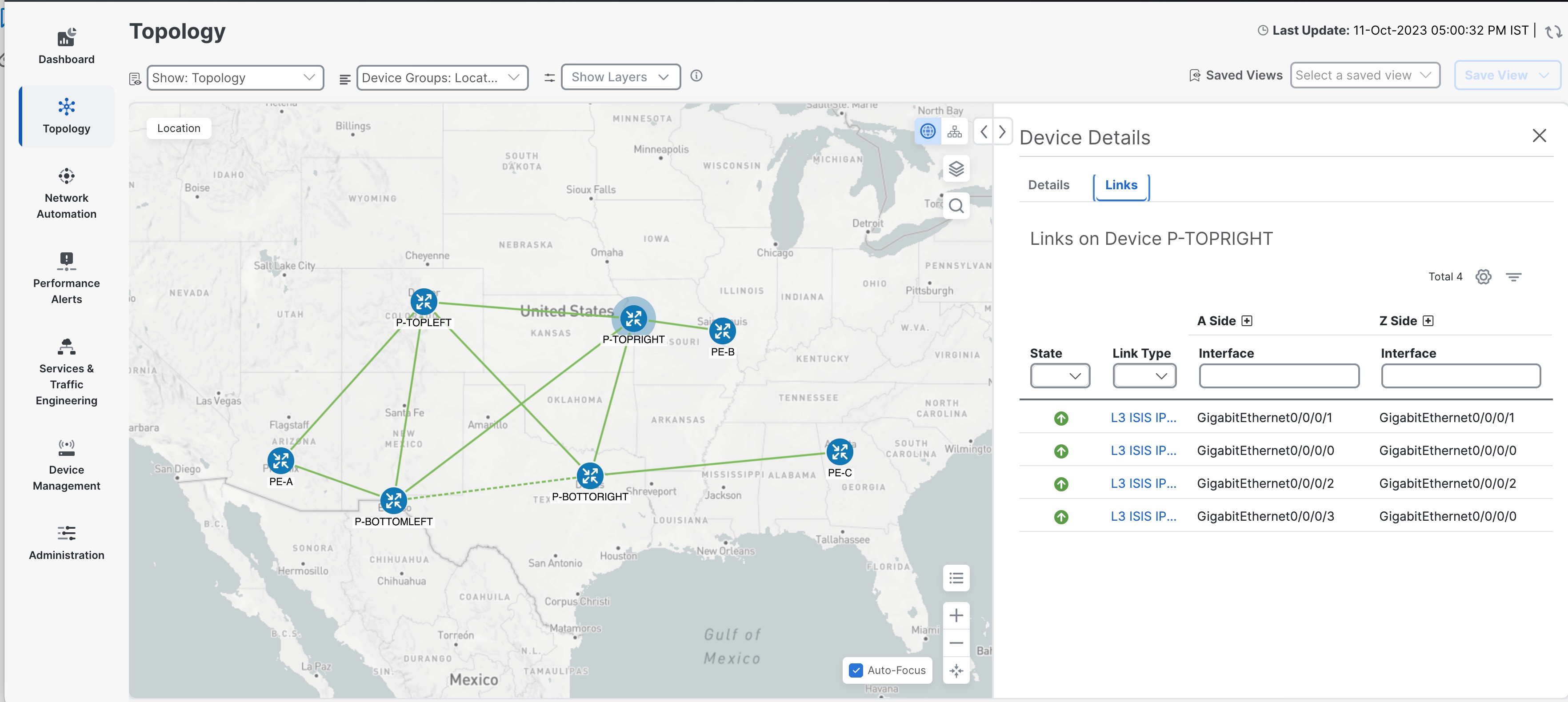
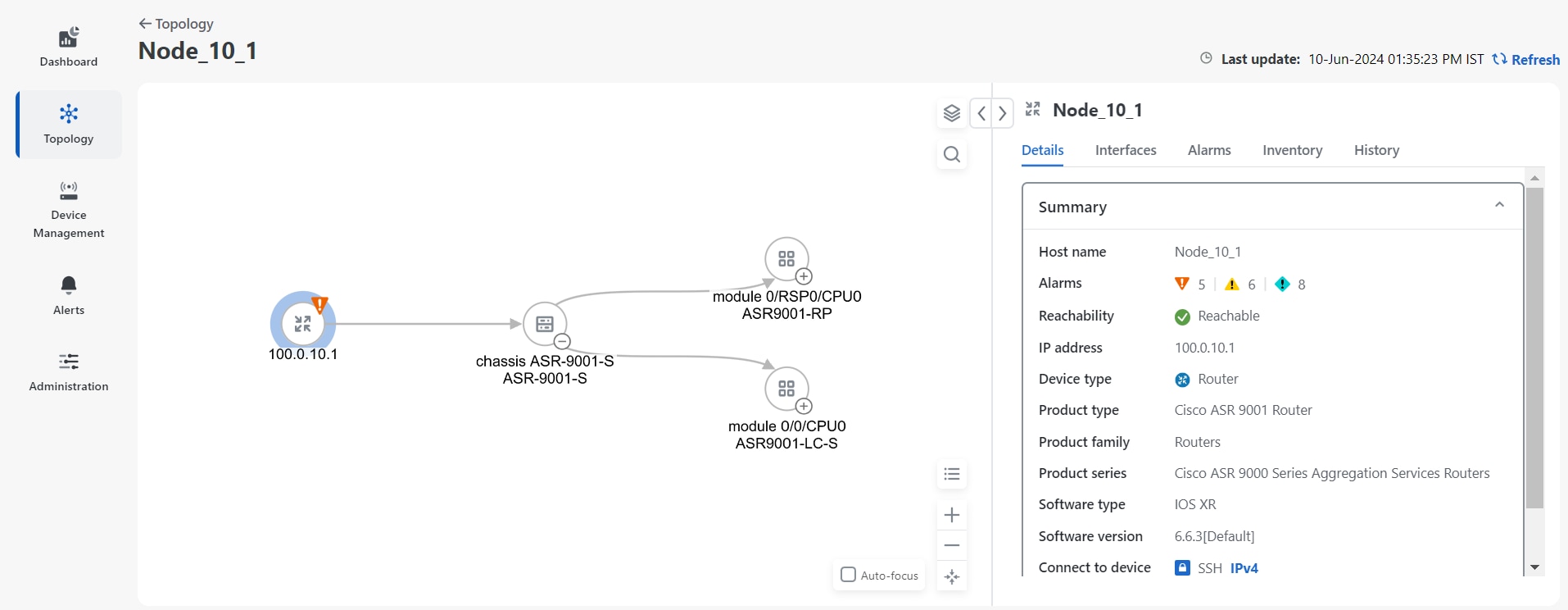
Click the device icon that represents the device you want to inspect. The device detail window displays these tabs.

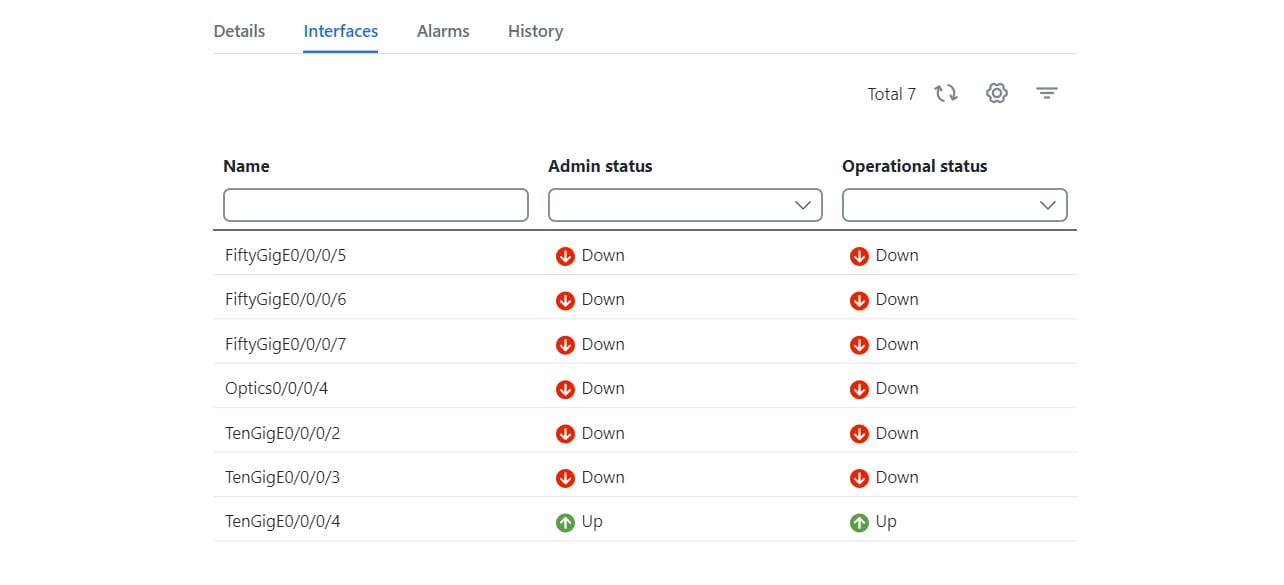
  • An Interfaces tab with name, and operational and admin status for each associated interface.

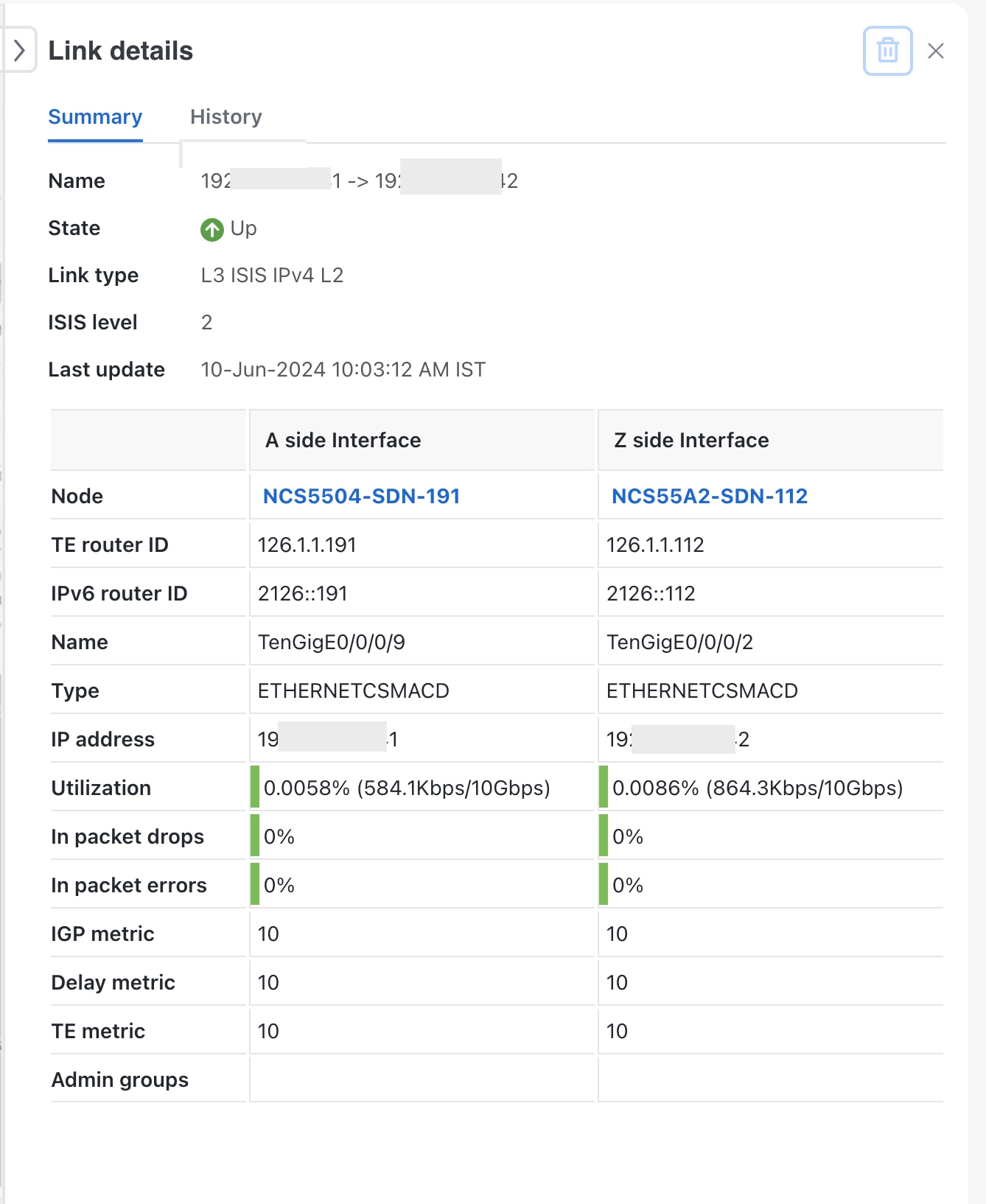
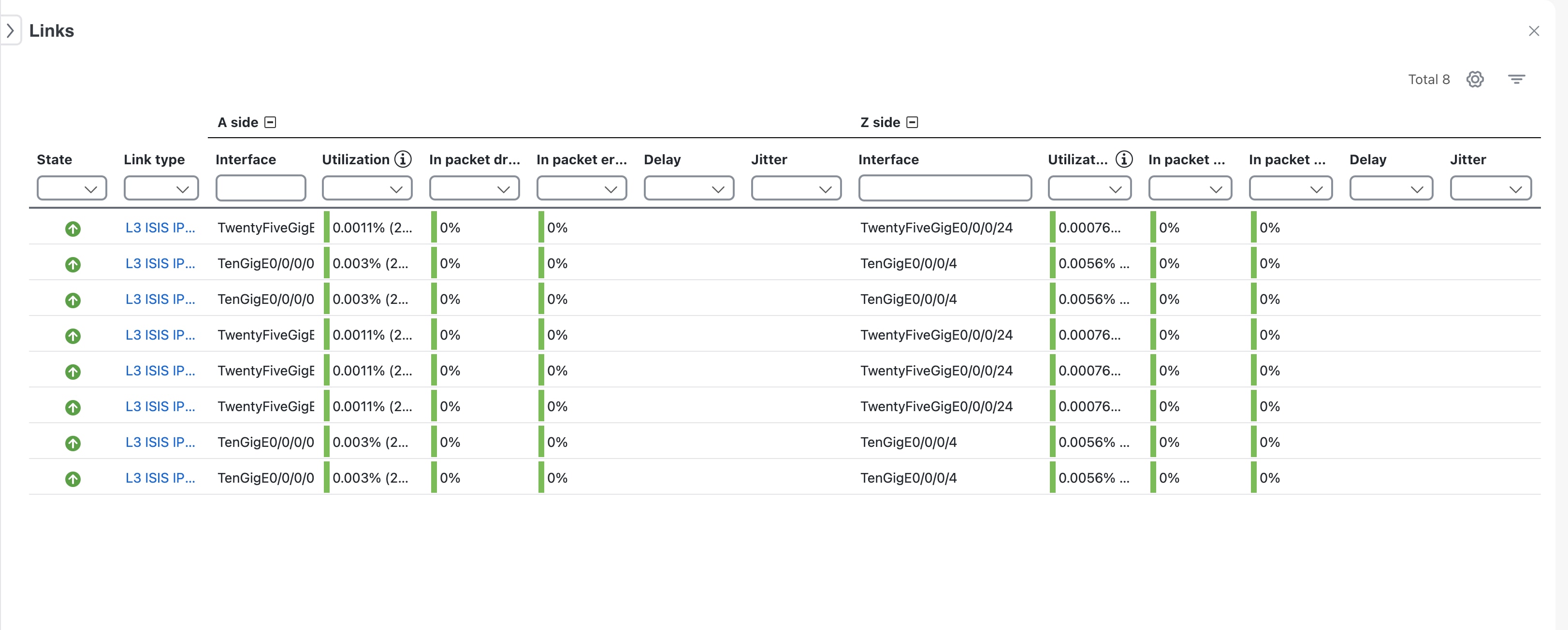
  • A Links tab with the details of the links on the selected device.

  • An Alarms tab displaying information such as severity, source, category, and condition of the alarms. The columns can be customized based on your preferences.

  • An Inventory tab displaying the product name, product ID, admin status, operational status, and serial number. The columns can be customized based on your preferences.

  • A History tab with detailed information about device performance, including various performance metrics for CPU utilization, device memory utilization, device availability and environmental temperature. For each trend, you can choose the required time frame and dates using the Zoom and Date options on the graph. You also have the option to download the details in a PNG or CSV file.

Figure 5. Device details

The Device details panel provides all available information about the selected device. Additional details are shown if Element Management Functions are installed.

Identify the device routing details

Find out how data packets are routed through a specific device in your network topology.

Use this task to view path configuration, or review routing details for devices within the topology map.

Before you begin

Follow these steps to identify the device routing details:

Procedure


Step 1

From the main menu, choose Topology.

Step 2

Click the icon for the device you want to view on the topology map.

The routing details for that device are displayed in the right pane.


You can view routing information for the selected device, including network paths and connections.

View the detailed device inventory

Provide an up-to-date and comprehensive view of each device’s hardware components and attributes.

Use this task to quickly examine modules, chassis, cards, and interfaces for any device in your network, supporting maintenance, troubleshooting, and audits.

Before you begin

Procedure


Step 1

From the main menu, choose Topology .

Step 2

Click the device icon to view the Device details pane for the device.

Step 3

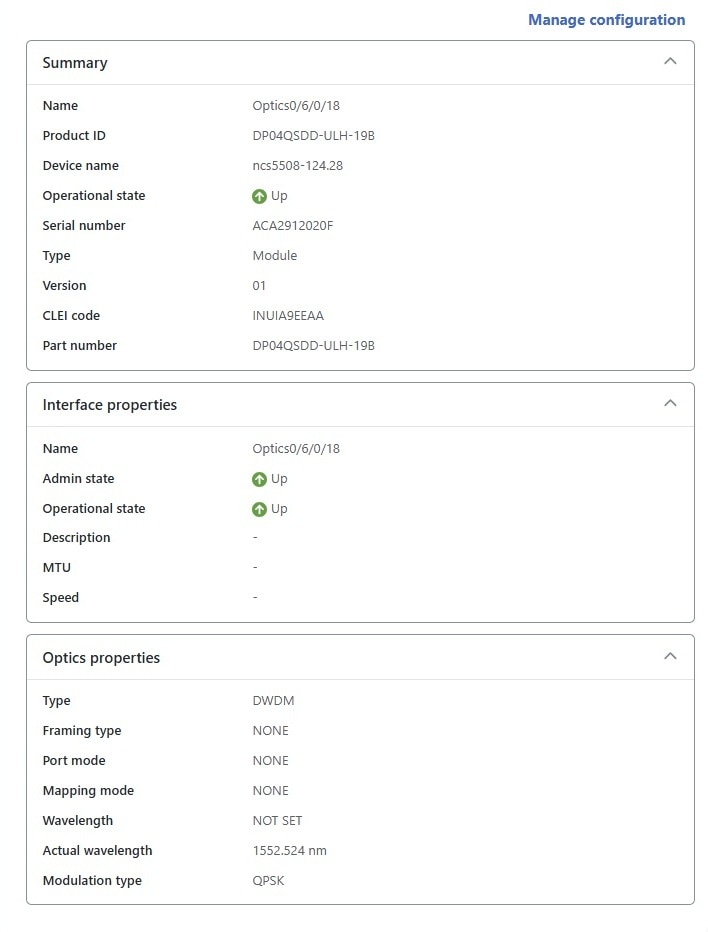
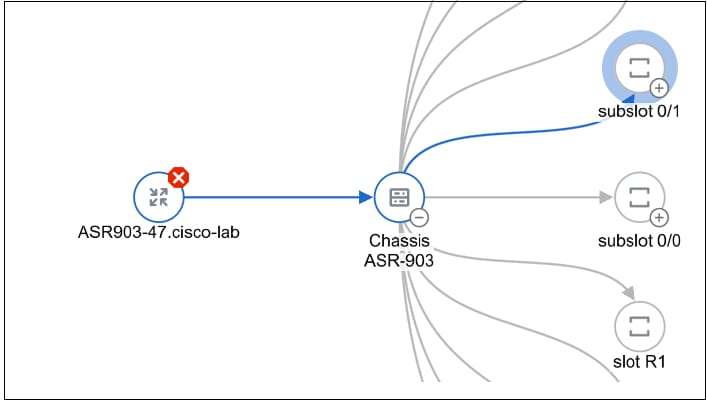
Click the Detailed inventory button on the Device details pane to open the detailed inventory window for the chosen device. You can see the Topology tree view on the left.

Under the Details tab, you can view detailed device information, including the device summary and interface properties.

Figure 6. Extended view of the Details tab

Step 4

Zoom in to view the different modules and click one for which you need detailed information.

You can view detailed information in the Details, Interface, Alarms, Inventory and History tabs for the chosen module.

Note


In the Detailed inventory view:

  • Slot, bay, and container are not shown.

  • The Optics Controller and pluggable components are combined and displayed as a single merged port.

  • Only entities with the serial numbers (SN) are shown. An entity without a SN is hidden, and its child is attached to the parent of the hidden entity.

  • Optical ports for XR devices are merged with the corresponding SFP and the RSIP. Ethernet port merging for XR devices is not supported.

  • When you select the device or chassis node in the topology tree, both physical and logical interfaces are shown. Other nodes show only physical interfaces.


You can view detailed inventory attributes for any device, including modules, summary, interface properties, alarms, and history, supporting informed operations and troubleshooting.

View network inventory details

Access and review the list of devices and components that are part of your managed network.

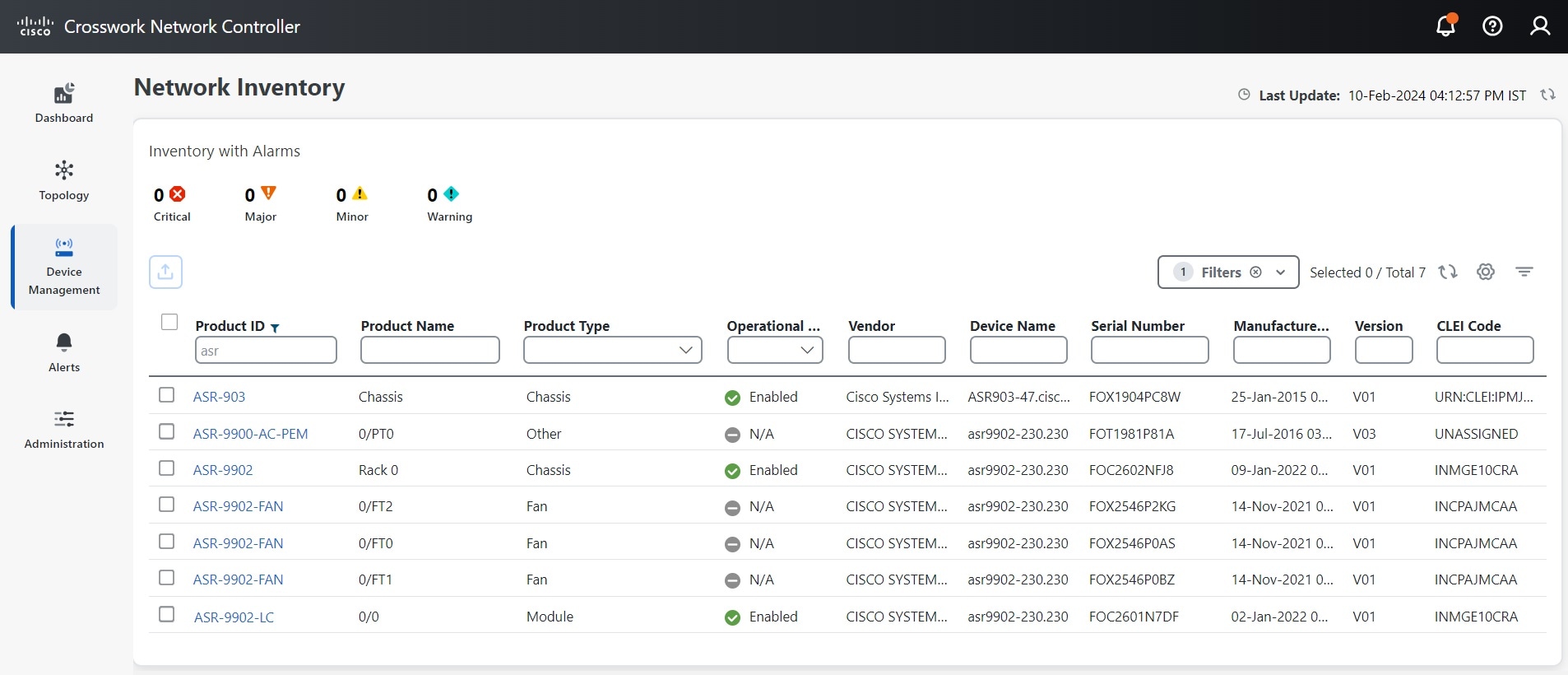
The Network Inventory window provides a comprehensive list of the network elements and devices that are part of your managed network. This list includes device names and types. It also details hardware specifics like serial numbers, manufacture dates, and lists each device's operational state. You can also see a high-level overview of the alarm status across your network inventory to monitor network health.

For each product, you can view the product name, device name, type and version, vendor name, the operational state of the device, its serial and part number, manufacturing date, and CLEI code. You can filter the displayed information using the settings icon by selecting the inventory information that you want to display.

Before you begin

Follow these steps to view the network inventory:

Procedure


Step 1

From the main menu, go to Device Management > Network Inventory.

A list of the different Product Types like chassis, chassis extender, compute blade, fan, memory module, pluggable transceiver and power supply is displayed.

Step 2

Use the filter or search functions to locate specific device types or models.

For example, enter a product ID or use filter options to display only certain product types.

Step 3

(Optional) Click the alarm icons at the top of the page to filter the inventory by alarm status or severity.

Step 4

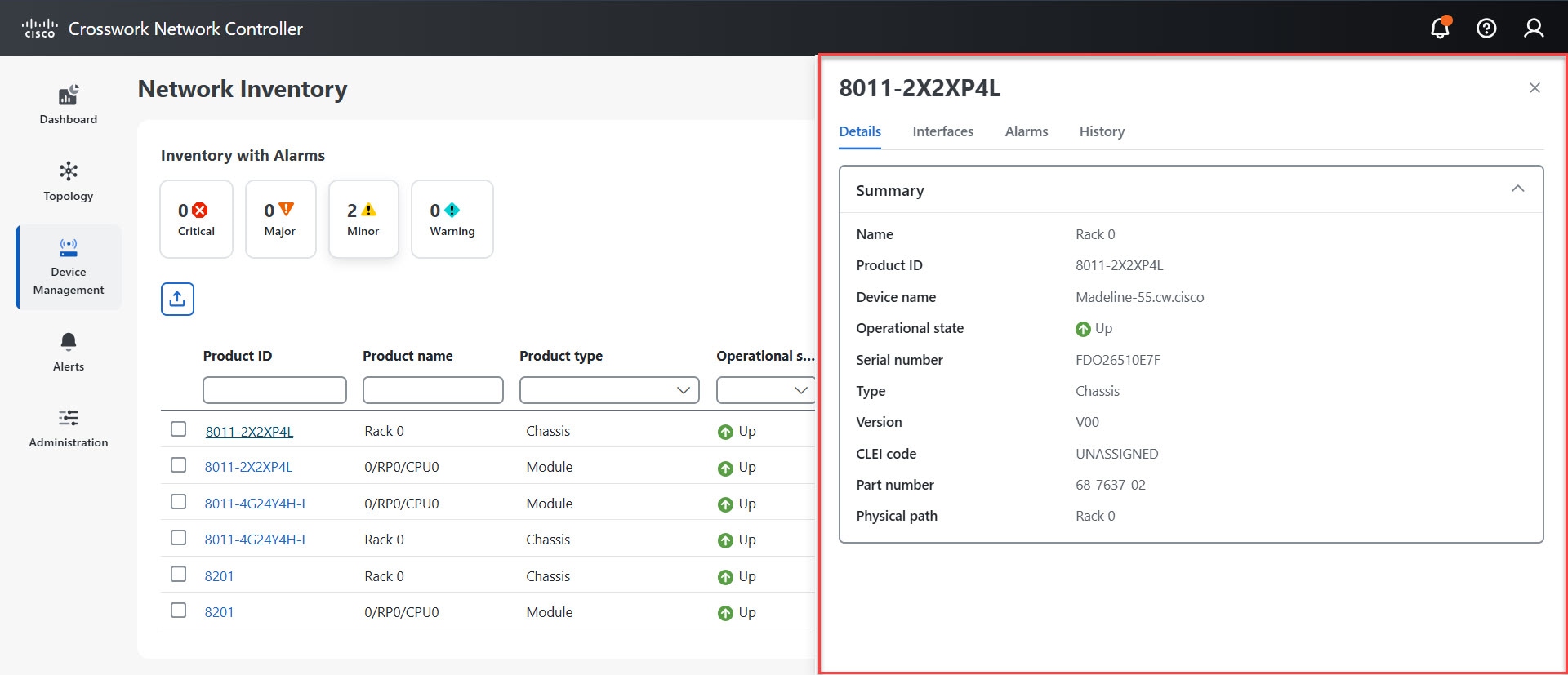
Click the Product ID link for a specific device to view device details.

Step 5

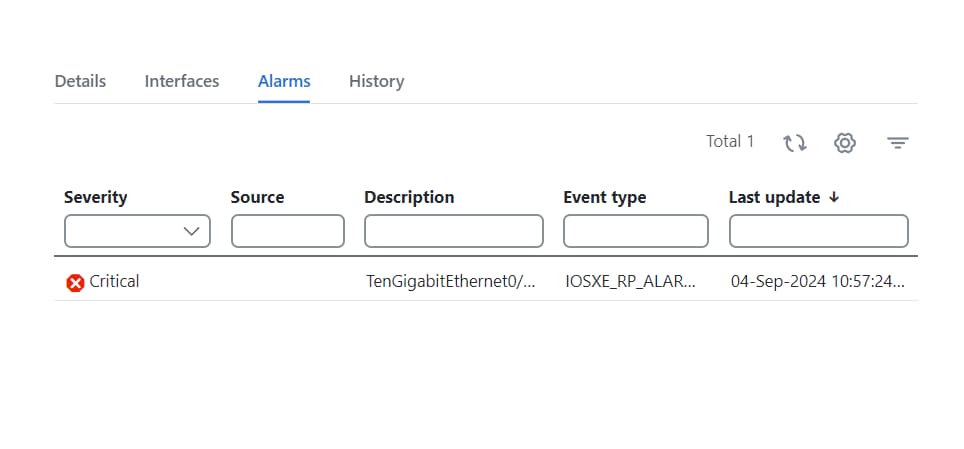
In the pop-up window, choose a tab to see more information:

  • Details:View device name, product details, operational state, serial number, version, CLEI code, part number, and physical path.

  • Interfaces:View information about each interface, including status and operational condition.

  • Alarms:See alarms raised for a device, a card, or a port, including severity, event type, and source.

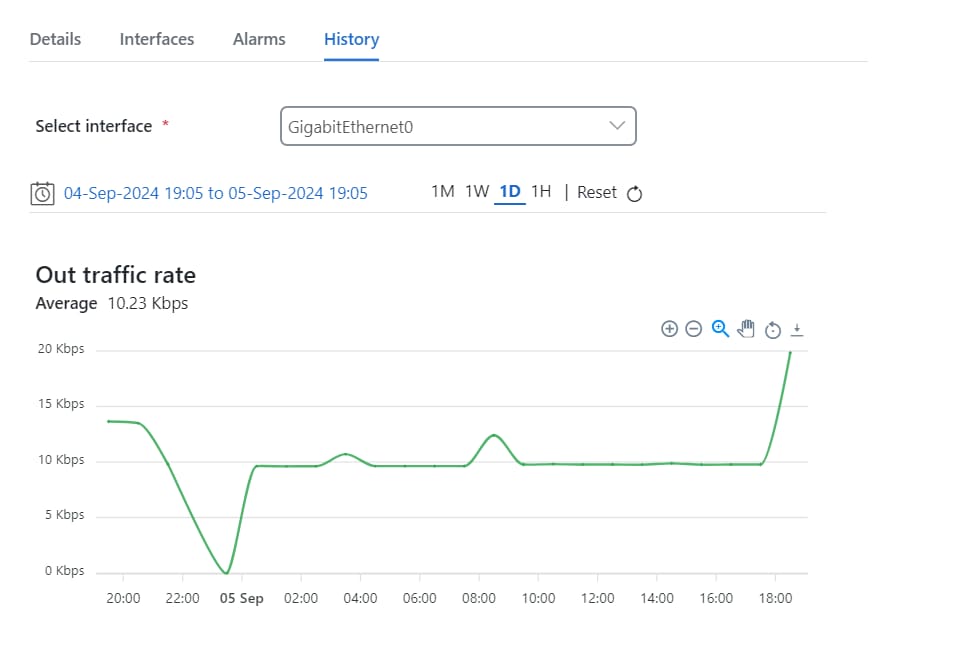
  • History: Select the interface and view graphical performance data, such as traffic rates, interface errors, utilization, and optical metrics. Select time ranges as needed and use the download icon to export data as PNG or CSV.

Example:

A snippet of the average outbound traffic rate for a Gigabit Ethernet interface over a period of one day.

Note

 
  • To see the relevant data displayed in the graphs, activate the monitoring policy for the relevant devices. For steps to create monitoring policies, see Create monitoring policies .

  • Average values are available for all performance metrics on the History tabs. However, the relevance of average values may vary across different metrics. Assess the context of each metric before using the average values in your analysis.


Export the inventory results

Export a record of your current network inventory as a CSV file.

Use this task when you need to maintain a snapshot of the inventory at a given time. You can export all, filtered, or selected inventory items, subject to record limits. Additionally, you have the option to export data for a particular device group within a defined time period.

Before you begin

There is no option to select all items for export. Filter or select items in advance if you want to export a subset.

Procedure


Step 1

From the main menu, choose Device Management > Network Inventory .

Step 2

Choose an export method:

  1. Export: Click Export to export complete data for a specified device group within a chosen time period.

  2. Manual selection: Select the devices you want to export. You can:

    • Export the entire inventory- up to 1 million records.

    • Apply filters and export only filtered inventory items- up to 1 million records.

    • Export manually selected items- up to 1,000 records. The export can include rows filtered by your criteria and the columns you have chosen. If you select more than 1,000 items, the export option is disabled.

Note

 
  • When you export all inventory records, the action is logged. Manual exports of selected rows are not logged.

  • Devices are classified as third-party if their software type is not IOS, IOS XR, IOS-XR, IOSXR, IOSXE, IOS-XE, IOS XE, NX-OS, NXOS, or NX-OS(tm). Crosswork Network Controller automates synchronization on these third-party devices to ensure regular updates and integration for all non-Cisco device types in the network. This synchronization is automatically triggered every one hour for all identified third-party devices. This interval can be changed using Crosswork Network Controller APIs for rescheduling.


The system downloads a CSV file containing your selected inventory in your computer’s download folder.

View device job histories

Review and track device-related jobs to monitor activities such as creation, updates, and deletions.

Use this task to access and interpret logs of device jobs in Crosswork Network Controller.

Procedure


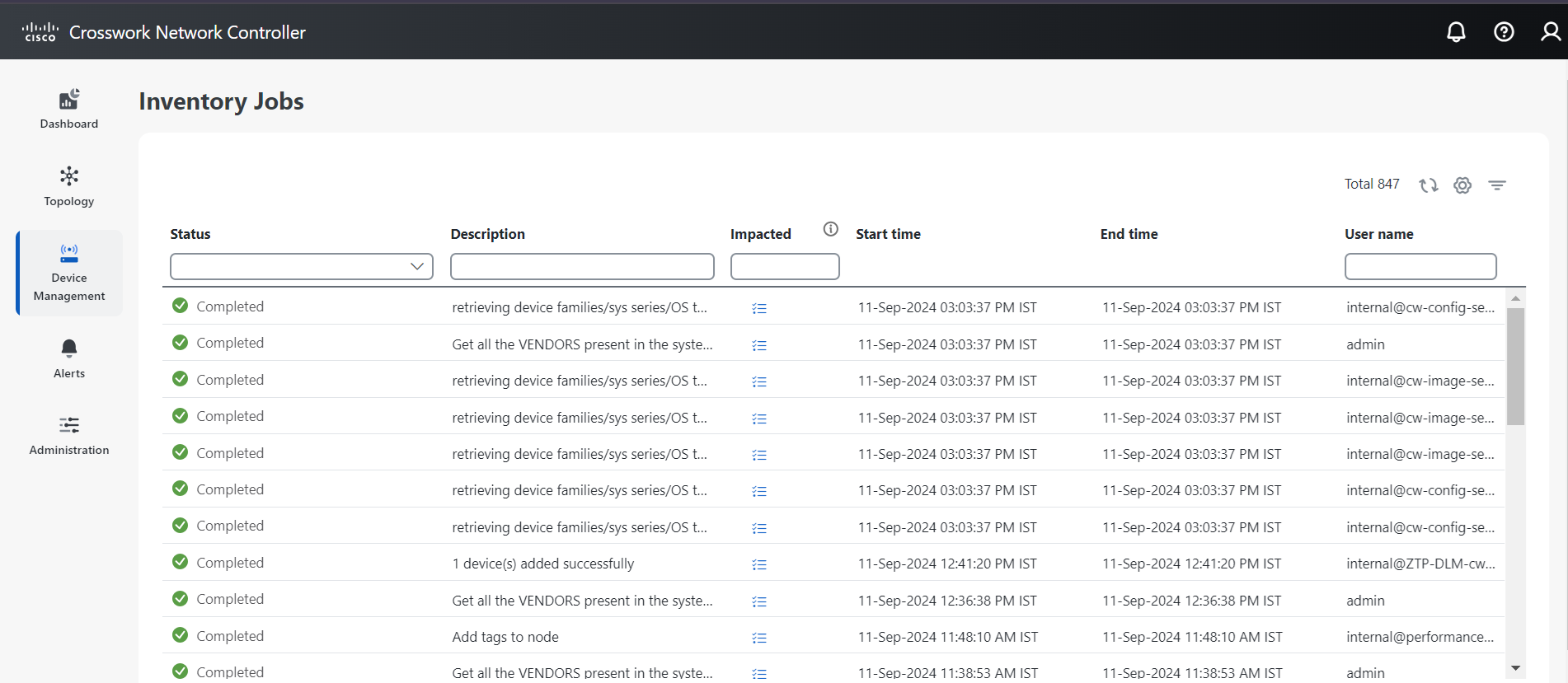
Step 1

From the main menu, choose Device Management > Inventory Jobs.

Figure 9. Inventory Jobs window
Inventory Jobs window

Step 2

Review the list of device jobs.

Jobs are displayed in descending order of creation time, with the most recent listed first.

Step 3

To view details for a specific job:

  1. Check the Status column for the following states: Completed, Failed, Running, Partial, or Warning.

  2. If a job status is Failed or Partial, click the information icon next to the error for more details.

    Error information may explain why a job failed or only partially completed.

  3. To confirm job results, cross-verify the device status in Device Management > Network Devices as job statuses may not always reflect device reachability.


You can view a complete log of device management jobs with their current statuses and access additional error details if available.

Port groups

A port group is a network management group that

  • applies configuration and monitoring policies to sets of device ports,

  • automatically categorizes ports by type such as ethernet or fiber channel, and

  • enables dynamic or user-defined groupings, allowing a port to belong to one or more groups.

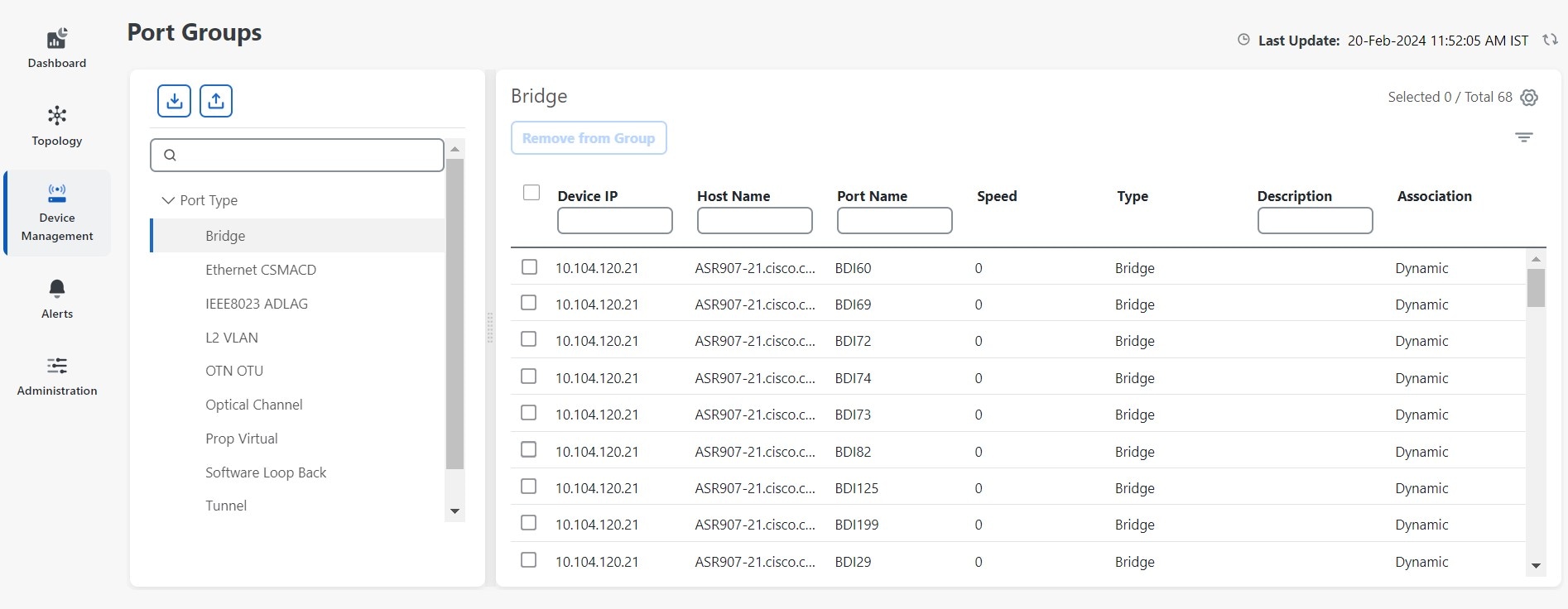
Ports on new devices are automatically assigned to the appropriate port group. You can see these ports listed under Port type as a read-only list. You cannot create port type groups directly but you can use device criteria to create a user-defined group, and create subgroups under the user-defined group. If the group is dynamic and a port matches the criteria, it is added to the group.

You can implement policies like Quality of Service (QoS), security settings, and traffic management rules across multiple ports simultaneously, and set up monitoring and performance tracking for these groups to oversee network health and identify issues.

Add ports manually to a group

Add specific ports to an existing group to enable device configuration.

Use this task to manually assign additional ports to an established group when automated methods are not sufficient or when you need to customize port assignments.

Before you begin

  • Identify the group to which you want to add ports.

  • Confirm which ports should be added.

Procedure


Step 1

From the main menu, choose Device Management > Port Groups.

Step 2

Click the ellipsis icon (⋯) for a chosen group and select Add ports manually.

Step 3

On the Add ports page, choose the ports you want to add.

Step 4

Click Save to assign the selected ports to the group.


The selected ports are added to the specified group.

Add ports dynamically to a group

Automate the inclusion of ports in port groups by adding ports dynamically based on predefined rules, reducing the need for manual intervention.

Use this task to add ports to port groups by creating up to 10 automated rules. Rules can use criteria such as port name, admin status, speed, port type, and operational status.

Before you begin

You can create a maximum of 10 rules for dynamic port addition.

Procedure


Step 1

From the main menu, choose Device Management > Port Groups .

Step 2

For the desired group, choose, Add ports dynamically.

Step 3

Click Add new rule, then define the rule conditions using criteria such as name, admin status, speed, port type, or operational status.

For a list of ifType values and their descriptions to identify interface types and type identifiers, refer to the IANAifType-MIB document available at IANA Interface Types.

Step 4

Click Save.

The rule is applied, and matching ports are added automatically within 10 minutes.

Step 5

Click Test rule to view a sample of the expected result for the rule you create.


Ports that meet your rule conditions are automatically included in the port group.

Edit the port group properties

Update the settings of an existing port group to meet new requirements or preferences.

Perform this task when you need to change configuration properties such as name or attributes, for a previously created port group.

Procedure


Step 1

From the main menu, choose Device Management > Port Groups.

Step 2

Select the port group you want to edit from the list.

Step 3

Choose Edit group properties .

Step 4

Update the necessary information under the Group details tab.

Step 5

Save your changes.


The port group reflects the updated properties.

Create a user-defined port group

Organize network ports into custom groups to streamline device management.

User-defined port groups allow you to categorize ports based on operational needs. The port groups listed under Port type are automatically generated based on ports discovered from your onboarded devices and are read-only. Only user-defined groups can be created or modified. To create a user-defined port group:

Before you begin

Identify the ports you want to group.

Procedure


Step 1

From the main menu, choose Device Management > Port Groups .

Step 2

Under the User-defined section, select an existing group or create a new group as needed.

Step 3

Click Add a group.

Step 4

Enter a name and description for the new port group.

Step 5

Click Create.


The new user-defined port group appears under the selected user-defined category.

What to do next

Assign ports to your new group as required.

Import port groups from a CSV file

Apply configurations and policies to sets of ports by importing predefined port groups in bulk.

Importing port groups using a CSV file creates new port groups or updates existing groups based on matching data.

Before you begin

Export a backup of your existing port groups to prevent data loss.

Follow these steps to import port groups from a CSV file:

Procedure


Step 1

From the main menu, choose Device Management > Port Groups.

Step 2

Click the import icon to open the Import groups dialog box.

Step 3

If you do not have a CSV file prepared:

  1. Download the port groups (.csv) template.

  2. Open the template using your preferred tool.

  3. Add a row for each port group to be imported.

    • Separate multiple entries in a field with a semicolon.

    • Leave a field blank by typing two semicolons with no space between them.

    • Delete sample data rows before saving, but keep the column header row.

  4. Save the new CSV file.

Step 4

Click Browse and select the CSV file.

Step 5

Click Import .

Attention


Wait for the import operation to complete before clicking Import again to prevent duplicate entries.


The system imports the new port groups and updates any existing port groups with matching data.

What to do next

Review the imported port groups and verify that configurations and policies have been applied as expected.

Export the port groups

Create a downloadable CSV file containing details of all port groups in the system.

Exporting port group details is useful for creating a record of all the port groups in the system at a given time. You can also modify the CSV file, and import it back to update existing data.

Procedure


Step 1

From the main menu, choose Device Management > Port Groups.

Step 2

Export the port groups in CSV format.


The system downloads a CSV file of all port groups.

What to do next

Review the exported file for completeness or make updates before re-importing, if needed.

Interface inventory streaming

Interface inventory streaming is a Crosswork Network Controller feature that

  • delivers device interface information through a continuous, structured streaming model,

  • provides timely and scalable updates required for L2 and L3 link discovery, and

  • eliminates the need for full device resynchronization by continuously publishing interface changes.

Starting with the 7.2 release, L2 and L3 link discovery transitions to a streaming-based model that uses the device inventory maintained by Crosswork Network Controller. This shift ensures that consuming applications receive consistent, accurate, and up-to-date interface information as soon as changes occur.

Crosswork Network Controller also provides a allow-list mechanism that controls which interface types are included in streamed inventory. A default set of essential interface types is enabled and protected, and additional types may be included through configuration.

Use interface inventory streaming when you need complete and current interface information to support link discovery, topology calculations, inventory synchronization, or other applications that depend on accurate device interface data.

Allow-list configuration for interface inventory streaming

Crosswork Network Controller uses an allow-list mechanism to determine which interface types are included when streaming interface inventory. This allows consuming systems to focus on the interface types most relevant to link discovery and operational workflows.

Default interface types and values (protected)

These interface types are enabled by default and cannot be removed.

  • ETHERNETCSMACD (6)

  • SOFTWARELOOPBACK (24)

  • TUNNEL (131)

  • IPFORWARD (142)

  • IEEE8023ADLAG (161)

For a list of ifType values and their descriptions to identify interface types and type identifiers, refer to the IANAifType-MIB document available at IANA Interface Types.

Additional configurable interface types and values

Typically, Bundle or LAG interface types are modeled as PROPVIRTUAL (e.g., Bundle-Ether98), while Ethernet subinterfaces are modeled as L2VLAN or L3IPVLAN (e.g., GigabitEthernet0/0/0/4.2). This modeling approach is applicable to Cisco devices. However, applicability and support for non-Cisco devices may vary depending on the device and software.

You may add the following interface types through configuration:

  • PROPVIRTUAL (53)

  • L2VLAN (135)

  • L3IPVLAN (136)

Managing the allow-list

Allow-list configuration can be updated through Crosswork Network Controller REST API. Protected default types cannot be removed.

Example: To read or view configured allow-list information

GET : /crosswork/inventory/v1/networkelement/notification-config
{
    "notificationInfo": [
        {
            "type": "IF_TYPE",
            "values": [
                "TUNNEL",
                "SOFTWARELOOPBACK",
                "ETHERNETCSMACD",
                "IEEE8023ADLAG",
                "IPFORWARD"
            ]
        }
    ]
}

Example: To configure allow-list information

POST : /crosswork/inventory/v1/networkelement/notification-config
{
    "type": "IF_TYPE",
    "operation": "UPDATE",
    "values": [
        "TUNNEL",
        "SOFTWARELOOPBACK",
        "ETHERNETCSMACD",
        "IEEE8023ADLAG",
        "IPFORWARD",
        "PROPVIRTUAL",
        "L2VLAN",
        "L3IPVLAN"
    ]
}

Configuring allowed interface types for statistics streaming

By default, Crosswork Network Controller streams interface statistics only for the following interface types:[6, 161, 142, 131, 24].

To modify this list, you can use the following API endpoint:

POST /crosswork/performance/v1/pre-streaming/settings/allowed-interface-types

Example: To add interface type 53 to the default list, use the command:

POST /crosswork/performance/v1/pre-streaming/settings/allowed-interface-types  
-H 'Content-Type: application/json'  
-d '[6, 161, 142, 131, 24, 53]'

To view the currently defined list of allowed interface types, use:

GET /crosswork/performance/v1/pre-streaming/settings/allowed-interface-types  
-H 'Accept: application/string'

Configuring allowed interface types using CLI

The CLI method is an alternative to the REST API for updating the allowed interface types used in statistics streaming. This method is useful when API access is not preferred or available.

This method requires SSH access to the cw-performance-service pod. The script streaming_allowed_interface_types.sh, located in the /opt/robot/bin directory, is executed with a list of interface type identifiers to set the allowed interface types.

Example command to update the allowed interface types:
./streaming_allowed_interface_types.sh -set [24,131,142,161,6,53]
Example output:
cw-performance-service-7fb7b79b5d-zvbnc:/opt/robot/bin# ./streaming_allowed_interface_types.sh -set [24,131,142,161,6,53]
Updated:[24, 131, 142, 161, 6, 53]

Troubleshoot interface inventory streaming results

Troubleshooting interface inventory streaming helps ensure that all relevant device interface data is correctly collected, filtered, and provided to your application. Missing or incomplete streaming results may signal issues with data collection, filters, or application handling.

Follow these steps if interface inventory results appear incomplete or missing:

Procedure


Step 1

Confirm that inventory collection has completed for the devices.

Step 2

Ensure the correct allow-list is being used.