Manage the Crosswork Cluster

This section contains the following topics:

Cluster management overview

The Cisco Crosswork platform uses a cluster architecture. The cluster distributes platform services across a unified group of virtual machine (VM) hosts, called nodes. The underlying software architecture distributes processing and traffic loads across the nodes automatically and dynamically. This architecture helps Cisco Crosswork respond to how you actually use the system, allowing it to perform in a scalable, highly available, and extensible manner.

A single Crosswork cluster consists of a minimum of three nodes, all operating in a hybrid configuration. These three hybrid nodes are mandatory for all Cisco Crosswork deployments. If you have more demanding scale requirements, you can add up to two worker nodes. For more information, see Deploy New Cluster Nodes.

Starting with release 7.0, Crosswork Network Controller can be deployed on a single virtual machine, providing full functionality with limited device capacity. When deployed on a single VM, all functions run on one machine, resulting in limited redundancy.

Only users assigned to the admin role or a role with proper permissions will have access to all of the cluster configuration.
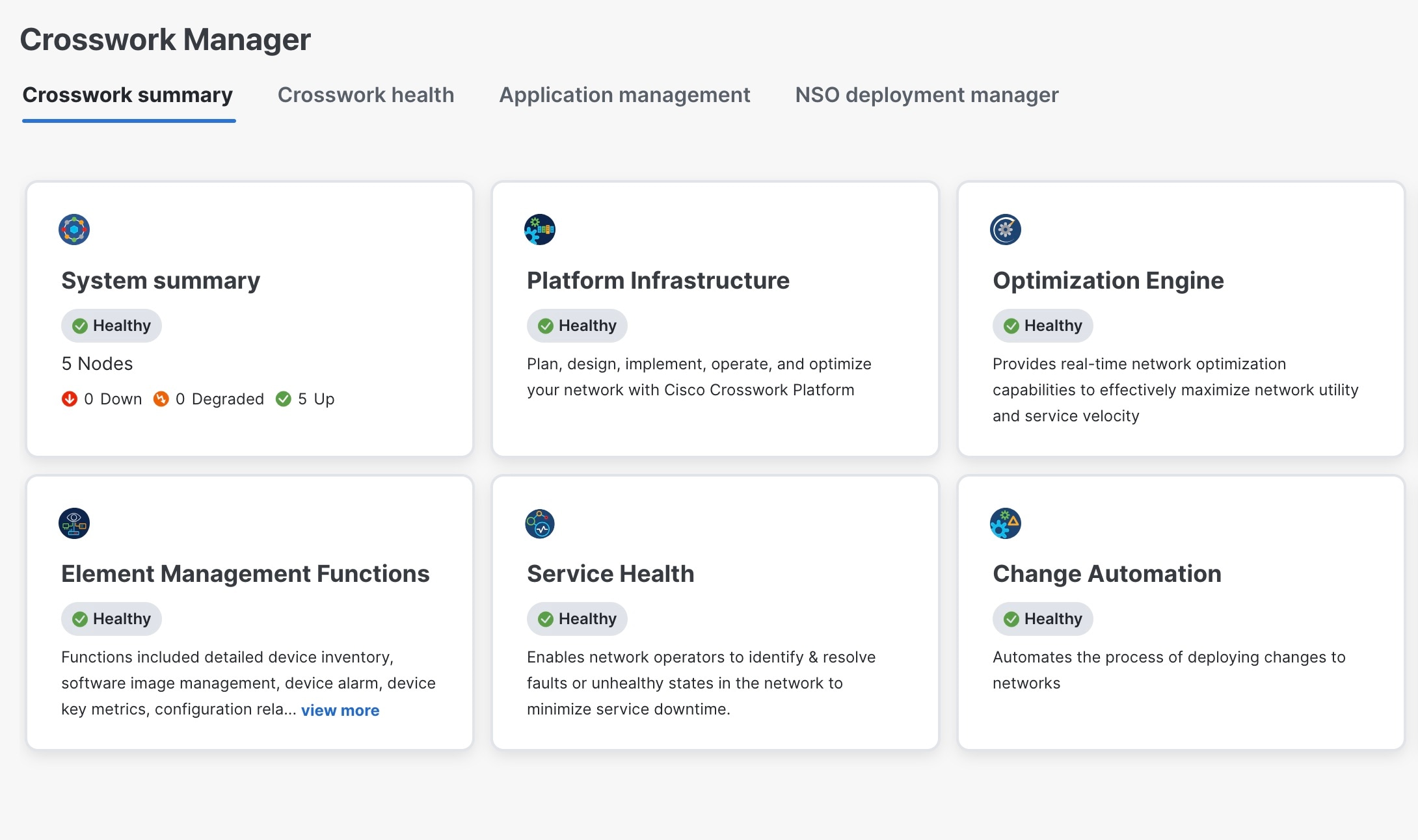
Figure 1. Crosswork Manager (cluster deployment)
Crosswork Manager Window
Table 1. Crosswork Manager overview

Action

Description

Navigation

Use the Crosswork Manager window to check the health of the cluster. To display this window, from the main menu, choose Administration > Crosswork Manager.

Crosswork Summary window

The Crosswork Manager window gives you summary information about the status of the nodes, the Platform Infrastructure, and the applications you have installed.

Cluster Management window

Note


Can be viewed only when Crosswork Network Controller is deployed as a cluster.

Click on the System Summary tile to see the details of the nodes in the cluster.

The top left section of the window provides details about the cluster while the top right provides details about overall cluster resource consumption. The bottom section breaks down the resource utilization by node, with a separate detail tile for each node. The window shows other details, including the IP addresses in use, whether each node is a hybrid or worker, and so on.

Note


When the Crosswork Network Controller is deployed on AWS EC2, the VM status initially appears as "unknown" by default. If you update the inventory file, the status changes to "initializing." This behavior is normal for EC2 deployments.

On the top-right corner, click the View more visualizations link to Visually Monitor System Functions in Real Time.

To see details for a specific node, click on the tile of the node, and choose View Details. The VM Node window displays the node details, including the list of components, microservices, and alarms running on the node.

  • To request metrics or logs, click under the Action column, and select the relevant option.

  • To restart a microservice, click under the Action column, and choose Restart.

For information on how to use the Crosswork Health tab, see Monitor platform infrastructure and application health.

System Summary window

Note


Applicable only when Crosswork is deployed on a single VM.

Click on the System Summary tile to see the VM details.


Note


  • If one of the hybrid nodes is faulty, along with one or more worker nodes and applications, try the Clean System Reboot procedure described in Cluster System Recovery.

  • If more than one hybrid node is faulty, follow the Redeploy and Recover procedure described in Cluster System Recovery.

  • On the Cluster Management window, it is normal to see deviation on the last_updated_time across the nodes in the cluster based on when the data was updated. This is an expected behavior.


View and Edit Data Center Credentials

This section explains the procedure to view and edit the credentials for the data center (such as VMware vCenter) where Cisco Crosswork is deployed.

Before you begin

Ensure you have the current credentials for vCenter.


Note


In case you have changed your password since Crosswork was originally deployed, you may need to update the stored credentials that Crosswork will use when deploying the new VM.


Procedure


Step 1

From the main menu, choose Administration > Crosswork Manager.

Step 2

On the Crosswork Summary tab, click the System Summary tile to display the Cluster Management window.

Step 3

Choose Actions > View/Edit Data Center to display the Edit Data Center window.

The Edit Data Center window displays details of the data center.

Step 4

Use the Edit Data Center window to enter values for the Access fields: Address, Username, and Password.

Step 5

Click Save to save the data center credential changes.


Import cluster inventory

If you have installed your cluster manually using the vCenter UI (without the help of cluster installer tool), you must import an inventory file (.tfvars file) to Cisco Crosswork to reflect the details of your cluster. The inventory file contains information about the VMs in your cluster along with the data center parameters.


Attention


Crosswork cannot deploy or remove VM nodes in your cluster until you complete this operation.


Note


Please uncomment the "OP_Status" parameter while importing the cluster inventory file manually. If you fail to do this, the status of the VM will incorrectly appear as "Initializing" even after the VM becomes functional. 


Procedure


Step 1

From the main menu, choose Administration > Crosswork Manager.

Step 2

On the Crosswork Summary tab, click the System Summary tile to display the Cluster Management window.

Step 3

Choose Actions > Import inventory to display the Import inventory dialog box.

Step 4

(Optional) Click Download sample template file to download and edit the template. For more details on the installation parameters, see the Installation Parameters section in the Crosswork Network Controller 7.1 Installation Guide.

Step 5

Click Browse and select the cluster inventory file.

Step 6

Click Import to complete the operation.


Deploy New Cluster Nodes

As your network expands and you install additional Crosswork applications, it may become necessary to add more resources to handle the increasing workload. This topic explains how to deploy a new VM node.

The steps necessary to deploy a new node via the UI and the API are essentially the same. For details on using the API, see Crosswork Network Controller APIs. This guide will only present the procedure for using the UI.


Important


If you installed your cluster manually, you must import the cluster inventory file to Cisco Crosswork before you can deploy a new node. For more information, see Import cluster inventory. The Deploy VM option will be disabled until you complete the import operation.


Before you begin

You must know the following:

  • Details about the Cisco Crosswork network configuration, such as the management IP address.

  • Details about the VMware host where you are deploying the new node, such as the data store and data VM interface IP address.

  • The type of node you want to add. Your cluster can have a minimum of three hybrid nodes and up to two worker nodes.

Procedure


Step 1

From the main menu, choose Administration > Crosswork Manager.

Step 2

On the Crosswork Summary tab, click the System Summary tile to display the Cluster Management window.

Note


The Crosswork Summary window and the Cluster Management window display information about your cluster. While both windows display the status of the same cluster, there may be slight mismatches in the representation. This occurs because the Crosswork Summary window displays the node status based on Kubernetes, while the Cluster Management window also considers the node status in the data center.

An example of this mismatch is when a worker node deployment fails in the Crosswork UI due to insufficient data center resources. In this case, the status of the failed worker node is displayed as "degraded" in the Cluster Management window, while the same status appears as "down" in the Crosswork Summary window.

Step 3

Choose Actions > Deploy VM to display the Deploy VM Node window.

Step 4

Fill the relevant values in the fields provided.

Step 5

Click Deploy. The system starts to provision the new node in VMware. Cisco Crosswork adds a tile for the new node in the Crosswork Manager window. The tile displays the progress of the deployment.

You can monitor the node deployment status by choosing Cluster Management > Actions > View Job History, or from the VMware user interface.

If you have added the VM node using Cisco Crosswork APIs: On the newly added VM node tile, click and choose Deploy to complete the operation.

Step 6

If this node was added to reduce the heavy load (running > 90%) on the existing nodes, you can rebalance the resources (see Rebalance cluster resources for details), or restart some processes to force the system to move them to the newly added node.


Rebalance cluster resources

Efficient resource utilization is critical for maintaining a healthy and well-performing cluster. Rebalancing ensures that workloads are evenly distributed, preventing performance bottlenecks caused by uneven resource utilization.

You can initiate rebalancing at any time through the user interface. Additionally, Crosswork Network Controller continuously monitors CPU usage across all nodes and will notify you if utilization exceeds predefined thresholds. These alarms serve as prompts to take corrective actions, such as adding more worker nodes and redistributing resources, before performance issues arise.

Rebalacing is required in these scenarios:

  1. A new node is added on day N in the cluster.

  2. An existing node is replaced on day N in the cluster.

  3. A node is down for over 5 minutes in the cluster.

  4. The CPU or memory utilization of a node constantly exceeds 95% in the cluster.

To avoid performance degradation, it is recommended to deploy new worker nodes (see Deploy New Cluster Nodes) before CPU usage exceeds 90%. However, note that when new nodes are added, active workloads are not automatically redistributed, making rebalancing a necessary step. If you already have 5 or 6 nodes in your cluster and still experience resource shortages, please reach out to the Cisco Customer Experience team for assistance.


Caution


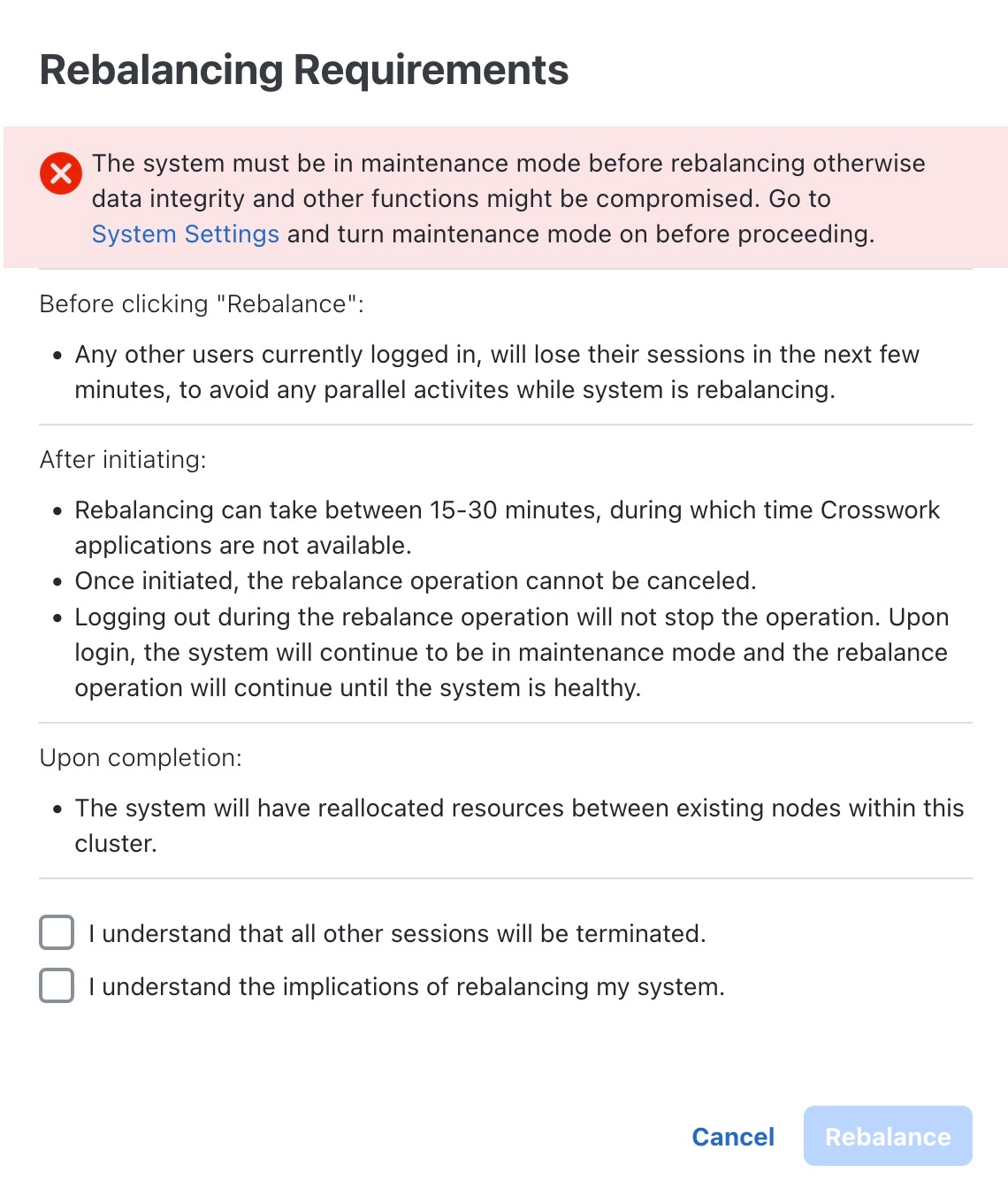
Rebalancing can take from 15 to 30 minutes during which the Crosswork Applications will be unavailable. Once initiated, a rebalance operation cannot be canceled.


To rebalance resources between the existing VM nodes in your cluster, follow these steps:

Before you begin

  • Crosswork must be in maintenance mode before rebalancing to ensure data integrity.

  • Any users logged in during the rebalancing will lose their sessions. Notify other users beforehand that you intend to put the system in maintenance mode for rebalancing, and give them time to log out. You can use the Active Sessions window (Administration > Users and Roles > Active sessions tab) to see who is currently logged in (or sessions that were abandoned and have not been cleaned up yet).

Procedure


Step 1

From the main menu, choose Administration > Crosswork Manager.

Step 2

On the Crosswork summary tab, click the System summary tile to display the Cluster Management window.

Step 3

Click Actions > Rebalance, and the Rebalance Requirements are displayed. Read through the requirements and select the two check boxes once you are ready to start the rebalancing.

Figure 2. Rebalancing requirements

Step 4

Click Rebalance to initiate the process. Crosswork begins to reallocate the resources in the over utilized VM node to the other nodes in the cluster.

A dialog box indicating the status of rebalancing is displayed. Kindly wait for the process to complete.

Step 5

After the rebalancing process is completed, you may see one of the following result scenarios:

  • Success scenario: A dialog box indicating successful rebalancing operation. Follow the instructions in the dialog box to proceed further.

    Figure 3. Rebalancing result - success
  • Failure scenario - scope available to add new worker nodes: A dialog box indicating rebalancing failure is displayed. In this case, the system prompts you to add a new worker node and try the rebalance process again.

    Figure 4. Rebalancing result - Add new Worker node
  • Failure scenario - no scope to add new worker nodes: A dialog box indicating rebalancing failure is displayed. In this case, the system prompts you to contact the TAC as new worker nodes cannot be added.

    Figure 5. Rebalancing result - Add new Worker node

Rebalance via placement APIs

You can use APIs to manually move database or application service workloads from one node to other nodes in the cluster. The API method is preferred if the Crosswork Network Controller UI is not working due to the high CPU utilization (>=95%) for a period of time.

Databases refer to robot-postgres/timescale. If a node containing a database is replaced, the placement API must be explicitly invoked to instantiate the database on a new node. In the event of node replacement, the recommended order is to first use the API to move the database, followed by rebalancing to evenly distribute workloads across the nodes.


Note


During a node power-down and power-up scenario, database replica recovery depends on the data size. Typically, the pod recovers on its own within a few hours of node recovery. If the node is down for more than 5 minutes in the cluster, redistribute the resources following the instructions in this topic and Rebalance cluster resources.


On clusters with worker nodes installed, the robot-postgres and cw-timeseries-db database services are pinned to the worker nodes, while the local-postgres pods are pinned to the hybrid nodes.


Note


Here are some general guidelines for moving non-core service and application workloads:

  1. Open the Grafana dashboard for the node running the service using this link: [Grafana Monitoring Dashboard](https://clusterendpoint:30603/grafana.monitoring/d/TYiQ9vgWk/platform-summary?orgId=1&refresh=1m\).

  2. Identify the top five services with the highest CPU usage on the node with the highest CPU utilization. Exclude database services by checking the pod CPU dashboard.

  3. Find the top three nodes with the lowest CPU utilization in Grafana.

  4. Use the placement API to move the top five services to the underutilized nodes.


Place services for database pods

Request
 
 
curl --request POST --location 'https://<Vip>:30603/crosswork/platform/v2/placement/move_services_to_nodes' \
--header 'Content-Type: application/json' \
--header 'Authorization: <your-jwt-token>' \
--data '{
    "service_placements": [
        {
            "service": {
                "name": "robot-postgres",
                 "clean_data_folder": true,
                 "pin_to_node":true
            },
            "nodes": [
                {
                    "name": "fded-1bc1-fc3e-96d0-192-168-5-114-worker.cisco.com"
                },
                {
                    "name": "fded-1bc1-fc3e-96d0-192-168-5-115-worker.cisco.com"
                }
            ]
        },
        {
            "service": {
                "name": "cw-timeseries-db",
                 "clean_data_folder": true ,
                 "pin_to_node":true
             },
            "nodes": [
                {
                    "name": "fded-1bc1-fc3e-96d0-192-168-5-114-worker.cisco.com"
                },
                {
                    "name": "fded-1bc1-fc3e-96d0-192-168-5-115-worker.cisco.com"
                }
            ]
        }
    ]
}'
 
 
Response
 
{
    "job_id": "PJ5",
    "result": {
        "request_result": "ACCEPTED",
        "error": null
    }
}

Place services for non-core pods

Request
 
 
curl --request POST --location 'https://<Vip>:30603/crosswork/platform/v2/placement/move_services_to_nodes' \
--header 'Content-Type: application/json' \
--header 'Authorization: <your-jwt-token>' \
--data '{
    "service_placements": [
        {
            "service": {
                "name": "helios"
        
            },
            "nodes": [
                {
                    "name": "fded-1bc1-fc3e-96d0-192-168-5-114-worker.cisco.com"
                },
                {
                    "name": "fded-1bc1-fc3e-96d0-192-168-5-115-worker.cisco.com"
                }
            ]
        },
        {
            "service": {
                "name": "dg-manager"
             },
            "nodes": [
                {
                    "name": "fded-1bc1-fc3e-96d0-192-168-5-114-worker.cisco.com"
                },
                {
                    "name": "fded-1bc1-fc3e-96d0-192-168-5-115-worker.cisco.com"
                }
            ]
        }
    ]
}'
 
 
Response
 
{
    "job_id": "PJ5",
    "result": {
        "request_result": "ACCEPTED",
        "error": null
    }
}

Tier upgrades in Crosswork Network Controller

During the installation lifecycle, you can upgrade from a lower tier to a higher tier in Crosswork Network Controller. The procedures and requirements for tier upgrades differ between cluster and single VM deployments.

See the Release Notes for Crosswork Network Controller, Release 7.1.0 for more information on the product tiers offered by Crosswork Network Controller.


Note


Ensure all operations are performed with minimal disruption to running workloads.


Cluster tier upgrade

Follow these steps to upgrade Crosswork Network Controller on a cluster from a lower tier to a higher tier:

Procedure


Step 1

Add new nodes: Add new nodes to the cluster to accommodate more applications and resources required for the higher tier. For more information, see Deploy New Cluster Nodes

Step 2

Move databases: Move databases to worker nodes to optimize performance. For more information, see Rebalance via placement APIs.

Step 3

Rebalance pods across nodes: Use the rebalance feature to redistribute pods across new nodes and restore pod balance after any prolonged node shutdowns or power-ups. For more information, see Rebalance cluster resources.

Step 4

Redeploy Data Gateway from Standard to Extended for higher tiers (Advantage, Premier): Put the Data Gateway in "Maintenance" mode by removing it from the pool and changing its role to "Unassigned" before redeploying. For more information, see Redeploy a Data Gateway VM and Change the administration state of Crosswork Data Gateway.

  • For protected pools:
    1. Start the redeployment with the Data Gateway that has the role "Spare," if the pool contains one, to minimize downtime for collections.

    2. Add the re-deployed Data Gateway back to the pool.

    3. Initiate a failover so the re-deployed Data Gateway becomes "Assigned" and resumes collections.

    4. Move the other Data Gateway (its role becomes "Spare" after the failover) out of the pool and redeploy it.

  • For unprotected pools: Move the Data Gateways out of the pool and redeploy them. Collections may stop temporarily until the redeployment completes and the Data Gateways resume processing collection jobs.

Step 5

Update the number of devices per Data Gateway based on tier: Reduce the number of devices per Data Gateway as you move to a higher tier to align with the tier’s requirements.


Single VM tier upgrade

Follow these steps to upgrade Crosswork Network Controller on a single VM from a lower tier to a higher tier:

Procedure


Step 1

Create a backup of the current VM to secure all data. For more information, see Manage Backups.

Step 2

Deploy the higher tier build on a new VM. For installation instructions, see the Install Cisco Crosswork Network Controller on a Single VM chapter in Crosswork Network Controller 7.1 Installation Guide.

Step 3

Restore the data from the backup to the newly deployed VM.


View Job History

Use the Job History window to track the status of jobs, such as deploying a VM or importing cluster inventory.

Procedure


Step 1

From the main menu, choose Administration > Crosswork Manager.

Step 2

On the Crosswork Summary tab, click the System Summary tile to display the Cluster Management window.

Step 3

Choose Actions > View Job History.

The Job History window displays a list of cluster jobs. You can filter or sort the Jobs list using the fields provided: Status, Job ID, VM ID, Action, and Users.

Step 4

Click any job to view it in the Job Details panel at the right.


Export Cluster Inventory

Use the cluster inventory file to monitor and manage your Cisco Crosswork cluster.

Procedure


Step 1

From the main menu, choose Administration > Crosswork Manager.

Step 2

On the Crosswork Summary tab, click the System Summary tile to display the Cluster Management window.

Step 3

Choose Actions > Export inventory.

Cisco Crosswork downloads the cluster inventory gzip file to your local directory.


Retry Failed Nodes

Node deployments with incorrect information can fail. After providing the correct details, you can retry the deployment.

Procedure


Step 1

From the main menu, choose Administration > Crosswork Manager.

Step 2

On the Crosswork Summary tab, click the System Summary tile to display the Cluster Management window.

Step 3

Click Retry on the failed node tile to display the Deploy New Node window.

Step 4

Provide corrected information in the fields provided.

Step 5

Click Deploy.


Erase nodes

As an administrator, you can remove any failed or healthy node from the Cisco Crosswork cluster. This action removes the node reference from the Crosswork Network Controller cluster and deletes it from the host VM.

Guidelines for node removal

The steps to erase a node are the same for both hybrid and worker nodes. However, the number and timing of erasures differ in each case:

  • Hybrid nodes:

    • The system must maintain three operational hybrid nodes at all times.

    • If one of the hybrid nodes stops functioning, Crosswork will attempt to compensate. However, system performance and protection against further failures will be severely impacted. In such cases, the faulty node must be erased, and a new hybrid node should be deployed to replace it.

  • Worker nodes:

    • You can have up to two worker nodes.

    • While you can erase both worker nodes without immediate consequences, it is recommended to erase and replace them one at a time.

If you are still experiencing issues after performing these steps, contact the Cisco Customer Experience team for assistance.


Note


In the case of a manual cluster installation, you must erase the VM from the Crosswork UI and then delete it from the data center (e.g., vCenter).


Removing a hybrid node

When a hybrid node is removed (either through an erase operation or directly from the backend), the system will continue to operate normally. However, the following observations are expected:

  • Degraded status:

    • Remaining hybrid nodes will show a "degraded" status, indicating that high availability (HA) is lost.

    • A further node failure could cause operational issues.

    • Alarms will be generated, and you are expected to restore the down node. Three functioning hybrid nodes should always be present.

  • Pending pods:

    • Several pods may enter the "Pending" state. This is expected because some critical infrastructure services, which run as three instances for maximum HA, are pinned to specific hybrid nodes.

    • Additionally, some pods may remain pending due to being DaemonSet.

  • Examples of services in the "Pending" state:

    • cw-ftp, cw-sftp, nats, robot-etc, robot-kafka, and tyk.

Once the down hybrid node is restored, these issues will be resolved, and the system will return to normal.

Erase a node via the UI

Follow these steps to erase a node:

Before you begin


Warning


  • Erasing a node is a disruptive action that can block certain processes until the action is completed. To minimize disruption, perform this activity during a maintenance window.

  • Removing worker or hybrid nodes increases the workload on the remaining nodes and can impact system performance. It is recommended to contact the Cisco Customer Experience team before removing nodes.


Procedure


Step 1

From the main menu, choose Administration > Crosswork Manager.

Step 2

On the Crosswork Summary tab, click the System Summary tile to display the Cluster Management window.

Step 3

On the tile for the node you want to remove, click and select Erase to display the Erase VM Node dialog box .

Step 4

Click Erase again to confirm the action.

Note

 
  • During the removal of a hybrid or worker node, the Cisco Crosswork UI may become temporarily unreachable for a short duration due to the relocation of the robot-ui pod to another node.

  • A removed node will continue to be visible in the Grafana dashboard as an entry with only historical data.


Manage Maintenance Mode Settings

Maintenance mode provides a means for shutting down the Crosswork system temporarily. The maintenance mode shutdown is graceful. Crosswork synchronizes all application data before the shutdown.


Attention


It can take several minutes for the system to enter maintenance mode and to restart when maintenance mode is turned off. During these periods, users should not attempt to log in or use the Crosswork applications.


Before you begin

Ensure that you:

  • Make a backup of your Crosswork cluster before enabling the maintenance mode.

  • Notify other users that you intend to put the system in maintenance mode and give them a deadline to log out. The maintenance mode operation cannot be canceled once you initiate it.

Procedure


Step 1

To put Crosswork in maintenance mode:

  1. From the main menu, choose Administration > Settings > System Settings > Maintenance Mode.

  2. Drag the Maintenance slider to the right, or On position.

  3. Crosswork warns you that it is about to initiate a shutdown. Click Continue to confirm your choice.

    Note


    If you wish to reboot the cluster, wait for 5 minutes after system has entered maintenance mode in order to allow the Cisco Crosswork database to sync, before proceeding.

Step 2

To restart Crosswork from maintenance mode:

  1. From the main menu, choose Administration > Settings > System Settings > Maintenance Mode.

  2. Drag the Maintenance slider to the left, or Off position.

    Note


    If a reboot or restore was performed when the system was previously put in maintenance mode, the system will boot up in the maintenance mode and you will be prompted with a popup window to toggle the maintenance mode off. If you do not see a prompt (even when the system was rebooted while in maintenance mode), you must toggle the maintenance mode on and off to allow the applications to function normally.


Cluster System Recovery

Before you Begin

  • For cluster recovery, it is essential to have a recent backup.

  • The cluster you are restoring should have the same operational architecture, including the same number of hybrid and worker nodes.

When System Recovery Is Needed


Caution


The methods explained in this topic may fail if you use a cluster profile consisting of only 3 hybrid VM nodes (and no worker nodes). The failure happens due to the lack of VM resiliency caused by the absence of worker nodes.


At some time during normal operations of your Cisco Crosswork cluster, you may find that you need to recover the entire system. This can be the result of one or more malfunctioning nodes, one or more malfunctioning services or applications, or a disaster that destroys the hosts for the entire cluster.

A functional cluster requires a minimum of three hybrid nodes. These hybrid nodes share the processing and traffic loads imposed by the core Cisco Crosswork management, orchestration, and infrastructure services. The hybrid nodes are highly available and able to redistribute processing loads among themselves, and to worker nodes, automatically.

The cluster can tolerate one hybrid node reboot (whether graceful or ungraceful). During the hybrid node reboot, the system is still functional, but degraded from an availability point of view. The system can tolerate any number of failed worker nodes, but again, system availability is degraded until the worker nodes are restored.

Cisco Crosswork generates alarms when nodes, applications, or services are malfunctioning. If you are experiencing system faults, examine the alarm and check the health of the individual node, application, or service identified in the alarm. You can use the features described in Cluster management overview to drill down on the source of the problem and, if it turns out to be a service fault, restart the problem service.

If you see alarms indicating that one hybrid node has failed, or that one hybrid node and one or more worker nodes have failed, start by attempting to reboot or replace (erase and then readd) the failed nodes. If you are still having trouble after that, consider performing a clean system reboot.

The loss of two or more hybrid nodes is a double fault. Even if you replace or reboot the failed hybrid nodes, there is no guarantee that the system will recover correctly. There may also be cases where the entire system has degraded to a bad state. For such states, you can deploy a new cluster, and then recover the entire system using a recent backup taken from the old cluster.


Important


  • Unintentional VM shutdown is not supported on a 3 VM cluster that is running the Crosswork Network Controller solution. If a VM fails, the remaining two VMs cannot support all the pods being migrated from the failed VM. You must deploy additional worker nodes to enable the VM shutdown.

  • Reboot of one of the VMs is supported in a 3 VM cluster. In case of a reboot, the VM restore can take from 5 minutes (if the orch pod is not running in the rebooted VM) up to 25 minutes (if the orch pod is running in the rebooted VM).


The following two sections describe the steps to follow in each case.

Clean System Reboot (VMware)

Follow these steps to perform a clean system reboot:

  1. Put Crosswork in Maintenance mode. See Manage Maintenance Mode Settings for more details.


    Note


    (Optional) Before switching to maintenance mode, shut down the Crosswork Data Gateways and any other non-essential components (such as NSO and SR-PCE) that communicate with Crosswork.


  2. Power down the VM hosting each node:

    1. Log in to the VMware vSphere Web Client.

    2. In the Navigator pane, right-click the VM that you want to shut down.

    3. Choose Power > Power Off.

    4. Wait for the VM status to change to Off.

  3. Repeat Step 2 for each of the remaining VMs, until all the VMs are shut down.

  4. Power up the VM hosting the first of your hybrid nodes:

    1. In the Navigator pane, right-click the VM that you want to power up.

    2. Choose Power > Power Up.

    3. Wait for the VM status to change to On, then wait another 30 seconds before continuing.

  5. Repeat Step 4 for each of the remaining hybrid nodes, staggering the reboot by 30 seconds before continuing. Then continue with each of your worker nodes, again staggering the reboot by 30 seconds.

  6. The time taken for all the VMs to be powered on can vary based on the performance characteristics of your hardware. After all VMs are powered on, wait for a few minutes and login to Crosswork.

  7. Move Crosswork out of Maintenance mode. See Manage Maintenance Mode Settings for more details.


    Note


    If your Crosswork cluster is not in a healthy state, attempts to force maintenance mode will likely fail. Despite a successful attempt, application sync issues may still happen. In such cases, alarms will be generated indicating the list of failed services and the failure reason. If you face this scenario, you may still proceed with the "Redeploy and Restore" method mentioned below.


  8. Restart the Crosswork Data Gateways and any other components in your ecosystem that communicate with Crosswork.

Redeploy and Restore (VMware)

Follow these steps to redeploy and recover your system from a backup. Note that this method assumes you have taken periodic backups of your system before it needed recovery. For information on how to take backups, see Manage Crosswork Network Controller Backup and Restore.

  1. Power down the VM hosting each node:

    1. Log in to the VMware vSphere Web Client.

    2. In the Navigator pane, right-click the VM that you want to shut down.

    3. Choose Power > Power Off.

    4. Wait for the VM status to change to Off.

    5. Repeat these steps as needed for the remaining nodes in the cluster.

  2. Once all the VMs are powered down, delete them:

    1. In the VMware vSphere Web Client Navigator pane, right-click the VM that you want to delete.

    2. Choose Delete from Disk.

    3. Wait for the VM status to change to Deleted.

    4. Repeat these steps as needed for the remaining VM nodes in the cluster.

  3. Deploy a new Cisco Crosswork cluster, as explained in the Cisco Crosswork Network Controller 7.1 Installation Guide.

  4. Recover the system state to the newly deployed cluster, as explained in Restore Crosswork Network Controller After a Disaster.

Collect Cluster Logs and Metrics

As an administrator, you can monitor or audit the components of your Cisco Crosswork cluster by collecting periodic logs and metrics for each cluster component. These components include the cluster as a whole, individual node in the cluster, and the microservices running on each of the nodes.

Crosswork Network Controller provides logs and metrics using the following showtech options:

  • Request All to collect both logs and metrics.

  • Request Metrics to collect only metrics.

  • Collect Logs to collect only logs.

  • View Showtech Jobs to view all showtech jobs.


    Note


    Showtech logs must be collected separately for each application.


Procedure


Step 1

From the main menu, choose Administration > Crosswork Manager.

Step 2

On the Crosswork Summary tab, click the System Summary tile to display the Cluster Management window.

Step 3

To collect logs and metrics for the cluster, click Actions and select the showtech option that you want to perform.

Step 4

To collect logs and metrics for any node in the cluster:

  1. Click the node tile.

  2. Click Showtech Options and select the operation that you want to perform.

Step 5

To collect logs and metrics for the individual microservices running on the VM node, click under the Actions column. Then select the showtech option that you want to perform.

Step 6

Click View Showtech Jobs to view the status of your showtech jobs. The Showtech Requests window displays the details of the showtech jobs.

  1. Under the Actions column, click , and select Publish to publish the showtech logs. The Publish Details dialog box is displayed. Enter the relevant details and click Publish.

  2. Under the Actions column, click , and select Delete to delete the showtech log.

  3. In the Showtech Requests window, click Details to view details of the showtech log publishing.