Management Mode Migration in Cisco Catalyst 916X Access Points

Management mode migration for Cisco Catalyst Wireless 916X Series AP

A management mode is a configuration setting in networking devices that:

  • determines how a device connects to the network

  • controls the operating mode of access points, and

  • allows flexibility through configurable options such as cloud-based or on-premises management.

Cisco Catalyst Wireless 916X APs support both 6 GHz and 5 GHz bands through dual-band slot 3 radios.

Feature History for management mode migration in Cisco catalyst wireless 916X access points

Table 1. Feature history

Release

Feature

Feature information

Cisco IOS XE Cupertino 17.9.1

Management Mode Migration in Cisco Catalyst Wireless 916X Series Access Points

This feature allows you to convert the AP mode between DNA Management mode and Meraki Management mode, depending on your requirements.

Note


The document explains the conversion from DNA Management mode to Meraki Management mode and not vice versa.

Management modes

  • DNA Management mode: Allows the access point to utilize Cisco's Digital Network Architecture for advanced network capabilities and management.

  • Meraki Management mode: Enables integration and management through Cisco's Meraki Cloud.


Note


The management mode migration configuration is specifically oriented for transitioning from DNA Management mode to Meraki Management mode and not the reverse. Migration can be configured through CLI in privileged EXEC mode at the AP level and from the controller GUI.


Regulatory domain

For regulatory domain support, Cisco Catalyst 916x Series APs (CW916x) support Rest of the World (RoW) and various fixed domains.

The Cisco Catalyst 916x Series APs support these domains:

  • -B

  • -E

  • -A

  • -Z

  • -Q

  • -I

  • -R

These domains define the specific regions or countries where the Cisco Catalyst 916x can operate in compliance with local regulations.

AP join flow functionality

During the AP join flow, the AP passes the regulatory domain details and configured country to the controller. The controller assigns or validates the right country of operation. After validation based on the decision tree, the controller informs the AP of the country with which it should be configured.

Recommendation to configure AP regulatory domain

AP configured with non-RoW regulatory domain

Case 1: AP does not report a country as part of the join procedure.

In the non-RoW regulatory domain, when an AP does not report a country as part of the join procedure, the process occurs:

  • AP profile has a country configured.

    • If the country configured in the AP profile is present in the global country list, and is valid as per the AP regulatory domain, the country that is configured in the AP profile is assigned to the AP. Radios become operational as per the country or regulatory domain support.

    • If the country configured in the AP profile is not present in the global country list, and is not valid as per the AP regulatory domain, the AP is disconnected.

  • AP profile does not have a country configured. Find a valid country from the global country list (the first match), as per the AP regulatory domain.

    • If the country is found, the country is assigned to the AP and the radios become operational as per the country or regulatory domain support.

    • If the country is not found, the AP is disconnected.

Case 2: AP reports a country as part of the join procedure.

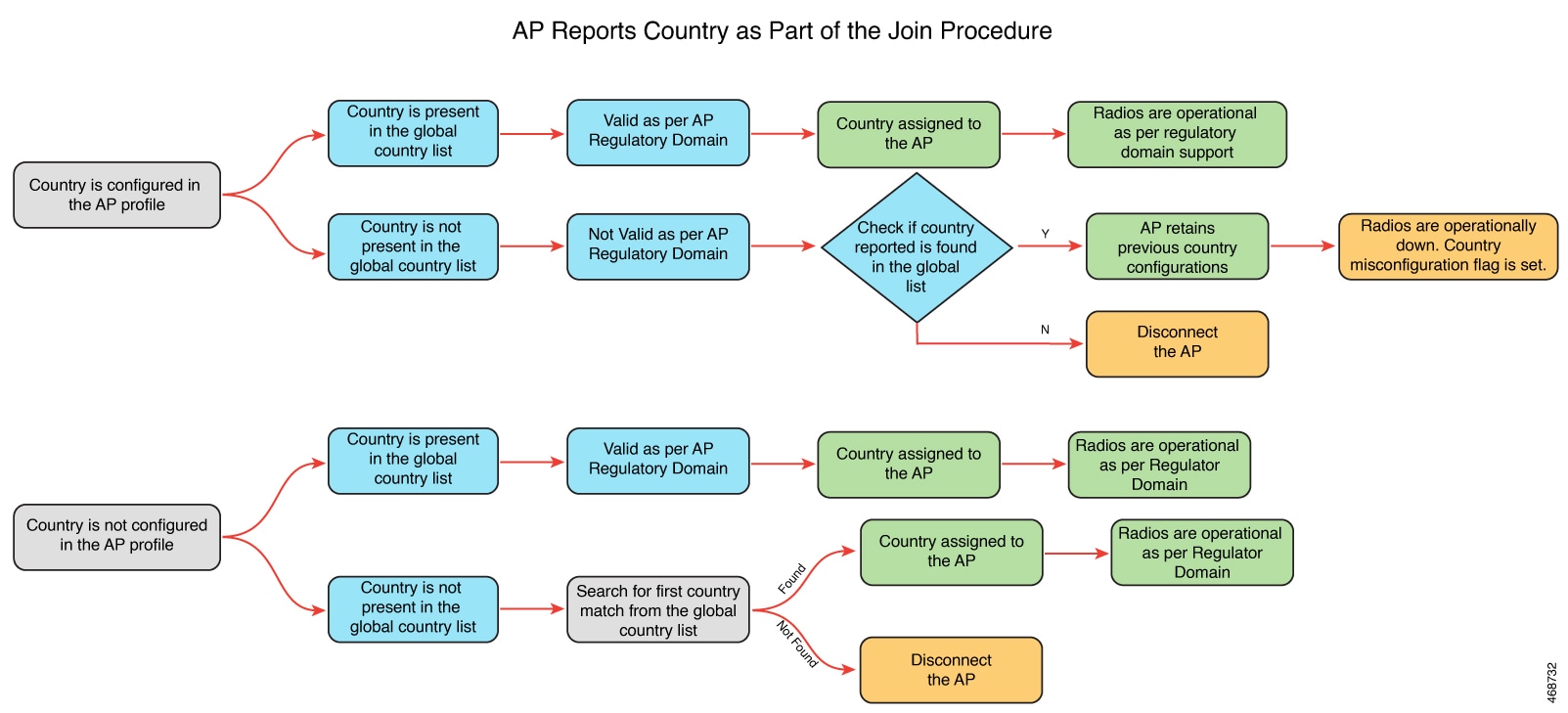
In the non-RoW regulatory domain, when an AP reports a country as part of the join procedure, the following takes place:

  • The AP profile has a country configured.

    • If the country configured in the AP profile is present in the global country list, and it is valid as per the AP regulatory domain, the country that is configured in the AP profile is assigned to the AP. Radios become operational as per the country or regulatory domain support.

    • If the country configured in the AP profile is not present in the global country list, and is not valid as per the AP regulatory domain, check the global country list to confirm the country's presence. If it is present in the global list, the AP retains the previous country configuration and the radios are not operational with the country misconfiguration flag set. If the country is not located in the global list, the AP is disconnected.

  • The AP profile does not have a country configured.

    • If the country reported by the AP is found in the global country list, and is valid as per the AP regulatory domain, the country is assigned to the AP and the radios become operational as per the country or regulatory domain support.

    • If the country is not present in the list, search for the first country match from the global list. If the country is found, the country is assigned to the AP and the radios become operational. If the country is not found, the AP is disconnected.

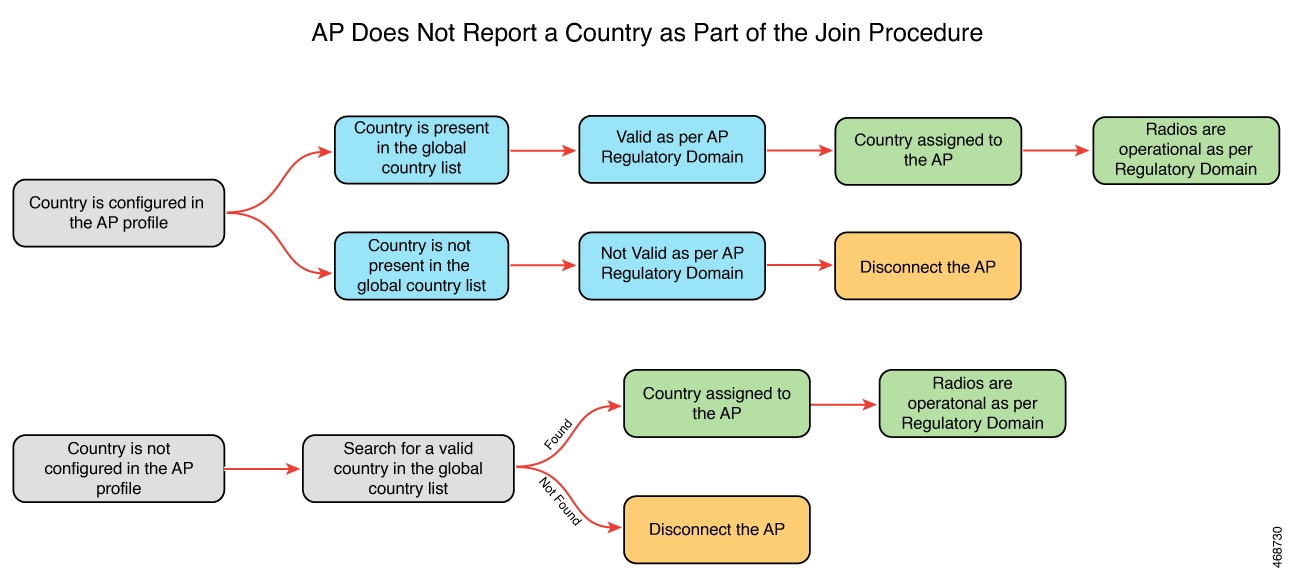
In the non-RoW regulatory domain, when an AP does not report a country as part of the join procedure, the following takes place:

  • AP profile has a country configured.

    • If the country configured in the AP profile is present in the global country list, and is valid as per the AP regulatory domain, the country that is configured in the AP profile is assigned to the AP. Radios become operational as per the country or regulatory domain support.

    • If the country configured in the AP profile is not present in the global country list, and is not valid as per the AP regulatory domain, the AP is disconnected.

  • AP profile does not have a country configured. Find a valid country from the global country list (the first match), as per the AP regulatory domain.

    • If the country is found, the country is assigned to the AP and the radios become operational as per the country or regulatory domain support.

    • If the country is not found, the AP is disconnected.

AP configured with RoW regulatory domain

Case 1: The AP does not report a country as part of the join procedure.

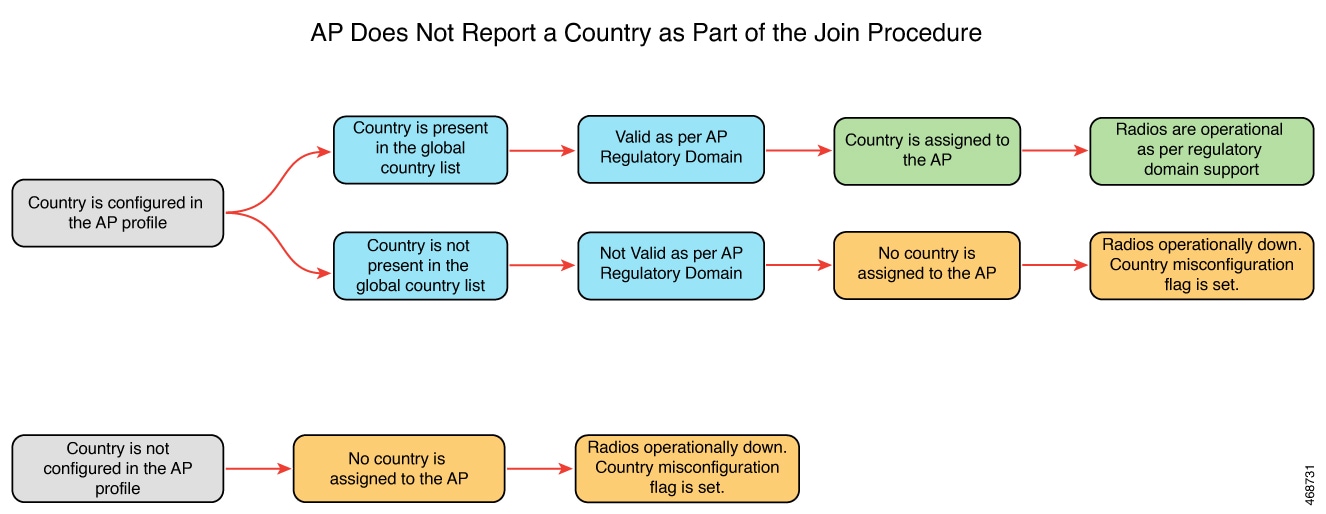
In the RoW regulatory domain, when an AP does not report a country as part of the join procedure, this process occurs:

  • The AP profile has a country configured.

    • If the country configured in the AP profile is present in the global country list, and is valid as per the AP regulatory domain, the country configured in the AP profile is assigned to the AP. Radios become operational as per the country or regulatory domain support.

    • If the country configured in the AP profile is not present in the global country list, and is not valid as per the AP regulatory domain, country is not assigned to the AP and radios are not operational, and the country misconfiguration flag is set.

  • If the AP profile does not have a country configured, the country is not assigned to the AP and radios are not operational, and the country misconfiguration flag is set.

Case 2: The AP reports a country as part of the join procedure.

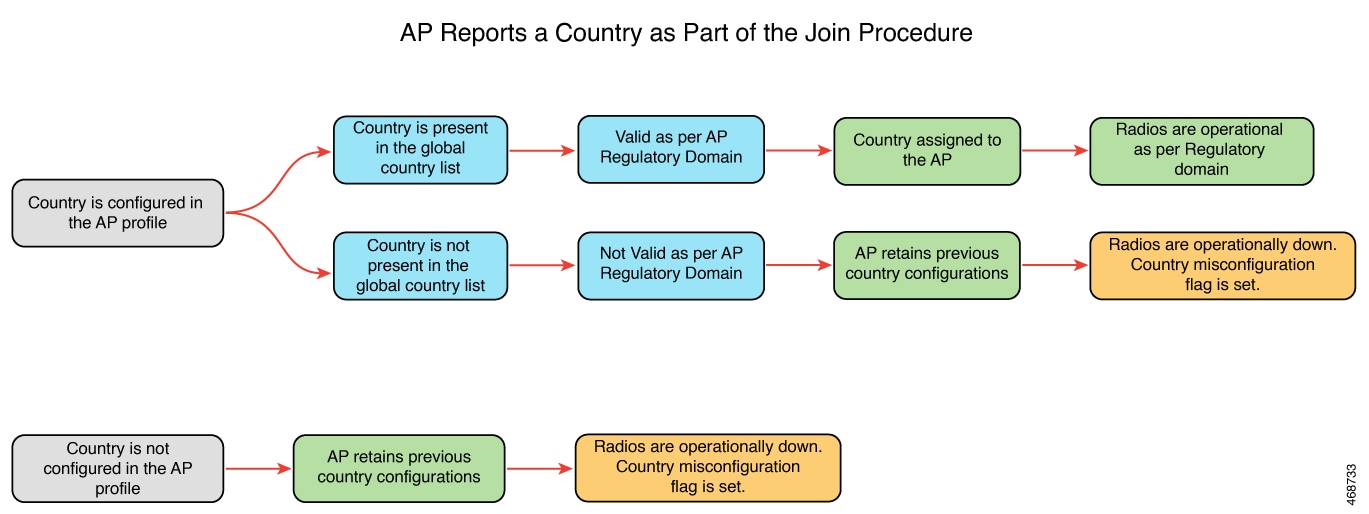
In the RoW regulatory domain, when an AP reports a country as part of the join procedure, this happens:

  • The AP profile has a country configured.

    • If the country configured in the AP profile is present in the global country list, and it is valid as per the AP regulatory domain, the country that is configured in the AP profile is assigned to the AP. Radios become operational as per the country or regulatory domain support.

    • If the country configured in the AP profile is not present in the global country list, and is not valid as per the AP regulatory domain, the AP retains the previous country configuration and the radios are not operational with the country misconfiguration flag set.

  • The AP retains the previous country configuration and the radios are not operational with the country misconfiguration flag set.

Configure management mode migration (GUI)

Use the GUI to transition APs from DNA management mode to Meraki management mode. This improves network management efficiency.

Before you begin

You must configure the country code on the AP profile. To configure the country code, navigate to Configuration > Tags & Profiles > AP Join page. Click an AP profile to edit. In the General tab, select the country code from the drop-down list.

Use these steps to migrate the management mode using the GUI:

Procedure


Step 1

Choose Configuration > Wireless > Migrate to Meraki Management Mode.

Step 2

Select the APs you need by checking the boxes next to them from the displayed list.

The Migrate to Meraki Management Mode button is enabled.

Step 3

Click Migrate to Meraki Management Mode button to perform a validation check on the selected APs. If the validation check is successful, the Next button is enabled.

Step 4

Click Next to start the process.

Step 5

On the Confirm Management Mode Migration window, perform these actions:

  1. Select the Agree and continue check box.

  2. Click Yes to confirm.

The Management Mode Migration Successful section displays the APs that were migrated to the Meraki management mode. The Management Mode Migration Failed section displays the APs that were retained in DNA management mode.

Step 6

Click Restart Workflow to restart the workflow for APs that did not migrate from DNA management mode to Meraki management mode.


APs migrate to Meraki management mode. APs that fail to migrate remain in DNA management mode, allowing for further troubleshooting or additional attempts.

Export APs migrated to Meraki management mode (GUI)

Export the list of Meraki management mode-migrated APs to ensure information is available for further use, or integration into other tools.

You can export the details about the Meraki management mode-migrated APs either from the Change to Meraki Persona tab after the workflow is completed or from the Previously changed APs tab.

Use these steps to export Meraki management mode-migrated APs:

Procedure


Step 1

Choose Configuration > Wireless > Migrate to Meraki Management Mode.

Step 2

Click Export to export the list of APs.

Step 3

Select whether you want to export only the current page or all pages. Click Yes to continue.

Step 4

On the Export window, select the export method. The available options are:

  • Serial Number

  • JSON

  • Export to Meraki Dashboard

Note


We recommend the Export to Meraki Dashboard option as you can directly export the migrated APs information into the Meraki Dashboard.

Step 5

Click Copy to copy the migrated APs. Click Download and save the file location.


The list of migrated APs was successfuly exported, ensuring that the data is readily available for review, storage, or integration.

Configure the access point management mode (CLI)

Change the management mode of an AP to Meraki using CLI.

Before you begin

Ensure that the AP is compatible with Meraki to run any of the EXEC commands. To verify, use the show ap management-mode meraki capability summary command.


Note


If the country code is misconfigured, the change of management mode will not be allowed for any of the EXEC commands, except the force command.

If the regulatory domain is misconfigured for any slot, the change of management mode is not allowed for any of the EXEC commands, except the force command.


Procedure


Step 1

Enable privileged EXEC mode.

Example:

Device# enable

Enter the password, if prompted.

Step 2

Change the AP management mode to Meraki.

Example:

Device# ap name <i>Cisco-AP-name</i> management-mode meraki
Device# ap name Cisco-AP-name management-mode meraki force 
Device# ap name Cisco-AP-name management-mode meraki noprompt
Device# ap name Cisco-AP-name management-mode meraki force noprompt

Here, force skips the validations at the controller and attempts Meraki management mode change at the AP.

noprompt skips the user prompt for attempting AP management mode change.

Step 3

(Optional) Clear the Meraki AP-related data.

Example:

Device# clear ap meraki stats

The AP is configured to the Meraki management mode.

Verify the management mode migration details

To view the summary of the Meraki-capable AP information, run this command:

Device# show ap management-mode meraki capability summary
AP Name                    AP Model             Radio MAC        MAC Address      AP Serial Number       Meraki Serial Number
-----------------------------------------------------------------------------------------------------------------------------------
APXXXD.BXXX.1XXX           CW9162I             6XXd.bXXe.eXX0   6XXd.bXXe.eXX0    FOCXXXXXB90            FOCXXXXXB90
To view the failure summary of the AP along with the migration attempt timestamp, run this command:
Device# show ap management-mode meraki failure summary
AP Name              AP Model          Radio MAC        MAC Address      Conversion Attempt        AP Serial Number       Meraki Serial Number   Reason Code
----------------------------------------------------------------------------------------------------------------------------------------------------------------------------------
APXXXD.BXXC.1        CW9162I           6XXd.bXXe.eXX0   6XXd.bXXe.eXX0   03/03/2022 17:17:42 IST   FOCXXXXXB90            FOCXXXXXB90            Regulatory domain not set
To view the successful Meraki management mode migration attempts of all the APs, run this command:
Device# show ap management-mode meraki change summary
AP Name                  AP Model          Radio MAC        MAC Address      Conversion Timestamp       AP Serial Number        Meraki Serial Number
---------------------------------------------------------------------------------------------------------------------------------------------------------------------
APXXXX.3XXX.EXXX         CW9166I-B         1XXX.2XXX.1100   ccXX.3XXX.eXX0   05/02/2022 07:48:56 CST    KWC2XXXXX5G             Q5XX-4XXX-K7XX