Cisco ISE systems
A Cisco ISE system is a wireless spectrum management solution that
-
proactively monitors and manages challenges caused by interference in a shared wireless spectrum
-
uses Cisco CleanAir-enabled access points and controllers to detect and analyze native and foreign interference sources, and
-
enables both manual and automated remediation to optimize wireless network operation.
|
Release |
Feature |
Feature Information |
|---|---|---|
|
Cisco IOS XE 17.13.1 |
EDRRM Support for 6-GHz Band Radio |
The Event-Driven Radio Resource Management (EDRRM) is enabled in the 6-GHz band radio of AP. |
Components of Cisco ISE systems
Cisco CleanAir systems are comprised of several key hardware and software elements:
-
Cisco CleanAir-enabled APs: These devices actively scan the wireless spectrum for all active transmitters.
-
Wireless controllers: Cisco Catalyst 9800 Series Wireless Controller, , and .
-
Management platforms: provide centralized management and visualization of spectrum and interference data forwarded by the controllers.
How Cisco CleanAir systems detect and respond to interference
-
Always-On spectrum awareness: Cisco ISE-enabled APs scan the industrial, scientific, and medical (ISM) bands, identifying and evaluating all radio devices that may cause interference.
-
Unified control and interference intelligence: The controller controls the access points and displays the interference devices.
-
Actionable Insight for Every Interferer: For every device operating in the unlicensed band, Cisco ISE provides information about what it is, how it is impacting your wireless network, and what actions you or your network should take. It simplifies RF so that you do not have to be an RF expert.
Benefits of Cisco ISE systems
-
Simplifies spectrum management: Provides visibility into interference without requiring advanced RF expertise.
-
Improves network reliability: Automatically detects and resolves issues affecting Wi-Fi performance.
-
Supports advanced WLAN services: Ensures quality for voice over wireless and IEEE 802.11 operations by minimizing RF interference.
Cisco ISE-related terms
Cisco CleanAir components
Summary
Cisco CleanAir technology uses a coordinated set of hardware and software components to detect, report, and address wireless interference. Each part of the system contributes to maintaining optimal air quality and reliable wireless performance.The key components involved in the process are:
-
Cisco CleanAir-enabled AP: Collects information about Wi-Fi interference sources and processes it. The AP collects and sends the Air Quality Report (AQR) and Interference Device Report (IDR) to the controller .
-
Controller: Controls and configures CleanAir-capable access points, collects and processes spectrum data, provides user interfaces (GUI and CLI), and detects, merges, and mitigates interference devices. The controller also detects, merges, and mitigates interference devices using RRM TPC and DCA For details, see Interference Device Merging.
Workflow
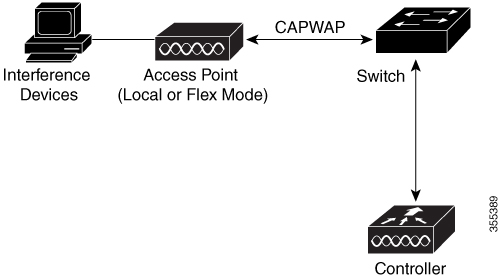
These stages describe the operation of Cisco CleanAir components in the system.
- Configuration: Configures Cisco CleanAir capabilities on the APs.
- Detection: Cisco CleanAir-enabled APs continuously scan the wireless environment for interference sources and assess air quality.
- Reporting: APs generate reports such as Air Quality Reports (AQRs) and Interference Device Reports (IDRs), which summarize detected interference and air quality indexes.
- Aggregation: Wireless controllers collect AQRs and IDRs from all APs, process the data, and store it in relevant databases.
- Analysis and Response: Controllers use built-in mechanisms (like Radio Resource Management) to mitigate interference and maintain optimal RF conditions.
- Advanced Services: MSE tracks interference devices over time and location, merges data from multiple controllers, and provides comprehensive threat detection with adaptive Wireless Intrusion Prevention System (WIPS).
- Specialized Troubleshooting (optional): For in-depth RF analysis, an administrator can connect a CleanAir-enabled AP directly to a PC running Cisco Spectrum Expert.
Result
The Cisco CleanAir system delivers end-to-end automated detection, analysis, and mitigation of wireless interference, enabling proactive network management and high-quality wireless performance.Difference between Wi-Fi chip-based RF Management and Cisco CleanAir
|
Feature |
Wi-Fi Chip–Based RF Management |
Cisco CleanAir |
|---|---|---|
|
Noise identification |
Reports broad, often vague RF noise without pinpointing sources |
Precisely identifies interference type, source, potential impact to a WLAN |
|
Noise measurement method |
Relies on long-term averaging, which smooths out important details and reduces resolution of measurements |
Captures real-time events with full granularity |
|
Response style |
Primarily reacts after interference is noticed |
Enables proactive, context-aware mitigation allowing for intelligent, proactive decisions. |
|
Transient interference handling |
Averaging measurements reduces resolution of measurements, and disruptive signals do not appear to need mitigation. |
Flags brief, spontaneous interference events immediately |
Cisco CleanAir access points can detect and report severity of the interference .
Spectrum event-driven RRM is one such mitigation strategy.
 Note |
Spectrum event-driven RRM can be triggered only by Cisco CleanAir-enabled access points in local mode. |
Persistence interference
A persistent device avoidance is a wireless interference mitigation feature that
-
identifies and continuously tracks intermittent interference sources such as microwave ovens,
-
maintains channel avoidance for affected APs even if the interference is not constantly present, and
-
automatically updates Radio Resource Management (RRM) whenever the interfering device or related access points are moved.
Classes of persistent interference sources
Certain devices, once detected, are likely to remain in place and may cause ongoing interference. Cisco CleanAir can bias the affected channel in Radio Resource Management (RRM) so that CleanAir “remembers” the potential for interference. See Radio Resource Management White Paper.
These device classes qualify as persistent interference sources:
-
Microwave ovens
-
Outdoor Ethernet bridges
-
WiMax fixed and mobile devices
-
Motorola Canopy systems
Special case: Bluetooth devices
Bluetooth devices are detected and reported as interference only when actively transmitting. They often enter power-save modes, so interference may only be noticed during active streaming of data or voice.Persistent devices detection
CleanAir-capable Monitor Mode AP collects information about persistent devices on all configured channels and store the information in controller . Local or Bridge mode AP detects interference devices on the serving channels only.
Persistent device avoidance
When a Persistent Device (PD) is detected in the CleanAir module, it is reported to the RRM module on the MA. This information is used in the channel selection by the subsequent EDRRM Event Driven RRM (ED-RRM) signal sent to the RRM module.
Spontaneous interference
Spontaneous interference is interference that appears suddenly on a network and may jam one or more channels. With Cisco CleanAir spectrum, event-driven RRM, you can set a threshold for air quality, abbreviated as AQ. If air quality drops below this threshold, the system immediately changes the affected AP’s channel. Although most RF management systems avoid interference, they require time for information to spread before channels update. Cisco CleanAir uses AQ measurements to continually check the spectrum and can switch channels within 30 seconds.
For example, if your AP detects interference from a device such as a video camera, it switches channels within 30 seconds after the interference begins. Cisco CleanAir also helps you identify and locate the interference source so you can take permanent steps to resolve the issue later.
EDRRM and AQR update mode
-
enables APs experiencing severe interference (“in distress”) to bypass normal RRM intervals and immediately change channels,
-
requires CleanAir technology for monitoring and reporting classified interference devices, and
-
provides fast action and remote configuration through control messages and local spectrum management.
-
EDRRM (Event Driven Radio Resource Management): A function that allows an AP to react instantly to excessive interference by changing channels immediately instead of waiting for scheduled RRM intervals.
-
AQR (Air Quality Reporting) update mode: A process by which CleanAir APs monitor air quality and report classified interference devices every 15 minutes; when interference causes substantial air quality degradation, EDRRM is triggered.
Restrictions for EDRRM and AQR update mode
-
EDRRM is not enabled by default; you must first enable CleanAir and then enable EDRRM.
-
If an interfering device is operating on an active channel and causes enough AQ degradation to trigger an EDRRM, then no clients will be able to use that channel or the AP. You must remove the AP from the channel.
 Feedback