Deployment Status
The Deployment Status section in Space Utilization App provides a unified and comprehensive view of occupancy statuses across all buildings and floors within an organization. This feature empowers facility managers and administrators to monitor the deployment and operational status of their space utilization system, ensuring accurate occupancy insights and optimized workspace usage.
This app provides insights into the status of your deployment. Users often encounter gaps in key metrics within the app, which typically result from incomplete deployments. For instance, the Daily Utilization Chart requires both capacity (configuration) and occupancy data, while the Density Chart needs area specifications (configuration) in addition to occupancy data.
Similarly, to effectively track room utilization, digital maps must be available, and sensors need to be attached to the rooms defined in these maps. By visiting the Deployment Status section, you can pinpoint any missing elements and take the necessary actions to fill these gaps and to ensure that charts and reports are accurately generated as expected.
Key Features:
-
Centralized dashboard for monitoring floor and room occupancy.
-
Status indicators for buildings and floors based on licensing and configuration.
-
Quick access to deployment readiness tasks (connecting network, uploading maps, configuring metadata).
-
Detailed breakdowns of floors with missing maps, occupancy data, capacity, or area information.
-
Search and filter capabilities for easier navigation across multiple locations.
-
Integration with licensing to show only eligible locations.
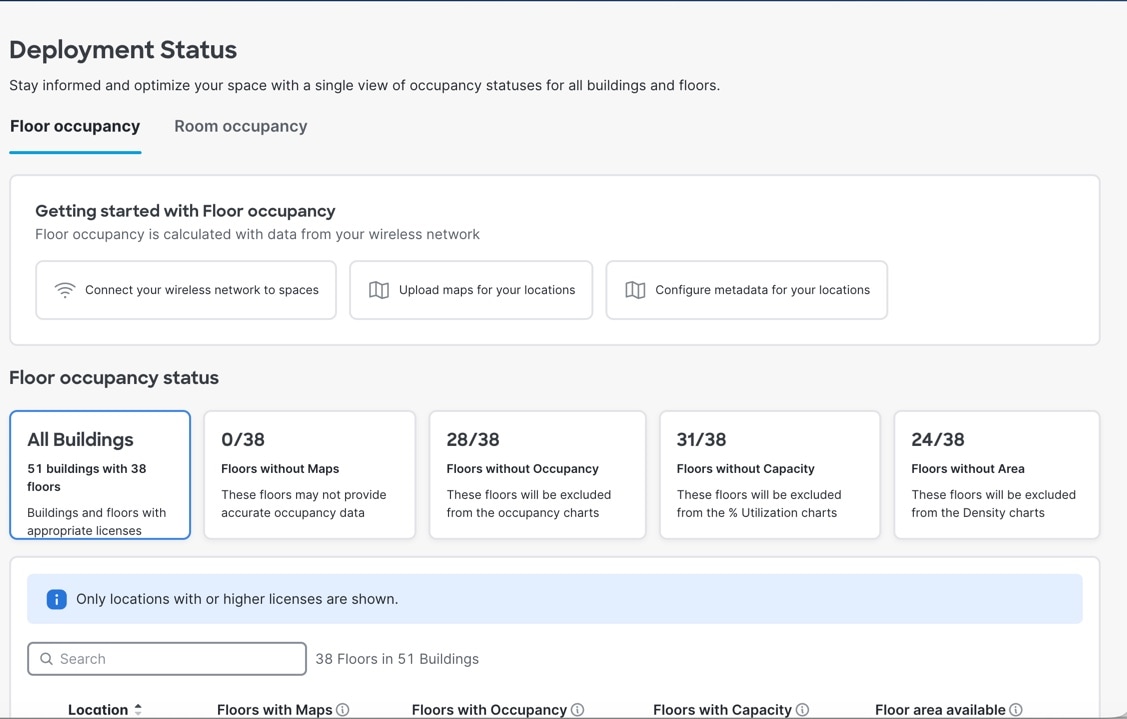
Floor occupancy
Use the Floor occupancy tab to view the floor occupancy status. Floor occupancy is calculated with data from your wireless network.
Under the Floor occupancy status area, view these details:
-
All Buildings: Displays the number of buildings and floors with appropriate licenses
-
Floors without Maps: Displays the number of floors without floors. These floors may not provide accurate occupancy data.
-
Floors without Occupancy: Displays the number of floors without occupancy. These floors are excluded from the occupancy charts.
-
Floors without Capacity: Displays the number of floors without capacity. These floors are excluded from the % Utilization charts.
-
Floors without Area: Displays the number of floors without area. These floors are excluded from the Density charts.
Room occupancy
Use the Room occupancy tab to view the room occupancy status. Room occupancy is calculated using data from IoT Sensors.
To get started with floor occupancy:
-
Room occupancy is calculated using data from IoT Sensors.
-
Connect to Cisco Webex control hub.
-
Configure rooms in Cisco Spaces: Space Manager.
Under the Room occupancy status area, view these details:
-
All Buildings: Displays the number of buildings and floors with appropriate licenses
-
Floors without Digital Maps Pro: Displays the number of floors without digital maps pro. These floors do not have mapped rooms, so occupancy data is not recorded.
-
Rooms without Sensors: Displays the number of rooms without sensors. These rooms lack sensors, so occupancy data is not recorded.
-
Rooms with no data: Displays the number of rooms without data. These rooms have not recorded data for the past two weeks.
-
Rooms with no bookings: Displays the number of rooms without booking data. These rooms have not recorded booking data for the past two weeks.
 Feedback