Location Compute

Location Compute

Location Compute enables Ultra-Wideband (UWB) location services on supported access points and provides a centralized view of UWB readiness and activation status across configured locations.

It collects UWB ranging data between access points, organizes the access points into clusters, assigns a role to each access point, and pushes the cluster configuration to the access points.

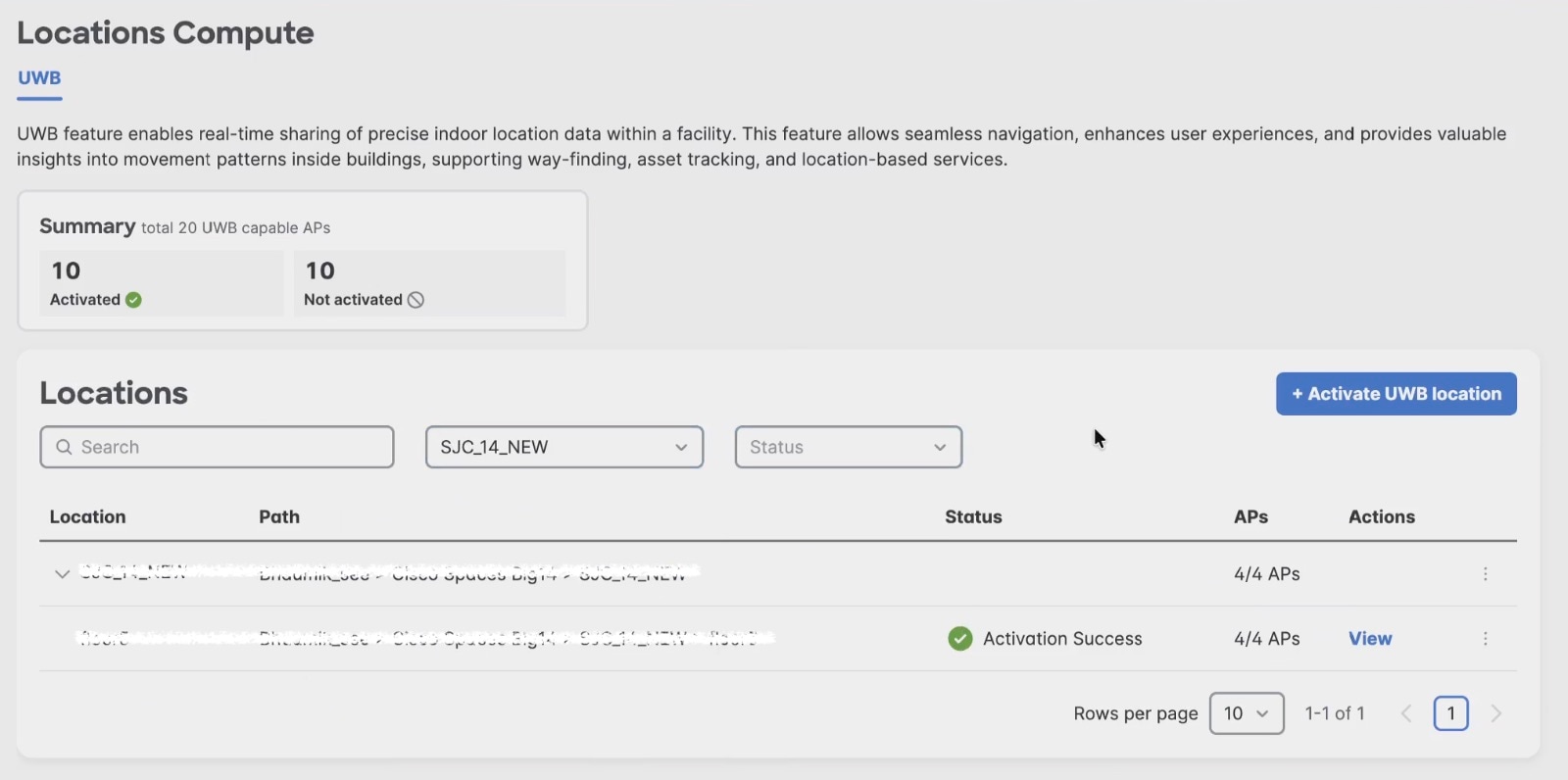
The Locations Compute window shows the number of UWB-capable access points that are activated or not activated. The Locations table shows each eligible location, its hierarchy path, activation status, and the number of eligible access points.

You can expand a building to review floor-level status, view the UWB-enabled access points and their cluster roles, review activation history, or deactivate UWB Location.

UWB Location supports high-precision location use cases such as asset tracking, indoor navigation, wayfinding, and location-based analytics.

Activate UWB Location before using the UWB capability of supported tags or applications at a location.

The primary functions and benefits include:

  • Real-time Data: Enables the sharing of precise indoor location data in real-time.

  • Navigation & Way-finding: Supports seamless navigation and way-finding for users inside buildings.

  • Asset Tracking: Allows for the monitoring and tracking of physical assets within the facility.

  • Operational Insights: Provides valuable data on movement patterns to enhance user experiences and location-based services.
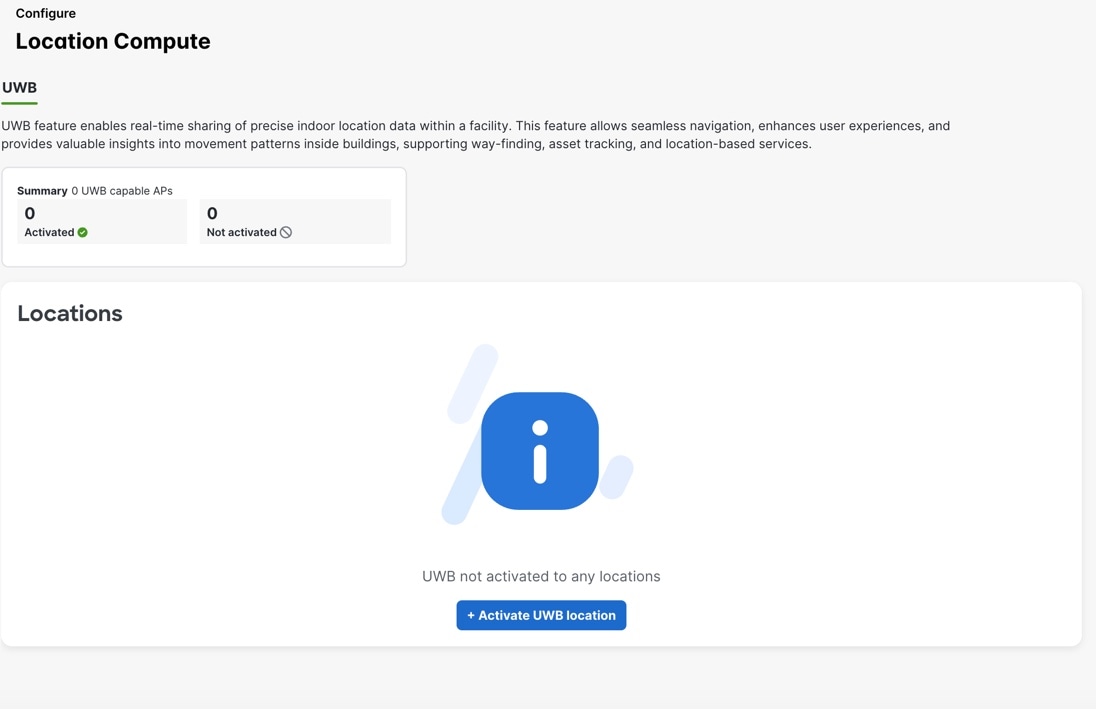
Figure 1. Location compute

UWB Activation

UWB activation is initiated for a building and processed separately for each floor. Only supported UWB-capable access points that are placed on a floor map are eligible to appear in Location Compute.

During activation, Cisco Spaces performs these actions:

  • Collects UWB ranging data between access points.

  • Creates access point clusters.

  • Assigns Primary TX, Secondary TX, or RX roles.

  • Pushes the cluster configuration to the access points.

UWB Location is a prerequisite for UWB-based asset location. If UWB Location is not activated, a tag that supports BLE and UWB continues to provide BLE data, but its UWB location capability is unavailable through Cisco Spaces.
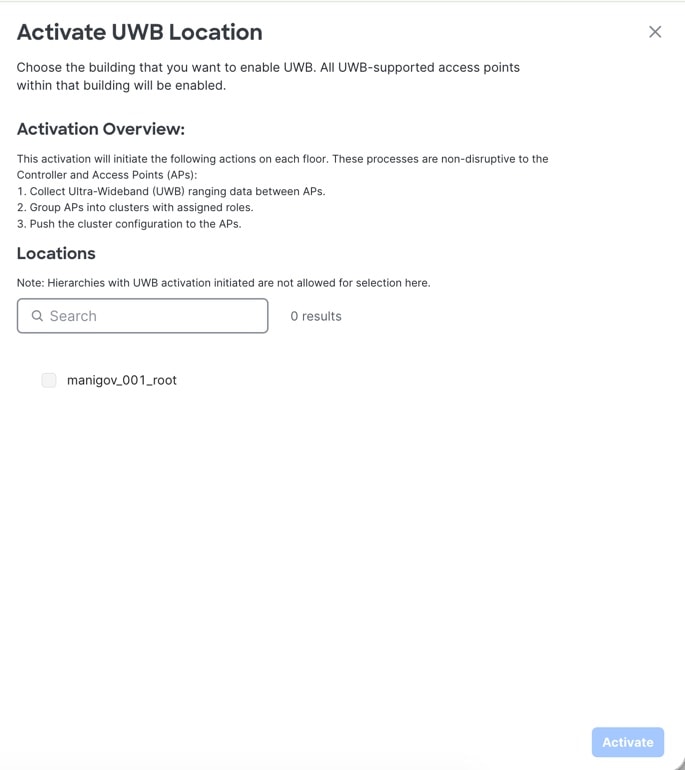
Activate UWB Location

Enable UWB on supported access points in a building to provide UWB-based location and ranging services.

Use this task when you want to activate Ultra-Wideband technology in a building. Activation will start several non-disruptive processes on your controller and access points.

Before you begin

  • Ensure you have administrator access to the controller’s management interface.

  • Verify that the building contains UWB-capable access points.

  • You have permission to configure Location Compute.

  • The building and floors are available in the Cisco Spaces location hierarchy.

  • Supported UWB-capable access points are assigned to the appropriate floors.

  • The access points are placed on the floor maps.

Follow these steps to activate UWB location:

Procedure


Step 1

On the Cisco Spaces left navigation pane, choose Configure > Location Compute.

Step 2

In the Location Compute window, click + Activate UWB Location.

The Activate UWB Location slide-in window is displayed.

Figure 2. Activate UWB Location

Step 3

In the Search field, enter the building name.

Step 4

Check the check box for the building where you want to enable UWB.

You cannot select hierarchies that already have UWB activation in progress.

Step 5

Click Activate.

The UWB activation process is initiated.

  • The following actions occur automatically for each floor:

    • The system collects Ultra-Wideband (UWB) ranging data between access points.

    • Access points are grouped into clusters with assigned roles.

    • Cluster configurations are pushed to all APs in the building.

  • Monitor the activation status to ensure all access points are successfully enabled.


All UWB-capable access points within the selected building are enabled for Ultra-Wideband services, allowing advanced location and ranging functionality.

Initiate the UWB activation process.

What to do next

Optionally, verify UWB functionality by checking device location accuracy or reviewing status reports in the platform’s dashboard.

View the UWB Activation Log

Review the processing stages and request history for UWB activation or deactivation at a building or floor.

Procedure


Step 1

On the Cisco Spaces left navigation pane, choose Configure > Location Compute.

Step 2

In the Locations table, locate the required building or floor.

Step 3

The Activation status slide-in pane appears.

A completed activation can include these stages:

  • Activation Started

  • Ranging Completed

  • Initiate Clustering

  • Clustering Completed

  • Clusters Pushed

  • Clusters push successful

  • Completed

Review Request History.

Step 4

Click the Close icon.


View UWB-Enabled Access Points

View the UWB-capable access points that are enabled on a floor and verify their assigned cluster roles.

Before you begin

UWB Location is activated for the building.

Procedure


Step 1

On the Cisco Spaces left navigation pane, choose Configure > Location Compute.

Step 2

Find the required building by using one of these options:

  1. In the Search field, enter the value.

  2. Choose a location from the All UWB-Capable Locations drop-down list.

  3. Choose an activation state from the Status drop-down list.

Step 3

In the Location column, click the expand icon next to the building.

The floor rows show the hierarchy Path, activation Status, and number of eligible APs.

Step 4

In the Actions column, click View for a floor with the Activation Success status.

Figure 3.
Location compute activation status.

Step 5

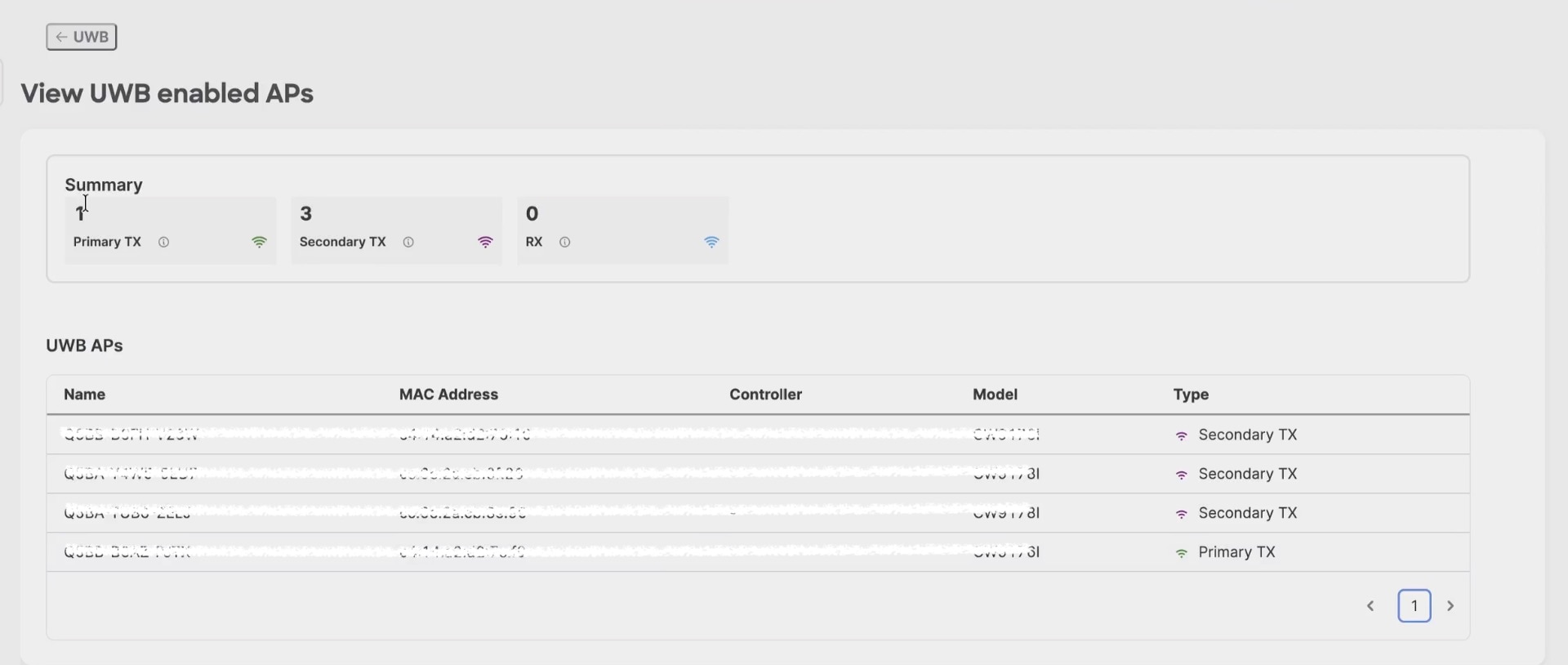
The View UWB enabled APs window appears.

Fig
Figure 4.
Location compute activation status.

The UWB APs table displays these information:

  1. Name

  2. MAC Address

  3. Controller

  4. Model

  5. Type

Review the access point details and assigned roles.


What to do next

Click the UWB back arrow to return to the Locations Compute window.

Deactivate UWB Location

Deactivate UWB Location for a building or an individual floor when UWB location services are no longer required.

Before you begin

Deactivation disables UWB location services for the selected building or floor. Applications that depend on UWB location, including UWB-based asset location, are affected. BLE data from tags that support BLE and UWB can continue to be received.

Procedure


Step 1

On the Cisco Spaces left navigation pane, choose Configure > Location Compute.

Step 2

In the Locations column, click the building expand icon and locate the required floor.

Step 3

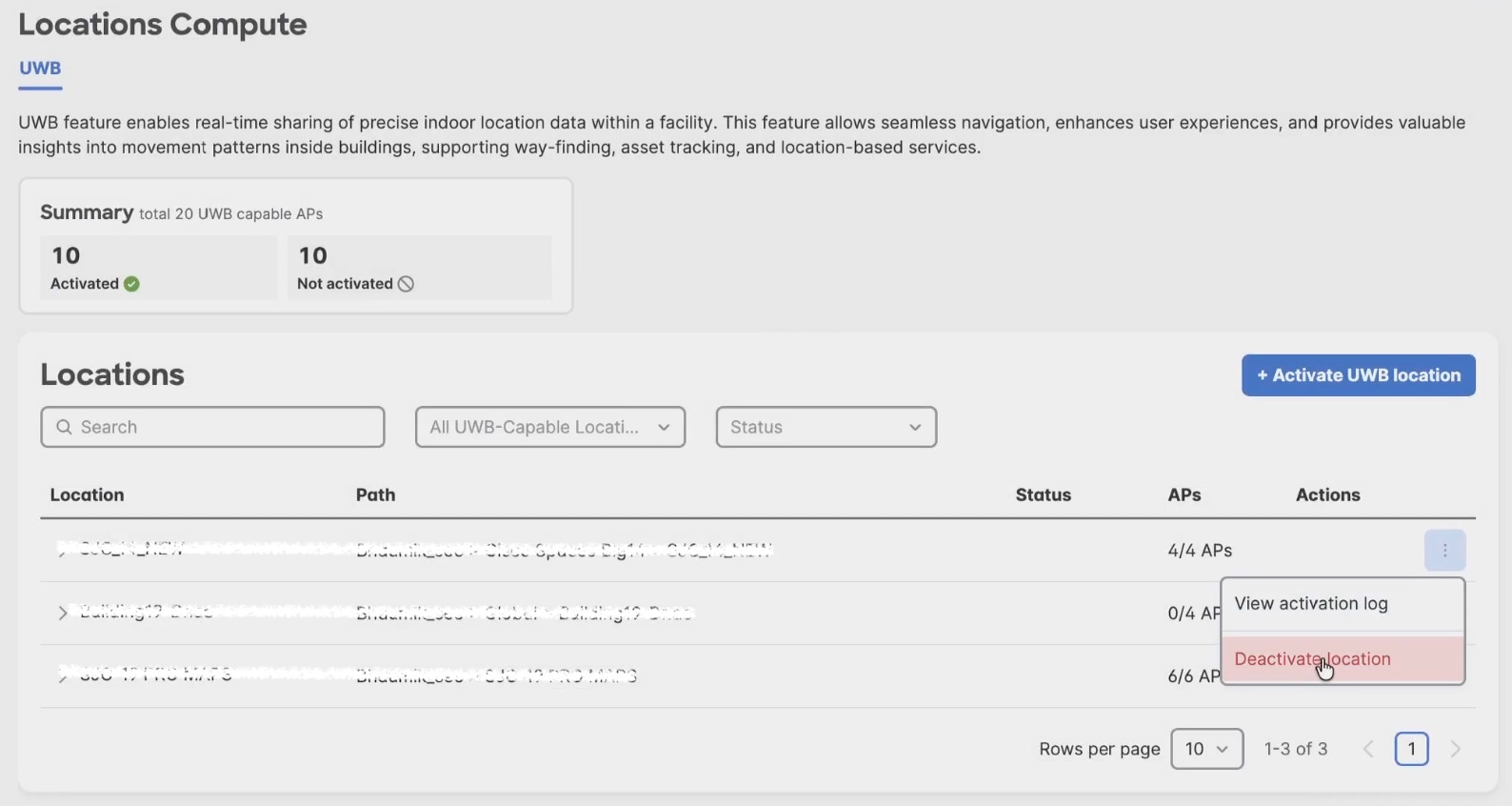
In the Actions column, click the three-dot icon for the required building or floor.

Figure 5.
Deactivate location.

Step 4

Click Deactivate location.

The deactivation request starts for the selected scope. Cisco Spaces disables the applicable UWB clusters.

What to do next

In the Actions column, click the three-dot icon.

Click View activation log to verify the deactivation result under Request History.