MACsec support on AP
MACsec protection is a network security feature that
-
uses the IEEE 802.1AE standard to apply hop-by-hop link encryption between the AP and the access switch
-
secures data confidentiality and integrity to defend against attacks such as denial of service, intrusion, eavesdropping, and man-in-the-middle, and
-
supports both pre-shared key (PSK) and IEEE 802.1X authentication methods.
Feature History
|
Feature Name |
Release |
Description |
|---|---|---|
|
MACsec support on APs |
Cisco IOS XE 26.1.1 |
With this release, MACsec support is introduced on APs to provide Layer 2 hop-by-hop encryption and integrity protection for data transmitted between the AP and the connected switch. This feature leverages the IEEE 802.1AE standard and ensures robust security against eavesdropping and man-in-the-middle attacks without impacting AP performance. These commands are introduced:
|
Expanded explanation
This feature uses MACsec (IEEE 802.1AE) to secure the link between the AP and the access switch. It employs hop-by-hop link encryption to mitigate attacks such as denial of service, intrusion, eavesdropping, and man-in-the-middle attacks.
Common MACsec terminology
-
MKA: or MACsec Key Agreement is the protocol that creates, distributes, and manages the encryption keys used by MACsec. It is defined in IEEE 802.1X-2010 and works on top of EAPOL (Extensible Authentication Protocol over LAN).
-
MSK: or Master Session Key is generated during EAP exchange. Supplicant and authentication server use the MSK to generate the CAK.
-
CAK: or Connectivity Association Key is derived from MSK. CAK is a long-lived master key used to generate all other keys used for MACsec.
-
CKN: or Connectivity Association Key Name identifies the CAK.
-
SAK: or Secure Association Key is derived from the CAK and is the key used by supplicant and switch to encrypt traffic for a given session.
-
KS: or Key Server is responsible for selecting and advertising a cipher suite. KS is responsible for generating the Secure Association Key (SAK) from the Connectivity Association Key (CAK).
-
Key server priority: is a value used by MKA ( MACsec Key Agreement) to determine which device becomes the Key Server in a MACsec session.
-
Key chain: is a configuration structure used to store and manage cryptographic keys, mainly for protocols that require authentication or key exchange. For MACsec, the key chain holds the CAK (Connectivity Association Key) and CKN (Connectivity Key Name) used by MKA ( MACsec Key Agreement).
Supported AP
MACsec modes, authentication options, and supported ciphers
Here are the modes supported by MACsec.
-
Pre-Shared Key (PSK)
-
IEEE 802.1X
-
Extensible Authentication Protocol - Transport Layer Security (EAP-TLS)
-
Extensible Authentication Protocol - Flexible Authentication through Secure Tunneling (EAP-FAST)
-
Here are the ciphers supported by MACsec.
-
AES-128-GCM
-
AES-256-GCM
Restrictions
Configuring MACsec with PSK
MACsec can be deployed in PSK mode. This process requires that you configure the same password on both network endpoints. The Connectivity Association Key (CAK), which serves as the PSK, and the Connectivity Association Key Name (CKN) must match on both sides.
Summary
The key components involved in the process are:-
Controller: For key chain creation and AP join profile configuration.
-
Switch: For key chain setup, MKA policy configuration, and interface settings.
-
AP: Joins the network under controller management and uses the shared keys for secure communication.
Workflow
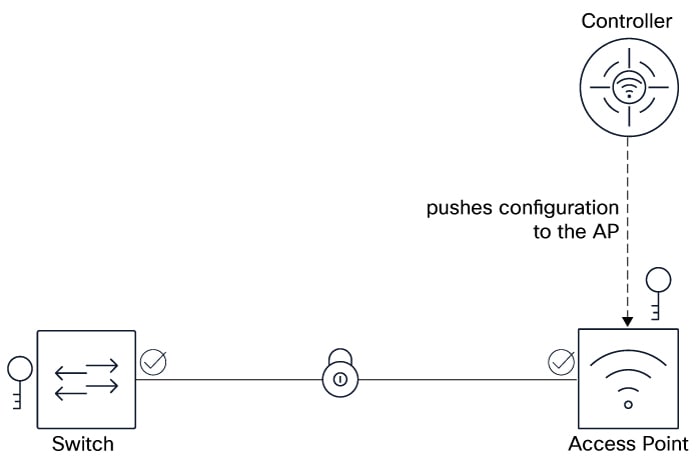
The process involves these stages:
- Configure MACsec PSK on the controller: On the controller, add a new key chain and configure it with a key. The key string (PSK or CAK) is a hex string that matches with the switch. In this PSK scenario, the CAK (same as PSK) and the CKN must be manually entered.
- Configure MACsec PSK on the AP join profile: On the controller, configure an AP join profile, enable MACsec, and select the previously created key chain.
- Configure MACsec PSK on the switch: Create a key chain, configure the MKA policy, and configure the desired interface.
- Verify MACsec configuration: Use various show commands on the controller, AP, and the switch.
Result
After completing these steps, MACsec PSK is successfully enabled between the AP and the switch. You now have encrypted and authenticated communication across the network.
Configure MACsec PSK on controller (GUI)
Enable MACsec to secure data transmission between the AP and the connected switch. This ensures network traffic between the AP and switch is encrypted, enhancing security.
MACsec must be configured on both the AP and the switch to ensure proper encryption and security.
Before you begin
Ensure that the AP is connected to a switch that supports MACsec.
Procedure
|
Step 1 |
Choose MACsec. |
|
Step 2 |
Select the new MACsec key chain. |
|
Step 3 |
In the Add Key Chain window that is displayed, configure the key chain. |
|
Step 4 |
Click Save. Click Apply to Device. |
|
Step 5 |
Choose . |
|
Step 6 |
Click Add to create a new AP Join profile. |
|
Step 7 |
In the Add AP Join Profile window, click the AP tab. |
|
Step 8 |
Perform these steps: |
|
Step 9 |
Save the configuration and apply the changes. |
MACsec is successfully enabled on the AP. This secures the data transmission with the connected switch.
What to do next
Monitor the MACsec status and performance to ensure proper operation.
Configure MACsec PSK on controller(CLI)
This task creates a MACsec key chain, defines encryption parameters, and applies MACsec settings within an AP join profile. This ensures that data in transit between APs and the wired infrastructure is protected.
Procedure
|
Step 1 |
Enter the global configuration mode. |
|
Step 2 |
Create a MACsec key chain. |
|
Step 3 |
Configure the MACsec key parameters. |
|
Step 4 |
Configure the MACsec cryptographic authentication algorithm. Values are AES-128-CMAC or AES-256-CMAC .The default value is AES-128-CMAC. |
|
Step 5 |
Configure the MACsec key string. |
|
Step 6 |
Exit the keychain MACsec key configuration mode. |
|
Step 7 |
Exit the keychain MACsec configuration mode. |
Device(config)#key chain MACsecKeyChain macsec
Device(config-keychain-macsec)#key ABCDEF
Device(config-keychain-macsec-key)# cryptographic-algorithm aes-128-cmac
Device(config-keychain-macsec-key)# key-string ABCDEF0123456789ABCDEF0123456789
Device(config-keychain-macsec)# exit
Device(config-keychain)# exit
What to do next
Apply the key to the AP's wired interfaces.Apply MACsec PSK on AP(CLI)
The task aims to apply a pre-shared key (PSK) on an AP using the controller CLI and enable MACsec encryption on the AP’s wired interface. This enhances security by encrypting communication over the wired Ethernet links between the controller and the AP.
Procedure
|
Step 1 |
Enter the global configuration mode. |
|
Step 2 |
Enter the AP profile configuration mode. |
|
Step 3 |
Apply the MACsec PSK configured earlier. |
|
Step 4 |
Exit the global configuration mode. |
Verify MACsec configuration on controller (CLI)
To verify that MACsec is correctly configured on the controller, ensuring that the AP profile is properly set, MACsec is enabled with the correct key chain and cipher suite, and that secure sessions are established and transmitting encrypted and validated packets.
Verify the AP profile and ensure that MACsec is enabled and the correct key chain is applied.
Device# show ap profile name <ap-profile-name> detailed
AP Profile Name               :<ap-profile-name>
[…]
Macsec :
  Enabled                      : True
  Auth Method                  : PSK
  PSK chain name               : MACsecKeyChain
  Replay protection window size: 0
Verify the MACsec summary.
Device# show ap macsec summary
AP Name                           AP Mac                            Capable     Port 0          Port 1
------------------------------------------------------------------------------------------------------
AP11AA.22BB.33CC                  99ff.88ee.77dd                    Yes   SUCCESS        UNKNOWN
Verify MACsec configuration on AP
Verify and troubleshoot MACsec configuration and operational status on an AP.
Ensure secure communication by confirming MACsec encryption is enabled, the correct cipher suite and key chain are in use, and the AP authentication and physical layer status are properly functioning.
Check the MACsec status.
 Note |
The output of this command varies according to the AP model. |
Device# show macsec status
------------------------
wired0: Phy Address 0
------------------------
MACsec 100M: Enabled
      1000M: Enabled
      2500M: Enabled
      5000M: Enabled
Capabilities:
    Ciphers supported: GCM-AES-128
                       GCM-AES-256
Egress SC:
    AN Roll Over: Disabled
    Egress Protect Frames: True
    Egress Cipher: GCM-AES-128
Ingress SC:
    Replay Protect: False
    Replay Window: 0
    AN Roll Over: Disabled
    Validate Frames: Strict
Device# show macsec statistics
------------------------
wired0: Phy Address 0
------------------------
Egress SC:
    Protected Not Encrypted Packets: 0
    Protected and Encrypted Packets: 1185
    Plain Text Octets Protected Not Encrypted: 0
    Plain Text Octets Protected and Encrypted: 567830
Egress SA:
    Dropped Packets: 0
    Protected Not Encrypted Packets: 0
    Protected and Encrypted Packets: 1185
Egress Common:
    Control Packets: 445
    Unknown Packets: 2
    Untagged Packets: 0
    Too Long Packets: 0
    ECC Error Packets: 0
    Dropped Packets: 0
------------------------
Ingress SA:
    Untagged Packets: 0
    Dropped Packets: 0
    Not Using Packets: 0
    UnUsed Packets: 0
    Not Valid Packets: 0
    Invalid Packets: 0
    Validated Packets: 2149
    Late Packets: 0
    Delayed Packets: 0
    Unchecked Packets: 0
    Octets of Plaintext Not Encrypted: 0
    Octets of Plaintext Encrypted: 359574
Ingress Common:
    Control Packets: 445
    Tagged but Miss Match Packets: 0
    Untagged and Miss Match Packets: 1
    Untagged and Match that Validate is Strict Packets: 1
    Untagged and Match that Validate is Not Strict Packets: 0
    Invalid Packets: 0
    Unknown SCI and Match that Validate is Strict Packets: 0
    Unknown SCI and Match that Validate is Not Strict Packets: 0
    Controlled Port Pass the Check Packets: 2149
    Uncontrolled Port Pass the Check Packets: 1
    Controlled Port Failed the Check Packets: 0
    UnControlled Port Failed the Check Packets: 0
    Too Long Packets: 0
    Control Packets by Post-MACSec Filter: 0
    ECC Error Packets: 0
    Uncontrolled Port Dropped Packets: 0
Confirm that MACsec is enabled and the correct cipher suite is in use.
Verify AP authentication status.
Device# show ap authentication status
Wired Link Status:
wired0 link: Up

Wired 0 Session:
key_mgmt=NONE
wpa_state=COMPLETED
address=99:ff:88:ee:77:dd
PAE KaY status=Active
Authenticated=No
Secured=Yes
Failed=No
Actor Priority=255
Key Server Priority=200
Is Key Server=No
Number of Keys Distributed=0
Number of Keys Received=1
MKA Hello Time=2000
actor_sci=8c:88:81:54:6e:70@1
key_server_sci=aa:11:22:bb:33:dd@27
participant_idx=0
ckn=abcdef
mi=a1d1eb46248ea1b53a883f3c
mn=525
active=Yes
participant=No
retain=No
live_peers=1
potential_peers=0
is_key_server=No
is_elected=Yes
-
"Secured = Yes": Indicates that MACsec is in place.
-
"Failed=No": Indicates if the MACsec establishment failed.
Debug the MACsec summary.
Device# debug macsec phy
wpa_supplicant logs:
debug ap authentication {error | events | information | packet}
Configuring MACsec with IEEE 802.1X
MACsec can also be configured with IEEE 802.1X. Only two IEEE 802.1X flavors are supported. Here are the basic differences:
| EAP Type | Client Certificate | Server Certificate | Username |
|---|---|---|---|
| EAP-TLS | Yes | Yes | No |
| EAP-FAST | No | No | Yes |
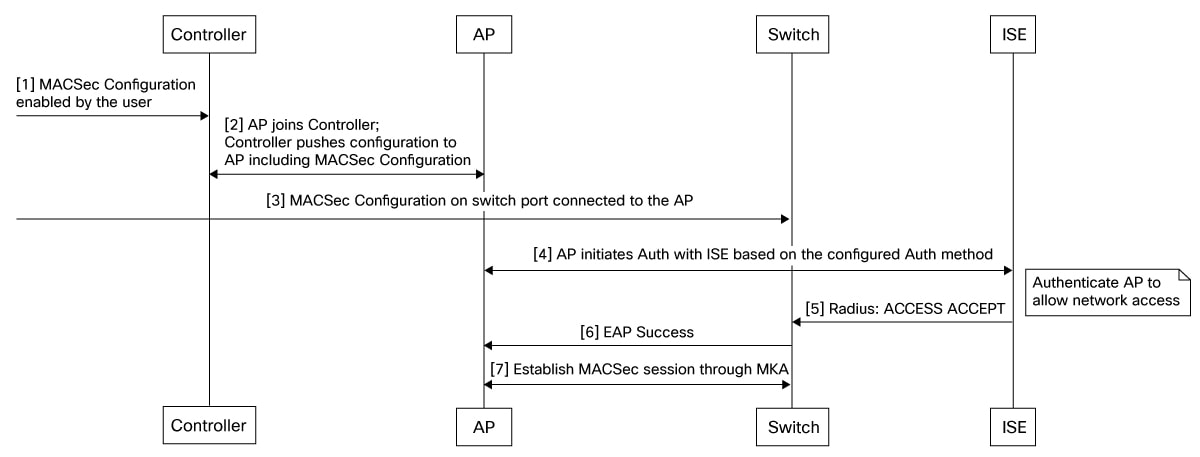
Summary
The key components involved in the process are:-
Controller: For IEEE 802.1X confguration, key chain creation, and AP Join Profile configuration.
-
Switch: For IEEE 802.1X confguration, MKA policy configuration, and interface settings.
-
RADIUS Server: For authentication.
-
AP: Joins the network under the controller management and after authenticating with 802.1X establishes secure communication using MACsec.
Workflow
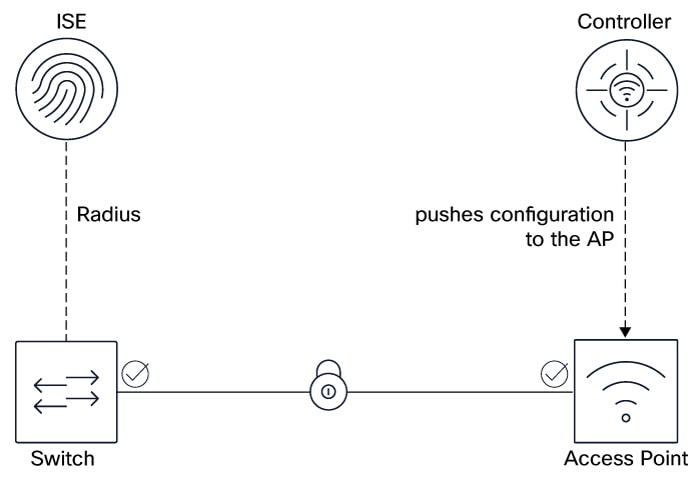
Ensure you have a working IEEE 802.1X setup before attempting MACsec.
The process involves these stages in this recommended order:
- Configure IEEE 802.1X on the switch, AP, controller, and RADIUS server.
- Configure MACsec on th AP using the controller.
- Configure MACsec on the switch.
- Verify MACsec configuration: Use various show commands on the controller, AP, and the switch.
What’s next
For more details, see:
Configure MACsec IEEE 802.1X on controller (GUI)
IEEE 802.1X provides robust, centralized authentication for devices connecting to your network, ensuring that only authorized users and devices can access network resources. Unlike PSK, which relies on a shared password, IEEE 802.1X leverages individual credentials and a RADIUS server for enhanced security and better management.
IEEE 802.1X provides strong Layer 2 security by authenticating devices and encrypting all traffic between the APs and its uplink switch, ensuring secure and protected data transmission.
Procedure
|
Step 1 |
Choose . |
|
Step 2 |
Click Add. |
|
Step 3 |
In the Add AP Join Profile window, click the AP tab. |
|
Step 4 |
In the AP MACsec Configuration section, configure these values: |
|
Step 5 |
Click Save. Click Apply to Device. |
What to do next
Configure MACsec on the switch. Refer MACsec with encryption on Catalyst 9300
Verify MACsec configuration on controller (CLI)
To verify that MACsec is correctly configure on the controller, ensuring that the AP profile is properly set, MACsec is enabled with the correct key chain and cipher suite, and that secure sessions are established and transmitting encrypted and validated packets.
Verify MACsec configuration and operational status
This task involves confirming the MACsec configuration status on the controller, validating the AP profile, checking MACsec session summaries, verifying the status on the AP, and ensuring that the MKA session on the switch is secured with the correct key chain and cipher suite. It includes reviewing MACsec statistics and session security to confirm encrypted and validated packet transmission.
Verify the AP profile and ensure that MACsec is enabled and the correct key chain is applied.
Device# show ap profile name <ap-profile-name> detailed
 […]
Macsec :
  Enabled                      : True
  Replay protection window size: 0
Verify the MACsec summary.
Device# show ap macsec summary
AP Name                           AP Mac                            Capable     Port 0          Port 1
------------------------------------------------------------------------------------------------------
AP11AA.22BB.33CC                  99ff.88ee.77dd                    Yes   SUCCESS        UNKNOWN
Verify MACsec configuration on AP
Verify and troubleshoot MACsec configuration and operational status on an AP.
Ensure secure communication by confirming MACsec encryption is enabled, the correct cipher suite and key chain are in use, and the AP authentication and physical layer status are properly functioning.
Verify MACsec status.
Note |
The output of this command varies according to the AP model. |
Device# show macsec status

------------------------
wired0: Phy Address 16
------------------------
MACsec: Enabled
Capabilities:
        Max. Egress SecY: 32
        Egress FlowIDTcam Table Size: 32
        Egress SecyPolicy Table Size: 32
        Egress SaPolicy Table Size: 64
        Egress SecyToSaMap Table Size: 32
        Ciphers supported: GCM-AES-128
                           GCM-AES-256
        Max. Ingress SecY: 32
        Ingress FlowIDTcam Table Size: 32
        Ingress SecyPolicy Table Size: 32
        Ingress ScCamLookupKey Table Size: 32
        Ingress AnPerSc: 4
        Ingress ScAnToSaMap Table Size: 128
        Ingress SaPolicy Table Size: 64
Port Configuration:
        MACsec Port Count: 1
        MACsec Ingress pnThreshold: 0xffffffff
        MACsec Egress pnThreshold: 0xffffffff
SecY Configuration:
        Egress Controlled Port Enable: True
        Egress Protect Frames: True
        Egress Cipher: GCM-AES-256
        Ingress Replay Protect: False
        Ingress Replay Window: 3
        Ingress Validate Frames: Strict
        Ingress Cipher: GCM-AES-256
SC Configuration:
        Ingress SecY: 0, SCI: 0xecce13c791130002, enable: 1
Verify MACsec statistics.
Device# show macsec statistics
------------------------
wired0: Phy Address 16
------------------------
Egress SecY:
        Ifoutcommonoctets: 247290
        Ifoutunctloctets: 19856
        Ifoutctloctets: 227434
        Ifoutunctlucpkts: 0
        Ifoutunctlmcpkts: 136
        Ifoutunctlbcpkts: 0
        Ifoutctlucpkts: 378
        Ifoutctlmcpkts: 18
        Ifoutctlbcpkts: 0
        Outpktssecyuntagged: 0
        Outpktssecytoolong: 0
        Outpktssecynoactivesa: 0
        Outpktsctrlportdisabled: 0
Egress SC:
        Outoctetsscprotected: 0
        Outoctetsscencrypted: 222682
Egress SA:
        Outoctetssaprotected: 0
        Outoctetssaencrypted: 396
Egress Port:
        Outpktsflowidtcammiss: 0
        Outpktsparseerr: 0
        Outpktssectaginsertionerr: 0
        Outpktsearlypreempterr: 0
Egress Flow:
        Outpktsflowidtcamhit: 532
------------------------
Ingress SecY:
        Ifinunctloctets: 176021
        Ifinctloctets: 130341
        Ifinunctlucpkts: 133
        Ifinunctlmcpkts: 352
        Ifinunctlbcpkts: 441
        Ifinctlucpkts: 133
        Ifinctlmcpkts: 216
        Ifinctlbcpkts: 441
        Inpktssecyuntaggedornotag: 136
        Inpktssecybadtag: 0
        Inpktssecyctl: 136
        Inpktssecytaggedctl: 0
        Inpktssecyunknownsci: 0
        Inpktssecynosci: 0
        Inpktsctrlportdisabled: 0
Ingress SC:
        Inoctetsscvalidate: 0
        Inoctetsscdecrypted: 120861
        Inpktsscunchecked: 0
        Inpktssclateordelayed: 0
        Inpktssccamhit: 790
Ingress SA:
        Inpktssaok: 790
        Inpktssainvalid: 0
        Inpktssanotvalid: 0
        Inpktssaunusedsa: 0
        Inpktssanotusingsaerror: 0
Ingress Port:
        Inpktsflowidtcammiss: 0
        Inpktsparseerr: 0
        Inpktsearlypreempterr: 0
Ingress Flow:
        Inpktsflowidtcamhit: 926
Debug the MACsec summary.
debug macsec phy Feedback