Wired guest access
Wired guest access is a network feature that
-
enables guest users of an enterprise network that supports both wired and wireless access to connect to the guest access network
-
allows wired guest clients to connect from designated and configured wired Ethernet ports for guest access after they complete the configured authentication methods, and
-
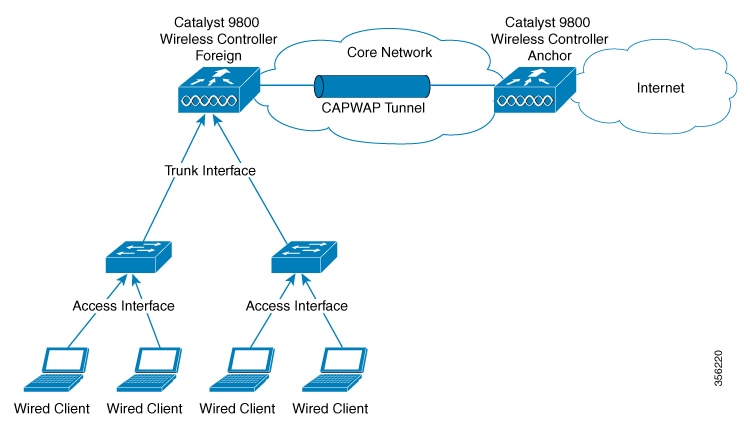
directs wired session guests to a wireless guest controller in a demilitarized zone (DMZ) through a Control And Provisioning of Wireless Access Points (CAPWAP) tunnel.
Wired guest access configuration and architecture
Wired guest access can be configured in a dual-controller configuration that uses both an anchor controller and a foreign controller. A dual-controller configuration isolates wired guest access traffic from the enterprise user traffic.
The wired session guests are provided open or web-authenticated access from the wireless controller.
IPv6 Router Advertisement forwarding for wired guests
-
Guest Anchor Controller: Guest anchor controller forwards the RA packets, from the receiving VLAN, to all the foreign controllers using the mobility data tunnel. The RA packets are tagged with the anchor VLAN to ensure the message is forwarded to the correct clients using the foreign controller data path.
-
Guest Foreign Controller: Guest foreign controller forwards the received RAs from the guest anchor to the wired ports on which the wired guest clients are connected. To forward the RAs to the intended clients, the guest foreign controller keeps a track of the wired guest clients–per interface, access VLANs, and anchor VLANs.
Wired clients get the IPv6 based connectivity when they receive the IPv6 Router Advertisement (RA) message. The IPv6 router sends these RA messages and it contains information such as IPv6 prefix and router link-local address.
These RA messages are sent as Unicast or Multicast messages. The Unicast RA messages are routed as same as the client directed traffic. The Multicast RA messages are forwarded to all the clients present in the intended VLAN. RA message forwarding is enabled by default and requires no specific configuration.
Supported features
Supported features include:
-
Cisco Catalyst 9800 Series Wireless Controllers-Anchor
-
Cisco AireOS Wireless Controllers-Anchor
-
Cisco Catalyst 9800 Series Wireless Controllers-Foreign
-
Cisco AireOS Wireless Controllers-Foreign
-
Dual controller solution (foreign + anchor) and access switch
-
Trunk Ports
-
Open Authentication
-
Local Web Authentication
-
Scale max 2k clients and 5 guest-LANs (5 VLANs max)
-
Client IPv6 support
-
Idle Timeout and Session Timeout
-
Accounting on Foreign
-
Manageability (SNMP/Yang/WebUI)
-
QoS Rate-Limiting and MQC Policies (Upstream at foreign, Upstream, and Downstream at the anchor)
-
QoS support with AireOS Anchor setup
-
Stateful Switch Over (SSO)
-
Port Channel support on Anchor and Foreign with no restrictions to the controller's role.
-
Access Port on Foreign
-
Cisco Umbrella (not supported in AireOS Anchor)
-
ACL support at anchor
-
Fully Qualified Domain Name (FQDN) URL filtering is supported at Anchor controller.
-
IP theft detection
-
Sleeping Client
Local web authentication options:
-
Local Web Authentication (web consent)

Note
In AireOS, this is referred to as web pass-through.
-
Local Web Authentication + ISE (External Web Authentication).
-
LWA (local web authentication), with a username and a password.
-
Web consent (LWA + consent), that is with a username, a password and the check box of acceptance.
To configure Web Authentication, see Web-based Authentication section of the Cisco Catalyst 9800 Series Wireless Controller Software Configuration Guide.
Note |
Statistics computation not supported. |
Note |
QoS rate-limiting supports bps rate-limiting, pps rate-limiting is not supported. |
Restrictions for wired guest access
-
A maximum of five guest LANs are supported on the foreign controller.
-
A maximum of 2000 clients per foreign are supported.
-
No Multicast or Broadcast support.
-
You can map only one wired VLAN to a guest LAN.
-
You can map only one guest LAN to one policy profile.
-
Every guest LAN has a unique name and this name cannot be shared with RLAN or WLAN.
-
Ensure that the Anchor VLAN ID and the wired VLAN ID configured on the Foreign controller is not the same.
-
QoS is not supported on VLAN and on physical interfaces of the controller.
Configure access switch for wired guest client (CLI)
Procedure
|
Step 1 |
Enter global configuration mode. Example: |
|
Step 2 |
Create the VLAN ID. Example:Example: |
|
Step 3 |
Return to configuration mode. Example: |
|
Step 4 |
Enter the interface to be added to the VLAN. Example:Example: |
|
Step 5 |
Assign the port to a VLAN. Example:Example:The valid VLAN IDs range is from 1 to 4094. |
|
Step 6 |
Define the VLAN membership mode for the port. Example: |
|
Step 7 |
Disable CDP on the interface. Example: |
|
Step 8 |
Save the configuration and exit to privileged EXEC mode. Example: |
Configure access switch for foreign controller (CLI)
Procedure
|
Step 1 |
Enter global configuration mode. Example: |
|
Step 2 |
Create the VLAN ID. Example:Example: |
|
Step 3 |
Return to configuration mode. Example: |
|
Step 4 |
Enter the interface to be added to the VLAN. Example:Example: |
|
Step 5 |
Assign the allowed VLAN ID to the port when it is in trunking mode. Example:Example: |
|
Step 6 |
Set the trunking mode to trunk unconditionally. Example: |
|
Step 7 |
Save the configuration and exit configuration mode and return to privileged EXEC mode. Example: |
Configure foreign controller with open authentication (GUI)
Configure a foreign controller with open authentication to enable wireless guest access through the GUI interface.
Foreign controllers allow guest clients to connect through external wireless controllers while maintaining centralized policy management. This configuration uses open authentication without web authentication requirements.
Procedure
|
Step 1 |
Choose . |
|
Step 2 |
Click on a Policy Name. |
|
Step 3 |
Go to the Mobility tab. |
|
Step 4 |
In the Mobility Anchors section, check the Export Anchor check box. |
|
Step 5 |
Click Apply to Device. |
|
Step 6 |
Choose |
|
Step 7 |
Click Add. |
|
Step 8 |
In the General tab, enter the Profile Name, Guest LAN ID, Client Association Limit. |
|
Step 9 |
Choose the desired mode from the mDNS Mode drop-down list. |
|
Step 10 |
Enable or disable the Status and Wired VLAN Status toggle button. |
|
Step 11 |
In the Security tab, disable the Web Auth toggle button. |
|
Step 12 |
Click Apply to Device. |
|
Step 13 |
Choose |
|
Step 14 |
Click Add Map. |
|
Step 15 |
In the Add Guest LAN Map window, enter the Guest LAN Map. |
|
Step 16 |
Click Apply to Device. |
|
Step 17 |
Click Add. |
|
Step 18 |
Choose the values from the Profile Name and Policy Name drop-down lists. |
|
Step 19 |
Click Save. |
The foreign controller is configured with open authentication. Guest clients can now connect through the configured guest LAN without requiring web authentication.
Configure foreign controller with open authentication (CLI)
Procedure
|
Step 1 |
Enter global configuration mode. Example: |
||
|
Step 2 |
Configure the WLAN policy profile. Example:Example: |
||
|
Step 3 |
Configure the mobility anchor and set its priority. Example:Example: |
||
|
Step 4 |
Enable the configuration. Example: |
||
|
Step 5 |
Return to configuration mode. Example: |
||
|
Step 6 |
Configure guest LAN profile with a wired VLAN. Example:Example:
|
||
|
Step 7 |
Disable web-authentication. Example: |
||
|
Step 8 |
Enable the guest LAN. Example: |
||
|
Step 9 |
Return to configuration mode. Example: |
||
|
Step 10 |
Configure a guest LAN map. Example:Example: |
||
|
Step 11 |
Attach a guest LAN map to the policy profile. Example:Example: |
||
|
Step 12 |
Return to configuration mode. Example: |
Configure foreign controller with local web authentication (GUI)
Configure a foreign controller to enable local web authentication for guest access through the graphical user interface.
Local web authentication allows guest users to authenticate through a web portal when connecting to the wireless network. This configuration involves setting up mobility anchors, guest LAN configuration, and guest LAN mapping to enable the authentication process.
Procedure
|
Step 1 |
Choose . |
|
Step 2 |
Select a Policy Name. |
|
Step 3 |
Go to the Mobility tab. |
|
Step 4 |
In the Mobility Anchors section, check the Export Anchor check box. |
|
Step 5 |
Click Update & Apply to Device. |
|
Step 6 |
Choose |
|
Step 7 |
Click Add. |
|
Step 8 |
In the General tab, enter the Profile Name, Guest LAN ID, Client Association Limit. |
|
Step 9 |
Choose the desired mode from the mDNS Mode drop-down list. |
|
Step 10 |
Enable or disable the Status and Wired VLAN Status using toggle button. |
|
Step 11 |
Go to the Security tab. |
|
Step 12 |
Enable the Web Auth using toggle button. |
|
Step 13 |
Choose the values from the Web Auth Parameter Map, Authentication List and Authorization List drop-down lists. |
|
Step 14 |
Click Apply to Device. |
|
Step 15 |
Choose |
|
Step 16 |
Click Add Map. |
|
Step 17 |
In the Add Guest LAN Map window, enter the Guest LAN Map. |
|
Step 18 |
Click Apply to Device. |
|
Step 19 |
Click Add. |
|
Step 20 |
Choose the values from the Profile Name and Policy Name drop-down lists. |
|
Step 21 |
Click Save. |
The foreign controller is successfully configured with local web authentication. Guest users can now authenticate through the web portal when connecting to the wireless network.
Configure foreign controller with local WEB authentication (CLI)
Procedure
|
Step 1 |
Enter global configuration mode. Example: |
|
Step 2 |
Configure the WLAN policy profile. Example:Example: |
|
Step 3 |
Configure the mobility anchor and set its priority. Example:Example: |
|
Step 4 |
Enable the configuration. Example: |
|
Step 5 |
Return to configuration mode. Example: |
|
Step 6 |
Configure guest LAN profile with a wired VLAN. Example:Example: |
|
Step 7 |
Enable WEB-authentication. Example: |
|
Step 8 |
Configure the authentication list for a IEEE 802.1x network. Example:Example: |
|
Step 9 |
Configure the security WEB-auth parameter map. Example:Example: |
|
Step 10 |
Enable the guest LAN. Example: |
|
Step 11 |
Return to configuration mode. Example: |
|
Step 12 |
Configure a guest LAN map. Example:Example: |
|
Step 13 |
Attach a guest LAN map to the policy profile. Example:Example: |
|
Step 14 |
Return to configuration mode. Example: |
What to do next
For more information about Local WEB Authentication, see https://www.cisco.com/c/en/us/td/docs/wireless/controller/9800/config-guide/b_wl_16_10_cg/wireless-web-authentication.htmlConfigure anchor controller with open authentication (GUI)
This task configures an anchor controller with open authentication to enable guest access and mobility management for wireless clients.
Use this procedure when you need to set up mobility anchoring for guest users without requiring web authentication. This configuration creates a policy profile with mobility anchor settings and a corresponding guest LAN for open authentication.
Procedure
|
Step 1 |
Choose . |
|
Step 2 |
Click Add. |
|
Step 3 |
In the General tab, enter the Name. |
|
Step 4 |
Go to the Access Policies tab. |
|
Step 5 |
Under the VLAN settings, choose the vlans from the VLAN/VLAN Group drop-down list. |
|
Step 6 |
Go to the Mobility tab. |
|
Step 7 |
Under the Mobility Anchors settings, check the Export Anchor check box. |
|
Step 8 |
Click Apply to Device. |
|
Step 9 |
Choose . |
|
Step 10 |
Click Add. |
|
Step 11 |
In the General tab, enter the Profile Name, the Guest LAN ID and the Client Association Limit. |
|
Step 12 |
In the Security tab, under the Layer3 settings, disable the Web Auth toggle button. |
|
Step 13 |
Click Apply to Device. |
The anchor controller is now configured with open authentication. The policy profile with mobility anchor settings and the guest LAN are created and applied to the device.
Configure anchor controller with open authentication (CLI)
Procedure
|
Step 1 |
Enter global configuration mode. Example: |
|
Step 2 |
Configure the WLAN policy profile. Example:Example: |
|
Step 3 |
Configure the mobility anchor. Example: |
|
Step 4 |
Configure a VLAN name or a VLAN ID. Example:Example: |
|
Step 5 |
Enable the configuration. Example: |
|
Step 6 |
Return to configuration mode. Example: |
|
Step 7 |
Configure the guest LAN profile with a wired VLAN. Example:Example: |
|
Step 8 |
Configure the maximum client connections per guest LAN. Example:The valid range is from 1 to 2000. |
|
Step 9 |
Disable web authentication. Example: |
|
Step 10 |
Enable the guest LAN. Example: |
|
Step 11 |
Return to configuration mode. Example: |
Configure anchor controller with local web authentication (GUI)
Configure an anchor controller with local web authentication to establish mobility anchoring for guest access control.
Use this procedure when you need to set up an anchor controller that handles local web authentication for guest users in a wireless network environment.
Procedure
|
Step 1 |
Choose . |
|
Step 2 |
Click Add. |
|
Step 3 |
In the General tab, enter the Name. |
|
Step 4 |
Go to the Access Policies tab. |
|
Step 5 |
Under the VLAN settings, choose the vlans from the VLAN/VLAN Group drop-down list. |
|
Step 6 |
Go to the Mobility tab. |
|
Step 7 |
Under the Mobility Anchors settings, check the Export Anchor check box. |
|
Step 8 |
Click Apply to Device. |
|
Step 9 |
Choose . |
|
Step 10 |
Click Add. |
|
Step 11 |
In the General tab, enter the Profile Name, the Guest LAN ID and the Client Association Limit. |
|
Step 12 |
In the Security tab, under the Layer3 settings, enable the Web Auth toggle button. Choose the Parameter map from the Web Auth Parameter Map drop-down list and the authentication list from the Authentication List drop-down list. |
|
Step 13 |
Click Apply to Device. |
The anchor controller is configured with local web authentication. The policy profile and guest LAN configuration are applied to the device and ready to handle guest user authentication.
Configure anchor controller with local web authentication (CLI)
Procedure
|
Step 1 |
Enter global configuration mode. Example: |
|
Step 2 |
Configure the WLAN policy profile. Example:Example: |
|
Step 3 |
Configure the mobility anchor. Example: |
|
Step 4 |
Configure a VLAN name or a VLAN ID. Example:Example: |
|
Step 5 |
Enable the configuration. Example: |
|
Step 6 |
Return to configuration mode. Example: |
|
Step 7 |
Configure a guest LAN profile with a wired VLAN. Example:Example: |
|
Step 8 |
Configure the maximum client connections per guest LAN. Example:The valid range is between 1 and 2000. |
|
Step 9 |
Configure web authentication. Example: |
|
Step 10 |
Configure the security web-auth parameter map. Example:Example: |
|
Step 11 |
Configure the authentication list for the IEEE 802.1x network. Example:Example: |
|
Step 12 |
Enable the guest-LAN. Example: |
|
Step 13 |
Return to configuration mode. Example: |
Configure session timeout for a profile policy (CLI)
Procedure
|
Step 1 |
Enter global configuration mode. Example: |
|
Step 2 |
Configure the WLAN policy profile. Example:Example: |
|
Step 3 |
Enable the client session timeout on the guest LAN. Example: |
|
Step 4 |
Configure the client session timeout in seconds. Example:Example:The valid range is from 0 to 86400 seconds. |
Configure global settings (GUI)
Configure global system settings to establish user accounts and manage HTTP/HTTPS access for device management.
Global configuration includes setting up user administration and configuring HTTP/HTTPS access settings for secure device management.
Procedure
|
Step 1 |
Choose . |
|
Step 2 |
Click Add. |
|
Step 3 |
Enter the Username, Password and Confirm Password. |
|
Step 4 |
Choose the desired value from the Policy and Privilege drop-down lists. |
|
Step 5 |
Click Apply to Device. |
|
Step 6 |
Choose . |
|
Step 7 |
In the HTTP/HTTPS Access Configuration settings, enable or disable the HTTP Access, HTTPS Access and Personal Identity Verification toggle buttons. |
|
Step 8 |
Enter the HTTP Port and HTTPS Port. |
|
Step 9 |
Click Apply. |
The global configuration is applied with the new user account created and HTTP/HTTPS access settings configured according to your specifications.
Verify wired guest configurations
This reference provides commands to verify wired guest configurations and view guest-LAN details and client information.
To validate the wireless configuration, use this command:
Device# wireless config validate

Wireless Management Trustpoint Name: 'WLC-29c_WLC_TP'
        Trustpoint certificate type is WLC-SSC
    Wireless management trustpoint config is valid

Jan 22 07:49:15.371: %CONFIG_VALIDATOR_MESSAGE-5-EWLC_GEN_ERR: Chassis 1 R0/0: wncmgrd:
Error in No record found for VLAN 9, needed by Guest-LAN open-wired
To display the summary of all Guest-LANs, use this command:
Device# show guest-lan summary

Number of Guest LANs: 1

GLAN  GLAN Profile Name                 Status
----------------------------------------------
1     wired_guest_open                  UP
To view the detailed output of all Guest-LANs, use this command:
Device# show guest-lan all

Guest-LAN Profile Name     : open
================================================
Guest-LAN ID                                   : 1
Wired-Vlan                                     : 200
Status                                         : Enabled
Number of Active Clients                       : 1
Max Associated Clients                         : 2000
Security
    WebAuth                                    : Enabled
    Webauth Parameter Map                      : global
    Webauth Authentication List                : LWA-AUTHENTICATION
    Webauth Authorization List                 : LWA-AUTHENTICATION
To view the guest-LAN configuration by ID, use this command:
Device# show guest-lan id 1
Guest-LAN Profile Name     : open
================================================
Guest-LAN ID                                   : 1
Wired-Vlan                                     : 200
Status                                         : Enabled
Number of Active Clients                       : 1
Max Associated Clients                         : 2000
Security
    WebAuth                                    : Enabled
    Webauth Parameter Map                      : global
    Webauth Authentication List                : LWA-AUTHENTICATION
    Webauth Authorization List                 : LWA-AUTHENTICATION
To view the guest-LAN configuration by profile name, use this command:
Device# show guest-lan name open

Guest-LAN Profile Name     : open
================================================
Guest-LAN ID                                   : 1
Wired-Vlan                                     : 200
Status                                         : Enabled
Number of Active Clients                       : 1
Max Associated Clients                         : 2000
Security
    WebAuth                                    : Enabled
    Webauth Parameter Map                      : global
    Webauth Authentication List                : LWA-AUTHENTICATION
    Webauth Authorization List                 : LWA-AUTHENTICATION
To view the guest-LAN map summary, use this command:
Device# show wireless guest-lan-map summary

Number of Guest-Lan Maps: 2

WLAN Profile Name                 Policy Name
------------------------------------------------------------------------
open_wired_guest                  open_wired_guest
lwa_wired_guest                   lwa_wired_guest
To view the active clients, use this command:
Device# show wireless client summary

Number of Local Clients: 1

MAC Address    AP Name                                        Type ID   State             Protocol Method     Role
-------------------------------------------------------------------------------------------------------------------------
000a.bd15.0001 N/A                                            GLAN 1    Run               802.3    Web Auth   Export Foreign
To view the detailed information about a client by MAC address, use this command:
Device# show wireless client mac-address 3383.0000.0001 detail

Client MAC Address : 3383.0000.0001
Client IPv4 Address : 155.165.152.151
Client Username: N/A
AP MAC Address:  N/A
AP slot : N/A
Client State : Associated
Policy Profile : guestlan_lwa
Flex Profile : N/A
Guest Lan:
  GLAN Id: 2
  GLAN Name: guestlan_lwa
  Wired VLAN: 312
Wireless LAN Network Name (SSID) : N/A
BSSID : N/A
Connected For : 128 seconds
Protocol : 802.3
Channel : N/A
Client IIF-ID : 0xa0000002
Association Id : 0
Authentication Algorithm : Open System
Session Timeout : 1800 sec (Timer not running)
Session Warning Time : Timer not running
Input Policy Name  : clsilver
Input Policy State : Installed
Input Policy Source : AAA Policy
Output Policy Name  : None
Output Policy State : None
Output Policy Source : None
WMM Support : Disabled
Fastlane Support : Disabled
Power Save : OFF
AAA QoS Rate Limit Parameters:
  QoS Average Data Rate Upstream             : 0 (kbps)
  QoS Realtime Average Data Rate Upstream    : 0 (kbps)
  QoS Burst Data Rate Upstream               : 0 (kbps)
  QoS Realtime Burst Data Rate Upstream      : 0 (kbps)
  QoS Average Data Rate Downstream           : 0 (kbps)
  QoS Realtime Average Data Rate Downstream  : 0 (kbps)
  QoS Burst Data Rate Downstream             : 0 (kbps)
  QoS Realtime Burst Data Rate Downstream    : 0 (kbps)
Mobility:
  Anchor IP Address           : 101.0.0.1
  Point of Attachment         : 0x00000008
  Point of Presence           : 0xA0000001
  AuthC status                : Enabled
  Move Count                  : 0
  Mobility Role               : Export Foreign
  Mobility Roam Type          : L3 Requested
  Mobility Complete Timestamp : 05/07/2019 22:31:45 UTC
Client Join Time:
  Join Time Of Client : 05/07/2019 22:31:42 UTC
Policy Manager State: Run
Last Policy Manager State : IP Learn Complete
Client Entry Create Time : 125 seconds
Policy Type : N/A
Encryption Cipher : N/A
Encrypted Traffic Analytics : No
Protected Management Frame - 802.11w : No
EAP Type : Not Applicable
VLAN : default
Multicast VLAN : 0
Access VLAN : 153
Anchor VLAN : 155
WFD capable : No
Managed WFD capable : No
Cross Connection capable : No
Support Concurrent Operation : No
Session Manager:
  Point of Attachment : TenGigabitEthernet0/0/0
  IIF ID             : 0x00000008
  Authorized         : TRUE
  Session timeout    : 1800
  Common Session ID: 00000000000000CB946C8BA3
  Acct Session ID  : 0x00000000
  Last Tried Aaa Server Details:
  	Server IP :
  Auth Method Status List
  	Method : Web Auth
  		Webauth State    : Authz
  		Webauth Method   : Webauth
  Local Policies:
  	Service Template : wlan_svc_guestlan_lwa_local (priority 254)
  		VLAN             : 153
  		Absolute-Timer   : 1800
  Server Policies:
  		QOS Level        : 0
  Resultant Policies:
  		VLAN Name         : VLAN0153
  		QOS Level        : 0
  		VLAN             : 153
  		Absolute-Timer   : 1800
DNS Snooped IPv4 Addresses : None
DNS Snooped IPv6 Addresses : None
Client Capabilities
  CF Pollable : Not implemented
  CF Poll Request : Not implemented
  Short Preamble : Not implemented
  PBCC : Not implemented
  Channel Agility : Not implemented
  Listen Interval : 0
Fast BSS Transition Details :
  Reassociation Timeout : 0
11v BSS Transition : Not implemented
11v DMS Capable : No
QoS Map Capable : No
FlexConnect Data Switching : N/A
FlexConnect Dhcp Status : N/A
FlexConnect Authentication : N/A
FlexConnect Central Association : N/A
Client Statistics:
  Number of Bytes Received : 0
  Number of Bytes Sent : 0
  Number of Packets Received : 8
  Number of Packets Sent : 0
  Number of Policy Errors : 0
  Radio Signal Strength Indicator : 0 dBm
  Signal to Noise Ratio : 0 dB
  Idle time : 0 seconds
  Last idle time update : 05/07/2019 22:32:27
  Last statistics update : 05/07/2019 22:32:27
Fabric status : Disabled
Client Scan Reports
Assisted Roaming Neighbor List
Nearby AP Statistics:
EoGRE : Pending Classification
Wired guest access use cases
Wired guest access use cases are network scenarios that utilize wired guest access functionality to meet specific operational requirements beyond standard guest network access.
Equipment software update scenario
This feature can be configured to allow the wired port to connect to the manufacture or vendor website for equipment maintenance, software, or firmware updates.
This feature can be configured to allow devices that are connected to a wired port to stream video to visitor information screens.
 Feedback