Mobility

Mobility

Mobility, or roaming, is the ability of a wireless LAN client to maintain a seamless and secure connection while moving from one access point to another with minimal latency.

  • enables uninterrupted connectivity as clients move between access points,

  • relies on controllers to manage client information, including MAC and IP addresses, security context, quality of service (QoS), wireless LAN (WLAN), and associated access point, and

  • ensures secure and efficient data forwarding and traffic management for wireless clients.

Definitions of mobility-related terms

Key mobility terms in wireless LANs include point of attachment, point of presence, and station.

  • Point of Attachment: the location in the network where a station data path is first processed when it enters the network.

  • Point of Presence: the point in the network where a station is advertised.

  • Station: a device that connects to and requests service from a network.

Intracontroller roaming

A intracontroller roaming is a wireless network mobility process that

  • enables a wireless client to move its association from one access point to another within the same controller

  • allows the controller to update the client database with the new access point association, and

  • maintains or reestablishes the security context and client associations to support uninterrupted connectivity.

Additional information

When a client roams between access points managed by the same controller, the controller simply updates the client database to reflect the client’s new association. If required, the controller creates new security contexts and reestablishes associations to maintain connectivity.
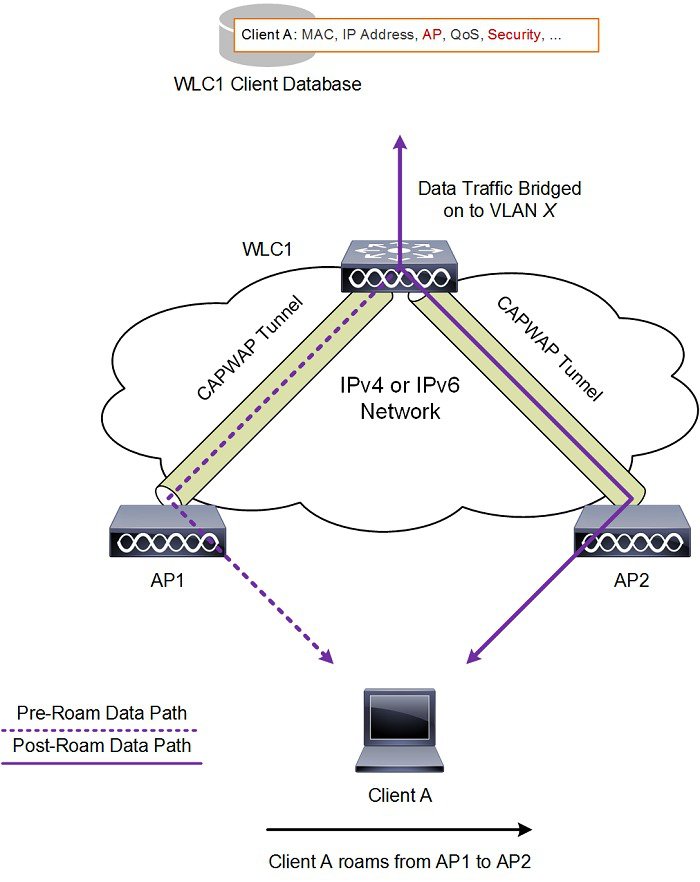
Figure 1. Intracontroller roaming

Intracontroller roaming example

A user walking through a building with multiple access points connected to one wireless LAN controller experiences no interruption in service because intracontroller roaming automatically updates the client’s association information as the device connects to new access points.

Intercontroller roaming

An intercontroller roaming event is a wireless mobility process that provides the following functions:

  • occurs when a client moves from an access point managed by one controller to an access point managed by another controller

  • exchanges mobility messages between the new and original controllers to update the client database entry, and

  • maintains the user network experience, making the handover transparent to the user.

  • Mobility messages: specialized communications between controllers that coordinate the handover and update the client database during a roaming event.

  • Client database entry: the information each controller stores about a connected client, such as security context, session details, and access point association.

Expanded explanation

When a client device joins an access point managed by a new controller, the new controller exchanges mobility messages with the previous controller.

These messages transfer the client session information and database entry from the original controller to the new controller. The system establishes new security contexts and associations as needed.

The system updates the client database entry to reflect the new access point and controller location. This process occurs in the background and appears seamless to the user.


Note


Clients configured with 802.1X or Wi-Fi Protected Access (WPA) security complete full authentication to comply with IEEE standards.


Important


Intersubnet roaming is not supported for Software-Defined Access (SDA).


Intercontroller roaming examples

A user with a mobile device walks from one building to another on a campus network. The device switches from an access point managed by Controller A to one managed by Controller B. The client remains connected and active while the controllers complete the roaming event.

The figure shows intercontroller roaming, which occurs when wireless LAN interfaces on controllers are on the same IP subnet.

Diagram of intercontroller roaming showing two controllers on the same IP subnet and associated access points.

Intersubnet roaming

An intersubnet roaming event is a wireless network mobility process that provides the following functions:

  • allows wireless clients to move seamlessly between controllers on different IP subnets

  • keeps the original client IP address after roaming

  • uses anchor and foreign controller roles to maintain and track the client session across controllers

  • Anchor controller: the original controller where the client is first authenticated and where session anchoring remains, maintaining the primary client database entry.

  • Foreign controller: the new controller to which the client connects after roaming, which receives a copy of the client database entry marked as a foreign entry.

Expanded explanation

Intersubnet roaming is similar to intercontroller roaming because controllers exchange mobility messages when a client roams. Instead of transferring the client database entry to the new controller, the original controller marks the client with an anchor entry in its client database.

The system then copies the database entry to the new controller and marks it as a foreign entry. This process keeps the roam transparent to the wireless client and preserves the original IP address.

WLANs on both the anchor and foreign controllers must provide the same network access privileges.

Ensure that source-based routing and source-based firewalls are not configured. If they are present, clients may experience network connectivity issues after the handoff.

Additional reference information

In static anchor setups that use controllers and a RADIUS server, the following applies:

  • If AAA override dynamically assigns VLAN and QoS, the foreign controller updates the anchor controller with the correct VLAN after Layer 2 authentication (802.1X).

  • For Layer 3 RADIUS authentication, the anchor controller sends authentication requests.


Note


The Cisco Catalyst 9800 Series Wireless Controller mobility tunnel is a CAPWAP tunnel with a control path (UDP 16666) and a data path (UDP 16667). The control path uses DTLS encryption by default. You can enable DTLS on the data path when you add the mobility peer.

The supported DTLS version is 1.2.


Intersubnet roaming example

This figure shows intersubnet roaming, which occurs when wireless LAN interfaces on controllers are located on different IP subnets.
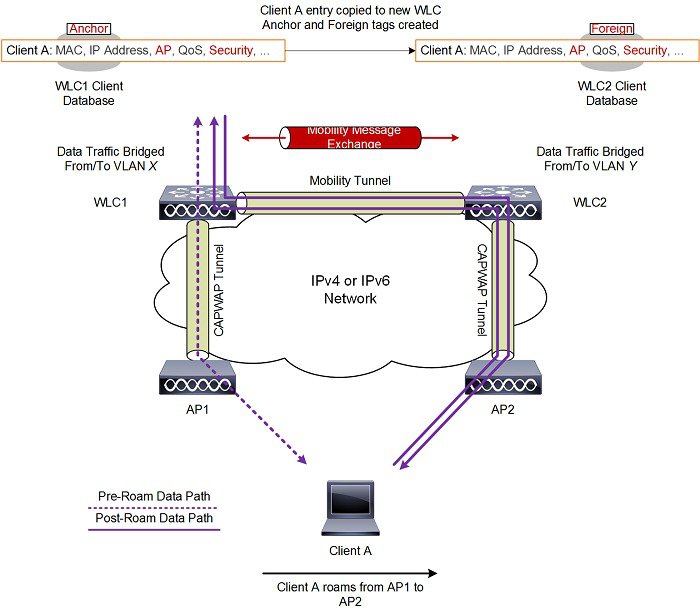
Figure 2. Intersubnet roaming
Diagram showing intersubnet roaming between controllers on different IP subnets.

SDA roaming

SDA roaming types keep wireless clients connected as they move across access points in a software-defined access (SDA) network. SDA roaming:

  • keeps wireless clients connected within the fabric as they move across access points

  • supports both intra-xTR events—within the same access switch—and inter-xTR events—across different access switches

  • updates key system tables—local client database, client history table, and map server where applicable—for accurate client location tracking and ongoing connectivity

  • SDA (software-defined access): An architecture that uses centralized control to automate and secure network operations across wired and wireless endpoints.

  • xTR (tunnel router): In SDA, an xTR is an access switch that acts as both an ingress tunnel router and an egress tunnel router. It serves as a fabric edge node responsible for client mobility and traffic tunneling.

Expanded explanation

This section describes the two principal types of SDA roaming events:

  • Intra-xTR roaming happens when your client moves between access points attached to the same access switch (xTR) in an SDA fabric-enabled WLAN. The system updates the local client database and client history table with the new access point information.

  • Inter-xTR roaming happens when your client moves to an access point attached to another access switch (xTR) within the fabric. The system updates the local client database and the map server with the new location (RLOC) to show which switch the client is now using.


Note


  • During intra-xTR events, the access switch updates only its internal tables.

  • During inter-xTR events, the switch and the map server update their tables so the client session continues without interruption.


SDA roaming example

When a wireless client roams from Access Point A to Access Point B, both connected to the same access switch, the client experiences an intra-xTR roaming event. Only local tables are updated.

When the client moves from Access Point A to Access Point C on another access switch, the system initiates an inter-xTR roaming event. It updates both the local client database and the central map server with the new location.

The figure shows intra-xTR and inter-xTR roaming. This occurs when the client moves between access points on the same switch or on different switches in a fabric topology.
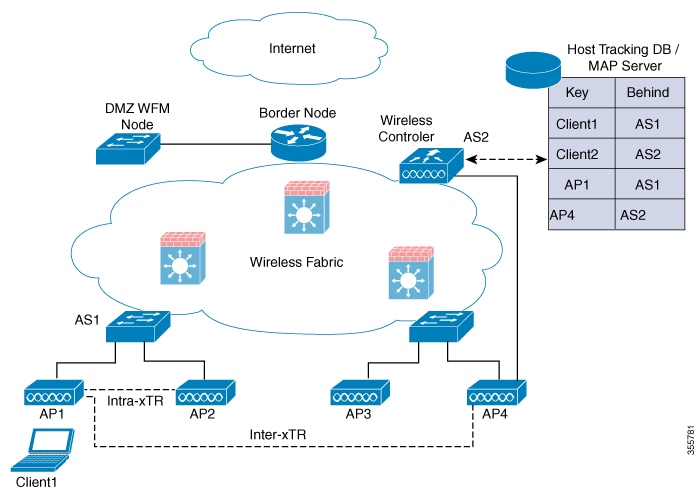
Diagram showing intra-xTR and inter-xTR roaming scenarios in a fabric topology.

Mobility groups

A mobility group is a wireless controller configuration that

  • defines a set of controllers identified by the same mobility group name

  • enables seamless roaming and state and context sharing for wireless clients, and

  • allows controllers to dynamically forward data traffic and share the list of access points.

By creating a mobility group, multiple controllers in a network dynamically share information and forward data traffic when inter-controller or inter-subnet roaming occurs.

Controllers in the same mobility group share the context and state of client devices and their list of access points. This prevents controllers from identifying access points from other controllers as rogue devices. With this shared information, the network supports inter-controller wireless LAN roaming and controller redundancy.

When an access point (AP) moves from one controller to another, and both controllers are mobility peers, a client associated with controller 1 before the move might remain anchored to controller 1 after the move.

Controller 1 maintains the client entry for a timeout period to support roaming and reassociation scenarios. To prevent a client from remaining anchored to controller 1 after such a move, remove the mobility peer configuration from that controller.

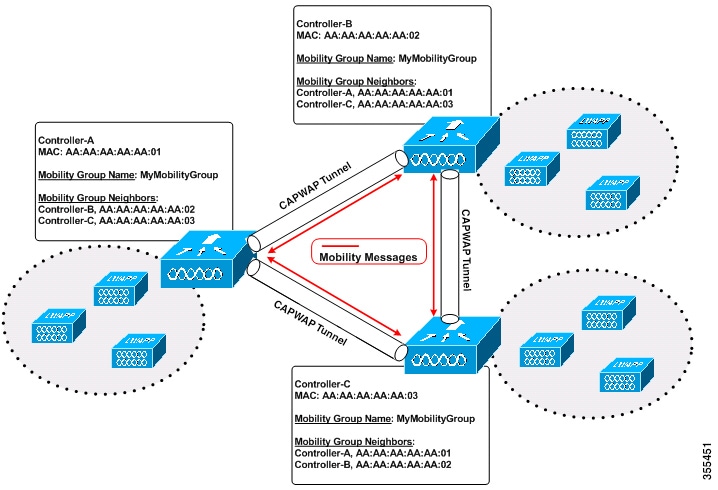
Example of a single mobility group

The figure shows that each controller is configured with a list of the other mobility group members.

Whenever a new client joins a controller, the controller sends a unicast message, or a multicast message if mobility multicast is configured, to all controllers in the mobility group. The controller that previously managed the client passes the client status to the new controller.
Supported platforms

Lists the AireOS wireless controllers, Catalyst 9800 wireless controllers, and Catalyst switch platforms supported by the solution.

Review this list to confirm your device models are supported for integration and management.

Supported AireOS wireless controllers

  • Cisco 3504 Wireless Controller

  • Cisco 5520 Wireless Controller

  • Cisco 8540 Wireless Controller

Supported Catalyst 9800 Wireless controllers

  • Catalyst 9800-CL (Cloud Wireless Controller)

  • Cisco Catalyst 9800-80 Wireless Controller

  • Cisco Catalyst 9800-40 Wireless Controller

  • Cisco Catalyst 9800-L Wireless Controller

Supported switch platforms

  • Catalyst switches

    • Cisco Catalyst 9300 Switch

  • Catalyst 9800 controllers

    • Catalyst 9800-CL (Cloud Wireless Controller)

    • Cisco Catalyst 9800-40 Wireless Controller

Guidelines and restrictions

SDA Inter-Controller Mobility enables seamless client roaming across compatible Cisco wireless controllers and switch platforms. This topic describes supported hardware, operational requirements, and restrictions.

  • Data DTLS Configuration: Ensure that the data DTLS configuration on Catalyst 9800 and AireOS controller platforms is identical. If the configurations do not match, the system disables the mobility data path.

  • Layer 3 Roaming: In intercontroller roaming scenarios, policy profiles with different VLANs are supported for Layer 3 roaming.

  • L3 Override in Guest VLANs: L3 override is not supported in guest VLANs on AireOS controllers. Trigger DHCP Discovery manually on the new VLAN because clients do not trigger it automatically.

  • Policy Profile and VLAN Flexibility: Controllers that use the same WLAN profile can have different policy profile names and client VLANs.

  • Intracontroller Roaming: Roaming is supported between identical policy profiles with the WLAN mapped within a single controller.

    Starting with Cisco IOS XE Amsterdam 17.3.x, seamless roaming is supported between the same WLAN associated with different policy profiles. For more information, see the Client Roaming Policy Profile feature.

  • Web Authentication Roaming: If a client roams while in web authentication state, the system treats the client as a new client on the other controller rather than as a mobile client.

  • DHCP Server Consistency: Mobility peer controllers must use the same DHCP server to maintain client mobility move counts on intra-VLAN.

  • Data DTLS and Server Security Chip (SSC) Hash Key: Data DTLS and SSC hash key values must be identical for mobility tunnels established between controller members.

  • Mobility Move Count: The system updates the move count under client details only during inter-controller roaming. For intra-controller roaming, verify the value under client statistics and mobility history.

  • VLAN Mapping Differences: The Anchor VLAN on Catalyst 9800 controllers corresponds to the Access VLAN on Cisco AireOS controllers.

  • Mobility Role State for Roaming Clients: Roaming clients may appear with the Unknown mobility role because clients in the IP learn state can experience frequent additions and deletions.

  • WLAN Profile Mismatch: In inter-controller roaming between Catalyst 9800 and Catalyst 9800 or AireOS controllers, client roaming is not supported if there is a WLAN profile mismatch.

  • IPv4 Tunnel Only: Only IPv4 tunnels are supported between Catalyst 9800 and Cisco AireOS controllers.

  • High Availability Configuration: In High Availability scenarios, configure the mobility MAC address explicitly by using the wireless mobility mac-address command to ensure that the mobility tunnel remains up after Stateful Switchover (SSO).

  • Certificate and Trustpoint Limitation: Use RSA-based certificates or RSA-based trustpoints for wireless management. Mobility tunnels do not support ECDSA-based certificates or ECDSA-based trustpoints.

  • Layer 2 and Layer 3 Topology Warning: Connecting Anchor controllers and Foreign controllers in the same Layer 2 network and over a Layer 3 mobility tunnel creates a loop topology. This configuration may trigger a MAC_CONFLICT warning message each minute. The warning does not impact functionality or performance. Use a VLAN other than the management VLAN as the client VLAN.

  • Tunnel Reset and Stateful Switchover (SSO): The mobility tunnel reestablishes if Stateful Switchover (SSO) is triggered due to a gateway check failure.

  • AP Slot 2 and Neighbor Reporting: If the current AP has a 5 GHz slot 2 radio operating on Layer 2 or Layer 3 mobility, the WLAN BSSID is added only to the 802.11k or 802.11v neighbor information. When radio property information from APs on other controllers is unavailable, the AP uses its own radio properties.

    If the AP does not have a slot 2 radio, other APs cannot be added as neighbors. If validation fails, the system does not add that radio to the neighbor list.

  • Keepalive Values Recommendation: Use the default keepalive count and interval values to reduce convergence time when setting up mobility tunnels between AireOS and Catalyst 9800 controllers.

  • Client Join Times: When the mobility tunnel is up and mobility peers are configured, a new client may take up to 3 seconds to join. The system sends 3 mobile messages, 1 second apart, to verify whether the client is already part of the network.

Configure the mobility feature (GUI)

Configure wireless controller mobility features to support seamless roaming and redundancy.

Procedure


Step 1

Choose Configuration > Wireless > Mobility.

The Wireless Mobility page appears, where you can perform global configuration and peer configuration.

Step 2

In the Global Configuration section, perform these tasks:

  1. Enter a name for the mobility group.

  2. Enter the multicast IP address for the mobility group.

  3. In the Keep Alive Interval field, specify how many times to send a ping request to a mobility list member before marking the member unreachable. The valid range is 3 to 20 seconds, and the default value is 3 seconds.

  4. Specify the time, in seconds, between ping requests to a mobility list member in the Mobility Keep Alive Count field. The valid range is 1 to 30 seconds.

  5. Enter the Differentiated Services Code Point (DSCP) value for the mobility group.

  6. Enter the mobility MAC address.

  7. Click Apply.

Step 3

In the Peer Configuration tab, perform these tasks:

  1. In the Mobility Peer Configuration section, click Add.

  2. In the Add Mobility Peer window that is displayed, enter the MAC address and IP address for the mobility peer.

  3. Enter the mobility group to which you want to add the mobility peer.

  4. Select the required status for Data Link Encryption.

  5. Specify the SSC Hash as required.

    Secure Socket Communications (SSC) hash is required if the peer is a Cisco Catalyst 9800-CL Wireless Controller, which uses a self-signed certificate. In this case, the SSC hash provides additional validation. SSC hash is not required if the peer is an appliance because appliances have manufacturing installed certificates (MIC) or device certificates installed in the hardware.

  6. Click Save & Apply to Device.

  7. In the Non-Local Mobility Group Multicast Configuration section, click Add.

  8. Enter the mobility group name.

  9. Enter the multicast IP address for the mobility group.

  10. Click Save.


The controller applies the mobility group configuration and peer configuration, enabling mobility features for wireless devices.

Configure the mobility group (CLI)

Use this task to configure a mobility group and related parameters using CLI commands on a network device.

Procedure


Step 1

Create a mobility group named Mygroup.

Example:

Device(config)# wireless mobility group name Mygroup

Step 2

Configure the MAC address used in mobility messages.

Example:

Device(config)# wireless mobility mac-address mac-addr

Step 3

(Optional) Configure the mobility intercontroller DSCP value.

Example:

Device(config)# wireless mobility dscp value-0-to-63

Step 4

(Optional) Configure the interval between two keepalives sent to a mobility member.

Example:

Device(config)# wireless mobility group keepalive interval time-in-seconds

The valid range is from 1 to 30 seconds.

Note


For controllers connected through mobility tunnels, ensure that both controllers use the same keepalive interval value.

Step 5

(Optional) Configure the number of keepalive retries before a member status is set to DOWN.

Example:

Device(config)# wireless mobility group keepalive count count

Step 6

Add a peer IPv4 or IPv6 address to a specific group. Use one of the following options to configure IPv4 or IPv6:

  • wireless mobility mac-address mac-address ip peer-ip-address group group-name data-link-encryption
  • wireless mobility mac-address mac-address ip peer-ip-address group group-name

Example:

Device(config)# wireless mobility mac-address 001E.BD0C.5AFF ip 9.12.32.10 group test-group data-link-encryption
Device(config)# wireless mobility mac-address 001E.BD0C.5AFF ip fd09:9:2:49::55 group scalemobility

Use the no form of this command to remove the peer from the local group.

Step 7

Configure a multicast IPv4 or IPv6 address for a local or nonlocal mobility group.

  • wireless mobility multicast { ipv4 | ipv6 } ip-address
  • wireless mobility group multicast-address group-name { ipv4 | ipv6 } ip-address

Note


Mobility Multicast — The controller sends a multicast message instead of a unicast message to all members in the local or nonlocal mobility group when a client joins or roams.

Example:

Device(config)# wireless mobility multicast ipv4 224.0.0.4

This command sets the multicast IPv4 address to 224.0.0.4 for a local mobility group.

Example:

Device(config)# wireless mobility group multicast-address Mygroup ipv4 224.0.0.5

This command sets the multicast IPv4 address to 224.0.0.5 for a nonlocal mobility group.


The mobility group and related parameters are configured. Mobility services are enabled across controllers in the network.

Inter-release controller mobility supported platforms

The Inter-Release Controller Mobility (IRCM) feature is supported on these Cisco Wireless Controllers.

Cisco Catalyst 9800 series

  • All Cisco Catalyst 9800 Series Wireless Controller platforms running Cisco IOS XE Software version 16.10.1 or later.

  • By design, Cisco Catalyst 9800 Wireless Controllers do not include the Primary Mode configuration in the Discovery Response. The controller always sends the Discovery Response with Primary Mode enabled.

Cisco AireOS wireless controllers

  • Supported AireOS Wireless Controllers running the AireOS 8.5.14x.x IRCM image based on the 8.5 maintenance release software include:

    • Cisco 3504 Wireless Controller

    • Cisco 5508 Wireless Controller

    • Cisco 5520 Wireless Controller

    • Cisco 8510 Wireless Controller

    • Cisco 8540 Wireless Controller

  • Supported AireOS Wireless Controllers running AireOS 8.8.111.0 and later include:

    • Cisco 3504 Wireless Controller

    • Cisco 5520 Wireless Controller

    • Cisco 8540 Wireless Controller

Unsupported AireOS wireless controllers

You cannot use the IRCM feature on these Cisco AireOS Wireless Controllers:

  • Cisco 2504 Wireless Controller

  • Cisco Flex 7510 Wireless Controller

  • Cisco WiSM 2

Recommended configuration for IRCM deployments

  • Configure both Cisco AireOS and Cisco Catalyst 9800 Series Controllers as static RF leaders to avoid RF grouping between them.

  • Configure the same RF network name on both controllers.

AireOS 9800 virtual controllers: hash command and data tunnel encryption

  • If the peer Cisco Catalyst 9800 Series Wireless Controller is virtual, configure the hash using this command:

    config mobility group member hash 172.20.227.73 3f93a86cee2039e9c3aada1822ad74b89fea30c1
  • Enable or disable data tunnel encryption using this command:

    config mobility group member data-dtls 00:0c:29:a8:d5:77 enable or disable
  • Run this command on the Cisco Catalyst 9800 Series Wireless Controller to obtain the hash:

    show wireless management trustpoint
    Trustpoint Name : ewlc-tp1
    Certificate Info : Available
    Certificate Type : SSC
    Certificate Hash : 3f93a86cee2039e9c3aada1822ad74b89fea30c1
    Private key Info : Available

Platform and feature limitations

  • IPv6 is not supported for Software Defined Access (SDA) IRCM fabric client roaming.

  • IPv6 is supported for nonfabric IRCM client roaming.

  • Ensure that AireOS controllers support the Encrypted Mobility feature.

  • Application Visibility and Control (AVC) is not supported for IRCM.

  • In mixed deployments that include Catalyst 9800 and AireOS controllers, use the same name for the WLAN profile and the policy profile. AireOS does not recognize the policy profile and uses the WLAN name for both profiles.

  • Mobility group multicast is not supported because AireOS does not support mobility multicast in encrypted mobility.

  • Disable Link Local bridging on the peer AireOS controller.

  • IRCM is not supported in FlexConnect or FlexConnect+Bridge modes.

  • If the client roaming rate is very high, the displayed client count may exceed the supported roaming scale. This occurs because the system requires time to update records. A client that appears on multiple WNCDs for a short time may be counted more than once. Wait for the system to stabilize before you verify client counts using show CLIs, WebUI, Cisco DNA Center, or SNMP.

IPv6 feature support between controllers

The following features support IPv6 client mobility between AireOS controllers and Catalyst 9800 controllers:

  • Accounting

  • Layer 3 security (Webauth)

  • Policy (ACL and QoS)

  • IP address assignment and learning through SLAAC and DHCPv6

  • IPv6 Source Guard

  • Multiple IPv6 address learning

  • IPv6 multicast

  • SISF IPv6 features include:

    • RA Guard

    • RA Throttling

    • DHCPv6 Guard

    • ND Suppress

These IPv6 features are not supported on Catalyst 9800 controllers:

  • Configurable IPv6 timers

  • RA Guard enabled on access points

  • Global IPv6 disable

  • IPv6 Central Web Authentication (CWA)

  • More than eight IPv6 addresses per client

Configure inter-release controller mobility (GUI)

Configure inter-release controller mobility so devices can move between controllers running different software releases.

Configure this feature when you want to support mobility between controllers that run different software versions in your wireless infrastructure.

Procedure


Step 1

Choose Configuration > Wireless > Mobility > Global Configuration.

Step 2

Enter values for the following fields: Mobility Group Name, Multicast IPv4 Address, Multicast IPv6 Address, Keep Alive Interval (sec), Mobility Keep Alive Count, Mobility DSCP Value, and Mobility MAC Address.

Step 3

Click Apply.


Inter-release controller mobility is now enabled.

Configure inter-release controller mobility (CLI)

Inter-Release Controller Mobility (IRCM) provides features that allow controllers running different software releases to work together.

IRCM enables seamless mobility and wireless services between controllers running Cisco AireOS and Cisco IOS XE. For example, you can configure mobility between a Cisco 8540 WLC and Cisco Catalyst 9800 Series Wireless Controller. Supported features include Layer 2 roaming, Layer 3 roaming, guest access, and guest termination.


Note


To configure IRCM for different combinations of AireOS and Catalyst 9800 controllers, see the Cisco Catalyst 9800 Wireless Controller-AireOS IRCM Deployment Guide.


Procedure


Step 1

Enter global configuration mode.

Example:

Device# configure terminal

Step 2

Add a peer IPv4 or IPv6 address to a specific group. You can configure IPv4 or IPv6 using one of the following options:

  • wireless mobility group member mac-address mac-address ip peer-ip group group-name data-link-encryption
  • wireless mobility group member mac-address mac-address ip peer-ip-address group group-name

Example:

Device(config#) wireless mobility group member mac-address 001E.BD0C.5AFF ip 9.12.32.10 group test-group data-link-encryption
Device(config#) wireless mobility group member mac-address 001E.BD0C.5AFF ip fd09:9:2:49::55 group scalemobility

Use the no form of this command to remove the peer from the local group.

Step 3

Add a name for the local group.

Example:

Device(config#) wireless mobility group name group-name

The default local group name is "default".

Step 4

(Optional) Configure the MAC address used in mobility messages.

Example:

Device(config#) wireless mobility mac-address mac-address

Step 5

Add a peer to the local group.

Example:

Device(config#) wireless mobility group member ip peer-ip

Use the no form of this command to remove the peer from the local group.

Step 6

(Optional) Configure the Differentiated Services Code Point (DSCP) value.

Example:

Device(config#) wireless mobility dscp dscp-value

The default value is 48.

Step 7

Configure the mobility control and data path keepalive count.

Example:

Device(config#) wireless mobility group keepalive count count

The default value is 3.

Step 8

Configure the mobility control and data path keepalive interval.

Example:

Device(config#) wireless mobility group keepalive interval interval

The default value is 10.

Note


Ensure that both controllers use the same keepalive interval value when they are connected through mobility tunnels.


After you configure IRCM, wireless client mobility and service continuity are enabled across Cisco AireOS and Cisco IOS XE controllers in the specified mobility group.

Verify mobility

To display the summary of the mobility manager, use this command:

Device# show wireless mobility summary

To display mobility peer information, use this command:

Device# show wireless mobility peer ip 10.0.0.8

To display the list of access points known to the mobility group, use this command:

Device# show wireless mobility ap-list

To display statistics for the mobility manager, use this command:

Device# show wireless statistics mobility
Mobility event statistics:
     Joined as
         Local                         : 0
         Foreign                       : 0
         Export foreign                : 2793
         Export anchor                 : 0
     Delete
         Local                         : 2802
         Remote                        : 0
     Role changes
         Local to anchor               : 0
         Anchor to local               : 0
     Roam stats
         L2 roam count                 : 0
         L3 roam count                 : 0
         Flex client roam count        : 0
         Inter-WNCd roam count         : 0
         Intra-WNCd roam count         : 0
         Remote inter-cntrl roam count : 0
         Remote WebAuth pending roams  : 0
     Anchor Request
         Sent                          : 0
           Grant received              : 0
           Deny received               : 0
         Received                      : 0
           Grant sent                  : 0
           Deny  sent                  : 0
     Handoff Status Received
         Success                       : 0
         Group mismatch                : 0
         Client unknown                : 0
         Client blacklisted            : 14
         SSID mismatch                 : 0
         Denied                        : 0
     Handoff Status Sent
         Success                       : 0
         Group mismatch                : 0
         Client unknown                : 0
         Client blacklisted            : 0
         SSID mismatch                 : 0
         Denied                        : 0
     Export Anchor
         Request Sent                  : 2812
         Response Received             :
             Ok                        : 2793
             Deny - generic            : 19
             Client blacklisted        : 0
             Client limit reached      : 0
             Profile mismatch          : 0
             Deny - unknown reason     : 0
         Request Received              : 0
         Response Sent                 :
             Ok                        : 0
             Deny - generic            : 0
             Client blacklisted        : 0
             Client limit reached      : 0
             Profile mismatch          : 0
MM mobility event statistics:
     Event data allocs                 : 17083
     Event data frees                  : 17083
     FSM set allocs                    : 2826
     FSM set frees                     : 2816
     Timer allocs                      : 8421
     Timer frees                       : 8421
     Timer starts                      : 14045
     Timer stops                       : 14045
     Invalid events                    : 0
     Internal errors                   : 0
     Delete internal errors            : 0
     Roam internal errors              : 0


MMIF mobility event statistics:
     Event data allocs                 : 17088
     Event data frees                  : 17088
     Invalid events                    : 0
     Event schedule errors             : 0
     MMIF internal errors:
       IPC failure                     : 0
       Database failure                : 0
       Invalid parameters              : 0
       Mobility message decode failure : 0
       FSM failure                     : 0
       Client handoff success          : 0
       Client handoff failure          : 14
       Anchor Deny                     : 0
       Remote delete                   : 0
       Tunnel down delete              : 0
       MBSSID down                     : 0
       Unknown failure                 : 0

To display counters for all messages in mobility, use this command:

Device# show wireless stats mobility messages
MM datagram message statistics:
  Message Type               Built  Tx    Rx    Processed  Tx Error  Rx Error  Forwarded  Retry  Drops  Allocs  Frees
  ----------------------------------------------------------------------------------------------------------------------
  Mobile Announce            0      0     0     0          0         0         25350      5624   0      2826    2826
  Mobile Announce Nak        0      0     0     0          0         0         0          0      0      0       0
  Static IP Mobile Annc      0      0     0     0          0         0         0          0      0      0       0
  Static IP Mobile Annc Rsp  0      0     0     0          0         0         0          0      0      0       0
  Handoff                    0      0     14    14         0         0         0          0      0      42      42
  Handoff End                0      0     0     0          0         0         2783       0      0      2783    2783
  Handoff End Ack            0      0     2783  2783       0         0         0          0      0      8349    8349
  Anchor Req                 0      0     0     0          0         0         0          0      0      0       0
  Anchor Grant               0      0     0     0          0         0         0          0      0      0       0
  Anchor Xfer                0      0     0     0          0         0         0          0      0      0       0
  Anchor Xfer Ack            0      0     0     0          0         0         0          0      0      0       0
  Export Anchor Req          0      0     0     0          0         0         2812       0      0      2812    2812
  Export Anchor Rsp          0      0     2812  2812       0         0         0          0      0      8436    8436
  AAA Handoff                0      0     0     0          0         0         0          0      0      0       0
  AAA Handoff Ack            0      0     0     0          0         0         0          0      0      0       0
  IPv4 Addr Update           0      0     2792  0          0         0         0          0      0      2792    2792
  IPv4 Addr Update Ack       2792   2792  0     0          0         0         0          0      0      2792    2792
  IPv6 ND Packet             0      0     0     0          0         0         0          0      0      0       0
  IPv6 Addr Update           0      0     5587  0          0         0         0          0      0      5587    5587
  IPv6 Addr Update Ack       5587   5587  0     0          0         0         0          0      0      5587    5587
  Client Add                 0      0     0     0          0         0         0          0      0      0       0
  Client Delete              0      0     0     0          0         0         0          0      0      0       0
  AP List Update            25585  25585  8512  8512       2         1         0          0      0      34098   34098
  Client Device Profile Info 0      0     0     0          0         0         0          0      0      0       0
  PMK Update                 0      0     0     0          0         0         0          0      0      0       0
  PMK Delete                 0      0     0     0          0         0         0          0      0      0       0
  PMK 11r Nonce Update       0      0     0     0          0         0         0          0      0      0       0
  Device cache Update        0      0     0     0          0         0         0          0      0      0       0
  HA SSO Announce            0      0     0     0          0         0         0          0      0      0       0
  HA SSO Announce Resp       0      0     0     0          0         0         0          0      0      0       0
  Mesh Roam Request          0      0     0     0          0         0         0          0      0      0       0
  Mesh Roam Response         0      0     0     0          0         0         0          0      0      0       0
  Mesh AP PMK Time Upd       0      0     0     0          0         0         0          0      0      0       0
  Mesh AP PMK Time Upd Ack   0      0     0     0          0         0         0          0      0      0       0
  Mesh AP Channel List       0      3     1     0          0         1         0          0      0      2       2
  Mesh AP Channel List Resp  0      0     0     0          0         0         0          0      0      0       0
  AP upgrade                 0      0     0     0          0         0         0          0      0      0       0
  Keepalive Ctrl Req       34080  34080  17031  17031      0         0         0          0      0      51111   51111
  Keepalive Ctrl Resp      17031  17031  34067  34067      0         0         0          0      0      51098   51098
  Keepalive Data Req/Resp  238527  238527  221451  221451  0         0         0          0      0      459978  459978

To display mobility information of the client, use this command:

Device# show wireless client mac-address 00:0d:ed:dd:35:80 detail

To display roaming history of the active client in the subdomain, use this command:

Device# show wireless client mac-address 00:0d:ed:dd:35:80 mobility history

To display client-specific statistics for the mobility manager, use this command:

Device# show wireless client mac-address 00:0d:ed:dd:35:80 stats mobility 

To verify whether intercontroller roam is successful, use these commands:

  • show wireless client mac mac-address detail : (on the roamed-to Controller) Displays the roam type as L2 and the roam count is incremented by 1.

  • show wireless client summary : (on the roamed-from controller) The client entry will not be there in the output.

Verify SDA Mobility

To verify whether intracontroller, intra-xTR roam is successful, use these commands:

  • show wireless client summary : Displays the new AP if the client has roamed across the APs on the same xTR.

  • show wireless client mac mac-address detail : Displays the same RLOC as before the roam.

To verify whether intracontroller, inter-xTR roam is successful, use these commands:

  • show wireless fabric client summary : Displays the new AP if the client has roamed across the APs on a different xTR.

  • show wireless client mac mac-address detail : Displays the RLOC of the new xTR to which the client has roamed to.

To check client status before and after intracontroller roaming, perform these steps:

  1. Check if client is on the old AP, using show wireless client summary command on the controller.

  2. Check whether the client MAC is listed against the old AP, using show mac addr dyn command on the xTR1.

  3. Check whether the client IP is registered from current xTR1, and client MAC is registered from both current xTR1, and WLC1, using show lisp site detail command on the MAP server.

  4. After the intra-WLC roam, check whether the client is on the new AP, using the show wireless client summary and show mac addr dyn commands on the WLC1 and xTR1.

  5. After the Inter-xTR Roam (old and new APs on different xTRs), check whether the client is on the new AP (connected to the new xTR2), using the show wireless client summary and show mac addr dyn commands on the WLC1 and xTR2.

  6. Check whether the client is registered from the new xTR2, using the show lisp site detail command on the MAP server.

Verify roaming on MAP werver for SDA

Run this command on the MAP server, before and after the roam, to check whether the client IP is registered from current xTR, and client MAC is registered from both current xTR, and WLC.

Device# show lisp site detail