Maintaining the Server

This chapter contains the following topics:

Service Considerations

Be aware of the following when servicing the server:


Important


Be careful with your hands and fingers whenever you handle the server, trays, and components! Narrow vertical or horizontal spaces in situations such as, but not limited to, moving the server into or out of the shipping container or equipment rack can cause pinch hazards for your hands and fingers.


Warning


The fully configured server weighs approximately 265 lbs. (120 kg)! Never attempt to lift the server by yourself! Instead, use a lift, scissors jack, or some other device to lift and bear the weight of the server while you are installing or servicing it. If you must lift or handle the server without mechanical assistance, use two or more people to lift and handle server. Always use safe lifting practices when lifting or moving the server.


Note


When handling chassis components, wear an ESD strap and handle components, modules, and trays by the edges, or by designated handles when present.


The server is designed as a modular system with subsystems for compute, cooling, and so on. Subsystems are generally arranged in trays, which are field replaceable units (FRUs). However, some components in a subsystem or tray are not individually field-replaceable. The following components are not field replaceable.

  • Mainboard/Motherboard

  • Power distribution board

  • Mid-plane board

  • HIB host interface Board

  • FIO board

  • CEM 8X BB board

  • Left CEM (LCEM) Riser

  • Right CEM (RCEM) Riser

  • Fan extension board

  • Fan interposer board

  • CPUs

  • DIMMs

  • M.2 drives on motherboard

Alignment Features

The server has different alignment features that facilitate removing and installing components safely and easily. Being aware of these features will help you replace the field-serviceable components in the server.

CPU Tray Top Cover Alignment Features

The CPU Tray has grooves and guide pins to help install the top cover of the CPU Tray.
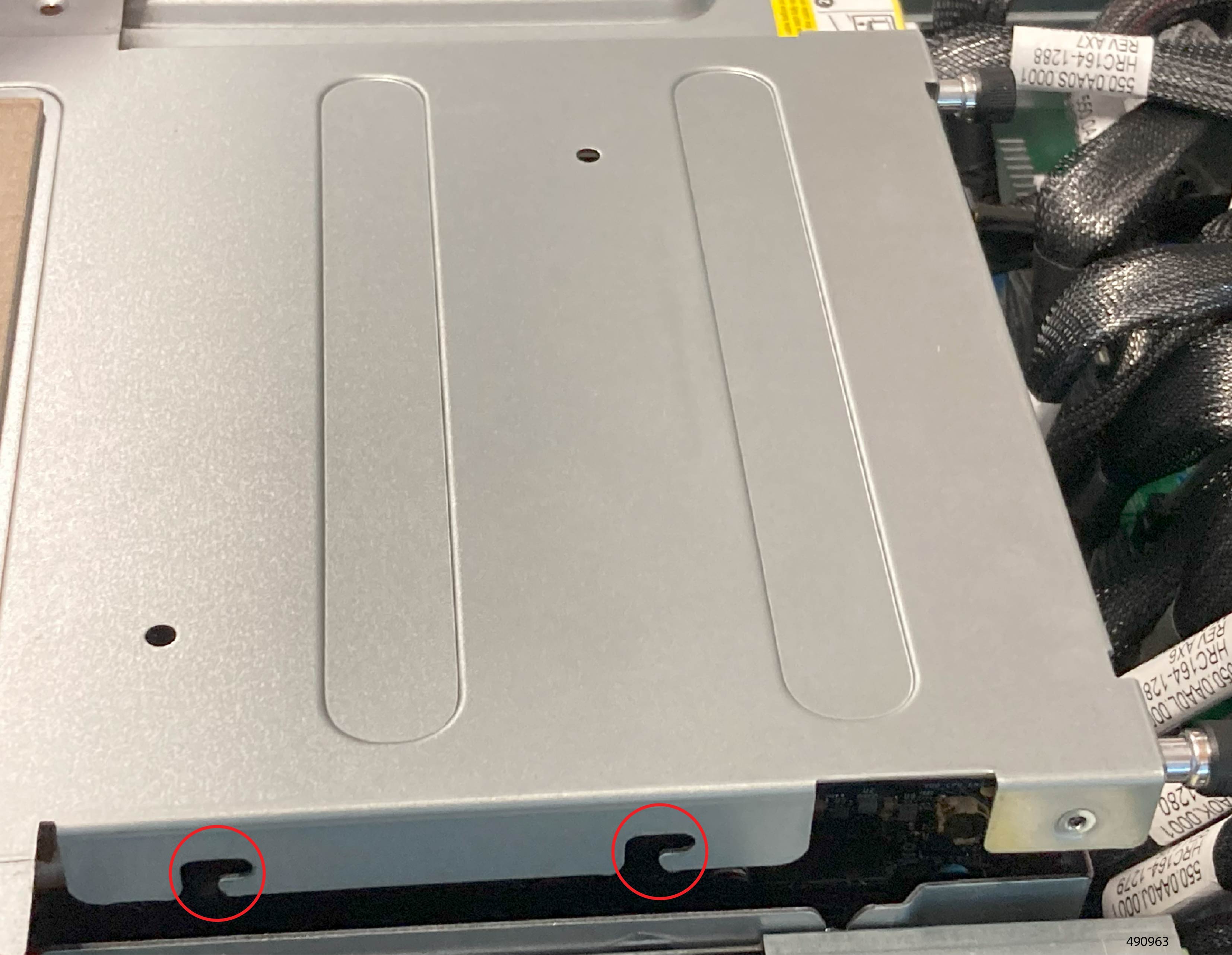
Inner Cover Alignment Features

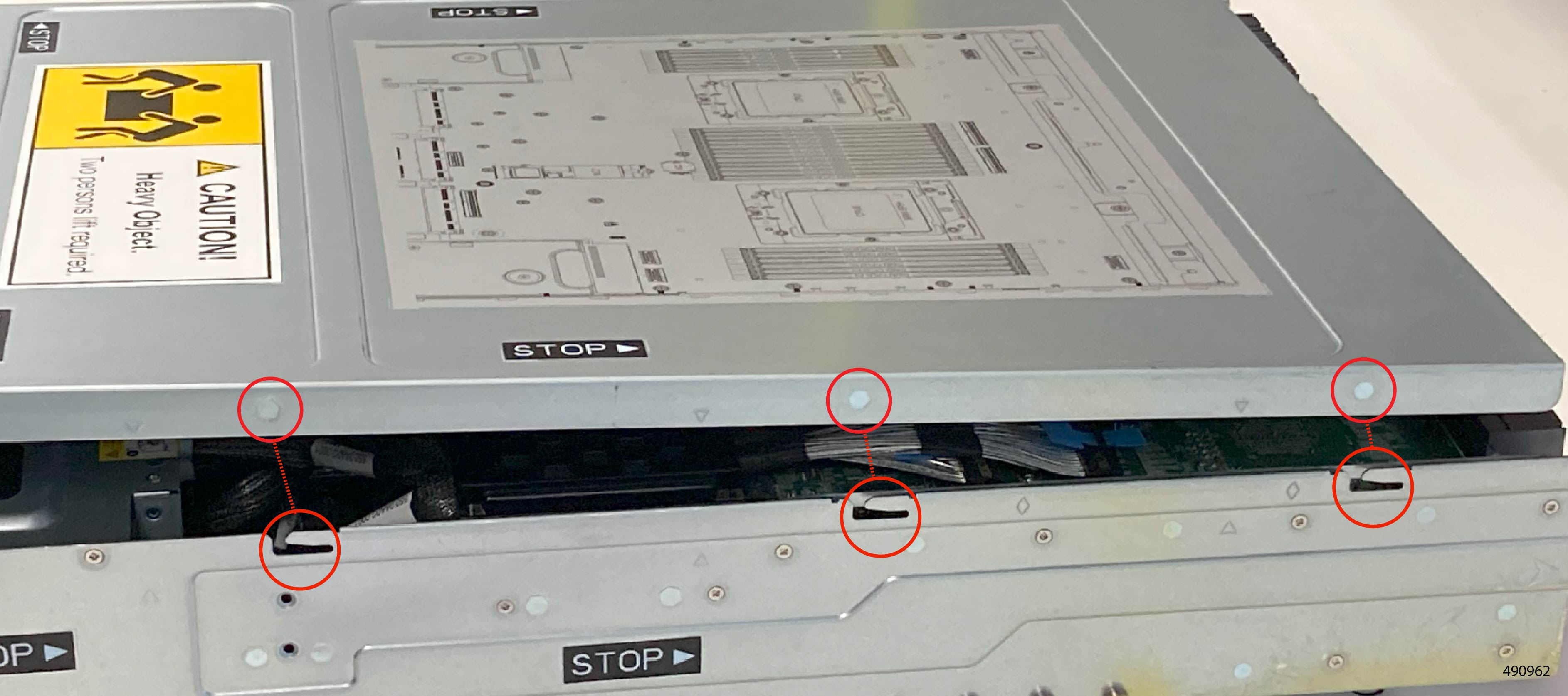
The inner cover has grooves and catch pins to help align it.
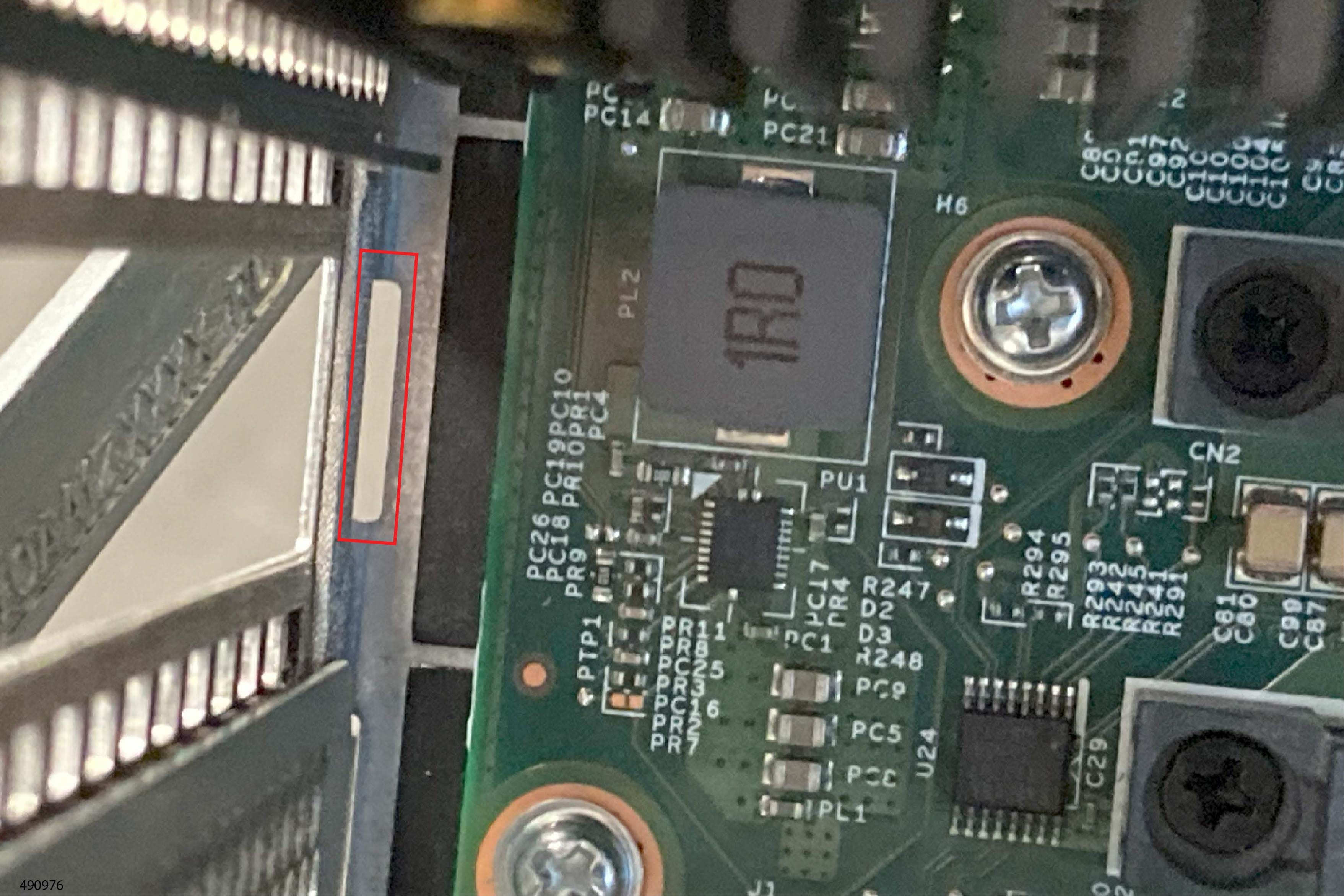
Riser Cage Alignment Features

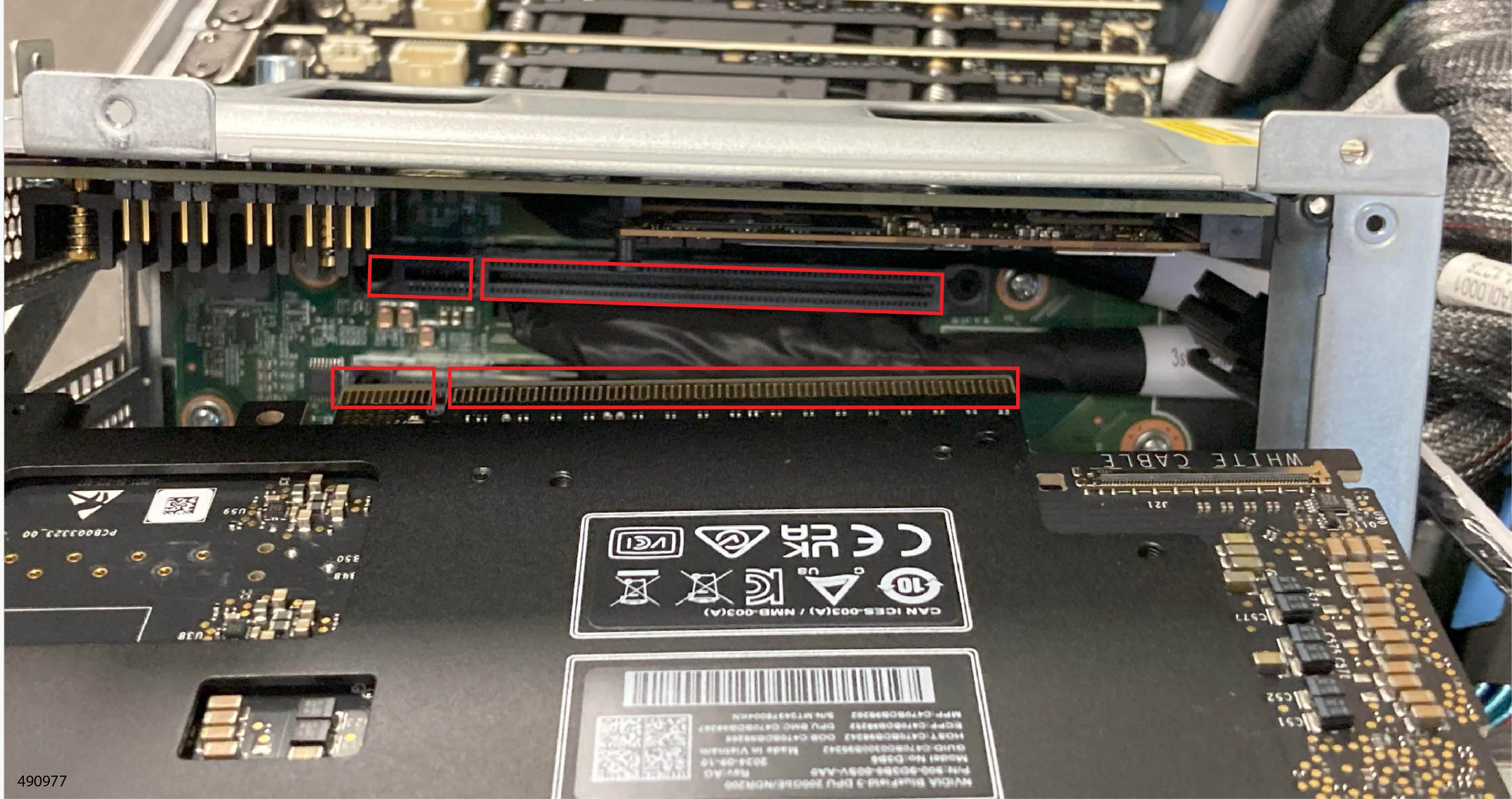
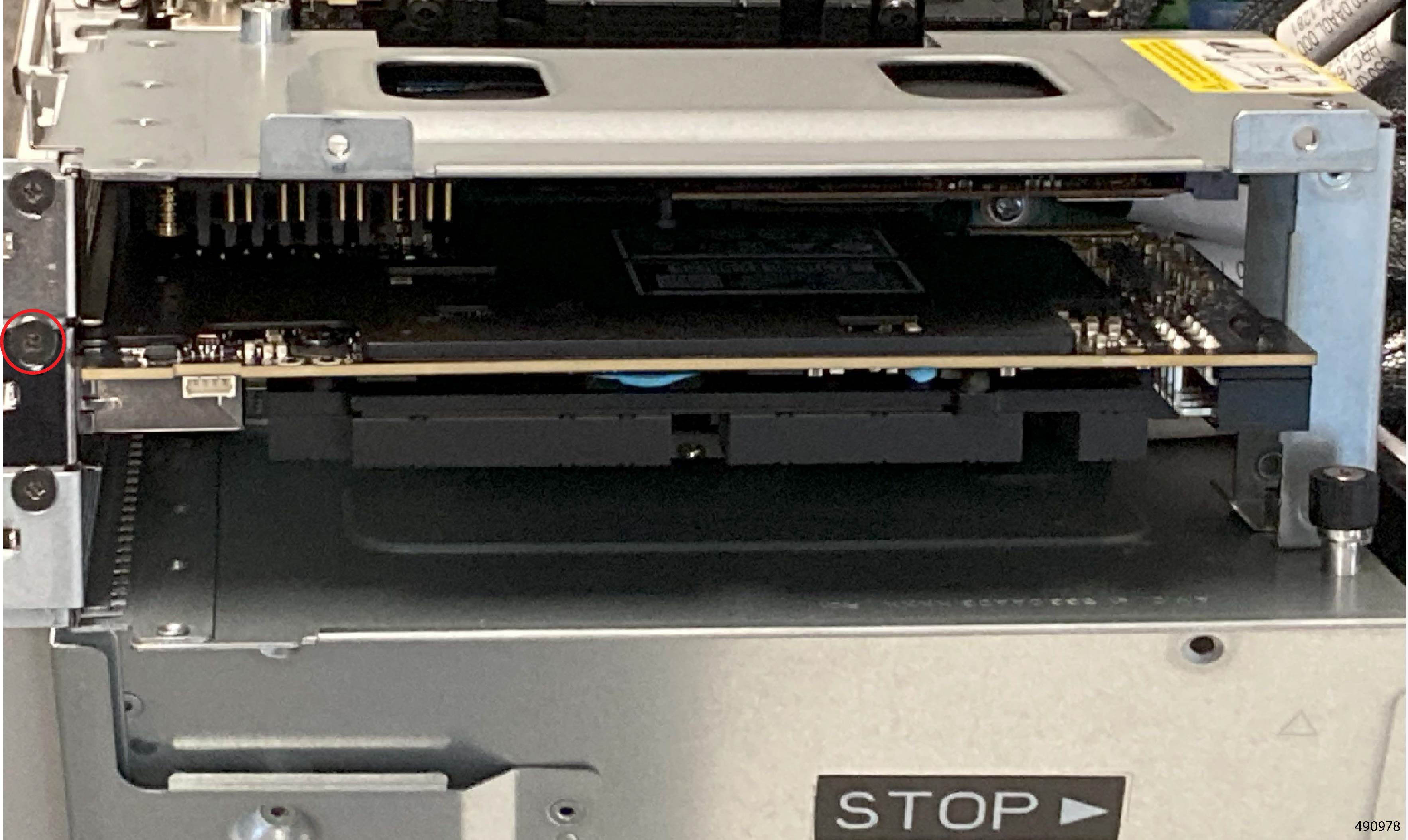
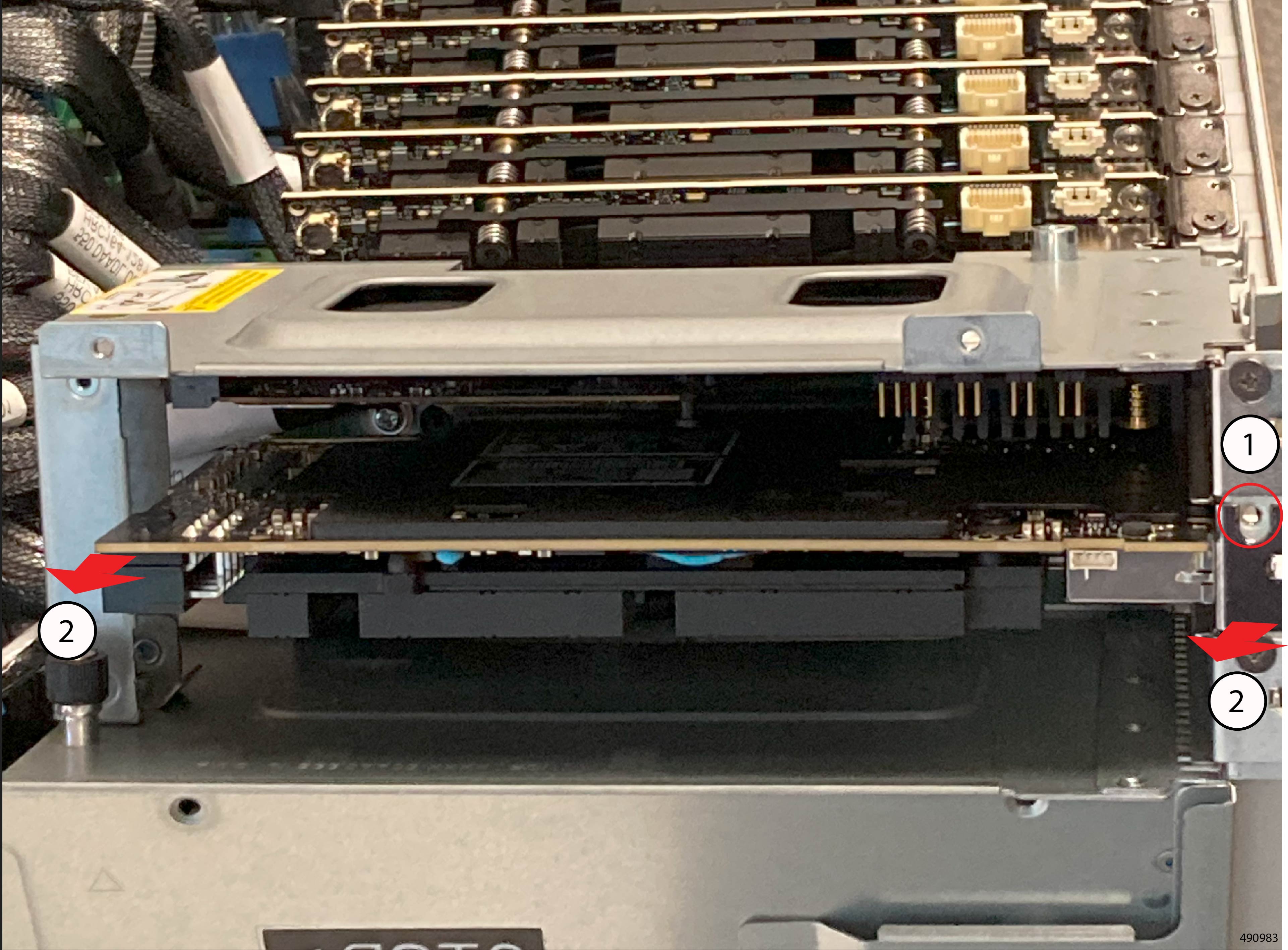
The interior of the riser cages have notches that meet a tab on the faceplate of the cards that install into them.
Removing and Replacing HGBB Tray


Warning


To reduce the risk of injury from electric shock, shut down the server and remove all power cords to disconnect power from the system completely.


Cisco UCS C885A M8 Server comes with the following GPU sled options:

  • C885A-M8-MI3X-SLD

  • C885A-M8-H2SX-SLD

  • C885A-M8-H1SX-SLD


Note


Cisco recommends replacing a tray with one that has the same PID.


Warning


The HGBB tray is heavy! Never attempt to lift or maneuver the tray by yourself! Instead, use a lift, scissors jack, or some other device to lift and bear the weight of the HGBB tray while you are installing or servicing it. If you must lift or handle the tray without mechanical assistance, use two or more people to lift and handle server. Always use safe lifting practices when lifting or moving the HGBB tray.


Use this task to replace the HGBB Tray.

Before you begin

Gather a #2 Phillips screwdriver.

Procedure


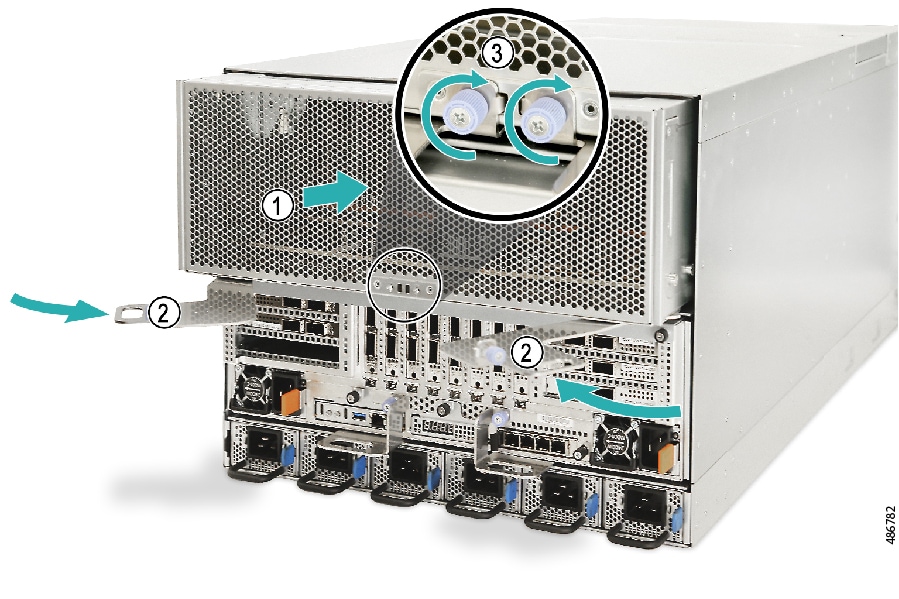
Step 1

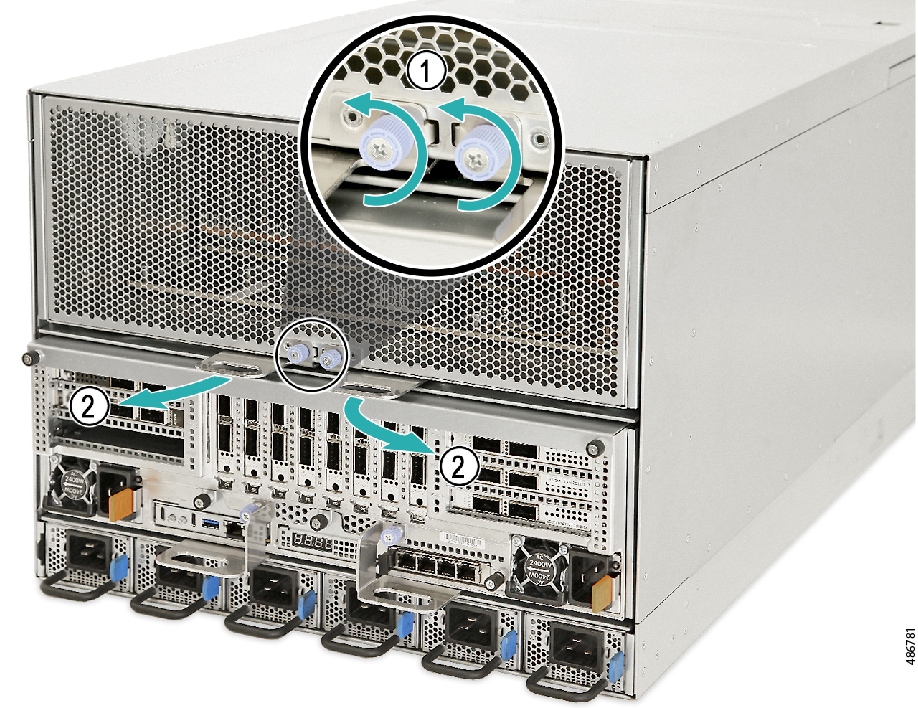
Remove the HGBB Tray:

  1. Using the screwdriver, loosen the two thumbscrews.

  2. Simultaneously pull each tray handle outward to detach the HGBB Tray from the chassis.

    Figure 1. Removing the HGBB Tray

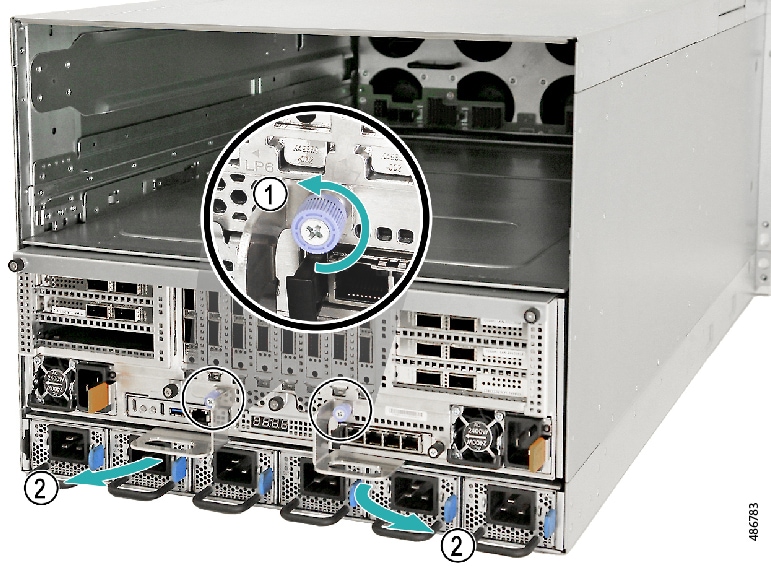
Step 2

Replace the HGBB Tray:

  1. Insert the HGBB Tray into the chassis.

  2. Simultaneously push each tray handle inward until they latch into place.

  3. Using a Phillips screwdriver, tighten the two thumbscrews to secure the HGBB Tray to the chassis.

    Figure 2. Replacing the HGBB Tray

Replacing the CPU Tray

The CPU Tray is in the middle tier of the rear panel of the server. The entire tray is a field-replaceable unit. If it or any of the components on it requires service, you will replace the CPU Tray with a new one. Individual components on the CPU Tray, for example, CPUs, heatsinks, and DIMMs, are no individually field-replaceable.

The Cisco UCS C885A M8 Rack Server offers the following CPU sled options. Your specific hardware configuration determine the CPU sled that is in your server:

C885A-M8-CC-SLD01

C885A-M8-CC-SLD02

C885A-M8-CC-SLD03

C885A-M8-CC-SLD05

C885A-M8-CC-SLD06

C885A-M8-CC-SLD07

C885A-M8-CC-SLD08

C885A-M8-CC-SLD09

C885A-M8-CC-SLD11

C885A-M8-CC-SLD12

C885A-M8-CC-SLD14

C885A-M8-CC-SLD15

C885A-M8-CC-SLD16

C885A-M8-CC-SLD18

C885A-M8-CC-SLD23

-

Use the following tasks to replace the CPU Tray.

Removing the CPU Tray

Use this procedure to remove the CPU Tray.


Note


Cisco recommends replacing a tray with one that has the same PID.


Before you begin


Warning


To reduce the risk of injury from electric shock, shut down the server and remove all power cords to disconnect power from the system completely.


Warning


The CPU tray is heavy! Never attempt to lift or maneuver the tray by yourself! Instead, use a lift, scissors jack, or some other device to lift and bear the weight of the CPU tray while you are installing or servicing it. If you must lift or handle the tray without mechanical assistance, use two or more people to lift and handle server. Always use safe lifting practices when lifting or moving the CPU tray.


Gather a #2 Phillips screwdriver before starting this procedure.

Procedure


Step 1

Disconnect any cables that will impede removing the CPU Tray.

Step 2

Using a #2 Phillips screwdriver, loosen both thumbscrews that secure the tray to the server.

Step 3

Simultaneously pull each tray's ejector handle outward to the open position.

In the open position, the ejector handles are pointing away from the face of the CPU Tray at a 45° angle.

Figure 3. Removing the CPU Tray

Step 4

Using two people or mechanical means to support the weight of the tray, slide it out of the slot and onto a server lift or flat surface that can support the weight of the CPU Tray.

Step 5

If required, remove the CPU Tray's top cover.

Removing the CPU Tray Top Cover.


Removing the CPU Tray Top Cover

The CPU tray has a separate top cover which is easily accessible from the front of the server. The CPU Tray's top cover provides optimal airflow and helps protect the CPU Tray's components from physical intrusion and airborne particulate contaminants.


Caution


The CPU Tray's top cover must be in place while the CPU tray is installed. Do not operate the server without the CPU Tray's top cover installed.


Use this procedure to install the CPU Tray's top cover.

Before you begin

Do the following:

  • Gather a #2 Phillips screwdriver.

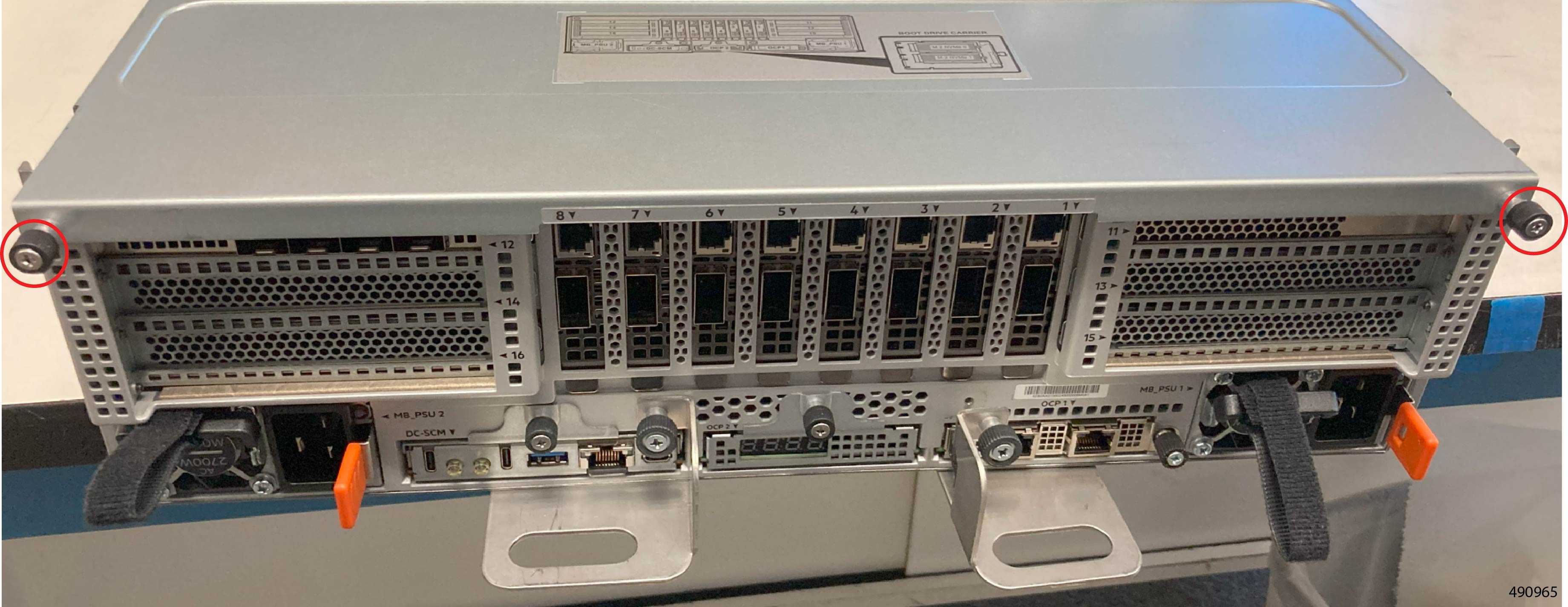
  • Before removing the CPU Tray's top cover, note the slot numbering silk screened on it. For some procedures, you will need to know a slot number(s).

Procedure


Step 1

Using your fingers, loosen the two captive thumbscrews on the front of the CPU Tray.

Step 2

Slide the cover towards you until it stops.

Step 3

Lift the CPU tray's cover off of the CPU Tray.

Step 4

Set the cover in a safe place.

Step 5

If required, remove the CPU Tray's the inner cover plate.

  1. Locate the inner cover plate and its fasteners.

    See Alignment Features for additional information.

  2. Using the #2 Phillips screwdriver, remove the two screws on the top of the inner cover.

    These screws install into threaded standoffs on the inside of the server.

Installing the CPU Tray Top Cover


Caution


The top cover must be installed while the CPU Tray is installed. Do not operate the server without the CPU Tray's top cover installed.


Use this procedure to install the CPU Tray's top cover.

Before you begin

Do the following.

  • Gather a #2 Phillips screwdriver.

  • Before installing the CPU Tray top cover, review Alignment Features.

Procedure


Step 1

If required, attach CPU Tray's the inner cover.

  1. Orient the inner cover so that the catch pins on the inner cover meet the stop grooves on the chassis.

    See Alignment Features for additional information.

  2. Using the #2 Phillips screwdriver, install the two screws on the top of the inner cover.

    These screws install into threaded standoffs on the inside of the server.

Step 2

With the top cover facing down, align the catch pins on the interior of CPU Tray's top cover with the stop grooves on the top of the server's sheetmetal walls.

On the CPU Tray top cover, notice the words STOP and arrows indicating the installation direction.

Step 3

Lower the top cover onto the server making sure that each catch pin sits inside its stop groove.

Step 4

Holding the CPU tray top cover level, slide it in the installation direction until is stops.

At this point, the cover should sit flush and snug on the CPU tray. There should be no gaps around the edges of the top cover.

Step 5

Using a #2 Phillips screwdriver or your fingers, tighten the two captive screws on the face of the CPU tray's top cover.


Installing the CPU Tray

Use this procedure to install the CPU Tray and return it to service.

Before you begin


Warning


The CPU tray is heavy! Never attempt to lift or maneuver the tray by yourself! Instead, use a lift, scissors jack, or some other device to lift and bear the weight of the CPU tray while you are installing or servicing it. If you must lift or handle the tray without mechanical assistance, use two or more people to lift and handle server. Always use safe lifting practices when lifting or moving the CPU tray.


Gather a #2 Phillips screwdriver.

Procedure


Step 1

If required, install the CPU Tray's top cover.

Installing the CPU Tray Top Cover.

Step 2

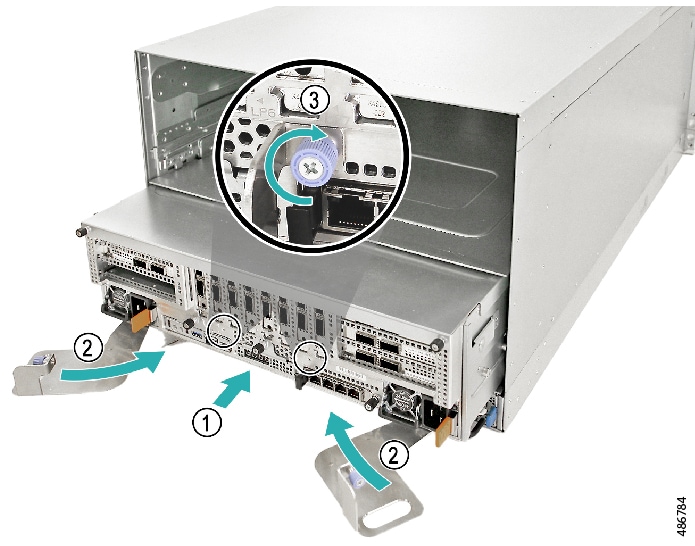
Insert the tray into the server.

  1. Make sure that the ejectors are in the open position.

  2. Using two people or mechanical means to support the weight of the CPU Tray, hold it level and slide it into the slot until you feel resistance.

    This resistance is normal. It occurs when the ejectors meet the server's sheetmetal. When the ejectors contact the sheetmetal, they should be at a 45° angle.

  3. Simultaneously push both ejectors to the closed position.

    In the closed position, the ejectors are flush with the face of the server.

  4. Using the #2 Phillips screwdriver, tighten both thumbscrews to secure the tray to the server.

    Figure 4. Installing the CPU Tray

Step 3

If required, power the server on.

Step 4

Reconnect any cables that were disconnected.


Hot Swapping a Fan Module

The server has twelve fan modules for proper cooling. Fans direct airflow front-to-back, and each fan is a hot swappable FRU. Fan replacement is a tool less procedure.

Use the following task to remove and replace a fan module.

Procedure


Step 1

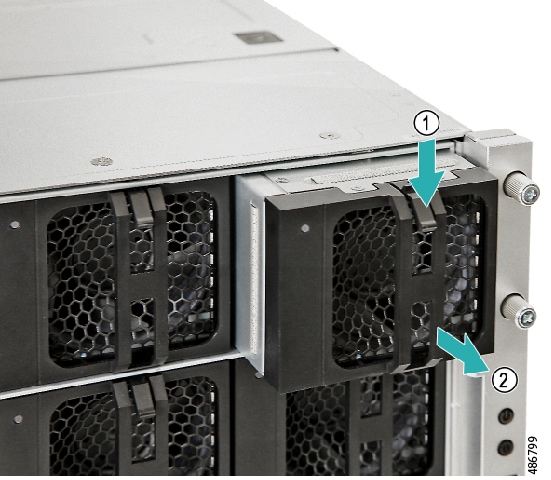
Remove the hot swap fan module.

  1. Press the latch to disengage the fan module from the cage.

    The fan has no power switch. The fan powers down when it disconnects from the server’s power.

  2. Pull the handle to detach the fan module from the server.

    Figure 5. Removing a Fan Module

Step 2

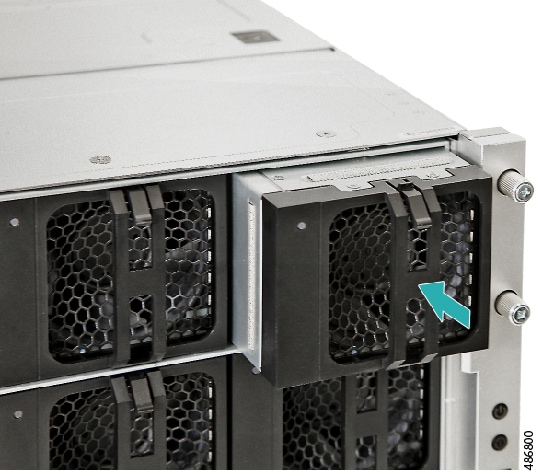
Replace the hot swap fan module:

  1. Install the hot swap fan module.

  2. Push the new fan module into the cage until it locks into place.

    The automatically powers on when it connects to the server's power.

    Figure 6. Replacing the Fan Module

Removing and Replacing a 12V Redundant PSU


Caution


Replace all cut cable ties during removal and replacement procedure. Failure to do so can result in improper airflow that can lead to thermal damage.


Warning


To reduce the risk of injury from electric shock, remove all power cords to disconnect power from the system completely.


The server's 12V PSUs are toolless FRUs. Use this task to replace a 12V PSU.

Procedure


Step 1

Disconnect the power cable.

The power supply unit has no power switch, so it powers off when you disconnect the cable.

Step 2

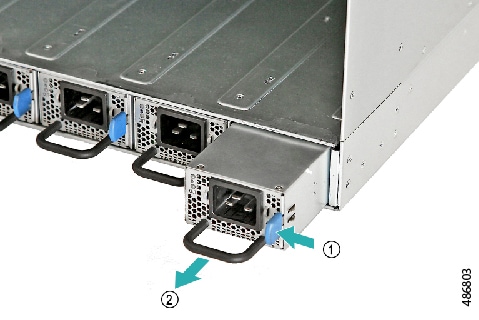
Remove the 12V redundant power supply unit.

  1. Press the latch to disengage the power supply from the CPU tray.

  2. While still pressing the latch, pull the handle to remove the power supply.

    Figure 7. Removing the 12V Redundant PSU

Step 3

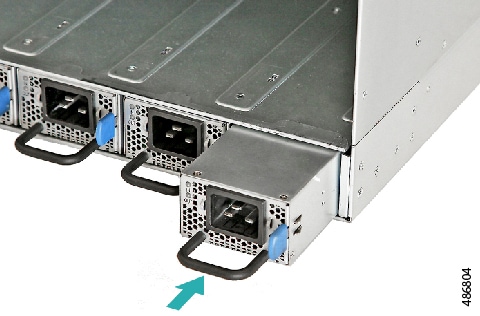
Replace the 12V redundant power supply unit.

  1. Install the 12V redundant power supply unit.

  2. Push the new power supply into the CPU tray until it locks into place.

    Figure 8. Replacing the 12V Redundant PSU

Step 4

Reconnect the power cable.

The power supply unit has no power switch, so it powers on automatically when you reconnect the cable.


Removing and Replacing a 54V Redundant AC PSU


Caution


Replace all cut cable ties during removal and replacement procedure. Failure to do so results in improper airflow that can lead to thermal damage.


Warning


To reduce the risk of injury from electric shock, remove all power cords to disconnect power from the system completely.


The server's 54V PSUs are toolless FRUs. Use this task to replace a 54V AC PSU.

Procedure


Step 1

Disconnect the power cable.

The power supply does not have a power switch, so it powers off when you disconnect the cable.

Step 2

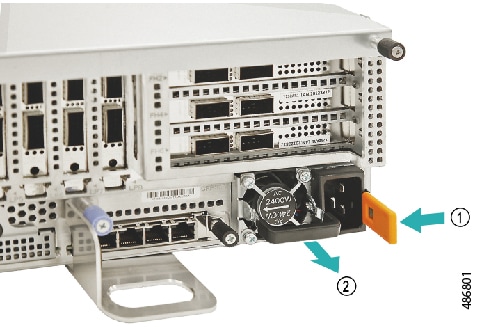
Remove the 54V redundant power supply unit.

  1. Press the latch to disengage the power supply from the power bay.

  2. While still pressing the latch, pull the handle to detach the power supply

    Figure 9. Removing the 54V Redundant AC PSU

Step 3

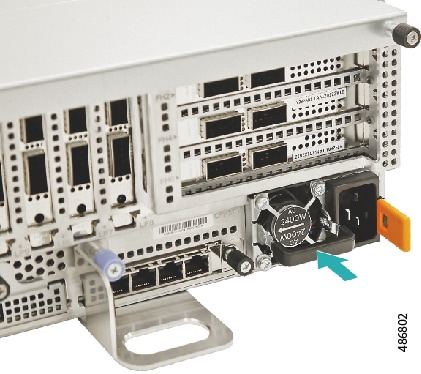
Replace the 54V redundant power supply unit.

  1. Install the 54V redundant power supply unit:

  2. Push the new power supply into the power bay until it locks into place.

    Figure 10. Replacing the 54V Redundant AC PSU

Step 4

Reconnect the power cable.

The power supply does not have a power switch, so it powers on automatically when you reconnect the cable.


Removing and Replacing an NVMe/SAS SSD Drive

The server supports hot-swappable SAS/NVMe SSDs in the front-loading drive bays below the fan modules. Each SSD is installed into a carrier that consists of a front faceplate with an ejector and a cage that houses the drive.

To replace an SSD, you remove the carrier from the chassis, then detach the SSD from the carrier. Installation is the reverse of this process.

Before you begin

To perform this procedure, you will need access to the front of the server. If you haven't already removed the front bezel, do so now.

For this procedure, gather a #2 Phillips screwdriver.

Procedure


Step 1

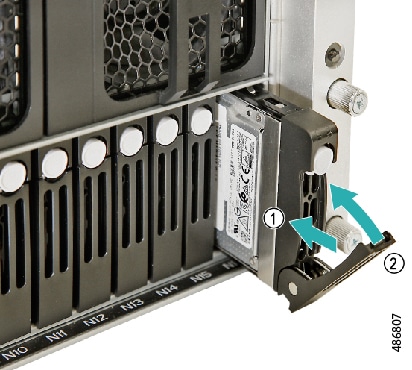
Remove the NVMe/SAS SSD carrier from the chassis.

  1. Push the drive carrier button to disengage the drive carrier bezel.

  2. Pull the ejector handle to the open position.

  3. Pull the drive carrier bezel to detach the carrier from the chassis.

    Figure 11. Removing the NVMe/SSD Carrier Assembly

Step 2

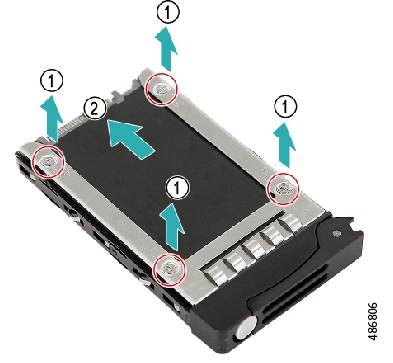
Remove the NVMe/SAS SSD drive from the carrier.

  1. Using a Phillips screwdriver, remove the four screws that secure the SSD to the carrier.

  2. Slide the NVMe/SAS SSD drive out of the carrier.

    Figure 12. Removing the NVMe/SSD from the Carrier Assembly

Step 3

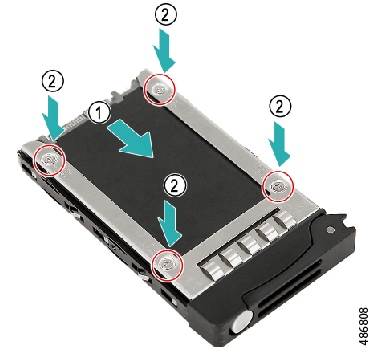
Install NVMe/SAS SSD drive to the carrier

  1. Slide the NVMe/SAS SSD drive into the carrier.

  2. Using a Phillips screwdriver, insert and tighten the four screws to secure the NVMe/SAS SSD drive to the carrier.

    Figure 13. Replacing the NVMe/SSD in the Carrier Assembly

Step 4

Install NVMe/SAS SSD carrier to the chassis.

  1. Orient the carrier so that the ejector button is at the top.

  2. Holding the carrier level, slide the NVMe/SAS SSD carrier into the chassis.

  3. Push the ejector into the closed position until it latches into place.

    Figure 14. Replacing the NVMe/SSD Carrier Assembly

Step 5

(Optional) Replace the chassis front security bezel.


Removing and Replacing the DC-SCM Module

The DC-SCM Module is part of the CPU Tray below the left CEM Module. The module is the primary interface to the server for management.

The module is a FRU that is offered in the following options depending on the type of CPU and GPU installed in the server.

DC-SCM Module

PID

UCS C885A M8 DC-SCM Card Module supporting NVIDIA GPU, 5th Gen AMD EPYC CPU

C885A-M8-DCSCM(=)

UCS C885A M8 DC-SCM Card Module supporting AMD GPU, 5th Gen AMD EPYC CPU

C885A-M8-DCSCMAA(=)

UCS C885A M8 DCSCM Card Module supporting NVIDIA GPU, 4th Gen AMD EPYC CPU

C885A-M8-DCSCMGN(=)

Use the following task to replace the DC-SCM Module.

Before you begin

For this procedure, gather a #2 Phillips screwdriver.

Procedure


Step 1

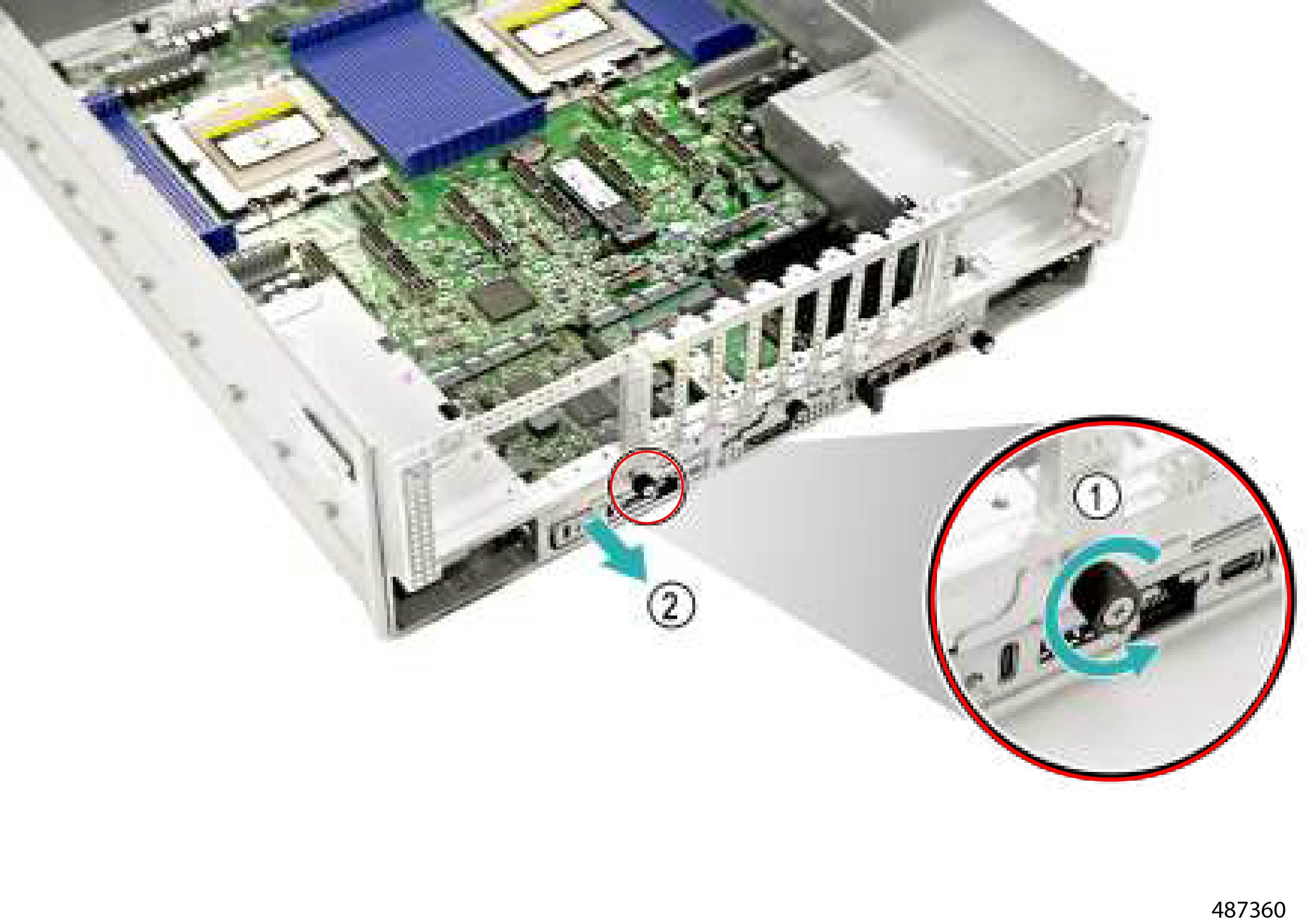
Remove the DC-SCM Module.

  1. Using a Phillips screwdriver, loosen the thumbscrew.

  2. Grasp the DC-SCM module and slide it out of the CPU Tray.

    Figure 15. Removing the DC-SCM Module

Step 2

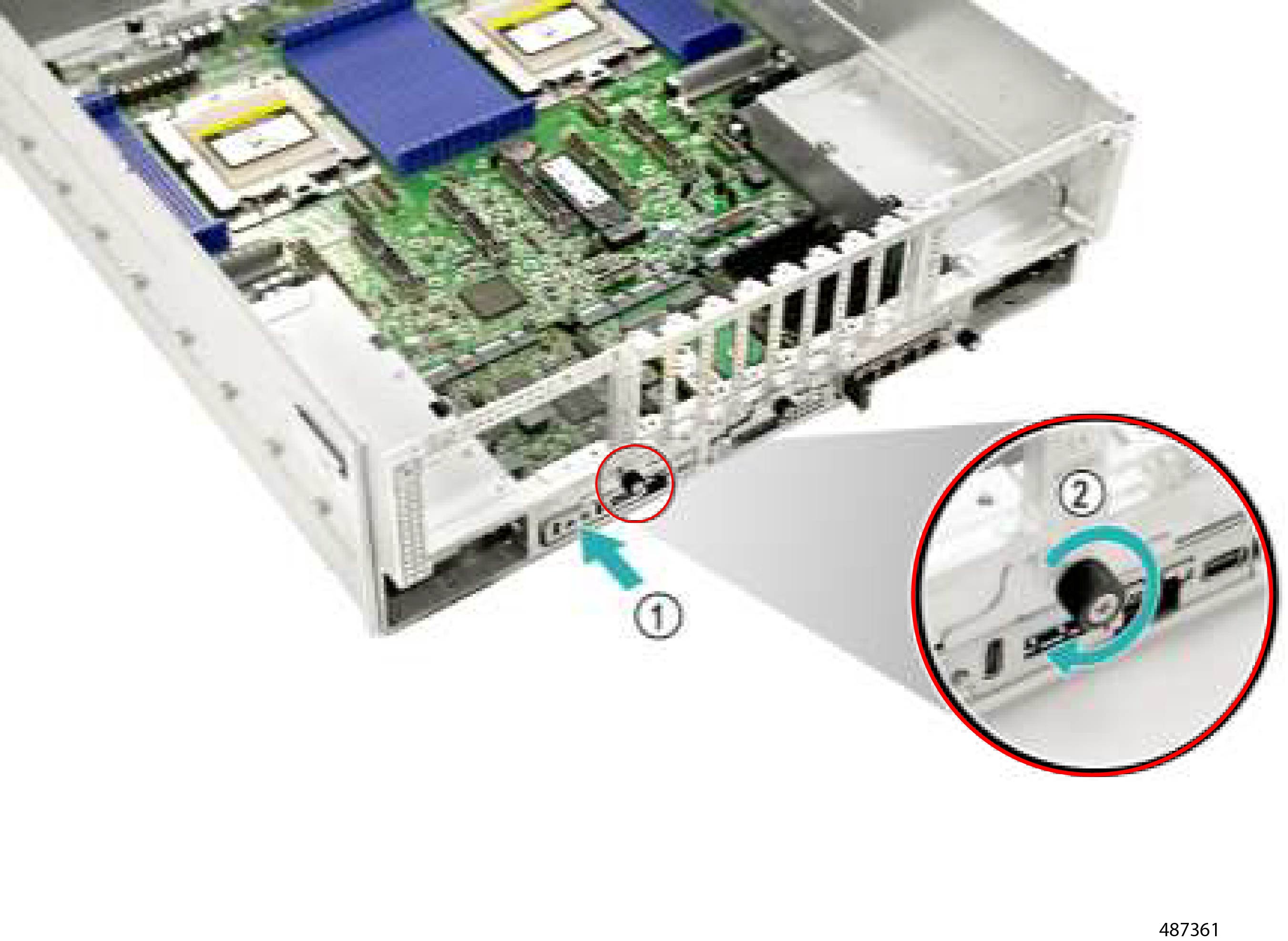
Install the DC-SCM Module.

  1. Align the DC-SCM Module with its slot on the CPU Tray.

  2. Holding the module level, slide it into the CPU Tray.

  3. When the module is flush with the CPU Tray, use the Phillips screwdriver to tighten the thumbscrews.

Figure 16. Installing the DC-SCM Module

Replacing NVIDIA BlueField3 3220 DPUs

The server's north-south traffic is supported by up to two NVIDIA BlueField3 3220 DPUs, which are field-serviceable.

The cards can be installed in slots 11 through 16 on the CPU Tray. Slots are labelled for easy slot identification.

To replace BlueField3 cards, see the following topics.

BlueField3 3220 DPU Guidelines and Restrictions

Before installing or removing an NVIDIA Bluefield3 3220 DPU (BlueField card), be aware of the following guidelines and restrictions:

  • Alignment features are present for the BlueField cards. Before attempting the installation or replacement procedure, familiarize yourself with the alignment feature for the riser cages. See Alignment Features.

  • Screws for internal components are small and can shear. Do not overtighten the screws or you risk breaking them! When installing screws, tighten them to snug only.

  • The BlueField cards are installed in riser cages on the CPU Tray. The CPU Tray is heavy and requires at least two people to lift it. When removing, installing, or otherwise handling the CPU Tray, you must have at least two people. As a best practice, use a server lift or other mechanical means to bear the weight of the CPU Tray.

  • The server supports up to two BlueField cards. Cards mount into riser cages and can be installed in any slot in the cage. However, for best practices, follow these guidelines.

    • When installing one card in the server, use slot 13, which is the middle slot on the right riser cage as you face the server rear panel.

    • When installing both cards in the server, make sure to install one card in each of the riser cages.

      • Use slot 13, which is the middle slot on the right riser cage as you face the server's rear panel.

      • Use slot 14, which is the middle slot on the left riser cage as you face the server's rear panel.

    • Even though all slots in each cage are usable, the middle slot (13 and 14) of each riser cage is easily accessible whereas the top and bottom slots of each riser cage can experience partial obstruction due to cables.

  • Due to the location of internal sheetmetal walls, if you are installing or replacing the BlueField card in the right riser cage, you will need to remove the east-west GPU (Slot 1) to gain access to that riser cage.

Accessing the BlueField3 Cards

Use this task to gain access to the BlueField3 cards.


Note


This procedure is interruptive! As part of this procedure, you must disconnect data cables and remove the CPU Tray. It is recommended to plan a maintenance window for this procedure.


Before you begin

Gather a #1 and #2 Phillips screwdriver.


Note


To access the BlueField cards, you will remove the CPU Tray which is heavy. Make sure that you have at least two people, a server lift or other mechanical means to lift and bear the weight of the CPU Tray. Always use safe lifting techniques when handling the CPU Tray.


Before attempting this procedure, familiarize yourself with the server's Alignment Features. To correctly install the BlueField cards, you will use them.

Procedure


Step 1

Remove all cables from the CPU Tray.

Step 2

Remove the CPU Tray and set it on an ESD-safe work surface.

See Removing the CPU Tray.

Step 3

Remove the CPU Tray's top cover.

See Removing the CPU Tray Top Cover.

Step 4

Remove the inner cover plate.

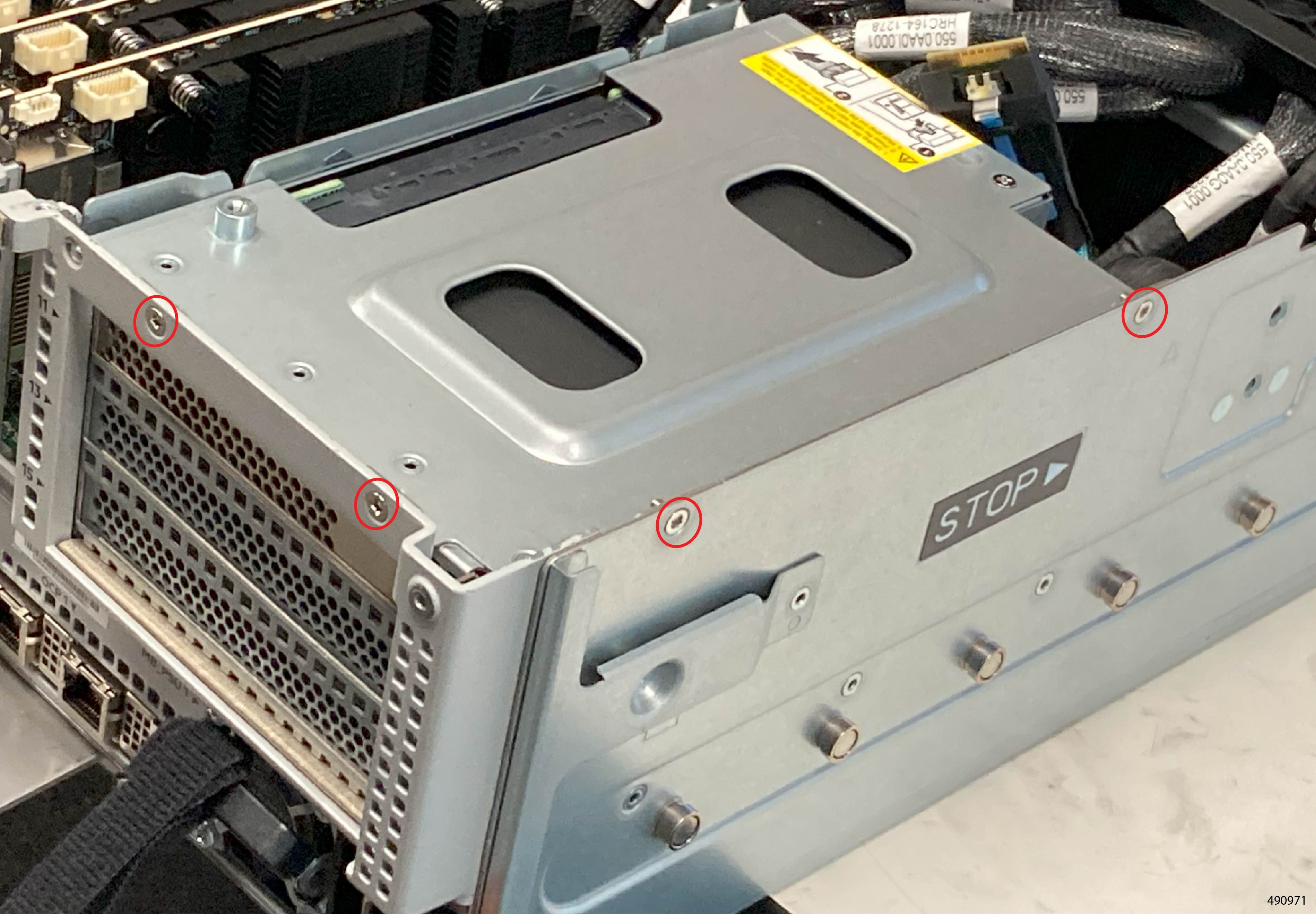
  1. Using a #2 Phillips screwdriver, loosen the four screws on the inner cover plate (two on top and two on front).

  2. Lift the inner cover plate off of the server.


What to do next

Remove the BlueField3 card.

Removing the BlueField3 Cards from the Right Riser Cage

Use this procedure to remove the BlueField card from the right riser cage (slots 11, 13, or 15). A separate procedure exists for removing the BlueField card from the left riser cage.

To remove the BlueField card from the server, you first remove the east-west GPU in slot one, then partially remove the riser cage to gain access to the BlueField card.

Use the following procedure to remove the BlueField3 card. Slot numbers are silk screened on the front of the chassis.


Note


The riser cage does not completely detach from the server due to cables that connect the server and riser cage. To gain access to the riser, you will remove screws then tip the riser cage enough to remove the BlueFeld3 card.


We recommend reading this entire procedure at least once before attempting it.

Before you begin

Gather a #1 and #2 Philips screwdriver.

Procedure


Step 1

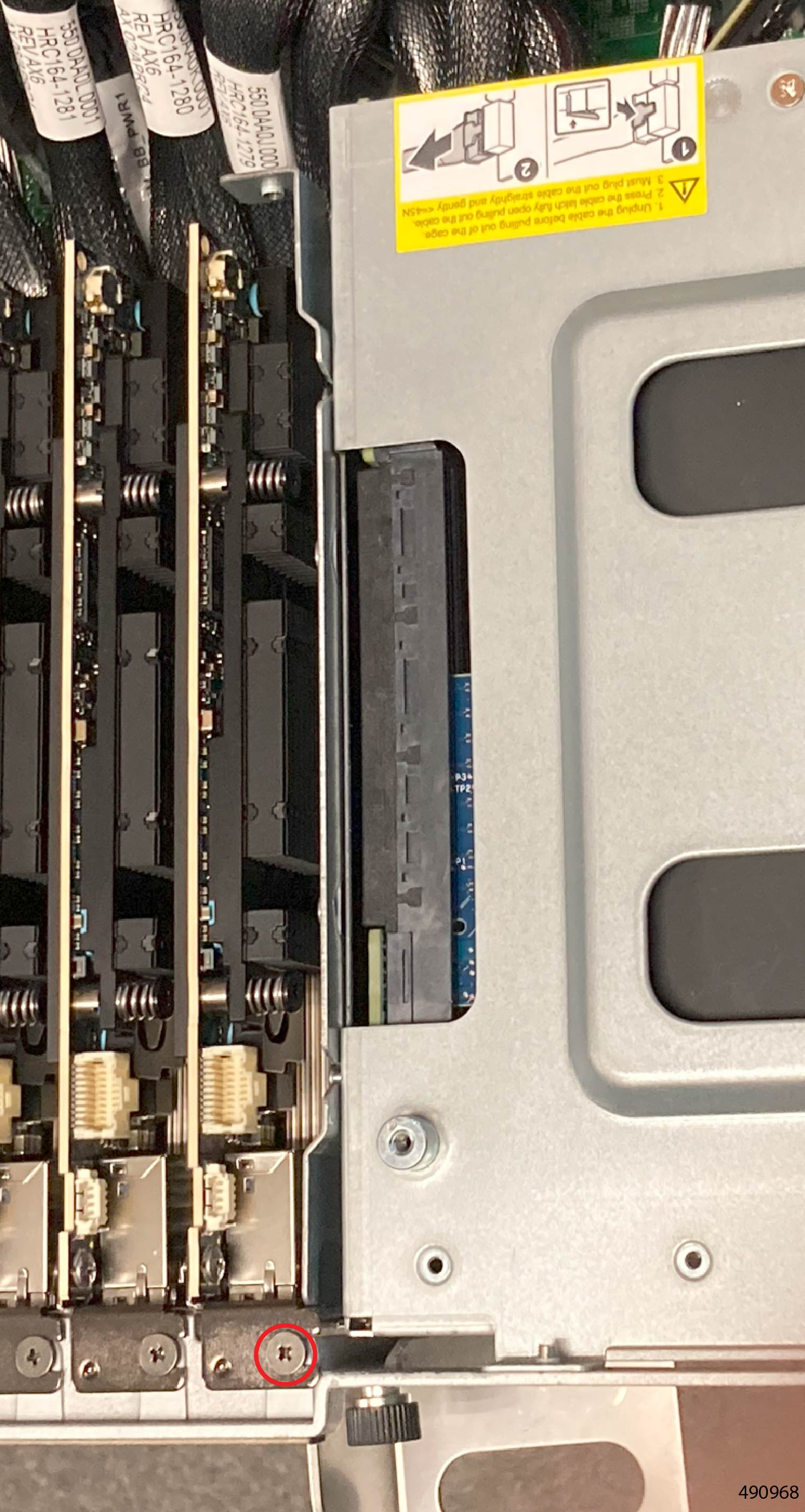
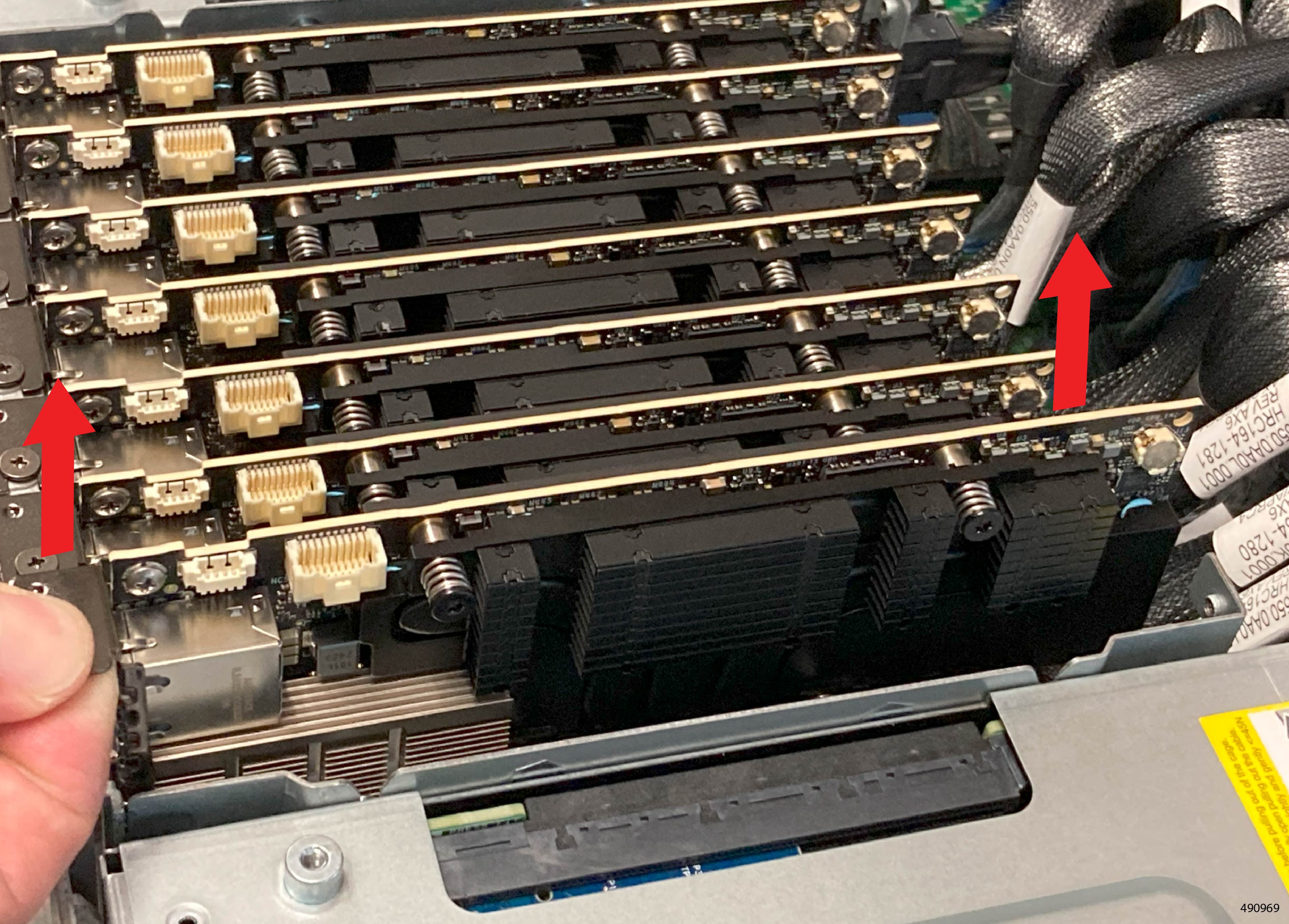
Remove the GPU card in slot 1.

  1. Use #1 Phillips screwdriver to remove the screw for the east-west GPU card in slot 1

  2. Place a finger under the metal port cage of the card in slot 1 and at the bend on the top of the card's faceplate.

  3. Lift the card up to disconnect it from its socket.

  4. Holding the card vertical, remove it from the server.

    Caution


    Do not twist, rotate, or tilt the card will removing it.

Step 2

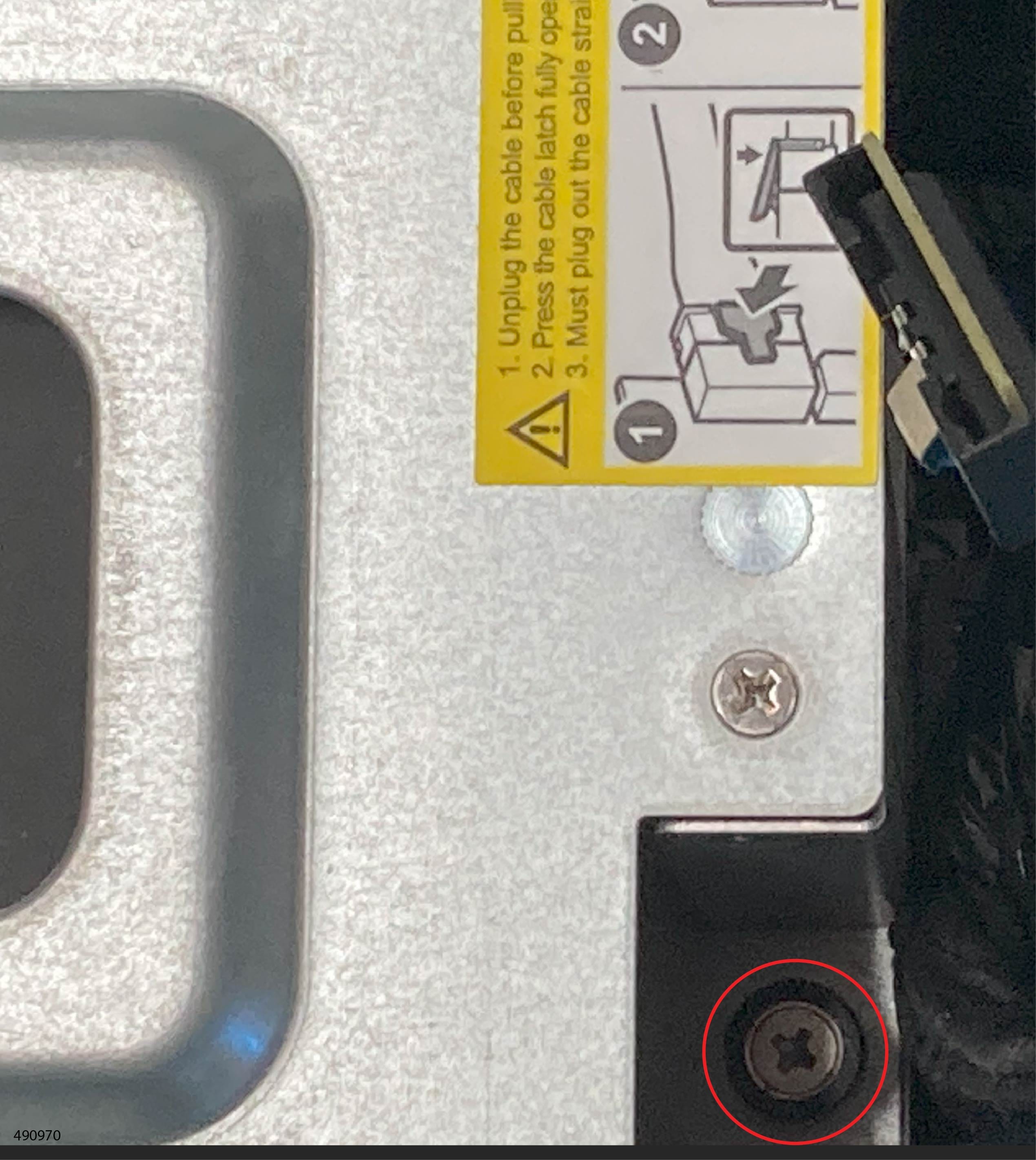
Loosen the riser cage screws.

Caution


Do not attempt to remove the riser cage at this point of the procedure.

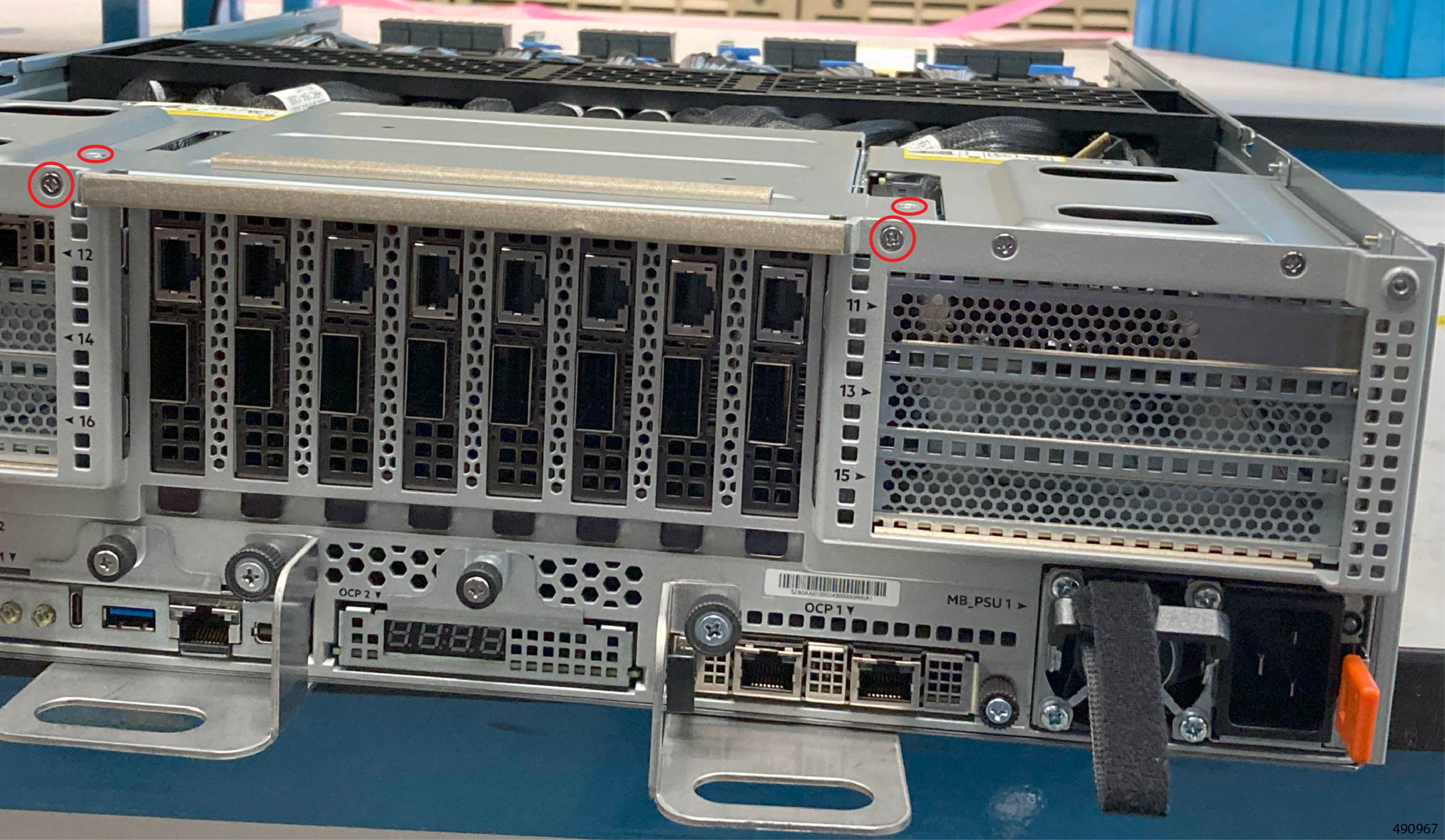
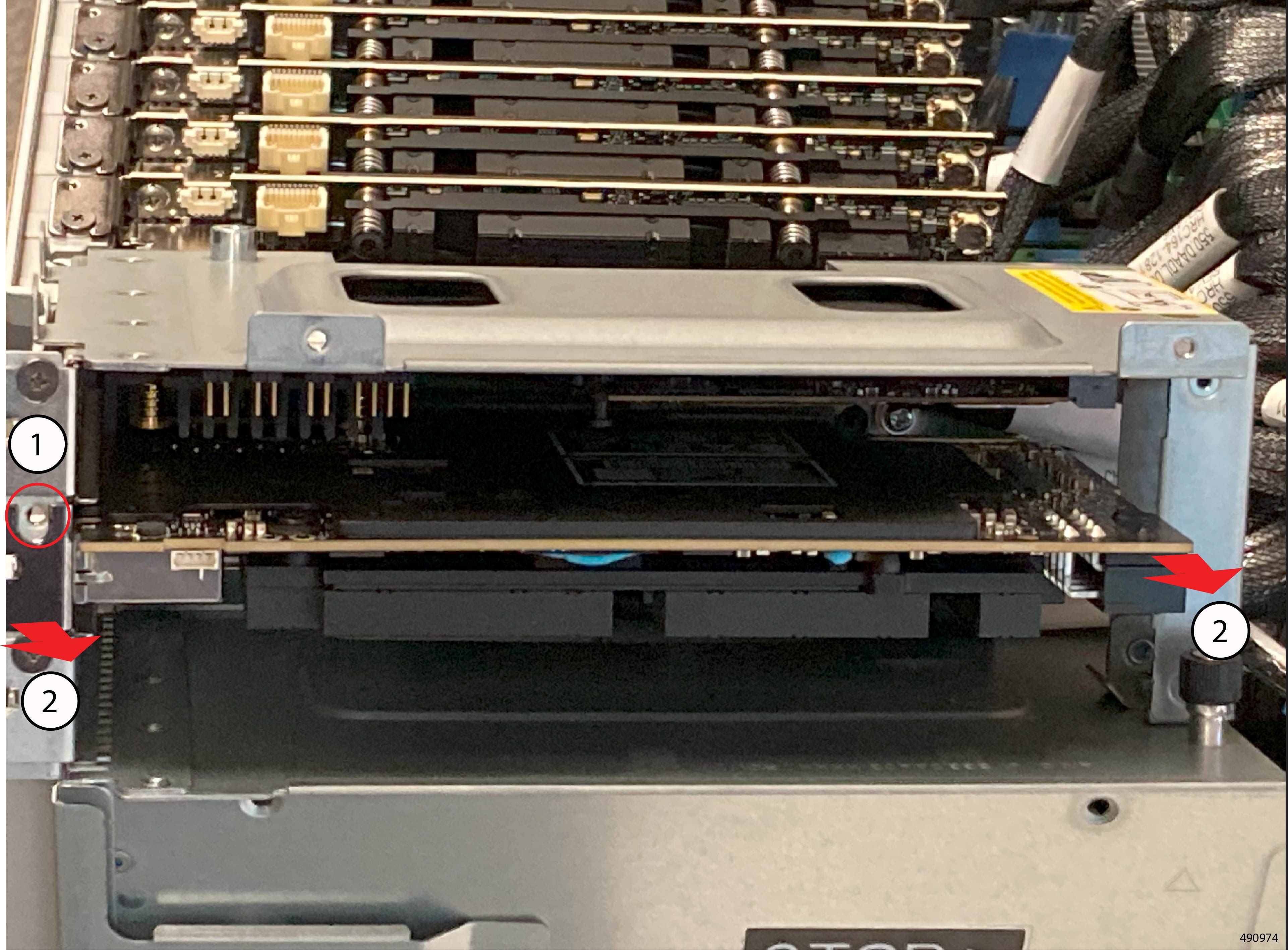
  1. Using your fingers, loosen the captive thumbscew at the rear of the riser cage.

  2. Using the #2 Phillips screwdriver, loosen the four screws, two on the front panel and two on the exterior of the chassis sidewall.

Step 3

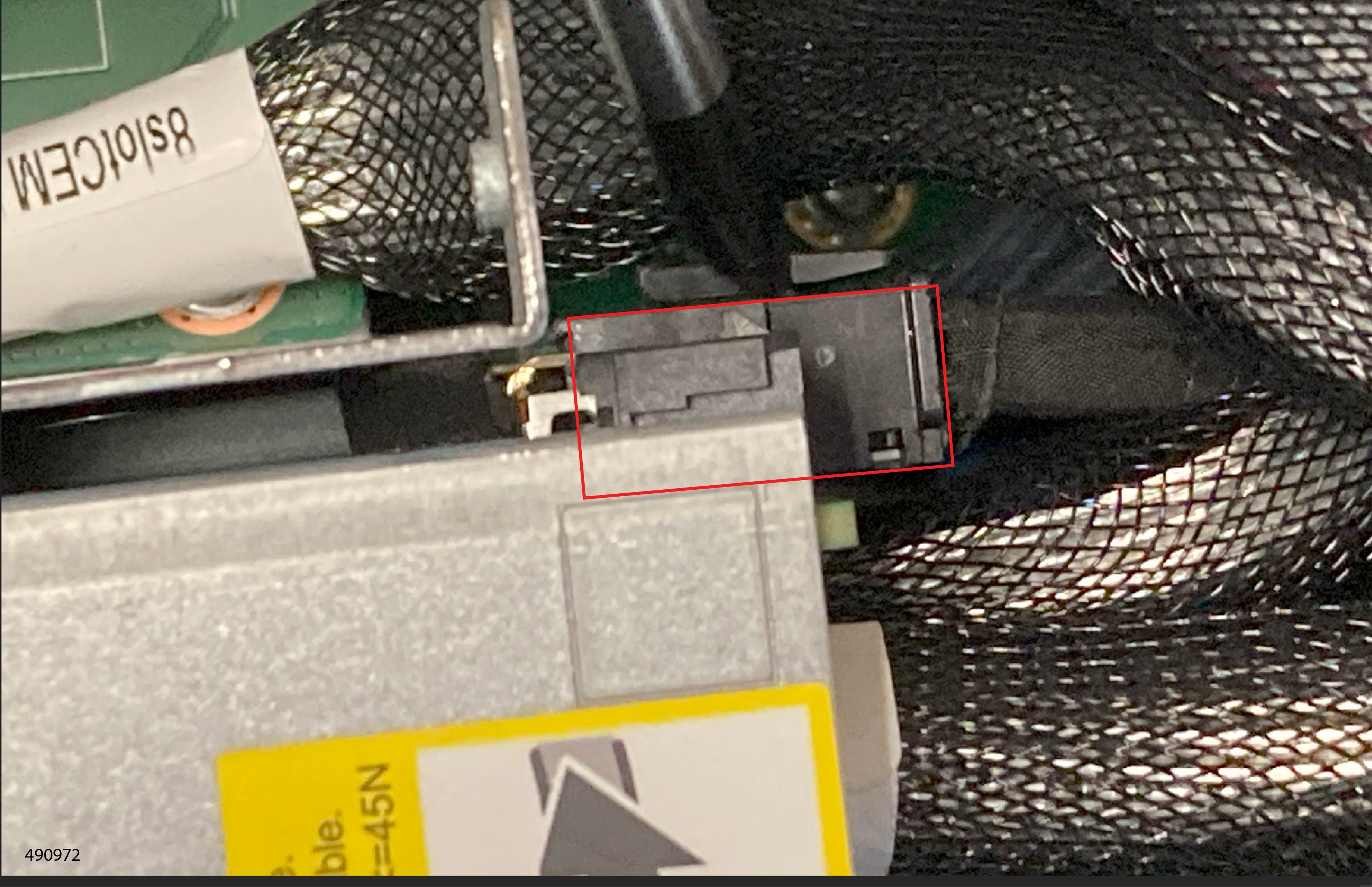
Remove the power cable, which has a locking latch.

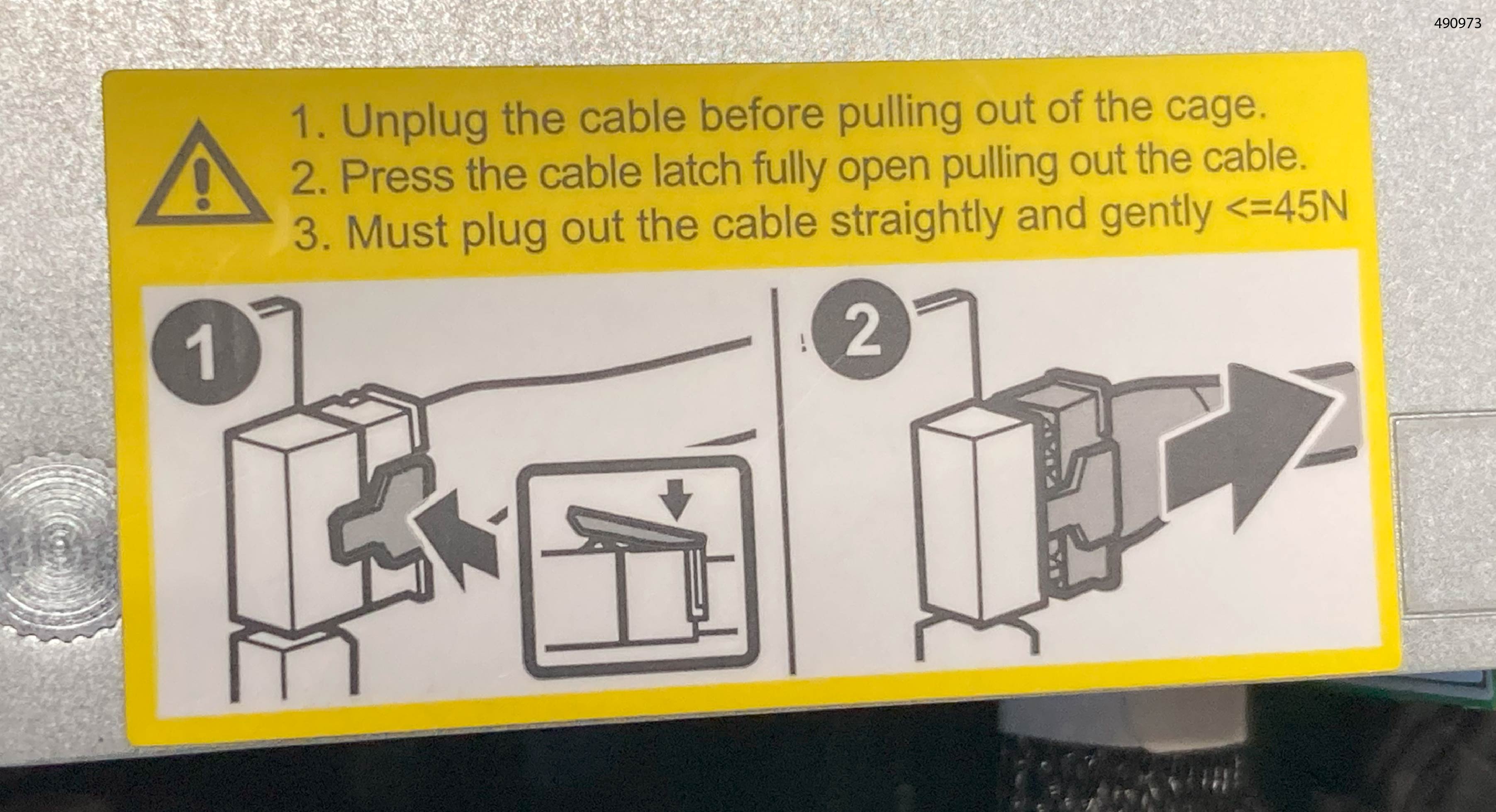
  1. Locate the latch and inspect how it connects the cable to the card or riser.

    Note


    For additional details, read the label on the riser cage.

  2. Press and hold the latch at the cable end to release the lock.

    Caution


    The latch should be pointing up. If it is not, then the latch is not fully released from the connector at the other end.

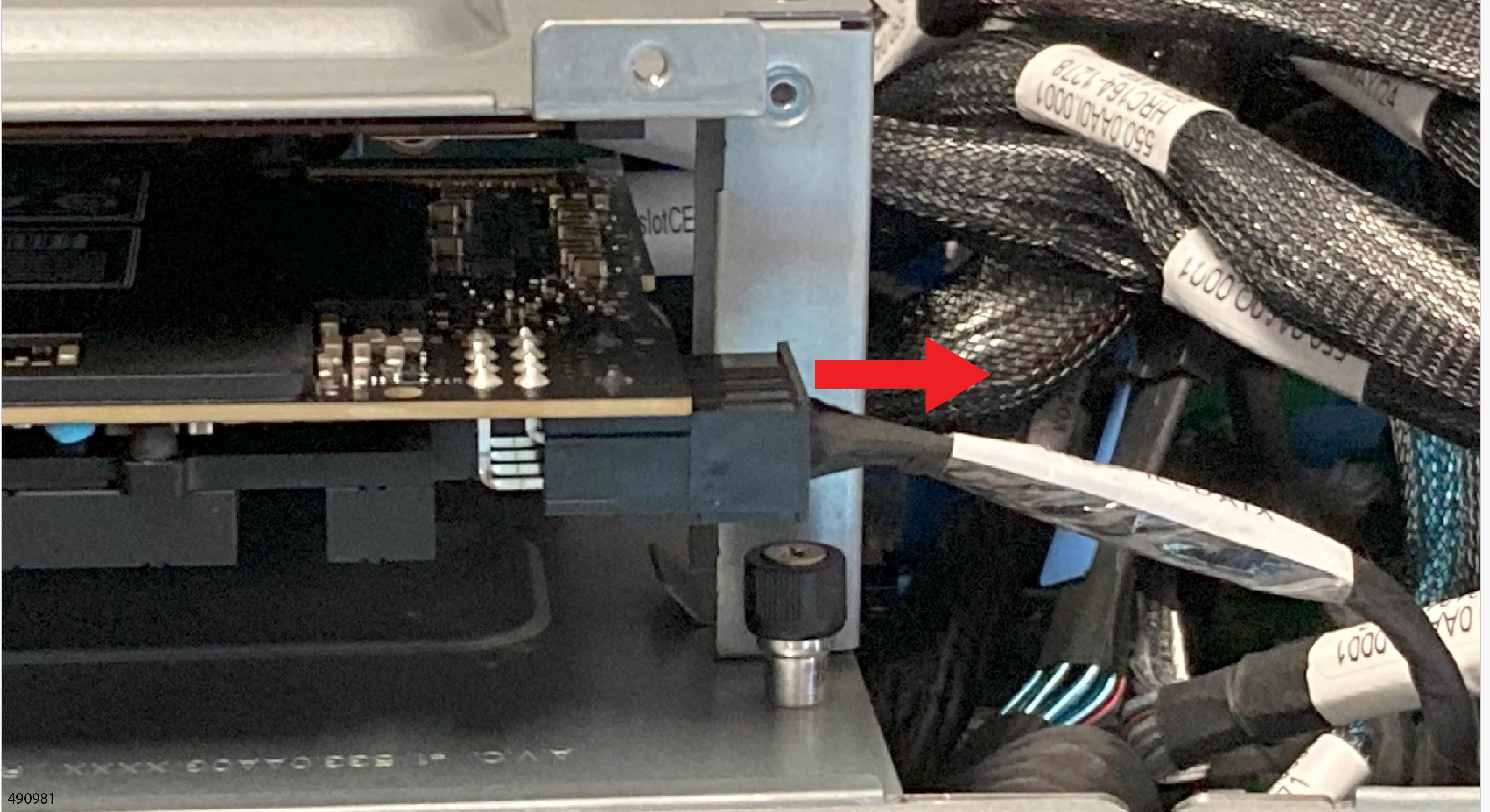
  3. While holding the latch in the released position, keep the cable and connector horizontal and gently disconnect the cable.

    Caution


    If you feel resistance, double check that the latch is fully released.

    Also, while disconnecting the cable, do not twist, tip or rotate the cable or its connector. Make sure to hold the cable horizontal. If the cable is angled more than 45° damage can occur.

Step 4

When the power cable is disconnected, do not remove the riser cage, but angle it so that you can access the card.

Step 5

Remove the card.

  1. Using the #1 Philips screwdriver, loosen the card's securing screw.

  2. Place a finger under the metal port cage on the card and at the bend on the top of the card's faceplate.

  3. Holding the card level, slide it out of the riser cage.

    Caution


    Do not twist, rotate, or angle the card while you remove it, or you risk damaging the socket in the riser cage or the card's connector.


What to do next

Install a BlueField3 card.

Installing the BlueField3 Cards into the Right Riser Cage

To install a BlueField3 card into slots 11, 13, or 15, you insert the card into the slot, connect the card power cable, then reattach the riser and replace the covers.


Caution


Unless otherwise documented, make sure to handle the GPU by its edges. Do not use any connectors as grasp points.


BlueField cards install with the components facing down. Cards are keyed so that they can install only one way.

Before you begin

Gather a #1 and #2 Phillips screwdriver.

Procedure


Step 1

If you have not already done so, remove the new BlueField card from its packaging.

Step 2

Locate the connector and the alignment slot that meets the card's faceplate.

See the Riser Cage Alignment features in Alignment Features.

Step 3

Install the card.

  1. Insert the card so that the tab on the faceplate is inserted into the alignment slot and the card connector is firmly seated into the socket.

  2. Insert and tighten the card's securing screw.

Step 4

Attach the GPU power cable.

Step 5

Install the riser cage.

Caution


Beware of obstruction! Due to the CEM cables attached to the riser cage, there is limited space. When you install the riser cage, make sure that no cables are pinched or bent at a severe radius.

Also, if any additional cables are present, they can be tucked away so that they don't obstruct installing the riser cage.

  1. Seat the riser cage into the server so that it sits flush into the server.

    If the riser cage does not sit flush, check for obstruction.

  2. Check the edges of the riser cage where they meet the server's sheetmetal walls.

    The screwholes should line up.

  3. Using the #2 Phillips screwdriver, tighten the captive thumbscrew at the rear of the riser cage.

  4. Using the #1 Phillips screwdriver, install and tighten the four screws, two at the front of the server and two on the right side.

Step 6

Install the east-west GPU in slot 1.

  1. Orient the card vertically so that the connector is facing down.

  2. Holding the GPU vertical, install it into slot 1.

  3. Using the #1 Phillips screwdriver, install the securing screw.


What to do next

Return the server to service.

Removing the BlueField3 Cards from the Left Riser Cage

Use this procedure to remove the BlueField card from the left riser cage (slots 12, 14, and 16). A separate procedure exists for removing the BlueField card from the Left Riser cage.

To remove the BlueField card from the server, partially remove the riser cage to gain access to the BlueField card.

Use the following procedure to remove the BlueField3 card. Slot numbers are silk screened onto the front of the chassis.


Note


The riser cage does not completely detach from the server due to cables that connect the server and riser cage. To gain access to the riser, you will remove screws then tip the riser cage enough to remove the BlueFeld3 card.


We recommend reading this entire procedure at least once before attempting it.

Before you begin

Gather a #1 and #2 Philips screwdriver.

Procedure


Step 1

If you haven't already gained access to the BlueField NICs, do so now.

  1. Remove the CPU Tray.

  2. Remove the CPU Tray's top cover.

  3. Remove the CPU Tray's inner cover.

Step 2

Loosen the riser cage screws.

Caution


Do not attempt to remove the riser cage at this point of the procedure.

  1. Using your fingers, loosen the captive thumbscrew at the rear of the riser cage.

  2. Using the #2 Phillips screwdriver, loosen the four screws, two on the front panel and two on the exterior of the chassis sidewall.

Step 3

Remove the power cable, which has a locking latch.

  1. Locate the latch and inspect how it connects the cable to the card or riser.

    Note


    For additional details, read the label on the riser cage.

  2. Press and hold the latch at the cable end to release the lock.

    Caution


    The latch should be pointing up. If it is not, then the latch is not fully released from the connector at the other end.

  3. While holding the latch in the released position, keep the cable and connector horizontal and gently disconnect the cable.

    Caution


    If you feel resistance, double check that the latch is fully released.

    Also, while disconnecting the cable, do not twist, tip or rotate the cable or its connector. Make sure to hold the cable horizontal. If the cable is angled more than 45° damage can occur.

Step 4

When the power cable is disconnected, do not remove the riser cage, but angle it so that you can access the card.

Step 5

Remove the card.

  1. Using the #1 Philips screwdriver, loosen the card's securing screw.

  2. Place a finger under the metal port cage on the card the bend on the top of the card's faceplate.

  3. Holding the card level, slide it out of the riser cage.

    Caution


    Do not twist, rotate, or angle the card while you remove it, or you risk damaging the socket in the riser cage or the card's connector.


What to do next

Install a BlueField3 card in the left riser cage.

Installing the BlueField3 Cards into the Left Riser Cage

To install a BlueField3 card into slot 12, 14, or 16, you insert the card into the slot, connect the power cable, then reattach the riser and replace the covers.


Caution


Unless otherwise documented, make sure to handle the GPU by its edges. Do not use any connectors as grasp points.


BlueField cards install with the components facing down. Cards are keyed so that they can install only one way.

Before you begin

Gather a #1 and #2 Phillips screwdriver.

Procedure


Step 1

If you have not already done so, remove the new BlueField card from its packaging.

Step 2

Locate the connector and the alignment slot that meets the card's faceplate.

See Riser Cage Alignment Features in Alignment Features.

Step 3

Install the card.

  1. Insert the card so that the tab on the faceplate is inserted into the alignment slot and the card connector is firmly seated into the socket.

  2. Insert and tighten the card's securing screw.

Step 4

Attach the GPU power cable.

Step 5

Install the riser cage.

Caution


Beware of obstruction! Due to the CEM cables attached to the riser cage, there is limited space. When you install the riser cage, make sure that no cables are pinched or bent at a severe radius.

Also, if any additional cables are present, they can be tucked away so that they don't obstruct installing the riser cage.

  1. Seat the riser cage into the server so that it sits flush into the server.

    If the riser cage does not sit flush, check for obstruction.

  2. Check the edges of the riser cage where they meet the server's sheetmetal walls.

    The screwholes should line up.

  3. Using the #2 Phillips screwdriver, tighten the captive thumbscrew at the rear of the riser cage.

  4. Using the #1 Phillips screwdriver, install and tighten the four screws, two at the front of the server and two on the right side.


What to do next

Return the server to service.

Closing Up the CPU Tray

After performing field-service, use this procedure to close up the server and return it to service.

Before you begin

Gather a #2 Phillips screwdriver.

Procedure


Step 1

Orient the inner cover so that the catch pins on the inner cover meet the stop grooves on the chassis.

See Alignment Features for additional information.

Step 2

Using the #2 Phillips screwdriver, install the inner covers.

Step 3

Install the inner cover plate.

  1. Align the two top screw holes on inner cover plate with the two threaded standoffs.

  2. Using a #2 Phillips screwdriver, insert the four screws on the inner cover plate.

Step 4

Install the CPU Tray's top cover.

Installing the CPU Tray Top Cover.

Step 5

Insert the tray into the server.

See Installing the CPU Tray

Step 6

If required, power the server on.

Step 7

Reconnect any cables that were disconnected.