Installing the Server

This chapter contains the following topics:

Installation Warnings and Guidelines


Note


Before you install, operate, or service a server, review the Regulatory Compliance and Safety Information for Cisco UCS C-Series Servers for important safety information.


Warning


The fully configured server weighs approximately 265 lbs. (120 kg)! Never attempt to lift the server by yourself! Instead, use a lift, scissors jack, or some other device to lift and bear the weight of the server while you are installing or servicing it. If you must lift or handle the server without mechanical assistance, use two or more people to lift and handle server. Always use safe lifting practices when lifting or moving the server.


Caution


When connecting the chassis to facility power, make sure not to overload the capacity of a PDU or power strip. For example, do not connect all PSUs to one PDU or power strip that is not capable of carrying the total power draw of the chassis.


Caution


To ensure proper airflow, it is necessary to rack the servers using rail kits. Physically placing the units on top of one another (“stacking”) without the use of the rail kits blocks the air vents on top of the servers, which could result in overheating, higher fan speeds, and higher power consumption. We recommend that you mount your servers on rail kits when you are installing them into the rack because these rails provide the minimal spacing required between the servers. No additional spacing between the servers is required when you mount the units using rail kits.


Caution


Avoid uninterruptible power supply (UPS) types that use ferroresonant technology. These UPS types can become unstable with systems such as the Cisco UCS, which can have substantial current draw fluctuations from fluctuating data traffic patterns.


When you are installing a server, use the following guidelines:

  • Plan your site configuration and prepare the site before installing the server. See the Cisco UCS Site Preparation Guide for the recommended site planning tasks.

  • Ensure that there is adequate space around the server to allow for accessing the server and for adequate airflow. The airflow in this server is from front to back.

  • Ensure that the site air-conditioning meets the thermal requirements listed in the Environmental Specifications.

  • Ensure that the site power meets the power requirements listed in the Power Specifications. If available, you can use an uninterruptible power supply (UPS) to protect against power failures.

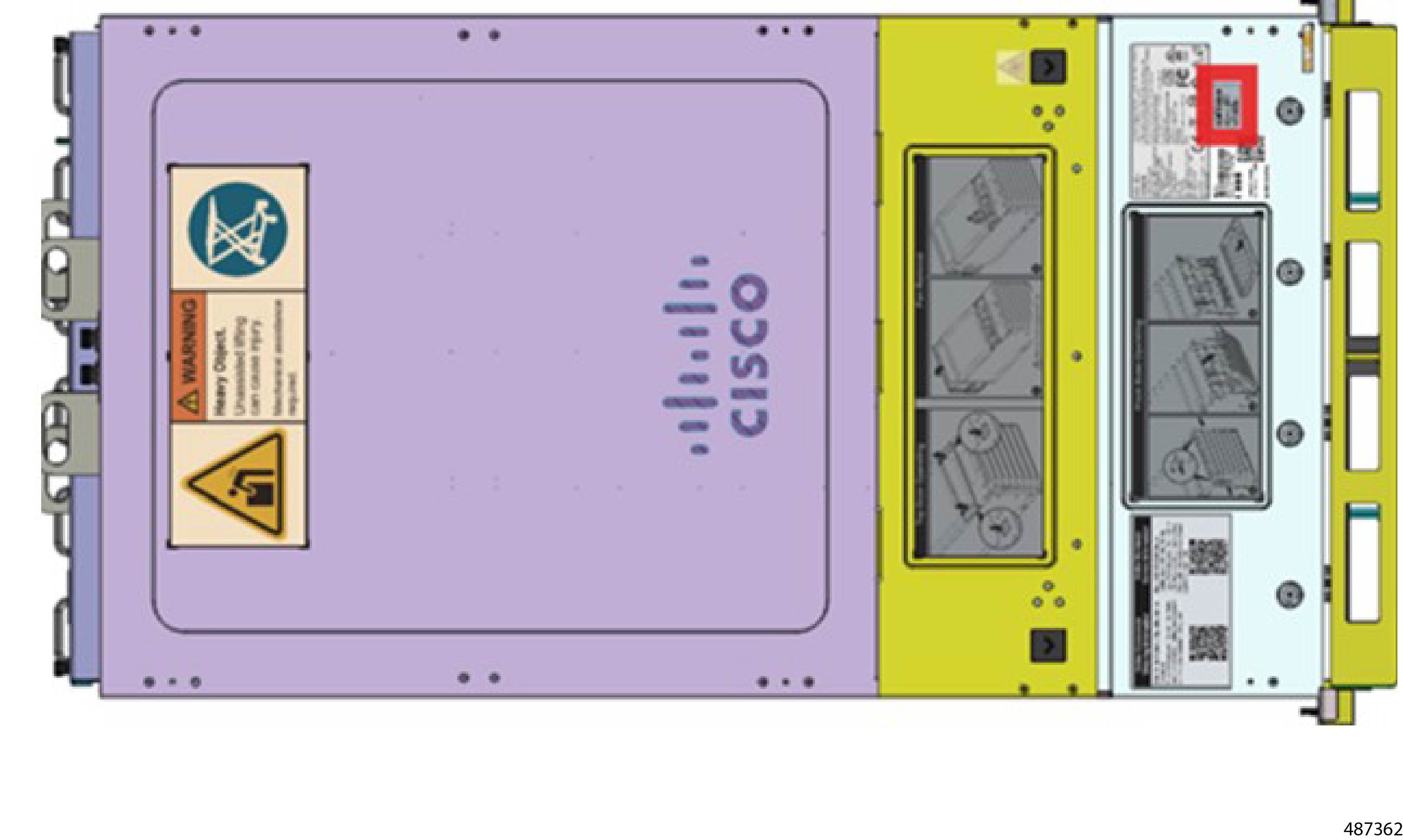
  • Before attempting rack installation of the server, you will find it helpful to note important information, such as the server's MAC address and serial number. This information is on a label at the top right corner of the server.
    Figure 1. Location of MAC Address Label
Statement 1005—Circuit Breaker


Warning


This product relies on the building’s installation for short-circuit (overcurrent) protection. To reduce risk of electric shock or fire, ensure that the protective device is rated not greater than: 240V, 16 A.


Statement 1071—Warning Definition


Warning


IMPORTANT SAFETY INSTRUCTIONS

Before you work on any equipment, be aware of the hazards involved with electrical circuitry and be familiar with standard practices for preventing accidents. Read the installation instructions before using, installing, or connecting the system to the power source. Use the statement number at the beginning of each warning statement to locate its translation in the translated safety warnings for this device.

SAVE THESE INSTRUCTIONS


Statement 1074—Comply with Local and National Electrical Codes


Warning


To reduce risk of electric shock or fire, installation of the equipment must comply with local and national electrical codes.


Statement 1017—Restricted Area


Warning


This unit is intended for installation in restricted access areas. Only skilled, instructed, or qualified personnel can access a restricted access area.


Rack Requirements

Rack Specification

The rack must be of the following type:

  • Rack Type: A standard 19-inch (48.3 cm) wide, four-post EIA rack.

  • Mounting Posts: Must conform to universal hole spacing as per ANSI/EIA-310-D-1992.

  • Rack-Post Holes:

    • Square: 9.5 mm

    • Round: 7.1 mm

  • Vertical Rack Space: Minimum vertical rack space per server is 2 rack units (2U), equal to 3.5 inches (88.9 mm).

Slide Rail Specifications

  • Slide Type: L-shelf

  • Install Type: Toolless

  • Slide Length: 645 mm

  • Working Load: 150 kg

  • Supported Rack Range: 645~917 mm

  • Supported Chassis Width: 448 mm

  • Use Space: 2U*645 mm

  • UL Strength Test: Yes

A Cisco Slide Rail Kit is shipped with the server or with a replacement chassis.

Tools Required for Rack Installation

Following tools are required:

  • #2 Phillips Screwdriver

  • Server lift, lift table, or other mechanical means to support the server's weight. If a server lift or lift table is not available, make sure to use at least two people to lift or maneuver the server.

Installing the Server

Before you begin

  • Ensure the floor where the rack is placed can support the combined weight of the rack, server, and any other equipment.

  • Have a team of at least two to three people to assist with lifting and positioning the server.

  • Clear the area around the rack to ensure there is enough space to work.

  • Inspect the rack and server for any damage before starting the installation.

  • Consult Installation Warnings and Guidelines.

Procedure


Step 1

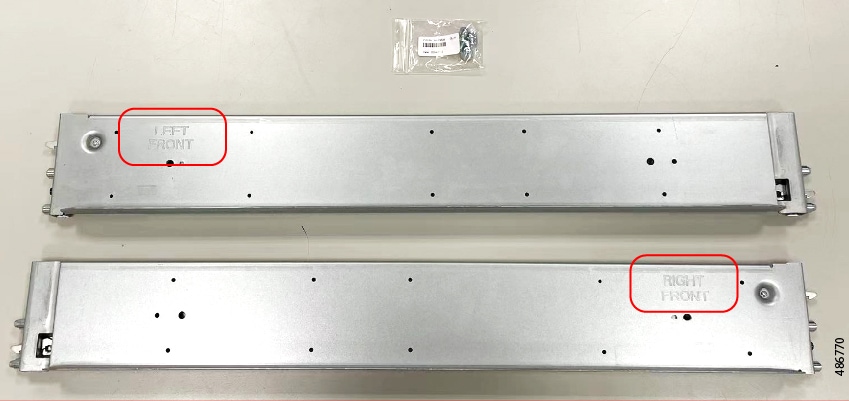
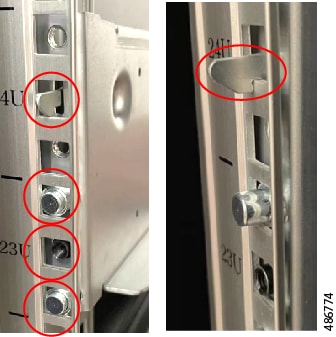
Locate the Left Front and Right Front rails.

Each rail should have 4 screws.

Figure 2. Left Front and Right Front Rails

Step 2

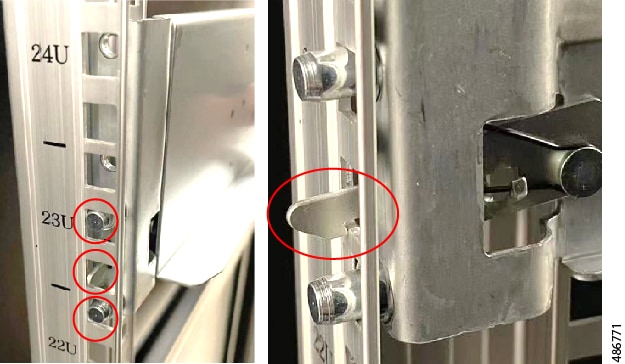
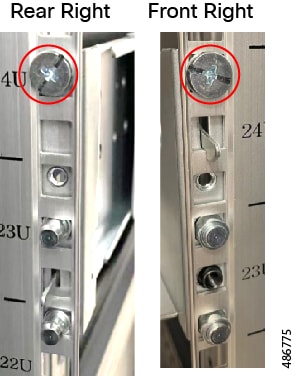
Install the rear right and left rails.

  1. Align the guide pins of the right rail with the rack holes on the rear right side.

  2. Push the rail until it hooks into position.

  3. Check whether the rail hook position is hooked.

    Figure 3. Rear Right Rail
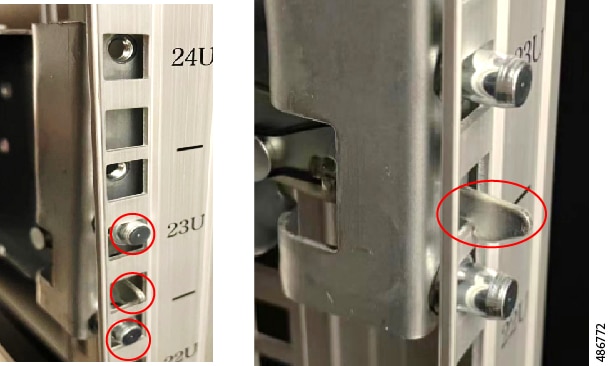
  4. Align the guide pins of the left rail with the rack holes on the rear left side.

  5. Push the rail until it hooks into position.

  6. Check whether the rail hook position is hooked.

    Figure 4. Rear Left Rail

Step 3

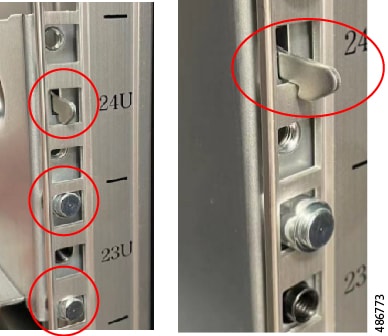
Install the front right and left rails.

  1. Align the guide pins of the right rail with the rack holes on the front right side.

  2. Push the rail until it hooks into position.

  3. Check whether the rail hook position is hooked.

    Figure 5. Front Right Rail
  4. Align the guide pins of the left rail with the rack holes on the front left side.

  5. Push the rail until it hooks into position.

  6. Check whether the rail hook position is hooked.

    Figure 6. Front Left Rail

Step 4

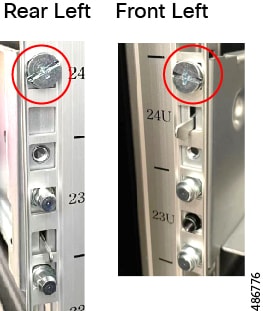
Secure the rails.

  1. For the rear right and front right rail: Ensure the rails are aligned and locked by screws.

    Figure 7. Rear Right / Front Right
  2. For the rear left and front left rail: Ensure the rail is aligned and locked by screws.

    Figure 8. Rear Right / Front Right

Step 5

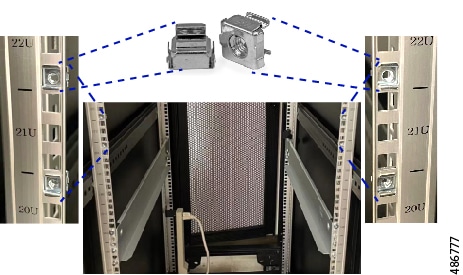
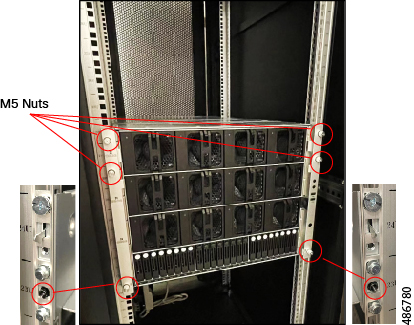
Install four M5 nuts on the left and right side rack mounts.

Figure 9. M5 Nuts Installation

Step 6

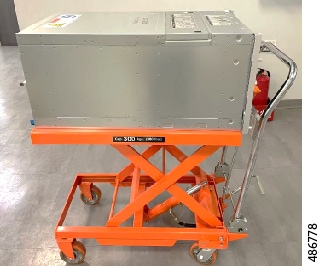
Using a mechanical lift or scissors jack (not included) align the server at the correct height in the rack.

If a server lift is not available, you will need at least two people to lift the chassis into place.

Warning


The fully configured server weighs approximately 265 lbs. (120 kg)! Never attempt to lift the server by yourself! Instead, use a lift, scissors jack, or some other device to lift and bear the weight of the server while you are installing or servicing it. If you must lift or handle the server without mechanical assistance, use two or more people to lift and handle server. Always use safe lifting practices when lifting or moving the server.

Figure 10. Server on Server Lift

Step 7

Carefully slide the server into the rack, ensuring it aligns with the rails and position the server correctly within the rack.

Step 8

Secure the server in the rack.

  1. Ensure that the server is securely fastened with four M5 nuts on the left and right sides.

  2. Use a #2 screwdriver to tighten the thumbscrews.

    Figure 11. Tightening Thumbscrews

Step 9

When the server is installed in the rack and all trays are in place, connect the PSUs to facility power.

The server will power up when the facility power circuit is energized. As part of the server boot up sequence, a power on self-test (POST) occurs. If an error is encountered, a POST error code is displayed, if available. For more information, go to POST Error Codes.


Initial Server Setup

After rack installation and power on, the server can be assigned an IP address and connected to server management through the Cisco Baseboard Management Controller (BMC) to enable the server to operate in standalone mode.

Server Default Settings

The server is shipped with these default settings:

  • The NIC mode is dedicated.

    If you want to use the 1-Gb/10-Gb Ethernet ports on the OCP NIC to access the Cisco Integrated Management Interface, and enable Shared NIC from the WebGUI after completing Cisco BMC Network Setting configuration.

  • Make sure that the following Network Settings for the Cisco BMC configuration are set.

    • Use Domain Name is enabled

    • Use DNS Servers is enabled

    • Use NTP Servers is enabled

    • Use Shared NIC (eth1) is disabled.

  • DCHP is enabled

  • IPv4 is enabled

Server Connection Methods

There are two methods for connecting to the system for initial setup:

  • Local setup—Use this procedure if you want to connect a keyboard and monitor directly to the system for setup. This procedure requires a Mini-DVI to VGA adapter connecting to the rear of the server.

  • Remote setup—Use this procedure if you want to perform setup through your dedicated management LAN.


Note


To configure the system remotely, you must have a DHCP server on the same network as the system. Your DHCP server must be preconfigured with the range of MAC addresses for this server node.


The server's MAC address is printed on a label that is on the top right corner of the server. The MAC address printed on the label is the beginning of the range of six contiguous MAC addresses.

Use the following topics to connect to the server.

Connecting to the Server Locally For Setup

This procedure requires the following equipment:

  • VGA monitor

  • USB keyboard

  • The appropriate cable to connect the Mini Display Port to the monitor

Procedure

Step 1

Connect a USB keyboard and a monitor to the server using a Mini Display Port cable.

Step 2

Attach a power cord to each power supply in your server, and then attach each power cord to a grounded AC power outlet.

Wait a few minutes to let the server boot to standby power during the first bootup. The Seven-Segment LEDs should read “FF_03”. You can verify system power status by looking at the system Power Status LED on the front panel. The system is in standby power mode when the LED is blinking green.

The following table shows the LED blink codes.

Status

Status Description

Off

Power is off.

Green, fast blink

Pre-S5, preliminary shutdown. The server is preparing to go into full shutdown (S5).

Green, slow blink

S5, full shutdown. The server and all components are in the off state. No compute functions are supported.

Green, solid

S0, full power on. The server and all its components are in the on state. Compute functions are supported.

Amber, solid

Warning

Step 3

Configure the Cisco BMC Settings.

  1. Press the front panel power button to boot the server.

  2. During bootup, press DEL or ESC when prompted to open the BIOS Setup Menu. Use the arrow key to navigate to the Server Mgmt page.

  3. Using the arrow keys, move down to BMC Network Configuration

Step 4

Continue with Configuring Cisco BMC Network Settings.


Connecting to the Server Remotely For Setup

This procedure requires the following equipment:

  • One RJ-45 Ethernet cable that is connected to your management LAN.

Before you begin

Note


To configure the system remotely, you must have a DHCP server on the same network as the system. Your DHCP server must be preconfigured with the range of MAC addresses for this server node. The MAC address is printed on a label that is on the top right corner of the server. See Installation Warnings and Guidelines.
Procedure

Step 1

Plug your management Ethernet cable into the dedicated management port on the rear panel.

Step 2

Attach a power cord to each power supply in your server, and then attach each power cord to a grounded AC power outlet.

Wait a few minutes to let the server boot to standby power during the first bootup. The Seven-Segment LEDs should read “FF_03”. You can verify system power status by looking at the system Power Status LED on the front panel. The system is in standby power mode when the LED is blinking green.

The following table shows the LED blink codes.

Status

Status Description

Off

Power is off.

Green, fast blink

Pre-S5, preliminary shutdown. The server is preparing to go into full shutdown (S5).

Green, slow blink

S5, full shutdown. The server and all components are in the off state. No compute functions are supported.

Green, solid

S0, full power on. The server and all its components are in the on state. Compute functions are supported.

Amber, solid

Warning

Step 3

Allow your preconfigured DHCP server to assign an IP address to the server node.

Step 4

Use the assigned IP address to access and log in to the Cisco IMC for the server node. Consult with your DHCP server administrator to determine the IP address.

Note

 
The default user name for the server is root. The default password is password.

Step 5

From the KVM page under Operations, click Launch KVM. A separate KVM console window opens.

Step 6

From the Server power operations page under Operations, click Power On. The system powers on.

Step 7

Select the KVM console window.

Note

 
The KVM console window must be the active window for keyboard actions to work.

Step 8

When prompted, press Del or Esc to enter the BIOS Setup Menu.

Note


The first time that you enter the Cisco IMC Configuration Utility, you are prompted to change the default password. The default password is password where the initial password character is zero. The Strong Password feature is enabled.

The following are the requirements for Strong Password:

  • The password can have a minimum of 8 characters and a maximum of 14 characters.

  • The password must not contain the user’s name.

  • The password must contain characters from three of the following four categories:

    • English uppercase letters (A through Z)

    • English lowercase letters (a through z)

    • Base 10 digits (0 through 9)

    • Non-alphabetic characters !, @, #, $, %, ^, &, *, -, _, =, “

Step 9

Continue with Configuring Cisco BMC Network Settings.


Configuring Cisco BMC Network Settings

This task configures the Cisco Baseboard Management Controller (Cisco BMC) to enable server boot up.

Before you begin

Perform this procedure after you connected to the system and opened the Server Mgmt menu.

Procedure

Step 1

Choose whether to enable DHCP (default) for dynamic network settings, or to enter static network settings.

The static IPv4 settings include the following:
  • The Cisco BMC IP address.

  • The subnet mask.

  • The gateway/router IP address.

Step 2

(Optional) Configure VLAN settings as needed for your network.

Step 3

Press F4 to save your settings and reboot the server.

Note


The assigned IP will be displayed on the console screen during bootup.

Step 4

Continue with Connecting to the Cisco Baseboard Management Controller Interface


Connecting to the Cisco Baseboard Management Controller Interface

To manage the server, see the Cisco UCS C-Series Integrated Management Controller GUI Configuration Guide or the Cisco UCS C-Series Servers Integrated Management Controller CLI Configuration Guide for instructions about using those interfaces for your release of Cisco Baseboard Management Controller. The links to the configuration guides are in the Cisco Baseboard Management Controller.

Use the following procedure to connect to the Cisco Baseboard Management Controller interface.

Before you begin

If you have not already configured the Cisco Baseboard Management Controller settings, do so now. Go to Configuring Cisco BMC Network Settings.


Note


The factory default username for the server is root. The default password is password.


Procedure

Step 1

Open a browser.

Step 2

In the browser's address field, enter the IP address of the Cisco Baseboard Management Controller to connect to its management interface.

The IP address is based on the settings that you made (either a static address or the address assigned by your DHCP server).

Note


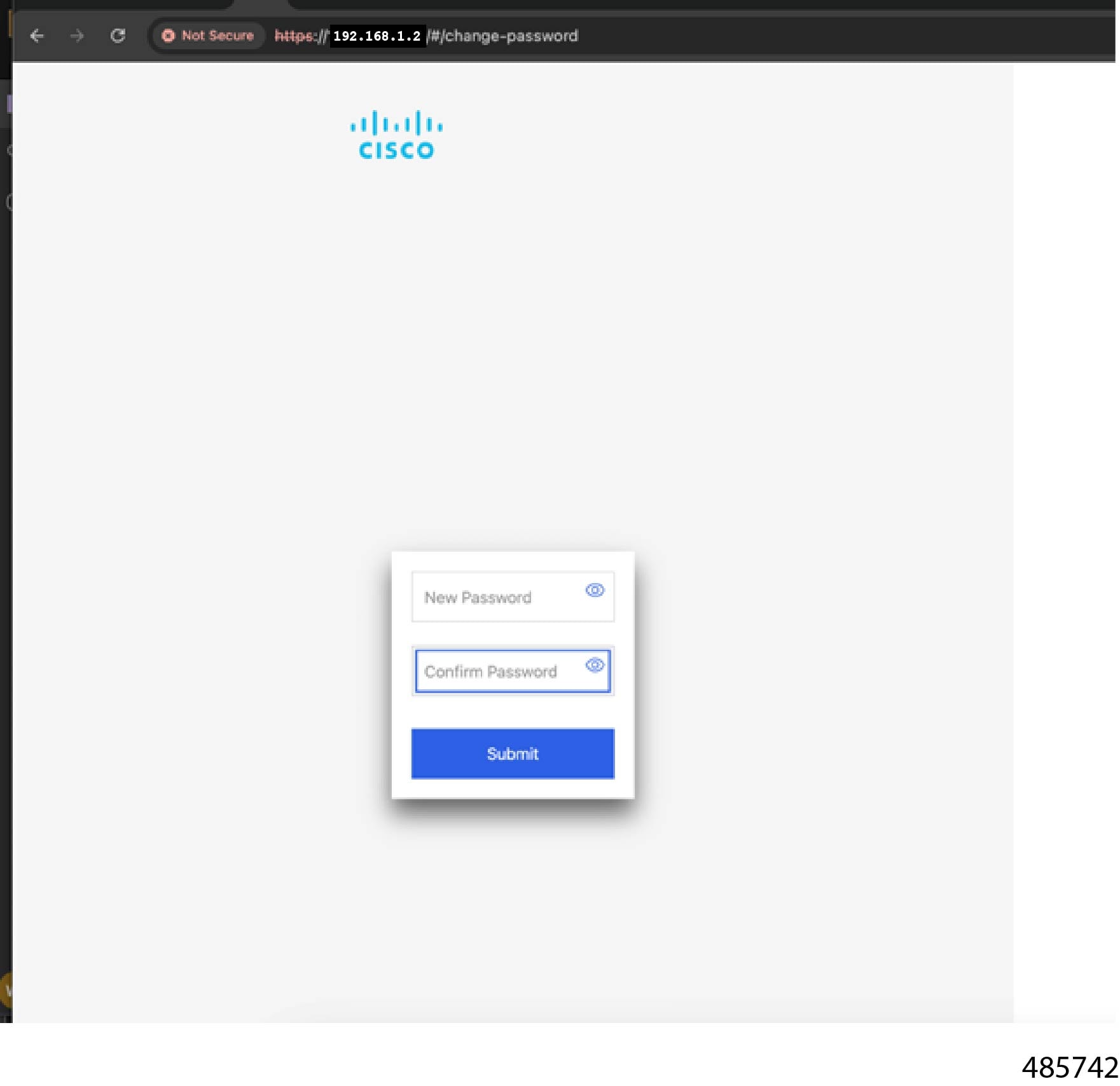
The first time that you enter the Cisco Baseboard Management Controller's management interface, you are prompted to change the default password. The default password is password, where the initial password character is zero.

Step 3

If this is the first time you have entered the Cisco Baseboard Management Controller's management interface, you must configure a strong password.

Follow these guidelines for a strong password:

  • The password can have minimum 8 characters; maximum 20 characters.

  • The password must not contain the user’s name.

  • The password must not be a palindrome, which is a word that is spelled the same forwards and backwards.

  • You can use consecutive or repeated characters, but they cannot exceed half the total number of characters in the password.

Step 4

Click Submit.


Diagnostic Access for NVIDIA BlueField-3 SuperNICs

The server supports NVIDIA BlueField-3 SuperNICs (BlueField NICs). Each of these Ethernet SuperNICs contains an integrated baseboard management controller (BMC), which is accessible for retrieval of basic diagnostic information including, but not limited to, log messages, event logs, field replaceable unit (FRU) information, and firmware information.


Note


Diagnostics access for the SuperNICs is not required, but it is recommended as a best practice to assist with any troubleshooting in the unlikely event of an issue with the SuperNIC.


Access to the BlueField-3 BMC requires user intervention through:

  • Cabling a direct connection between a top-of-rack (TOR) switch and the 1G OOB management port on the BlueField NIC

  • Issuing industry-standard commands to the BlueField NIC's BMC


Note


This content is applicable to NVIDIA BlueField-3 SuperNICs only. Retrieving diagnostic information from the BMCs of other NVIDIA SuperNICs, for example, NVIDIA ConnectX SuperNICs, is not guaranteed by using this content.


Retrieving Basic Diagnostic Information from the SuperNIC BMC

The NVIDIA BlueField SuperNICs (SuperNICs) have an integrated baseboard management controller (BMC) and system on a chip (SOC) which are accessible through a 1 Gb Ethernet out-of-band (OOB) management port on the SuperNIC.

By connecting to the SuperNIC's BMC, you can access diagnostic information directly from the SuperNIC, such as:

  • BMC information, including the installed firmware version

  • Field Replaceable Unit (FRU) information, including the SuperNIC's serial number

  • Event logs, including memory usage and available space

  • Sensor data, including various power and temperature conditions

You can use IPMI or CURL to retrieve the diagnostic information. For illustrative purposes, this procedure uses IPMI. For additional information, go to NVIDIA's BlueField BMC Software User Management documentation.

Use the following procedure to access and retrieve diagnostic information from the SuperNIC's BMC.

Before you begin

Verify that the following items are online before attempting this procedure:

  • A TOR (top of rack) switch, for example, a Cisco Nexus or Cisco Catalyst, is installed and configured.

  • A 1Gb Ethernet cable long enough to connect from the switch to the management port on the SuperNIC.

  • A DHCP server, or a router or switch that supports HDCP services, is installed and configured.

Procedure

Step 1

Plug the Ethernet cable into the switch and management port on the SuperNIC.

Step 2

Wait for the link to come up and receive an IP address from the DHCP server.

At this point, the SuperNIC BMC supports both IPMI and Redfish.

Step 3

Query or lookup the IP address assigned to the SuperNIC management port and use this address to access the BMC.

Step 4

When you have the interface address of the BMC, issue commands to that address and query for diagnostic information. Some examples:

  • BMC information:

    :~$ ipmitool -C 17 -I lanplus -H 192.168.101.22 -U root -P 'password' mc info
    Device ID                 : 1
    Device Revision           : 1
    Firmware Revision         : 24.04
    IPMI Version              : 2.0
    Manufacturer ID           : Nvidia
    Manufacturer Name         : Unknown (0x8119)
    Product ID                : 4 (0x0004)
    Product Name              : Bluefield3 BMC
    Device Available          : yes
    Provides Device SDRs      : yes
    Additional Device Support :
        Sensor Device
        SDR Repository Device
        SEL Device
        FRU Inventory Device
        IPMB Event Receiver
        Chassis Device
    Aux Firmware Rev Info     :
        0x10
        0x05
        0x00
        0x00
  • FRU information:

    cisco-tac:~$ ipmitool -C 17 -I lanplus -H 192.168.101.22 -U root -P 'password' fru print
    FRU Device Description : Builtin FRU Device (ID 0)
    Device not present (Requested sensor, data, or record not found)
    
    FRU Device Description : BlueField-3 Supe (ID 164)
    Board Mfg Date        : Thu Jul 11 17:13:00 2024
    Board Mfg             : Nvidia
    Board Product         : BlueField-3 SuperNIC
    Board Serial          : MT1234567ABC
    Board Part Number     : 900-0A0A40-00AA-AA0
  • Event logs, SEL information:

    cisco-tac:~$ ipmitool -C 17 -I lanplus -H 192.168.101.22 -U root -P 'password' sel -v
    Running Get PICMG Properties my_addr 0x20, transit 0, target 0x20
    Error response 0xc1 from Get PICMG Properities
    Running Get VSO Capabilities my_addr 0x20, transit 0, target 0x20
    Invalid completion code received: Invalid command
    Discovered IPMB address 0x0
    SEL Information
    Version          : 1.5 (v1.5, v2 compliant)
    Entries          : 234
    Free Space       : 44256 bytes
    Percent Used     : 7%
    Last Add Time    : 11/29/2023 18:08:51
    Last Del Time    : Not Available
    Overflow         : false
    Supported Cmds   : 'Delete' 'Reserve'
    cisco-tac:~$ ipmitool -C 17 -I lanplus -H 192.168.101.22 -U root -P 'password' sel list -v | more
    
    Running Get PICMG Properties my_addr 0x20, transit 0, target 0x20
    Error response 0xc1 from Get PICMG Properities
    Running Get VSO Capabilities my_addr 0x20, transit 0, target 0x20
    Invalid completion code received: Invalid command
    Discovered IPMB address 0x0
    SEL Record ID          : 0008
    Record Type           : 02
    Timestamp             : 01/01/1970 00:01:31
    Generator ID          : 0020
    EvM Revision          : 04
    Sensor Type           : Voltage
    Sensor Number         : 14
    Event Type            : Threshold
    Event Direction       : Assertion Event
    Event Data            : 500063
    Description           : Lower Non-critical going low
     
    SEL Record ID          : 000f
    Record Type           : 02
    Timestamp             : 01/01/1970 13:21:11
    Generator ID          : 0020
    EvM Revision          : 04
    Sensor Type           : Voltage
    Sensor Number         : 14
    Event Type            : Threshold
    Event Direction       : Assertion Event
    Event Data            : 500063
    Description           : Lower Non-critical going low
    cisco-tac:~$ ipmitool -C 17 -I lanplus -H 192.168.101.22 -U root -P 'password' sel elist
       8 |  Pre-Init  |0000000091| Voltage VDD_CPU_R | Lower Non-critical going low  | Asserted | Reading 0 < Threshold 0.70 Volts
       f |  Pre-Init  |0000048071| Voltage VDD_CPU_R | Lower Non-critical going low  | Asserted | Reading 0 < Threshold 0.70 Volts
      1c |  Pre-Init  |0000049893| Voltage VDD_CPU_R | Lower Non-critical going low  | Asserted | Reading 0 < Threshold 0.70 Volts
      23 |  Pre-Init  |0000050381| Voltage VDD_CPU_R | Lower Non-critical going low  | Asserted | Reading 0 < Threshold 0.70 Volts
    SEL data export to a file.
    ipmitool -C 17 -I lanplus -H 192.168.101.22 -U root -P 'password' sel save <filename>
     

    SEL data clear on BMC.

    ipmitool -C 17 -I lanplus -H 192.168.101.22 -U root -P 'password' sel clear
     
  • Sensor data

    cisco-tac:~$ ipmitool -C 17 -I lanplus -H 192.168.101.22 -U root -P 'password' sdr list
    p0_link          | 0x00              | ok
    p1_link          | 0x00              | ok
    bluefield_temp   | 64 degrees C      | ok
    p0_temp          | 40 degrees C      | ok
    p1_temp          | no reading        | ns
    1V_BMC           | 0.99 Volts        | ok
    1_2V_BMC         | 1.21 Volts        | ok
    1_8V             | 1.82 Volts        | ok
    1_8V_BMC         | 1.81 Volts        | ok
    2_5V             | 2.49 Volts        | ok
    3_3V             | 3.29 Volts        | ok
    3_3V_RGM         | 3.32 Volts        | ok
    5V               | 4.98 Volts        | ok
    12V_ATX          | 11.42 Volts       | ok
    12V_PCIe         | 12.04 Volts       | ok
    DVDD             | 0.88 Volts        | ok
    HVDD             | 1.22 Volts        | ok
    VDD              | 0.75 Volts        | ok
    VDDQ             | 1.12 Volts        | ok
    VDD_CPU_L        | 0.85 Volts        | ok
    VDD_CPU_R        | 0 Volts           | nc
    Cisco-tac:~$ ipmitool -C 17 -I lanplus -H 192.168.101.22 -U root -P 'password' sdr elist
    p0_link          | 00h | ok  | 31.1 | Config Error
    p1_link          | 01h | ok  | 31.1 |
    bluefield_temp   | 02h | ok  |  0.1 | 64 degrees C
    p0_temp          | 03h | ok  |  0.1 | 40 degrees C
    p1_temp          | 04h | ns  |  0.1 | No Reading
    1V_BMC           | 05h | ok  |  0.1 | 0.99 Volts
    1_2V_BMC         | 06h | ok  |  0.1 | 1.20 Volts
    1_8V             | 07h | ok  |  0.1 | 1.82 Volts
    1_8V_BMC         | 08h | ok  |  0.1 | 1.81 Volts
    2_5V             | 09h | ok  |  0.1 | 2.49 Volts
    3_3V             | 0Ah | ok  |  0.1 | 3.29 Volts
    3_3V_RGM         | 0Bh | ok  |  0.1 | 3.32 Volts
    5V               | 0Ch | ok  |  0.1 | 4.98 Volts
    12V_ATX          | 0Dh | ok  |  0.1 | 11.42 Volts
    12V_PCIe         | 0Eh | ok  |  0.1 | 12.04 Volts
    DVDD             | 0Fh | ok  |  0.1 | 0.88 Volts
    HVDD             | 10h | ok  |  0.1 | 1.22 Volts
    VDD              | 11h | ok  |  0.1 | 0.76 Volts
    VDDQ             | 12h | ok  |  0.1 | 1.12 Volts
    VDD_CPU_L        | 13h | ok  |  0.1 | 0.85 Volts
    VDD_CPU_R        | 14h | lnc |  0.1 | 0 Volts

Server Configuration and Management

The Cisco UCS C885A M8 rack server can be configured and managed using the Cisco BMC management and configuration tool, which enables such tasks as:

  • Launching a KVM Launch and KVM Session management.

  • System Inventory

  • Power operations

  • User management and certificates

  • System firmware management

  • Boot order configuration

  • Monitoring

  • Event logs