Encrypted Visibility Engine

Encrypted Visibility Engine (EVE) is used to identify client applications and processes utilizing Transport Layer Security (TLS) encryption. It enables visibility and allows administrators to take actions and enforce policy within their environments. The EVE technology can also be used to identify and stop malware.

Encrypted Visibility Engine

The encrypted visibility engine (EVE) is used to provide more visibility into the encrypted sessions without the need to decrypt them. These insights into encrypted sessions are obtained by Cisco's open-source library that is packaged in Cisco's vulnerability database (VDB). The library fingerprints and analyzes incoming encrypted sessions and matches it against a set of known fingerprints. This database of known fingerprints is also available in the Cisco VDB.

Key capabilities

Important features of Encrypted Visibility Engine (EVE) include the following:

  • Access control policy actions on traffic using information derived from EVE

  • Vulnerability Database (VDB) integration with Cisco Secure Firewall for assigning applications to EVE-detected processes with high confidence values

  • Custom application detector creation for mapping EVE-detected processes to user-defined applications and overriding built-in process confidence values

  • Detection of the operating system type and version of clients that create Client Hello packets in encrypted traffic

  • Quick UDP Internet Connections (QUIC) traffic fingerprinting and analysis with server name display in the URL field of the Connection Events page

For custom application detector configuration, see the Configuring Custom Application Detectors and Specifying EVE Process Assignments sections in the Application Detection chapter of the Cisco Secure Firewall Management Center Device Configuration Guide.


Note


The encrypted visibility engine feature is supported only on Firewall Management Center-managed devices running Snort 3. This feature is not supported on Snort 2 devices and Firewall Device Manager-managed devices.


Attention


To use EVE on Firewall Management Center, you must have a valid IPS license on your device. In the absence of a IPS license, the policy displays a warning and deployment is not allowed.


Note


  • EVE can detect the operating system type and version of SSL sessions. Normal usage of the operating system, such as running applications and package management software, can trigger OS detection. To view client OS detection, in addition to enabling the EVE toggle button, you must enable Hosts under Policies > Network Discovery. To view a list of possible operating systems on the host IP address, click Analysis > Hosts heading > Network Map, and then choose the required host.

  • After enabling EVE for your access control policy, ensure that you have turned on logging for the access control rules within that policy to display the expected results on the EVE dashboard whenever any specific rule conditions are met. For more information on how to turn on logging, see Create and Edit Access Control Rules.

  • EVE will not provide visibility or insights for encapsulated traffic.


How EVE works

Encrypted Visibility Engine (EVE) provides the ability to identify and control applications without enabling TLS decryption. By using fingerprints of known malicious processes, EVE technology can also be used to identify and block encrypted malicious traffic without outbound decryption.

Summary

The key components involved in how EVE works are:

  • Client Hello inspection: EVE examines the initial TLS handshake packet to create client fingerprints

  • Fingerprint database: Contains over 5,000 identified client processes mapped to applications

  • Machine learning technology: Processes over one billion TLS fingerprints and over 10,000 malware samples daily

  • Cisco Vulnerability Database (VDB): Delivers updated fingerprints to customers

Workflow

These stages describe how EVE identifies and processes client applications:

  1. EVE inspects the Client Hello portion of the TLS handshake to identify client processes. The Client Hello is the initial data packet that is sent to the server. This gives a good indication of the client process on the host.
  2. The system combines the fingerprint with other data such as destination IP address to provide the basis for EVE's application identification. By identifying specific application fingerprints during the TLS session establishment, the system can identify the client process and take appropriate action, such as allowing or blocking it.
  3. If EVE does not recognize a fingerprint, it identifies the client application and estimates the threat score of the first flow using the destination details, such as IP address, port, and server name. At this point, the status of the fingerprints are randomized and the status can be viewed in the debug logs. For subsequent flows with the same fingerprint, EVE skips reanalysis and marks the fingerprint status as unlabeled. If you intend to block traffic based on EVE's Low or Very Low score thresholds, the initial flow is blocked. Future flows are allowed once the application's fingerprint is cached.
  4. Through machine learning (ML) technology, Cisco processes over one billion TLS fingerprints and over 10000 malware samples daily to create and update EVE fingerprints. These updates are then delivered to customers using Cisco Vulnerability Database (VDB) package.

Indications of compromise events

An Indication of Compromise (IoC) event is a security detection mechanism that

  • identifies connection events with a very high malware confidence level, as reported by EVE,

  • triggers for encrypted sessions generated from a host using a malicious client, and

  • provides information such as the IP address, MAC address, operating system information of the malicious host, and timestamp of the suspicious activity.

IoC event generation and viewing locations

A session with an Encrypted Visibility Threat Confidence score of 'Very High' as seen in connection events generates an IoC event. You must enable Hosts from Policies > Network Discovery. In the Firewall Management Center, you can view the IoC event existence from these locations:

  • Analysis > Hosts heading > Indications of Compromise, and then Analysis > Indications of Compromise.

  • Analysis > Hosts heading > Network Map > Choose the host that must be checked.

    You can view the process information of the session that generated the IoC on the Connection Events page. Click Analysis > Connections > Events to access the Connection Events page. Note that you must manually select the Encrypted Visibility fields and IoC field from the Table View of Connection Events tab.

QUIC fingerprinting in EVE

QUIC fingerprinting in EVE is a Snort identification mechanism that

  • detects applications over QUIC without enabling decryption,

  • identifies malware without enabling decryption, and

  • detects service applications for access control rule assignment based on the service detected over the QUIC protocol.

Configure EVE

Procedure


Step 1

Choose Policies > Access Control heading > Access Control.

Step 2

Click Edit (edit icon) next to the access control policy you want to edit.

Step 3

Choose Advanced Settings from the More drop-down arrow at the end of the packet flow line.

Step 4

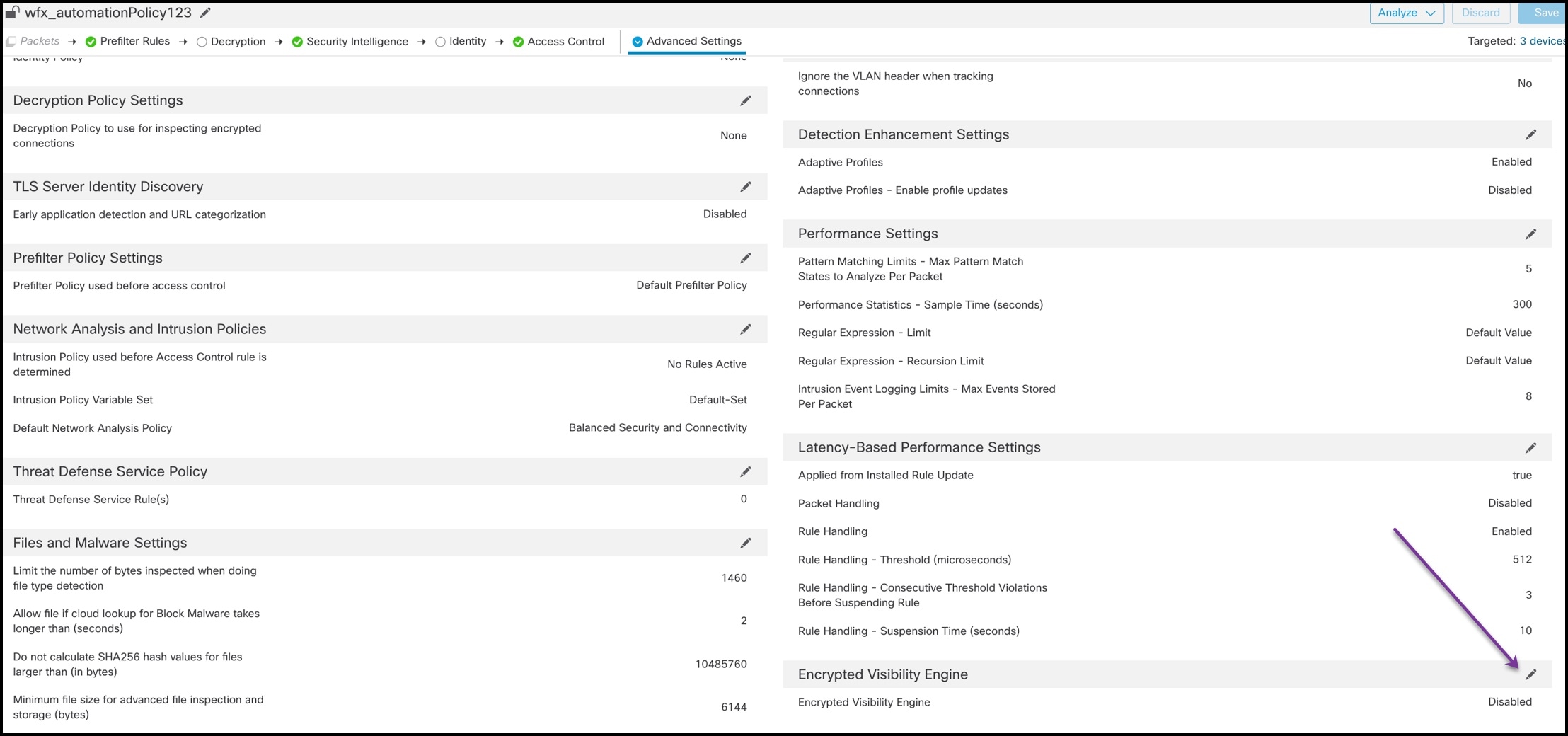
Click Edit (edit icon) next to Encrypted Visibility Engine.

Step 5

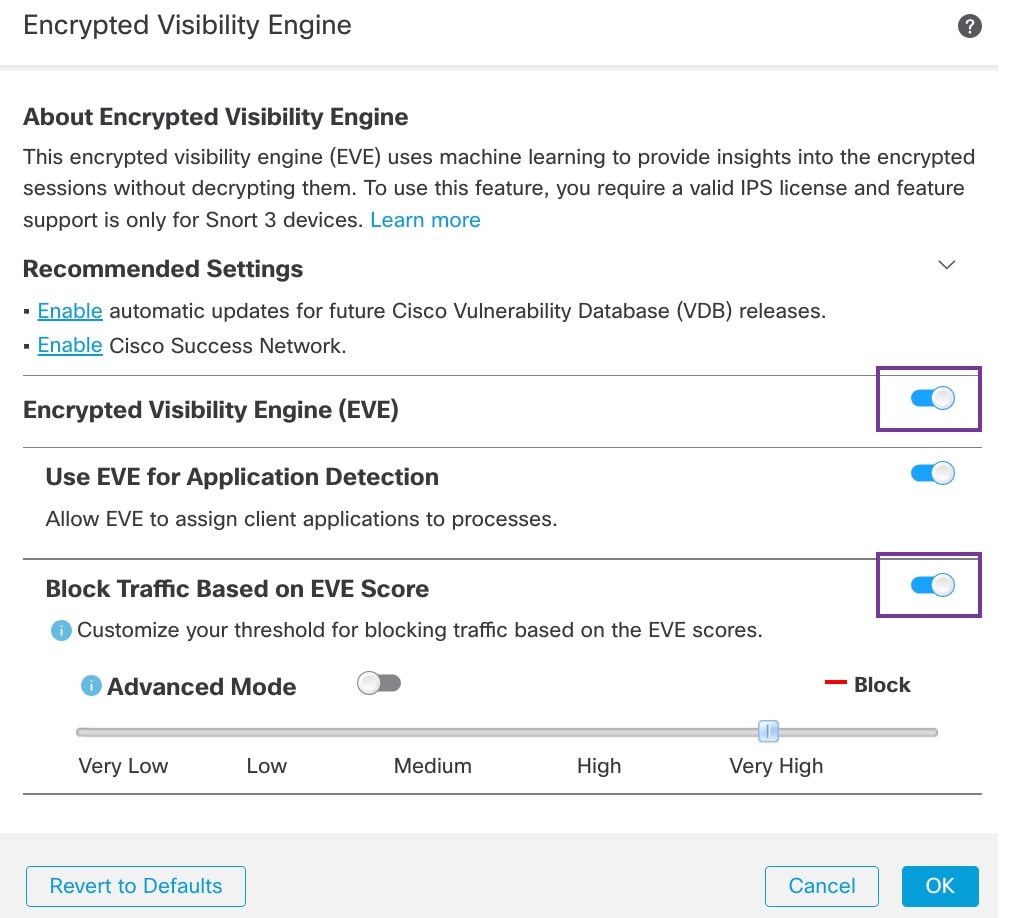
On the Encrypted Visibility Engine page, enable the Encrypted Visibility Engine (EVE) toggle button.

Step 6

Click OK.

Step 7

Click Save.


What to do next

Deploy configuration changes.

View Encrypted Visibility Engine events

This task allows you to access and view connection events generated by the Encrypted Visibility Engine (EVE) in the Firewall Management Center.

After enabling the Encrypted Visibility Engine and deploying your access control policy, you can start sending live traffic through your system. You can view the logged connection events in the Unified Events page.

Perform this procedure to access the connection events in the Firewall Management Center.

Procedure


Step 1

Click Analysis > Unified Events.

You can also view the connection events in the Connection Events page. Click Analysis > Connections > Events to access the Connection Events page.

The Encrypted Visibility Engine can identify the client process that initiated a connection and the operating system in the client, and indicate if the process contains malware or not.

Step 2

In the Unified Events page, explicitly enable these columns that are added for the Encrypted Visibility Engine:

  • Encrypted Visibility Process Name

  • Encrypted Visibility Process Confidence Score

  • Encrypted Visibility Threat Confidence

  • Encrypted Visibility Threat Confidence Score

  • Detection Type

For information about these fields, refer to Connection and Security-Related Connection Event Fields in the Cisco Secure Firewall Management Center Administration Guide.

Note


On the Connection Events page, if processes are assigned applications, the Detection Type column displays Encrypted Visibility Engine, indicating that the client application was identified by the Encrypted Visibility Engine. Without application assignments to process names, the Detection Type column displays AppID, indicating that the engine that identified the client application was AppID.


View EVE dashboard

You can use the EVE dashboard to monitor encrypted visibility data, view threat confidence levels, and analyze process identification results across your network.

Before you begin

  • In an access control policy, the Encrypted Visibility Engine (EVE) must be enabled under Advanced Settings.

Follow these steps to view the EVE dashboards:

Procedure


Step 1

Go to Overview > Dashboards heading > Dashboard.

Step 2

In the Summary Dashboard window, click the switch dashboard link and choose Application Statistics from the dropdown box.

Step 3

Choose the Encrypted Visibility Engine tab to view the following two dashboards:

  • Top Encrypted Visibility Engine Discovered Processes—Displays top client processes used in your network and the connection count. Click the process name in the table to view the Connection Events page, filtered by the process name.

  • Connections by Encrypted Visibility Engine Threat Confidence—Displays connections by the confidence levels (Very High, Very Low, and so on). Click the Threat confidence level in the table to view the Connection Events page, filtered by the confidence level.


Configure EVE Exception Rules

You can create an encrypted visibility engine (EVE) exception rule to ensure the continuity of trusted connections and services by bypassing the EVE’s block action. You can add attributes such as process names and destination IP address to the exception rule. For example, you may want to bypass EVE's block verdict for trusted networks. All the connections in the bypassed networks are exempted from EVE’s block verdict based on the threat confidence level.

Procedure


Step 1

Choose Policies > Access Control heading > Access Control.

Step 2

Click Edit (edit icon) next to the access control policy you want to edit.

Step 3

From the More drop-down arrow at the end of the packet flow line, choose Advanced Settings.

Step 4

Next to Encrypted Visibility Engine (EVE), click Edit (edit icon).

Step 5

On the Encrypted Visibility Engine page, click the Encrypted Visibility Engine (EVE) toggle button to enable EVE.

Step 6

Enable the Block Traffic Based on EVE Score toggle button to block traffic based on EVE's threat confidence level.

Step 7

Click Add Exception Rule and add one or more of the following attributes.

  1. Under the Process Name tab, enter an EVE-identified process name, and click Add to Process on the right side of the window.

    You can add multiple process names to the same exception rule. EVE exception list based on process names works only with EVE-identified process names, which are case- and space-sensitive.

  2. Under the Network Objects tab, perform one of the following:

    • Choose one or more IP addresses from the list and add to the Selected Networks list.

    • Under Selected Networks, manually enter the IP address and click the + icon to add it to the list of selected networks.

  3. (Optional) In the Comment field available on all the tabs, you can enter a reason for adding the required attributes to the EVE exception rule.

Step 8

Click Save to save the EVE exception rule.

Step 9

Save and deploy the access control policy on the devices.


Note


When a connection matches an exception rule, it bypasses the EVE's block verdict. You can view EVE's action in the Connection Events or Unified Events page. The Reason column header displays EVE Exempted for identification of such EVE-bypassed traffic.


Add exception rule from unified events

Add exception rules for connections that are blocked by EVE using the information in the Unified Events page.

Use the Unified Events page to add exception rules for connections that are blocked by EVE.

Before you begin

Exception list is supported only from threat defense version 7.6.0 or later.

Follow these steps to add exception rules for connections that are blocked by EVE:

Procedure


Step 1

Click Analysis > Unified Events.

Step 2

In the Reason column with Encrypted Visibility Block as the reason, click the Ellipsis(ellipsis icon) icon inside the cell.

Step 3

Choose Add EVE Exception Rule from the drop-down list.

Step 4

In the Encrypted Visibility Engine window that is displayed, the rule is automatically added to the bottom of the exception list. You can review and make changes to the added rule before saving and deploying the configuration.


Use case - Block Traffic Based on the EVE Threat Confidence Score

About Encrypted Visibility Engine

You can use the Encrypted Visibility Engine (EVE) to identify client applications and processes using Transport Layer Security (TLS) encryption. EVE provides more visibility into the encrypted sessions without decryption. Based on EVE’s findings, administrators can enforce policy actions on the traffic within their environments. You can also use the EVE to identify and stop malware.

Benefits

Administrators can leverage and adjust EVE’s threat score to block malicious encrypted traffic. If the probability that the incoming traffic is malicious, then based on the threat score, you can configure EVE to block the connection.

Sample Business Scenario

A large corporate network uses Snort 3 as its primary intrusion detection and prevention system. In a rapidly evolving threat landscape, adoption of robust network security measures is necessary and important. The security team uses EVE to enhance encrypted traffic inspection without the need to implement full man-in-the-middle (MITM) decryption. The EVE technology uses fingerprints of known malicious processes to identify and stop malware. Network administrators must have the flexibility to configure EVE’s block traffic thresholds to block potentially malicious connections, which are based on their configured block thresholds.

Prerequisites

  • You must be running management center 7.4.0 or later, and the managed threat defense must also be 7.4.0 or later.

  • Ensure that you have a valid Intrusion Prevention System (IPS) license and Snort 3 is the detection engine.

High-Level Workflow

  1. EVE analyzes the incoming traffic and gives a verdict on the probability of incoming traffic being malware or not.

  2. If EVE detects incoming traffic to be malware with a certain level of confidence, you can configure EVE to block that traffic.

  3. The packets are first checked for malware probability or threat score, and the threat score is compared with the block threshold that you have set.

  4. If the threat score is higher than the configured threshold, EVE blocks the traffic.

  5. If the threat score is lesser than the configured threshold, EVE takes no action.

Configure Block Thresholds in EVE

This procedure shows how to block potentially malicious traffic, based on the EVE threat confidence score of 90 percent or higher.

Procedure


Step 1

Choose Policies > Access Control heading > Access Control.

Step 2

Click Edit (edit icon) next to the access control policy you want to edit.

Step 3

Choose Advanced Settings from the More drop-down arrow at the end of the packet flow line.

Step 4

Click Edit (edit icon) next to Encrypted Visibility Engine.

Step 5

In the Encrypted Visibility Engine page, enable the Encrypted Visibility Engine (EVE) toggle button.

Step 6

Enable the Block Traffic Based on EVE Score toggle button. Any incoming traffic that is a potential threat is blocked by default.

Note


By default, the threshold at which malware is blocked is 99 percent, which means:

  • If EVE detects the traffic to be malware with 99 percent confidence or higher, EVE blocks the traffic.

  • If EVE detects the traffic to be malware with less than 99 percent confidence, EVE takes no action.

Step 7

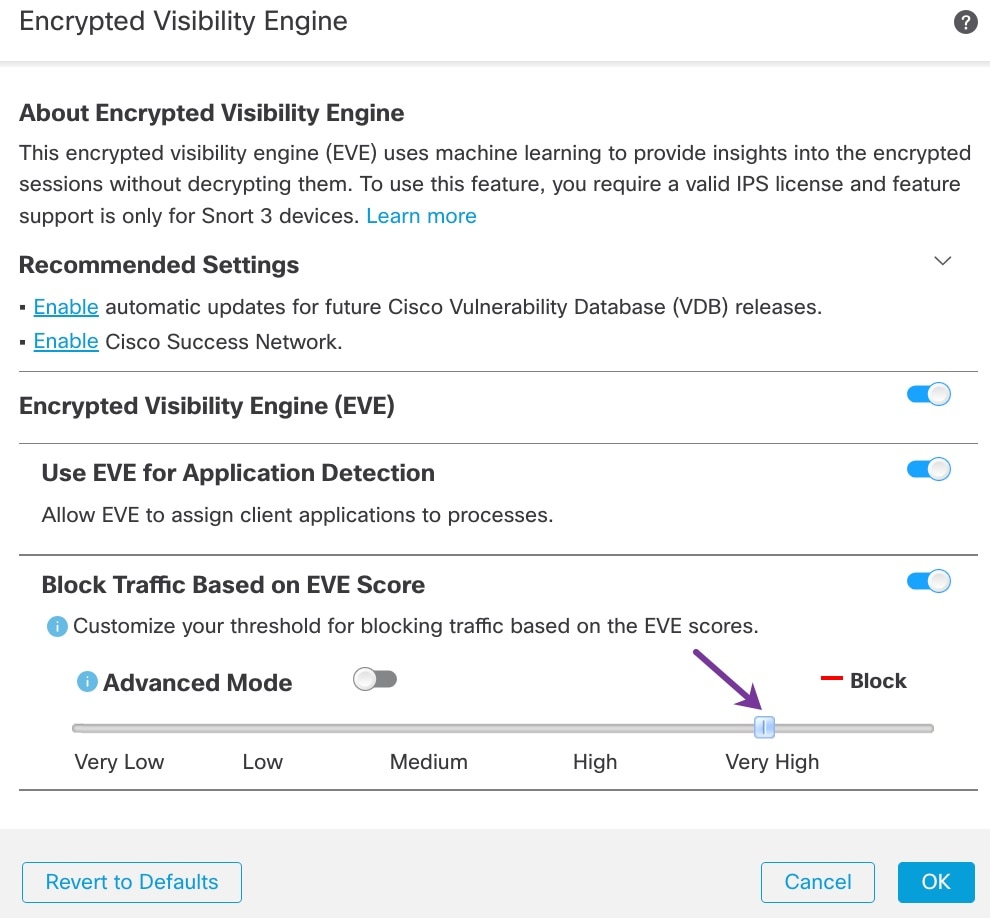
Use the slider to adjust the threshold for blocking based on EVE threat confidence. This ranges from Very Low to Very High. In this example, the slider is set to Very High.

Step 8

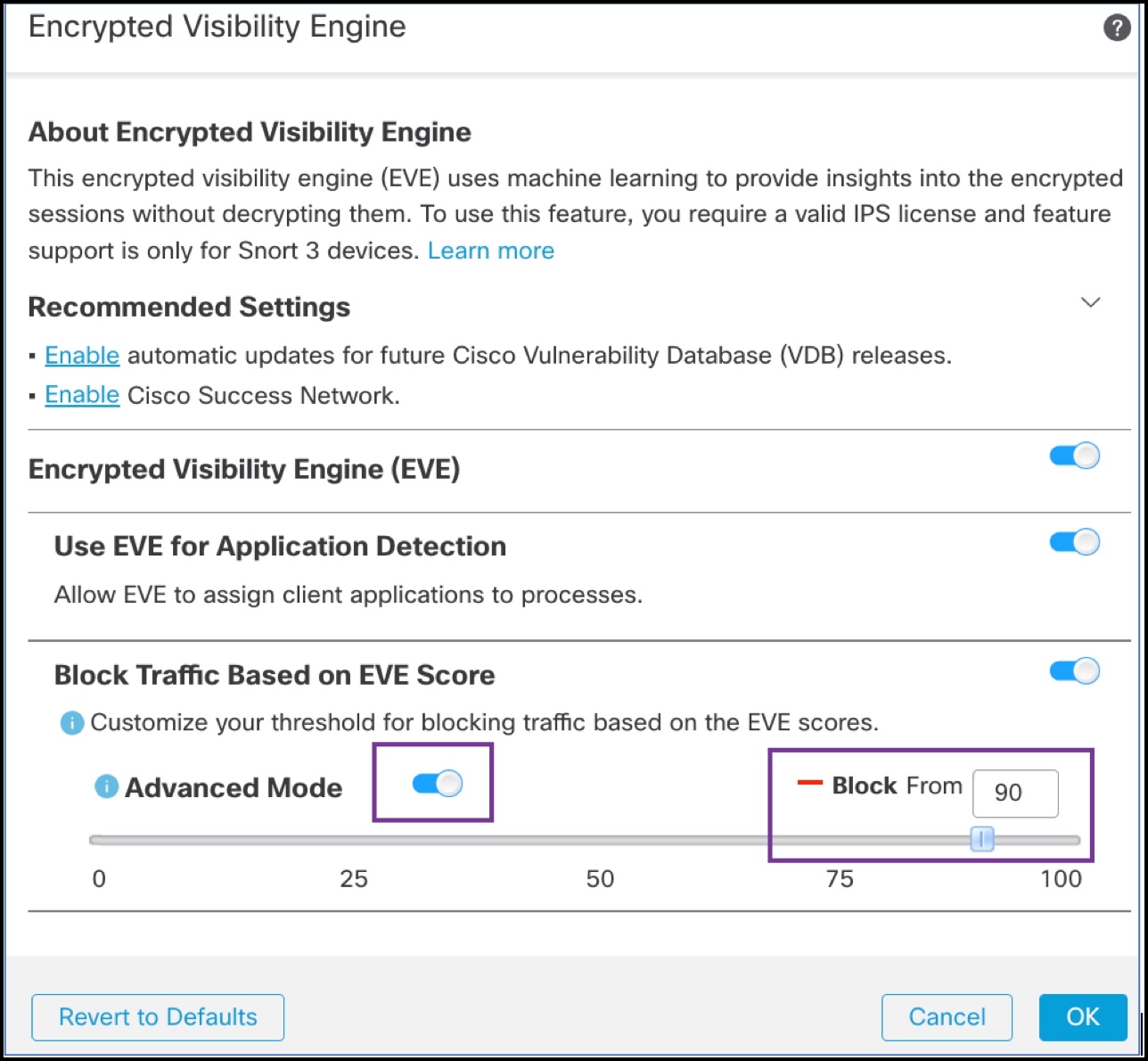
For further granular control, enable the Advanced Mode toggle button. Now, you can assign a specific EVE Threat Confidence Score for blocking traffic. The default threshold is 99 percent.

Step 9

In this example, change the block threshold to 90 percent.

Attention


As a best practice, we recommend that you do not set the block threshold to below 50 percent to ensure optimum performance.

Step 10

Click OK.

Step 11

Click Save.


What to do next

Deploy configuration changes.

View EVE Events

Procedure

Step 1

To verify the block action, choose Analysis > Connections > Events. You can also view the events from the Unified Events viewer.

Step 2

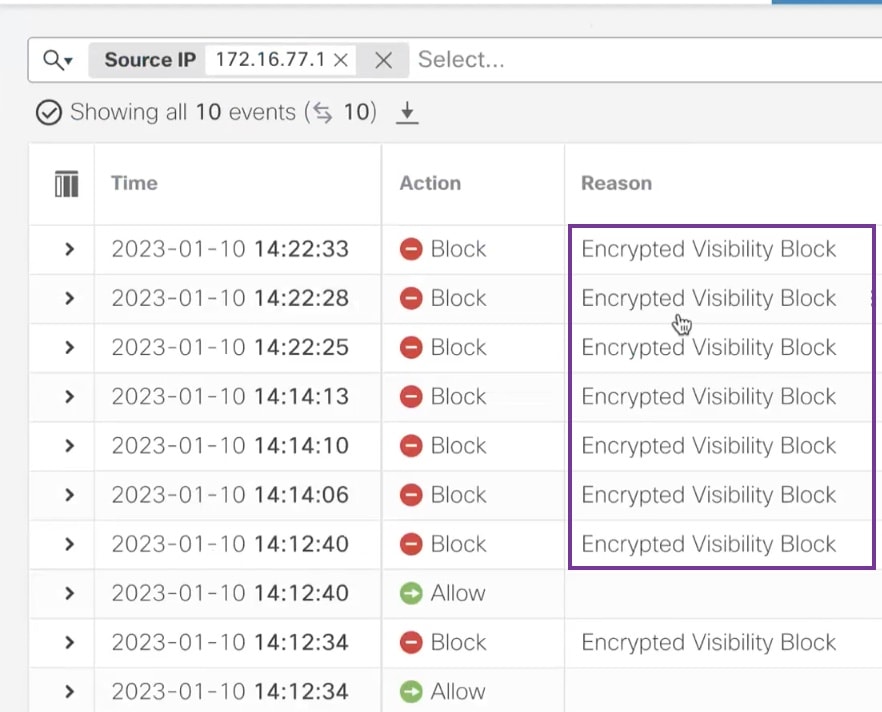
If you have configured EVE to block traffic, the Reason field shows Encrypted Visibility Block.

Step 3

The following is an example of the Encrypted Visibility Process Name as test_malware, Encrypted Visibility Threat Confidence as Very High, and Encrypted Visibility Threat Confidence Score as 90 percent.


Additional References

For detailed conceptual information, see the Encrypted Visibility Engine for Snort 3 chapter in this guide or the content in the following link:

Encrypted Visibility Engine