Cisco Security Cloud Control: Network Devices with Generic SSH Access Management

PDF

Cisco Security Cloud Control: Network Devices with Generic SSH Access Management

External links for devices

Want to summarize with AI?

Log in

Learn about external links for devices in Security Cloud Control Firewall Management.


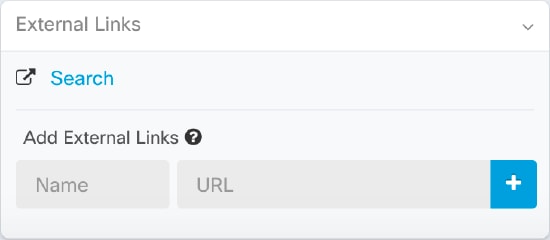
You can create a hyperlink to an external resource and associate it with a device you manage with Security Cloud Control. You could use this feature to create a convenient link to the local manager of one of your devices (). You could also use it to link to a search engine, documentation resource, a corporate wiki, or any other URL that you choose. You can associate as many external links with a device as you want. You can also associate the same link with multiple devices at the same time.
The links you create can reach anywhere, but your company's security requirements do not change. For example, if you ordinarily need to be connected to your corporate network, by being on-premises or through a VPN connection to reach a particular URL, those requirements remain. If your company blocks specific URLs, those URLs continue to be blocked. URLs that are not restricted continue to not be restricted.


Procedure

1.

Choose Security Devices.

2.

Click the Devices tab to locate the device or the Templates tab to locate the model device.

3.

Click the appropriate device type tab.

4.

Select a device or model.

You can use the filter and search functionalities to find the required device.

5.

Enter a name for the link in the details pane under the External Links section.

6.

Enter the URL for the link in the URL field. You need to specify the full URL. For example, for Cisco, enter http://www.cisco.com.

7.

Click + to associate the link with the device.


Procedure

1.

In the left pane, click Security Devices.

2.

Click the Devices tab to locate the device or the Templates tab to locate the model device.

3.

Click the appropriate device type tab.

You can use the filter and search functionalities to find the required device.

4.

Select a device or model.

5.

In the details pane, on the right, go to the External Links section.

6.

Enter a name for the link such as .

7.

Enter https://{location} in the URL field. The {location} variable will be populated with the IP address of your device.

8.

Click the + box.


Procedure

1.

Choose Security Devices.

2.

Click the Devices tab to locate the device or the Templates tab to locate the model device.

3.

Click the appropriate device type tab.

You can use the filter and search functionalities to find the required devices.

4.

Select multiple devices or models.

5.

In the details pane, on the right, go to the External Links section.

6.

Enter a name for the link.

7.

Enter the URL you want to reach using one of these methods:

  • Enter
    https://{location}
    in the URL field. The {location} variable will be populated with the IP address of your device. This creates an automatic link to the ASDM for your device.
  • Enter the URL for the link in the URL field. You need to specify the full URL, for example, for Cisco enter http://www.cisco.com.

8.

Click + to associate the link with the device.


Procedure

1.

Choose Security Devices.

2.

Click the Devices tab to locate the device or the Templates tab to locate the model device.

3.

Click the appropriate device type tab.

You can use the filter and search functionalities to find the required device.

4.

Select a device or model.

5.

In the details pane, go to the External Links section.

6.

Mouse-over the name of the link to reveal the edit and delete icons.

7.

Click the appropriate icon to edit or delete the external link and confirm your action.


Procedure

1.

In the left pane, click Security Devices.

2.

Click the Devices tab to locate the device or the Templates tab to locate the model device.

3.

Click the appropriate device type tab.

You can use the filter and search functionalities to find the required devices.

4.

Select multiple devices or models.

5.

In the details pane, on the right, go to the External Links section.

6.

Mouse-over the name of the link to reveal the edit and delete icons.

7.

Click the appropriate icon to edit or delete the external link and confirm your action.