Learn how to contact Security Cloud Control support, export workflow details, open a Cisco TAC support ticket, and check the Security Cloud Control service status page.
This chapter covers the following sections:
Cisco Security Cloud Control: Network Devices with Generic SSH Access Management
Cisco Security Cloud Control: Network Devices with Generic SSH Access Management
Learn how to contact Security Cloud Control support, export workflow details, open a Cisco TAC support ticket, and check the Security Cloud Control service status page.
This chapter covers the following sections:
We strongly recommend exporting the workflow of a device that is experience issues prior to opening a support ticket. This additional information can help the support team expeditiously identify and correct any troubleshooting efforts.
Use the following procedure to export the workflow:
| 1. | In the left pane, click . |
|
| 2. | Click the Devices tab to locate your device. |
|
| 3. | Click the appropriate device type tab and select the device you need to troubleshoot. Use the filter or search bar to locate the device you need to troubleshoot. Select the device so it is highlighted. |
|
| 4. | In the Device Actions pane, select Workflows. |
|
| 5. | Click the Export button located at the top right of the page, above the table of events. The file automatically saves locally as a .json file. Attach this to any emails or tickets you open with TAC. |
A customer using a 30-day trial or a licensed Security Cloud Control account can open a support ticket with Cisco's Technical Assistance Center (TAC).
This section explains how a customer using a licensed Security Cloud Control tenant can open a support ticket with Cisco's Technical Assistance Center (TAC).
| 1. | Log in to Security Cloud Control. |
|
| 2. | Next to your tenant name, click the help button and select Contact Support. 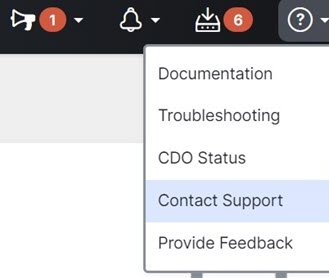
|
|
| 3. | Click Support Case Manager. |
|
| 4. | Click the blue Open New Case button. |
|
| 5. | Click Open Case. |
|
| 6. | Select Products and Services and then click Open Case. |
|
| 7. | Choose a Request Type. |
|
| 8. | Expand Find Product by Service Agreement row. |
|
| 9. | Fill in all the fields. Many of the fields are obvious. This is some additional information:
|
|
| 10. | Click Next. |
|
| 11. | In the Describe Problem screen, scroll down to Manually select a Technology, click it, and type Security Cloud Control in the search field. |
|
| 12. | Select the category that best matches your request, and click Select. 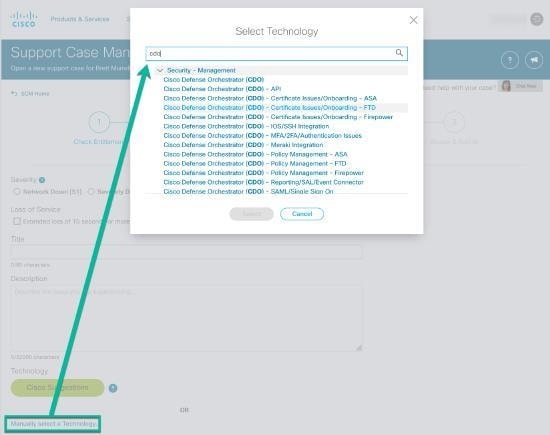
|
|
| 13. | Complete the remainder of the service request and click Submit. |
This section explains how a customer using a free trial of a Security Cloud Control tenant can open a support ticket with Cisco's Technical Assistance Center (TAC).
| 1. | Log in to Security Cloud Control. |
|
| 2. | Next to your tenant and account name, click the help button and select Contact Support.
|
|
| 3. | In the Enter Issue or request below field, specify the issue that you are facing or your request and click Submit. Your request, along with the technical information, will be sent to the support team, and a technical support engineer will respond to your query. |
Security Cloud Control maintains a customer-facing service status page that shows you if the Security Cloud Control service is up and any service interruptions it may have had. You can view up-time information with daily, weekly, or monthly graphs.
You can reach the Security Cloud Control status page by clicking Security Cloud Control Status in the help menu on any page in Security Cloud Control.
On the status page, you can click the Subscribe to Updates to receive a notification if the Security Cloud Control service goes down.