System Setup and Software Installation Guide for Cisco NCS 1004

PDF

System Setup and Software Installation Guide for Cisco NCS 1004

NCS 1004 software packages

Want to summarize with AI?

Log in

This section explains how Cisco IOS XR software is packaged on NCS 1004, the package naming convention, and the standard packages available for installation.


A package is a software component that

  • installs a specific set of NCS 1004 features or functions,

  • follows the naming convention <platform>-<pkg>-<pkg version>-<release version>.<architecture>.rpm, and

  • can be installed individually or as part of an SMU patch.

Standard packages for NCS 1004

This table lists the standard packages available for NCS 1004.

Table 1. Standard packages for NCS 1004

Feature set

Filename

Description

Composite Package

Cisco IOS XR Core Bundle + Manageability Package

ncs1004-mini-x-24.1.1.iso

Contains required core packages, such as the operating system, Admin, Base, Forwarding, SNMP Agent, FPD, Alarm Correlation, NETCONF-YANG, Telemetry, XML parser, and HTTP server packages.

Individually Installable Optional Packages

Cisco IOS XR Security Package

ncs1004-k9sec-1.0.0.0-r2411.x86_64.rpm

Provides support for encryption, decryption, IP Security (IPsec), Secure Socket Layer (SSL), and public key infrastructure (PKI).

OpenROADM

ncs1004-tp-sw-1.0.0.0-r2411.x86_64.rpm

To configure OpenROADM, install the ncs1004-tp-sw-1.0.0.0-r732.rpm package.

OTN-XP

ncs1004-sysadmin-otn-xp-dp-24.1.1-r2411.x86_64.rpm

Install this package on the OTN-XP card to bring up the system with the OTN-XP card.

Pre and post-upgrade installation health checks

ncs1004-healthcheck-1.0.0.0-r2411.x86_64.rpm

Install this package to configure health checks before and after upgrades.


Install and uninstall workflow

The install and uninstall workflow is an ordered sequence of operations that

  • adds, activates, and commits packages during installation, and

  • deactivates, removes, and commits packages during uninstallation.

Related procedures

To install a package, see Install packages. To uninstall a package, see Uninstall packages. Each topic includes a flowchart depicting the workflow for that operation.


Install packages

Complete this task to upgrade the system or install a patch. You can perform the system upgrade using an ISO image file and the patch installation using packages and SMUs. This task also enables you to install .tar files. The .tar file contains multiple packages and SMUs merged into a single file. A single .tar file can contain up to sixty four individual files. The packaging format defines one RPM per component, without dependency on card type.

Note

To install a System Admin package or an XR package, run the install commands in System Admin EXEC mode or XR EXEC mode respectively. All the install commands are applicable in both these modes.

Note

Two FPDs (Field-Programmable Devices) are available for the OTN-XP card: LC_CPU_MOD_FW and LC_DP_MOD_FW. LC_CPU_MOD_FW is available as part of the boot ISO image. Install the ncs1004-sysadmin-otn-xp-dp-*.rpm data path FPD package on the OTN-XP line card using this procedure to bring up the system with the OTN-XP card.

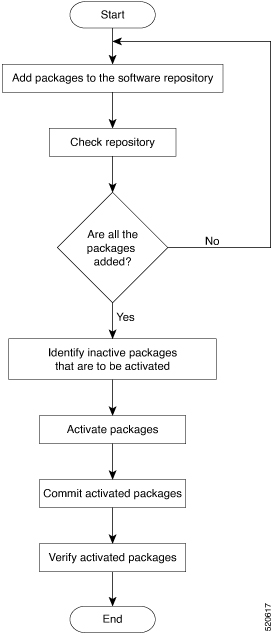
This flowchart demonstrates the process for installing the package.

Figure 1. Installing packages workflow
Installing packages workflow

Before you begin

  • Configure and connect to the management port. You can access the installable file through the management port. For information about configuring the management port, see Configure the management interface.

  • Copy the package to be installed either to the NCS 1004 hard disk or to a network server that NCS 1004 can access.

  • When the ncs1004-k9sec package is not installed, use only FTP or TFTP to copy files or during the install add operation.

Procedure

1.

Use one of these commands to add the package to the repository.

  • install add source <tftp transfer protocol>/package_path/ filename1 filename2 ...
  • install add source <ftp or sftp transfer protocol>//user@server:/package_path/ filename1 filename2 ...

Example:

RP/0/RP0/CPU0:ios#install add source harddisk: ncs1004-mini-x-7.2.1 ncs1004-k9sec-2.1.0.0-r721.x86_64.rpm
Thu Feb  7 11:10:51.867 UTC
Feb 07 11:10:53 Install operation 25 started by root:
 install add source harddisk: ncs1004-mini-x-7.2.1 ncs1004-k9sec-2.1.0.0-r721.x86_64.rpm
Feb 07 11:10:55 Install operation will continue in the background
Thu Feb  7 11:10:51 Install operation 25 finished successfully

Add the respective packages as appropriate. This command unpacks software files from the package and adds them to the software repository. The operation runs in asynchronous mode — the install add command runs in the background and the EXEC prompt is returned immediately.

Note

Install operation over IPv6 is not supported.

2.

(Optional) Use the show install request command to display the operation ID of the add operation and its status.

Example:

RP/0/RP0/CPU0:ios#show install request

You can use the operation ID later to run the activate command.

3.

Use the show install repository command to display packages added to the repository.

Example:

RP/0/RP0/CPU0:ios#show install repository
6 package(s) in XR repository:
    ncs1004-mini-x-7.0.1
    ncs1004-mini-x-7.2.1
    ncs1004-mpls-2.0.0.0-r711
    ncs1004-k9sec-2.1.0.0-r721.x86_64
    ncs1004-xr-7.2.1
    ncs1004-mpls-te-rsvp-2.1.0.0-r711

Packages appear only after the install add operation is complete.

4.

Use the show install inactive command to display inactive packages present in the repository.

Example:

RP/0/RP0/CPU0:ios#show install inactive
6 inactive package(s) found:
    ncs1004-mini-x-7.0.1
    ncs1004-mini-x-7.2.1
    ncs1004-mpls-2.0.0.0-r711
    ncs1004-k9sec-2.1.0.0-r721.x86_64
    ncs1004-xr-7.2.1
    ncs1004-mpls-te-rsvp-2.1.0.0-r711

You can activate only inactive packages.

5.

Use the install activate package_name command to set the package configurations to active on NCS 1004.

Example:

RP/0/RP0/CPU0:ios#install activate ncs1004-mini-x-7.2.1 ncs1004-k9sec-2.1.0.0-r721.x86_64
Thu Feb  7 11:25:09.229 UTC
Feb 07 11:25:10 Install operation 26 started by root:
  install activate pkg ncs1004-mini-x-7.2.1 ncs1004-k9sec-2.1.0.0-r721.x86_64
Feb 07 11:25:10 Package list:
Feb 07 11:25:10     ncs1004-mini-x-7.2.1 ncs1004-k9sec-2.1.0.0-r721.x86_64
Feb 07 11:25:17 Install operation will continue in the background
Feb 07 11:25:10 Install operation 26 finished successfully

New features and software fixes take effect. This operation runs in asynchronous mode. The install activate command runs in the background, and the EXEC prompt is returned.

Note

To activate an RPM of a lower version after a higher version is already active, use the force option. You can do this in two ways:

  • Add the RPM with the lower version to the repository and then force the activation:
    install add source repository ncs1004-xr-7.2.1
    install activate ncs1004-xr-7.2.1 force
  • Use the install update command:
    install update source repository ncs1004-xr-7.2.1

If you use the operation ID, all the packages added in the specified operation are activated together. For example, if five packages are added in operation 8, running install activate id 8 activates all five packages together.

6.

Use the show install active command to display packages that are active.

Example:

RP/0/RP0/CPU0:ios#show install active
Mon Mar 11 07:31:12.302 UTC
Node 0/RP0/CPU0 [RP]
  Boot Partition: xr_lv19
  Active Packages: 5
    ncs1004-mini-x-7.2.1
    ncs1004-mpls-2.0.0.0-r711
    ncs1004-k9sec-2.1.0.0-r721.x86_64
    ncs1004-xr-7.2.1
    ncs1004-mpls-te-rsvp-2.1.0.0-r711
7.

Use the install commit system command to commit the newly active software.

Example:

RP/0/RP0/CPU0:ios#install commit system
Thu Feb  7 11:34:04.207 UTC
Feb 07 11:34:05 Install operation 27 started by root:
  install commit system
Feb 07 11:34:06 Install operation will continue in the background
Feb 07 11:34:19 Install operation 27 finished successfully
Note

If you perform a manual or automatic system reload without completing the transaction with the install commit command during a system update, the system reverts to its state prior to the install transaction, including any configuration changes. Only the log is preserved for debugging. This action clears all configuration rollback points. You cannot roll back to or view any commits made before the install rollback event. New commits made after the install rollback event start from commit ID "1000000001".

Table 2. Install packages: related commands

Related command

Purpose

show install log

Displays the log information for the install process. Use this information for troubleshooting in case of installation failure.

show install package

Displays the details of the packages added to the repository. Use this command to identify individual components of a package.

install prepare

Makes preactivation checks on an inactive package to prepare it for activation.

show install prepare

Displays the list of packages that have been prepared and are ready for activation.

The packages are installed, activated, and committed on NCS 1004. New features and fixes become available, and the repository displays the active and inactive packages.

What to do next

  • After performing a system upgrade, upgrade FPDs using the upgrade hw-module location all fpd all command from Cisco IOS XR mode. Monitor the FPD upgrade progress using the show hw-module fpd command.

  • Reload NCS 1004 if BIOS, BP_SSD, and CPU_SSD are in RLOAD REQ state. Use the hw-module location 0/RP0 reload command.

  • Verify the installation using the install verify packages command.

  • Uninstall the packages or SMUs if their installation causes issues on NCS 1004. See Uninstall packages.

Note

ISO images cannot be uninstalled. However, you can perform a system downgrade by installing an older ISO version.


Install prepared packages

Complete this task to upgrade the system and install packages by using the prepare operation.

You can perform a system upgrade or feature upgrade by activating the ISO image file, packages, and SMUs. It is possible to prepare these installable files before activation. During the preparation phase, preactivation checks are made. The system also loads the components of the installable files onto the NCS 1004 setup. The preparation process runs in the background, and NCS 1004 is fully usable during this time. When the prepare phase completes, the prepared files are activated instantaneously.

The advantages of preparing before activation are:

  • If the installable file is corrupted, the preparation process fails, providing an early warning. A corrupted file that is activated directly may cause NCS 1004 to malfunction.

  • Directly activating an ISO image takes considerable time, and NCS 1004 is unavailable during this period. If you prepare the image first, it runs asynchronously. When you activate the prepared image, activation takes less time, which reduces downtime.

Procedure

1.

Add the required ISO image and packages to the repository.

For more information, see Install packages.
2.

Use the show install repository command to verify that the required installable files are available in the repository.

Example:

RP/0/RP0/CPU0:ios#show install repository
Fri Mar 15 11:31:53.352 IST
12 package(s) in XR repository:
    ncs1004-mpls-1.0.0.0-r241146I.x86_64
    ncs1004-k9sec-1.0.0.0-r2411.x86_64
    ncs1004-xr-24.1.1.46I
    ncs1004-healthcheck-1.0.0.0-r241146I.x86_64
    ncs1004-mpls-te-rsvp-1.0.0.0-r2411.x86_64
    ncs1004-xr-24.1.1
    ncs1004-mini-x-24.1.1.46I
    ncs1004-mpls-1.0.0.0-r2411.x86_64
    ncs1004-mini-x-24.1.1
    ncs1004-healthcheck-1.0.0.0-r2411.x86_64
    ncs1004-k9sec-1.0.0.0-r241146I.x86_64
    ncs1004-mpls-te-rsvp-1.0.0.0-r241146I.x86_64

Packages appear only after the install add operation is complete.

3.

Use one of these commands to prepare the packages:

  • install prepare package_name
  • install prepare id operation_id

Example:

RP/0/RP0/CPU0:ios#install prepare ncs1004-mini-x-7.2.1 ncs1004-k9sec-2.1.0.0-r721.x86_64

Or

RP/0/RP0/CPU0:ios#install prepare id 8

The preparation process runs in asynchronous mode. The install prepare command runs in the background and the EXEC prompt is returned.

If you use the operation ID, all packages added in the specified operation are prepared together. For example, if five packages are added in operation 8, running install prepare id 8 prepares all five packages together.

4.

Use the show install prepare command to verify that all the required packages appear in the output.

Example:

RP/0/RP0/CPU0:ios#show install prepare
5.

Use the install activate package_name command to activate the prepared packages.

Example:

RP/0/RP0/CPU0:ios#install activate ncs1004-mini-x-7.2.1 ncs1004-k9sec-2.1.0.0-r721.x86_64

All prepared packages are activated together. This action applies the package configurations on NCS 1004.

6.

Use the show install active command to display the packages that are active.

7.

Use the install commit system command to commit the recently activated software.

Example:

RP/0/RP0/CPU0:ios#install commit system
Table 3. Install prepared packages: related commands

Related command

Purpose

show install log

Displays the log information for the install process. Use this information for troubleshooting in case of install failure.

show install package

Displays the details of the packages added to the repository. Use this command to identify individual components of a package.

install prepare clean

Clears the prepare operation and removes the packages from the prepared state.

Prepared packages are activated immediately with minimal downtime. The system detects any corrupted files before activation to prevent issues.

What to do next

  • After performing a system upgrade, upgrade FPDs using the upgrade hw-module location all fpd all command from Cisco IOS XR mode. Monitor the FPD upgrade progress using the show hw-module fpd command.

  • Reload NCS 1004 if BIOS, BP_SSD, and CPU_SSD are in RLOAD REQ state. Use the hw-module location 0/RP0 reload command.

  • Verify the installation using the install verify packages command.

  • Uninstall the packages or SMUs if their installation causes issues on NCS 1004. See Uninstall packages.

Note

ISO images cannot be uninstalled. However, you can perform a system downgrade by installing an older ISO version.


Uninstall packages

Complete this task to uninstall a package when you want to remove features or revert a patch.

Packages added in XR mode cannot be uninstalled from System Admin mode, and the other way round.

Note

Installed ISO images cannot be uninstalled. Additionally, kernel SMUs that install a third-party SMU on host, XR mode, and System Admin mode cannot be uninstalled. However, a subsequent installation of an ISO image or kernel SMU overwrites the existing installation.

This flowchart demonstrates how to uninstall a package.

Figure 2. Uninstalling packages workflow
Uninstalling packages workflow

Procedure

1.

Use the show install active command to display the active packages.

Example:

RP/0/RP0/CPU0:ios#show install active
Mon Mar 11 07:31:12.302 UTC
Node 0/RP0/CPU0 [RP]
  Boot Partition: xr_lv19
  Active Packages: 5
    ncs1004-mini-x-7.2.1
    ncs1004-mpls-2.0.0.0-r711
    ncs1004-k9sec-2.1.0.0-r721.x86_64
    ncs1004-xr-7.1.1
    ncs1004-mpls-te-rsvp-2.1.0.0-r711

You can deactivate only active packages.

2.

Use one of these commands to deactivate the package:

  • install deactivate package_name
  • install deactivate id operation_id

Example:

RP/0/RP0/CPU0:ios#install deactivate ncs1004-k9sec-2.1.0.0-r721.x86_64

Or

RP/0/RP0/CPU0:ios#install deactivate id 8

All features and software patches associated with the package are deactivated. You can specify multiple package names to deactivate them simultaneously.

If you use the operation ID, all packages added in the specified operation are deactivated together. You do not have to deactivate the packages individually.

3.

Use the show install inactive command to display the inactive packages.

Example:

RP/0/RP0/CPU0:ios#show install inactive
Mon Mar 11 08:07:46.504 UTC
1 inactive package(s) found:
    ncs1004-k9sec-2.1.0.0-r721.x86_64

The deactivated packages are now listed as inactive packages. You can remove only inactive packages from the repository.

4.

Use the install remove package_name command to remove the inactive packages from the repository.

Example:

RP/0/RP0/CPU0:ios#install remove ncs1004-k9sec-2.1.0.0-r721.x86_64

Use the install remove command with the id operation-id keyword and argument to remove all packages added for the specified operation ID.

5.

Use the install commit system command to commit the newly active software.

Example:

RP/0/RP0/CPU0:ios#install commit system
6.

Use the show install repository command to display the packages available in the repository.

Example:

RP/0/RP0/CPU0:ios#show install repository
Mon Mar 11 08:11:55.780 UTC
4 package(s) in XR repository:
     ncs1004-xr-7.2.1 version=7.2.1 [Boot image]
     ncs1004-mini-x-7.2.1
     ncs1004-mpls-2.0.0.0-r711
     ncs1004-mpls-te-rsvp-2.1.0.0-r711

The removed package does not appear in the output.

The selected package and its associated features or patches are fully deactivated and removed from the NCS 1004 software repository.

What to do next

Install the required packages. See Install packages.