Packet I/O Functionality and Hosting Applications

Setting up Application Hosting Environment

This section illustrates how, with the Packet I/O functionality, you can use Linux applications to manage communication with the IOS XR interfaces. It describes how the OS environment must be set up to establish packet I/O communication with hosted applications.

Verify Reachability of IOS XR and Packet I/O Infrastructure

Interfaces configured on IOS XR are programmed into the Linux kernel. These interfaces allow Linux applications to run as if they were running on a regular Linux system. This packet I/O capability ensures that off-the-shelf Linux applications can be run alongside IOS XR, allowing operators to use their existing tools and automate deployments with IOS XR.

The IP address on the Linux interfaces, MTU settings, MAC address are inherited from the corresponding settings of the IOS XR interface. Accessing the global VRF network namespace ensures that when you issue the bash command, the default or the global VRF in IOS XR is reflected in the kernel. This ensures default reachability based on the routing capabilities of IOS XR and the packet I/O infrastructure.

You can run bash commands at the IOS XR router prompt to view the interfaces and IP addresses stored in global VRF. When you access the Cisco IOS XR Linux shell, you directly enter the global VRF.

Procedure


Step 1

From your Linux box, access the IOS XR console through SSH, and log in.

Example:

cisco@host:~$ ssh root@192.168.122.xxx
root@192.168.122.188's password:
RP/0/RP0/CPU0:ios#

Step 2

View the ethernet interfaces on IOS XR.

Example:

This command shows the ip-address and status of of NCS 1004 interfaces.
RP/0/RP0/CPU0:ios#show ip interface brief

This outsput displays the ip-address and the status of the active NCS 1004 interfaces.


Tue Oct 28 17:53:00.194 IST

Interface                      IP-Address      Status          Protocol Vrf-Name
Loopback2                      2.2.2.2         Up              Up       default
MgmtEth0/RP0/CPU0/0            10.127.60.173   Up              Up       default
MgmtEth0/RP0/CPU0/1            4.25.0.68       Down            Down     default
MgmtEth0/RP0/CPU0/2            unassigned      Shutdown        Down     default

Note


Use the ip addr show or ip link show commands to view all corresponding interfaces in Linux. The IOS XR interfaces that are admin-down state also reflects a Down state in the Linux kernel.

Step 3

Check the IP and MAC addresses of the interface that is in Up state.

Example:

This command checks the details of the MgmtEth0/RP0/CPU0/0 as it is in UP state.
RP/0/RP0/CPU0:ios#show interfaces mgmtEth 0/RP0/CPU0/0

This output shows the configuration details of the MgmtEth0/RP0/CPU0/0 interface.

Tue Oct 28 17:54:36.066 IST
MgmtEth0/RP0/CPU0/0 is up, line protocol is up
  Interface state transitions: 1
  Hardware is Management Ethernet, address is b026.80ff.d778 (bia b026.80ff.d778)
  Internet address is 10.127.60.173/24
  MTU 1450 bytes, BW 1000000 Kbit (Max: 1000000 Kbit)
     reliability 255/255, txload 0/255, rxload 0/255
  Encapsulation ARPA,
  Full-duplex, 1000Mb/s, CX, link type is autonegotiation
  loopback not set,
  Last link flapped 03:10:46
  ARP type ARPA, ARP timeout 04:00:00
  Last input 00:00:00, output 00:00:00
  Last clearing of "show interface" counters never
  5 minute input rate 4000 bits/sec, 6 packets/sec
  5 minute output rate 306000 bits/sec, 39 packets/sec
     747548 packets input, 857360447 bytes, 0 total input drops
     0 drops for unrecognized upper-level protocol
     Received 12247 broadcast packets, 48061 multicast packets
              0 runts, 0 giants, 0 throttles, 0 parity
     0 input errors, 0 CRC, 0 frame, 0 overrun, 0 ignored, 0 abort
     547486 packets output, 489284750 bytes, 0 total output drops
     Output 1 broadcast packets, 4 multicast packets
     0 output errors, 0 underruns, 0 applique, 0 resets
     0 output buffer failures, 0 output buffers swapped out
     1 carrier transitions
RP/0/RP0/CPU0:ios#

Step 4

Verify that the bash command runs in global VRF to view the network interfaces.

Example:

This command displays the network interfaces in Linux.
RP/0/RP0/CPU0:ios#bash -c ifconfig

This output shows the active network interfaces in Linux.

Tue Oct 28 18:15:41.890 IST
Mg0_RP0_CPU0_0: flags=4163<UP,BROADCAST,RUNNING,MULTICAST>  mtu 1500
        inet 10.127.60.173  netmask 255.255.255.0  broadcast 0.0.0.0
        inet6 fe80::b226:80ff:feff:d778  prefixlen 64  scopeid 0x20<link>
        inet6 2001:420:5446:2014::281:178  prefixlen 119  scopeid 0x0<global>
        inet6 2001:420:5446:2014::281:378  prefixlen 119  scopeid 0x0<global>
        ether b0:26:80:ff:d7:78  txqueuelen 2000  (Ethernet)
        RX packets 9179  bytes 1140006 (1.0 MiB)
        RX errors 0  dropped 0  overruns 0  frame 0
        TX packets 8  bytes 816 (816.0 B)
        TX errors 0  dropped 0 overruns 0  carrier 0  collisions 0

lo: flags=73<UP,LOOPBACK,RUNNING>  mtu 1400
        inet 127.0.0.1  netmask 255.0.0.0
        inet6 ::1  prefixlen 128  scopeid 0x10<host>
        loop  txqueuelen 1000  (Local Loopback)
        RX packets 508702  bytes 473586341 (451.6 MiB)
        RX errors 0  dropped 0  overruns 0  frame 0
        TX packets 508702  bytes 473586341 (451.6 MiB)
        TX errors 0  dropped 0 overruns 0  carrier 0  collisions 0

to_xr: flags=4305<UP,POINTOPOINT,RUNNING,NOARP,MULTICAST>  mtu 1300
        unspec 00-00-00-00-00-00-00-00-00-00-00-00-00-00-00-00  txqueuelen 2000  (UNSPEC)
        RX packets 257333  bytes 26930763 (25.6 MiB)
        RX errors 0  dropped 0  overruns 0  frame 0
        TX packets 273099  bytes 46297306 (44.1 MiB)
        TX errors 0  dropped 0 overruns 0  carrier 0  collisions 0

The to_xr interface indicates access to the global VRF.

Step 5

Access the Linux shell.

Example:

RP/0/RP0/CPU0:ios#bash
[ios:~]$

Step 6

(Optional) View the IP routes used by the to_xr interfaces.

Example:

[ios:~]$ip route
default dev to_xr proto static scope link src 10.127.60.173 metric 2048 mtu 1500 advmss 1460
10.127.59.46 via 10.127.60.1 dev Mg0_RP0_CPU0_0 proto static metric 2048
10.127.60.0/24 dev Mg0_RP0_CPU0_0 proto static scope link src 10.127.60.173
[ios:~]$

Programme Routes in the Kernel

The basic routes required to allow applications to send or receive traffic can be programmed into the kernel. The Linux network stack that is part of the kernel is used by normal Linux applications to send/receive packets. In an IOS XR stack, IOS XR acts as the network stack for the system. Therefore to allow the Linux network stack to connect into and use the IOS XR network stack, basic routes must be programmed into the Linux Kernel.

Procedure


Step 1

View the routes from the bash shell.

  1. Enter the bash shell.

    Example:

    RP/0/RP0/CPU0:NE_173#bash
    Tue Oct 28 18:17:47.331 IST
  2. In the bash shell, view the IP routes used by the to_xr interfaces

    Example:

    [ios:~]$ip route
    default dev to_xr proto static scope link src 10.127.60.173 metric 2048 mtu 1500 advmss 1460
    10.127.59.46 via 10.127.60.1 dev Mg0_RP0_CPU0_0 proto static metric 2048
    10.127.60.0/24 dev Mg0_RP0_CPU0_0 proto static scope link src 10.127.60.173 

Step 2

Programme the routes in the kernel.

Two types of routes can be programmed in the kernel:

  • Default Route: The default route sends traffic destined to unknown subnets out of the kernel using a special to_xr interface. This interface sends packets to IOS XR for routing using the routing state in XR Routing Information Base (RIB) or Forwarding Information Base (FIB). The to_xr interface does not have an associated IP address. In Linux, most applications expect the outgoing packets to use the IP address of the outgoing interface as the source IP address.

    With the to_xr interface, because there is no IP address, a source hint is required. The source hint can be changed to use the IP address another physical interface IP or loopback IP address. In this example, the source hint is set to 10.127.60.173, which is the IP address of the management interface. To use the Management port IP address, change the source hint:

    RP/0/RP0/CPU0:ios#configure
    RP/0/RP0/CPU0:ios(config)#linux networking
    RP/0/RP0/CPU0:ios(config-lnx-net)#vrf default
    RP/0/RP0/CPU0:ios(config-lnx-vrf)#address-family ipv4
    RP/0/RP0/CPU0:ios(config-lnx-af)# default-route software-forwarding
    RP/0/RP0/CPU0:ios(config-lnx-af)# source-hint management-route interface MgmtEth0/RP0/CPU0/0
    RP/0/RP0/CPU0:ios(config-lnx-af)# source-hint default-route interface MgmtEth0/RP0/CPU0/0
    RP/0/RP0/CPU0:ios(config-lnx-af)#commit 
    RP/0/RP0/CPU0:ios(config-lnx-af)#

    This output shows the configurations for linx network.

    RP/0/RP0/CPU0:ios#show running-config linux networking 
    linux networking
     vrf default
      address-family ipv4
       default-route software-forwarding
       source-hint management-route interface MgmtEth0/RP0/CPU0/0
       source-hint default-route interface MgmtEth0/RP0/CPU0/0
        !
       !
      !
     !
    !

    With this updated source hint, any default traffic exiting the system uses the Management port IP address as the source IP address.

  • Local or Connected Routes: The routes are associated with the subnet configured on interfaces. For example, the 10.127.60.173 network is associated with the Mg0_RP0_CPU0 interface.


Manage IOS XR Interfaces through Linux

The Linux system contains a number of individual network namespaces. Each namespace contains a set of interfaces that map to a single interface in the XR control plane. These interfaces represent the exposed XR interfaces (eXI). By default, all interfaces in IOS XR are managed through the IOS XR configuration (CLI or YANG models), and the attributes of the interface (IP address, MTU, and state) are inherited from the corresponding configuration and the state of the interface in XR.

With the new Packet I/O functionality, it is possible to have an IOS XR interface completely managed by Linux. This also means that one or more of the interfaces can be configured to be managed by Linux, and standard automation tools can be used on Linux servers can be used to manage interfaces in IOS XR.

Configure an Interface to be Linux-Managed

This section shows how to configure an interface to be Linux-managed.

Before you begin

Enter the configuration mode using the config command.

Procedure


Step 1

Check the available exposed-interfaces in the system.

Example:

RRP/0/RP0/CPU0:ios(config)#linux networking exposed-interfaces interface ?
  GCC0      OTN GCC0 interface(s) | short name is G0
  GCC1      OTN GCC1 interface(s) | short name is G1
  GCC2      OTN GCC2 interface(s) | short name is G2
  Loopback  Loopback interface(s) | short name is Lo
  MgmtEth   Ethernet/IEEE 802.3 interface(s) | short name is Mg

Step 2

Configure the interface to be managed by Linux.

Example:

This command configures a MgmtEth interface to be managed by Linux.
RP/0/RP0/CPU0:NE_229(config)#linux networking exposed-interfaces interface mgmtEth 0/RP0/CPU0/2 linux-managed
Router(config-exi-if)#commit

Step 3

View the interface details and the VRF.

Example:

The example shows the information for MgmtEth interface:
RP/0/RP0/CPU0:ios(config-exi-if)#show run interface mgmtEth 0/RP0/CPU0/2
interface MgmtEth0/RP0/CPU0/2
 shutdown
!

Step 4

Verify the configuration in XR.

Example:

The example shows the configuration for MgmtEth interface.
RP/0/RP0/CPU0:ios#show running-config linux networking
linux networking
 vrf default
  address-family ipv4
   default-route software-forwarding
   source-hint management-route interface MgmtEth0/RP0/CPU0/0
   source-hint default-route interface MgmtEth0/RP0/CPU0/0
   protection
    protocol tcp local-port 999 default-action deny
     permit interface MgmtEth0/RP0/CPU0/0
    !
   !
  !
 !
!

Step 5

Verify the configuration from Linux.

Example:

This example shows the configuration for external communication MgmtEth interface.
RP/0/RP0/CPU0:ios#bash

[ios:~]$$ ifconfig
Lo0: flags=4163<UP,BROADCAST,RUNNING,MULTICAST>  mtu 1500
        inet 20.2.2.2  netmask 255.255.255.255  broadcast 0.0.0.0
        ether 9a:91:5d:6d:ad:c8  txqueuelen 2000  (Ethernet)
        RX packets 0  bytes 0 (0.0 B)
        RX errors 0  dropped 0  overruns 0  frame 0
        TX packets 0  bytes 0 (0.0 B)
        TX errors 0  dropped 0 overruns 0  carrier 0  collisions 0

Mg0_RP0_CPU0_0: flags=4163<UP,BROADCAST,RUNNING,MULTICAST>  mtu 1500
        inet 10.127.60.229  netmask 255.255.255.0  broadcast 0.0.0.0
        ether 74:88:bb:ff:fe:c8  txqueuelen 2000  (Ethernet)
        RX packets 38285  bytes 4008458 (3.8 MiB)
        RX errors 0  dropped 0  overruns 0  frame 0
        TX packets 0  bytes 0 (0.0 B)
        TX errors 0  dropped 0 overruns 0  carrier 0  collisions 0

lo: flags=73<UP,LOOPBACK,RUNNING>  mtu 1400
        inet 127.0.0.1  netmask 255.0.0.0
        inet6 ::1  prefixlen 128  scopeid 0x10<host>
        loop  txqueuelen 1000  (Local Loopback)
        RX packets 0  bytes 0 (0.0 B)
        RX errors 0  dropped 0  overruns 0  frame 0
        TX packets 0  bytes 0 (0.0 B)
        TX errors 0  dropped 0 overruns 0  carrier 0  collisions 0

to_xr: flags=4305<UP,POINTOPOINT,RUNNING,NOARP,MULTICAST>  mtu 1300
        unspec 00-00-00-00-00-00-00-00-00-00-00-00-00-00-00-00  txqueuelen 2000  (UNSPEC)
        RX packets 8  bytes 768 (768.0 B)
        RX errors 0  dropped 0  overruns 0  frame 0
        TX packets 5  bytes 288 (288.0 B)
        TX errors 0  dropped 0 overruns 0  carrier 0  collisions 0

[ios:~]$ ifconfig -a
Lo0: flags=4163<UP,BROADCAST,RUNNING,MULTICAST>  mtu 1500
        inet 20.2.2.2  netmask 255.255.255.255  broadcast 0.0.0.0
        ether 9a:91:5d:6d:ad:c8  txqueuelen 2000  (Ethernet)
        RX packets 0  bytes 0 (0.0 B)
        RX errors 0  dropped 0  overruns 0  frame 0
        TX packets 0  bytes 0 (0.0 B)
        TX errors 0  dropped 0 overruns 0  carrier 0  collisions 0

Mg0_RP0_CPU0_0: flags=4163<UP,BROADCAST,RUNNING,MULTICAST>  mtu 1500
        inet 10.127.60.229  netmask 255.255.255.0  broadcast 0.0.0.0
        ether 74:88:bb:ff:fe:c8  txqueuelen 2000  (Ethernet)
        RX packets 38289  bytes 4008898 (3.8 MiB)
        RX errors 0  dropped 0  overruns 0  frame 0
        TX packets 0  bytes 0 (0.0 B)
        TX errors 0  dropped 0 overruns 0  carrier 0  collisions 0

Mg0_RP0_CPU0_1: flags=4098<BROADCAST,MULTICAST>  mtu 1500
        ether 74:88:bb:ff:fe:ca  txqueuelen 2000  (Ethernet)
        RX packets 0  bytes 0 (0.0 B)
        RX errors 0  dropped 0  overruns 0  frame 0
        TX packets 0  bytes 0 (0.0 B)
        TX errors 0  dropped 0 overruns 0  carrier 0  collisions 0

Mg0_RP0_CPU0_2: flags=4098<BROADCAST,MULTICAST>  mtu 1500
        ether 74:88:bb:ff:fe:c9  txqueuelen 2000  (Ethernet)
        RX packets 0  bytes 0 (0.0 B)
        RX errors 0  dropped 0  overruns 0  frame 0
        TX packets 0  bytes 0 (0.0 B)
        TX errors 0  dropped 0 overruns 0  carrier 0  collisions 0

lo: flags=73<UP,LOOPBACK,RUNNING>  mtu 1400
        inet 127.0.0.1  netmask 255.0.0.0
        inet6 ::1  prefixlen 128  scopeid 0x10<host>
        loop  txqueuelen 1000  (Local Loopback)
        RX packets 0  bytes 0 (0.0 B)
        RX errors 0  dropped 0  overruns 0  frame 0
        TX packets 0  bytes 0 (0.0 B)
        TX errors 0  dropped 0 overruns 0  carrier 0  collisions 0

sit0: flags=128<NOARP>  mtu 1480
        unspec 00-00-00-00-30-30-30-30-00-00-00-00-00-00-00-00  txqueuelen 1000  (UNSPEC)
        RX packets 0  bytes 0 (0.0 B)
        RX errors 0  dropped 0  overruns 0  frame 0
        TX packets 0  bytes 0 (0.0 B)
        TX errors 0  dropped 0 overruns 0  carrier 0  collisions 0

to_xr: flags=4305<UP,POINTOPOINT,RUNNING,NOARP,MULTICAST>  mtu 1300
        unspec 00-00-00-00-00-00-00-00-00-00-00-00-00-00-00-00  txqueuelen 2000  (UNSPEC)
        RX packets 8  bytes 768 (768.0 B)
        RX errors 0  dropped 0  overruns 0  frame 0
        TX packets 5  bytes 288 (288.0 B)
        TX errors 0  dropped 0 overruns 0  carrier 0  collisions 0

tunl0: flags=128<NOARP>  mtu 1480
        tunnel   txqueuelen 1000  (IPIP Tunnel)
        RX packets 0  bytes 0 (0.0 B)
        RX errors 0  dropped 0  overruns 0  frame 0
        TX packets 0  bytes 0 (0.0 B)
        TX errors 0  dropped 0 overruns 0  carrier 0  collisions 0

[NE_229:/misc/scratch]$

Configure custom MTU setting

This section shows how to bring up the interface and configure a custom MTU in a Linux-managed interface.

Procedure


Step 1

Configure the MTU setting.

Example:

[ios:~]$ifconfig Mg0_RP0_CPU0_0 up

[ios:~]$Router:Aug 1 17:41:54.824 UTC: ifmgr[266]: %PKT_INFRA-LINK-3-UPDOWN : Interface
HundredGigE0/0/0/24, changed state to Down
Router:Aug 1 17:41:54.824 UTC: ifmgr[266]: %PKT_INFRA-LINEPROTO-5-UPDOWN : Line protocol on
Interface HundredGigE0/0/0/24, changed state to Down
Router:Aug 1 17:41:56.448 UTC: xlncd[253]: %MGBL-CONFIG-6-DB_COMMIT : Configuration committed by
user 'system'. Use 'show configuration commit changes 1000000022' to view the changes.
Router:Aug 1 17:41:56.471 UTC: ifmgr[266]: %PKT_INFRA-LINK-3-UPDOWN : Interface
HundredGigE0/0/0/24, changed state to Up
Router:Aug 1 17:41:56.484 UTC: ifmgr[266]: %PKT_INFRA-LINEPROTO-5-UPDOWN : Line protocol on
Interface HundredGigE0/0/0/24, changed state to Up
Router:Aug 1 17:41:58.493 UTC: xlncd[253]: %MGBL-CONFIG-6-DB_COMMIT : Configuration committed by
user 'system'. Use 'show configuration commit changes 1000000023' to view the changes.

[ios:~]$
[ios:~]$ip link set dev Mg0_RP0_CPU0_0 mtu 1400
[ios:~]$
[ios:~]$Router:Aug 1 17:42:46.830 UTC: xlncd[253]: %MGBL-CONFIG-6-DB_COMMIT : Configuration
committed by user 'system'. Use 'show configuration commit changes 1000000024' to view the changes.

Step 2

Verify that the MTU setting has been updated in Linux.

Example:

This example highlights the MTU setting for all interfaces in Linux.
[ios:~]$ ifconfig
Lo0: flags=4163<UP,BROADCAST,RUNNING,MULTICAST>  mtu 1500
        inet 20.2.2.2  netmask 255.255.255.255  broadcast 0.0.0.0
        ether 9a:91:5d:6d:ad:c8  txqueuelen 2000  (Ethernet)
        RX packets 0  bytes 0 (0.0 B)
        RX errors 0  dropped 0  overruns 0  frame 0
        TX packets 0  bytes 0 (0.0 B)
        TX errors 0  dropped 0 overruns 0  carrier 0  collisions 0

Mg0_RP0_CPU0_0: flags=4163<UP,BROADCAST,RUNNING,MULTICAST>  mtu 1400
        inet 72.163.4.154  netmask 255.0.0.0  broadcast 72.255.255.255
        ether 74:88:bb:ff:fe:c8  txqueuelen 2000  (Ethernet)
        RX packets 110019  bytes 11418001 (10.8 MiB)
        RX errors 0  dropped 0  overruns 0  frame 0
        TX packets 0  bytes 0 (0.0 B)
        TX errors 0  dropped 0 overruns 0  carrier 0  collisions 0

lo: flags=73<UP,LOOPBACK,RUNNING>  mtu 1450
        inet 127.0.0.1  netmask 255.0.0.0
        inet6 ::1  prefixlen 128  scopeid 0x10<host>
        loop  txqueuelen 1000  (Local Loopback)
        RX packets 50  bytes 4200 (4.1 KiB)
        RX errors 0  dropped 0  overruns 0  frame 0
        TX packets 50  bytes 4200 (4.1 KiB)
        TX errors 0  dropped 0 overruns 0  carrier 0  collisions 0

to_xr: flags=4305<UP,POINTOPOINT,RUNNING,NOARP,MULTICAST>  mtu 1300
        unspec 00-00-00-00-00-00-00-00-00-00-00-00-00-00-00-00  txqueuelen 2000  (UNSPEC)
        RX packets 9  bytes 864 (864.0 B)
        RX errors 0  dropped 0  overruns 0  frame 0
        TX packets 6  bytes 348 (348.0 B)
        TX errors 0  dropped 0 overruns 0  carrier 0  collisions 0

Step 3

Check the effect on the IOS XR configuration with the change in MTU setting on this interface.

  1. Exit the bash terminal.

    Example:

    [ios:~]$ exit
    logout
    
  2. Verify the running configuration of the mgmtEth 0/RP0/CPU0/* interfaces.

    Example:

    The exampe shows the MTU settings for the mgmtEth 0/RP0/CPU0/* interfaces.
    RP/0/RP0/CPU0:ios#show running-config interface mgmtEth 0/RP0/CPU0/*
    interface MgmtEth0/RP0/CPU0/0
     mtu 1450!
    interface MgmtEth0/RP0/CPU0/1
     shutdown
    !
    interface MgmtEth0/RP0/CPU0/2
     shutdown
    !
    
  3. (Optional) Use the show ip interface brief | include MgmtEth0/RP0/CPU0/0 to see the MgmtEth0/RP0/CPU0/0 interface only.

    Example:

    RP/0/RP0/CPU0:ios#show ip interface brief | include MgmtEth0/RP0/CPU0/0
    MgmtEth0/RP0/CPU0/0            10.127.60.229   Up              Up       default
    RP/0/RP0/CPU0:ios#

The output indicates that the interface acts as a regular Linux interface, and IOS XR configuration receives inputs from Linux.


Synchronize Statistics Between IOS XR and Linux

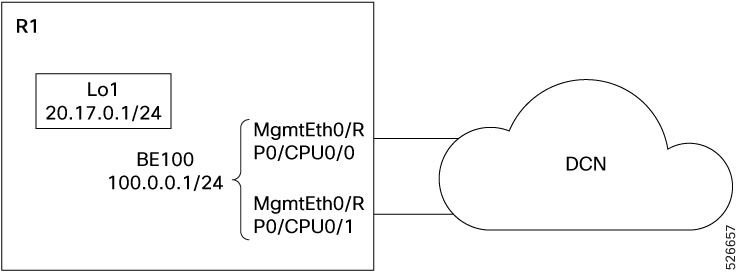
This example shows how the bundle-ether interface packet statistics are synchronized between IOS XR and Linux. The packet and byte counters maintained by Linux for IOS XR interfaces display only the traffic sourced in Linux. You can configure to periodically synchronize these counters with the IOS XR statistics for the interfaces.

Before you begin

Enter the configuration mode using the configuration command.

Procedure


Step 1

Configure the statistics synchronization including the direction and synchronization interval.

Example:

The example shows statistics synchronization in global configuration:
RP/0/RP0/CPU0:ios(config)#linux networking statistics-synchronization from-xr 
every 30s

Example:

The example shows statistics synchronization in exposed-interface configuration:
RP/0/RP0/CPU0:ios(config)#linux networking exposed-interfaces interface mgmtEth 0/RP0/CPU0/2 statistics-synchronization from-xr every 10s

where —

  • from-xr: The direction indicating that the interface packet statistics will be pushed from IOS XR to the Linux kernel.

  • every: Shows the frequency at which to synchronize statistics. The intervals supported for global configuration are 30s and 60s. The intervals supported for exposed interfaces are 5s, 10s, 30s or 60s. The interval s is in seconds.

Step 2

Verify that the statistics synchronization is applied successfully on IOS XR.

Example:

This example highlights the statistics synchronization that is applied on IOS XR interface.
RP/0/RP0/CPU0:ios(config)#show running-config linux networking
linux networking
 vrf default
  address-family ipv4
   protection
   protocol tcp local-port all default-action deny 
    permit interface bundle-ether 1  
    !
   !
  ! 
 !
exposed-interfaces
 interface bundle-ether 1 linux-managed
  statistics-synchronization from-xr every 10s
  !
 !
!

For troubleshooting purposes, use the show tech-support linux networking command to display debugging information.


Synchronize Routes Between IOS XR and Linux

The NCS 1004 allows you to synchronoze routes between the IOS XR and linux interfaces. You can achieve route synchronization in three methods.

  • Sending traffic from Linux via a connected network.

  • Sending traffic from Linux via a network requiring a route, where the route is present in XR.

  • Sending traffic from Linux via a network requiring a route (no route present).

For each of the three scenarios, we will use the following back-to-back topology for illustration. All interfaces are assumed to be configured with their IP addresses and up.

Figure 1. NCS 1004 back-to-back topology

All the three methods consider the R1 node has the same configuration.

RP/0/RP0/CPU0:ios#bash
[ios:~]$ ifconfig
Lo0: flags=4163<UP,BROADCAST,RUNNING,MULTICAST>  mtu 1500
        inet 20.2.2.2  netmask 255.255.255.255  broadcast 0.0.0.0
        ether 9a:91:5d:6d:ad:c8  txqueuelen 2000  (Ethernet)
        RX packets 0  bytes 0 (0.0 B)
        RX errors 0  dropped 0  overruns 0  frame 0
        TX packets 0  bytes 0 (0.0 B)
        TX errors 0  dropped 0 overruns 0  carrier 0  collisions 0

Mg0_RP0_CPU0_0: flags=4163<UP,BROADCAST,RUNNING,MULTICAST>  mtu 1500
        inet 72.163.4.154  netmask 255.0.0.0  broadcast 72.255.255.255
        ether 74:88:bb:ff:fe:c8  txqueuelen 2000  (Ethernet)
        RX packets 69764  bytes 7270201 (6.9 MiB)
        RX errors 0  dropped 0  overruns 0  frame 0
        TX packets 0  bytes 0 (0.0 B)
        TX errors 0  dropped 0 overruns 0  carrier 0  collisions 0

lo: flags=73<UP,LOOPBACK,RUNNING>  mtu 1400
        inet 127.0.0.1  netmask 255.0.0.0
        inet6 ::1  prefixlen 128  scopeid 0x10<host>
        loop  txqueuelen 1000  (Local Loopback)
        RX packets 0  bytes 0 (0.0 B)
        RX errors 0  dropped 0  overruns 0  frame 0
        TX packets 0  bytes 0 (0.0 B)
        TX errors 0  dropped 0 overruns 0  carrier 0  collisions 0

to_xr: flags=4305<UP,POINTOPOINT,RUNNING,NOARP,MULTICAST>  mtu 1300
        unspec 00-00-00-00-00-00-00-00-00-00-00-00-00-00-00-00  txqueuelen 2000  (UNSPEC)
        RX packets 8  bytes 768 (768.0 B)
        RX errors 0  dropped 0  overruns 0  frame 0
        TX packets 6  bytes 348 (348.0 B)
        TX errors 0  dropped 0 overruns 0  carrier 0  collisions 0

Send traffic from Linux via a connected network

In this method, we are sending traffic to 12.0.0.2 or 100.0.0.2 from Linux on R1. No extra configuration is required in Linux. XLNC syncs all of the relevant IP addresses and the kernel populates the routes.

Procedure

Step 1

View the IP routes used by the to_xr interfaces.

Example:
RP/0/RP0/CPU0:ios#bash
[ios:~]$ ip route
default via 10.127.60.1 dev Mg0_RP0_CPU0_0
10.127.59.46 via 10.127.60.1 dev Mg0_RP0_CPU0_0
10.127.60.0/24 dev Mg0_RP0_CPU0_0  scope link  src 10.127.60.173
 

Step 2

Verify connectivity with R2 node.

Example:
This output shows the details of network connectivity to R2 node IP 12.0.0.2.
[ios:~]$ping 10.127.60.173
PING 10.127.60.173 (10.127.60.173) 56(84) bytes of data.
64 bytes from 10.127.60.173: icmp_seq=1 ttl=64 time=0.046 ms
64 bytes from 10.127.60.173: icmp_seq=2 ttl=64 time=0.039 ms
64 bytes from 10.127.60.173: icmp_seq=3 ttl=64 time=0.030 ms
64 bytes from 10.127.60.173: icmp_seq=4 ttl=64 time=0.030 ms
64 bytes from 10.127.60.173: icmp_seq=5 ttl=64 time=0.030 ms
64 bytes from 10.127.60.173: icmp_seq=6 ttl=64 time=0.031 ms
64 bytes from 10.127.60.173: icmp_seq=7 ttl=64 time=0.038 ms
^C
--- 10.127.60.173 ping statistics ---
7 packets transmitted, 7 received, 0% packet loss, time 5999ms
rtt min/avg/max/mdev = 0.030/0.034/0.046/0.009 ms

Send traffic from Linux via a network using an XR route

This example shows how to the use the to_xr Linux interface. This interface uses Rx-inject to inject a packet as though it had just been received by the router. This leads to the packet being routed as per routes installed in the RIB.

The key piece of information required here is the source address which should be chosen. Linux has no way of determining this without a route, but in typical deployments the XR features that rely on Linux Networking (Model Driven Telemetry, and IOS-XR Install) need connectivity. To allow these to work, XR uses the IP of the lowest-numbered Loopback (e.g. Loopback0) interface and sets it as the source hint for the default route.

If connectivity is instead needed to a destination that cannot route to the lowest-numbered loopback, the user must manually add a new route to Linux. (In future releases it will be possible to configure XR routes to be added to Linux automatically, but manual intervention is needed in the first release.)

Procedure

Step 1

Check the route details for the NCS 1004 node R1.

Example:
RP/0/RP0/CPU0:NE_173#show route
Fri Oct 31 15:20:43.596 IST

Codes: C - connected, S - static, R - RIP, B - BGP, (>) - Diversion path
       D - EIGRP, EX - EIGRP external, O - OSPF, IA - OSPF inter area
       N1 - OSPF NSSA external type 1, N2 - OSPF NSSA external type 2
       E1 - OSPF external type 1, E2 - OSPF external type 2, E - EGP
       i - ISIS, L1 - IS-IS level-1, L2 - IS-IS level-2
       ia - IS-IS inter area, su - IS-IS summary null, * - candidate default
       U - per-user static route, o - ODR, L - local, G  - DAGR, l - LISP
       A - access/subscriber, a - Application route
       M - mobile route, r - RPL, t - Traffic Engineering, (!) - FRR Backup path

Gateway of last resort is 10.127.60.1 to network 0.0.0.0

S*   0.0.0.0/0 [1/0] via 10.127.60.1, 01:18:21
L    2.2.2.2/32 is directly connected, 01:18:22, Loopback2
S    10.127.59.46/32 [1/0] via 10.127.60.1, 01:18:21
C    10.127.60.0/24 is directly connected, 01:18:21, MgmtEth0/RP0/CPU0/0
L    10.127.60.173/32 is directly connected, 01:18:21, MgmtEth0/RP0/CPU0/0
 

Step 2

View the IP routes used by the to_xr interfaces.

Example:
RP/0/RP0/CPU0:ios#bash
Fri Oct 31 15:22:32.218 IST
[:~]$ ip route
default via 10.127.60.1 dev Mg0_RP0_CPU0_0
10.127.59.46 via 10.127.60.1 dev Mg0_RP0_CPU0_0
10.127.60.0/24 dev Mg0_RP0_CPU0_0  scope link  src 10.127.60.173
[:~]$exit

Step 3

Add a rotue sync configuration in XR.

Example:
RP/0/RP0/CPU0:ios#configure
RP/0/RP0/CPU0:ios(config)#linux networking
RP/0/RP0/CPU0:ios(config-lnx-net)# vrf default
RP/0/RP0/CPU0:ios(config-lnx-vrf)# address-family ipv4
RP/0/RP0/CPU0:ios(config-lnx-af)#  default-route software-forwarding
RP/0/RP0/CPU0:ios(config-lnx-af)#  source-hint management-route interface MgmtEth0/RP0/CPU0/0
RP/0/RP0/CPU0:ios(config-lnx-af)#  source-hint default-route interface MgmtEth0/RP0/CPU0/0
RP/0/RP0/CPU0:ios(config-lnx-af)#commit 
RP/0/RP0/CPU0:ios(config-lnx-af)#

Step 4

Verify the linux configuration in XR.

Example:
RP/0/RP0/CPU0:ios#show running-config linux networking
Tue Oct 28 16:39:44.951 IST
linux networking
 vrf default
  east-west Loopback2
  address-family ipv4
   source-hint default-route interface MgmtEth0/RP0/CPU0/0
  !
 !
!

Step 5

Add a route with source IP address in Linux

Example:
RP/0/RP0/CPU0:ios#bash
Fri Oct 31 15:22:32.218 IST
[:~]$#ip route add 10.127.60.0/24 dev to_xr scope link src 10.127.60.173
 

Step 6

Verify connectivity with R2 node.

Example:
[:~]$# ping 10.127.60.1
PING 10.127.60.1 (10.127.60.1) 56(84) bytes of data.
64 bytes from 10.127.60.1: icmp_seq=1 ttl=254 time=0.876 ms
64 bytes from 10.127.60.1: icmp_seq=2 ttl=254 time=0.768 ms
64 bytes from 10.127.60.1: icmp_seq=3 ttl=254 time=0.697 ms
64 bytes from 10.127.60.1: icmp_seq=4 ttl=254 time=0.824 ms
^C
--- 10.127.60.1 ping statistics ---
4 packets transmitted, 4 received, 0% packet loss, time 3000ms
rtt min/avg/max/mdev = 0.697/0.791/0.876/0.069 ms
[:~]$

Send traffic from Linux via a network without an XR route

This method uses only the Linux networking stack to accomplish the same as scenario 2. Here the required configuration is to set the route in Linux. You can omit the source IP, as this will be resolved via Linux.

Procedure

Step 1

Check the route details for the NCS 1004 node R1.

Example:
RP/0/RP0/CPU0:ios#show route
Fri Oct 31 15:58:52.236 IST

Codes: C - connected, S - static, R - RIP, B - BGP, (>) - Diversion path
       D - EIGRP, EX - EIGRP external, O - OSPF, IA - OSPF inter area
       N1 - OSPF NSSA external type 1, N2 - OSPF NSSA external type 2
       E1 - OSPF external type 1, E2 - OSPF external type 2, E - EGP
       i - ISIS, L1 - IS-IS level-1, L2 - IS-IS level-2
       ia - IS-IS inter area, su - IS-IS summary null, * - candidate default
       U - per-user static route, o - ODR, L - local, G  - DAGR, l - LISP
       A - access/subscriber, a - Application route
       M - mobile route, r - RPL, t - Traffic Engineering, (!) - FRR Backup path

Gateway of last resort is 10.127.60.1 to network 0.0.0.0

S*   0.0.0.0/0 [1/0] via 10.127.60.1, 01:56:30
L    2.2.2.2/32 is directly connected, 01:56:31, Loopback2
S    10.127.59.46/32 [1/0] via 10.127.60.1, 01:56:30
C    10.127.60.0/24 is directly connected, 01:56:30, MgmtEth0/RP0/CPU0/0
L    10.127.60.173/32 is directly connected, 01:56:30, MgmtEth0/RP0/CPU0/0

Step 2

View the IP routes used by the to_xr interfaces.

Example:
RP/0/RP0/CPU0:ios#bash
Fri Oct 31 15:59:14.656 IST
[ios:~]$  ip route
default via 10.127.60.1 dev Mg0_RP0_CPU0_0
10.127.59.46 via 10.127.60.1 dev Mg0_RP0_CPU0_0
10.127.60.0/24 dev Mg0_RP0_CPU0_0  scope link  src 10.127.60.173
[NE_173:~]$

Step 3

Set the route in Linux.

Example:
This command sets the route in the linux interface.
[ios:~]$ ip route add 10.127.60.0/24 dev to_xr scope link src 10.127.60.173
 

Step 4

Verify connectivity with R2 node.

Example:
[:~]$# ping 10.127.60.1
PING 10.127.60.1 (10.127.60.1) 56(84) bytes of data.
64 bytes from 10.127.60.1: icmp_seq=1 ttl=254 time=0.876 ms
64 bytes from 10.127.60.1: icmp_seq=2 ttl=254 time=0.768 ms
64 bytes from 10.127.60.1: icmp_seq=3 ttl=254 time=0.697 ms
64 bytes from 10.127.60.1: icmp_seq=4 ttl=254 time=0.824 ms
^C
--- 10.127.60.1 ping statistics ---
4 packets transmitted, 4 received, 0% packet loss, time 3000ms
rtt min/avg/max/mdev = 0.697/0.791/0.876/0.069 ms
[:~]$