Postquantum preshared keys
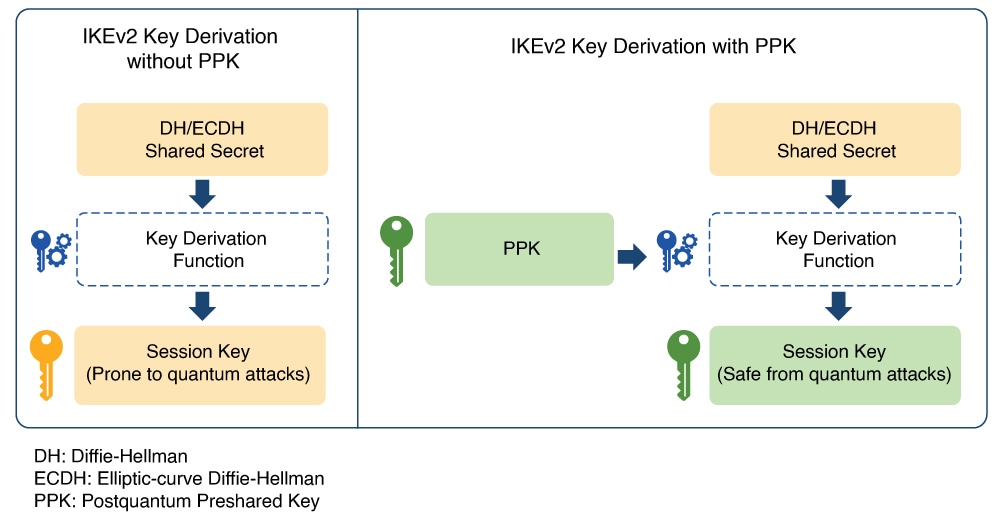
If the preshared keys contain sufficient entropy, session keys derived from them are resistant to quantum attacks. As a result, the system is secure against both modern classical attackers and future quantum attackers.
RFC 8784 (Mixing Preshared Keys in IKEv2 for Postquantum Security) specifies how IKEv2 can use PPKs for quantum resistance, enabling PPK negotiation, PPK ID transmission, integration into session key derivation, and fallback to sessions not using PPKs.
Dynamic postquantum preshared keys
Cisco Secure Key Integration Protocol
A Cisco Secure Key Integration Protocol is a security protocol that
-
uses HTTPS as a transport to securely import preshared keys (PPKs) into Cisco encryption devices,
-
acts as a client on encryption devices and a server on external key sources to enable automated and coordinated key provisioning, and
-
provides reliable out-of-band synchronization, ensuring both initiator and responder devices receive identical key material.
Externally imported PPKs via SKIP are called dynamic PPKs. For successful integration, encryption devices must implement the SKIP client, and external sources (such as Quantum Key Distribution [QKD] devices or Cisco Session Key Service [SKS] servers) must implement the SKIP server.
SKIP compliance requirements
To be SKIP-compliant, an external key source must:
-
implement the SKIP protocol or API as specified in the Cisco SKIP specification,
-
provide the same preshared key (PPK) to both the initiator and responder devices using a reliable out-of-band synchronization mechanism,
-
contact Cisco for technical guidance during implementation, especially for vendors supplying Quantum Key Distribution (QKD) or third-party solutions.
Workflow for dynamic postquantum preshared keys
Summary
The key components involved in the process are:
-
IKEv2 initiator: Requests and uses PPKs, communicating with the peer during session establishment.
-
IKEv2 responder: Uses synchronized PPKs to ensure secure and matching session derivation.
-
External key sources (SKIP server): Provide PPKs to devices and synchronize key material out-of-band.
-
SKIP client: Runs on encryption devices to interact securely with the key source.
Workflow
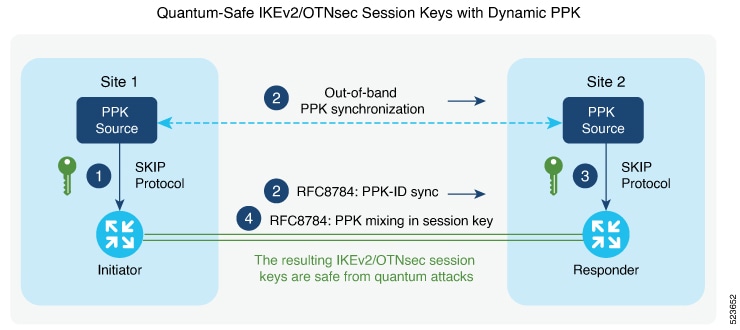
Thiw figure shows quantum-safe IKEv2 and OTNsec session keys using dynamic PPK.
The process involves the following stages:
- The IKEv2 initiator requests a preshared key (PPK) from its configured external key source using SKIP. The key source replies with a PPK and associated PPK ID.
- The initiator’s key source synchronizes the PPK to the responder’s key source out-of-band, based on the type of key source. Simultaneously, the initiator communicates the PPK ID to the responder via IKEv2 using RFC 8784 extensions.
- The responder requests the correct PPK from its own key source using the received PPK ID and obtains the matching PPK.
- Both initiator and responder mix the PPK into the key derivation process as specified in RFC 8784, generating quantum-safe IKEv2 and OTNsec session keys.
Result
The process ensures that both participating devices use a synchronized cryptographic key with enhanced entropy, enabling secure, quantum-resistant session establishment.
Configuring Dynamic PPK using SKS SKIP
Use the following commands to configure the dynamic PPK for one or more peers or groups of peers, in the IKEv2 keyring.
configure terminal
keyring dynamic
peer name
ppk dynamic sks-profile-name [required]
pre-shared-key key-string
address {ipv4-address mask}
ikev2 profile name
match identity remote address {ipv4-address mask}
keyring ppk keyring-name
keyring keyring-name
sks profile profile-name type remote
kme server ipv4 ip-address port port-number
exit
exit
Example :
RP/0/RP0/CPU0:ios#configure terminal
RP/0/RP0/CPU0:ios(config)#keyring dynamic
RP/0/RP0/CPU0:ios(config-ikev2-keyring)#peer peer1
RP/0/RP0/CPU0:ios(config-ikev2-keyring-peer)#ppk dynamic qkd required
RP/0/RP0/CPU0:ios(config-ikev2-keyring-peer)#pre-shared-key cisco123!cisco123
RP/0/RP0/CPU0:ios(config-ikev2-keyring-peer)#address 10.0.0.1 255.0.0.0
RP/0/1/CPU0:ios(config)#ikev2 profile test
RP/0/1/CPU0:ios(config-ikev2-profile-test)#keyring dynamic
RP/0/1/CPU0:ios(config-ikev2-profile-test)#keyring ppk dynamic
RP/0/1/CPU0:ios(config-ikev2-profile-name)#match address 10.0.0.1 255.255.255.0
RP/0/1/CPU0:ios(config)#sks profile qkd type remote
RP/0/1/CPU0:ios(config-sks-profile)#kme server ipv4 192.0.2.34 port 10001
RP/0/RP0/CPU0:ios(config-ikev2-keyring-peer)#exit
RP/0/RP0/CPU0:ios(config)#exit
Manual postquantum preshared keys
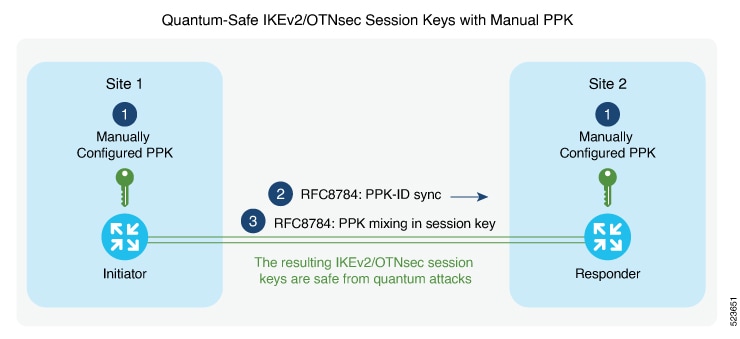
This figure illustrates that the session keys of quantum-safe IKEv2 and OTNsec are obtained through a manual PPK:
Configure a manual PPK in an IKEv2 keyring
Define a manual PPK for one or more IKEv2 peers or peer groups to enhance VPN authentication security.
Manually configuring PPKs in IKEv2 keyrings allows for more flexible peer authentication in secure VPN deployments. From Release 24.3.1, Type 6 passwords are supported for preshared keys, providing enhanced protection. See Enable Type 6 password.
Follow these steps to configure a manual PPK in an IKEv2 keyring:
Procedure
|
Step 1 |
Access global configuration mode and create or enter an IKEv2 keyring using the keyring keyring-name command. Example: |
||
|
Step 2 |
Define the peer and configure the manual PPK and preshared key using the keywords peer name key [ clear | password | password6 ] password [required]. Example: |
||
|
Step 3 |
Define the pre-shred-key and peer adress using the keywords pre-shared-key key-string address {ipv4-address mask } Example: |
||
|
Step 4 |
Exit to global configuration mode. Example: |
||
|
Step 5 |
Create or modify the IKEv2 profile, associating the keyring and matching remote peer identity using the keywords ikev2 profile namematch identity remote address {ipv4-address mask}keyring ppk keyring-name keyring keyring-name |
||
|
Step 6 |
Exit to global configuration mode. Example:These are the examples where the PPK and the preshared key are configured with the These are the examples where the PPK and preshared key are configured with the
|
Type 6 password support for preshared keys in IKEv2 authentication
Enable Type 6 password
Context:
Type 6 password encryption provides strong protection for preshared keys and pre-shared PPKs (Pairwise Primary Keys) on your device, using the Advanced Encryption Standard (AES). This ensures credentials are not stored as plain text and are not directly visible in the configuration.
Follow these steps to enable Type 6 password.
Procedure
|
Step 1 |
Use the password6 encryption aes command to enable the AES encryption and save the changes. Example: |
|
Step 2 |
Use the key config-key password-encryption command to create the primary key. Example: |
|
Step 3 |
Use the same command key config-key password-encryption again, if you want to update the primary key. When it prompts for an old key, input the old key and then enter the new key that you want to configure. If you forget the old key while updating the primary key, use the command key config-key password-encryption delete to delete the old key and create a new one. Make sure that you disable password6 encryption aes before deleting the primary key. Example:Enable the AES encryption and configure the primary key again. |
|
Step 4 |
Use the show type6 server command to verify the status of the Type 6 password encryption information. Example:When the key is created, it is stored internally; not as part of the NCS 1004 device configuration. The device does not display the primary key as part of the running configuration. So, you cannot see or access the primary key when you connect to the device. |
|
Step 5 |
(Optional) Use the nonvolatile generation (NVGEN) command, nvgen-default-sanitize passwords, if you want to mask completely the preshared key in the show command output. Example: |
|
Step 6 |
(Optional) Use the command show running-config keyring to view encrypted keys. The configured primary key and AES encryption encrypt the preshared key and PPK. Example: |
 Feedback