Connect Switch to the Network


Note


The images in this chapter are only for representation purposes, unless specified otherwise. The chassis' actual appearance and size may vary.

Connecting a Console to the Switch

Before you create a network management connection for the switch or connect the switch to the network, you must create a local management connection through a console terminal and configure an IP address for the switch. The switch can be accessed using remote management protocols, such as SSH and Telnet. By default, SSH is included in the software image. But telnet is not part of the software image. You must manually install the telnet optional package to use it.

You also can use the console to perform the following functions, each of which can be performed through the management interface after you make that connection:

  • configure the switch using the command-line interface (CLI)

  • monitor network statistics and errors

  • configure Simple Network Management Protocol (SNMP) agent parameters

  • initiate software download updates via console

You make this local management connection between the asynchronous serial port on a console device capable of asynchronous transmission. Typically, you can use a computer terminal as the console device.


Note


Before you can connect the console port to a computer terminal, make sure that the computer terminal supports VT100 terminal emulation. The terminal emulation software makes communication between the switch and computer possible during setup and configuration.

Before you begin

  • The switch must be fully installed in its rack. The switch must be connected to a power source and grounded.

  • The necessary cabling for the console, management, and network connections must be available.

    • An RJ45 rollover cable and a DB9F/RJ45 adapter.

    • Network cabling should already be routed to the location of the installed switch.

Procedure


Step 1

Configure the console device to match the following default port characteristics:

  • 9600 baud

  • 8 data bits

  • 1 stop bit

  • No parity

Step 2

Connect and RJ45 rollover cable to a terminal, PC terminal emulator, or terminal server.

The RJ45 rollover cable is not part of the accessory kit.

Step 3

Route the RJ45 rollover cable as appropriate and connect the cable to the console port on the chassis.

If the console or modem cannot use an RJ45 connection, use the DB9F/RJ45F PC terminal adapter. Alternatively, you can use an RJ45/DSUB F/F or RJ45/DSUB R/P adapter, but you must provide those adapters.


What to do next

You are ready to create the initial switch configuration.

Connect the Management Interface

The management port (MGMT ETH) provides out-of-band management, which lets you to use the command-line interface (CLI) to manage the switch by its IP address. This port uses a 10/100/1000 Ethernet connection with an RJ-45 interface.


Caution


To prevent an IP address conflict, do not connect the MGMT 100/1000 Ethernet port until the initial configuration is complete.

Before you begin

You must have completed the initial switch configuration.

Procedure


Step 1

Connect a modular, RJ-45, UTP cable to the MGMT ETH port.

Step 2

Route the cable through the central slot in the cable management system.

Step 3

Connect the other end of the cable to a 100/1000 Ethernet port on a network device.


What to do next

You are ready to connect the interface ports to the network.

Transceivers, Connectors, and Cables

RJ-45 Connectors

The RJ-45 connector connects Category 3, Category 5, Category 5e, Category 6, or Category 6A foil twisted-pair or unshielded twisted-pair cable from the external network to the following module interface connectors:

  • Switch chassis

    • CONSOLE port

    • MGMT ETH port


Caution


To comply with GR-1089 intrabuilding, lightning immunity requirements, you must use a foil twisted-pair (FTP) cable that is properly grounded at both ends.


The following figure shows the RJ-45 connector.

Figure 1. RJ-45 Connector

1

Pin 1

2

Pin 8

Install and Remove Transceiver Modules

This section provides the installation, cabling, and removal instructions for the Quad Small Form-Factor Pluggable transceiver modules. Refer to the Cisco Optical Transceiver Handling Guide for additional details on optical transceivers.


Note


You must visually inspect the transceiver latch to ensure the transceiver module is not damaged so that when it is inserted into the switch port, it will not damage the ports.


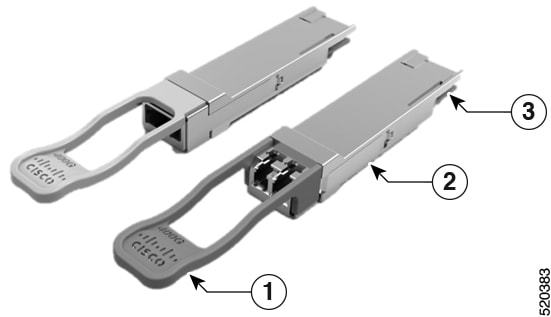
Figure 2. 400-Gigabit QSFP-DD Transceiver Module
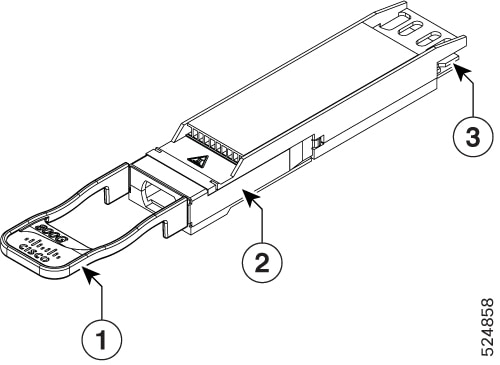
Figure 3. OSFP Transceiver Module
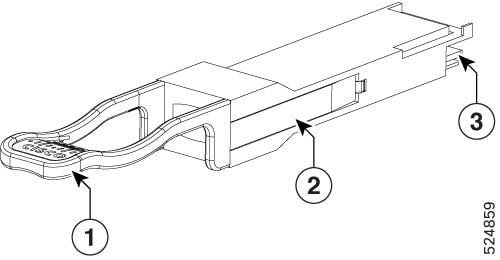
Figure 4. QSFP Transceiver Module

1

Pull-tab

2

Transceiver body

3

Electrical connection to the module circuitry


Warning


Statement 1079—Hot Surface

This icon is a hot surface warning. To avoid personal injury, do not touch without proper protection.


Required Tools and Equipment

You need these tools to install the transceiver modules:

  • Wrist strap or other personal grounding device to prevent ESD occurrences.

  • Antistatic mat or antistatic foam to set the transceiver on.

  • Fiber-optic end-face cleaning tools and inspection equipment.

Installing the Transceiver Module


Warning


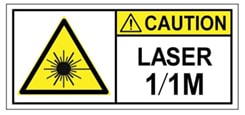
Statement 1055—Class 1/1M Laser

Invisible laser radiation is present. Do not expose to users of telescopic optics. This applies to Class 1/1M laser products.


Warning


Statement 1051—Laser Radiation

Invisible laser radiation may be emitted from disconnected fibers or connectors. Do not stare into beams or view directly with optical instruments.


Warning


Statement 1079—Hot Surface

This icon is a hot surface warning. To avoid personal injury, do not touch without proper protection.


Caution


The transceiver module is a static-sensitive device. Always use an ESD wrist strap or similar individual grounding device when handling transceiver modules or coming into contact with system modules.

Caution


Protect the transceiver ports by inserting clean dust caps (8000-QSFP-DCAP) into any ports not in use. Be sure to clean the optic surfaces of the fiber cables before you plug them back into the optical ports of another module. Use dust caps for all the open ports on the chassis.

The switch ships with dust caps plugged in. We highly recommend you to keep the dust caps plugged in until you are ready to plug an optic.

The dust caps protect the ports from possible EMI interference and also avoid contamination due to dust collection. To meet the EMI interference requirements, you must use the metal dust caps when the ports are not in use by optical modules.


The QSFP transceiver module has a pull-tab latch. To install a transceiver module, follow these steps:

Procedure


Step 1

Attach an ESD wrist strap to yourself and a properly grounded point on the chassis or the rack.

Step 2

Remove the transceiver module from its protective packaging.

Step 3

Check the label on the transceiver module body to verify that you have the correct model for your network. Do not remove the dust plug until you’re ready to attach the network interface cable. Dust plug is not shown in the images.

Note


You must visually inspect the transceiver latch to ensure the transceiver module is not damaged so that when it is inserted into the switch port, it will not damage the ports.

Step 4

Hold the transceiver by the pull-tab so that the identifier label is on the top.

Step 5

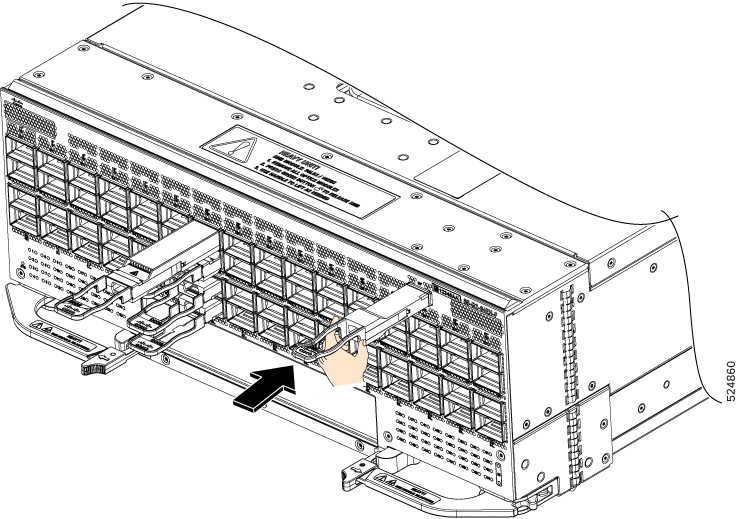
Align the transceiver module in front of the module’s transceiver socket opening and carefully slide the transceiver into the socket until the transceiver contact with the socket electrical connector.

Figure 5. Installing the QSFP Transceiver Module
Figure 6. Installing the OSFP Transceiver Module

Step 6

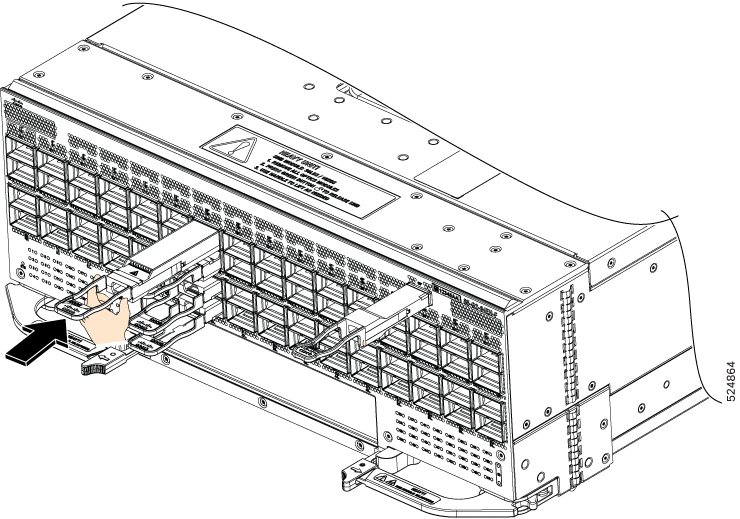
Press firmly on the front of the transceiver module with your thumb to fully seat the transceiver into the cage port (see the below figure).

Figure 7. Seating the QSFP Transceiver Module
Figure 8. Seating the OSFP Transceiver Module

Caution

 
If the latch isn’t fully engaged, you might accidentally disconnect the transceiver module.

Attach the Optical Network Cable

Before you begin

Before you remove the dust plugs and make any optical connections, follow these guidelines:

  • Keep the protective dust plugs installed in the unplugged fiber-optic cable connectors and in the transceiver optical bores until you are ready to make a connection.

  • Inspect and clean the optical connector end faces just before you make any connections.

  • Grasp the optical connector only by the housing to plug or unplug a fiber-optic cable.


Note


The transceiver modules and fiber connectors are keyed to prevent incorrect insertion.

Note


The multiple-fiber push-on (MPO) connectors on the optical transceivers support network interface cables with either physical contact (PC) or ultra-physical contact (UPC) flat polished face types. The MPO connectors on the optical transceivers do not support network interface cables with an angle-polished contact (APC) face type.

Note


Inspect the MPO connector for the correct cable type, cleanliness, and any damage. For complete information on inspecting and cleaning fiber-optic connections, see the Inspection and Cleaning Procedures for Fiber-Optic Connections document.


Procedure


Step 1

Remove the dust plugs from the optical network interface cable MPO connectors and from the transceiver module optical bores. Save the dust plugs for future use.

Step 2

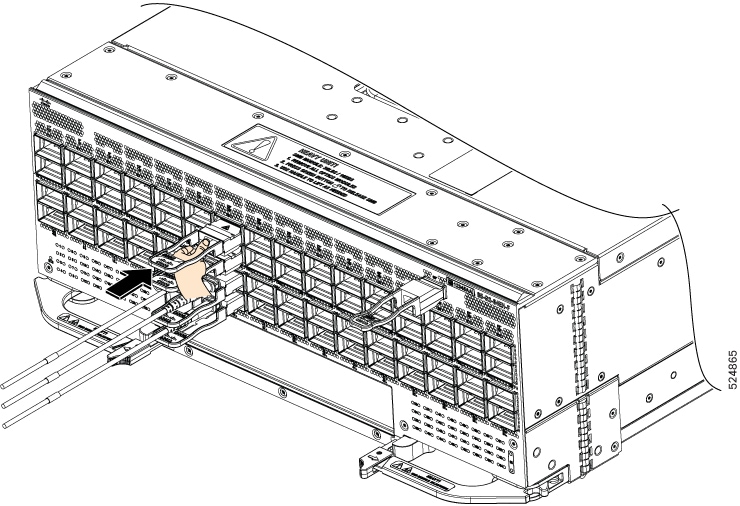
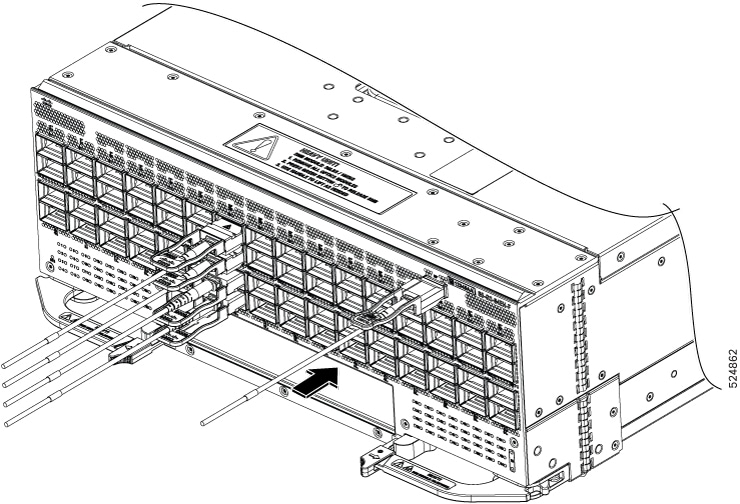
Attach the network interface cable MPO connectors immediately to the transceiver module.

Figure 9. Cabling a QSFP Transceiver Module
Figure 10. Cabling an OSFP Transceiver Module

Removing the Transceiver Module


Warning


Statement 1055—Class 1/1M Laser

Invisible laser radiation is present. Do not expose to users of telescopic optics. This applies to Class 1/1M laser products.


Warning


Statement 1051—Laser Radiation

Invisible laser radiation may be emitted from disconnected fibers or connectors. Do not stare into beams or view directly with optical instruments.


Warning


Statement 1079—Hot Surface

This icon is a hot surface warning. To avoid personal injury, do not touch without proper protection.


Caution


The transceiver module is a static-sensitive device. Always use an ESD wrist strap or similar individual grounding device when handling transceiver modules or coming into contact with modules.

Caution


Protect the transceiver ports by inserting clean dust caps (8000-QSFP-DCAP) into any ports not in use. Be sure to clean the optic surfaces of the fiber cables before you plug them back into the optical ports of another module. Use dust caps for all the open ports on the chassis.

The switch ships with dust caps plugged in. We highly recommend you to keep the dust caps plugged in until you are ready to plug an optic.

The dust caps protect the ports from possible EMI interference and also avoid contamination due to dust collection. To meet the EMI interference requirements, you must use the metal dust caps when the ports are not in use by optical modules.


To remove a transceiver module, follow these steps:

Procedure


Step 1

Disconnect the network interface cable from the transceiver connector.

Step 2

Install the dust plug immediately into the transceiver’s optical bore.

Step 3

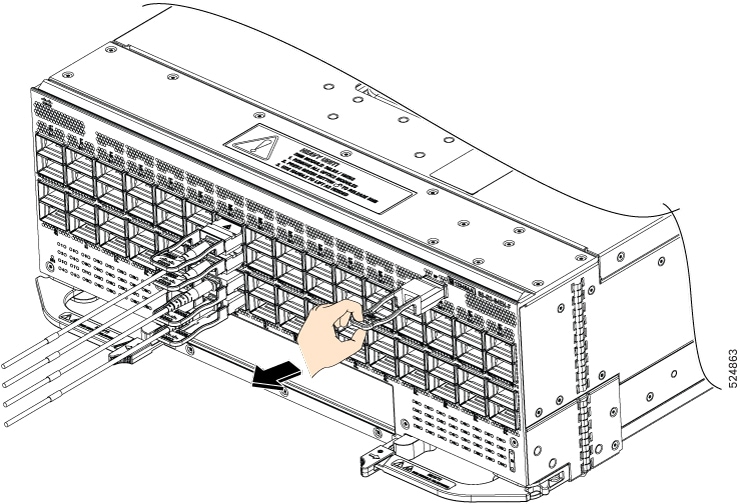
Grasp the pull-tab and gently pull to release the transceiver from the cage port or socket.

Figure 11. Removing the QSFP Transceiver Module

Figure 12. Removing the OSFP Transceiver Module

Step 4

Slide the transceiver out of the cage port or socket.

Step 5

Place the transceiver module into an antistatic bag.


Connect Interface Ports

You can connect optical interface ports with other devices for network connectivity.

Connect a Fiber-Optic Port to the Network

Some transceivers work with fiber-optic cables that you attach to the transceivers and other transceivers work with pre-attached copper cables. You must install a transceiver in the port before installing the fiber-optic cable in the transceiver.


Caution


Removing and installing a transceiver can shorten its useful life. Do not remove and insert transceivers any more than is absolutely necessary. We recommend that you disconnect cables before installing or removing transceivers to prevent damage to the cable or transceiver.


Disconnect Optical Ports from the Network

When you need to remove fiber-optic transceivers, you must first remove the fiber-optic cables from the transceiver before you remove the transceiver from the port.