NSO Configuration

This chapter lists the configuration tasks required to prepare NSO for integration.

NSO package pre-installation tasks

Before installing the CWM Solutions packages for NSO, you must ensure that ulimit values are set properly, additional Python packages are installed and that NSO supports REST. CWM Solutions can use both SSL and HTTPS, so you can choose to enable both in the REST configuration if needed. You will need to install SSL certificate files and specify their location in the RESTCONF configuration if you want to enable SSL.

Before you begin

Ensure that you have met the basic requirements for the NSO installation, as explained in Meet installation requirements. If you plan to enable HTTPS/SSL as part of the REST configuration, Cisco recommends that you create and install SSL certificate and key files in the NCS configuration directory before completing this task.

Please see https://developer.cisco.com/docs/nso/guides/installation/#installation for related NSO installation requirements, such as required Python and Java versions, and so on.

Procedure


Step 1

Set ulimit values, as follows:

  1. Edit the /etc/security/limits.conf file to add the following lines:

    Switch to super user: sudo su

    Edit /etc/security/limits.conf and add these lines:

    *      soft nproc 65535
    *      hard nproc 65535
    *      soft nofile 65535
    *      hard nofile 65535
    *      hard memlock 65535
    *      soft memlock 65535
  2. Because Ubuntu distributions may require an explicit root username ulimit specification, add the following lines to the file:

    root    -       nofile  65535
    root    -       nproc   65535
    root    soft    memlock unlimited
    root    hard    memlock unlimited
  3. When you have finished the edit, run the sysctl -p script to set the parameters.

  4. Log out and log in again to apply the new values.

  5. Run ulimit -a to verify that the ulimit values have been applied correctly. You should see output like the following.

    $ ulimit -a
    core file size          (blocks, -c) 0
    data seg size           (kbytes, -d) unlimited
    scheduling priority             (-e) 0
    file size               (blocks, -f) unlimited
    pending signals                 (-i) 95697
    max locked memory       (kbytes, -l) 65536
    max memory size         (kbytes, -m) unlimited
    open files                      (-n) 65535
    pipe size            (512 bytes, -p) 8
    POSIX message queues     (bytes, -q) 819200
    real-time priority              (-r) 0
    stack size              (kbytes, -s) 8192
    cpu time               (seconds, -t) unlimited
    max user processes              (-u) 65535
    virtual memory          (kbytes, -v) unlimited
    file locks                      (-x) unlimited

Step 2

Open port 20243 and associate the the host name with the host IP address, as follows:

  1. Open port 20243 so that the NSO host VM can communicate with Crosswork Device Lifecycle Manager. For example:

    sudo firewall-cmd --zone=public --add-port=20243/tcp --permanent
    sudo firewall-cmd --reload
  2. Check /etc/hosts and verify that the NSO host IP is associated with the NSO host name (if they are not associated, port 20243 might not start automatically). For example:

    sudo vi /etc/hosts
    127.0.0.1   localhost localhost.localdomain localhost4 localhost4.localdomain4
    172.22.143.219 <hostname>
    ::1         localhost localhost.localdomain localhost6 localhost6.localdomain6

Step 3

Install the following Python packages on the NSO server using these commands:

~$ sudo pip install textfsm
~$ sudo pip install jinja2
~$ sudo pip instapp pyyaml
~$ sudo pip install pycryptodome

Step 4

Enable support for REST, CGI, SSL/HTTPS webui, tcp, and stream, as follows.

  1. Edit the NSO ncs.conf file:

    sudo vi /etc/ncs/ncs.conf
     
     <webui>
        <enabled>true</enabled>
        <transport>
    <tcp>
      <enabled>true</enabled>
      <ip>0.0.0.0</ip>
      <port>8080</port>
      <extra-listen>
        <ip>::</ip>
        <port>8080</port>
      </extra-listen>
    </tcp>
    <ssl>
      <enabled>true</enabled>
      <ip>0.0.0.0</ip>
      <port>8888</port>
      <key-file>${NCS_CONFIG_DIR}/ssl/cert/host.key</key-file>
      <cert-file>${NCS_CONFIG_DIR}/ssl/cert/host.cert</cert-file>
      <extra-listen>
        <ip>::</ip>
        <port>8888</port>
      </extra-listen>
          </ssl>
        </transport>
     
        <cgi>
          <enabled>true</enabled>
          <php>
            <enabled>false</enabled>
          </php>
        </cgi>
      </webui>
     
      <restconf>
        <enabled>true</enabled>
      </restconf>
     
     
    **Add the below stream under the below section
      <notifications>
        <event-streams>**
     
    <stream>
      <name>service-aa-changes</name>
      <description>Notifications relating to the service aa configuration change</description>
      <replay-support>true</replay-support>
      <builtin-replay-store>
        <enabled>true</enabled>
        <dir>${NCS_RUN_DIR}/state</dir>
        <max-size>S10M</max-size>
        <max-files>50</max-files>
      </builtin-replay-store>
    </stream>
    
  2. When you have finished the edit, save the ncs.conf file and restart NSO. For example:

    sudo systemctl restart ncs
  3. Once NSO restarts, using an admin user ID, verify that REST is working correctly on your NSO installation. For example:

    admin@ncs% run show ncs-state rest
    ncs-state rest listen tcp
     ip   ::
     port 8080
    ncs-state rest listen tcp
     ip   0.0.0.0
     port 8080
    ncs-state rest listen ssl
     ip   ::
     port 8888
    ncs-state rest listen ssl
     ip   0.0.0.0
     port 8888

Step 5

Ensure that the NETCONF Access Control Model (NACM) rule list grants the ncsadmin and Linux users permissions to perform functions on NSO. For example:

admin@ncs% set nacm groups group ncsadmin user-name admin
admin@ncs% commit
 
 
admin@ncs% show nacm
read-default     deny;
write-default    deny;
exec-default     deny;
groups {
    group ncsadmin {
        user-name [ admin private ];
    }
    group ncsoper {
        user-name [ public ];
    }
}

For help adding more users, including adding them to auth groups, see the NSO Administration Guide topic Adding a User.

Step 6

Determine the devices you will be supporting using CWM Solutions, then install the NSO Network Element Drivers (NEDs) appropriate for those devices, as follows:

  1. Using the URLs on the NED license certificates supplied by your account team, download the NEDs for your devices from Cisco Software Download to a resource on your NSO host. The NEDs are signed.bin files that you must run to validate and extract the NED code.

  2. Verify, extract and install the downloaded NEDs as explained in the he NSO Administration Guide topic Install New NEDs.

  3. When you have finished installing the new NEDs, restart NSO. For example:

    sudo systemctl restart ncs

Create Crosswork credential profiles

Crosswork credential profiles store login user names and passwords in a secure fashion. Crosswork uses them to authenticate with its providers, such as Cisco NSO, which are helper applications that perform specialized services for Crosswork. Crosswork and its providers also use credential profiles to authenticate with your network devices when accessing them.

In this procedure, we’ll create two credential profiles. Crosswork Workflow Manager Solutions will use the first profile to log in to NSO and request that NSO access your network devices or perform changes on them. NSO will use the second profile to log into your network devices.

The credentials you provide in credential profiles are protocol-specific. That is, in each credential profile, you specify a "communication type" (also known as a protocol) and for each protocol, one set of credentials (typically, a user name and password) that works with that protocol on your device or application. You then + add another protocol, and a corresponding set of credentials, until all the protocols and credentials you want the profile to work with are added to the collection.

You can't have a credential profile with two different sets of credentials for the same protocol. If you want to specify a different set of credentials for protocols you already specified in one credential profile, you will need to create another credential profile.

For more about credential profiles and providers, see Credential Profiles in the Cisco Crosswork Network Controller Administration Guide.

Before you begin

Ensure that you've already installed CWM Solutions per the instructions in Install the CWM Solutions CAPP.

Procedure


Step 1

Log in to Crosswork and select Device Management > Credential Profiles. Crosswork displays the Credential Profiles list.

Step 2

Create the NSO provider credential profile as follows:

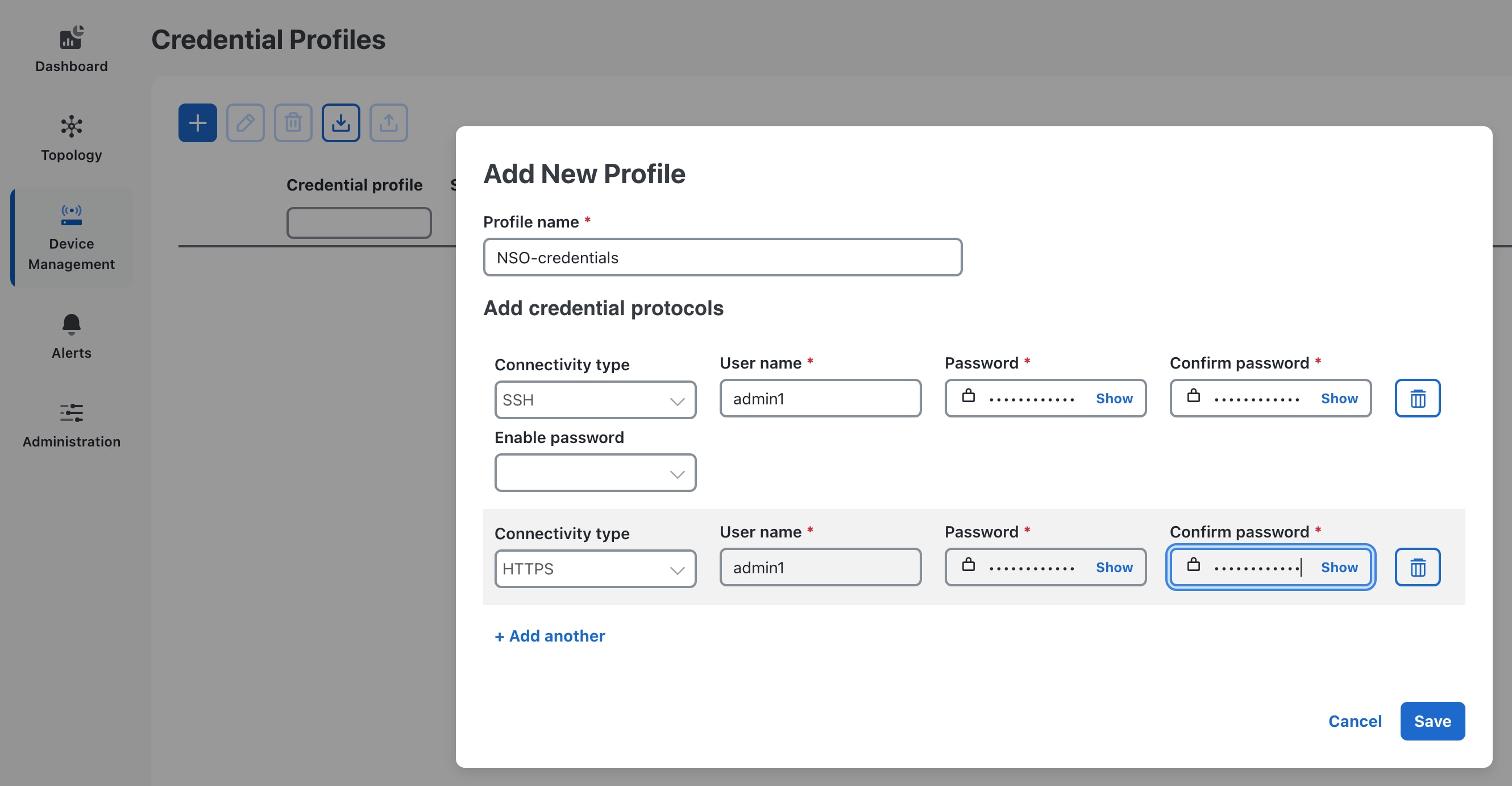
  1. Click + to add a credential profile for the NSO provider.

  2. Complete the fields on the Add New Profile window as follows:

    In this field...

    Enter or select:

    Profile name

    NSO-Credentials (or any unique name you find meaningful)

    Connectivity type

    SSH

    User name

    The username for an SSH admin user on the NSO server. This user name can be a dedicated CWM Solutions user name with admin privileges that you create on the NSO server. In any case, this admin user name must be one that is in the ncsadmin group on the NSO server.

    Password

    The password for this user name.

    Confirm password

    The same password you entered in Password.

    Enable password

    Leave this field blank.

  3. Click + Add another to display another set of connectivity protocols to add to the same NSO credential profile. This time, select HTTPS as the Connectivity type, and enter the same NSO user and password information for this protocol, just as you did for Step 2b. For example:

  4. When you are finished, click Save to save the NSO credential profile. You should see the Profile name you specified appear on the Credential Profiles list.

Step 3

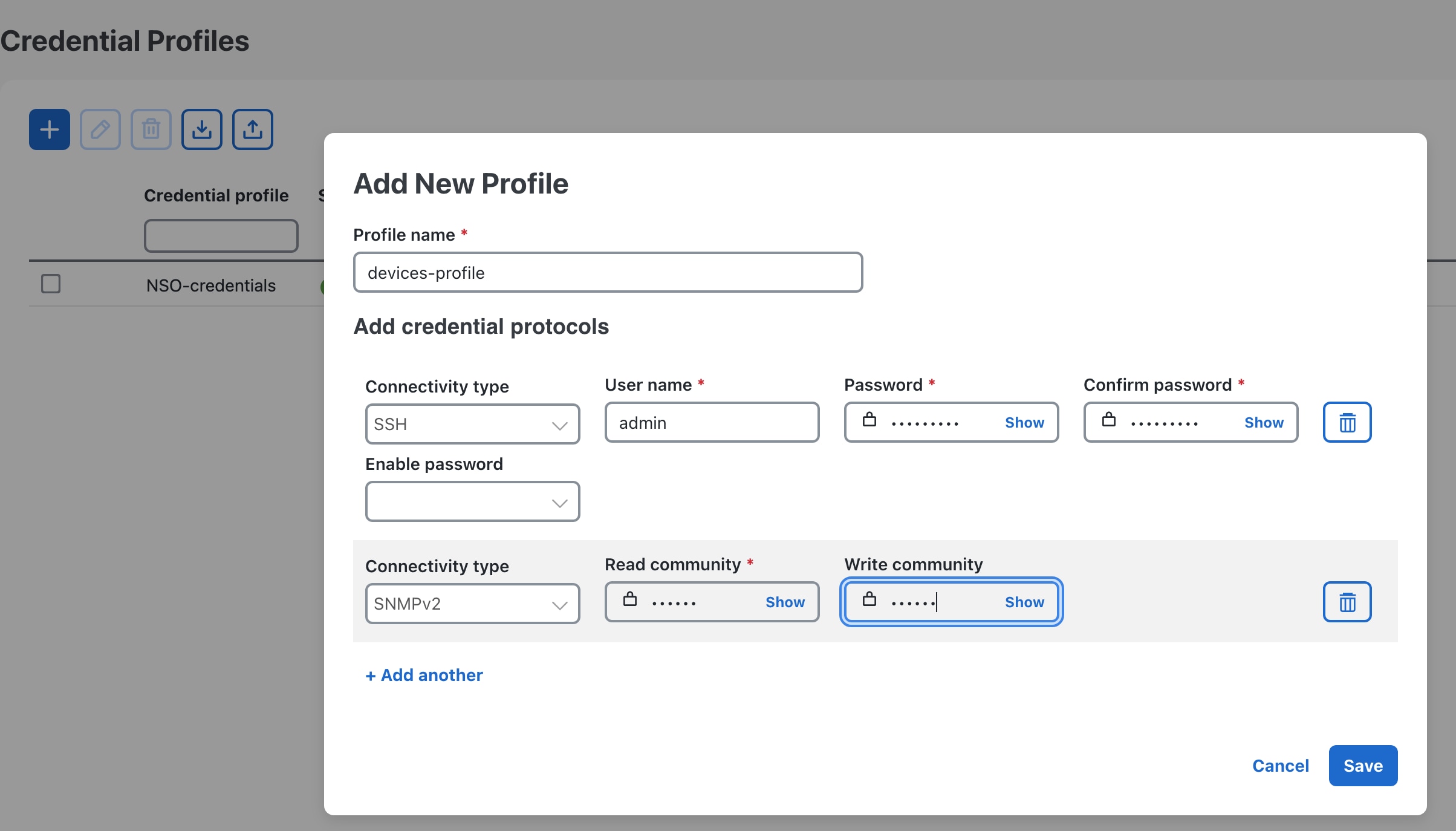
(Optional) Repeat Step 2 to create another credential profile for your devices. You will want to add as many device login credentials and protocols as are appropriate for the devices you intend to manage using Crosswork Workflow Manager Solutions. Don't add protocols to a credential profile if the devices you are managing are not using those protocols. The following table provides a survey of all the protocols you can add to a Crosswork credential profile and the kinds of device functions they support.

Protocol

Used For

SSH

Devices providing IoT device control and secure file transfer. Common used protocol for device management.

NETCONF

Remote configuration and RPC exchange, typically used with SSH.

HTTP

Hosts providing insecure web resource access.

HTTPS

Hosts providing secure, encrypted web resource exchange.

SCP

Devices providing secure, encrypted file exchange relying on SSH.

TELNET

A common protocol for console access, used for most Cisco XR, Cisco XE, and Juniper Junos devices.

SNMPv2

Standard protocol for device management, used with many devices.

gRPC

Devices participating in high-performance distributed systems. It allows client applications to directly invoke remote procedure calls on server applications as if they were local. An alternative to REST.

SNMPv3

Latest version of the standard protocol for device management, used with some newer devices.

gNMI

Devices providing real-time network monitoring, telemetry and device management in secure streaming format. Often used in place of SNMP by data centers and service providers.

The following figure shows how you might create a single device credential profile that for two of the most commonly used protocols. You might create multiple credential profiles like this if you have groups of devices using the same two protocols but with different credentials.

Create an NSO provider profile

A Crosswork provider is a helper application that lets Crosswork perform special functions. In this task, we will use the NSO credential profile to create an NSO provider and give it the information it needs to authenticate with Crosswork. NSO will then be able to access the device authentication information stored in the device credential profile we created.

Before you begin

Ensure that you've already created the credential profiles explained in Create Crosswork credential profiles. You will need the name of the NSO credential profile you created during that task to complete the following task.

Procedure


Step 1

Log in to Crosswork and select Administration > Manage Provider Access.

Step 2

Click + to add an NSO provider.

Step 3

Complete the first set of fields on the Add New Profile window as follows:

In this field...

Enter or select:

Provider name

The name of the provider, such as NSO.

Credential profile

The name of the NSO credential profile you created in Create Crosswork credential profiles.

Family

NSO

Step 4

Complete the fields on the Connection type(s) section as follows:

In this field...

Enter or select:

Protocol

Select the principal protocol that the Cisco Crosswork application will use to connect to the provider. Select HTTPS.

To add more connectivity protocols for this provider, click the icon at the end of the first row. To delete a protocol you have entered, click the Delete icon icon shown next to that row.

You can enter as many sets of connectivity details as you want, including multiple sets for the same protocol.

Server details

Select one of these options:

  • IP Address, then enter the NSO host's IP Address (IPv4 or IPv6, with subnet mask).

  • FQDN, then enter the NSO host's Domain Name and Host Name.

Port

The port number to use to connect to the NSO host. This is the port corresponding to the protocol being configured. For example, if the protocol used to communicate with the NSO host is SSH, the port number is usually 22.

Timeout (sec)

The amount of time (in seconds) to wait before the connection times out. The default is 30 seconds.

Step 5

Entries in the Provider Properties section are optional. If needed, enter one or more of the following key/value pairs:

Property Key

Value

forward

true

This property is necessary when using Crosswork to allow provisioning operations within the UI and to enable the northbound interface to NSO via the Crosswork API gateway.

Note


The default value of forward is "false". If this is not changed, the devices added to Crosswork will not be added to NSO. This setting is used in conjunction with the Edit Policy option.

nso_crosslaunch_url

Note


This property is used for NSO providers only.

Enter the URL for cross-launching NSO in the format: https://<NSO IP address/FQDN>: port number

To enable cross-launch of the NSO application from the Crosswork UI. Requires a valid protocol (HTTP or HTTPS), and the provider must be reachable.

A cross-launch icon is displayed in the Provider Name column. Alternately, you can cross launch the NSO application using a launch icon located at the top right corner of the window.

input_url_prefix

Note


This property is used only for NSO LSA providers.

Enter the RFS ID in the format: /rfc-x, where x refers to the number of the RFS node.

Example (for RFS node 1): 
input_url_prefix: /rfc-1

Step 6

Complete the fields in the Model Prefix Info section as follows:

In this field...

Enter or select:

Model

Select the model prefix that matches the NED CLI used by Cisco NSO. Valid values are:

Cisco-IOS-XR

Cisco-IOS-XE

Cisco-NX-OS

For telemetry, only Cisco-IOS-XR is supported.

To add more model prefix information for this NSO provider, click the icon at the end of any row in the Model Prefix Info section. To delete a model prefix you have entered, click the Delete icon icon shown next to that row.

Version

Enter the Cisco NSO NED driver version used on the NSO server.

Step 7

When you are finished, click Save to save the NSO Provider profile. After a delay while Crosswork attempts to reach NSO, you should see the profile appear on the Manage Provider Access list.


Deploy the NSO Function Packs

Use Crosswork's NSO Deployment Manager to deploy the NSO function packs on NSO. These function packs will provide the basic inventory management and other NSO capabilities needed to use Crosswork Workflow Manager Solutions. You will also need to log in to NSO directly, to ensure that NACM is enabled on NSO and that other NSO settings are properly configured.

Before you begin

Ensure you have added NSO as a provider as explained in Create an NSO provider profile.

Procedure


Step 1

If you have not already done so: Contact your Cisco Sales team to identify and download the Cisco NSO Network Element Drivers (NEDs) required for your network environment. Before proceeding, install these NEDs on your NSO server, as explained in Install New NEDs.

Step 2

Once the NEDs are installed: Log in to Crosswork Workflow Manager and choose Administration > Crosswork Manager > NSO Deployment Manager.

Step 3

Under NSO Deployment Manager, choose the NSO function pack bundles tab and click the check box next to CWM SOLUTIONS FPS. Then click the Deploy button to start the deployment process.

Step 4

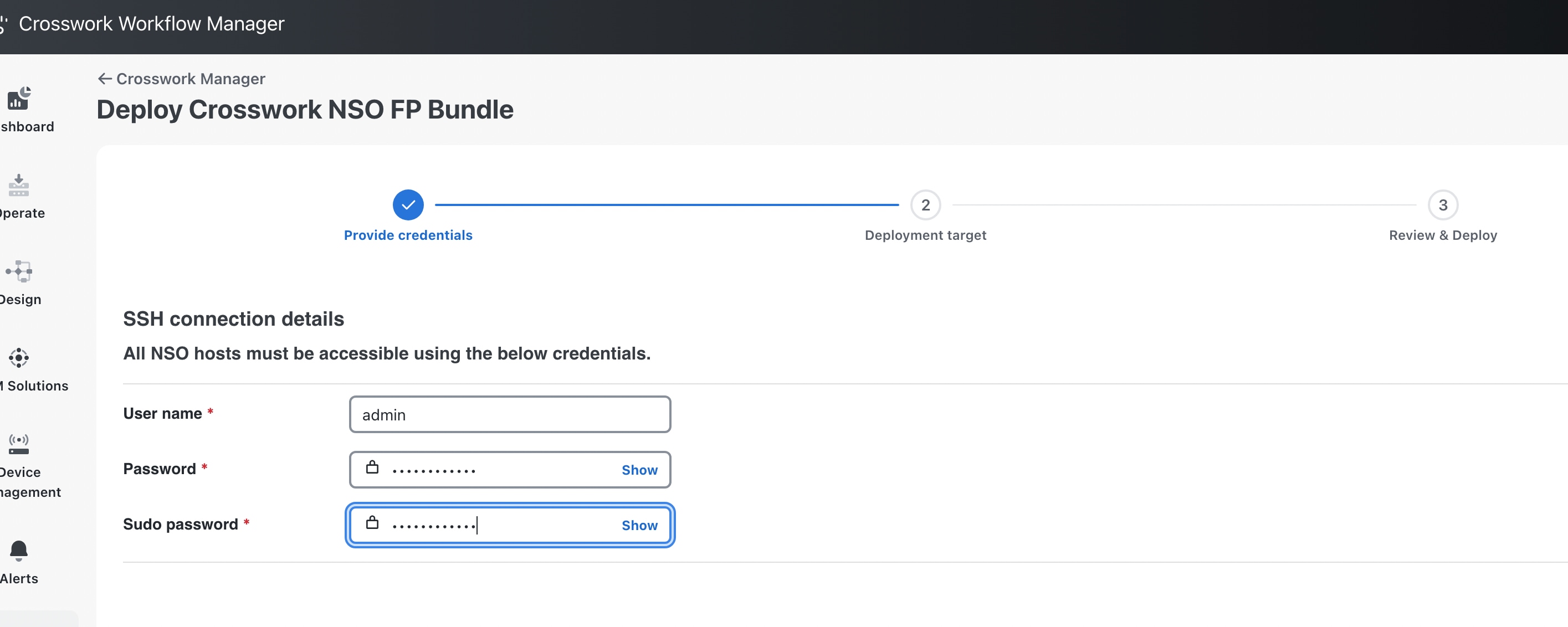
When prompted on the first Provide credentials page, provide the SSH User name, password and Sudo password credentials.

Providing Credentials

Step 5

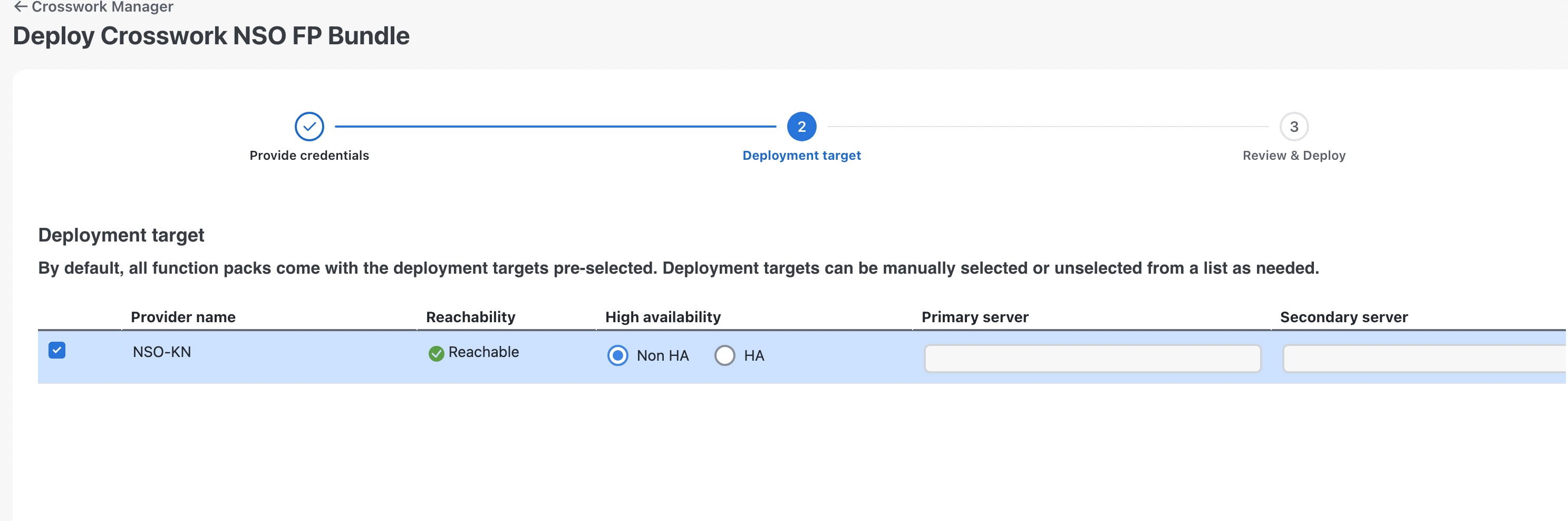
On the Deployment target page, select Non-HA in the High Availability column, as shown below.

Deployment Target

Step 6

When prompted on the Review & Deploy page, click Deploy.

Step 7

Click the Job History tab to monitor the NSO deployment as it proceeds. You will see the packages listed in the Job Details window for the running job.

Step 8

When the job is listed as Succeeded, click the Installed NSO function packs tab and expand the NSO provider to verify that the packages are all installed.

The package list should look like the illustration below.

You can also verify that all the packages are installed correctly by running the show packages command on NSO with the options shown below and then comparing your command output with the results in the following figure. The figure represents a minimum list of packages. You may have more, and some packages may have later versions.

admin1@ncs% run show packages package oper-status | tab         
                                                                 
                           PROGRAM                              
                           CODE     JAVA           PYTHON       
NAME                   UP  ERROR    UNINITIALIZED  UNINITIALIZED 
-----------------------------------------------------------------
cisco-ios-cli-6.107    X   -        -              -              
cisco-iosxr-7.70       X   -        -              -             
cisco-ztp              X   -        -              -             
dlm-svc                X   -        -              -              
fleet-upgrade          X   -        -              -              
goldenconfig           X   -        -              -              
inventory              X   -        -              -             
inventory-junos        X   -        -              -             
juniper-junos-nc-4.17  X   -        -              -              
resource-manager       X   -        -              -              
 
admin1@ncs% run show packages package package-version  | tab
                       PACKAGE
NAME                   VERSION
--------------------------------
cisco-ios-cli-6.107    6.107.2
cisco-iosxr-7.70       7.70
cisco-ztp              2.1.0
dlm-svc                7.2.0
fleet-upgrade          2.1.0
goldenconfig           2.1.0
inventory              2.1.0
inventory-junos        2.1.0
juniper-junos-nc-4.17  4.17.14
resource-manager       4.2.9

Step 9

If you haven't already done so, log in to NSO and set the following device global settings in configuration mode. These NSO settings are required for Crosswork Workflow Manager Solutions.

admin@ncs% set devices global-settings connect-timeout 600
admin@ncs% set devices global-settings read-timeout 600
admin@ncs% set devices global-settings write-timeout 600
admin@ncs% set devices global-settings ssh-algorithms public-key ssh-rsa
admin@ncs% set devices global-settings trace pretty
admin@ncs% set devices global-settings ned-settings 
                           cisco-iosxr read admin-show-running-config false
admin@ncs% commit
 
admin@ncs% show devices global-settings
connect-timeout 600;
read-timeout    600;
write-timeout   600;
ssh-algorithms {
    public-key [ ssh-rsa ];
}
trace           pretty;
ned-settings {
    cisco-iosxr {
        read {
            admin-show-running-config false;
        }
    }
}

Step 10

Note that NETCONF Access Control Model (NACM) is required for NSO. Ensure that the NACM rule list grants ncsadmin and the Linux user rights to perform functions on NSO. For example:

admin@ncs% set nacm groups group ncsadmin user-name admin
admin@ncs% commit
 
 
admin@ncs% show nacm
read-default     deny;
write-default    deny;
exec-default     deny;
groups {
    group ncsadmin {
        user-name [ admin private ];
    }
    group ncsoper {
        user-name [ public ];
    }
}

Step 11

Copy the ncs_backup.sh, ncs_restore.sh and get_technical_support_data.sh scripts from the provided bundle to the scripts directory under the NCS_RUN_DIR, and update the permissions of the copied scripts to make them executable.

# Locate the NCS_RUN_DIR using the following command
cat /etc/systemd/system/ncs.service | grep NCS_RUN_DIR=
 
# Update the permissions
chmod +x ncs_backup.sh ncs_restore.sh get_technical_support_data.sh