VMware installation

This chapter covers the steps to install Crosswork Workflow Manager Solutions on VMware.

Install Crosswork on VMware using vSphere

Follow these steps to deploy Crosswork on a single VM using the VMware vSphere user interface.

Before you begin

Ensure that:


Attention


The download file names given in this topic are subject to change. You can always find the latest versions by pointing your browser to https://software.cisco.com/download/home and searching for Crosswork Network Controller > All Release.


Procedure


Step 1

Install a supported version of VMware ESXi on the machine you plan to use as the Crosswork server.

Step 2

From Cisco Software Central, download the latest version of the Cisco Crosswork platform image file to a storage location on the same system: cnc-workflowmanager-single-node-deployment-7.2.0-45.ova.

Step 3

With VMware ESXi running, log into the VMware vSphere Web Client. On the left navigation pane, choose the ESXi host where you want to deploy the VM.

Step 4

In the vSphere UI, go to Host > Configure > Networking > Virtual Switches and select the virtual switch for the Management Network that will be used to access the UI of the VM. In the virtual switch, select Edit > Security, and configure the following DVS port group properties:

  • Set Promiscuous mode as Reject

  • Set MAC address changes as Reject

Confirm the settings and repeat the process for the virtual switch that will be used for the Data Network.

Step 5

Review and confirm that your network settings meet the requirements.

Ensure that the networks that you plan to use for Management Network and Data network are connected to the host. Contact your Cisco Experience team for assistance.

Step 6

Choose Actions > Deploy OVF Template.

Caution


The default VMware vCenter deployment timeout is 15 minutes. If vCenter times out during deployment, the resulting VM will not be bootable. To prevent this, we recommend that you document the choices (such as IP address, gateway, DNS server, etc.) so that you can enter the information quickly and avoid any issues with the VMware configuration.

Step 7

The VMware Deploy OVF Template window appears, with the first step, 1 - Select an OVF template, highlighted. Click Choose Files to navigate to the location where you downloaded the OVA image file and select it. Once selected, the file name is displayed in the window.

Step 8

Click Next. The Deploy OVF Template window is refreshed, with 2 - Select a name and folder now highlighted. Enter a name and select the respective data center for the Cisco Crosswork VM you are creating.

We recommend that you include the Cisco Crosswork version and build number in the name, for example: Cisco Crosswork 7.2 Build 48.

Step 9

Click Next. The Deploy OVF Template window is refreshed, with 3 - Select a compute resource highlighted. Select the host for your Cisco Crosswork VM.

Step 10

Click Next. The VMware vCenter Server validates the OVA. Network speed will determine how long validation takes. After the validation is complete, the Deploy OVF Template window is refreshed, with 4 - Review details highlighted.

Step 11

Review the OVF template that you are deploying. This information is gathered from the OVF, and cannot be modified.

Note


You may see alerts regarding the OVF package containing advanced configuration options and/or about trusted certificates. These are common and you can safely select the "Ignore" option.

Step 12

Click Next. The Deploy OVF Template window is refreshed, with 5 - License agreements highlighted. Review the End User License Agreement and if you agree, click the I accept all license agreements checkbox. Otherwise, contact your Cisco Experience team for assistance.

Step 13

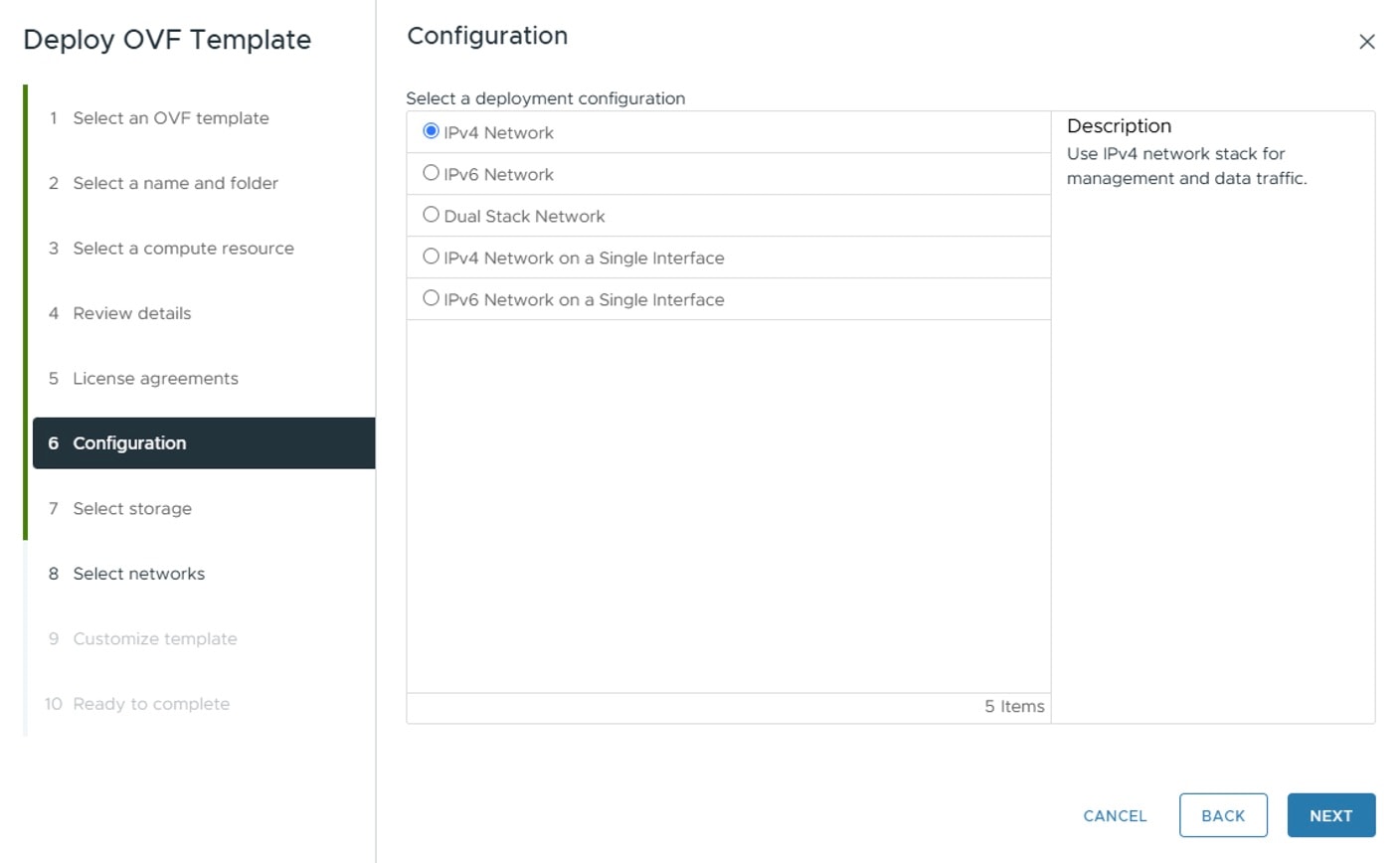
Click Next The Deploy OVF Template window is refreshed, with 6 - Configuration highlighted. Choose the desired deployment configuration.

Figure 1. Select a deployment configuration

Step 14

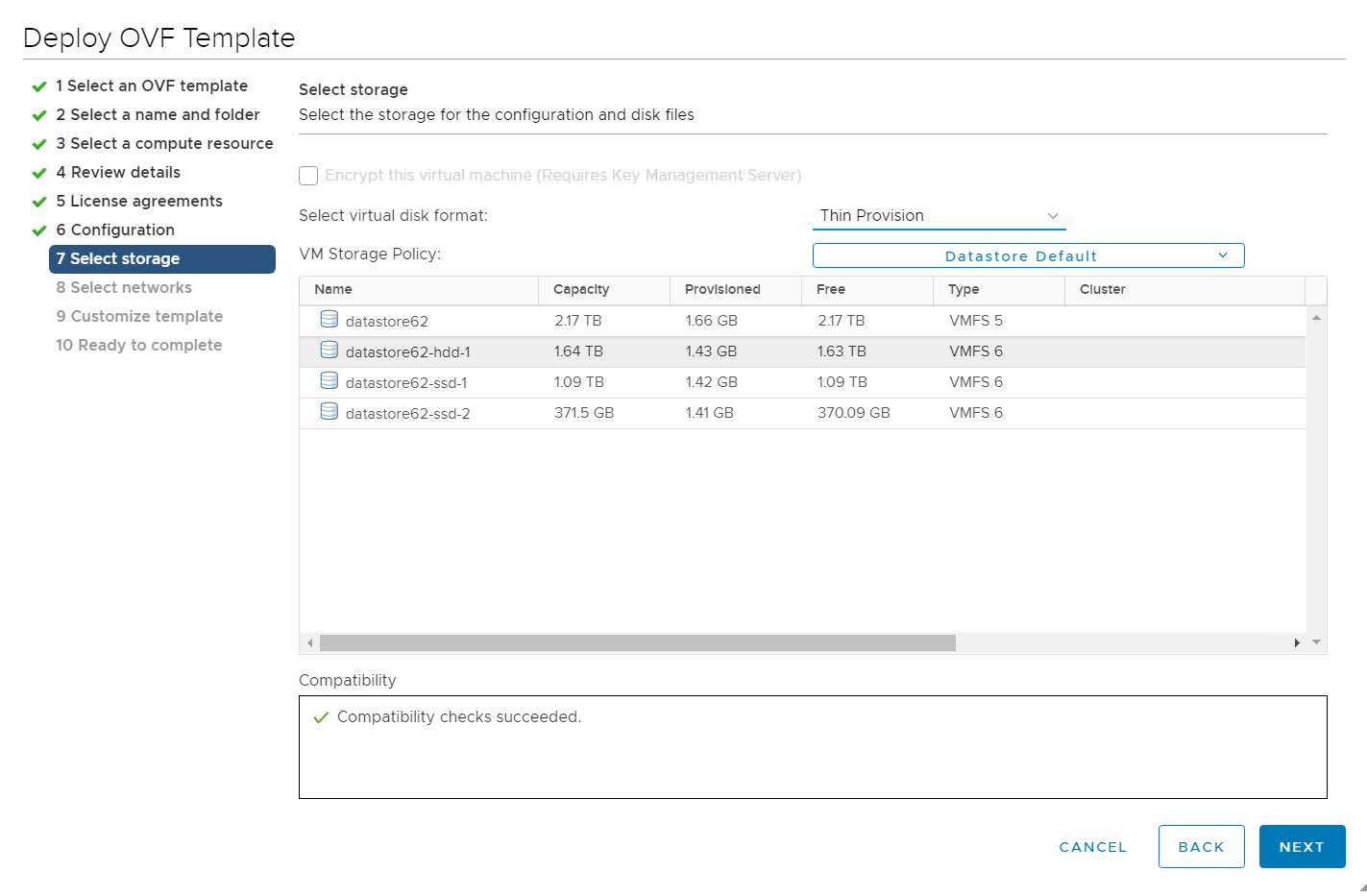
Click Next. The Deploy OVF Template window is refreshed, with 7 - Select Storage highlighted. Choose the relevant option from the Select virtual disk format drop-down list. From the table, choose the datastore you want to use, and review its properties to ensure there is enough available storage.

Figure 2. Select Storage

Note


For production deployment, choose the Thick Provision Eager Zeroed option because this will preallocate disk space and provide the best performance. For lab purposes, we recommend the Thin Provision option because it saves disk space.

Crosswork does not support the 2TB option for single VM installations.

Step 15

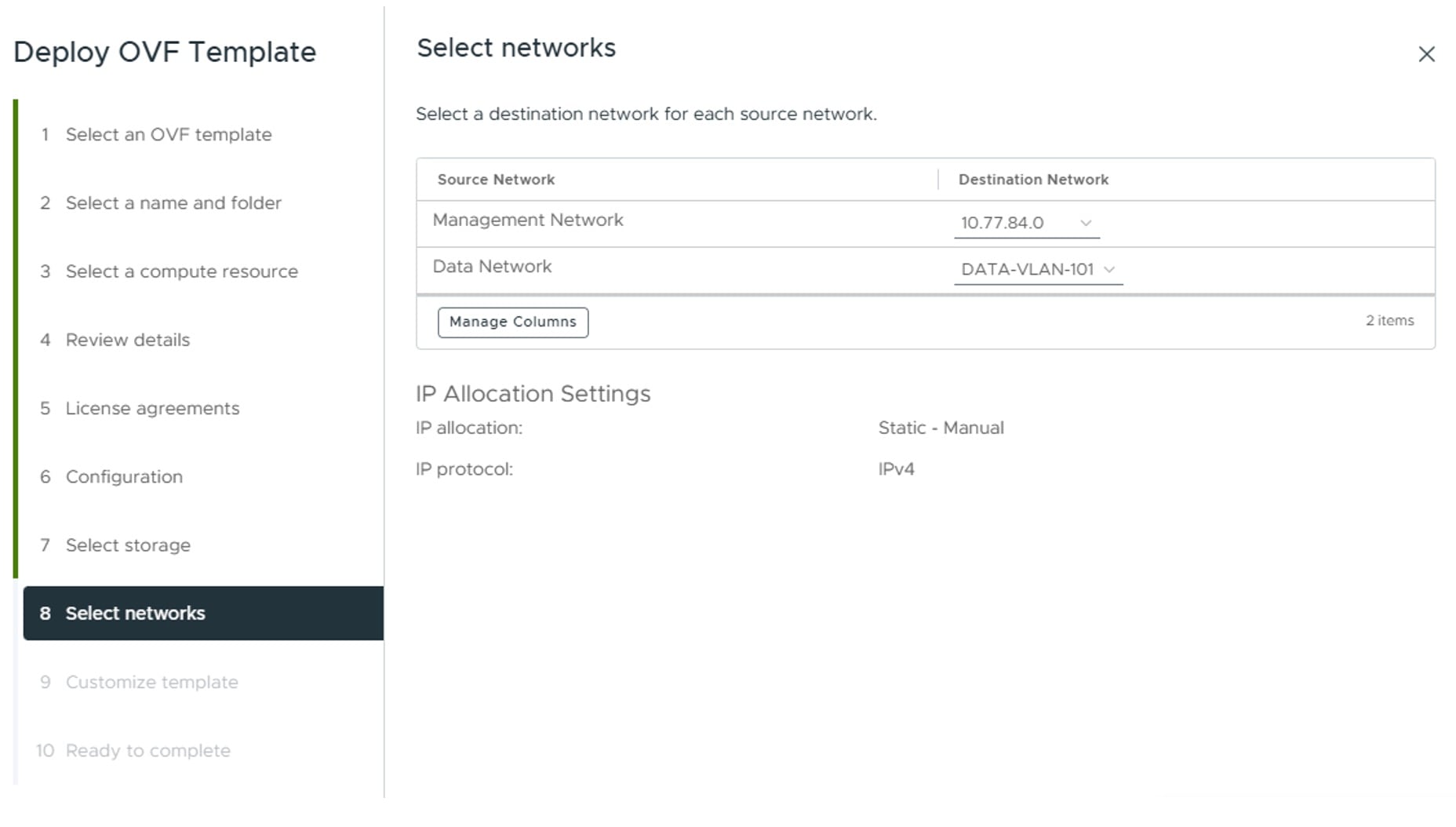
Click Next. The Deploy OVF Template window is refreshed, with 8 - Select networks highlighted. From the Destination Network drop-down list, select the proper networks for the Management Network and the Data Network.

Figure 3. Select networks

Step 16

Click Next. The Deploy OVF Template window is refreshed, with 9 - Customize template highlighted.

  1. Expand the Management Network settings. Provide information for the IPv4 and/or IPv6 deployment (as per your selection) such as IP address, IP netmask, IP gateway, virtual IP address, and virtual IP DNS name.

  2. Expand the Data Network settings. Provide information for the IPv4 and/or IPv6 deployment (as per your selection) such as IP address, IP netmask, IP gateway, virtual IP address, and virtual IP DNS name.

  3. Expand the Deployment Credentials settings. Enter relevant values for the VM Username and Password.

    Note


    Avoid using passwords that resemble dictionary words (for example, 'Pa55w0rd!') or easily guessable patterns. While such passwords might meet the initial criteria, they are considered weak and could cause the VM setup to fail without a clear explanation. To ensure a successful installation, use a complex password with a minimum of 8 characters that combines uppercase and lowercase letters, numbers, and special characters in a non-predictable sequence.

  4. Expand the DNS and NTP Servers settings. According to your deployment configuration (IPv4 and/or IPv6), the fields that are displayed are different. Provide information in the following three fields:

    • DNS IP Address: The IP addresses of the DNS servers you want the Cisco Crosswork server to use. Separate multiple IP addresses with spaces.

    • NTP Servers: The IP addresses or host names of the NTP servers you want to use. Separate multiple IPs or host names with spaces.

    • DNS Search Domain: The name of the DNS search domain.

    • Timezone: Enter the timezone details. Default value is UTC.

    Note


    The DNS and NTP servers must be reachable using the network interfaces you have mapped on the host. Otherwise, the configuration of the VM will fail.

  5. Expand the Disk Configuration settings. Provide relevant values for these fields:

    • Logfs Disk Size

    • Datafs Disk Size

    • Corefs Partition Size

    • High Speed Disk Size

    • Minimum backup partition size

    The default disk configuration settings should work for most environments. Change the settings only if you are instructed to by the Cisco Customer Experience team.

  6. Expand Crosswork Configuration and enter your legal disclaimer text (users will see this text if they log into the CLI).

  7. Expand Crosswork Cluster Configuration. Provide relevant values for these fields:

    • VM Type: Choose Hybrid.

    • Cluster Seed node: Choose True.

    • Crosswork Management Cluster Virtual IP: Enter virtual IP of the management network.

    • Crosswork Management Cluster Virtual IP Name: Enter DNS hostname of virtual IP interface of the management network.

    • Crosswork Data Cluster Virtual IP: Enter virtual IP of the data network.

    • Crosswork Data Cluster Virtual IP Name: Enter DNS hostname of virtual IP interface of the data network.

    • Initial hybrid node count: Set to 1.

    • Initial total node count: Set to 1.

    • Location of VM: Enter the geographical location of VM.

    • Disclaimer: Enter your legal disclaimer text (users will see this text if they log into the CLI).

    • Installation type: Not applicable to single VM deployment. Do not select any checkbox.

    • Enable Skip Auto Install Feature: Set to True.

    • Auto Action Manifest Definition: Use the default value (Empty).

    • Product specific definition: Enter the product specific definition.

    • Ignore Diagnostic Failure?: Use the default value (False).

Step 17

Click Next. The Deploy OVF Template window is refreshed, with 10 - Ready to Complete highlighted.

Step 18

Review your settings and then click Finish if you are ready to begin deployment. Wait for the deployment to finish before continuing. To check the deployment status:

  1. Open a VMware vCenter client.

  2. In the Recent Tasks tab of the host VM, view the status of the Deploy OVF template and Import OVF package jobs.

Step 19

Once the deployment is completed, right-click on the VM and select Edit Settings. The Edit Settings dialog box is displayed. Under the Virtual Hardware tab, update these attributes:

  • VM profile: XLarge

  • CPU: 24

  • Memory: 128 GB

Click OK to save the changes.

Step 20

Power on the Crosswork VM. To power on, expand the host’s entry, click the Cisco Crosswork VM, and then choose Actions > Power > Power On.

The time taken to create the VM can vary based on the size of your deployment profile and the performance characteristics of your hardware. To track creation of the VM and success of the installation, follow the steps in Monitor Crosswork Server Activation.


Install Crosswork on VMware using Docker

Follow these steps to deploy Crosswork on a single VM using the Docker installer tool.

Before you begin

Ensure that:

  • Python is installed on the machine where you are downloading software. If you do not have Python installed, go to python.org and download the version of Python that is appropriate for your work station before beginning the installation.

  • You are familiar with the workflow and deployment decisions explained in Plan your installation.

  • The VMware host you have selected meets the requirements specified in Hardware requirements and .

  • The network is configured to meet all the requirements specified in Network requirements

  • The ports on the host and your devices are configured to meet the requirements specified in Management port requirements and .

  • You have assembled all of the installation values you will need, as specified in Gather installation parameter values.

During and after the install, note that:

  • The edited template in the /data directory contains sensitive information (VM passwords and the vCenter password). It will be your responsibility to manage access to this content. Cisco recommends that you store the templates used for your install in a secure environment or edit them to remove the passwords.

  • During the install, the files install.log, install_tf.log, and .tfstate will be created and stored in the /data directory. If you encounter trouble with the installation and must open a case with the Cisco Customer Experience team, please remember to provide these files to the team.

  • The install script is safe to run multiple times. Upon error, input parameters can be corrected and re-run. You must remove the install.log, install_tf.log, and tfstate files before each re-run. Running the Docker installer tool multiple times may result in the deletion and re-creation of VMs.

  • In order to change install parameters or to correct parameters following installation errors, it is important to distinguish whether the installation has managed to deploy the VM successfully or not. You can detect that a VM was deployed successfully if the installer provides output similar to the following:

    vsphere_virtual_machine.crosswork-IPv4-vm["1"]: Creation complete after 2m50s [id=4214a520-c53f-f29c-80b3-25916e6c297f]
  • If you use the same installer tool for multiple Crosswork installations, it is important to run the tool from different local directories, allowing for the deployment-state files to be independent. The simplest way to do this is to create a local directory on the host for each deployment, and map each new local directory to the container accordingly.

Be aware that:

  • Docker version 19 or higher is required while using the installer tool. For more information on Docker, see https://docs.docker.com/get-docker/.

  • Crosswork installed on a single VM does not currently support VMware vCenter storage folders or datastores organized under a virtual folder structure. Ensure that the datastores referenced are not grouped under a folder.


Attention


The download file names given in this topic are subject to change. You can always find the latest versions by pointing your browser to https://software.cisco.com/download/home and searching for Crosswork Network Controller > All Release.


Procedure


Step 1

In your Docker-capable machine, create a directory where you will store everything you will use during this installation.

Note


If you are using a Mac, ensure that the directory name is in lower case.

Step 2

From https://software.cisco.com/download/home, download the Crosswork platform installer bundle (.tar.gz) and OVA image file to the directory you created previously: CW-CWM-Solutions-Advantage-2.1.0-14-SVM-7.2.0-45-ova.signed.bin.

Step 3

Use the following command to extract the installer bundle:

tar -xvf cnc-workflowmanager-single-node-docker-deployment-7.2.0-45.tar.gz

The contents of the installer bundle are unzipped to a new directory (e.g. cnc-workflowmanager-single-node-docker-deployment-7.2.0-45). The extracted files will contain the installer image (cw-na-cnc-workflowmanager-svm-installer-7.2.0-45.tar.gz) and files necessary to validate the image.

Step 4

Review the contents of the README file to understand everything that is in the package and how it will be validated in the following steps.

Step 5

If you don't already know the version of python installed on your workstation, use the following command to detect it: python --version

Step 6

Use the following command to verify the signature of the installer image:

If you are using Python 2.x, use the following command to validate the file:

python cisco_x509_verify_release.py -e filename.cer -i filename.tar.gz -s Signaturefilename.tar.gz
-v dgst -sha512

If you are using Python 3.x, use the following command to validate the file:

python3 cisco_x509_verify_release.py3 -e filename.cer -i filename.tar.gz -s Signaturefilename.tar.gz
-v dgst -sha512

Step 7

Use the following command to load the installer image file into your Docker environment.

docker load -i filename.tar.gz

For example:

docker load -i cw-na-cnc-workflowmanager-svm-installer-7.2.0-45.tar.gz

Step 8

Run the Docker image list or Docker images command to get the "image ID" (which is needed in the next step).

For example:

docker images

The result will be similar to the following: (the output section we will need is underlined for clarity)

My Machine% docker images
REPOSITORY                        TAG                                                     IMAGE ID       CREATED        SIZE
dockerhub.cisco.com/cw-installer  cnc-workflowmanager-svm-7.2.0-45   a4570324fad30  7 days ago     276MB

Note


Pay attention to the "CREATED" time stamp in the table presented when you run docker images, as you may have other images present from the installation of prior releases. If you want to remove these, use the docker image rm {image id} command.

Step 9

Launch the Docker container using the following command:

docker run --rm -it -v `pwd`:/data image id of the installer container

To run the image loaded in our example, you would use the following command:

docker run --rm -it -v `pwd`:/data a4570324fad30

Note

 
  • You do not have to enter the full image ID value. Docker requires only enough of the image ID to uniquely identify the image you want to use for the installation. In our example, a command like docker run --rm -it -v `pwd`:/data a45 would also be adequate.

  • In the above command, we are using the backtick (`). Do not use the single quote or apostrophe ('), as this means something very different to the shell. By using the backtick, the template and OVA files will be stored in the current directory where you are located on your local disk when you run the commands, instead of inside the container.

  • When deploying an IPv6 setup, the installer needs to run on an IPv6-enabled container/VM. This requires additionally configuring the Docker daemon before running the installer, using the following method:

    • Linux hosts only: Run the Docker container in host networking mode by adding the –network host flag to the docker run command:

      docker run --network host remainder of docker run options
  • Centos/RHEL hosts: These hosts, by default, enforce a strict SELinux policy which does not allow the installer container to read from or write to the mounted data volume. On such hosts, run the Docker volume command with the Z option, as shown below:

    docker run --rm -it -v `pwd`:/data:Z remainder of docker run options

Note


The Docker command provided will use the current directory to read the template and the OVA files, and to write the log files used during the install. If you encounter either of the following two errors, you should move the files to a directory where the path is in lowercase (all lowercase, no spaces or other special characters). Then navigate to that directory and rerun the installer.

Error 1:

% docker run --rm -it -v `pwd`:/data a45
docker: invalid reference format: repository name must be lowercase.
See 'docker run --help'

Error 2:

docker: Error response from daemon: Mounts denied: approving /Users/Desktop: file does not exist
ERRO[0000] error waiting for container: context canceled

Step 10

Navigate to the directory with the VMware template:

cd /opt/installer/deployments/7.2.0/vcentre

Step 11

Copy the template file found under /opt/installer/deployments/7.2.0/vcentre/deployment_template_tfvars to the /data folder using a different name.

For example: cp deployment_template_tfvars /data/deployment.tfvars

For the rest of this procedure, we will use the file name deployment.tfvars in all the examples.

Step 12

Using a text editor of your choice, open the template file you copied to the /data directory and edit it to match the properties for your planned deployment.

For reference, here is an example deployment.tfvars, edited using sample parameter values. You must use the values you gathered for your deployment, as specified in Gather installation parameter values

Cw_VM_Image = ""    # Line added automatically by installer.
ClusterIPStack        = "IPv4"
DNS                   = "171.70.168.183"
DomainName            = "cisco.com"
CWPassword            = "*********"
NTP                   = "ntp.esl.cisco.com"
VMSize                = "XLarge"
ThinProvisioned = "true"
IgnoreDiagnosticsCheckFailure = "True"
Timezone           = "America/Los_Angeles"
EnableSkipAutoInstallFeature = "True"
ManagementVIP     = "172.22.140.180"
ManagementIPNetmask = "255.255.255.0"
ManagementIPGateway = "172.22.140.1"
DataVIP           = "14.14.14.12"
DataIPNetmask     = "255.255.255.0"
DataIPGateway     = "14.14.14.1"
CwVMs = {
  "0" = {
    VMName                = "svm-180",
    ManagementIPAddress = "172.22.140.182",
    DataIPAddress       = "14.14.14.13",
    NodeType               = "Hybrid"
  }
}
VCenterDC = {
  VCenterAddress = "<VCenterIPAddress>",
  VCenterUser = "administrator@vsphere.local",
  VCenterPassword = "<VCenterPassword>",
  DCname = "SVM-Datacenter",
  MgmtNetworkName = "VM Network",
  DataNetworkName = "Network2"
  VMs = [{
    HostedCwVMs = ["0"],
    Host = "172.22.140.210",
    Datastore = "datastore1",
    HSDatastore = "datastore1"
  }
]
}
SchemaVersion = "7.2.0"

Step 13

From the /opt/installer directory, run the installer.

./cw-installer.sh install -m /data/template file name -o /data/filename.ova

For example:

./cw-installer.sh install -m /data/deployment.tfvars -o /data/cnc-workflowmanager-single-node-deployment-7.2.0-45.ova

Step 14

The installer will display the End User License Agreement (EULA). Read, and then enter "yes" if you accept the EULA. Otherwise, exit the installer and contact your Cisco representative.

Step 15

When prompted, enter "yes" to begin the installation operation.

Step 16

To track creation of the VM and success of the installation, follow the steps in Monitor Crosswork Server Activation.

Step 17

When the installation operation exits, confirm the successful installation or re-run a failed installation, as follows:

It is not uncommon to see warnings like the following during the install:

Warning: Line 119: No space left for device '8' on parent controller '3'.
Warning: Line 114: Unable to parse 'enableMPTSupport' for attribute 'key' on element 'Config'.

You can ignore warnings like this if the install process proceeds to a successful conclusion, as indicated by the sample output below:

Sample output for successful installation:

cw_vms = .......
INFO: Copying day 0 state inventory to CW
INFO: Waiting for deployment status server to startup on ip address. Elapsed time 0s, retrying in 30s
Crosswork deployment status available at http://ipaddress:30602/d/NK1bwVxGk/crosswork-deployment-readiness?orgId=1&refresh=10s&theme=dark 
Once deployment is complete login to Crosswork via: https://ipaddress:30603/#/logincontroller 
INFO: Cw Installer operation complete.

If the installation fails:

  1. Open a support case with Cisco. Include with the case copies of the error messages reported during the installation. Remember to include copies of the following log files created in the /data directory (and the local directory where you launched the installer Docker container) with the case: install.log, install_tf.log, and .tfstate

  2. The two most common reasons for the install to fail are a password that is not adequately complex, and errors in the template file, such as a mistyped IP address. If the installer fails due to errors like this, correct the error and rerun the install script. Remember to delete the log files before re-running the installation.