Configure network bridges or SRIOV
Crosswork requires a 10G interface for all the data layer communications to operate at a scale. You can choose any networking configuration that provides 10G throughput.
 Note |
For KVM deployment, configure either network bridges or SRIOV, but not both. |
For detailed instructions, see these topics:
Configure network bridges
A network bridge, such as Linux bridge and Open vSwitch (OVS), acts like a virtual network switch, allowing multiple network interfaces to communicate as if they are on the same physical network. For detailed information, refer to RHEL 8.x or RHEL 9.x documentation.
Follow these steps to configure network bridges.
Procedure
|
Step 1 |
Create network bridge connection for management interface: |
|
Step 2 |
Repeat the above steps and create network bridge connection for data interface: |
Both network bridges, intMgmt and intData, are configured and active, enabling communication across associated network interfaces as if connected to the same physical network.
Configure SRIOV
SRIOV allows you to share a single physical network interface among multiple VMs by creating multiple Virtual Functions (VFs).
Follow these steps to configure SRIOV.
Procedure
|
Step 1 |
Open the vi /etc/rc.d/rc.local |
|
Step 2 |
Set the number of VFs for the network interfaces according to your requirement. In a Cisco Crosswork Planning single VM installation, you need a minimum of two network interfaces: one for management and one for data. By default, two VFs are configured for each interface. You can configure additional VFs for future scalability needs. For example, to set the number of VFs to 2 for each |
|
Step 3 |
Change the permissions of the |
|
Step 4 |
If any of the interfaces are configured for VLAN, assign VLAN IDs to the interfaces. |
|
Step 5 |
Save the changes and reboot the system. |
|
Step 6 |
List all the PCI devices for all the virtual functions in a tree format. This is useful for verifying the setup and ensuring that the VFs are correctly recognized by the KVM hypervisor. 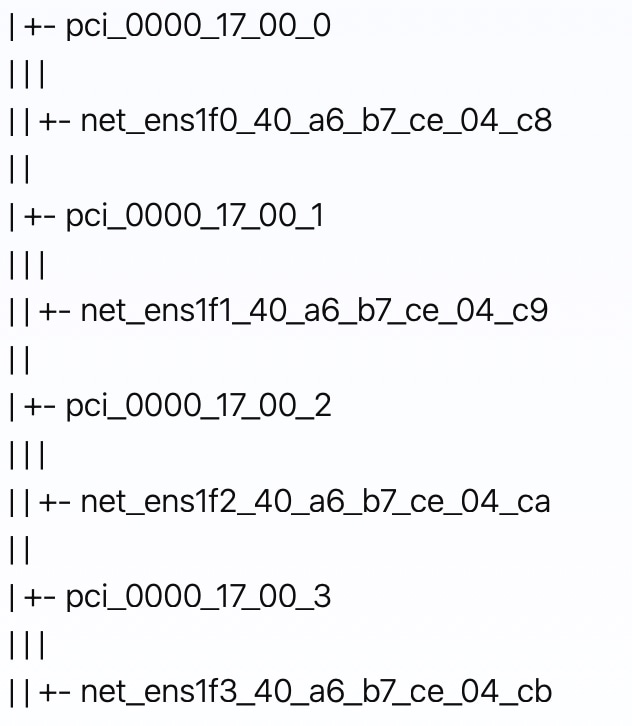 In this procedure, since we set the number of VFs as 2 in Step 2, two VFs for each management interface and data interface are created. As a result, a total of four PCI devices are generated: two for management and two for data. This PCI device information is used during the installation process with SRIOV (Step 4 of ). |
 Feedback