Enable Geo Redundancy Solution

This chapter contains the following topics:

Geo redundancy inventory file guidelines

You must ensure accuracy while preparing the inventory file (.yaml) for geo redundancy activation.

Here are some guidelines to assist you.

  1. Add these fields to the inventory file for each cluster's unified endpoint:

    data_vip: <>
    data_vip_mask: <>
    management_vip: <>
    management_vip_mask: <>
  2. When geo enabling the setup with is_skip_peer_check_enabled set to true, update each cluster's unified endpoint connectivity details based on the deployment model (IPv4, IPv6, or dual stack). For dual stack deployments, IPv6 addresses are given preference.

    If the cluster's unified endpoint type is set to FQDN, ensure that these fields are populated in the inventory file according to the setup configuration.

    management_fqdn
    data_fqdn

    If the cluster's unified endpoint type is set to IP, ensure that these fields are populated in the inventory file according to the setup configuration.

    Table 1. Unified endpoint connectivity details

    Field

    Supported deployment model

    data_vip_ipv4: <>

    IPv4, dual stack

    data_vip_ipv4_mask: <>

    IPv4, dual stack

    management_vip_ipv4: <>

    IPv4, dual stack

    management_vip_ipv4_mask: <>

    IPv4, dual stack

    data_vip_ipv6: <>

    IPv6, dual stack

    data_vip_ipv6_mask: <>

    IPv6, dual stack

    management_vip_ipv6:<>

    IPv6, dual stack

    management_vip_ipv6_mask: <>

    IPv6, dual stack

  3. For IPv4 deployment, ensure the values of these fields match in the cluster's unified endpoint:

    • data_vip must match data_vip_ipv4

    • data_vip_mask must match data_vip_ipv4_mask

    • management_vip must match management_vip_ipv4

    • management_vip_mask must match management_vip_ipv4_mask

  4. For dual stack deployment, ensure the values of these fields match in the cluster's unified endpoint:

    • data_vip must match data_vip_ipv6

    • data_vip_mask must match data_vip_ipv6_mask

    • management_vip must match management_vip_ipv6

    • management_vip_mask must match management_vip_ipv6_mask

Geo redundancy workflow (Day 0)

This topic explains the workflow for enabling geo redundancy on Day 0. It provides a high-level view of the tasks involved in installing and enabling geo redundancy in Crosswork Network Controller.

Geo redundancy workflow (day 0) for cluster deployments


Note


The recommended Day 0 setup for enabling geo redundancy is an empty Crosswork cluster (without any applications, devices or data gateways onboarded).


Here is the geo redundancy workflow when Crosswork Network Controller is deployed on a cluster.

Table 2. Geo redundancy workflow for cluster deployments (Day 0)

Step

Action

1. Install the active cluster in AZ1.

Install using your preferred method:

Verify if the installation was successful, and log into the Cisco Crosswork UI.

2. Install the standby cluster in AZ2.

3. (Optional) Install the arbiter VM in AZ3.

Note


Please skip this step if you do not wish to use the auto arbitration functionality.

Follow the instructions in Deploy the Arbiter VM.

4. (Optional) Import the Crosswork inventory.

If you want to perform node-related activities (such as adding or removing a node) from the Crosswork UI, you must manually import a cluster inventory (.yaml) file into the Crosswork UI. For more information, see Import Cluster Inventory.

5. Create a backup of your Crosswork clusters.

Follow the instructions in Manage Backups chapter in Cisco Crosswork Network Controller 7.2 Administration Guide.

Note


Importing the cross cluster inventory template cannot be undone if there is no pre-existing backup of the system before the template is loaded.

6. Perform the connectivity checks.

Follow the instructions in Connectivity Checks topic.

7. Prepare the cross cluster inventory file and enable geo redundancy.

Note


You can build the inventory YAML manually, or edit and use an existing YAML file. See Sample cross cluster inventory templates for example scenarios that fit your requirement.

Follow the instructions in Enable Geo Redundancy topic.

8. Install and enroll Crosswork Data Gateway, and onboard devices.

  1. Choose the deployment profile for the Data Gateway VM. See Crosswork Cluster VM Requirements.

    Note


    If you are redeploying the same Data Gateway with Crosswork Network Controller, delete the previous Data Gateway entry from the Virtual Machine table under Data Gateway Management. For information on how to delete a Data Gateway VM, see Delete the Data Gateway VM from Cisco Crosswork.

  2. Review the installation parameters to ensure that you have all the required information to install the Data Gateway. See Crosswork Data Gateway Parameters and Deployment Scenarios.

    Note


    Use an FQDN, for example, geomanagement.cw.cisco, as the unified multi-cluster domain name. Ensure this FQDN is reachable from both clusters and points to the Active Crosswork VIP in the Geo-HA DNS server. If these conditions are not met, Data Gateway instance enrollment will fail.

  3. Install the Data Gateway using your preferred method:

  4. Verify the Data Gateway enrollment. See Crosswork Data Gateway Authentication and Enrollment.

    Note


    Use an FQDN such as geomanagement.cw.cisco that is reachable from both clusters and points to the Active Crosswork VIP in the Geo-HA DNS server; otherwise, the enrollment will fail.

  5. After the installation is complete, perform the postinstallation procedure. See Crosswork Data Gateway Post-installation Tasks.

  6. Repeat steps 1 to 5 in the workflow to install Data Gateways on both standby and active sites.

  7. After you verify that the Data Gateway VM has enrolled with Crosswork Network Controller, create a common Data Gateway pool for active and standby sites. For more information, see the Create a pool in the geo redundancy-enabled sites section in the Cisco Crosswork Network Controller 7.2 Administration Guide.

  8. Assign the Data Gateways to AZ2. For more information. see the Assign Data Gateways to geo redundancy-enabled sites section in the Cisco Crosswork Network Controller 7.2 Administration Guide.

  9. Edit the pool to add the new Data Gateways. For more information, see the Edit or delete a Data Gateway pool section in the Cisco Crosswork Network Controller 7.2 Administration Guide.

9. Configure the cross cluster settings

Follow the instructions in Configure Cross Cluster Settings.

10. Complete an on-demand sync operation successfully.

On the Cross Cluster window, select Actions > Synchronize to initiate the sync operation.

11. Install the Crosswork Applications on the active cluster

Follow the instructions in Install Crosswork Network Controller applications topic.

Once geo redundancy is enabled, a Geo Redundancy tile is added to the Application management window. This tile is built-in and cannot be upgraded, uninstalled, or deactivated.

Warning

 
  • Parallel installation of applications on the active and standby clusters should be avoided. Complete the installation on the active cluster before proceeding with the installation on the standby cluster.

  • Applications should not be installed during a periodic or on-demand sync operation. Ensure there is sufficient time for the installation to complete before initiating a sync, and verify that no sync operation is in progress before installing an application. It is recommended to temporarily disable periodic sync when installing applications.

12. Install the Crosswork Applications on the standby cluster

Note


Applications on the standby site remain in a degraded state until the first sync completes.

13. Verify that the geo redundancy was successfully enabled on all the AZs.

Perform these checks:

  1. In the Cross Cluster Health Status, ensure the operational state is Connected.

  2. In the Cross Cluster Health Status, ensure that active cluster state is Healthy.

  3. In the Cross Cluster Health Status, ensure that standby cluster state is Healthy.

  4. In the Cross Cluster Health Status, ensure that arbiter VM state is Healthy.

  5. In the Cross Cluster Health Status, ensure the High Availability state is AVAILABLE.

  6. Verify that the heartbeat count between the clusters is incrementing and that no failures are observed over a 30-minute period.

  7. Confirm the completion of one successful sync between the clusters.

For more information, see View Cross Cluster Status topic.

Geo redundancy workflow (day 0) for single VM deployments

Here is the geo redundancy workflow when Crosswork Network Controller is deployed on a single VM.

Table 3. Geo redundancy workflow for single VM deployments (Day 0)

Step

Action

1. Install the active VM in AZ1.

Install using the instructions in Install Cisco Crosswork Network Controller on a Single VM.

Verify if the installation was successful, and log into the Cisco Crosswork UI.

2. Install the standby VM in AZ2.

3. (Optional) Install the arbiter VM in AZ3.

Note


Please skip this step if you do not wish to use the auto arbitration functionality.

Follow the instructions in Deploy the Arbiter VM.

4. (Optional) Import the Crosswork inventory.

If you want to perform node-related activities (such as adding or removing a node) from the Crosswork UI, you must manually import a cluster inventory (.yaml) file into the Crosswork UI. For more information, see Import Cluster Inventory.

5. Create a backup of your Crosswork VM.

Follow the instructions in Manage Backups chapter in Cisco Crosswork Network Controller 7.2 Administration Guide.

Note


Importing the cross cluster inventory template cannot be undone if there is no pre-existing backup of the system before the template is loaded.

6. Perform the connectivity checks.

Follow the instructions in Connectivity Checks topic.

7. Prepare the cross cluster inventory file and enable geo redundancy.

Note


You can build the inventory YAML manually, or edit and use an existing YAML file. See Sample cross cluster inventory templates for example scenarios that fit your requirement.

Follow the instructions in Enable Geo Redundancy topic.

8. Configure the cross cluster settings

Follow the instructions in Configure Cross Cluster Settings.

9. Complete an on-demand sync operation successfully.

On the Cross Cluster window, select Actions > Synchronize to initiate the sync operation.

10. Verify that the geo redundancy was successfully enabled on all the AZs.

Perform these checks:

  1. In the Cross Cluster Health Status, ensure the operational state is Connected.

  2. In the Cross Cluster Health Status, ensure that active VM state is Healthy.

  3. In the Cross Cluster Health Status, ensure that standby VM state is Healthy.

  4. In the Cross Cluster Health Status, ensure that arbiter VM state is Healthy.

  5. In the Cross Cluster Health Status, ensure the High Availability state is AVAILABLE.

  6. Verify that the heartbeat count between the VMs is incrementing and that no failures are observed over a 30-minute period.

  7. Confirm the completion of one successful sync between the VMs.

For more information, see View Cross Cluster Status topic.

Connectivity Checks

Perform the following connectivity checks before enabling geo redundancy:


Important


  • Static routes are not required for cross cluster connectivity.

  • Mesh connectivity is required between Crosswork Network Controller, Crosswork Data Gateway, NSO, and data interface components across the Availability Zones (AZ).

  • L2/L3 connectivity is supported.


SCP Connectivity

Copy (using SCP) a file from Availability Zone 1 (AZ1) to Availability Zone 2 (AZ2), and from AZ2 to AZ1 in corresponding Crosswork VMs and Crosswork Orchestrator pods to ensure connectivity between both clusters.

# Perform these actions from AZ1 to AZ2 and AZ2 to AZ1
 
cw-admin@192-168-6-101-hybrid:~$ sudo su
[sudo] password for cw-admin:
root@192-168-6-101-hybrid:/home/cw-admin# kubectl exec -it -n=kube-system robot-orch-76856487-562w6 -- bash
robot-orch-76856487-562w6:~# touch t.txt
robot-orch-76856487-562w6:~# scp t.txt cw-admin@YOUR_PEER_CLUSTER_MGMT_VIP:/home/cw-admin/
(cw-admin@192.168.5.100) Password:
t.txt   
 
robot-orch-76856487-562w6:~# scp t.txt cw-admin@YOUR_PEER_CLUSTER_DATA_VIP:/home/cw-admin/
(cw-admin@192.168.5.100) Password:
t.txt

DNS Connectivity

Test the DNS resolution on system wide DNS server.


Note


Ensure validation of IPv4 and/or IPv6 address mapping based on the deployment type (IPv4, IPv6, or dual stack).


### Internal Authortative  resolution
 
dig @your_dns_server_ip  your_name.cw.cisco
 
; <<>> DiG 9.10.6 <<>> @172.28.122.84 geomanagement.cw.cisco
; (1 server found)
;; global options: +cmd
;; Got answer:
;; ->>HEADER<<- opcode: QUERY, status: NOERROR, id: 8167
;; flags: qr aa rd ra; QUERY: 1, ANSWER: 1, AUTHORITY: 0, ADDITIONAL: 1
 
;; OPT PSEUDOSECTION:
; EDNS: version: 0, flags:; udp: 1232
;; QUESTION SECTION:
;your_name.cw.cisco.        IN  A
 
;; ANSWER SECTION:
your_name.cw.cisco. 5   IN  A   192.168.6.100
 
;; Query time: 126 msec
;; SERVER: 172.28.122.84#53(172.28.122.84)
;; WHEN: Fri Jun 30 23:47:51 PDT 2023
;; MSG SIZE  rcvd: 67
 
### External forwarding and resolution
 
 dig @your_dns_server_ip  ntp.esl.cisco.com
 
; <<>> DiG 9.10.6 <<>> @172.28.122.84 ntp.esl.cisco.com
; (1 server found)
;; global options: +cmd
;; Got answer:
;; ->>HEADER<<- opcode: QUERY, status: NOERROR, id: 43986
;; flags: qr rd ra; QUERY: 1, ANSWER: 1, AUTHORITY: 0, ADDITIONAL: 1
 
;; OPT PSEUDOSECTION:
; EDNS: version: 0, flags:; udp: 1232
;; QUESTION SECTION:
;ntp.esl.cisco.com.     IN  A
 
;; ANSWER SECTION:
ntp.esl.cisco.com.  1   IN  A   171.68.38.66
 
;; Query time: 311 msec
;; SERVER: 172.28.122.84#53(172.28.122.84)
;; WHEN: Fri Jun 30 23:46:37 PDT 2023
;; MSG SIZE  rcvd: 62

Verify if the DNS TTL in your VM is lesser than 60 seconds (< 60s).

cw-user@admin-M-C2EM ~ %  dig +nocmd +noall +answer @your_dns_server_ip  your_fqdn
geomanagement.cw.cisco. 60  IN  A   192.168.6.100
 
For ipv4 check
 
````dig +nocmd +noall +answer @your_dns_server_ip  your_fqdn ```
 
For ipv6 check
 
````dig +nocmd +noall +answer AAAA @your_dns_server_ip  your_fqdn ```

Enable Geo Redundancy

This topic explains the steps to build or edit the inventory YAML file and activate geo redundancy.

Geo redundancy can be configured at any time after the active cluster is built. The process does vary slightly if the standby cluster is not built and activated within 6 hours of the active cluster. These variations are clearly noted in this procedure.


Note


For dual-stack geo setups, the interface requires both IPv6 and IPv4 connectivity details, including the IPv4 subnet mask. The validation error “Invalid IPv4 subnet mask format (must be between 0–32)” appears when the IPv4 mask is missing or invalid, and this behavior is expected. Earlier releases allowed IPv6-only inputs in some cases, but in 7.2 both IPv6 and IPv4 information are required to support inventory creation and DNS updates. The geo activation API still accepts IPv6-only inventory for dual-stack setups.


Tip


Click on How it works? link to view a visual representation of how geo redundancy is enabled.


Before you begin

  • Ensure you have met all the requirements specified in Geo Redundancy Requirements.

  • Ensure to provide relevant information for active, standby, and arbiter clusters and the unified cross cluster.

Procedure


Step 1

Log in to the Crosswork cluster that will function as the active cluster. From the main menu, choose Administration > Geo Redundancy Manager.

The Geo Redundancy Manager window is displayed.

Step 2

Click Get started with geo enablement, and the Geo Enablement dialog box is displayed. Choose the desired option.

  • Build inventory YAML manually: Select this to create the inventory YAML file manually using the setup details. Click Proceed to open the Cross cluster details page. Go to step 3.
  • Import and edit inventory YAML file: Select this to use and modify an existing YAML file. Browse for the file on your machine and select it. Click Proceed to open the file on the Validate page. Go to step 7.

Step 3

The Geo Enablement window appears, with the first step, Cross cluster details, highlighted. Provide relevant values for the following fields:

  • Cross cluster details:

    • Intended cluster role: Choose Active.

    • Cross cluster name: Enter a relevant name without spaces.

  • Crosscluster unified endpoint details: Enter the unified FQDN to update the DNS entry for the active cluster.

    • Management host name and Domain name

    • Data host name and Domain name

  • Global attributes:

    • Secret string: Enter a string to encrypt and decrypt the root certificate key exchanged between clusters. The string must be at least 10 characters long and include uppercase and lowercase letters, numbers, and at least one special character.

    • Post migration - Geo enabled: Select if geo redundancy was enabled on the system after migration, rather than during a fresh deployment.

    • Peer cluster deployed: Toggle to indicate if peer cluster was deployed during the initial setup (Day-0) or later (Day-N). For Day-N deployments, you must keep the cluster node details ready, and set the is_skip_peer_check_enabled flag in the inventory file to true to skip application and compute resource equivalency checks on the peer cluster.

    • Arbiter cluster deployed: Toggle to indicate whether the arbiter cluster was added during initial setup (Day-0) or later (Day-N).

Step 4

Click Next. The Geo Enablement window is refreshed, with Active cluster details highlighted. Provide relevant values for the following fields:

  • Cluster id

  • Cluster name

  • Management VIP IP and Subnet mask

  • Data VIP IP and Subnet mask

  • Site location: Each cluster must have a unique location.

  • HTTP Username and Password

  • SSH Username and Password

Step 5

Click Next. The Geo Enablement window is refreshed, with Standby cluster details highlighted.

  1. Enter the required values for the standby cluster, following the same guidelines used for the active cluster. Refer to the previous step for field descriptions.

    Note


    If you set Peer cluster deployed slider to OFF in the previous step, you must enter the Node details manually.

  2. Click Add node and enter the relevant IP address and subnet mask for Management and Data networks.

Step 6

(Optional) Click Next. The Geo Enablement window is refreshed, with Arbiter cluster details highlighted. Enter the required values for the standby cluster, following the same guidelines used for the active cluster. Refer to step 4 for field descriptions.

The arbiter cluster page appears only if you set Arbiter cluster deployed to ON in step 4.

Step 7

Click Next. The Geo Enablement window is refreshed, with Validate highlighted. Resolve any errors listed in the clusters.

Step 8

Click Next. The Geo Enablement window is refreshed, with Preview and activate highlighted. Review the details you entered.

  1. (Optional) Click Export inventory to export the completed YAML file to your machine.

  2. Click Activate geo cross cluster to activate geo redundancy on the cluster.

    The progress can be viewed from the Jobs window, or by clicking the Details icon icon.

Step 9

(Optional) On the Geo Redundancy Manager window, you can click View operational inventory to view the inventory YAML file.

Step 10

Log in to the Crosswork cluster that will function as the standby cluster.

  1. On the Cross cluster details page, select Intended cluster role as Standby.

    In case of a re-import: When you use the Re-import option to build the YAML file, the cluster role is hard-coded as “standby,” and you must click Fetch active cluster data to proceed.

  2. The Fetch Active Cluster Inventory dialog box is displayed. Enter the login credentials for the active cluster to retrieve its inventory details.

    • Management VIP

    • Username

    • Password

  3. Click Fetch to collect the active cluster inventory details.

    After the standby cluster is configured, the Job status will be displayed as Completed on both clusters. Once the inventory upload is successfully completed on both clusters, the status will be updated in the Geo Redundancy Manager window.

Important


Enable Pairing mode if the standby cluster is activated more than six hours after the active cluster. Pairing mode remains active for six hours from the time it is enabled, after which it automatically disables. You cannot disable it manually.

Step 11

(Optional) Log in to the Crosswork VM that will function as the arbiter VM.

  1. On the Cross cluster details page, click on Fetch active cluster data.

  2. The Fetch Active Cluster Inventory dialog box is displayed. Enter the login credentials for the active cluster to retrieve its inventory details.

    • Management VIP

    • Username

    • Password

  3. Click Fetch to collect the active cluster inventory details.

    After the arbiter VM is configured, the Job status will be displayed as Completed on all clusters. Once the inventory upload is successfully completed on all clusters, the status will be updated in the Geo Redundancy Manager window.


What to do next

To continue with the activation, see View Cross Cluster Status.

Configure Cross Cluster Settings

Configuring cross cluster settings is important to ensure secure data transfer between clusters, to facilitate reliable backups and recovery, and data compliance.

This topic explains how to configure the cross cluster settings.


Note


The default values shown in the Cross Cluster Configuration UI are the recommended settings.


Before you begin

  • If you choose to enable auto-arbitration, you must have the traffic redirect script ready for upload. The redirect script must be an independent, pre-compiled binary that does not rely on external libraries.

  • You must log in as an admin user to configure cross cluster settings. Only admin users have the necessary permissions to make these changes. Users with a local role, even if they have read, write, and delete permissions, cannot configure cross cluster settings.

Procedure


Step 1

From the main menu, choose Administration > Cross Cluster. The Cross Cluster window is displayed. Click on the Configurations tab.

Step 2

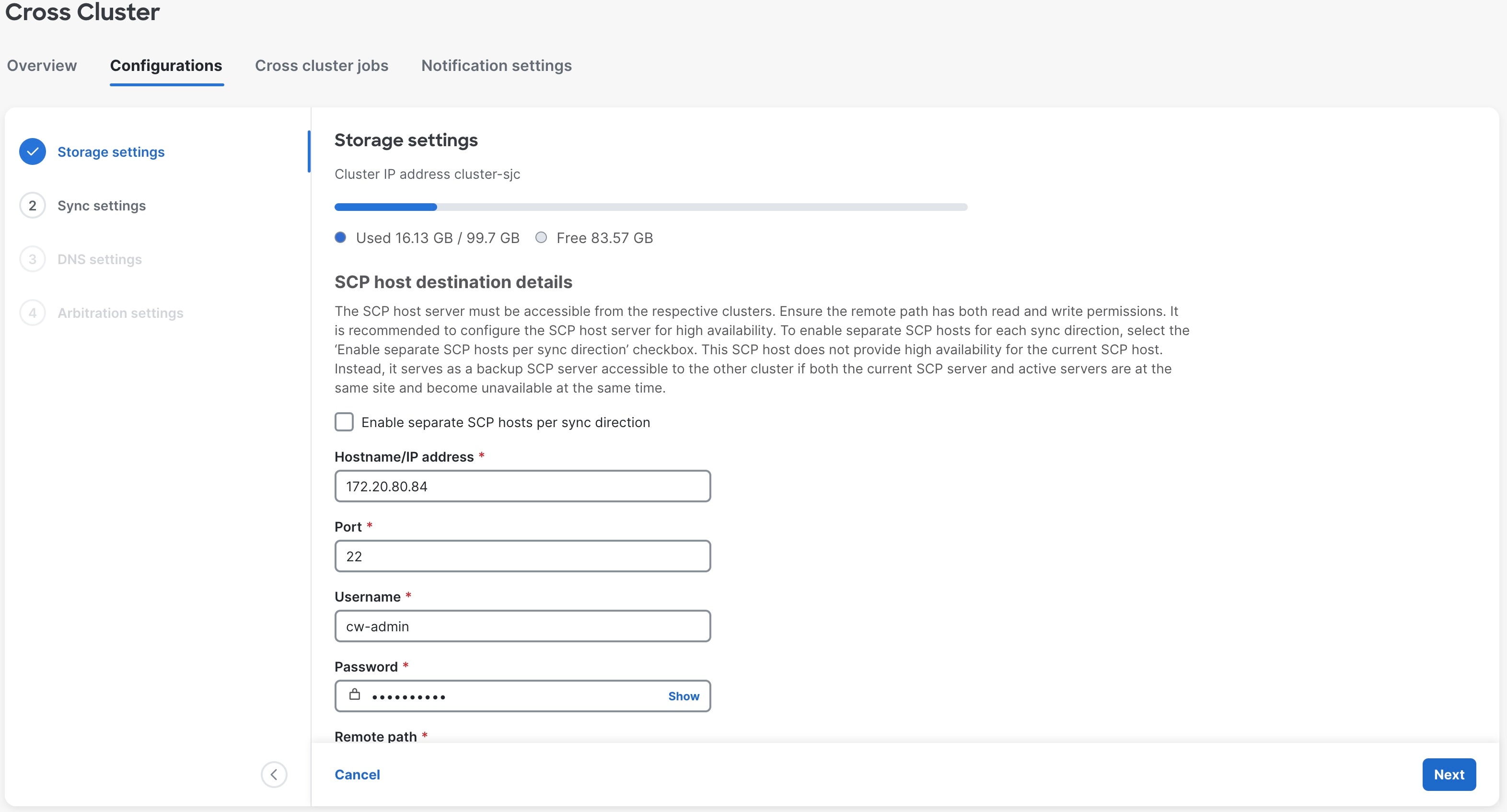
The Configurations window is displayed, with the first step, 1 - Storage settings, highlighted. Fill all the fields provided for the SCP Host server.

Important


Select the Additional SCP host checkbox only if the standby cluster requires its own local SCP server for storage. This option does not provide high availability (HA) between SCP hosts. Each SCP host operates independently and must maintain its own HA setup. If the primary SCP host becomes unavailable, geo-backup and geo-sync operations will fail, even if an additional SCP host exists.

  • When the primary SCP host is added during the initial Cross Cluster setup, it must be reachable from both the active and standby clusters. If both can access it, the primary SCP host becomes available to both clusters.

  • Adding an additional SCP host means it is local to the standby cluster, while the primary SCP host is local to the active cluster. The primary and additional SCP hosts operate independently and do not provide high availability for each other.

  • During a sync operation (from the active cluster to the standby cluster), the active cluster creates the geo-backup and stores it on the primary SCP host. During a geo-restore, the standby cluster retrieves the backup from the same primary SCP host. In short, the active cluster writes the backup to its local SCP host, and the standby cluster restores from that same host.

  • If the primary SCP host becomes unavailable, geo-backup and geo-sync operations will fail. The additional SCP host does not provide HA for the primary SCP host. It only serves as an alternate SCP host for the standby cluster that can be used if both the active cluster and its primary SCP host are unavailable (for example, during a site failure).

  • Each SCP host must maintain its own HA setup independently. Adding an additional SCP host allows the peer (standby) cluster to use its local SCP host for storage, but it does not create HA between SCP hosts or prevent geo-sync failure if the primary SCP host is down.

Note


After a SCP host is configured, you can view the used and free space available in the server.

Figure 1. Storage settings

Step 3

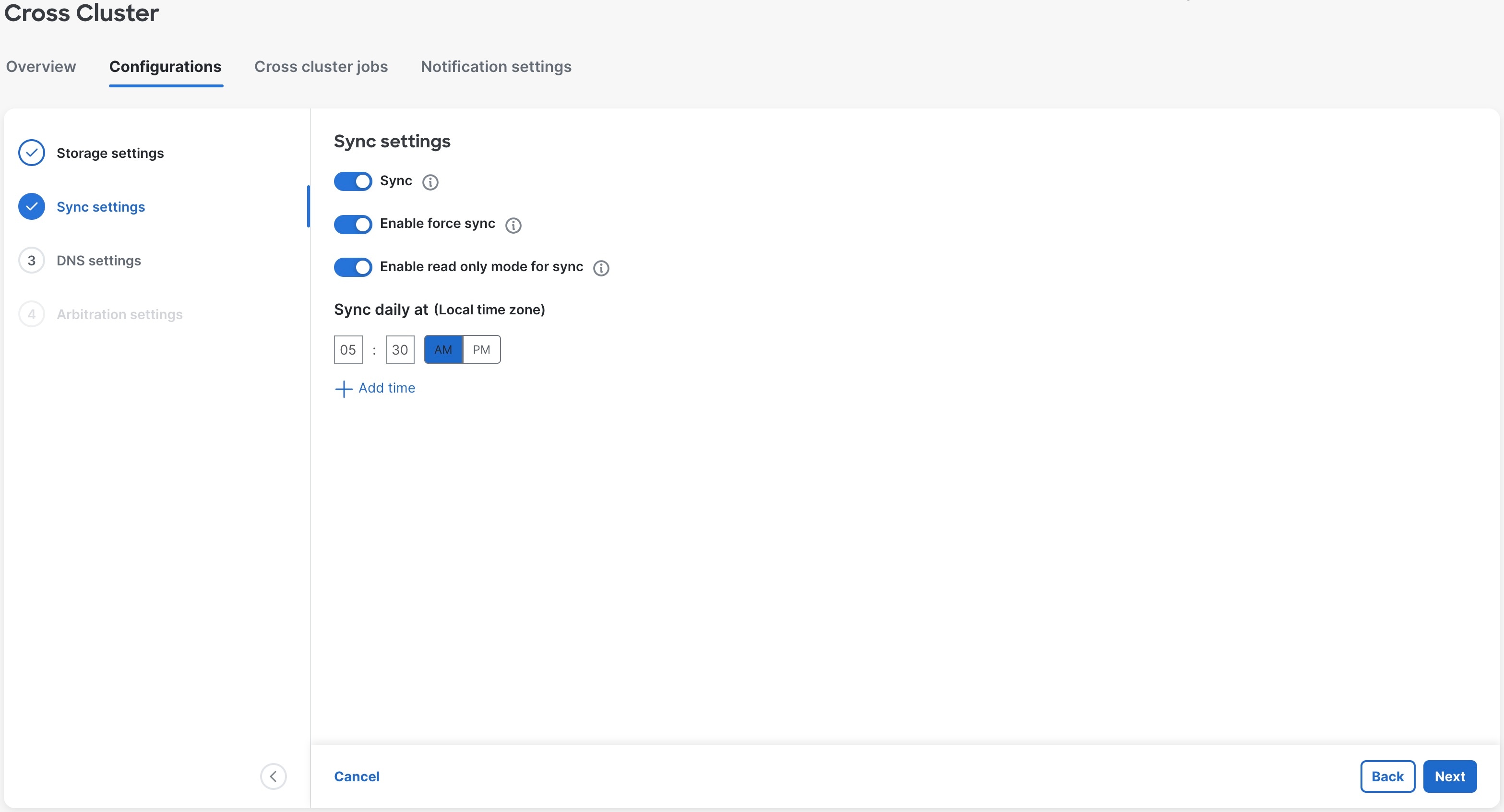
Click Next. The Configurations window is displayed, with the next step, 2 - Sync settings, highlighted. Data synchronizarion ensures high availability, consistency, load balancing, and data compliance between geo redundant clusters.

Enable the Sync slider button to set an auto-sync schedule, and set the sync times. Optionally, you can enable Enable force sync and Enable read only mode for sync as per your requirement. Click the tooltip icon next to each option to learn more.

Note


It is recommended to sync at least once every 8 hours.

Figure 2. Sync settings

Step 4

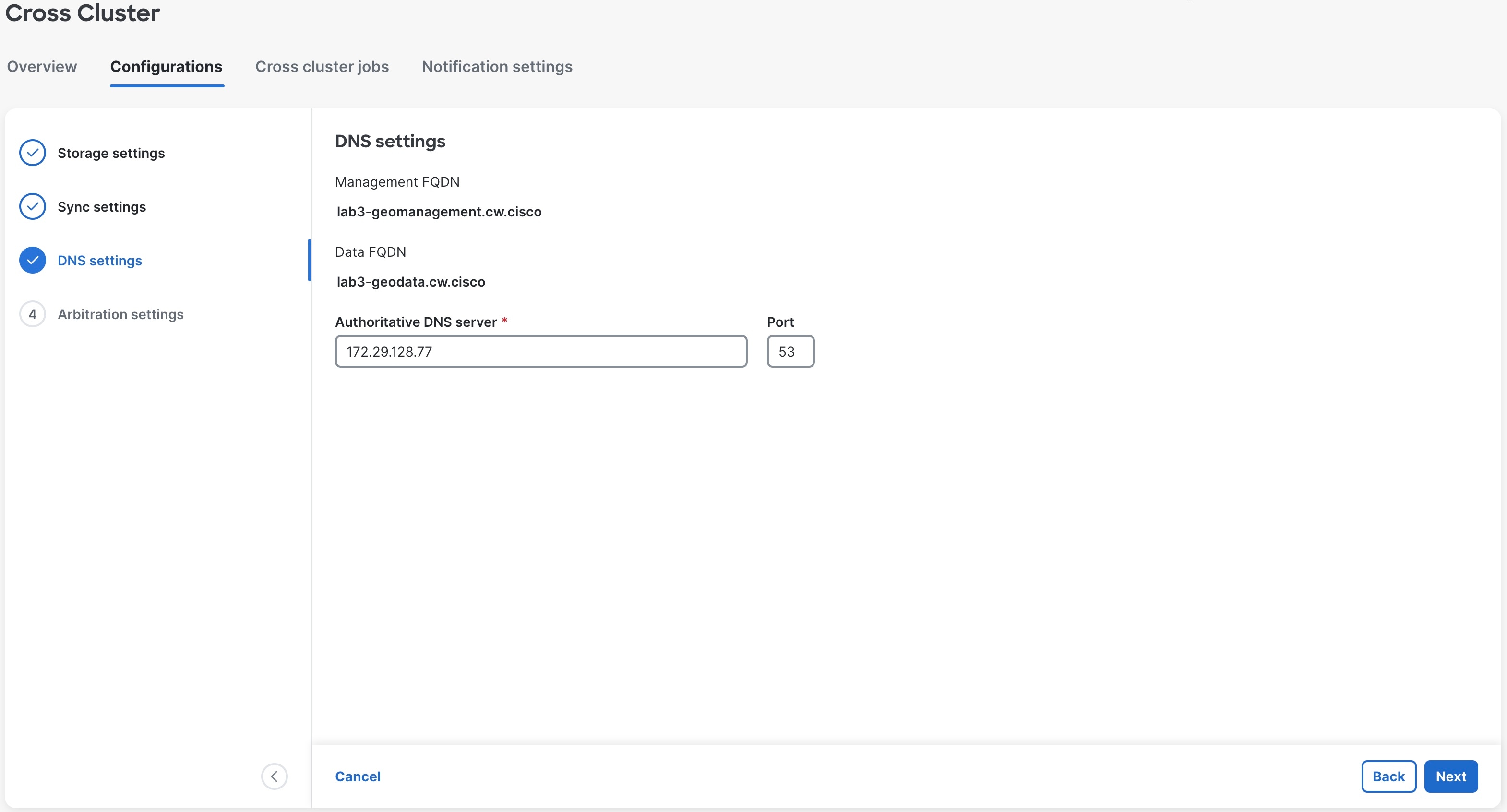
Click Next. The Configurations window is displayed, with the next step, 3 - DNS settings, highlighted. Add the details for the Authoritative DNS server and Port.

Note

 
  • The DNS server should be configured with the same management FQDN and data FQDN displayed on the UI.

  • The DNS record TTL for FQDN must be lesser than 60 seconds (< 60s).

Figure 3. DNS settings

Step 5

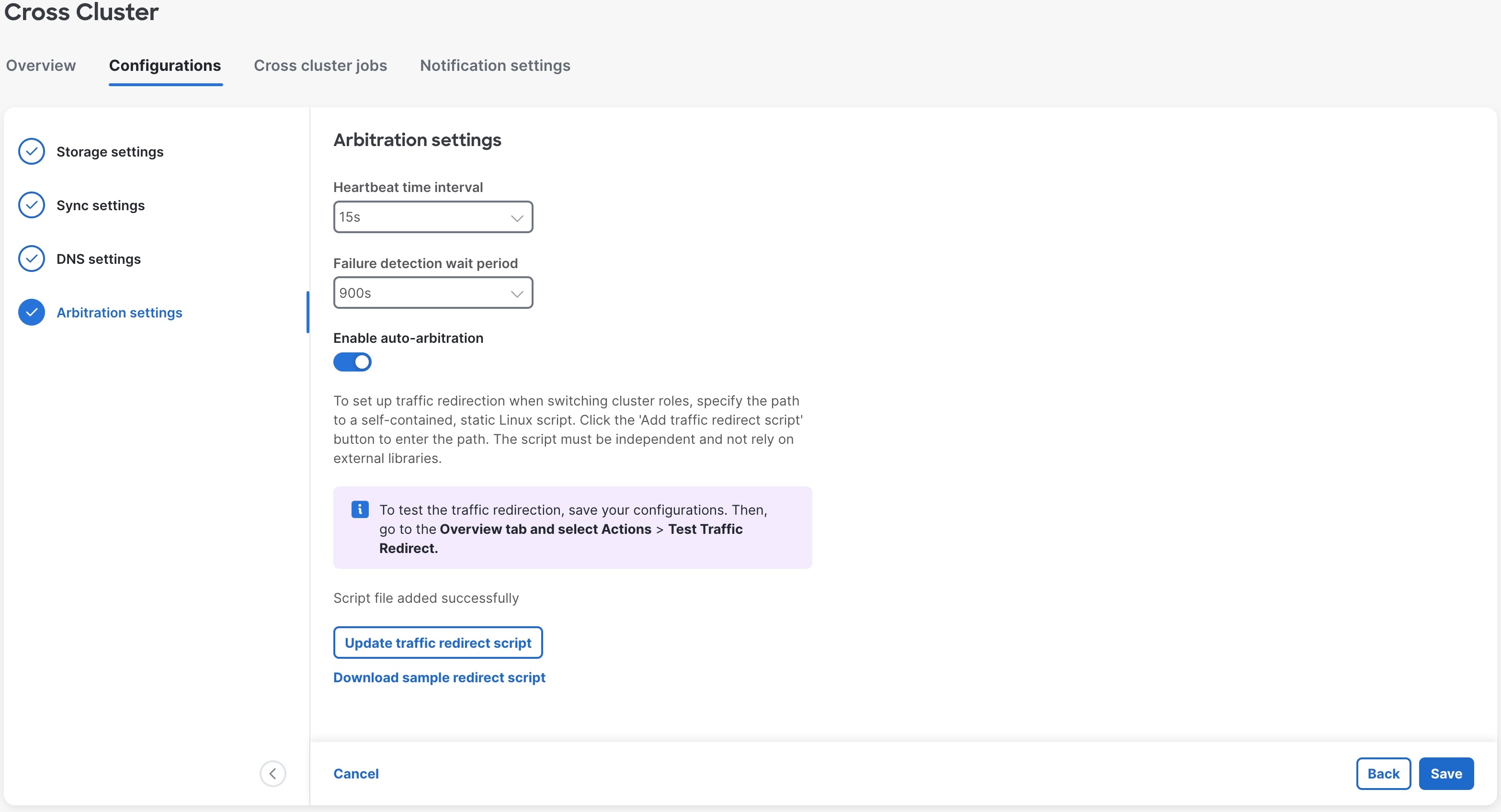
Click Next. The Configurations window is displayed, with the final step, 4 - Arbitration settings, highlighted. Set relevant values for the Heartbeat time interval and Failure detection wait period fields.

Step 6

Activate the Enable auto-arbitration slider (recommended) to start the leader election process and update the leader information. Click Add traffic redirect script to add the script used to update the DNS entry for the specified FQDN.

Note


The Enable auto-arbitration slider is available only if the arbiter VM was deployed as part of the geo HA setup.

In the Add file dialog box, choose either URL or SCP as your preferred protocol. Based on your selection, fill in the additional fields with the required information. Click Add to proceed.

Figure 4. Traffic redirect script added

Step 7

Click Save to save the changes. After saving, the changes replicate to the other clusters in the geo HA setup. You can apply these settings from any cluster in the geo HA setup.


Configure cross cluster notification settings

This topic explains how to configure the cross cluster notification settings.

Procedure


Step 1

From the main menu, choose Administration > Cross Cluster. The Cross Cluster window is displayed.

Step 2

Click on the Notification settings tab, and Add notification destination window is displayed.

Step 3

Click Add Criteria, and you will be navigated to the Create Notification Policies window.

Enter relevant values for the following fields, and save the policy.

  • Policy name

  • Criteria

  • Notification destination

For more information, see Create Notification Policy for System Events in the Cisco Crosswork Network Controller 7.2 Administration Guide.


View Cross Cluster Status

This topic explains how to view the cross cluster status after successfully enabling geo redundancy.

Procedure


Step 1

From the main menu, choose Administration > Cross Cluster. The Cross Cluster window is displayed.

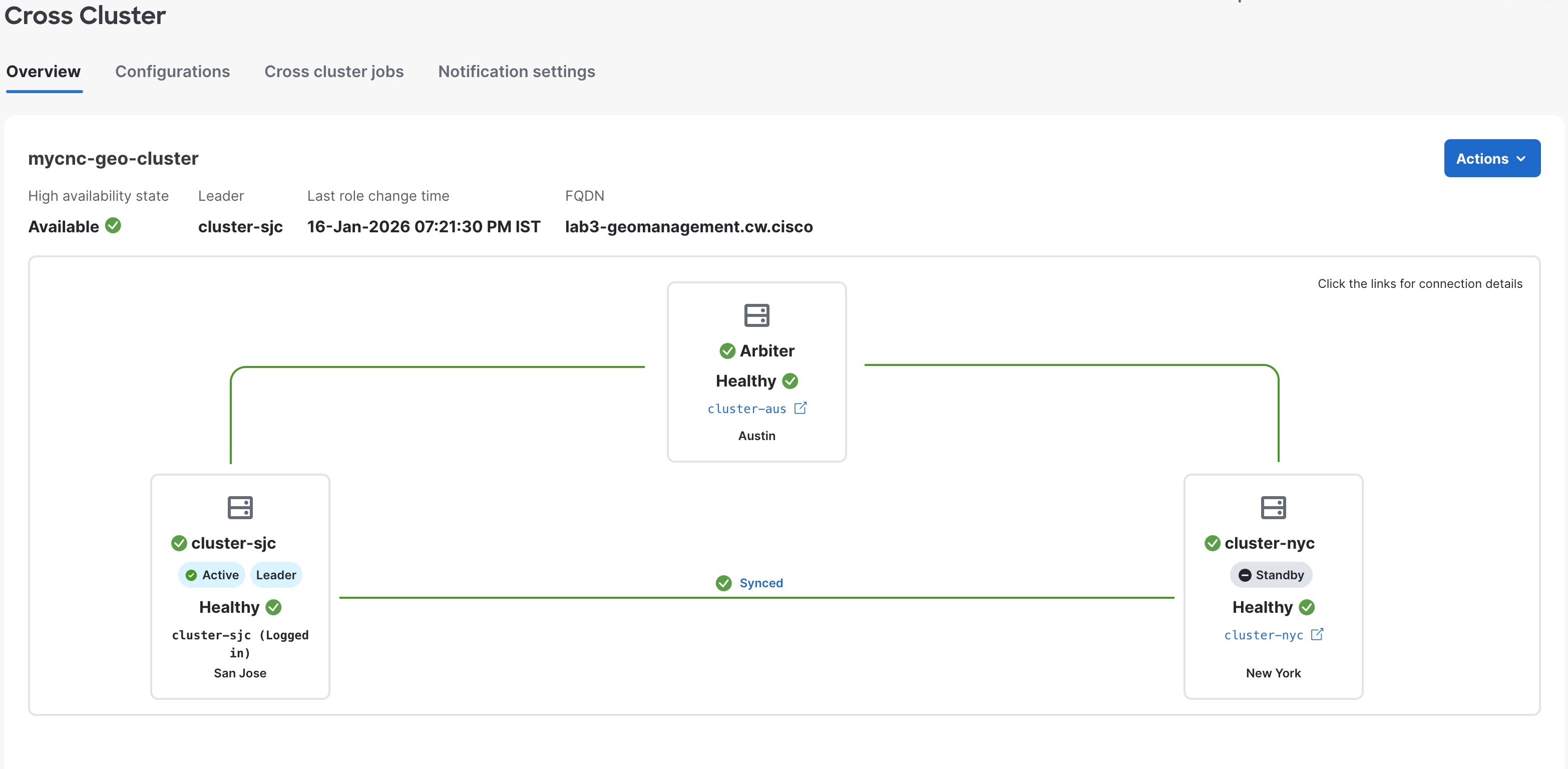
The cross cluster health status is displayed along with the cluster leader status, high availability state, heartbeats round trip time, failed heartbeats, and last active cluster change time. You can also view the status of the active and standby clusters along with the operational state and last sync status.

Figure 5. Cross cluster with active, standby, and arbiter AZs

Note


By design, the Arbiter name is not displayed on the Cross Cluster page. The Arbiter VM is consistently shown as "Arbiter," regardless of the value of the cluster-id parameter.

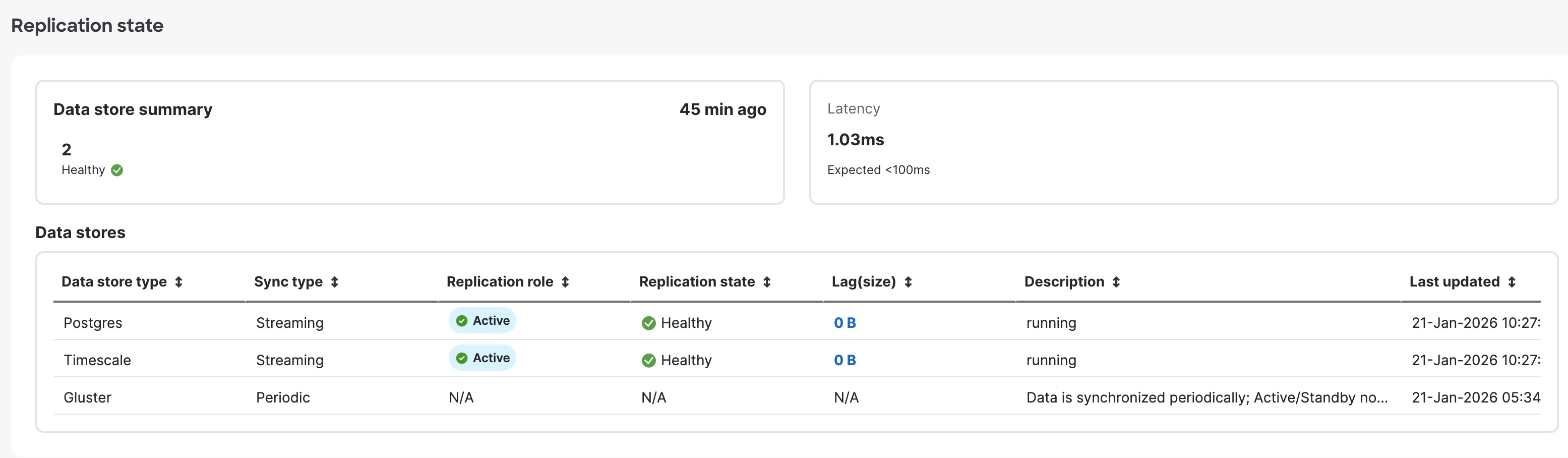
Scroll further down to see the data store replication states. The Data stores table will show all the different data stores that have been replicated along with the lag info for them.

  • Each Data store type has a corresponding Sync type. Postgres and Timescale data stores support live synchronization, while gluster is updated via periodic sync.

    Table 4. Data store types

    Data store type

    Sync type

    Postgres

    Streaming

    Timescale

    Streaming

    Gluster

    Periodic

  • The Replication role displays the role of the cluster. For example, the value for an active cluster will be Active.

  • The Replication state displays the status of the data store.

  • The Lag(size) value indicates the lag between the active and standby clusters.

Figure 6. Cross Cluster window - Replication state

Step 2

You can perform the following operations on the Cross Cluster window.

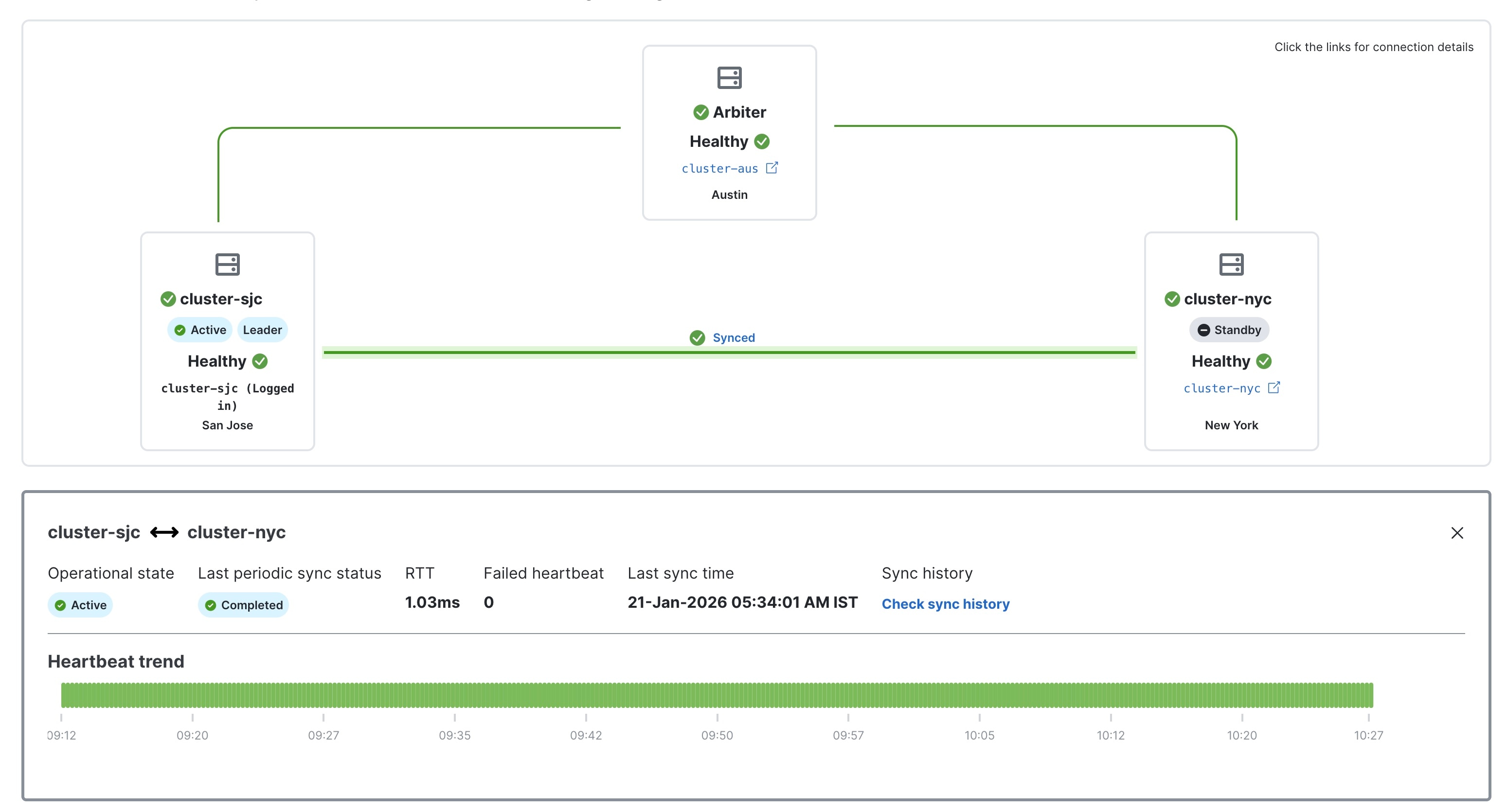
  1. Click the link between clusters to view a visual representation of the heartbeat trend.

    Figure 7. Cross Cluster window - heartbeat trend
  2. Click on the name of the active and standby clusters to view the cluster details.

  3. Click on Lag(size) for a data store to view a detailed graph of the replication summary.

Step 3

You can select and perform the following optional operations from the Actions drop-down menu.

  1. Click Actions > Set cluster role to override the switchover process and assign the cluster roles manually. For more information, see Perform switchover manually.

  2. Click Actions > Showtech request, and the Showtech Request pop-up window is displayed. Enter the relevant SCP host details and click Export to download the showtech logs.

  3. Click Actions > Synchronize to initiate an on-demand sync operation.

    Important


    Do not perform the Synchronize operation before completing the other configurations (such as storage, DNS, and sync settings). Once a sync is initiated, it cannot be stopped midway.

  4. Click Actions > Repair system to address any sync issues that require the system to kickstart the replication or bootstrap the standby cluster from the active side. This operation will attempt to automatically repair the applications and database.

  5. Click Actions > Test traffic redirect to execute the traffic redirect script. This operation creates a job to validate the arbitration executable. The redirect script is used to update the DNS entry for the FQDN provided.

    This option is available only if the arbiter VM was deployed as part of the geo HA setup.

  6. Click Actions > Switchover to initiate the switchover process. This is a one-click control that performs the three steps of the switchover process. It automates setting the two roles and updating the DNS in a single function. For more information, see Perform switchover manually.


Geo redundancy workflow (Day N)

This topic outlines the high-level workflow for the tasks required to enable geo redundancy on Day N on Crosswork Network Controller operating in a standalone site.

A Crosswork site is considered as a"Day N" scenario if it has configured the below options:

  • AZ1 is deployed.

  • Application are installed.

  • Devices are configured.

  • Crosswork Data Gateway for AZ1 is enrolled.

  • Providers are added.

  • Collection jobs are running.

A backend check is conducted to verify the site's eligibility for enabling geo redundancy. If any checks fail, geo redundancy cannot be enabled, and alarms will be generated to notify you.

Once geo redundancy is enabled on Day N, please perform a sync from the Active to the Standby site before installing any applications.

Geo redundancy workflow (day N) for cluster deployments

Here is the geo redundancy workflow when Crosswork Network Controller is deployed on a cluster.

Table 5. Geo redundancy workflow (Day N)

Step

Action

1. Install the standby cluster in AZ2.

Install using your preferred method:

Verify if the installation was successful, and log into the Cisco Crosswork UI.

(Optional) 2. Install the arbiter VM in AZ3.

Note


Please skip this step if you do not wish to use the auto arbitration functionality.

Follow the instructions in Deploy the Arbiter VM.

3. (Optional) Import the Crosswork inventory.

If you want to perform node-related activities (such as adding or removing a node) from the Crosswork UI, you must manually import a cluster inventory (.yaml) file into the Crosswork UI. For more information, see Import Cluster Inventory.

4. Create a backup of your Crosswork clusters.

Follow the instructions in Manage Backups chapter in Cisco Crosswork Network Controller 7.2 Administration Guide.

Note


Importing the cross cluster inventory template cannot be undone if there is no pre-existing backup of the system before the template is loaded.

5. Perform the connectivity checks.

Follow the instructions in Connectivity Checks topic.

6. Prepare the cross cluster inventory file and enable geo redundancy.

Note


You can build the inventory YAML manually, or edit and use an existing YAML file. See Sample cross cluster inventory templates for example scenarios that fit your requirement.

Follow the instructions in Enable Geo Redundancy topic.

7. Install and enroll Crosswork Data Gateway, and onboard devices.

You can choose one of these approaches for AZ2 setup:

Follow this workflow to deploy a new Data Gateway.

  1. Choose the deployment profile for the Data Gateway VM. See Crosswork Cluster VM Requirements.

    Note


    If you are redeploying the same Data Gateway with Crosswork Network Controller, delete the previous Data Gateway entry from the Virtual Machine table under Data Gateway Management. For information on how to delete a Data Gateway VM, see Delete the Data Gateway VM from Cisco Crosswork.

  2. Review the installation parameters to ensure that you have all the required information to install the Data Gateway. See Crosswork Data Gateway Parameters and Deployment Scenarios.

    Note


    Use an FQDN, for example, geomanagement.cw.cisco, as the unified multi-cluster domain name. Ensure this FQDN is reachable from both clusters and points to the Active Crosswork VIP in the Geo-HA DNS server. If these conditions are not met, Data Gateway instance enrollment will fail.

  3. Install the Data Gateway using your preferred method:

  4. Verify the Data Gateway enrollment. See Crosswork Data Gateway Authentication and Enrollment.

    Note


    Use an FQDN such as geomanagement.cw.cisco that is reachable from both clusters and points to the Active Crosswork VIP in the Geo-HA DNS server; otherwise, the enrollment will fail.

  5. After the installation is complete, perform the postinstallation procedure. See Crosswork Data Gateway Post-installation Tasks.

  6. Repeat steps 1 to 5 in the workflow to install Data Gateways on both standby sites.

  7. Assign the Data Gateways to standby site. For more information. see the Assign Data Gateways to geo redundancy-enabled sites section in the Cisco Crosswork Network Controller 7.2 Administration Guide.

  8. Add the new Data Gateways to the existing pool. For more information, see the Edit or delete a Data Gateway pool section in the Cisco Crosswork Network Controller 7.2 Administration Guide.

8. Configure the cross cluster settings.

Follow the instructions in topics below:

9. Complete an on-demand sync operation successfully.

On the Cross Cluster window, select Actions > Synchronize to initiate the sync operation.

10. Install the Crosswork Applications on the active cluster.

Follow the instructions in Install Crosswork Network Controller applications topic.

Once geo redundancy is enabled, a Geo Redundancy tile is added to the Application management window. This tile is built-in and cannot be upgraded, uninstalled, or deactivated.

Warning

 
  • Parallel installation of applications on the active and standby clusters should be avoided. Complete the installation on the active cluster before proceeding with the installation on the standby cluster.

  • Applications should not be installed during a periodic or on-demand sync operation. Ensure there is sufficient time for the installation to complete before initiating a sync, and verify that no sync operation is in progress before installing an application. It is recommended to temporarily disable periodic sync when installing applications.

11. Install the Crosswork Applications on the standby cluster.

Note


Applications on the standby site remain in a degraded state until the first sync completes.

12. Verify that the geo redundancy was successfully enabled on the active and standby clusters.

Perform these checks:

  1. In the Cross Cluster Health Status, ensure the operational state is Connected.

  2. In the Cross Cluster Health Status, ensure that active cluster state is Healthy.

  3. In the Cross Cluster Health Status, ensure that standby cluster state is Healthy.

  4. In the Cross Cluster Health Status, ensure the High Availability state is AVAILABLE.

  5. Verify that the heartbeat count between the clusters is incrementing and that no failures are observed over a 30-minute period.

  6. Confirm the completion of one successful sync between the clusters.

For more information, see View Cross Cluster Status topic.

Onboard the arbiter VM

13. Update the cross cluster inventory file, and enable geo redundancy on the arbiter VM.

Follow the instructions in Enable Geo Redundancy topic.

Note


See Sample cross cluster inventory templates for relevant example scenarios that fit your requirement.

Perform these steps:

  1. Import the active cluster inventory.

  2. Import the standby cluster inventory.

  3. Enable geo redundancy on the arbiter VM.

14. Configure the cross cluster settings

Follow the instructions in topics below:

15. Verify that the geo redundancy was successfully enabled on all the AZs.

Note


During a Day-N arbiter reimport on the active cluster, the Cross Cluster page may temporarily show the link to the standby cluster as disconnected and the standby state as unknown. This is expected behavior. Arbiter reimport is a multi-step process that involves component restarts, and the cluster states remain in transition during this period. The system converges automatically, and there is no functional impact.

Perform these checks:

  1. In the Cross Cluster Health Status, ensure the operational state is Connected.

  2. In the Cross Cluster Health Status, ensure that active cluster state is Healthy.

  3. In the Cross Cluster Health Status, ensure that standby cluster state is Healthy.

  4. In the Cross Cluster Health Status, ensure that arbiter VM state is Healthy.

  5. In the Cross Cluster Health Status, ensure the High Availability state is AVAILABLE.

  6. Verify that the heartbeat count between the clusters is incrementing and that no failures are observed over a 30-minute period.

  7. Confirm the completion of one successful sync between the clusters.

For more information, see View Cross Cluster Status topic.

Geo redundancy workflow (day N) for single VM deployments

Here is the geo redundancy workflow when Crosswork Network Controller is deployed on a single VM.

Table 6. Geo redundancy workflow (Day N)

Step

Action

1. Install the standby cluster in AZ2.

Install using the instructions in Install Cisco Crosswork Network Controller on a Single VM.

Verify if the installation was successful, and log into the Cisco Crosswork UI.

(Optional) 2. Install the arbiter VM in AZ3.

Note


Please skip this step if you do not wish to use the auto arbitration functionality.

Follow the instructions in Deploy the Arbiter VM.

3. (Optional) Import the Crosswork inventory.

If you want to perform node-related activities (such as adding or removing a node) from the Crosswork UI, you must manually import a cluster inventory (.yaml) file into the Crosswork UI. For more information, see Import Cluster Inventory.

4. Create a backup of your Crosswork clusters.

Follow the instructions in Manage Backups chapter in Cisco Crosswork Network Controller 7.2 Administration Guide.

Note


Importing the cross cluster inventory template cannot be undone if there is no pre-existing backup of the system before the template is loaded.

5. Perform the connectivity checks.

Follow the instructions in Connectivity Checks topic.

6. Prepare the cross cluster inventory file and enable geo redundancy.

Note


You can build the inventory YAML manually, or edit and use an existing YAML file. See Sample cross cluster inventory templates for example scenarios that fit your requirement.

Follow the instructions in Enable Geo Redundancy topic.

7. Configure the cross cluster settings.

Follow the instructions in topics below:

8. Complete an on-demand sync operation successfully.

On the Cross Cluster window, select Actions > Synchronize to initiate the sync operation.

9. Verify that the geo redundancy was successfully enabled on the active and standby clusters.

Perform these checks:

  1. In the Cross Cluster Health Status, ensure the operational state is Connected.

  2. In the Cross Cluster Health Status, ensure that active VM state is Healthy.

  3. In the Cross Cluster Health Status, ensure that standby VM state is Healthy.

  4. In the Cross Cluster Health Status, ensure the High Availability state is AVAILABLE.

  5. Verify that the heartbeat count between the VMs is incrementing and that no failures are observed over a 30-minute period.

  6. Confirm the completion of one successful sync between the VMs.

For more information, see View Cross Cluster Status topic.

Onboard the arbiter VM

10. Update the cross cluster inventory file, and enable geo redundancy on the arbiter VM.

Follow the instructions in Enable Geo Redundancy topic.

Note


See Sample cross cluster inventory templates for relevant example scenarios that fit your requirement.

Perform these steps:

  1. Import the active VM inventory.

  2. Import the standby VM inventory.

  3. Enable geo redundancy on the arbiter VM.

11. Configure the cross cluster settings

Follow the instructions in topics below:

12. Verify that the geo redundancy was successfully enabled on all the AZs.

Note


During a Day-N arbiter reimport on the active cluster, the Cross Cluster page may temporarily show the link to the standby VM as disconnected and the standby state as unknown. This is expected behavior. Arbiter reimport is a multi-step process that involves component restarts, and the VM states remain in transition during this period. The system converges automatically, and there is no functional impact.

Perform these checks:

  1. In the Cross Cluster Health Status, ensure the operational state is Connected.

  2. In the Cross Cluster Health Status, ensure that active VM state is Healthy.

  3. In the Cross Cluster Health Status, ensure that standby VM state is Healthy.

  4. In the Cross Cluster Health Status, ensure that arbiter VM state is Healthy.

  5. In the Cross Cluster Health Status, ensure the High Availability state is AVAILABLE.

  6. Verify that the heartbeat count between the VMs is incrementing and that no failures are observed over a 30-minute period.

  7. Confirm the completion of one successful sync between the VMs.

For more information, see View Cross Cluster Status topic.

Update or add an application after enabling geo redundancy

This topic describes the procedure that you must perform to update the application after enabling geo redundancy.

Table 7. Workflow to update the application

Step

Action

1. Complete an on-demand sync operation successfully.

On the Cross Cluster window, select Actions > Synchronize to initiate the sync operation.

2. Disable the sync operation.

From the Sync settings window, drag the Sync slider button to disable the sync operation.

3. Install the application updates on the Active cluster.

Follow the instructions in the Install Crosswork Applications topic.

Once geo redundancy is enabled, a Geo Redundancy tile is added to the Application management window. This tile is built in and cannot be upgraded, uninstalled, or deactivated.

Warning

 
  • Parallel installation of applications on the active and standby clusters should be avoided. Complete the installation on the active cluster before proceeding with the installation on the standby cluster.

  • Applications should not be installed during a periodic or on-demand sync operation. Ensure that there is sufficient time for the installation to complete before initiating a sync operation, and verify that no sync operation is in progress before installing an application. We recommend to temporarily disable periodic sync when installing applications.

4. Install the application updates on the Standby cluster.

5. Enable the sync operation in Crosscluster

From the Sync settings window, enable the Sync slider button to set an auto-sync schedule, and set the sync times.

6. Perform the sync operation

After geo redundancy is enabled on both the Active and Standby clusters, update the sync settings and perform the first sync either manually or allow it to occur at the scheduled time. Any further application files should be installed only after the first sync is completed.

Geo redundancy scenarios

There are many scenarios with expected system behaviors that you should be aware of when geo redundancy is enabled.

Application installation

Table 8. Application installation scenarios

Scenario

Expected system behavior

Application, version or cluster compute resource (such as nodes, CPU, memory. and disk) mismatch between active and standby clusters prior to enabling geo redundancy.

An equivalency check done prior to the geo redundancy enablement will identify any mismatch between the active and standby clusters (in terms of applications or versions), and prevent enablement. To proceed, please ensure that applications and versions match on both clusters.

Application or version mismatch between active and standby cluster after enabling geo redundancy.

Any configured sync operation will fail until the mismatch is corrected.

Installing an application or patch while a sync is in progress.

A sync operation can be configured as a periodic event or initiated on demand. While a sync operation is in progress, application installation will not be allowed.

Installing an application or patch when sync is not happening.

When sync is not happening, application installation is allowed.

Backup and restore

Table 9. Backup and restore scenarios

Scenario

Expected system behavior

Taking a backup on the active crosswork cluster.

This operation is allowed. Please take backup of the active cluster to have a point-in-time backup to roll back to in case the data sync is corrupted.

Taking a data only backup on the standby crosswork cluster.

This operation is not permitted.

Perform restore operation on the standby cluster.

This operation is not permitted.

Perform restore operation on the active cluster.

Restore operation is not allowed when auto-arbitration is enabled. You must first disable the auto-arbitration before performing the restore operation. If you want to restore a previous backup, perform the restore on the active cluster. The standby cluster will sync on the next sync cadence.

Configure the remote VM destination for backup and restore.

The remote destination for backup and restore must be re-configured after the switchover, as the destination settings are specific to the cluster.

Password update

Follow the below sequence while updating password on a geo redundant cluster:

  1. Update the password on the active cluster.

  2. Wait for the sync operation to complete, and the password update is pushed to the standby cluster.

  3. Update the inventory file on the active cluster.

Standby cluster behavior

Accessibility of infrastructure and application features in the standby cluster is as follows:


Note


Read operations may be unavailable during synchronization.


Table 10. Standby cluster behavior

Service/Feature

Behavior

Notes

Dashboard

Not supported

Menu option is disabled.

Platform (Crosswork Manager)

APIs are read-only, except where noted.

Application Management, Node Lifecycle, and Showtech support both read and write operations.

Platform (System management)

Read and write operations are supported.

Geo redundancy manager

Read and write operations are supported.

Cross Cluster

Read and write operations are supported.

Alarms and Events

Read and write operations are supported for system alarms/events.

Only system alarms/events are displayed. Network and Device alarms are not listed.

DG manager

Only read operations are supported.

Data Collector Global Settings UI is accessible, but Data destinations UI is disabled.

Notification Policies

Not supported

Menu option is disabled.

Backup and Restore

Not supported

Menu option is disabled.

Audit Log

Not supported

Menu option is disabled.

Certificate Management

Supported

Users and Roles

Supported (users, roles, and active sessions)

Synchronization supported from Active to Standby

System settings

Not supported

Menu option is disabled.

AAA

Login/logout operations only.

Menu option is disabled.

AAA UI is disabled.

Network inventory

Not supported

Menu option is disabled.

Collection

Not supported

Menu option is disabled.

Topology

Not supported

Menu option is disabled.

Grouping (Port group, Devic group)

Not supported

Menu option is disabled.

Device management ZTP

Not supported

Menu option is disabled.

CLMS

Not supported

Menu option is disabled.

Arbiter VM behavior

Accessibility of infrastructure and application features in the arbiter VM is as follows:


Note


Read operations may be unavailable during synchronization.


Table 11. Arbiter VM behavior

Service/Feature

Behavior

Notes

Crosswork Manager

Read and write operations are supported.

Application management, Node lifecycle, System management, and Showtech support both read and write operations.

Alarms and Events

Read and write operations are supported for system alarms.

Only system alarms are displayed. Network and Device alarms are not listed.

Notification Policies

Read and write operations are supported.

Backup and Restore

Supported

Audit Log

Supported

Certificate Management

Supported

Users and Roles

Supported

Supported only for Arbiter-specific users, roles, and API permissions.

AAA

Supported

Geo Redundancy Manager

Supported

Cross Cluster

Supported

System settings

Supported

Settings supported for alarms and events, maintenance mode, notification destination, pre-login disclaimer, and customer satisfaction survey.