Install Crosswork Cluster on KVM

This chapter contains the following topics:

Installation overview

The Crosswork Network Controller cluster is installed on KVM primarily via CLI. This is the recommended installation approach.

Python scripts are used on the bare metal where the VMs will be running prior to installing the Crosswork Network Controller cluster.

KVM host bare metal requirements

The following requirements are mandatory if you are planning to install Crosswork Network Controller on RHEL KVM.

Table 1. Host bare metal requirements

Component

Minimum requirement per host

Processor

Intel(R) Xeon(R) CPU E5-2699 v4 @ 2.20GHz or latest

NIC

2 x 10 Gbps NICs

OS

Red Hat Enterprise Linux 8.10

Red Hat Enterprise Linux 9.4

Resource requirements

For information on resource requirements per VM and per host, please refer to Resource footprint for KVM and Host resource requirements, respectively.

Best practices

  • Resource allocation: Refer to the resource requirements outlined in Host resource requirements, for each host.


    Note


    Crosswork Network Controller cluster nodes place high demands on the VMs. Ensure that CPU and memory resources on the machines hosting the nodes are not oversubscribed.


  • Node distribution: Ensure all Crosswork Hybrid nodes are spread across multiple RHEL bare metals. While it is possible to deploy all cluster nodes on a single RHEL bare metal (provided it meets the requirements), it is recommended to distribute the nodes across multiple RHEL bare metals. This approach prevents the host from being a single point of failure and enhances solution resilience.

  • Network configuration: Ensure the networks required for the Crosswork Management and Data networks are built and configured in the data centers. These networks must allow low-latency L2 communication with a round-trip time (RTT) of 10 ms or less.


    Note


    The same network names must be used and configured on all RHEL bare metal host machines that are hosting the Crosswork VMs.


Important


Crosswork Network Controller cluster VMs (Hybrid and Worker nodes) must run on hardware with Hyper Threading disabled to ensure consistent, real-time performance for CPU-intensive workloads, as Hyper Threading may cause resource contention and unpredictable performance


Installation parameters

This section explains the important parameters that must be specified while installing the Crosswork cluster.

Kindly ensure that you have relevant information to provide for each of the parameters mentioned in the table and that your environment meets all the requirements specified under Installation Prerequisites.

The settings recommended in the table represent the least complex configuration. If you encounter network conflicts or wish to implement more advanced security settings (e.g., self-signed certificates), please work with the Cisco Customer Experience team to ensure you are prepared to make the necessary changes for your cluster.


Attention


  • Please use the latest template file that comes with the installation.

  • Secure ZTP and Secure Syslog require the Crosswork cluster to be deployed with FQDN.


Table 2. General parameters

Parameter name

Description

ClusterCaKey

The CA private key. Use the default value (Empty).

ClusterCaPubKey

The CA public key. Use the default value (Empty).

CwInstaller

Set as "False".

Deployment

Enter the deployment type (IPv4, IPv6, or DUALSTACK.

Disclaimer

Enter the disclaimer message.

ManagementIPv4Address
ManagementIPv6Address

The Management IP address of the VM (IPv4 and/or IPv6).

ManagementIPv4Netmask
ManagementIPv6Netmask

The Management IP subnet in dotted decimal format (IPv4 and/or IPv6).

ManagementIPv4Gateway
ManagementIPv6Gateway

The Gateway IP on the Management Network (IPv4 and/or IPv6). The address must be reachable, otherwise the installation will fail.

ManagementVIP

The Management Virtual IP address for the cluster.

ManagementVIPName

Name of the Management Virtual IP for the cluster. This is an optional parameter used to reach Crosswork cluster Management VIP via DNS name. If this parameter is used, the corresponding DNS record must exist in the DNS server.

ManagementPeerIPs

The Management peer IP addresses (IPv4 and/or IPv6) of the cluster. By default, this field is set as empty.

DataIPv4Address
DataIPv6Address

The Data IP address of the VM (IPv4 and/or IPv6).

DataIPv4Netmask
DataIPv6Netmask

The Data IP subnet in dotted decimal format (IPv4 and/or IPv6).

DataIPv4Gateway
DataIPv6Gateway

The Gateway IP on the Data Network (IPv4 and/or IPv6). The address must be reachable, otherwise the installation will fail.

DataVIP

The Data Virtual IP address for the cluster.

DataVIPName

Name of the Data Virtual IP for the cluster. This is an optional parameter used to reach Crosswork cluster Data VIP via DNS name. If this parameter is used, the corresponding DNS record must exist in the DNS server.

DataPeerIPs

The Data peer IP addresses (IPv4 and/or IPv6) of the cluster. By default, this field is set as empty.

DNSv4
DNSv6

The IP address of the DNS server (IPv4 and/or IPv6). The address must be reachable, otherwise the installation will fail.

NTP

NTP server address or name. The address must be reachable, otherwise the installation will fail.

DomainName

The domain name used for the cluster.

CWPassword

Password to log into Cisco Crosswork. When setting up a VM, ensure the password is strong and meets the following criteria:

  • It must be at least 8 characters long and include uppercase and lowercase letters, numbers, and at least one special character.

  • The following special characters are not allowed: backslash (\), single quote ('), or double quote (").

  • Avoid using passwords that resemble dictionary words (e.g., "Pa55w0rd!") or relatable words. While such passwords may meet the specified criteria, they are considered weak and will be rejected, resulting in a failure to set up the VM.

VMSize

Sets the VM size for the cluster. For cluster deployments, the only supported option is "Large".

Note

 
  • If you leave this field blank, the default value ("Large") is automatically selected.

  • This parameter accepts a string value, so be sure to enclose the value in double quotes.

VMName

Name of the VM. A unique VM name is required for each node on the cluster (Hybrid or Worker).

VMLocation

Location of the VM.

VMType

Indicates the type of VM. Choose either "Hybrid" or "Worker". This parameter accepts a string value, so be sure to enclose the value in double quotes.

Note


The Crosswork cluster requires at least three VMs operating in a hybrid configuration.

IsSeed

Choose "True" if this is the first VM being built in a new cluster. Choose "False" for all other VMs, or when rebuilding a failed VM.

This parameter accepts a string value, so be sure to enclose the value in double quotes.

InitNodeCount

Total number of nodes in the cluster including Hybrid and Worker nodes. The default value is 3. Set this to match the number of VMs (nodes) you are going to deploy.

InitMasterCount

Total number of Hybrid nodes in the cluster. The default value is 3.

BackupMinPercent

Minimum percentage of the data disk space to be used for the size of the backup partition. The default value is 35 (valid range is from 1 to 80).

Please use the default value unless recommended otherwise.

Note


The final backup partition size will be calculated dynamically. This parameter defines the minimum.

ddatafs

Refers to the data disk size for the nodes (in Giga Bytes). This is an optional parameter and the default value is 485 (valid range is from 485 to 8000), if not explicitly specified.

Please use the default value unless recommended otherwise.

ssd

Refers to the ssd disk size. This is an optional parameter and the default value is 15.

Please use the default value unless recommended otherwise.

ThinProvisioned

Set to false for production deployments.

EnableHardReservations

Determines the enforcement of VM CPU and Memory profile reservations. This is an optional parameter and the default value is "True", if not explicitly specified.

Note


This parameter accepts a string value, so be sure to enclose the value in double quotes.

If set as "True", the VM's resources are provided exclusively. In this state, the installation will fail if there are insufficient CPU cores, memory or CPU cycles.

If set as "False" (only set for lab installations), the VM's resources are provided on best efforts. In this state, insufficient CPU cores can impact performance or cause installation failure.

ramdisk

Size of the Ram disk.

This parameter is only used for lab installations (value must be at least 2). When a non-zero value is provided for RamDiskSize, the HSDatastore value is not used.

OP_Status

This optional parameter is used (uncommented) to import inventory post manual deployment of Crosswork cluster.

The parameter refers to the state for this VM. To indicate a running status, the value must be 2 (#OP_Status = 2).

SchemaVersion

The configuration Manifest schema version. This indicates the version of the installer to use with this template.

Schema version should map to the version packaged with the sample template on cisco.com. You should always build a new template from the default template provided with the release you are deploying, as template requirements may change from one release to the next.

logfs

Log partition size (in Giga Bytes). Default value is 20 GB and Maximum value is 1000 GB. You are recommended to use the default value.

corefs

Core partition size (in Giga Bytes). Default value is 18 GB and Maximum value is 1000 GB. You are recommended to use the default value.

Timezone

Enter the timezone. Input is a standard IANA time zone (for example, "America/Chicago"). If left blank, the default value (UTC) is selected. This parameter accepts a string value, so be sure to enclose the value in double quotes.

This is an optional parameter.

Note

 
The timestamp in Kafka log messages represents the NSO server time. To avoid any mismatch between the Crosswork server time and the NSO event time, ensure you update the NSO server time before changing the Timezone parameter in Crosswork.
EnableSkipAutoInstallFeature

Pods marked as "skip auto install" will not be brought up unless explicitly requested by a dependent application or pod. By default, the value is set as "False".

The recommended value for cluster deployment is "False".

Note

 
  • If left blank, the default value is automatically selected.

  • This parameter accepts a string value, so be sure to enclose the value in double quotes.

EnforcePodReservations

Enforces minimum resource reservations for the pod. If left blank, the default value ("True") is selected.

This parameter accepts a string value, so be sure to enclose the value in double quotes.

K8Orch

Enforces minimum resource reservations for the pod. If left blank, the default value ("True") is selected.

This parameter accepts a string value, so be sure to enclose the value in double quotes.

K8sServiceNetwork

The network address for the kubernetes service network. By default, the CIDR range is fixed to '10.96.0.0/16 '. If you wish to change this default value, please work with the Cisco Customer Experience team.

K8sPodNetwork

The network address for the kubernetes pod network. By default, the CIDR range is fixed to '10.224.0.0/16 '. If you wish to change this default value, please work with the Cisco Customer Experience team.

bootOptions.efiSecureBootEnabled

Default value is "True".

This parameter accepts a string value, so be sure to enclose the value in double quotes.

IgnoreDiagnosticsCheckFailure

Used to set the system response in case of a diagnostic check failure.

If set to "False" (default value), the installation will terminate if the diagnostic check reports an error. If set to "True", the diagnostic check will be ignored, and the installation will continue.

You are recommended to select the default value. This parameter accepts a string value, so be sure to enclose the value in double quotes.

Note

 
  • The log files (diagnostic_stdout.log and diagnostic_stderr.log) can be found at /var/log. The result from each diagnostic execution is kept in a file at /home/cw-admin/diagnosis_report.txt.

  • Use diagnostic all command to invoke the diagnostic manually on day N.

  • Use diagnostic history command to view previous test report.

Install Crosswork Network Controller cluster using CLI

This section provides the high-level workflow for installing Crosswork Network Controller cluster on KVM via CLI.

Table 3. Installation workflow

Step

Action

1. Ensure you have performed the preliminary checks.

See Preliminary checks for details.

2. Set up and validate the KVM environment.

See Set up and validate KVM on RHEL.

3. Configure network bridges and SRIOV

See Configure network bridges or SRIOV.

4. Install Crosswork Network Controller cluster on KVM.

See Install Crosswork Network Controller cluster on KVM using CLI.

Known limitations

  • If you are using a non-root user ID for the deployment of nodes on the bare metals, ensure that the particular user ID has been added to the sudoers list (i.e., /etc/sudoers).

Preliminary checks

  1. Virtualization: Ensure that your system supports virtualization. This is typically enabled in the BIOS. To check, use these commands:

    • For Intel CPUs: grep -wo 'vmx' /proc/cpuinfo

    • For AMD CPUs: grep -wo 'svm' /proc/cpuinfo

  2. KVM modules: Ensure that the KVM modules are loaded: lsmod | grep kvm

Set up and validate KVM on RHEL

This topic describes how to install KVM on RHEL.

Before you begin

Confirm you have administrator (sudo) privileges.

Procedure


Step 1

Ensure you have the latest packages (RHEL version 8.10 or 9.4) needed for KVM installation.

Step 2

Install the required virtualization tools.

  1. Install virt-install and virt-viewer.

    sudo dnf install virt-install virt-viewer -y

    virt-install is a command-line tool for creating virtual machines.

    virt-viewer is a lightweight UI for interacting with VMs.

  2. Install libvirt virtualization daemon, which is necessary for managing VMs.

    sudo dnf install -y libvirt
  3. Install virt-manager, a graphical interface for managing VMs.

    sudo dnf install virt-manager -y
  4. Install additional virtualization tools for managing VMs.

    sudo dnf install -y virt-top libguestfs-tools

Step 3

Start and enable the libvirtd virtualization daemon.

  1. Start the libvirtd daemon.

    sudo systemctl start libvirtd
  2. Enable the libvirtd daemon.

    sudo systemctl enable libvirtd
  3. Verify that the daemon is running.

    sudo systemctl status libvirtd

Step 4

Add users to the required groups, such as libvirt and qemu.

In these commands, replace your_username with the actual username.

sudo usermod --append --groups libvirt your_username
sudo usermod --append --groups qemu your_username

Step 5

Ensure that IOMMU is enabled. If it is not enabled, run this command to enable it.

grubby --update-kernel=ALL --args=intel_iommu=on
dmesg | grep -I IOMMU

Step 6

Check IOMMU and validate the setup. Ensure that all checks show as PASS.

virt-host-validate

If the IOMMU check is not PASS, then use these commands to enable it.

sudo grubby --update-kernel=ALL --args=intel_iommu=on
sudo reboot

KVM is successfully installed on RHEL and validated.

Configure network bridges or SRIOV

Crosswork requires a 10G interface for all the data layer communications to operate at a scale. You can choose any networking configuration that provides 10G throughput.


Note


For KVM deployment, configure either network bridges or SRIOV, but not both.


For detailed instructions, see these topics:

Configure network bridges

A network bridge, such as Linux bridge and Open vSwitch (OVS), acts like a virtual network switch, allowing multiple network interfaces to communicate as if they are on the same physical network. For detailed information, refer to RHEL 8.x or RHEL 9.x documentation.

Follow these steps to configure network bridges.

Procedure

Step 1

Create network bridge connection for management interface:

  1. Create a new network connection of type "bridge" with the interface name intMgmt and assign it the connection name intMgmt.

    nmcli connection add type bridge ifname intMgmt con-name intMgmt
    
  2. Add a new bridge-slave connection, associating the physical network interface <interface1> with the previously created bridge intMgmt.

    nmcli connection add type bridge-slave ifname <interface1> master intMgmt
    Example:
    nmcli con add type bridge-slave ifname <hostmgmtIntf> master intMgmt con-name intMgmt-slave-<hostmgmtIntf>
  3. Assign IP address, netmask, gateway, DNS, and domain to intMgmt.

    nmcli connection modify intMgmt ipv4.addresses <IPv4-address>/<subnet-mask>
    Example:
    nmcli con modify intMgmt ipv4.addresses <hostmgmtIp/mask>
    nmcli con modify intMgmt ipv4.gateway <mgmtgw>
    nmcli con modify intMgmt ipv4.dns <dnsIp> 
    nmcli con modify intMgmt ipv4.dns-search 'cisco.com'
    nmcli con modify intMgmt ipv4.method manual
    nmcli con modify intMgmt ipv4.route-metric 50
  4. Bring up the intMgmt network connection.

    nmcli connection up intMgmt
    Example:
    nmcli con up intMgmt

Step 2

Repeat the above steps and create network bridge connection for data interface:

  1. Create a network bridge connection with the interface name intData and assign it the connection name intData.

    nmcli connection add type bridge ifname intData con-name intData
    Example:
    nmcli con add type bridge ifname intData con-name intData
  2. Add a bridge-slave connection, associating the physical network interface <interface2> with the previously created bridge intData.

    nmcli connection add type bridge-slave ifname <interface2> master intData
    Example:
    nmcli con add type bridge-slave ifname <hostdataIntf> master intData con-name intData-slave-<hostdataIntf>
  3. Assign IP address and other details to intData.

    nmcli connection modify intData ipv4.addresses <IPv4-address>/<subnet-mask>
    Example:
    nmcli con modify intData ipv4.addresses <hostdataIp/mask>
    nmcli con modify intData ipv4.method manual 
    nmcli con modify intData ipv4.gateway <datagw>
    nmcli con modify intData ipv4.route-metric 90
  4. Bring up the intData network connection.

    nmcli connection up intData
    Example:
    nmcli con up intData

Both network bridges, intMgmt and intData, are configured and active, enabling communication across associated network interfaces as if connected to the same physical network.

Configure SRIOV

SRIOV allows you to share a single physical network interface among multiple VMs by creating multiple Virtual Functions (VFs).

Follow these steps to configure SRIOV.

Procedure

Step 1

Open the rc.local file in the vi editor.

vi /etc/rc.d/rc.local

Step 2

Set the number of VFs for the network interfaces according to your requirement. In a Cisco Crosswork Planning single VM installation, you need a minimum of two network interfaces: one for management and one for data. By default, two VFs are configured for each interface. You can configure additional VFs for future scalability needs.

For example, to set the number of VFs to 2 for each <interface1> and <interface2>, use these commands. In this example, <interface1> refers to the management interface and <interface2> refers to the data interface.

echo 2 > /sys/class/net/<interface1>/device/sriov_numvfs
echo 2 > /sys/class/net/<interface2>/device/sriov_numvfs

Step 3

Change the permissions of the rc.local file to make it executable.

chmod +x /etc/rc.d/rc.local

Step 4

If any of the interfaces are configured for VLAN, assign VLAN IDs to the interfaces.

ip link set <interface1> vf 0 vlan <vlanid>
ip link set <interface2> vf 1 vlan <vlanid>

Step 5

Save the changes and reboot the system.

Step 6

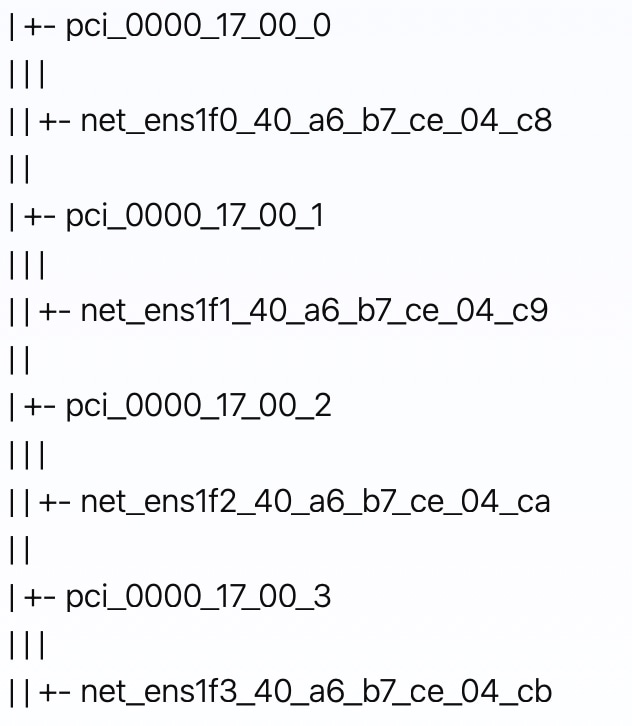
List all the PCI devices for all the virtual functions in a tree format. This is useful for verifying the setup and ensuring that the VFs are correctly recognized by the KVM hypervisor.

virsh nodedev-list --tree

In this procedure, since we set the number of VFs as 2 in Step 2, two VFs for each management interface and data interface are created. As a result, a total of four PCI devices are generated: two for management and two for data.

This PCI device information is used during the installation process with SRIOV (Step 4 of Install Crosswork Network Controller cluster on KVM using CLI).


Install Crosswork Network Controller cluster on KVM using CLI

Follow these steps to install the Crosswork Network Controller VM on KVM using CLI. These steps must be repeated for each VM in your cluster.


Note


The time taken to create the cluster can vary based on the size of your deployment profile and the performance characteristics of your hardware.


Before you begin

Ensure that

Procedure


Step 1

As a first step, prepare the config IOS files for the Crosswork Network Controller cluster. You must create a separate config IOS file using xml (ovf-env.xml) for each VM in your cluster. For more information, see Crosswork Network Controller deployment templates for KVM.

Important


Changing the file name from ovf-env.xml will cause errors. Use the exact file name.

  1. Update the ovf-env.xml file as per your needs. For more information on the parameters, see Installation parameters.

    $ cat ovf-env.xml
  2. Generate the IOS file.

    $ mkisofs -R -relaxed-filenames -joliet-long -iso-level 3 -l -o node-1-Hybrid.iso ovf-env.xml

    Note


    It is recommended to use the VM hostname as the name of the .iso file to avoid confusion. In the above example command, "node-1-Hybrid" is the VM hostname.

Step 2

Download the Crosswork Network Controller cluster qcow2 tar file and extract it.

tar -xvf cnc-platform-cluster-deployment-7.2.0-45-qcow2.tar.gz

This command creates three qcow2 files:

  • cnc-platform-cluster-deployment-7.2.0-45_dockerfs.qcow2

  • cnc-platform-cluster-deployment-7.2.0-45_extrafs.qcow2

  • cnc-platform-cluster-deployment-7.2.0-45_rootfs.qcow2

Step 3

Create an installation folder, preferably named after the VM hostname (for example, "node-1-Hybrid").

  1. Navigate to this folder.

    cd node-1-Hybrid/
  2. Copy the three extracted qcow2 files from the previous step into this folder.

  3. Create three disks using the following commands:

    qemu-img create -f qcow2 disk3 20G
    qemu-img create -f qcow2 disk4 485G
    qemu-img create -f qcow2 disk6 15G

    After these steps, the folder will contain the three qcow2 files and the three newly created disks.

    ls -l
    
    cnc-platform-cluster-deployment-7.2.0-45_dockerfs.qcow2
    cnc-platform-cluster-deployment-7.2.0-45_extrafs.qcow2
    cnc-platform-cluster-deployment-7.2.0-45_rootfs.qcow2
    disk3
    disk4
    disk6

Step 4

Install the Crosswork Network Controller cluster using network bridge or SRIOV.

In this example, "node-1-Hybrid" is the host name of the Cisco Crosswork VM.

  • Using network bridges:

    virt-install --boot uefi --boot hd,cdrom --connect qemu:///system --virt-type kvm --name node-1-Hybrid --ram 98304 --vcpus 12 --os-type linux --disk path=cnc-platform-cluster-deployment-7.2.0-45_rootfs.qcow2,format=qcow2,bus=scsi --disk path=cnc-platform-cluster-deployment-7.2.0-45_dockerfs.qcow2,format=qcow2,bus=scsi --disk path=disk3,format=qcow2,bus=scsi --disk path=disk4,format=qcow2,bus=scsi --disk path=cnc-platform-cluster-deployment-7.2.0-45_extrafs.qcow2,format=qcow2,bus=scsi --disk path=disk6,format=qcow2,bus=scsi --disk=node-1-Hybrid.iso,device=cdrom,bus=scsi --import --network bridge=intMgmt,model=virtio --network bridge=intData,model=virtio --noautoconsole --os-variant ubuntu22.04 --graphics vnc,listen=0.0.0.0
  • Using SRIOV:

    virt-install --boot uefi --boot hd,cdrom --connect qemu:///system --virt-type kvm --name node-1-Hybrid --ram 98304 --vcpus 12 --cpu host-passthrough --disk path=cw_rootfs.qcow2,format=qcow2,bus=scsi --disk path=cw_dockerfs.qcow2,format=qcow2,bus=scsi --disk path=disk3,format=qcow2,bus=scsi --disk path=disk4,format=qcow2,bus=scsi --disk path=cw_extrafs.qcow2,format=qcow2,bus=scsi --disk path=disk6,format=qcow2,bus=scsi --disk=node-1-Hybrid.iso,device=cdrom,bus=scsi --import --network none --host-device=pci_0000_01_10_0 --host-device=pci_0000_01_10_0 --os-variant ubuntu-lts-latest &
    

Monitor Cluster Activation

This section explains how to monitor and verify if the installation has completed successfully. As the installer builds and configures the cluster it will report progress. The installer will prompt you to accept the license agreement and then ask if you want to continue the install. After you confirm, the installation will progress and any possible errors will be logged in either installer.log or installer_tf.log. If the VMs get built and are able to boot, the errors in applying the operator specified configuration will be logged on the VM in the /var/log/firstboot.log.


Note


During installation, Cisco Crosswork will create a special administrative ID (virtual machine (VM) administrator, cw-admin, with the password that you provided in the manifest template. In case the installer is unable to apply the password, it creates the administrative ID with the default password cw-admin). The first time you log in using this administrative ID, you will be prompted to change the password.

The administrative username is reserved and cannot be changed. Data center administrators use this ID to log into and troubleshoot the Crosswork application VM.


The following is a list of critical steps in the process that you can watch for to be certain that things are progressing as expected:

  1. The installer uploads the crosswork image file (.tar.gz file) to the data center.

  2. The installer creates the VMs, and displays a success message (e.g. "Creation Complete") after each VM is created.

  3. After each VM is created, it is powered on (either automatically when the installer completes, or after you power on the VMs during the manual installation). The parameters specified in the template are applied to the VM, and it is rebooted. The VMs are then registed by Kubernetes to form the cluster.

  4. Once the cluster is created and becomes accessible, a success message (e.g. "Crosswork Installer operation complete") will be displayed and the installer script will exit and return you to a prompt on the screen.

You can monitor startup progress using the following methods:

  • Using browser accessible dashboard:

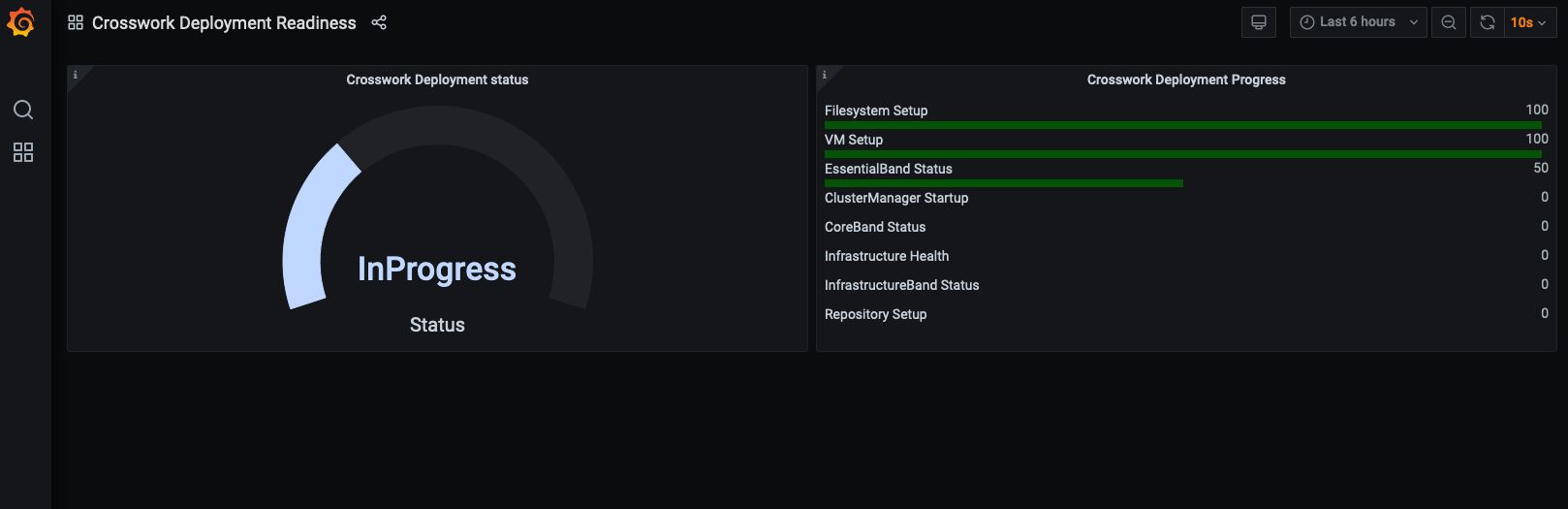
    1. While the cluster is being created, monitor the setup process from a browser accessible dashboard.

    2. The URL for this grafana dashboard (in the format http://{VIP}:30602/d/NK1bwVxGk/crosswork-deployment-readiness?orgId=1&refresh=10s&theme=dark) is displayed once the installer completes. This URL is temporary and will be available only for a limited time (around 30 minutes).

    3. At the end of the deployment, the grafana dashboard will report a "Ready" status. If the URL is inaccessible, use the SSH console described in this section to monitor the installation process.

      Figure 1. Crosswork Deployment Readiness
  • Using the console:

    1. Check the progress from the console of one of the hybrid VMs or by using SSH to the Virtual IP address.

    2. In the latter case, login using the cw-admin user name and the password you assigned to that account in the install template.

    3. Switch to super user using sudo su - command.

    4. Run kubectl get nodes (to see if the nodes are ready) and kubectl get pods (to see the list of active running pods) commands.

    5. Repeat the kubectl get pods command until you see robot-ui in the list of active pods. For example, you may see robot-ui-0 and robot-ui-1 as active pods.

    6. At this point, you can try to access the Cisco Crosswork UI.

Failure Scenario

In the event of a failue scenario (listed below), contact the Cisco Customer Experience team and provide the installer.log, installer_tf.log, and firstBoot.log files (there will be one per VM) for review:

  • Installation is incomplete

  • Installation is completed, but the VMs are not functional

  • Installation is completed, but you are directed to check /var/log/firstBoot.log or /opt/robot/bin/firstBoot.log file.

Log into the Cisco Crosswork UI

Once the cluster activation and startup have been completed, you can check if all the nodes are up and running in the cluster from the Cisco Crosswork UI.


Note


For the supported browser versions, see the Compatibility Information section in the Release Notes for Crosswork Network Controller 7.2.0.


Perform the following steps to log into the Cisco Crosswork UI and check the cluster health:

Procedure


Step 1

Launch one of the supported browsers.

Step 2

In the browser's address bar, enter:

https://<Crosswork Management Network Virtual IP (IPv4)>:30603/

or

https://[<Crosswork Management Network Virtual IP (IPv6)>]:30603/

Note


Please note that the IPv6 address in the URL must be enclosed with brackets.

Note


You can also log into the Crosswork UI using the Crosswork FQDN name.

The Log In window opens.

Note


When you access the Cisco Crosswork for the first time, some browsers display a warning that the site is untrusted. When this happens, follow the prompts to add a security exception and download the self-signed certificate from the Cisco Crosswork server. After you add a security exception, the browser accepts the server as a trusted site in all future login attempts. If you want to use a CA signed certificate, see the Manage Certificates topic in the Cisco Crosswork Network Controller 7.2 Administration Guide.

Step 3

Log into the Cisco Crosswork as follows:

  1. Enter the Cisco Crosswork administrator username admin and the default password admin.

  2. Click Log In.

  3. When prompted to change the administrator's default password, enter the new password in the fields provided and then click OK.

    Note


    Use a strong password that is at least eight characters long and includes uppercase and lowercase letters, numbers, and at least one special character. Although allowed, avoid using passwords similar to dictionary words (for example, "Pa55w0rd!") or other easily guessable terms.

The Crosswork Manager window is displayed.

Step 4

Click on the Crosswork Health tab, and click the Platform Infrastructure tile to view the health status of the microservices running on Cisco Crosswork.

Step 5

Import inventory: After logging into the Crosswork UI, ensure the cluster is healthy. Download the cluster inventory sample (.tfvars file) from the Crosswork UI and update it with information about the VMs in your cluster, along with the data center parameters. For sample .tfvars templates, see Crosswork Network Controller deployment templates for KVM. Then, import the file back into the Crosswork UI.


Troubleshoot the cluster

By default, the installer displays progress data on the command line. The install log is fundamental in identifying the problems, and it is written into the /data directory.

General scenarios

Table 4. General scenarios

Scenario

Possible Resolution

Certificate Error

The RHEL hosts that will run the Crosswork application and the data gateway VM must have NTP configured, or the initial handshake may fail with "certificate not valid" errors.

Floating VIP address is not reachable

The VRRP protocol requires unique router_id advertisements to be present on the network segment. By default, Crosswork uses the ID 169 on the management and ID 170 on the data network segments. A symptom of conflict, if it arises, is that the VIP address is not reachable. Remove the conflicting VRRP router machines or use a different network.

Crosswork VM is not allowing the admin user to log in

This happens when the password is not complex enough. Create a strong password, update the configuration manifest and redeploy.

Use a strong VM Password (8 characters long, including upper & lower case letters, numbers, and at least one special character). Avoid using passwords similar to dictionary words (for example, "Pa55w0rd!") or relatable words. While they satisfy the criteria, such passwords are weak and will be rejected resulting in failure to setup the VM.

Deployment fails with: Failed to validate Crosswork cluster initialization.

The clusters' seed VM is either unreachable or one or more of the cluster VMs have failed to get properly configured.

  1. Check whether the VM is reachable, and collect logs from /var/log/firstBoot.log and /var/log/vm_setup.log

  2. Check the status of the other cluster nodes.

The VMs are deployed but the Crosswork cluster is not being formed.

A successful deployment allows the operator logging in to the VIP or any cluster hybrid node IP address to run the following command to get the status of the cluster:
sudo kubectl get nodes

Note


This command will not work on worker nodes.

A healthy output for a 3-node cluster is:
NAME                  STATUS   ROLES    AGE   VERSION
172-25-87-2-hybrid.cisco.com   Ready    master   41d   v1.33.0
172-25-87-3-hybrid.cisco.com   Ready    master   41d   v1.33.0
172-25-87-4-hybrid.cisco.com   Ready    master   41d   v1.33.0

In case of a different output, collect the following logs: /var/log/firstBoot.log and /var/log/vm_setup.log

In addition, for any cluster nodes not displaying the Ready state, collect:
sudo kubectl describe node <name of node>

VMs deploy but install fails with Error: timeout waiting for an available IP address

Most likely cause would be an issue in the VM parameters provided or network reachability. Enter the VM host, review and collect the following logs: /var/log/firstBoot.log and /var/log/vm_setup.log

When deploying on KVM, the following error is displayed towards the end of the VM bringup:

Error processing disk changes post-clone: disk.0: ServerFaultCode: NoPermission: RESOURCE (vm-14501:2000), ACTION (queryAssociatedProfile): RESOURCE (vm-14501), ACTION (PolicyIDByVirtualDisk)

Enable Profile-driven storage. Query permissions for the user at the root level (i.e. for all resources) of the KVM.

Dual stack scenarios

Table 5. Dual stack scenarios

Scenario

Possible Resolution

During deployment, the following error message is displayed:

ERROR: No valid IPv6 address detected for IPv6 deployment.

If you intend to use a dual stack configuration for your deployment, make sure that the host machine running the Docker installer meets the following requirements:

  • It must have an IPv6 address from the same prefix as the Crosswork Management IPv6 network, or be able to route to that network. To verify this, try pinging the Gateway IP of the Management IPv6 network from the host. To utilize the host's IPv6 network, use the parameter --network host when running the Docker installer.

  • Confirm that the provided IPv6 network CIDR and gateway are valid and reachable.

During deployment, the following error message is displayed:

ERROR: seed v4 host empty

Ensure you use the approved version of Docker installer (19 or higher) to run the deployment.

During deployment, the following error message is displayed:

ERROR: Installation failed. Check installer and the VMs' log by accessing via console and viewing /var/log/firstBoot.log

Common reasons for failed installation are:

  • Incorrect IPv4 or IPv6 Gateway IP for either Management or Data interfaces.

  • Unreachable IPv4 or IPv6 Gateway IP for either Management or Data interfaces.

  • Errors in mapping the datacenter networks in MgmtNetworkName and DataNetworkName parameters in .tfvars file

Check the firstBoot.log file for more information, and contact Cisco Customer Experience team for any assistance.

Installation workflow for deploying SR-PCE (Cisco IOS XRv 9000) on RHEL 8.10 KVM

Crosswork Network Controller supports the deployment of SR-PCE running on the Cisco IOS XRv 9000 (XRv9k) platform in RHEL 8.10 KVM environments.

This section lists the necessary steps to launch and manage the XRv9k virtual router on RHEL 8.10 using KVM/QEMU and the libvirt virtualization API.


Attention


Crosswork Network Controller deployment is supported on both RHEL 8.10 and RHEL 9.4 KVM.


Table 6. Workflow for deploying SR-PCE (Cisco IOS XRv 9000) on RHEL 8.10 KVM

Step

Action

1. Ensure that the host meets all the prerequisites.

Refer to Prerequisites and setup for Cisco IOS XRv 9000 virtualization.

2. Configure network bridges.

Refer to Configure network bridges.

3. Prepare the VM storage.

Refer to Prepare VM storage.

4. Modify the virsh XML template to match your requirements

Refer to Update the VM configuration.

5. Deploy the VM and verify the status.

Refer to Deploy and verify the VM.

6. Connect to the router console.

Refer to Connect to the router console.

Prerequisites and setup for Cisco IOS XRv 9000 virtualization

This topic describes the prerequisites, requirements, and procedures for enabling virtualization and preparing a host machine to deploy SR-PCE running on the Cisco IOS XRv 9000 (XRv9k) platform in RHEL 8.10 KVM environments.

Host machine requirements

Ensure that the host machine meets these requirements:

  • Operating System: RHEL 8.10 with virtualization enabled in the BIOS/UEFI.

  • Required Packages:

    • qemu-kvm

    • libvirt

    • virt-install

    • virt-manager

    • bridge-utils

Enabling KVM

Verify that the host supports virtualization and that the necessary services are active.

  1. Verify CPU virtualization support.

    egrep -c '(vmx|svm)' /proc/cpuinfo
  2. Check if the KVM modules are loaded.

    lsmod | grep kvm
  3. Install virtualization packages.

    sudo dnf install -y qemu-kvm libvirt virt-install virt-manager bridge-utils
  4. Start and enable the libvirt daemon.

    sudo systemctl enable --now libvirtd

Required files for deployment

Obtain these files from the Cisco software portal:

  • Cisco IOS XRv 9000 ISO Image (for example, xrv9k-fullk9-x.vrr-25.3.1.iso): The bootable image required for installation.

  • Virsh XML Template: The configuration file used to define the VM properties.

Configure network bridges

You must create network bridges to allow the SR-PCE to communicate with the management network and the IGP topology.

This example creates intData for management and br501 for IGP traffic (using VLAN 501 on interface ens1f3).

Procedure


Step 1

Create the VLAN interface.

sudo nmcli connection add type vlan con-name ens1f3.501 ifname ens1f3.501 dev ens1f3 id 501 ipv4.method disabled ipv6.method ignore

Step 2

Create the bridge.

sudo nmcli connection add type bridge con-name br501 ifname br501 ipv4.method disabled ipv6.method ignore

Step 3

Add the VLAN interface as a bridge port.

sudo nmcli connection add type bridge-slave con-name ens1f3.501-port ifname ens1f3.501 master br501

Step 4

Bring the interfaces up.

sudo nmcli connection up br501
sudo nmcli connection up ens1f3.501
sudo nmcli connection up ens1f3.501-port

Step 5

Verify the bridge mapping.

bridge link
ens1f3.501@ens1f3: <BROADCAST,MULTICAST,UP,LOWER_UP> mtu 1500 master br501 state forwarding priority 32 cost 2

Network bridges for SR-PCE are successfully created, enabling connectivity to both management and IGP networks.

Prepare VM storage

The XRv9k requires a dedicated virtual disk and access to the installation ISO. This topic describes creating a virtual disk, organizing the installation files within the host system's libvirt directory, and setting the appropriate ownership permissions for the Hypervisor to access the files.

Procedure


Step 1

Create the virtual disk.

qemu-img create -f qcow2 pcedisk1.qcow2 64G

Step 2

Organize files in the libvirt directory.

sudo mkdir -p /var/lib/libvirt/images/xrv9k
sudo cp pcedisk1.qcow2 /var/lib/libvirt/images/xrv9k/
sudo cp xrv9k-fullk9-x.vrr-25.3.1.iso /var/lib/libvirt/images/xrv9k/

Step 3

Set permissions.

sudo chown qemu:qemu /var/lib/libvirt/images/xrv9k/pcedisk1.qcow2
sudo chown qemu:qemu /var/lib/libvirt/images/xrv9k/xrv9k-fullk9-x.vrr-25.3.1.iso

Update the VM configuration

Modify the virsh XML template to match your environment's file paths and hardware requirements.

Procedure


Step 1

Set the source file path for the HDA disk and the CDROM.

<!-- HDA Disk -->
<disk type='file' device='disk'>
  <driver name='qemu' type='qcow2'/>
  <source file='/var/lib/libvirt/images/xrv9k/pcedisk1.qcow2'/>
  <target dev='vda' bus='virtio'/>
</disk>

<!-- CDROM -->
<disk type='file' device='cdrom'>
  <driver name='qemu' type='raw'/>
  <source file='/var/lib/libvirt/images/xrv9k/xrv9k-fullk9-x.vrr-25.3.1.iso'/>
  <target dev='hdc' bus='ide'/>
</disk>

Step 2

Update the <os> section to enable UEFI boot.


<os>
  <type arch='x86_64' machine='pc'>hvm</type>
  <boot dev='hd'/>
<loader readonly='yes' secure='no' type='pflash'>/usr/share/edk2/ovmf/OVMF_CODE.fd</loader>
  <nvram>/usr/share/edk2/ovmf/OVMF_VARS.fd</nvram>
  <bootmenu enable='yes'/>
</os>

Step 3

Map the virtual interfaces to the bridges created in Configure network bridges.


Deploy and verify the VM

This topic describes how to deploy the VM using a specified XML configuration file and verify the status of the VM.

Procedure


Step 1

Create the VM.

virsh create xrv9k-config.xml

Step 2

Verify the status of the VM.

virsh list --all

Connect to the router console

Once the VM is running, you can access the IOS XR console via telnet.

Procedure


Step 1

Identify the console port by examining the serial section in your XML.


<serial type='tcp'>
   <source mode="bind" host="0.0.0.0" service="13914"/>
   <protocol type="telnet"/>
   <target port="0"/>
</serial>

Step 2

Wait approximately 10–15 minutes for the router to boot. Then, run this command to connect to the console.

telnet localhost 13914

Step 3

Configure the initial username, password, and system configurations as prompted.