Auto-arbitration in Crosswork Network Controller
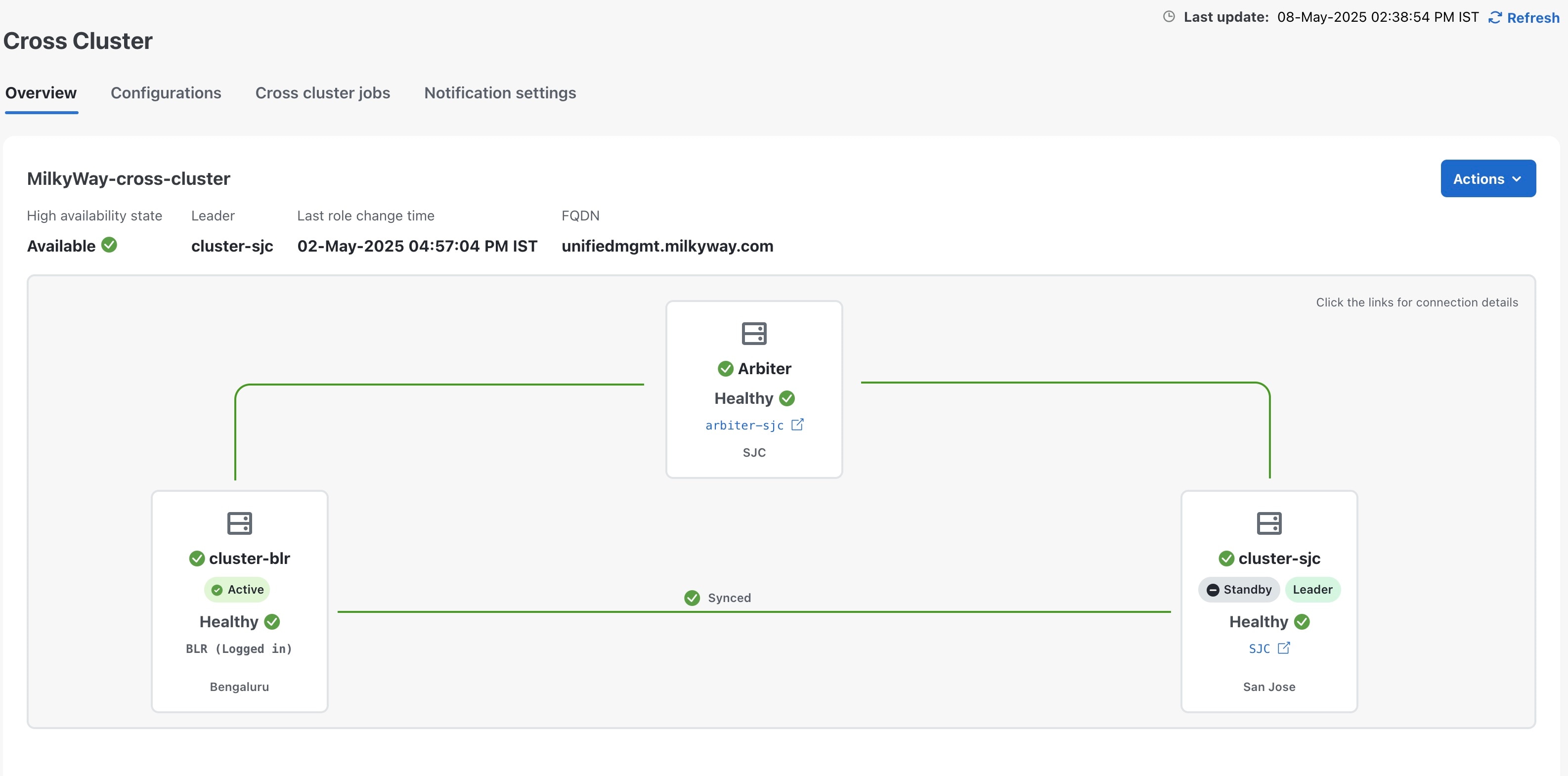
Auto-arbitration is a functionality in Crosswork Network Controller that automates the switchover process between active and standby clusters during communication failures, eliminating the need for manual intervention. It introduces an arbiter VM (AZ3), which acts as a mediator to prevent split-brain scenarios and ensures the integrity of the system.
Key features
-
Split-brain scenario prevention:
-
In a geo redundant setup, communication failures can cause the standby cluster to mistakenly assume the active cluster is down, leading to both clusters becoming active (split-brain scenario). This can result in data loss if one cluster fails.
-
Auto-arbitration uses an arbiter VM and the leader election protocol to prevent such conflicts by ensuring consensus on the active cluster.
-
-
Arbiter VM role:
-
The arbiter VM is deployed on a single VM with a small resource footprint.
-
It provides the essential quorum needed to form a majority vote for electing a leader among the three AZs.
-
It includes only essential infrastructure components and does not allow application installations after deployment.

Important
By design, the arbiter VM in the geo HA cluster is a minimal node used primarily for quorum voting. It does not host workload services like other cluster nodes. By default, only the admin user is created on the arbiter node for administrative operations. The arbiter VM does not synchronize AAA users or settings from other nodes. However, you can create and manage additional users independently on the arbiter VM if needed.
-
-
Switchover automation: During a switchover (manual request or network failure), the arbiter node performs these steps.
When auto arbitration mode is enabled, the elected cluster leader automates the three steps of a switchover, whether triggered manually or by a failure in a network node or link.
-
Updates the active cluster's role to standby.
-
Updates the standby cluster's role to active.
-
Updates the DNS FQDN records for data and management to point to the new active cluster.
For more information, see Auto-arbitration workflow.
-
-
Day 0 and day N deployments:
-
Day 0: All three clusters (active, standby, and arbiter) are deployed and configured sequentially on day-0. For more information, see Geo redundancy workflow (Day 0).
-
Day N: You can add an arbiter VM to an existing two-cluster geo-redundant model (active and standby) by reimporting the updated cross cluster inventory file, which includes new parameters for the arbiter VM. For more information, see Geo redundancy workflow (Day N).
-
Auto-arbitration is a critical enhancement for ensuring reliable and fail-safe operations in distributed environments, enabling seamless cluster management with minimal manual effort.
 Feedback