Integrate SR-PCE

This chapter contains the following topics:

SR-PCE Integration Workflow

This section explains the steps in integrating Cisco SR-PCE with Crosswork Network Controller.

Please see the Release Notes for Crosswork Network Controller 7.2.0 to know the SR-PCE version compatible with Crosswork Network Controller.

1. Install the compatible version of Cisco SR-PCE

Select the type of SR-PCE and follow the relevant install instructions in the Cisco IOS XRv 9000 Router Installation Guide.

2. Configure certificates

Follow the instructions in SR-PCE certificate configurations.

3. Configure SR-PCE

Follow the instructions in Configure SR-PCE.

4. Add SR-PCE provider and verify connectivity

Follow the instructions in Add Cisco SR-PCE Providers.

SR-PCE certificate configurations

Before proceeding with the certificate configuration, determine your certificate requirements.

The default Cisco certificates are acceptable for Proof of concept or lab environments that require internal networks with basic security requirements.

If your organization requires custom certificates, you must complete the certificate configuration before attempting to onboard SR-PCE or devices. Integration will fail if certificates are not properly configured first.

Depending on whether you want to integrate custom or default certificates, refer to the relevant section.

Configure SR-PCE with default certificates

Configure SR-PCE in your network using Cisco's default certificates for authentication.

Before you begin

Use this procedure procedure if you're using Cisco's default certificates.

Procedure


Step 1

Create SR-PCE credentials

  1. Navigate to Administration > Credentials Management.

  2. Click Add Credential Profile.

  3. Enter the required values:

    • Profile Name: Enter a descriptive name.

    • Username: SR-PCE admin username.

    • Password: SR-PCE admin password.

  4. Click Save.

Step 2

Add SR-PCE provider and verify connectivity.

  1. Navigate to Administration > Manage Provider Access, and then click Add icon.

  2. Enter the required values for the SR-PCE provider fields. For information about the fields, see the Add Cisco SR-PCE Providers.

  3. Click Save to add the SR-PCE provider.

  4. Confirm that the SR-PCE provider shows a green Reachability status without any errors. You can also view the Events window (Administration > Events) to see if the provider has been configured correctly.

  5. Repeat this process for each SR-PCE provider.


The SR-PCE provider(s) is added and validated using default certificates. Reachability status should indicate success, confirming proper configuration and connectivity.

Configure SR-PCE with custom certificates

Enable secure, encrypted communications for gRPC API in SR-PCE deployments using TLS, to protect data in transit and ensure compliance.

Configuring TLS for the SR-PCE gRPC API encrypts all API interactions. This security is essential for environments requiring data confidentiality and integrity, especially with Crosswork Network Controller device management. To enable secure gRPC communication, generate and install certificates on:

  • All network devices (PCCs)

  • SR-PCE

  • Crosswork Network Controller


Note


Crosswork Network Controller supports only server authentication and not mutual authentication (client certificate validation).

Before you begin

Before configuring TLS for the SR-PCE gRPC API, make sure all prerequisites are met.

  • Management IP addresses for all network devices (PCCs) and SR-PCE to add to the subjectAltName field in the certificate.

  • Admin or privileged access to IOS XR devices

  • SR-PCE access and readiness

    • SR-PCE is installed and operational, and

    • Administrative access to the SR-PCE CLI and file system is available.

  • Certificates and key files

    • A root CA certificate is available (used for gNMI collection), and

    • Private key and certificate files are generated for SR-PCE.

Use this procedure to configure TLS on SR-PCE for gRPC API.

Procedure


Step 1

Generate certificates using OpenSSL.

  1. On your Linux server, create a file named extension.cnf.

  2. Copy this content into the file and replace the parameters based on your environment.

    [ req ]
    distinguished_name = req_distinguished_name
    req_extensions = req_ext
    extensions = req_ext
    
    [ req_distinguished_name ]
    countryName = Country Name (2 letter code)
    countryName_min = 2
    countryName_max = 2
    stateOrProvinceName = State or Province Name (full name)
    localityName = Locality Name (eg, city)
    organizationName = Organization Name (eg, company)
    organizationalUnitName = Organizational Unit Name (eg, section)
    commonName = Common Name (eg, fully qualified host name)
    commonName_max = 64
    emailAddress = Email Address
    emailAddress_max = 64
    
    [ req_attributes ]
    challengePassword = A challenge password
    challengePassword_min = 4
    challengePassword_max = 20
    
    [ req_ext ]
    basicConstraints = critical,CA:true
    subjectAltName = IP:<IP-address, IP-address...>
    
    [ v3_ca ]
    subjectKeyIdentifier = hash
    authorityKeyIdentifier = keyid:always,issuer
    basicConstraints = critical, CA:true
    keyUsage = critical, digitalSignature, cRLSign, keyCertSign
  3. Replace the IP addresses in the subjectAltName line with your actual device and SR-PCE management IPs.

Step 2

Generate the root CA key, device key, device Certificate Signing Request (CSR), sign the device certificate, and encrypt the device key.

Note


Record the password (password1 in this example). You will need it later.

  1. On your Linux server, run the command.

    openssl genrsa -out rootCA.key 2048
    
    openssl req -config extension.cnf -extensions v3_ca \
    -subj /C=/ST=/L=/O=/CN=RootCA \
    -x509 -days 365 -new -nodes -key rootCA.key -sha256 -out rootCA.pem
    
    openssl genrsa -out device.key 2048
    
    openssl req -subj /C=/ST=/L=/O=/CN=Device \
    -new -config extension.cnf -key device.key -out device.csr
    
    openssl x509 -extfile extension.cnf -extensions req_ext \
    -req -days 365 -in device.csr \
    -CA rootCA.pem -CAkey rootCA.key -CAcreateserial \
    -out device.crt -sha256
    
    openssl rsa -des3 -in device.key -out device.des3.key -passout pass:password1
    
    These are files are generated:
    • rootCA.key

    • rootCA.pem

    • device.key

    • device.csr

    • device.crt

    • device.des3.key

  2. In your working directory, rename and prepare certificates for distribution.

    mv device.crt ems.pem
    mv device.key ems.key
    mv rootCA.pem ca.cert
  3. Using SCP, copy the three files (ems.pem, ems.key, ca.cert) to each device and SR-PCE disk0: location.

    scp ems.pem admin@<device-ip>:/disk0:/
    scp ems.key admin@<device-ip>:/disk0:/
    scp ca.cert admin@<device-ip>:/disk0:/
    

    Repeat this step for all devices and SR-PCE.

Step 3

Install certificates on all devices and SR-PCE. For each device and SR-PCE:

  1. Log in via SSH or console.

  2. Back up any existing certificates.

  3. Enable TLS in the gRPC configuration and disable mutual authentication to allow only server authentication.

  4. Remove existing ems.pem, ems.key, and ca.cert files from /misc/config/grpc/ (if present).

  5. Enter the run mode and navigate to the gRPC directory:

    run
    cd /misc/config/grpc/

    Example:

    -rw-r--r--.  ems.pem
    -rw-------.  ems.key
    -rw-r--r--.  ca.cert
    
  6. Copy the certificate files from disk0:

    cp /disk0:/ems.pem .
    cp /disk0:/ems.key .
    cp /disk0:/ca.cert .
  7. Verify file permissions and exit the run mode:

    ls -lart
    exit
  8. Restart the EMS daemon:

    process restart emsd
    

Step 4

Enable secure gRPC on devices and SR-PCE. For each device and SR-PCE

  1. Log in via SSH or console.

  2. View the current gRPC configuration:

    show running-config grpc
  3. Enter global configuration mode and remove the no-tls directive.

    Example:

    grpc
     port 57400
     no-tls          <-- Remove this line
     address-family ipv4
     service-layer
     !
    

    Allow 1–2 minutes for the EMS daemon to restart and apply the changes.

    Secure gRPC is now enabled on the device or SR-PCE.

Step 5

Create certificate profiles in Cisco Crosswork.

  1. Log in to Crosswork Network Controller.

  2. Navigate to Administration > Certificate Management.

  3. Click Create Certificate and enter:

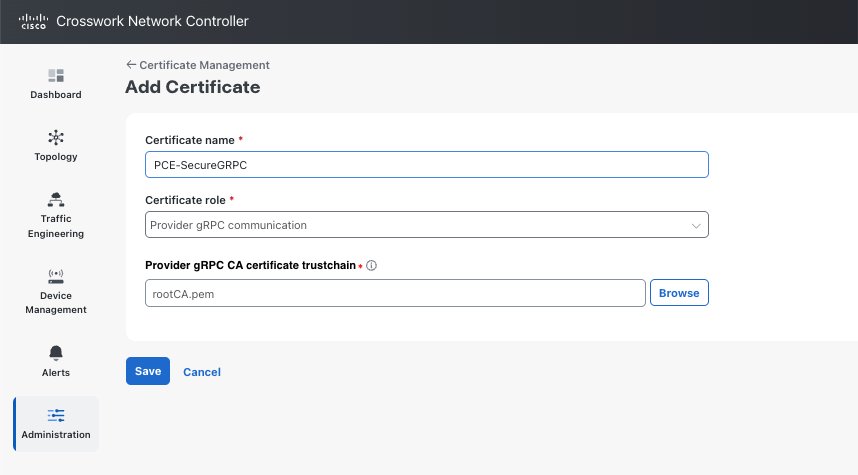
    • Certificate name: Enter the certificate name as PCE-SecureGRPC.

    • Role: Select Provider gRPC communication.

    • Provider gRPC CA certificate trustchain: Upload rootCA.pem.

    Figure 1. Add certificate configuration for PCE secure gRPC
    Add Certificate screen showing fields to upload a certificate file, enter a role, and specify certificate details.
  4. Click Save.

  5. Click Create Certificate again and enter:

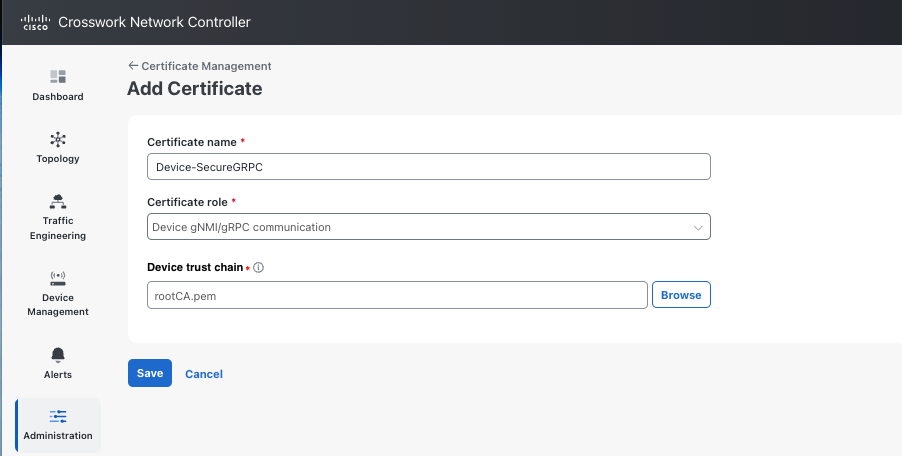
    • Certificate name: Enter the certificate name as Device-SecureGRPC.

    • Role: Select Device gNMI/gRPC communication.

    • Provider gRPC CA certificate trustchain: Upload rootCA.pem.

  6. Click Save.

    Figure 2. Add certificate for secure device gRPC
    Add Certificate screen showing fields to upload a certificate file, enter a role, and specify certificate details.

Step 6

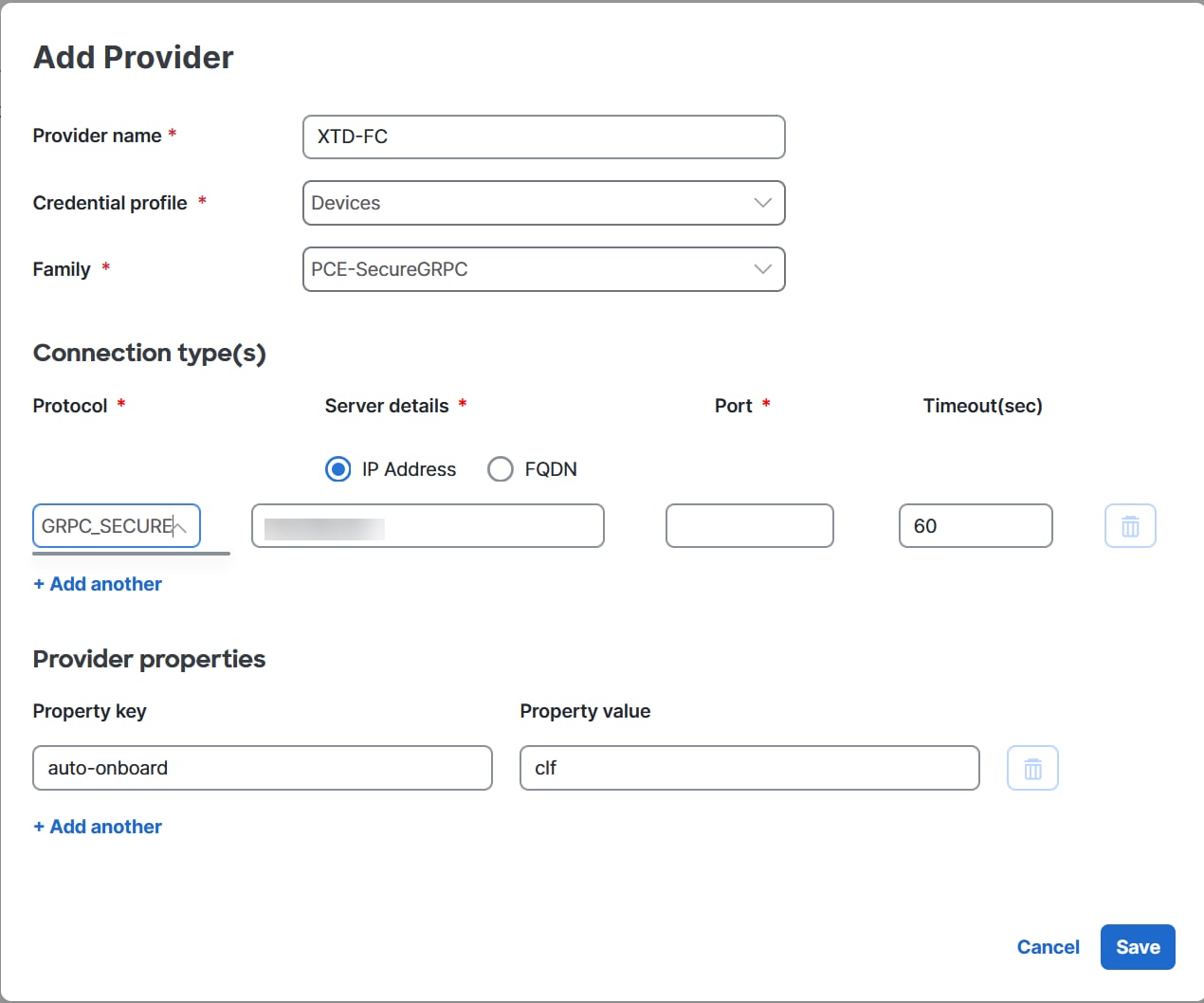
Associate SR-PCE certificate and enable secure gRPC.

  1. Log in to Crosswork Network Controller UI.

  2. Navigate to Administration > Manage Provider Access.

  3. Select the SR-PCE provider.

  4. Set gRPC Mode to GRPC_SECURE.

  5. Select the PCE-SecureGRPC certificate profile created in Step 5.

  6. Click Save.

    Crosswork will apply the certificate profile to the SR-PCE connection.

Note

 
If a gNMI certificate already exists and multiple trust chains are needed, update the existing .pem file to include all required CA certificates.
After successful addition, the gNMI certificate appears in the certificates listed in Certificate Management > Certificates. The gRPC configuration displays TLS enabled without mutual authentication.

Step 7

Associate the certificate with SR-PCE.

  1. Navigate to Administration > Manage Provider Access.

  2. Select the SR-PCE provider.

  3. Select the Family as SR-PCE.

  4. Set the gRPC Mode to GRPC_SECURE.

  5. Select the certificate profile created earlier. For example, PCE-SecureGRPC.

  6. Click Save.

    Repeat these actions for all devices. Crosswork updates the connection settings for each device.

    Figure 3. Provider configuration
    Highlighted SR-PCE configuration fields that appear in both the Add Provider and Edit Provider window.

Step 8

Verify secure gRPC configuration and connectivity.

  1. On each device and SR-PCE, verify the gRPC configuration:

    show running-config grpc

    Confirm that no-tls is absent and port 57400 is present.

  2. In Crosswork Network Controller:

    • Navigate to Administration > Manage Provider Access and verify SR-PCE status shows "Connected" or "Active"

    • Navigate to Device Management > Network Devices and verify all devices show a "Connected" or "Active" status.

  3. (Optional) Review Crosswork application logs for successful gRPC TLS connections.

Secure gRPC is now fully configured and operational.

After completing all the steps, you should observe:

  • All devices and SR-PCE have certificates installed in /misc/config/grpc/.

  • Device and SR-PCE gRPC configurations display port 57400 without the no-tls directive.

  • Cisco Crosswork shows all devices and SR-PCE as connected over secure gRPC (TLS).

For detailed provider management procedures including adding a provider, and advanced configurations, see the Manage Provider Access chapter in the Cisco Crosswork Network Controller 7.2 Administration Guide.

What to do next

After configuration, verify that TLS is functioning correctly.

  1. Check the emsd process status:

    show process emsd
  2. Review gRPC service status:

    show grpc
  3. Check logs for TLS-related errors:

    show logging | include TLS
    show logging | include grpc

    Example:

    RP/0/RP0/CPU0:ASR9k-SRPCE1#show logging | include TLS
    Mon Mar 16 17:01:41.239 UTC
    RP/0/RP0/CPU0:Mar 16 16:57:50.669 UTC: emsd[1127]: %MGBL-EMS-6-EMSD_INFO : gRPC is secure with TLS  
    RP/0/RP0/CPU0:ASR9k-SRPCE1#sh grpc 
    Mon Mar 16 16:57:50.593 UTC
    
    Server name                             : DEFAULT
    Address family                          : ipv4
    Port                                    : 57400
    
    Service ports
      gNMI                                  : none
      P4RT                                  : none
      gRIBI                                 : none
    
    DSCP                                    : Default
    TTL                                     : 64
    VRF                                     : global-vrf
    Server                                  : enabled
    TLS                                     : enabled
    TLS mutual                              : disabled
    Trustpoint                              : none
    Certificate Authentication              : disabled
    Certificate common name                 : ems.cisco.com
    TLS v1.0                                : enabled
    Maximum requests                        : 128
    Maximum requests per user               : 10
    Maximum streams                         : 32
    Maximum streams per user                : 32
    Maximum concurrent streams              : 32
    Memory limit (MB)                       : 1024
    Keepalive time                          : 30
    Keepalive timeout                       : 20
    Keepalive enforcement minimum time      : 300
    TLS Minimum Version                     : TLS 1.0
    TLS Maximum Version                     : TLS 1.3
    
    TLS cipher suites
      Default                               : none
      Default TLS1.3                        : aes_128_gcm_sha256
                                            : aes_256_gcm_sha384
                                            : chacha20_poly1305_sha256
    
      Enable                                : none
      Disable                               : none
    
      Operational enable                    : ecdhe-rsa-chacha20-poly1305
                                            : ecdhe-ecdsa-chacha20-poly1305
                                            : ecdhe-rsa-aes128-gcm-sha256
                                            : ecdhe-ecdsa-aes128-gcm-sha256
                                            : ecdhe-rsa-aes256-gcm-sha384
                                            : ecdhe-ecdsa-aes256-gcm-sha384
                                            : ecdhe-rsa-aes128-sha
                                            : ecdhe-ecdsa-aes128-sha
                                            : ecdhe-rsa-aes256-sha
                                            : ecdhe-ecdsa-aes256-sha
                                            : aes128-gcm-sha256
                                            : aes256-gcm-sha384
                                            : aes128-sha
                                            : aes256-sha
      Operational disable                   : none
    Listen addresses                        : ANY
    Latest Connection Id                    : 611159
    Local Connection                        : Disabled 
  4. Test connectivity from a gRPC client using TLS.

For detailed certificate management procedures including renewal, revocation, and advanced configurations, see the Manage Certificates section in the Cisco Crosswork Network Controller 7.2 Administration Guide.

Configure SR-PCE

This section explains how to configure SR-PCE after you have installed it.


Note


The Cisco IOS XRv 9000 is the recommended platform to function as the SR-PCE. For additional details, see Configure Segment Routing Path Computation Element. Beginning with Crosswork Network Controller version 7.1, the gRPC API instrumentation for PCE is mandatory. For supported IOS XR platforms, contact Cisco Support.


Table 1. Configuring SR-PCE with gRPC enabled

Step

Command or Action

Description

1

conf t

Example:

conf t

Enters global configuration mode.

2

lslib-server

Example:

lslib-server
 !

Enables the Link State Library (LSlib) server.

3

grpc

Example:

grpc
 port 57400
 address-family ipv4
 tls profile <profile-name>
 service-layer
 !

Initiates the configuration mode for the gRPC server on the router. It's the top-level command for defining gRPC listener parameters. gRPC configuration enables a management and programmability interface for the router, which can be used to interact with various router components, including SR-PCE related data.

  • port—Specifies the TCP port number that the server will listen on for incoming client connections. Ideally gRPC server listening port is 57400, but it can be configured in the range: 57344-57999.

  • address-family— Specifies the address-family (e.g., IPv4, IPv6) for the gRPC server to listen on.

  • tls profile—Enables TLS for secure communication. For secure gRPC deployment, TLS should be enabled.

  • service-layer—Defines that the gRPC server will expose operational data models and potentially configuration capabilities.

4

linux networking

Example:

linux networking
 vrf default
  address-family ipv4
   default-route software-forwarding

Initiates the configuration mode for the Linux networking subsystem. It ensures that processes running in the Linux environment of the router (which might include the gRPC server) have their default route pointed to the IOS XR forwarding plane.

  • vrf default—Specifies that the subsequent routing configurations apply to the "default" Virtual Routing and Forwarding (VRF) instance.

  • address-family— Specifies the address-family (e.g., IPv4, IPv6) for routing.

  • default-route—Sets the default route for traffic originating from the Linux kernel to be handled by the IOS XR routing engine. If default-route mgmt is not configured, the TPA's default route implicitly points to software-forwarding, which instructs the Linux kernel to use the fwdintf (forward interface) as the next-hop for its default route.

5

pce

Example:

pce
 address ipv4 192.168.0.1
 stateful
 segment-routing
 state-sync ipv4 192.168.0.3
 distribute link-state
 tcp-buffer size 1024000
 password encrypted pwd1

Enables PCE and enters PCE configuration mode.

  • address ipv4 address—Configures a PCE IPv4 address.

  • stateful—Enables the PCE to be stateful.

  • segment-routing—Enables Segment Routing capabilities for the PCE.

  • state-sync ipv4 address—Configures the remote peer for state synchronization.

  • distribute link-state — Instructs the PCE to receive and build its topology database from the local Interior Gateway Protocol (IGP) (for example, OSPF or IS-IS).

  • tcp-buffer size size—Configures the transmit and receive TCP buffer size for each PCEP session, in bytes. The default buffer size is 256000. The valid range is from 204800 to 1024000.

  • password {clear | encrypted} password—Enables TCP MD5 authentication for all PCEP peers. Any TCP segment coming from the PCC that does not contain a MAC matching the configured password will be rejected. Specify if the password is encrypted or clear text. Password can be configured globally under pce or per-peer under peer <address>.

    Note


    TCP-AO and TCP MD5 are never permitted to be used simultaneously.

  • tcp-ao key-chain [include-tcp-options] [accept-ao-mismatch-connection]—Enables TCP Authentication Option (TCP-AO) authentication for all PCEP peers. Any TCP segment coming from the PCC that does not contain a MAC matching the configured key chain will be rejected. TCP-AO can be configured globally under pce or per-peer under peer <address>.

    • include-tcp-options—Includes other TCP options in the header for MAC calculation.

    • accept-ao-mismatch-connection—Accepts connection even if there is a mismatch of AO options between peers.

    Note


    TCP-AO and TCP MD5 are never permitted to be used simultaneously.

6

For PCEP sessions:

peer SR-PCE loopback IP address

Example:

peer ipv4 209.165.255.2
 source ipv4 209.165.255.1
 password encrypted pwd1

Specifies peer settings.

  • peer— Specifies the IP address of the SR-PCE peer (typically loopback).

  • peer source— Specifys the source address the PCE uses when connecting to that specific peer.

  • !—Exits peer mode.

7

segment-routing {strict-sid-only | te-latency}

Example:

segment-routing strict-sid-only

Configures the segment routing algorithm to use strict SID or TE latency.

Note


This setting is global and applies to all LSPs that request a path from this controller.

8

timers

Example:

timers
 keepalive 60
 minimum-peer-keepalive 30
 reoptimization 600
 exit

Enters timer configuration mode.

  • keepalive time—Configures the timer value for locally generated keep-alive messages. The default time is 30 seconds.

  • minimum-peer-keepalive time—Configures the minimum acceptable keep-alive timer that the remote peer may propose in the PCEP OPEN message during session establishment. The default time is 20 seconds.

  • reoptimization time—Configures the re-optimization timer. The default timer is 1800 seconds.

  • exit—Exits timer configuration mode and returns to PCE configuration mode.

9

exit

Exits PCE mode.

9

commit

Applies changes and exits the configuration.

What to do next:

Return to the installation workflow:

Sample SR-PCE configurations

The following configurations are examples to guide you in a multiple SR-PCE setup for HA. Please modify accordingly.

ISIS single topology configuration for dual-stack networks

Cisco Crosswork Network Controller supports ISIS Single Topology in addition to Multi-Topology. To utilize this, your XTC devices must be configured for ISIS Single Topology. For Single Topology configurations, only global IPv6 addressing is supported; support for link-local IPv6 addressing is not included.

Device-side configuration example

RP/0/RP0/CPU0:iosxrv-2(config)#router isis [NAME]
RP/0/RP0/CPU0:iosxrv-2(config-isis)#address-family ipv6 unicast
RP/0/RP0/CPU0:iosxrv-2(config-isis-af)#single-topology

Configuration requirements for deploying and reporting SR MSL policies to PCE

Enable gRPC on devices and for SR-TE policies

RP/0/RP0/CPU0:L1-NCS5501#sh running-config grpc
grpc
 segment-routing
  traffic-eng
   policy-service
  !
 !
 port 57400
 no-tls

Advertise all SR policies to BGP-LS peers

This configuration enables your router to report all configured SR MSL policies—both active and inactive—into the link-state database. As a result, these policies can be advertised via BGP-LS to controllers or peers, providing full visibility and supporting network orchestration.

RP/0/RP0/CPU0:L1-NCS5501#sh running-config segment-routing traffic-eng distribute link-state 
segment-routing
 traffic-eng
  distribute link-state
   report-candidate-path-inactive
  !
 !
!

Prevent reporting MSL policies in PCEP

This configuration prevents SR MSL policies from being reported via PCEP. Since PCEP does not fully support MSL policies (it only advertises a single segment list, which can cause operational issues), it is recommended to remove the report-all command from the PCC configuration on the headend router.

RP/0/RP0/CPU0:L4-NCS560#sh running-config segment-routing traffic-eng pcc 
segment-routing
 traffic-eng
  pcc
   source-address ipv4 192.100.0.4
   pce address ipv4 100.100.0.1
    precedence 25
   !
   pce address ipv4 100.100.0.2
    precedence 50
   !
   !  Remove the following line to prevent reporting MSL policies to PCE
   !  report-all
   redundancy pcc-centric
   profile 1981
    autoroute
     include ipv4 all
     force-sr-include
    !
   !
  !
 !
!

Advertise SR MSL policies in link-state to PCE neighbor via BGP-LS

This configuration enables your router to advertise SR MSL policies in the link-state address family to a PCE neighbor over BGP. By establishing a BGP session with the PCE and including the address-family link-state link-state configuration, the router ensures that SR MSL policies are advertised and can be learned by the PCE.


Note


The link-state address family must be configured on both the headend and the PCE for successful exchange.


RP/0/RP0/CPU0:L1-NCS5501#sh running-config router bgp
router bgp 60
 neighbor <NEIGHBOR_IP>   ! PCE neighbor
  remote-as 60
  update-source Loopback0
  address-family ipv4 unicast
   next-hop-self
  !
  address-family ipv6 unicast
  !
  address-family link-state link-state. ! Enable BGP-LS for SR MSL policy advertisement
  !
 ! 

SRv6 data collection and traffic steering for DDM (Deterministic Demand Matrix) integration on Cisco IOS XR

Enable SRv6 locator accounting

This configuration enables the router to perform detailed accounting for IPv6 traffic specifically related to SRv6 locators. By tracking traffic on a per-prefix and per-nexthop basis, operators gain granular visibility into the usage and flow of SRv6-enabled services.

RP/0/RP0/CPU0:L1-NCS5501#sh running-config accounting 
accounting
 prefixes
  ipv6
   mode per-prefix per-nexthop srv6-locators
  !
 !
!

Enable SRv6 accounting data to telemetry

This configuration sets up model-driven telemetry on the router to stream SRv6 accounting data to external collectors. By defining specific sensor paths, the router can push operational data related to SRv6 locator accounting, enabling real-time monitoring, analysis, and orchestration of SRv6 network performance and traffic patterns.

RP/0/RP0/CPU0:L1-NCS5501#sh running-config telemetry model-driven
telemetry model-driven
 sensor-group cisco_models
  sensor-path Cisco-IOS-XR-infra-xtc-agent-oper:xtc/forwarding/policy-forwardings/policy-forwarding
  sensor-path Cisco-IOS-XR-fib-common-oper:cef-accounting/vrfs/vrf[vrf-name='default']/afis/afi[afi-type=ipv6]/pfx/srv6locs/srv6loc
 !
! 

Enable customer/VRF traffic steering to SRv6 locators via BGP

This configuration enables an edge router to steer customer or VRF (Virtual Routing and Forwarding) IPv4 and IPv6 traffic into specific SRv6 locators using BGP.

RP/0/RP0/CPU0:L1-NCS5501#sh running-config router bgp 
router bgp 60
 bgp router-id <ROUTER_ID_IP>
 segment-routing srv6
  locator L1algo0
 !
 address-family ipv4 unicast
  network <ROUTER_ID_IP>/32
 !
 address-family vpnv4 unicast
  vrf all                ! If there are multiple VRF where traffic is ingressing, add srv6 locator in vrf all. 
   segment-routing srv6
    locator L1algo0
    alloc mode per-vrf
   !
  !
 !
 vrf ntt
  rd 200:200
  address-family ipv4 unicast
   segment-routing srv6   ! If there is only one VRF where traffic is ingressing, add srv6 locator in this vrf alone, if there is no VRF, then add the locator in neighbor address family 
    locator L1algo0
    alloc mode per-vrf
   !
   redistribute connected
  !
  neighbor <NEIGHBOR_IP>
   remote-as 61
   update-source GigabitEthernet0/0/0/0
   address-family ipv4 unicast
    route-policy PASS_ALL in
    route-policy PASS_ALL out
   !
  !
 !

Verify SRv6 traffic steering via CEF accounting

This command is used to verify that IPv6 traffic is being steered into SRv6 locators, rather than MPLS labels, by inspecting the CEF accounting statistics. It provides granular visibility, showing packet and byte counts for specific IPv6 prefixes that are associated with SRv6 locators.

sh cef ipv6 accounting
fccc:cc3e:3::/48
Accounting: 0/0 packets/bytes output (per-prefix-per-path mode)
 via fe80::2/128, Bundle-Ether1201
  path-idx 0
  next hop fe80::2/128
  Accounting: 200000/58400000 packets/bytes output  <<< Traffic packets for prefix fccc:cc3e:3::

Other sample SR-PCE configurations

Redundant SR-PCE configuration (on PCE with Cisco IOS-XR 7.x.x)


pce
 address ipv4 100.100.0.7
 state-sync ipv4 100.100.0.1
 api
  sibling ipv4 100.100.0.1

PCE configuration for enabling gRPC API on XR 25.2.1.x (IPv4 deployment)


conf t
  lslib-server
  !
  grpc
    port 57400
    no-tls
    address-family ipv4
    service-layer
    !
!
pce
  distribute link-state
  !
!
linux networking
  vrf default
    address-family ipv4
      default-route software-forwarding
    !
    address-family ipv6
      default-route software-forwarding
    !
  !
!
commit

Note


For secure gRPC deployment, remove no-tls.

Configure distribute link-state on all PCEs to inject SR policies into BGP-LS.


Enable gRPC API on XR 25.2.1.x (IPv6 deployment)


conf t
  lslib-server
  !
  grpc
    port 57400
    no-tls
    address-family ipv6
    service-layer
    !
!
pce
  distribute link-state
  !
!
linux networking
  vrf default
    address-family ipv4
      default-route software-forwarding
    !
    address-family ipv6
      default-route software-forwarding
    !
  !
!
commit

Note


For secure gRPC deployment, remove no-tls.

Configure distribute link-state on all PCEs to inject SR policies into BGP-LS.


Verify whether the topology is published in gRPC

sh lslib server topology-db

Verify the SR-MPLS LSP published in gRPC

show lslib server topology-db detail protocol sr

Redundant SR-PCE configuration (PCC)

segment-routing
 traffic-eng
  pcc
   source-address ipv4 100.0.0.1
   pce address ipv4 100.0.0.2
    precedence 200
   !
   pce address ipv4 100.0.0.3
    precedence 100
   !
   report-all
   redundancy pcc-centric

Redundant SR-PCE configuration (on PCC) for RSVP-TE


Note


Loopback0 represents the TE router ID.


ipv4 unnumbered mpls traffic-eng Loopback0
!
mpls traffic-eng
 pce
  peer source ipv4 200.100.200.1
  peer ipv4 209.165.0.6
   precedence 200
  !
  peer ipv4 100.100.0.0
   precedence 100
  !
  stateful-client
   instantiation
   report
   redundancy pcc-centric
   autoroute-announce
  !
 !
 auto-tunnel pcc
  tunnel-id min 1000 max 1999
 !
!

Sample Telemetry configuations

SR-TM configuation

telemetry model-driven
 destination-group crosswork
  address-family ipv4 5.5.5.5 port 9000
   encoding self-describing-gpb
   protocol tcp
  !
 !
 sensor-group SRTM
  sensor-path Cisco-IOS-XR-infra-tc-oper:traffic-collector/afs/af/counters/tunnels
  sensor-path Cisco-IOS-XR-infra-tc-oper:traffic-collector/vrf-table/default-vrf/afs/af/counters/prefixes
 !
 subscription OE
  sensor-group-id SRTM sample-interval 60000
  destination-id crosswork
  source-interface Loopback0
!
traffic-collector
 interface GigabitEthernet0/0/0/3
 !
 statistics
  history-size 10

Note


The destination address uses the southbound data interface (eth1) address of the Crosswork Data Gateway VM.


It is required to push sensor path on telemetry configuration via NSO to get prefix and tunnel counters. It is assumed that the Traffic Collector has been configured with all the traffic ingress interface. This configuration is needed for demands in the Bandwidth on Demand feature pack to work.

Telemetry sensor path

sensor-path Cisco-IOS-XR-infra-tc-oper:traffic-collector/afs/af/counters/tunnels/tunnel
sensor-path Cisco-IOS-XR-infra-tc-oper:traffic-collector/vrf-table/default-vrf/afs/af/counters/prefixes/prefix
 

Telemetry configuration pushed by Crosswork Network Controller to all the headend routers via NSO

telemetry model-driven
  destination-group CW_43dc8a5ea99529715899b4f5218408a785e40fce
    vrf default
    address-family ipv4 5.5.5.5 port 30500
      encoding self-describing-gpb
      protocol top
    !
  !
destination-group CW_4b3c69a200668b0a8dc155caff295645c684a8f8
  vrf default
  address-family ipv4 5.5.5.5 port 30500
    encoding self-describing-gpb
    protocol top
  !
!
sensor-group CW_43dc8a5ea99529715899b4f5218408a785e40fce
  sensor-path Cisco-IOS-XR-infra-tc-oper:traffic-collector/afs/af/counters/tunnels/tunnel
!
sensor-group CW_4b3c69a200668b0a8dc155caff295645c684a8f8
  sensor-path Cisco-IOS-XR-infra-tc-oper:traffic-collector/vrf-table/default-vrf/afs/af/counters/prefixes/prefix
!
subscription CW_43dc8a5ea99529715899b4f5218408a785e40fce
  sensor-group-id CW_43dc8a5ea99529715899b4f5218408a785e40fce sample-interval 300000
  destination-id CW_43dc8a5ea99529715899b4f5218408a785e40fce
!
subscription CW_4b3c69a200668b0a8dc155caff295645c684a8f8
  sensor-group-id CW_4b3c69a200668b%a8dc155caff295645c684a8f8 sample-interval 300000
  destination-id CW_463c69a200668b0a8dc155caff295645c684a8f8
  !
!

Traffic Collector configurations

Traffic Collector configurations (all Ingress traffic interface to be added below in the Traffic Collector)

RP/0/RSP0/CPU0:PE1-ASR9k#sh running-config traffic-collector
Fri May 22 01:14:35.845 PDT
traffic-collector
  interface GigabitEthernet0/0/0/0
  !
  statistics
    history-size 1
    collection-interval 1
    history-timeout 1
    history-minute-timeout
  !  
!
Add BGP neighbor next-hop-self for all the prefix (to show TM rate counters)
bgp router-id 5.5.5.5
address-family ipv4 unicast
  network 5.5.5.5/32
  redistribute static
!
address-family link-state link-state
!
neighbor 1.1.1.1
  remote-as 65000
  update-source Loopback0
  address-family ipv4 unicast
   next-hop-self
  !
!

Traffic collector tunnel and prefix counters

RP/0/RSP0/CPU0:PE1-ASR9k#show traffic-collector ipv4 counters prefix
Fri May 22 01:13:51.458 PDT
Prefix              Label         Base rate         TM rate        State
                                  (Bytes/sec)       (Bytes/sec)
-----------------  -------------  ---------------  --------------  -----------------
1.1.1.1/32          650001         3                0              Active
2.2.2.2/32          650002         3                0              Active
3.3.3.3/32          650003         6                0              Active
4.4.4.4/32          650004         1                0              Active
6.6.6.6/32          650200         6326338          6326234        Active
7.7.7.7/32          650007         62763285         62764006       Active
8.8.8.8/32          650008         31129168         31130488       Active
9.9.9.9/32          650009         1                0              Active
10.10.10.10/32      650010         1                0              Active
RP/0/RSP0/CPU0:PE1-ASR9k#stt
RP/0/RSP0/CPU0:PE1-ASR9k#show traffic-collector ipv4 counters tunnel
Fri May 22 01:13:52.169 PDT
RP/0/RSP0/CPU0:PE1-ASR9k#]

Add Cisco SR-PCE Providers

Cisco Segment Routing Path Computation Elements (Cisco SR-PCE) providers:

  • supply device discovery, management, configuration maintenance, and route calculation services to Cisco Crosswork Network Controller components

  • enable system access as part of SDN controllers in the management domain, and

  • support multi-AS topology and path calculations.

Multi-AS topology and path calculations are supported if the complete topology is accessible to both the Crosswork Network Controller and each PCE. A single PCE cannot view a specific AS topology while another PCE views a different topology. Each PCE must have access to the entire topology view. To learn and discover SR policies, Layer 3 links, and devices, at least one SR-PCE provider is required. Additionally, a second SR-PCE can be configured as a backup.

Follow the steps below to add one or more instances of Cisco SR-PCE as providers.

Before you begin

Ensure these requirements are met prior to adding an SR-PCE provider:
  • Configure a device to act as the SR-PCE. See SR configuration documentation for your specific device platform to enable SR (for IS-IS or OSPF protocols) and configure an SR-PCE (for example: Segment Routing Configuration Guide for Cisco NCS 540 Series Routers).

  • Create a credential profile for the Cisco SR-PCE provider with these connection types. See Create credential profiles in the Cisco Crosswork Network Controller 7.2 Administration Guide for more details:

    • gRPC—Required to discover topology, SR-MPLS, and SRv6 policies. See Sample PCE configuration for enabling gRPC API on XR for configuration examples.

    • Basic HTTP text-authentication— Required to process for RSVP, TreeSID and PCEP sessions. MD5 authentication is currently not supported.

      If the Cisco SR-PCE server you are adding does not require authentication, you must still supply a credential profile for the provider. The credential profile can be any profile that does not use the HTTP protocol.

  • If you plan to set up gRPC with Transport Layer Security (TLS), a certificate must be generated and added with the Secure gRPC communication role. The certificate is used to secure communication through TLS between gRPC clients and the EMS server. The client should use ems.pem and ca.cert to initiate the TLS authentication. To update the certificate, ensure to copy the new certificate that has been generated earlier to the location and restart the server. See Manage Certificates in the Cisco Crosswork Network Controller Administration Guide for more details.

  • For high availability, ensure that you set up two separate Cisco SR-PCE providers with unique names and IP addresses, but with matching configurations.

  • Know the name you want to assign to the Cisco SR-PCE provider. This is usually the DNS hostname of the Cisco SR-PCE server.

  • Know the Cisco SR-PCE server IP address.

  • Know the interface you want to use to communicate between Cisco SR-PCE and the Cisco Crosswork application server.

  • Know the SSH credentials for the PCE device to enable gRPC communication. Note that PCE API credentials are used exclusively for HTTP-based communication.

  • Determine whether you want to auto-onboard the devices that Cisco SR-PCE discovers and, if so, whether you want the new devices to have their management status set to off, managed or unmanaged when added.

  • If you plan to auto-onboard devices that the Cisco SR-PCE provider discovers, and set them to a managed state when they are added to the database:

    • Assign an existing credential profile for communication with the new managed devices.

    • The credential profile must be configured with an SNMP protocol.

Procedure


Step 1

From the main menu, choose Administration > Manage Provider Access > Add icon .

Step 2

Enter the following values for the SR-PCE provider fields:

  1. Required fields:

    • Provider Name: Name of the SR-PCE provider.

    • Credential Profile: Select the previously created Cisco SR-PCE credential profile.

    • Family: Select SR_PCE. All other options should be ignored.

    • Protocol:

      • Select HTTP and enter required fields. HTTP is required to process RSVP, TreeSID and PCEP sessions. The default port is 8080.

      • Select GRPC or GRPC_SECURE (gRPC with Transport Layer Security (TLS)) and enter required fields. These settings are required to process topology, SR-MPLS, and SRv6 policies. Only one of these options can be used. If GRPC_SECURE is selected, you must provide the trusted certificate in the Certificate profile field

    • Provider Properties: Enter property keys and values:

      Property Key

      Value

      auto-onboard

      off

      Note

       
      Use this option if you plan to manually (via UI or CSV import) enter all of your network devices.

      When devices are discovered, the device data is recorded in the Cisco SR-PCE database, but is not registered in Crosswork Network Controller Inventory Management database.

      unmanaged

      If this option is enabled, all devices that Crosswork Network Controller discovers will be registered in the Crosswork Network Controller Inventory Management database, with their configured state set to unmanaged. SNMP polling will be disabled for these devices, and no management IP information will be included. To get these devices into the managed state later, you will need to either edit them via the UI or export them to a CSV make modifications and then import the updated CSV. You can also assign credential profiles by adding them to the device CSV file before import (the credential profiles must already exist).

      managed

      If this option is enabled, all devices that Cisco SR-PCE discovers will be registered in the Crosswork Network Controller Inventory Management database, with their configured state set to managed.

      Typically suitable for an environment that has same device profiles, devices are managed by their TE router-ID, and all devices can be discovered by the Cisco SR-PCE.

      SNMP polling will be enabled for these devices, and Cisco SR-PCE will also report the management IP address (TE Router ID for IPv4, or IPv6 Router ID for IPv6 deployment). The devices will be added with the credential profile associated with the device-profile key in the SR-PCE provider configuration.

      If you enable this option for IPv6 deployment, devices will still register as unmanaged in the inventory.

      When you delete an onboarded device that was added via SR-PCE discovery with auto-onboard set to managed, the topology service adds it again as unmanaged. This ensures that devices that have been removed are not automatically managed again unless they acquire a new TE-ID. To manage a rediscovered device, update its status manually.

      device-profile

      The name of a credential profile that contains SNMP credentials for all the new devices.

      Note


      This field is necessary only if auto-onboard is set to managed or unmanaged.

      If the auto-onboard is set to managed and there is no valid device-profile set, the device will instead be onboarded as unmanaged.

      outgoing-interface

      eth1

      Note


      You have to set this only if you want to enable Cisco Crosswork application access to SR-PCE via the data network interface when using the two NIC configuration.

      preferred-stack

      ipv4 or ipv6 or NOT SET.

      This property is applicable only for dual stack deployments.

      pce

      off or on.

      This is an optional property. If not specified, the default value is on.

      If value is specified as off, it means that LSPs and policies are not accessible for the SR-PCE provider.

      Note


      Topology can be visualized even with auto-onboard as off and a device-profile is not specified.

      If managed or unmanaged options are set and you want to delete a device later, you must either:.

      • Reconfigure and remove the devices from the network before deleting the device from Crosswork Network Controller. This avoids Crosswork Network Controller from rediscovering and adding the device back.

      • Set auto-onboard to off, and then delete the device from Crosswork Network Controller. However, doing so will not allow Crosswork Network Controller to detect or auto-onboard any new devices in the network.

      It is not recommended to modify auto-onboard options once set. If you need to modify them:

      1. Delete the provider and wait until deletion confirmation is displayed in the Events window.

      2. Re-add the provider with the updated auto-onboard option.

      3. Confirm the provider has been added with the correct auto-onboard option in the Events window.

  2. Optional values:

    • Timeout: The amount of time (in seconds) to wait before timing out the connection to the SR-PCE server. The default is 30 seconds.

Step 3

Click Save to add the SR-PCE provider.

Step 4

Confirm that the SR-PCE provider shows a green Reachability status without any errors. You can also view the Events window (Administration > Events) to see if the provider has been configured correctly.

Step 5

Repeat this process for each SR-PCE provider.


What to do next

  • If auto-onboard is set to off, navigate to Device Management > Network Devices to onboard devices.

  • If you opted to automatically onboard devices, navigate to Device Management > Network Devices to view the device list. To add more node information such as geographical location details, export the device list (.csv), update it, and import it back. If geographical location data is missing, you will only be able to see device topology using the logical map.

Return to the installation workflow: