Configuring Advanced Settings

Configuring SNMP using CLI

URWB software for network management functionalities uses SNMP applications. The SNMP implementation supports queries (solicited) and traps (unsolicited). If you enable SNMP traps, specify the server address to which the monitoring information is sent.


Note


The same SNMP configuration must be set for all gateways in the network.


To configure SNMP, use the following CLI commands:


Note


All parameters of SNMP are required to be configured before enabling SNMP feature using CLI:
snmp enabled

Table 1. SNMP CLI Commands

Purpose

Command or Action

To enable or disable SNMP functionality

Device# snmp [enabled | disabled]

To specify the SNMP protocol version

Device# snmp version {v2c | v3}

To specify the SNMP v2c community ID number (SNMP v2c)

Device# snmp community-id <length 1-64>

To specify the SNMP v3 username (SNMP v3)

Device# snmp username <length 32>

To specify the SNMP v3 user password (SNMP v3)

Device# snmp password <length 8-64>

To specify the SNMP v3 authentication protocol (SNMP v3)

Device# snmp auth-method <MD5|SHA|SHA-224|SHA-256|SHA-384|SHA-512>

To specify the SNMP v3 encryption protocol (SNMP v3)

Device# snmp encryption {aes | none}

Note


Possible encryption value is aes. Alternatively, enter none if the v3 encryption protocol is not needed.

To specify the SNMP v3 encryption passphrase (SNMP v3)

Device# snmp secret <length 8-64>

To specify the SNMP periodic trap settings

Device# snmp periodic-trap {enabled | disabled}

To specify the notification trap period for periodic SNMP traps

Device# snmp trap-period <1-2147483647>

Note


Notification value trap period measured in minutes.

To enable or disable SNMP event traps

Device# snmp event-trap {enabled | disabled}

To specify the SNMP NMS hostname or IP address

Device# snmp nms-hostname {hostname |Ip Address}

To disable SNMP configuration

Device# snmp disabled
Table 2. Example of SNMP configuration:

Purpose

Command or Action

To configure SNMP v2

Device# snmp community-id <length 1-64>
Device # snmp nms-hostname hostname/Ip Address
Device # snmp trap-period <1-2147483647>
Device # snmp periodic-trap enabled/disabled
Device # snmp event-trap enabled/disabled
Device # snmp version v2c
Device # snmp enabled

To configure SNMP v3

Device # snmp nms-hostname hostname/Ip Address
Device # snmp trap-period <1-2147483647>
Device # snmp username <length 32>
Device # snmp password <length 8-64>
Device # snmp auth-method <MD5|SHA|SHA-224|SHA-256|SHA-384|SHA-512>
Device # snmp encryption <aes| none>
Device # snmp secret <length 8-64>
Device # snmp periodic-trap enabled/disabled
Device # snmp event-trap enabled/disabled

Configuring SNMP Version v2c using GUI

By default, the gateways are shipped from the factory with SNMP in disabled mode.

To change the gateway's SNMP mode to version v2c and configure the gateway, follow these steps:

Procedure


Step 1

Choose the version v2c from the SNMP mode drop-down list.

The SNMP window appears.

Step 2

Enter the community identity value in the Community ID field.

Important


The same community identity value must be set for all the gateways in the network.

Step 3

Check the Enable SNMP event trap check box to enable SNMP event traps for significant system-related events, and then enter the network management station (NMS) host name in the NMS hostname field.

Important


The NMS host to which traps are sent must have an SNMP agent that is configured to collect SNMP v2c traps.

Step 4

Check the Enable SNMP periodic trap check box to enable periodic SNMP traps to send SNMP traps at defined periodic intervals and then enter the host name of NMS in the NMS hostname field. Enter the notification period (minutes) in the Notification period.

Step 5

Click Save.


Configuring SNMP Version v3 using GUI

By default, the gateways are shipped from the factory with SNMP in disabled mode.

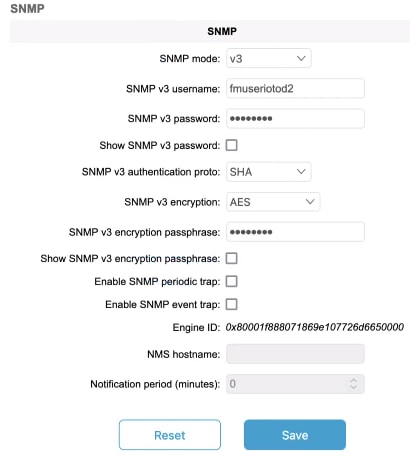
To change the gateway's SNMP mode to version v3 and then configure the gateway, follow these steps:

Procedure


Step 1

Choose the version v3 from the SNMP mode drop-down list.

The SNMP window appears.

Step 2

Enter the SNMP v3 username in the SNMP v3 username field.

Note


The same SNMP v3 username must be set for all the gateways in the network.

Step 3

To change the current SNMP v3 password, enter the new password in the SNMP v3 password field.

Check the Show SNMP v3 password check box to see the SNMP v3 password field.

Step 4

Choose the authentication type from the SNMP v3 authentication proto drop-down list. The available options are:

  • MD5

  • SHA

  • SHA-224

  • SHA-256

  • SHA-384

  • SHA-512

Important


The same SNMP authentication protocol must be set for all the gateways in the network.

Step 5

Choose the appropriate encryption protocol from the SNMP v3 encryption drop-down list. The available options are:

  • No Encryption

  • AES (Advanced Encryption Standard)

Note


The same encryption protocol must be set for all the gateways in the network.

Step 6

To change the encryption passphrase, enter a new passphrase in the SNMP v3 encryption passphrase field.

Step 7

Check the Enable SNMP event trap check box to enable the SNMP event traps for significant system-related events and then enter the host name of NMS in the NMS hostname field.

Note


The NMS host to which traps are sent must have an SNMP agent configured to collect v3 traps.

Step 8

Check the Enable SNMP periodic trap check box to enable the periodic SNMP traps to send SNMP traps at defined periodic intervals and then enter the host name of NMS in the NMS hostname field. Enter the notification period (minutes) in the Notification period.

Step 9

Click Save.


Configuring NTP using GUI

The gateway has NTP functionality that allows it to synchronize the time settings with a chosen network time server.


Important


The same NTP configuration must be set for all the gateways in the network. If the same NTP settings are not applied to all gateways, the network may encounter timestamp conflicts and/or device malfunctions.


To change the NTP settings, follow these steps:

Procedure


Step 1

In the ADVANCED SETTINGS, click ntp.

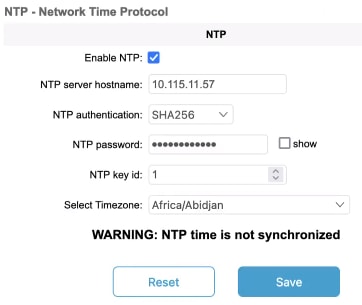
The NTP - Network Time Protocol window appears.

Step 2

Check the Enable NTP check box to enable the NTP synchronization.

Step 3

Enter the host name of a chosen primary NTP server in the NTP server hostname field.

Step 4

Choose the authentication method from the NTP authentication drop-down list. Following are the available options:

  • None (does not require an NTP password)

  • SHA1

  • SHA256

  • SHA512

Step 5

Enter the password in the NTP password field.

Check the show check box to see the NTP password field.

Note


To configure a new password using a GUI or CLI, the password should match the following criteria:

  • The password must be at least 10 characters.

  • The following special characters are not allowed:

    • ' (apex)

    • " (double apex)

    • ` (backtick)

    • $ (dollar)

    • = (equal)

    • \ (backslash)

    • # (number sign)

    • & (ampersand)

    • < > (angle brackets)

    • % (percent sign)

    • white spaces

Step 6

Enter the NTP key id in the NTP key id field.

Step 7

Choose the time zone from the Select Timezone drop-down list.

Step 8

Click Save.


Configuring NTP using CLI

To configure an NTP server address, use the following CLI command:

Device# ntp server <string>

String - IP address or domain name.

Example:

Device# ntp server 192.168.216.201
To configure an NTP authentication, use the following CLI command:
Device# ntp server-auth None
Device# configure ntp server-auth SHA1 <password> <keyid>
Device# configure ntp server-auth SHA256 <password> <keyid>
Device# configure ntp server-auth SHA512 <password> <keyid>

none - disable NTP authentication md5

sha1 - authentication method

Example:
Device# # ntp server-auth SHA1 test12345 65535

Note


To configure a new password using a GUI or CLI, the password should match the following criteria:

  • The password must be at least 10 characters.

  • The following special characters are not allowed:

    • ' (apex)

    • " (double apex)

    • ` (backtick)

    • $ (dollar)

    • = (equal)

    • \ (backslash)

    • # (number sign)

    • & (ampersand)

    • < > (angle brackets)

    • % (percent sign)

    • white spaces


To enable or disable the NTP service, use the following CLI command:
Device# ntp { enabled|disabled }
To configure the NTP timezone, use the following CLI command:
Device# ntp timezone <string>
Example:
Device# ntp timezone Asia/Shanghai
To validate NTP configuration and status, use the following CLI commands:
Device# ntp
NTP: enabled
NTP: 192.168.216.201
Server auth: SHA1
Timezone: Asia/Shanghai
Current date: Thu 02 Nov 2023 07:15:02 PM CET

Configuring L2TP using GUI

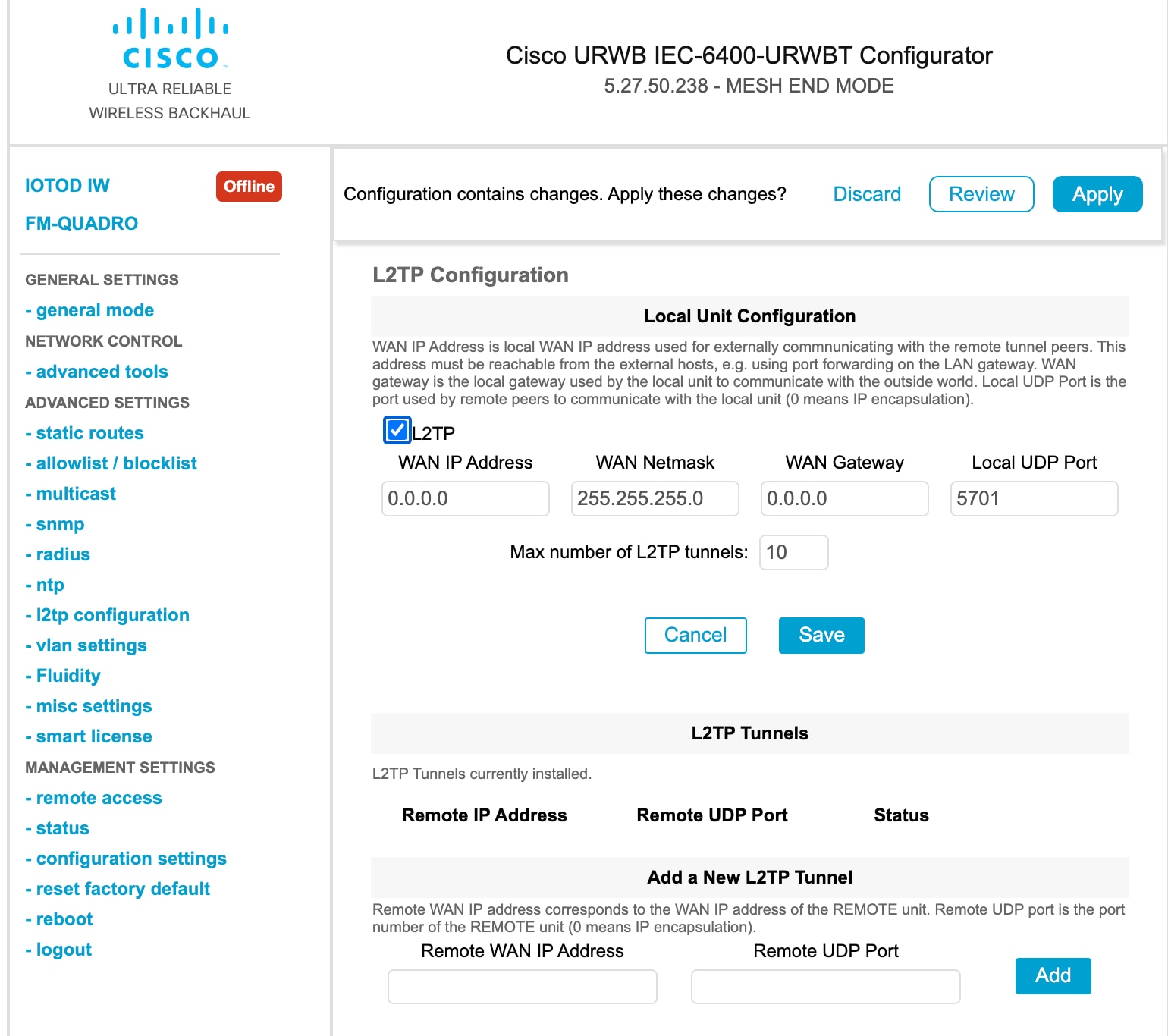
Layer 2 Tunneling Protocol (L2TP) functionality allows the devices to support integration of URWB Fluidity technology in Layer 3 networks. To configure L2TP links, follow these steps:

Procedure


Step 1

In the ADVANCED SETTINGS, click lt2p configuration.

The L2TP Configuration window appears.

Step 2

Check the L2TP check box to enable the configuration.

The L2TP detailed configuration settings appears.

Step 3

Enter the following details:

    • WAN IP Address

    • WAN Netmask

    • WAN Gateway

    • Local UDP Port

    • Max number of L2TP tunnels

Step 4

Click Save.

Step 5

To add a L2TP tunnel to remote host:

  1. Enter the Remote WAN IP Address and Remote UDP Port details.

  2. Click Add.


Configuring L2TP using CLI

To enable or disable the L2TP configuration, use the following CLI command:

Device# l2tp status <enable or disable>
Example:
l2tp status enable
To set the interface port for the L2TP communication with the gateway, use the following CLI command:
Device# l2tp interface <1 or 2>

Port 1 = ethernet LAN ports bridge

Port 2 = SFP+ ports bridge

Example:
Device# l2tp interface 1
To configure L2TP WAN parameters, use the following CLI command:
Device# l2tp wan <WAN IP address> <WAN netmask> <WAN gateway address>
Example:
Device# l2tp wan 192.168.0.20 255.255.255.0 192.168.0.1
To configure L2TP WAN interface port, use the following CLI command:
Device# l2tp port <UDP port>
Example:
Device# l2tp port 5701

Note


The unsigned integer range of UDP port of remote peer is [1-65535].


To add a L2TP tunnel to remote host, use the following CLI command:
Device# l2tp add <IP address of remote peer> <UDP port number of remote peer>
Example:
Device# l2tp add 192.168.20.20 5701

Note


The unsigned integer range of UDP port of remote peer is [1-65535].


To print the current list of L2TP tunnels, use the following CLI command:
Device# l2tp
To delete the L2TP tunnel, use the following CLI command:
Device# l2tp del <tunnel-ID>

tunnel-ID – It is shown in the list of L2TP tunnels. Use command l2tp to print the list.

Configuring VLAN Settings

Default VLAN configuration factory-set parameters for the gateway are:

Parameter

Default value

Management VLAN ID (MVID)

1

Native VLAN ID (NVID)

1

To connect the gateway to a VLAN that is part of the local wireless network, follow these steps:

Procedure


Step 1

In the ADVANCED SETTINGS, click vlan settings.

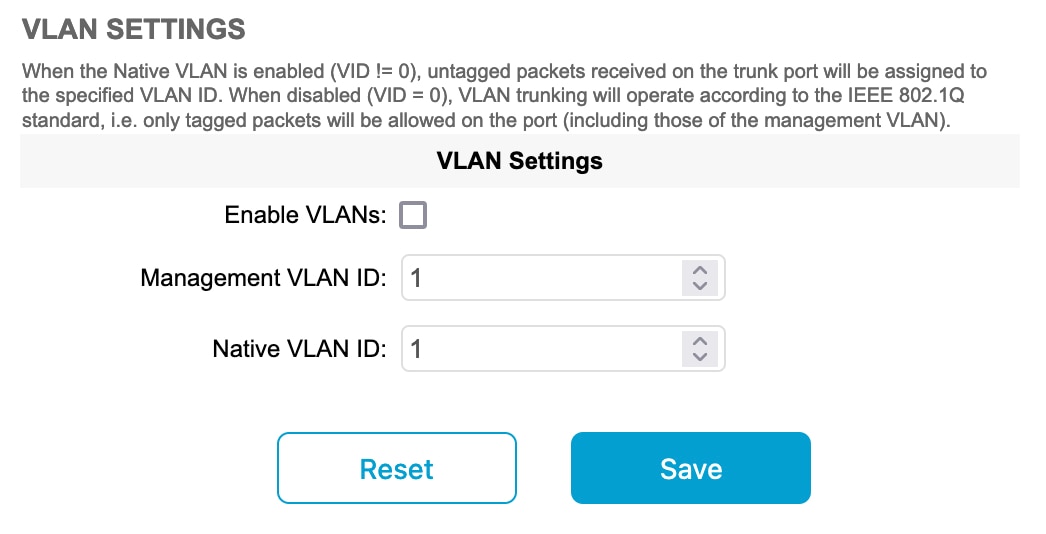
The VLAN SETTINGS window appears.

Step 2

Check the Enable VLANs check box to connect the gateway to a VLAN that is part of the local wireless network.

Step 3

Enter the management identification number of the VLAN in the Management VLAN ID field. For detailed info about vlan settings and packet management, see Rules for Packet Management.

Note


The same Management VLAN ID must be used on all the gateways that are part of the same mesh network.

Step 4

Enter the native identification number of the VLAN in the Native VLAN ID field.

Step 5

Click Save.


Rules for Packet Management

Parameter

Default value

Native VLAN processing

Enabled

Port mode (all Ethernet ports)

Smart

Traffic Management

The incoming data packets are classified based on the following parameter values:

Parameter

Default value

Signaling

Ethernet protocol type

User

All other traffic

Packet tagged with MVID

Packet allowed

Access port rules for incoming packets

Untagged packet from the gateway

Packet allowed

Untagged packet with VLAN ID (VID) is not configured

Packet allowed

Untagged packet with VID is configured

Packet tagged with specified VID

Tagged packet with valid VID

Packet dropped

Tagged packet with null (0) VID

Packet dropped

Access port rules for outgoing packets

Tagged packet with configured and allowed VID

Packet allowed

Packet from the gateway

Packet allowed

Tagged packet with VID is not configured

Packet allowed

Parameter

Default value

Tagged packet with valid VID, but not allowed

Packet dropped

Tagged packet with null (0) VID

Packet dropped

Access port rules management for incoming packets with a gateway in smart mode

Untagged packet

If native VLAN is ON, then the packet is allowed (tagged with NVID)

If native VLAN is OFF, then the packet is dropped

Tagged packet (any VID without any check)

Packet allowed with original tag

Access port rules management for outgoing packets with a gateway in smart mode

Packets from the gateways (for example: IoT OD IW interface)

Packet tagged with MVID

Signaling traffic

Packet tagged with MVID

Tagged with valid VID (1–4095), but not with NVID

Packet allowed (tagged)

Tagged with null VID (0) or NVID

Packet allowed (untagged)


Note


The packets transmitted through the Cisco VIC SFP+ interface is always tagged with a VLAN header. The outgoing packets from the interface are classified as untagged with an IEEE 802.1p header and VLAN ID tag of 0.


Configuring Fluidity Settings using GUI

To change the fluidity settings, follow these steps:

Before you begin

By default, the gateways are shipped from the factory with Fluidity functionality in disabled mode.

Procedure


Step 1

In the ADVANCED SETTINGS, click Fluidity.

The FLUIDITY window appears.

Step 2

Check the Fluidity check box to enable the fluidity functionality.

Note


The Unit Role drop-down is set to Infrastructure mode, and it cannot be changed.

Step 3

Choose the network type designation for the gateway from the Network Type drop-down list and it must be set in accordance with the general network architecture. Following are the available options from the network type:

  • Flat: Choose this option, if both the mesh network and the infrastructure network belong to a single layer 2 broadcast domain.

  • Multiple Subnets: Choose this option, if the mesh network and the infrastructure network are organized as separate layer 3 routing domains.

Step 4

Click Save.


Configuring Fluidity Settings using CLI

To enable fluidity, at least one radio interface should be in fluidity mode:

Device# fluidity status enabled

Configuring Gateway Status

The gateway status window shows information on basic settings (including the gateway's MAC address) and allows you to download diagnostic data files and view event logs.

In the MANAGEMENT SETTINGS, click status.

  • The STATUS window appears.

The following details are shown in the STATUS section:

  • Device details

  • Device settings

  • Ethernet ports

Following are the sections available in other part of the STATUS section:

  • DIAGNOSTIC TOOL: To download diagnostics of the device.

  • Open services: To show or hide services.

  • DEVICE LOGS: To show or clear logs.