Configure IW Monitor Statistical Settings

Change the interval at which statistical data is logged

Procedure


Step 1

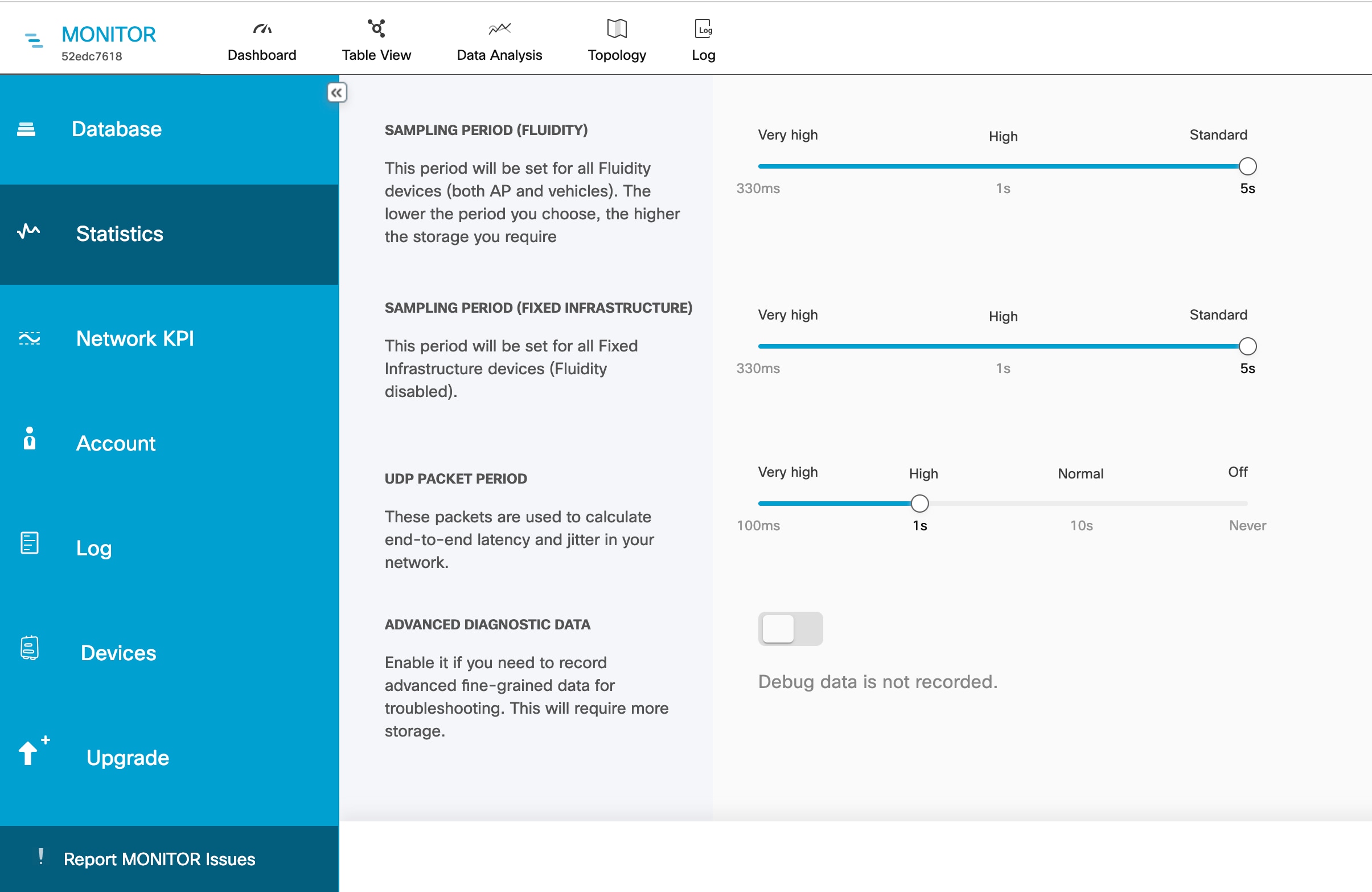
Go to Settings > Statistics .

Step 2

Set the SAMPLING PERIOD (FLUIDITY) and SAMPLING PERIOD (FIXED INFRASTRUCTURE) value to change the time interval at which statistical data is logged.

The recommended data-logging frequency intervals are:

  • 330 ms for Fluidity

  • 5 s for Fixed

Note

 
Logging data at a higher-than-normal frequency increases the rate at which the IW Monitor database occupies the hard disk space.
  • Higher data-logging frequency provides a more detailed statistical log and reduces the chance of missing errors.

  • Lower data-logging frequency conserves hard disk space.

Step 3

Set the UDP PACKET PERIOD value to increase the accuracy with which the IW Monitor host calculates network latency and jitter in the network.

  1. To disable the UDP packet transmission, set the slider to Off.

    The higher UDP packet frequency sampling gives more accurate latency and jitter readings, and the lower UDP packet frequency sampling helps reduce network congestion.

    Note


    The minimum interval at which UDP packets are sent is every 100 ms, and the maximum interval at which UDP packets are sent is every 10 s.

Step 4

Enable ADVANCED DIAGNOSTIC DATA to log debugging data for faster, more detailed information for technical support. This requires more storage.


Configure event log settings

Procedure


Step 1

Go to Settings > Log.

Step 2

Enable LOG STORAGE to view your network log.

Step 3

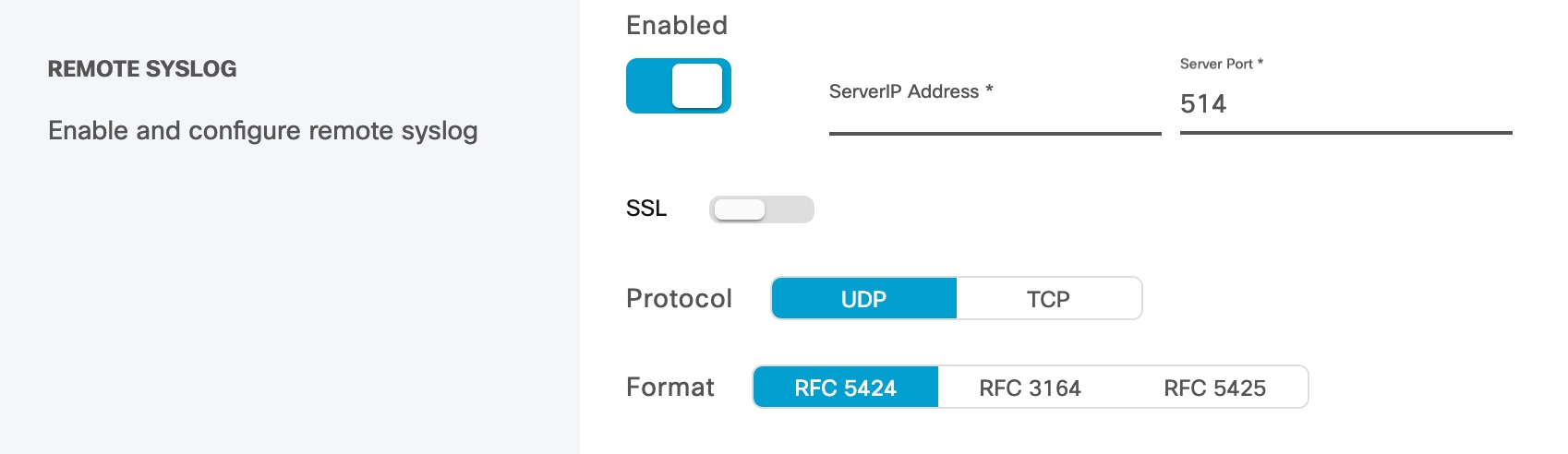
Enable REMOTE SYSLOG to collect system logs from a remote location.

  1. On the Remote Syslog screen, enter the remote syslog server IP address and port . Set SSL, Protocol, and remote syslog format as needed.

Step 4

Select the desired LOGGING LEVEL.

  • Trace - Trace-level events are considered trivial, but can be useful for fine-grained information for troubleshooting.

  • Info - Info-level events are normal system events. This is the default event display level.

  • Warning - Warning-level events are those that have a potentially negative impact on system performance, and should be addressed as soon as practically possible.

  • Critical - Critical-level events are those that have an immediate, negative impact on system performance and/or system integrity, and should be addressed immediately.

Step 5

In the Event section, check and uncheck the type of events you want to log.

All network event types are grouped into these categories:

  • Users account management

  • RADIUS events

  • Devices credentials

  • Network events and failures

  • Settings

  • Device management

  • Configuration changes

  • Network performance

  • License management

  • Database

  • System

  • Titan (Fast-Failover)

  • Ethernet Port

Step 6

Click Save Changes .


Set performance thresholds

Procedure


If you want to apply the same performance-alert thresholds to all sections that are part of the network, adjust the performance thresholds by doing these steps:

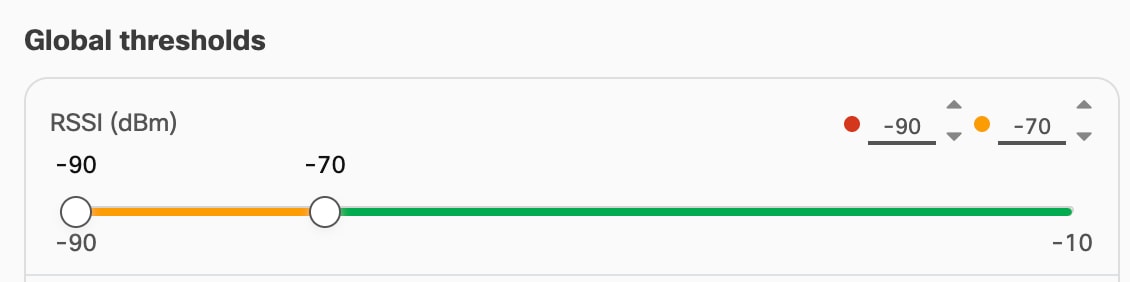
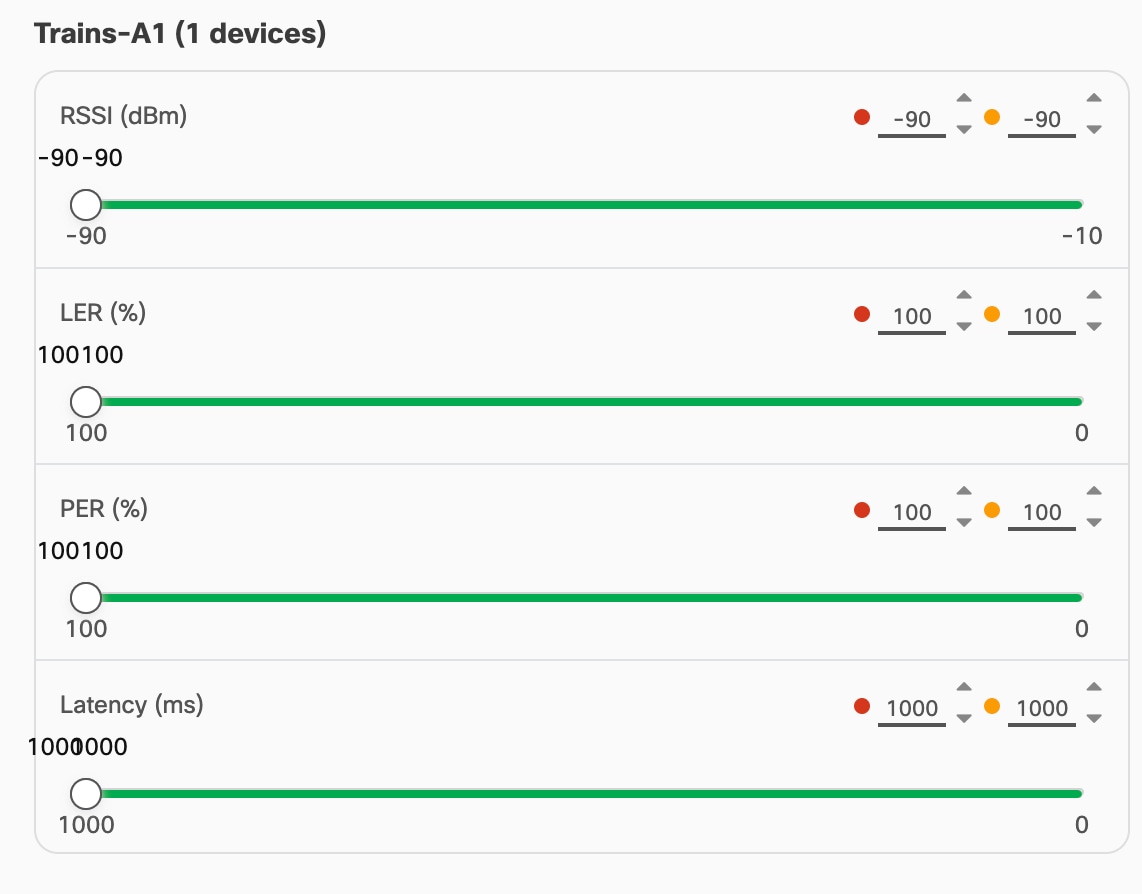
Each performance threshold slider has two buttons that can be clicked and dragged.

  1. Click-and-drag the left-side button to set the lower performance threshold. If the relevant parameter falls below this threshold, the relevant Status icons will turn red.

  2. Click-and-drag the right-side button to set the upper performance threshold. If the relevant parameter falls below this threshold, the relevant Status icons will turn yellow.

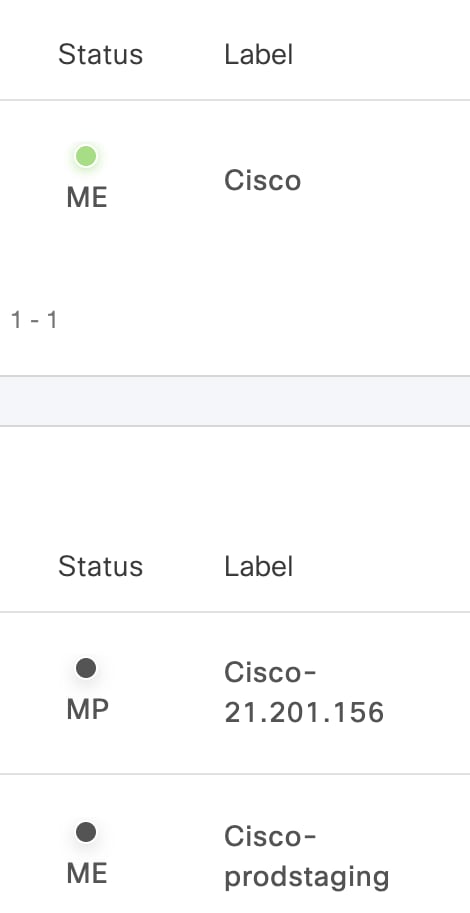
If radio signal strength, link error rate, packet error rate, or network latency drop below the specified levels, the Status icons of individual devices in the table view display the relevant status.


Set performance thresholds for each section

Procedure


Step 1

Go to Settings > Network KPI .

Step 2

Enable PERFORMANCE CHECK to display the default thresholds section.

Step 3

Ensure the current network is divided into at least two sections. For information about partitioning the network, see Create a new section .

Step 4

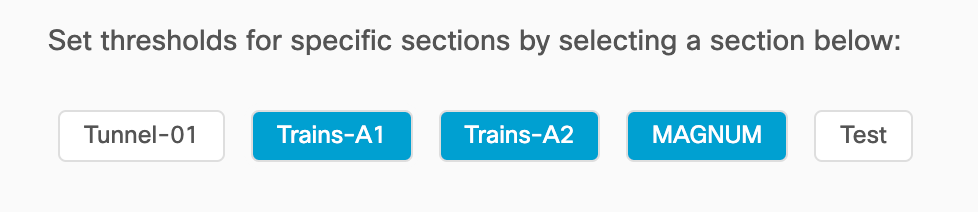
When the network is partitioned, tabs appear for each network section under the Global Thresholds.

Step 5

Select the network section for which you want to alter the performance thresholds.

A separate group of performance-alert threshold sliders will be shown for the specified network section. For more information about thresholds, see Set performance thresholds .

Step 6

Click-and-drag the sliders to adjust the performance-alert thresholds for the specified network.

Step 7

Repeat these steps for each network section.