Install IW Monitor Docker on Host

Host and network requirements

If an internet connection is not available, the Docker application and IW Monitor image file can be installed manually. See Installing and Running Docker Container.


Note


A high-speed, high-bandwidth internet connection is recommended for installing Docker and the IW Monitor image file.


Verify that your system meets all required host specifications to run the Docker container.

Table 1. Host Requirements by Operating System

Requirement

Windows

Mac OS

Linux (32-bit or 64-bit)

Operating System

Latest Windows / Windows Server version

Latest Mac OS X version

Linux (32-bit or 64-bit):

  • Ubuntu: latest version

  • Debian: latest version

  • OpenSuSE: latest version

  • Fedora Linux: latest version

Docker Application

Yes

Yes

Yes

Base System

Virtual machine or bare metal

Virtual machine or bare metal

Virtual machine or bare metal

Processor

Intel Core i7 or Xeon (any frequency and mandatory minimum of four cores)

Intel Core i7 or Xeon (any frequency and mandatory minimum of four cores)

Intel Core i7 or Xeon (any frequency and mandatory minimum of four cores)

RAM

16 GB minimum

16 GB minimum

16 GB minimum

Hard Disk

100 GB minimum*

1 TB or greater recommended

100 GB minimum*

1 TB or greater recommended

100 GB minimum*

1 TB or greater recommended

High speed connection to local networks and devices

Preferred

Preferred

Preferred

Screen Resolution

1024 x 768 pixel minimum

1024 x 768 pixel minimum

1024 x 768 pixel minimum


Note


Use a hard disk with at least 100 GB capacity. For hard disks with less than 100 GB capacity, adjust the maximum statistics storage capacity according to the guidance in Configure database storage, back up, and clean IW Monitor statistics data.


Use the latest version of a supported web browser to access IW Monitor.

Table 2. Supported Web Browsers

Browser

Supported Version

Mozilla Firefox

Latest

Microsoft Internet Explorer

Latest

Microsoft Edge

Latest

Google Chrome

Latest

Apple Safari

Latest


Note


If needed, upgrade your browser to the latest version.


Docker images on IW Monitor hosts

Docker is a platform that enables running containerized applications by packaging code and its dependencies into Docker images, which become containers at runtime on the Docker engine.

Prerequisites and SLAT Verification

Before installing Docker, ensure that the host CPU supports virtualization and second-level address translation (SLAT). Intel’s version of SLAT is called EPT (Extended page tables).

To verify that the host's processor meets the requirement:

  1. Go to Microsoft Sysinternals, and download the Coreinfo package.

  2. Unzip the downloaded program folder to the root of the host's C:\ drive.

  3. Open the command prompt using administrator privileges.

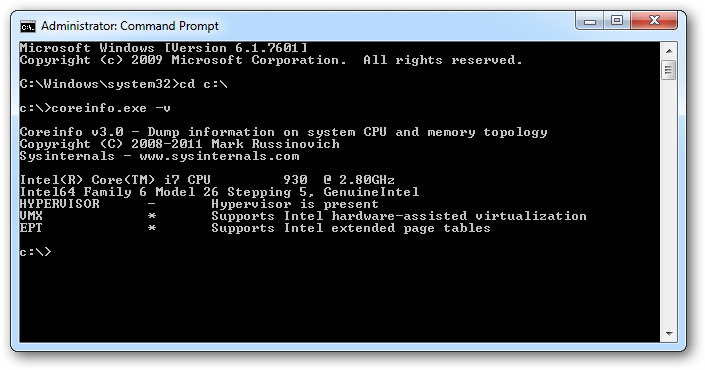
  4. Enter the command: coreinfo.exe -v

    • If an Intel CPU supports SLAT, an asterisk (*) is shown in the EPT row (see this example):

    • If your CPU does not support SLAT, a dash (-) is shown in the EPT row.

Alternatively, check SLAT support using Intel Product Specification:

  1. Go to Intel Product Specification.

  2. Select the respective CPU, and check its specifications.

Download and install Docker on the IW Monitor host

Before you begin

Before you install and run the docker container on a Microsoft operating system, verify that Microsoft virtual machine capability (Hyper V) is running. Also, VMware is supported.

Do not install the Docker container on your local computer. Install Docker only on the host assigned to run IW Monitor. See the hardware specification requirements for the host in Host and network requirements.


Note


Oracle VM VirtualBox is not supported.


Procedure

To install Docker, you must open these protocols and ports in the firewall to ensure MONITOR works correctly.

  • UDP from MONITOR to devices. Port 6600 is used for devices association.

  • UDP from MONITOR to devices. Port 6610 is used for latency and jitter computation.

  • Secure WebSocket from devices to MONITOR. The customer configures the port with the docker run command, usually 8443.


To install Docker, you must open these protocols and ports in the firewall to ensure MONITOR works correctly. UDP from MONITOR to devices. Port 6600 is used for devices association. UDP from MONITOR to devices. Port 6610 is used for latency and jitter computation. Secure WebSocket from devices to MONITOR. The customer configures the port with the docker run command, usually 8443.

Step 1

Go to the Docker application download page.

Step 2

Download the correct Docker application package.

Step 3

Install the Docker application on the IW Monitor host.


Download the IW Monitor image

Procedure


Step 1

Go to software downloads.

Step 2

Download the IW Monitor image file (iw-monitor-dockerv3. x.x.tar).


Load the IW Monitor image file to the IW Monitor server

Procedure


Step 1

Open a command-line window.

Step 2

Enter the command: docker load -i iw-monitor-dockerv3. x.x.tar

Step 3

Enter the command to check if the IW Monitor image file is loaded: docker images

A list of Docker image files currently installed on the IW Monitor host appears.

Step 4

To get the image ID value for the IW Monitor image file:

  1. Open a command-line window.

  2. Enter the command: docker images

    A list of the Docker image files currently installed on the IW Monitor host are shown.

  3. Search the REPOSITORY column of the Docker image file list for the iw-monitor image file.

    Note the IMAGE ID value of the IW Monitor Docker image.


Run the Docker container for the first time

Procedure


Step 1

Open a command-line window.

Step 2

Enter the command: docker run -d --name iw_monitor -p 8443:8443 --restart always X where X is the IMAGE ID value of the IW Monitor Docker image.

Note

 
By default, the IW Monitor in the Docker container uses these port numbers:
  • Port 8443 (https with SSL)

  • Encryption via HTTPS is required

Note

 
If you fail to use the default host port numbers due to security policy settings or the needed host port is assigned to another service, modify the docker run command to include an unused host port.

Note


For example, a run command that specifies port 3000: docker run -d --name iw_monitor -p 3000:8443 iw_monitor

Step 3

If you have modified the Docker run command to specify a different host port, then you must specify the port number used by IW Monitor. For more information, see Add devices to the IW Monitor.

Step 4

Open the web browser.

Step 5

Navigate to the URL https://X:Y where X is the IP address of the IW Monitor host, and Y is the host port number.

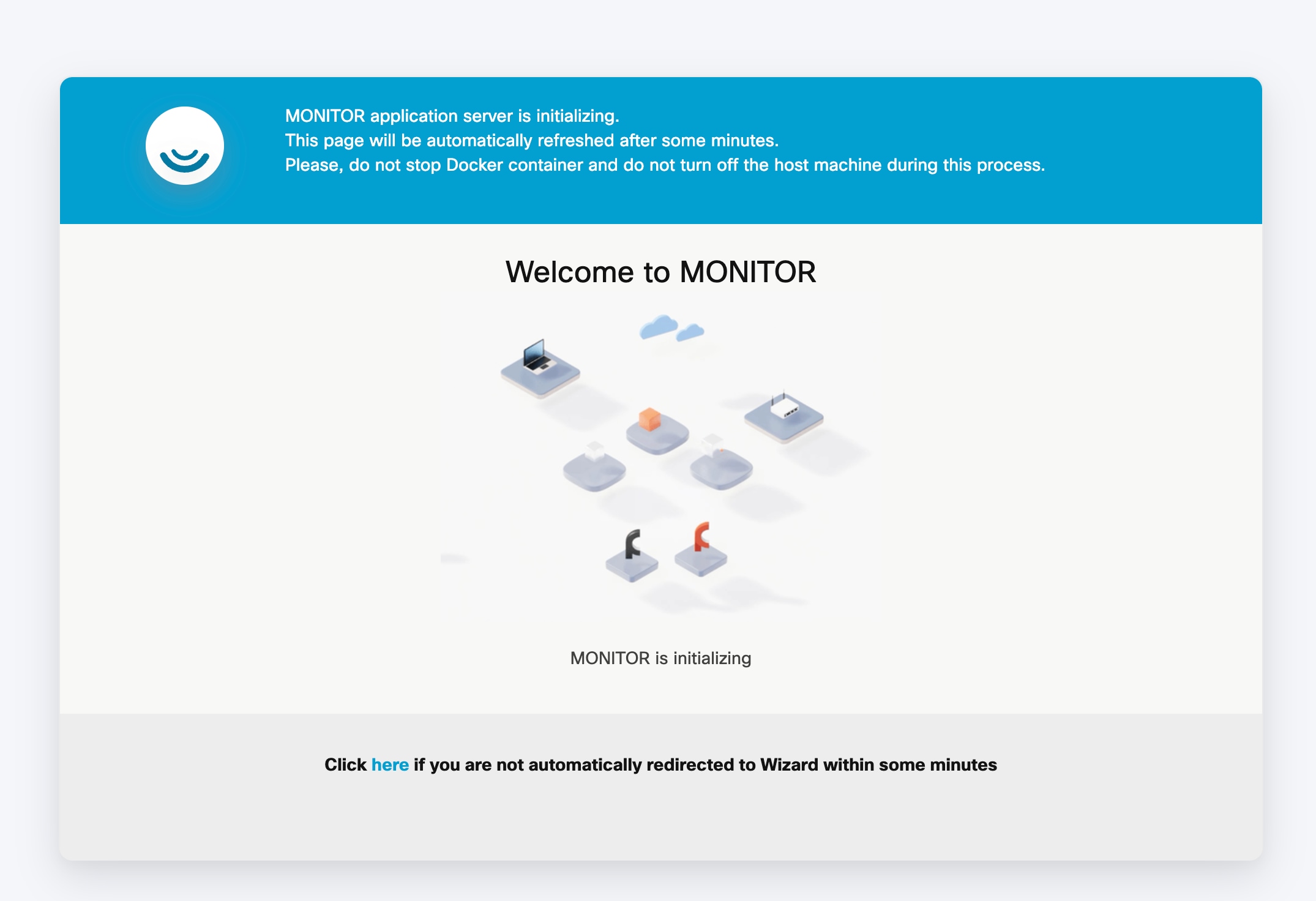
The IW Monitor Docker container launches successfully, and the welcome page appears as shown:

Log in to the IW Monitor for the first time

Procedure


Step 1

In the web browser, enter the URL with IP address and port number of the computer on which the IW Monitor image file: https://[IP address]:[host port number]

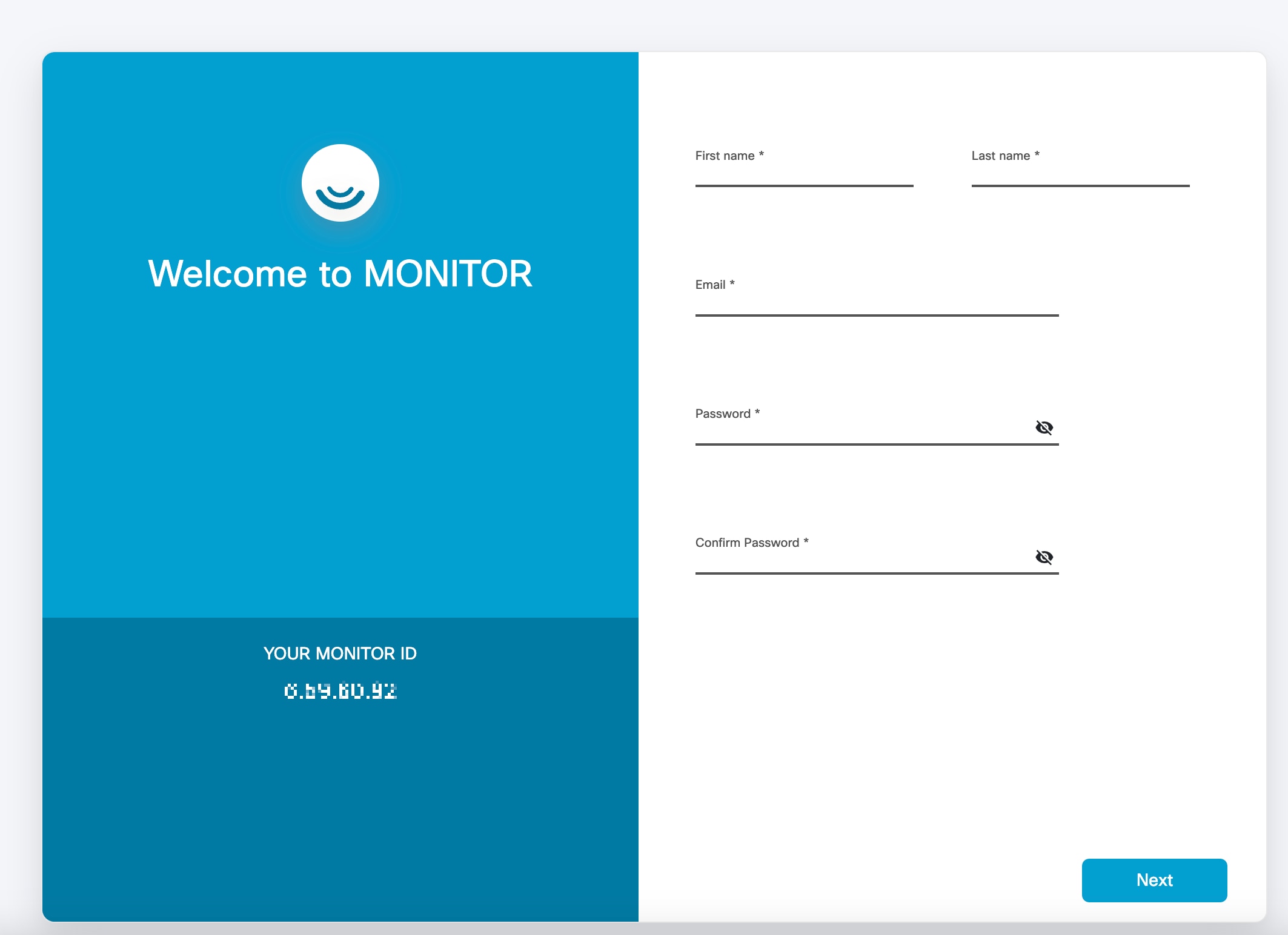
If you are running IW Monitor for the first time, this initialization page appears:

Step 2

Enter your first name, last name, email address, and login password in the respective fields. Then click Next.

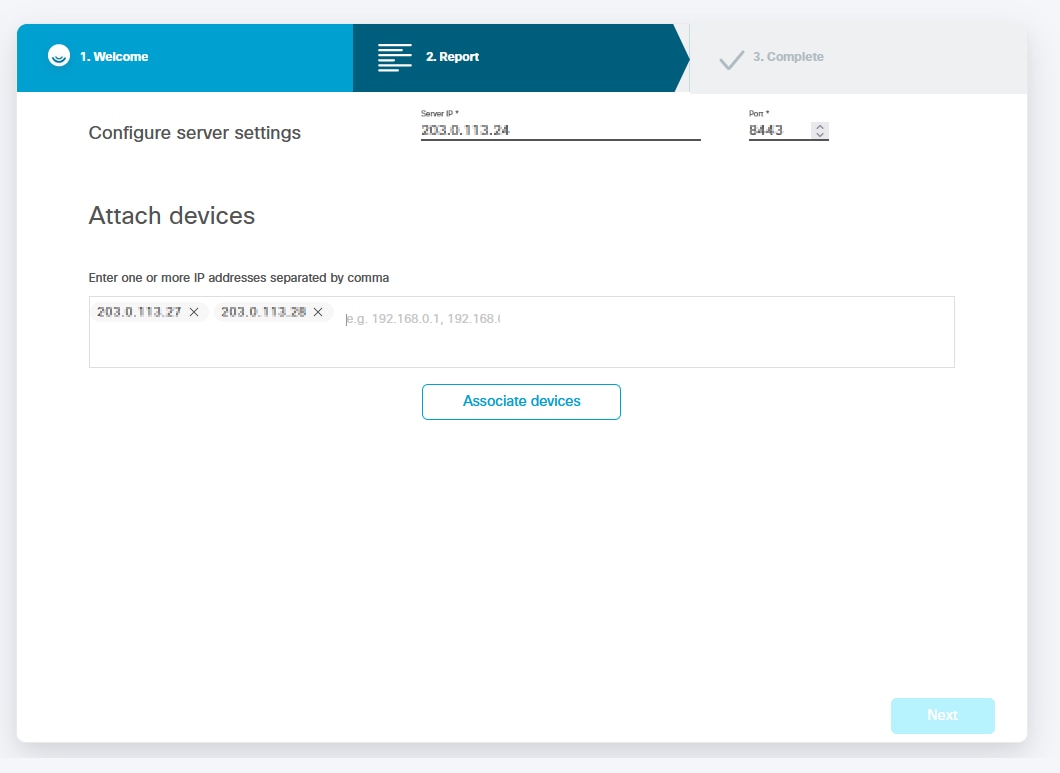
The Add new device screen appears.

Step 3

Optional) If required, enter the IP address of the IW Monitor server in the Server IP field and the port number in the Port field.

Step 4

Enter the IP addresses of all devices you want to monitor in the IP addresses field.

Note

 
Press Enter after entering each IP address, including the last IP address.

Step 5

Click Associate devices.

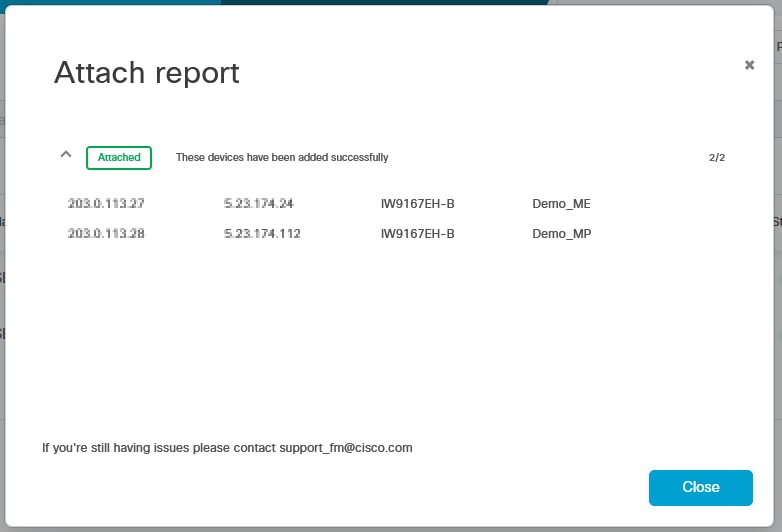
A confirmation screen appears showing that the devices are associated with the IW Monitor interface.

Step 6

Click Close.

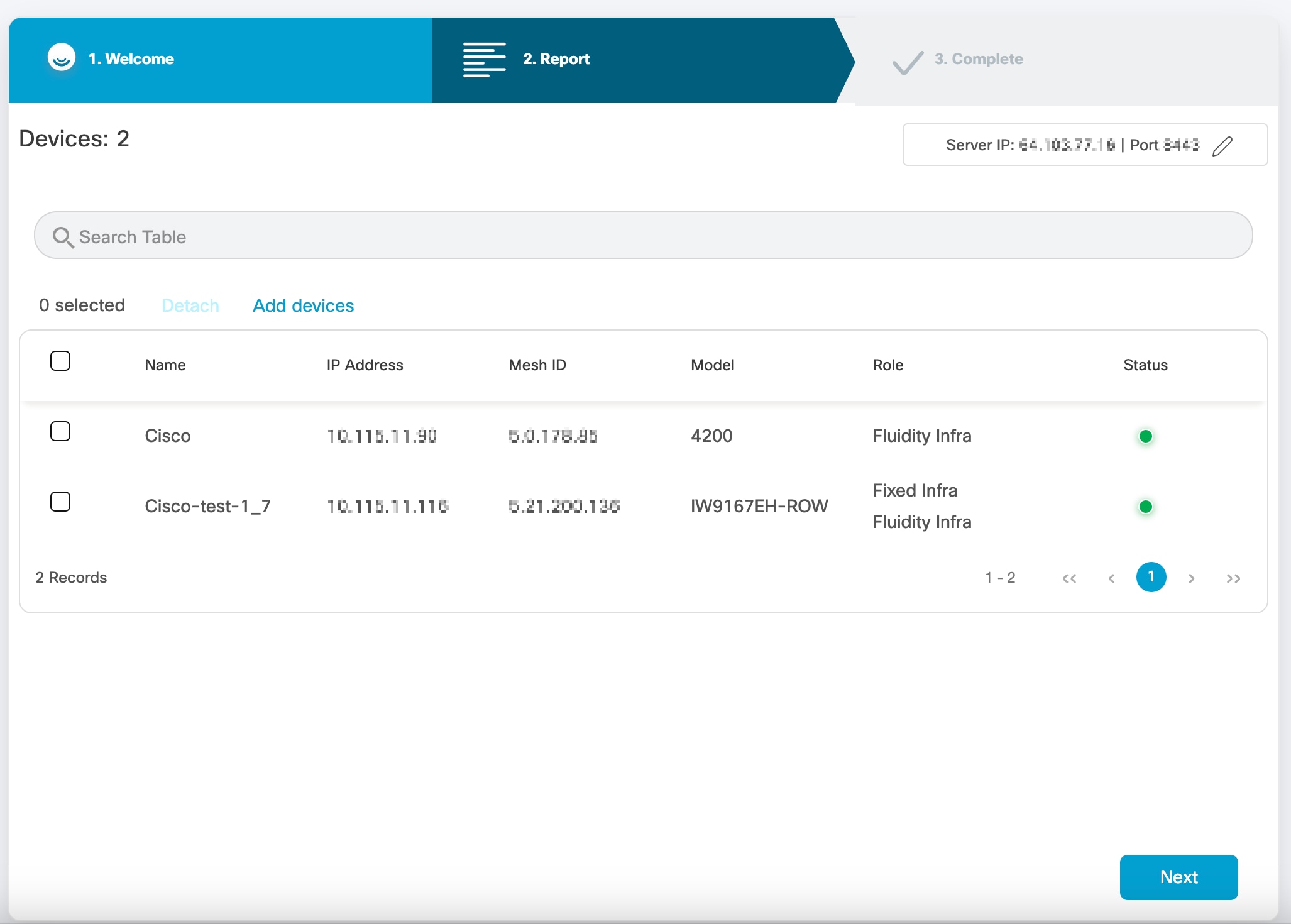
The list of devices associated with the IW Monitor interface is displayed as shown:

Step 7

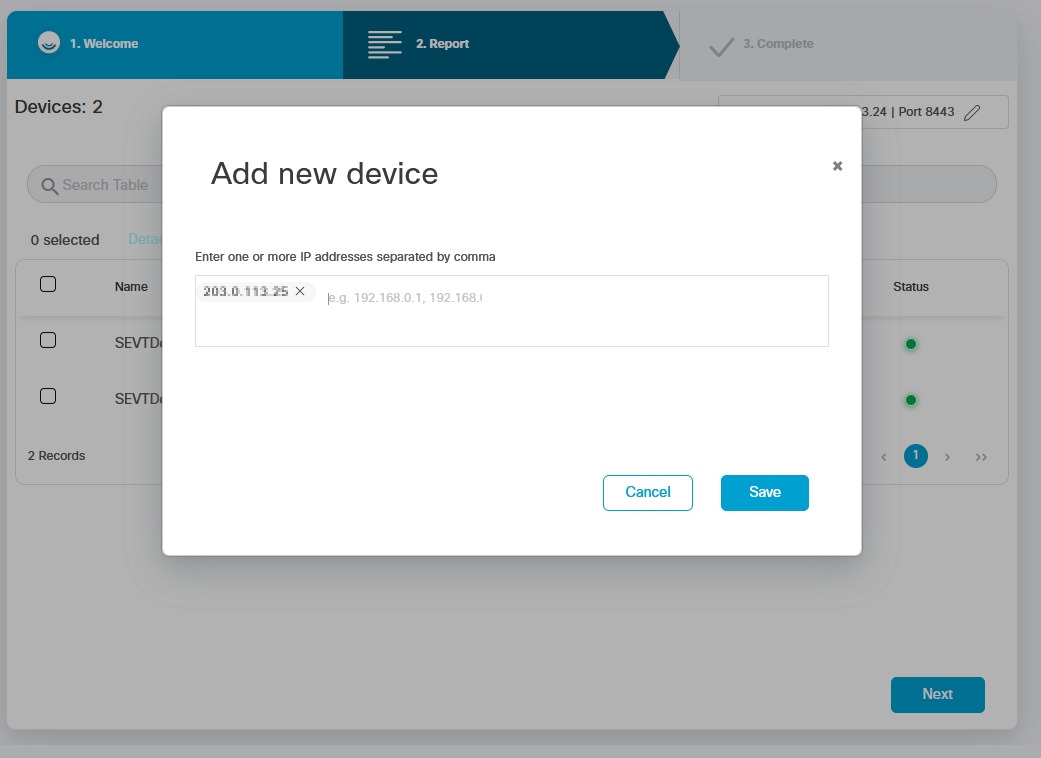
Ensure that all devices are listed on the screen. If a device is missing, use these steps to add the device:

  1. Click Add Device.

    The Add new device screen appears.

  2. Enter the IP address of the devices in the IP addresses field.

  3. Click Save.

    A confirmation screen appears showing that the devices are associated with the IW Monitor interface.
  4. Click Close.

Step 8

Click Next.

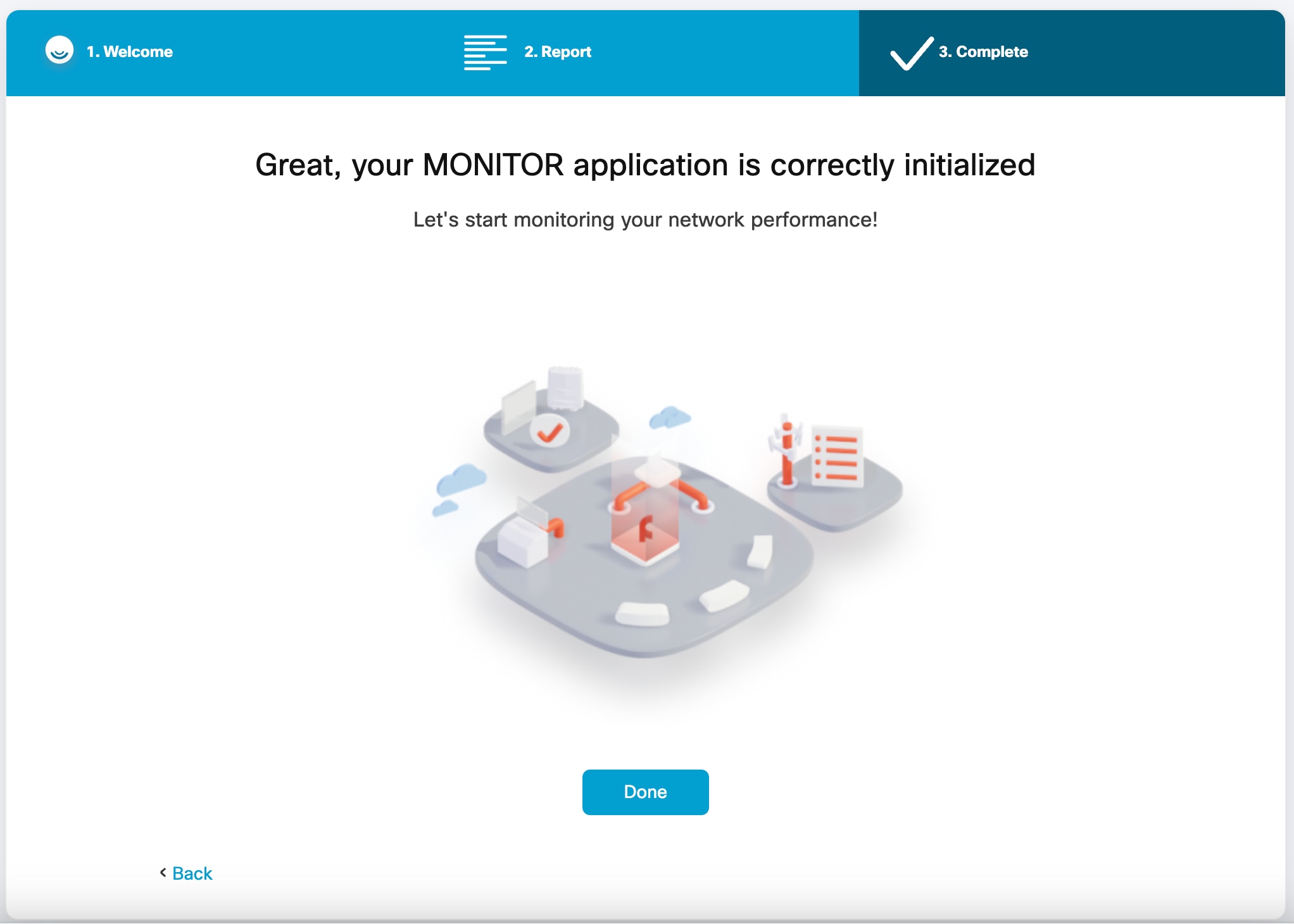
The IW Monitor analyzes the network. After the analysis is complete, the Complete screen appears.

Step 9

Click Done to complete the network setup.

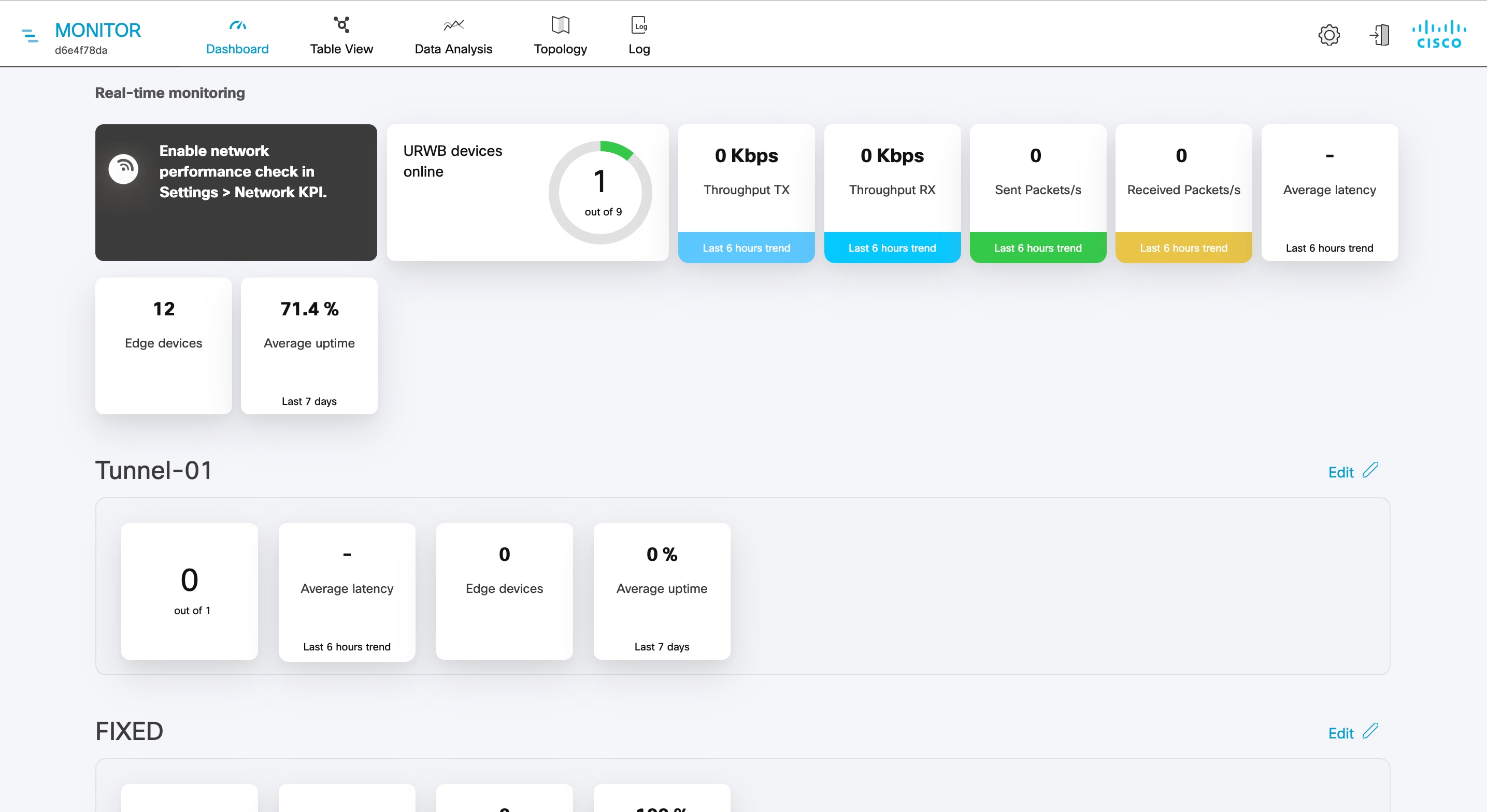
The IW Monitor dashboard appears: