802.1X on APs with EST and EJBCA as PKI Configuration Example
Available Languages
Bias-Free Language
The documentation set for this product strives to use bias-free language. For the purposes of this documentation set, bias-free is defined as language that does not imply discrimination based on age, disability, gender, racial identity, ethnic identity, sexual orientation, socioeconomic status, and intersectionality. Exceptions may be present in the documentation due to language that is hardcoded in the user interfaces of the product software, language used based on RFP documentation, or language that is used by a referenced third-party product. Learn more about how Cisco is using Inclusive Language.
- US/Canada 800-553-2447
- Worldwide Support Phone Numbers
- All Tools
 Feedback
 Feedback
Contents
Deploy and Configure the EJBCA Virtual Appliance
Create the Certificate Authority Hierarchy
Create Certificate Profiles and End Entity Profiles for Access Points
Create Certificate Profiles and End Entity Profiles for the WLC
Create the WebServer End Entity Profile
Sign the Appliance Certificate
Configure the EST alias and mTLS role
Configure with Username and Password Only
Configure with SUDI Certificate
Sample of EST not answering from (status code: 0) WLC
Sample of EST alias not found (HTTP 400 Bad Request in /cacerts) from WLC
Sample of CSR rejected (HTTP 400 Bad Request in WLC /simpleenroll) from WLC
Sample of missing attribute in EJBCA End Entity Profile
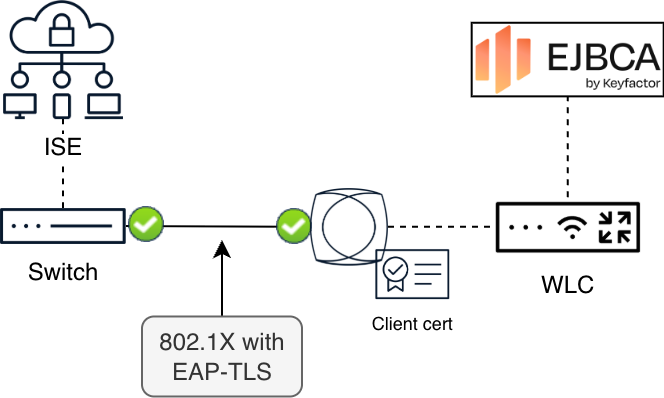
This document describes how to authenticate Cisco Wireless Access Points on their switchport using 802.1X EAP-TLS methods. Certificates will be issued by EJBCA, an Enterprise Certificate Authority from a company called Keyfactor. EJBCA will be acting as a PKI.
This document serves as a configuration example for the already existing Cisco Wireless EST On-Prem Deployment Guide available at https://www.cisco.com/c/en/us/td/docs/wireless/controller/9800/technical-reference/est-on-prem-dg.html
● Cisco Wireless 9800 Series Controller
● Cisco Wireless Access Point
● Keyfactor EJBCA Enterprise Edition
● HTTPS (TCP 443) connectivity from the WLC to EJBCA
● Cisco Wireless 9800 Series Controller: C9800-CL running 17.18.3
● EJBCA Enterprise Software Appliance running 2.9.1
● Access Point: CW9178I
● Switch: C9300X-48HX running 17.15.05
● ISE running 3.4 Patch 5
Locally Significant Certificates (LSC) allow access points to authenticate using certificates issued by your enterprise PKI. With Enrollment over Secure Transport (EST), the WLC acts as the EST client on behalf of joining APs. APs never communicate directly with the certificate authority; the controller enrolls and distributes certificates using CAPWAP.
During the guide several EJBCA concepts will be referenced. It is highly recommended to get familiar with concepts such as:
● Certificate Authority (CA)
● End Entity: a user of the PKI, like a device, person, or server.
● End Entity Profile: define templates for End Entities.
● Certificate Profile: used to configure certain content and constraints of certificates, such as certificate extensions, available algorithms, key sizes, etc. Basically, it describes what an issued certificate is going to be constrained to.
You will find more details in https://docs.keyfactor.com/ejbca/latest/ejbca-concepts#Certificate-Related-Concepts
Deploy and Configure the EJBCA Virtual Appliance
First, you need the EJBCA Enterprise Software Appliance (contact Keyfactor if you want a trial). The Enterprise Edition is needed for EST. EJBCA comes in several form factors, for this guide the virtual Software Appliance was used. During the deployment you need to assign a static management address, hostname, and complete the initial appliance wizard. This is not covered in this document.
This document covers a basic configuration of EJBCA for lab purposes. An actual production-grade EJBCA must be configured securely and appropriately for enterprise operations. This section is meant to help you test it in the lab as well as take inspiration from the required settings to make this configuration work.
EJBCA has 3 web interfaces
● Appliance configuration (https://
● Administration (https://
● RA Web (https://
Steps for deployment and configuration of EJBCA:
Step 1. Install EJBCA.
Step 2. Access the appliance portal at https://<ejbca-hostname>/webconf/ and log in with the administrator account created during OVA deployment.
Step 3. Upload the license in the appliance configuration portal. Complete hostname, NTP, DNS, and management network settings.
Step 4. It is recommended to disable the initial one-time password (OTP). In the appliance portal, go to Access and remove the initial OTP entry from the Users Accounts section.
Now the appliance is ready to start configuration.
Create the Certificate Authority Hierarchy
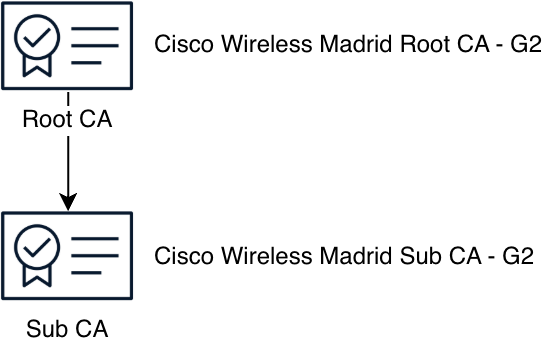
Once the appliance is ready, the next step is creating a Certificate Authority (CA). This is the hierarchy used in this example:
To create a Certificate Authority (CA) the following elements are needed:
● Crypto tokens for Root CA and Sub CA
● Certificate Profiles for Root CA and Sub CA
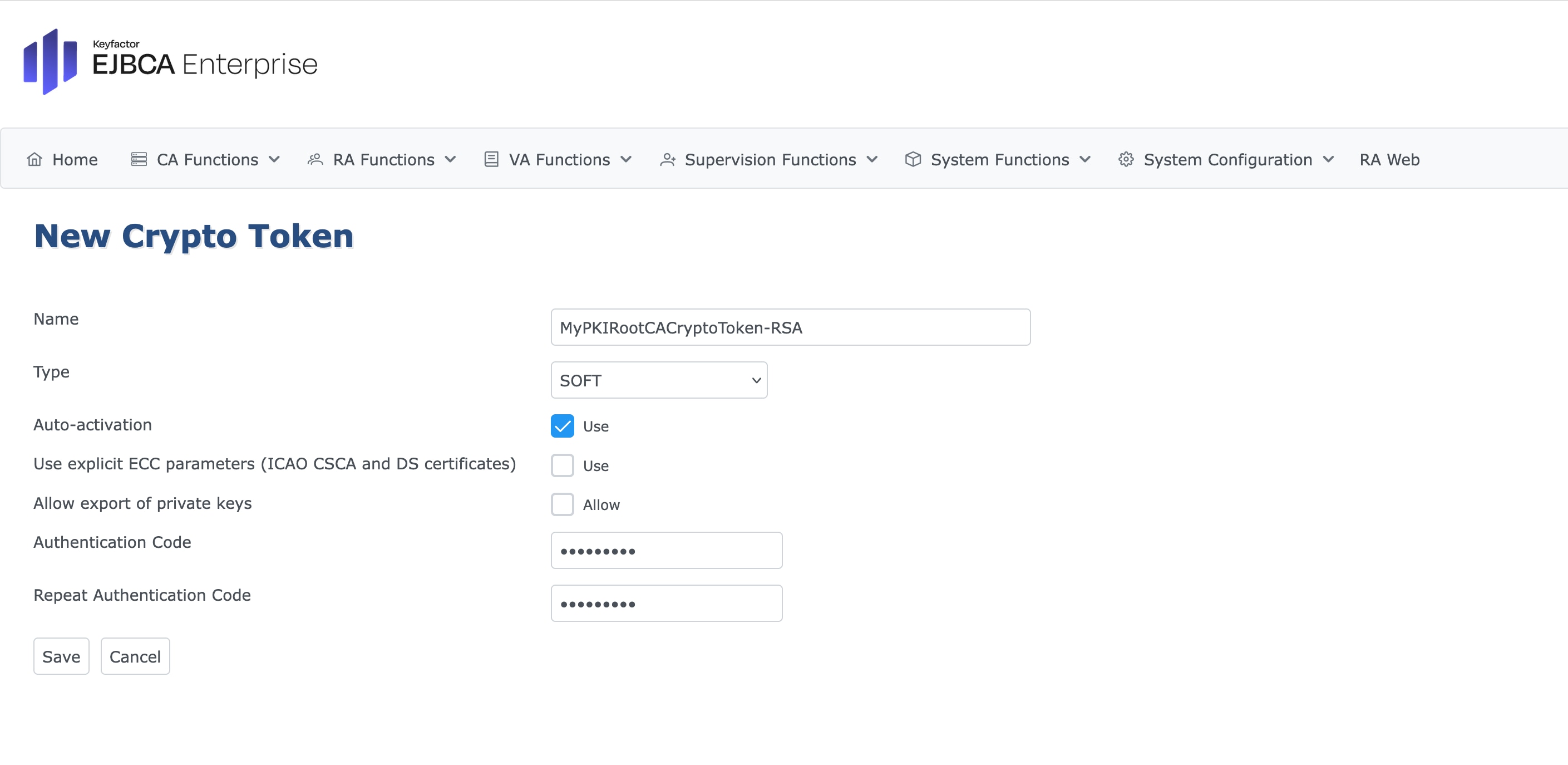
Step 1. To create a Root CA and a SubCA we need crypto tokens and key pairs. Go to CA Functions > Crypto Tokens. Add a Root CA token with the following parameters:
· Name: MyPKIRootCACryptoToken-RSA
· Enable auto-activation
· Set an Authentication Code and repeat it
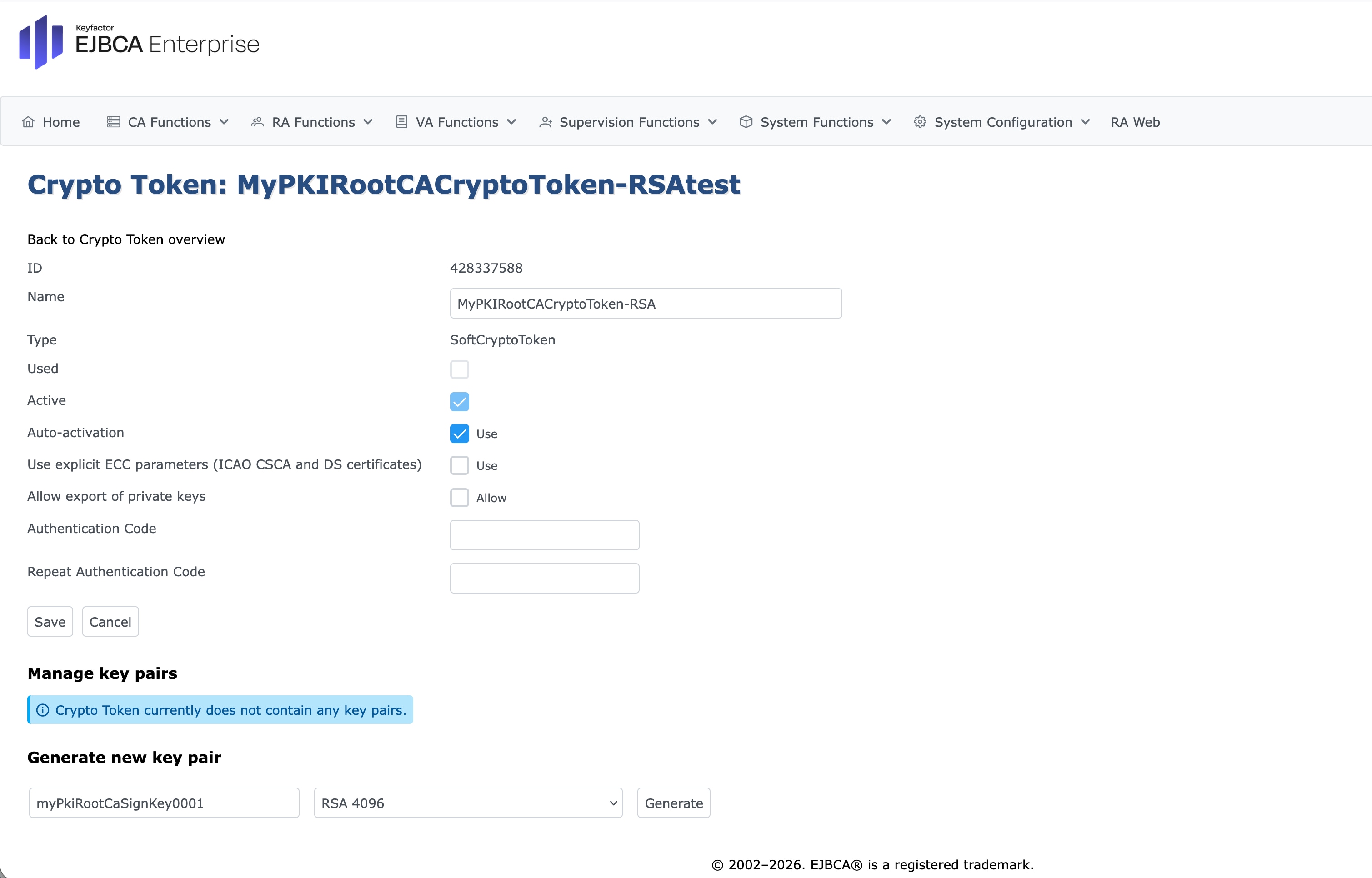
Step 2. Once created, add three RSA 4096-bit key pairs:
· myPkiRootCaSignKey0001
· myPkiRootCATestKey
· myPkiRootCaDefaultEncryptKey0001
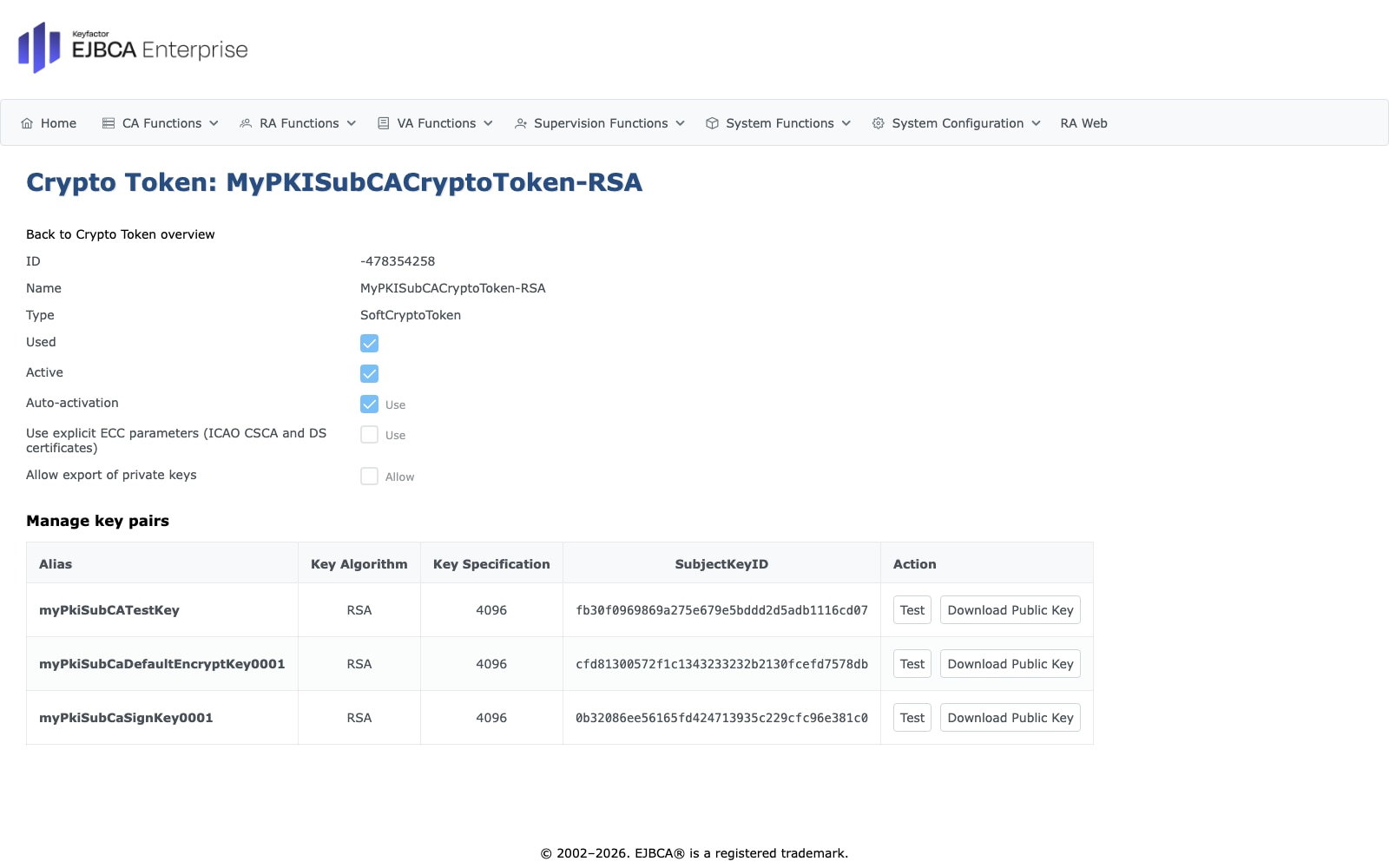
Step 3. Once the Root CA crypto token is created, repeat the same steps to create the Sub CA crypto token. You might use the following names:
· Name: MyPKISubCACryptoToken-RSA
· Key pair 1: myPkiSubCaSignKey0001
· Key pair 2: myPkiSubCATestKey
· Key pair 3: myPkiSubCaDefaultEncryptKey0001
Step 4. Create the Root CA Certificate Profile. Go to CA Functions > Certificate Profiles. Clone the built-in ROOTCA profile and set the name to: MyPKIRootCAProfile.
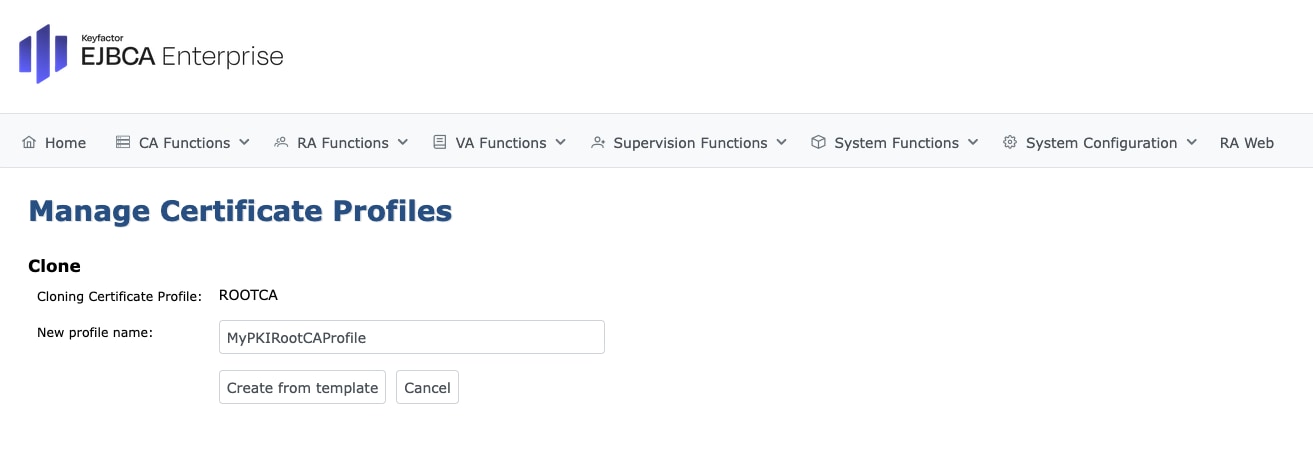
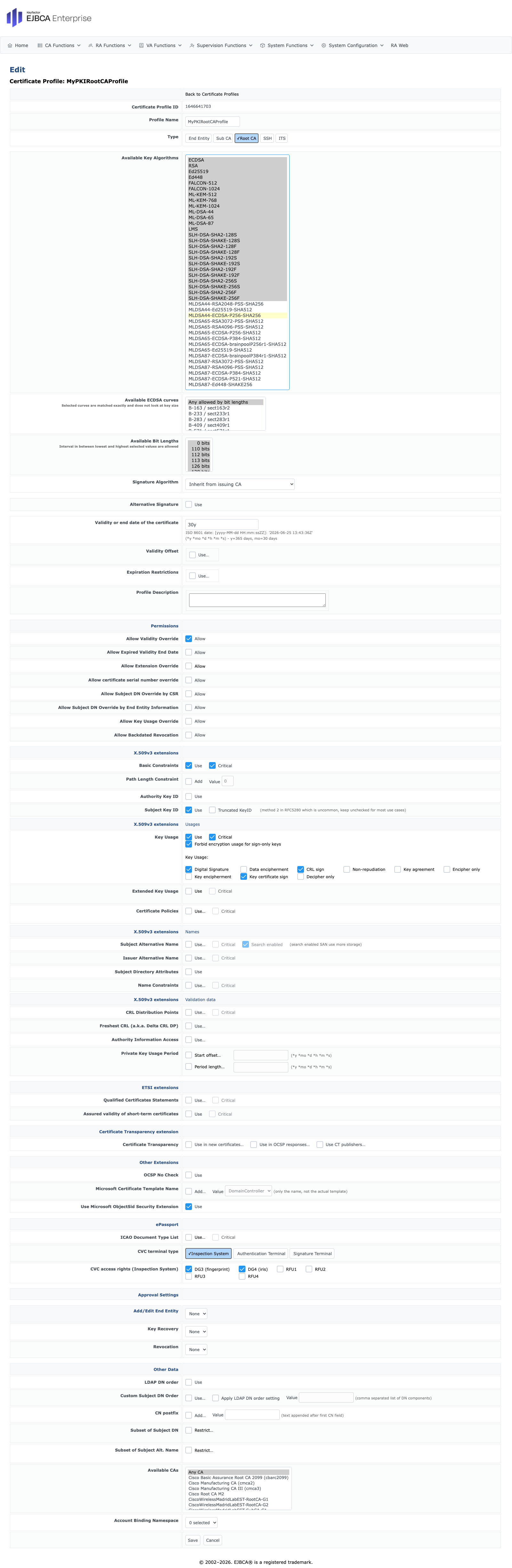
Step 5. Set the following parameters in the new Certificate Profile (MyPKIRootCAProfile) you just cloned:
· Under Available Key Algorithms select the ones you want to allow. Later when creating the Root CA you will choose just one
· Validity: 30 years (or your desired lifetime)
· Under X.509v3 extensions: disable Use Authority Key Identifier
· Under X.509v3 extensions | Names: disable Use Subject Alternative Name and disable Use Issuer Alternative Name.
· Under Other Data disable Use LDAP DN Order
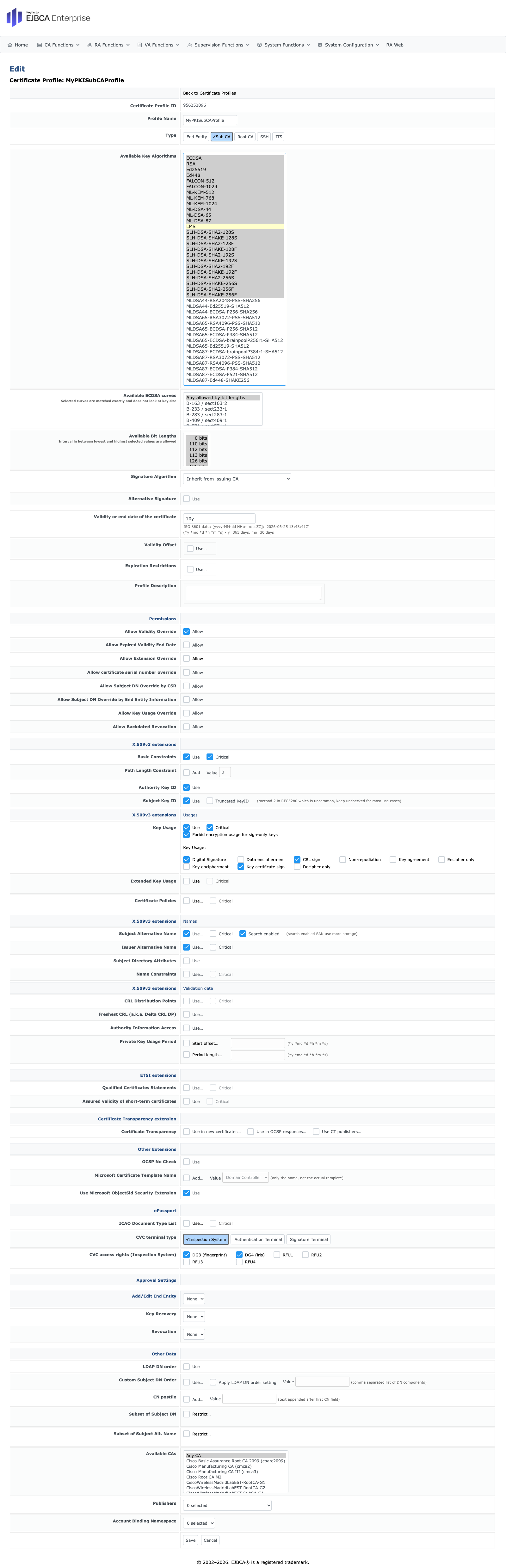
Step 6. Create the Sub CA certificate profile. Clone the built-in SUBCA profile and set the name to: MyPKISubCAProfile.
Step 7. Set the following parameters in the new Certificate Profile (MyPKISubCAProfile) you just cloned:
· Under Available Key Algorithms select the ones you want to allow. Later when creating the Sub CA you will choose just one
· Validity: 10 years (or your desired lifetime)
· Under Other Data disable Use LDAP DN Order
Step 8. Create the Root CA. Go to CA Functions > Certificate Authorities and add a new CA.
Step 9. In Create CA page select the following parameters:
· Set the name as CiscoWirelessMadridLabEST-RootCA-G2, G2 refers to Generation 2, in your case it most likely be G1.
· Under Crypto Token select MyPKIRootCACryptoToken-RSA
· Under Signing Algorithm select SHA256WithRSA
· Under Directives, disable Enforce unique public keys (disabling this security setting for lab testing makes things easier, consult with your security expert for a production scenario)
· Under Directives, disable Enforce unique DN (disabling this security setting for lab testing makes things easier, consult with your security expert for a production scenario)
· Under CA Certificate Data, for Subject DN set yours, example: CN=Cisco Wireless Madrid Root CA - G2,O=Wireless TME,C=ES
· Under CA Certificate Data, leave Signed by as Self Signed
· Under CA Certificate Data, for Certificate Profile select MyPKIRootCAProfile
· Under CA Certificate Data, for Validity set 30y (or your desired value)
· Under CA Certificate Data, enable Use for PrintableString encoding in DN
· Under CA Certificate Data, disable Use for LDAP DN order
· Under CRL Specific Data, set CRL Expire Period (*y *mo *d *h *m) as 3mo (or your desired value)
· Under CRL Specific Data, set CRL Overlap Time (*y *mo *d *h *m) as 0m (or your desired value).
Note: It is very important to enable Use of PrintableString encoding in DN under CA Certificate Data, without this the WLC will not accept the certificate.
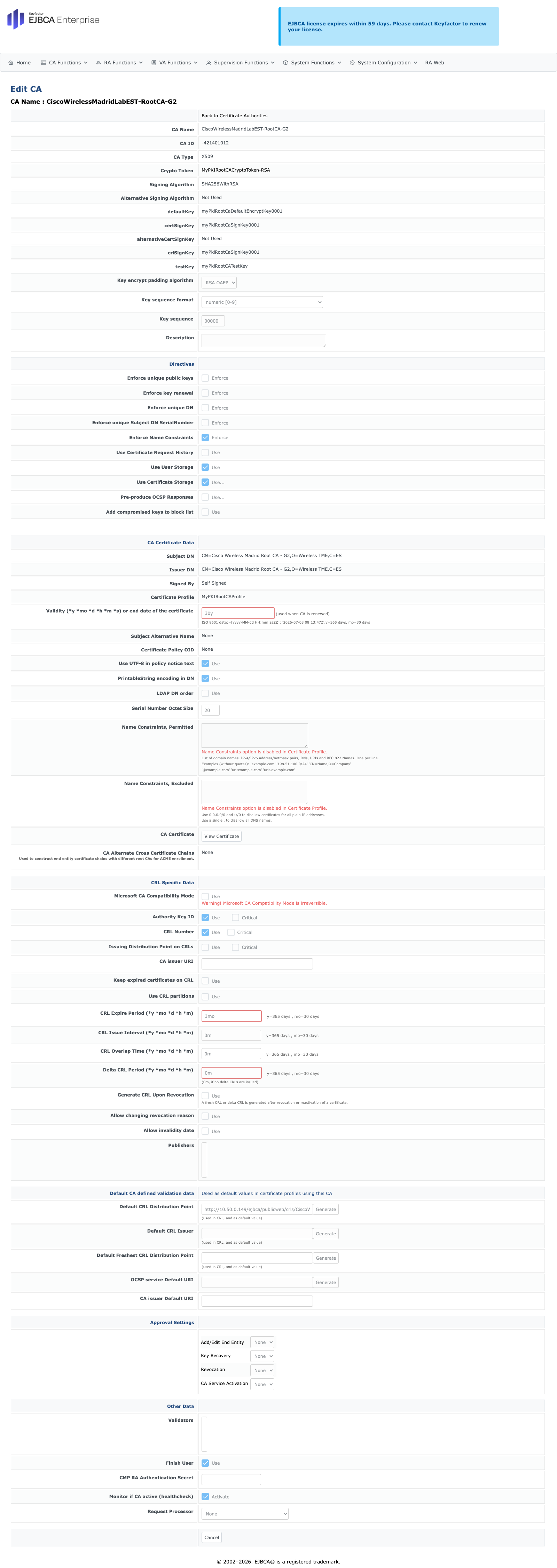
Step 10. Create the Sub CA, select the following parameters:
· Set the name as CiscoWirelessMadridLabEST-SubCA-G2, G2 refers to Generation 2, in your case it most likely be G1.
· Under Crypto Token select MyPKISubCACryptoToken-RSA
· Under Signing Algorithm select SHA256WithRSA
· Under Directives, disable Enforce unique public keys (disabling this security setting for lab testing makes things easier, consult with your security expert for a production scenario)
· Under Directives, disable Enforce unique DN (disabling this security setting for lab testing makes things easier, consult with your security expert for a production scenario)
· Under CA Certificate Data, for Subject DN set yours, example: CN=Cisco Wireless Madrid Sub CA - G2,O=Wireless TME,C=ES
· Under CA Certificate Data,for Signed by select CiscoWirelessMadridLabEST-RootCA-G2
· Under CA Certificate Data, for Certificate Profile select MyPKISubCAProfile
· Under CA Certificate Data, for Validity set 10y (or your desired value)
· Under CA Certificate Data, enable Use for PrintableString encoding in DN
· Under CA Certificate Data, disable Use for LDAP DN order
· Under CRL Specific Data, set CRL Expire Period (*y *mo *d *h *m) as 3d (or your desired value)
· Under CRL Specific Data, set CRL Overlap Time (*y *mo *d *h *m) as 0m (or your desired value).
Note: It is very important to enable Use of PrintableString encoding in DN under CA Certificate Data, without this the WLC will not accept the certificate.
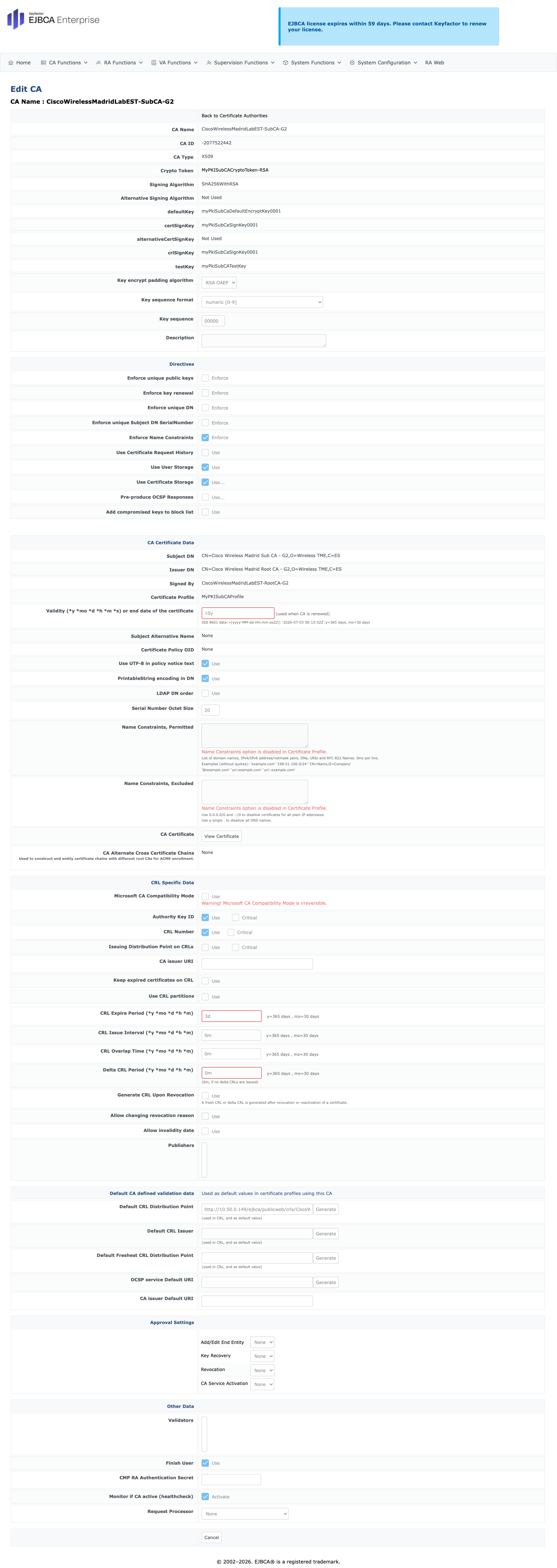
Step 11. Once both Root CA and Sub CA are created, download their CA Certificates from CA Functions > CA Structure & CRLs, you will need them later.
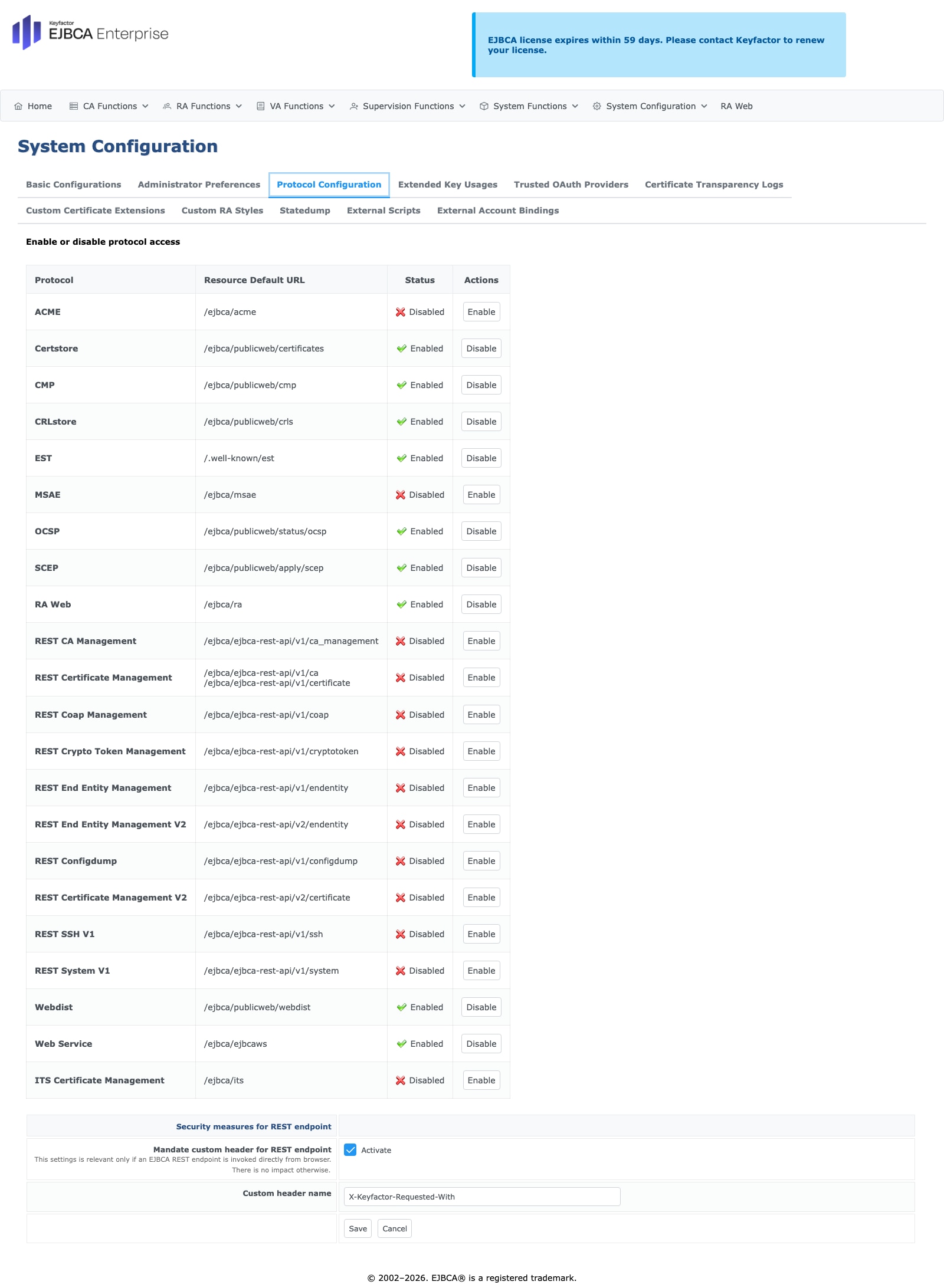
In this step, we will enable EST in EJBCA.
Step 1. Enable EST. In System Configuration > System Configuration > Protocol Configuration, enable EST (disabled by default).
Create Certificate Profiles and End Entity Profiles for Access Points
Now create Certificate and End Entity Profiles for Access Points.
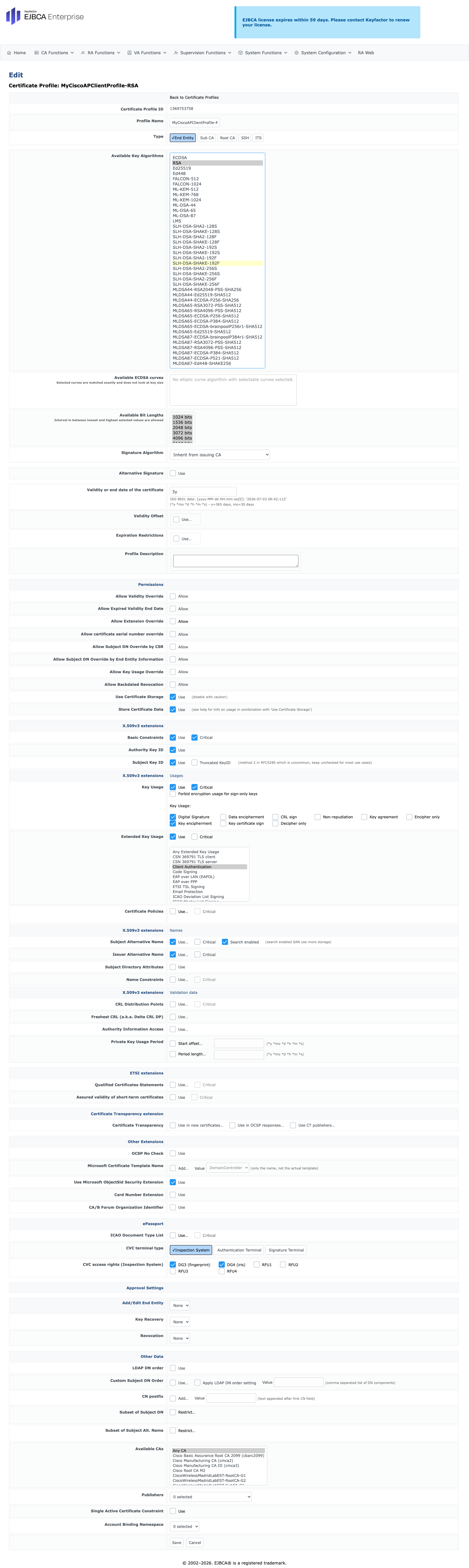
Step 1. Create the MyCiscoAPClientProfile-RSA certificate profile. Go to CA Functions > Certificate Profiles. Duplicate the ENDUSER profile and configure the parameters:
· Set the Profile Name as MyCiscoAPClientProfile-RSA
· Select the Type as End Entity
· Under Available Key Algorithms select RSA
· For Validity or end date of the certificate set 3y (or your desired value)
· Under X.509v3 extensions | Usages for Key Usage disable Forbid encryption usage for sign-only keys
· Under X.509v3 extensions | Usages for Key Usage disable Non-repudiation
· Under X.509v3 extensions | Usages for Extended Key Usage select only Client Authentication
· Under Other Data, disable Use for LDAP DN order
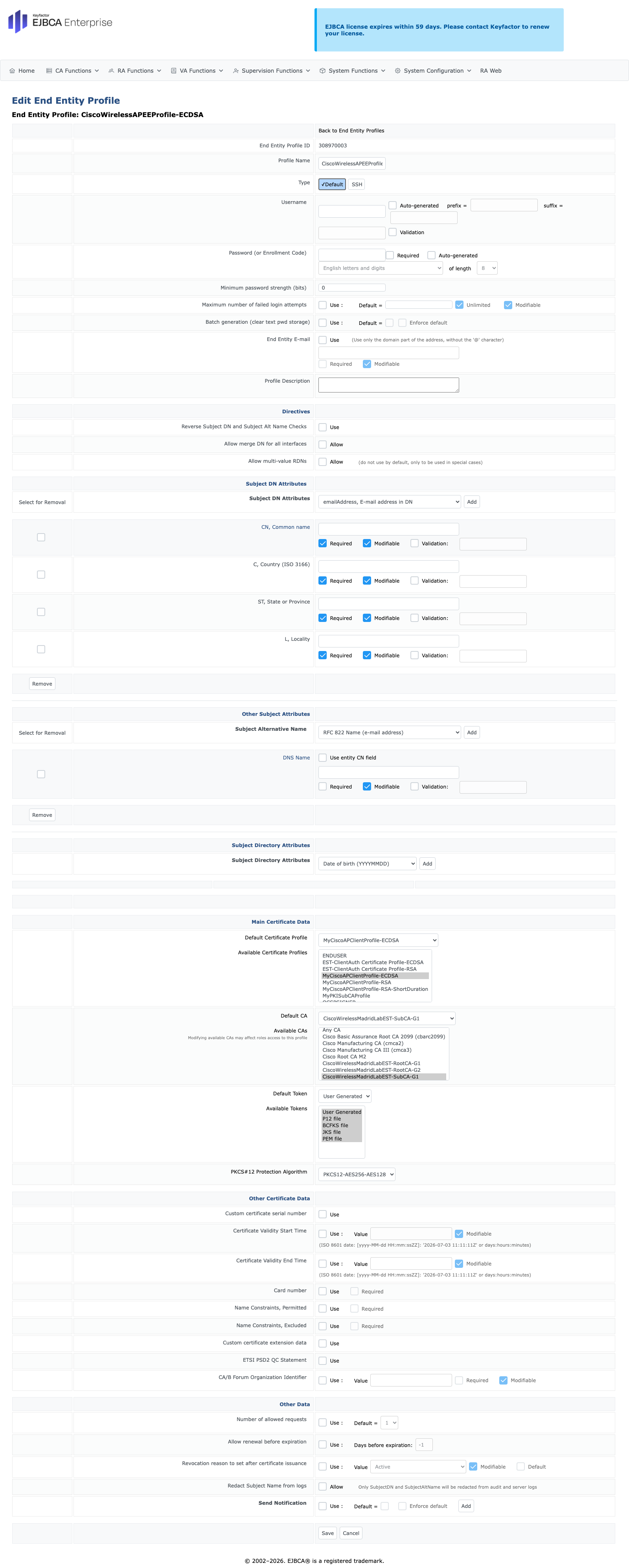
Step 2. We also need an End Entity Profile for Access Points. Create a new one and:
· Set the Profile Name as CiscoWirelessAPEEProfile-RSA
· Under Password (or Enrollment Code) disable Required
· Under Directives enable Allow multi-value RDNs, this is needed because APs use RDNs when creating their CSRs
· Under Subject DN Attributes, select from the dropdown C, Country (ISO 3166) and add it
· Under Subject DN Attributes, select from the dropdown ST, State or Province and add it
· Under Subject DN Attributes, select from the dropdown L, Locality and add it
· Under Subject DN Attributes, select from the dropdown serialNumber, Serial number (in DN) and add it
· Under Subject DN Attributes, select from the dropdown O, Organization and add it
· Under Subject DN Attributes, select from the dropdown unstructuredName, Domain name (FQDN) and add it
· Under Subject DN Attributes, select from the dropdown emailAddress, E-mail address in DN and add it
· Under Subject DN Attributes, select from the dropdown OU, Organizational Unit and add it
· Under Subject Alternative Name, select from the dropdown DNS Name and add it
· Under Main Certificate Data, for Default Certificate Profile select MyCiscoAPClientProfile-RSA
· Under Main Certificate Data, for Available Certificate Profiles select MyCiscoAPClientProfile-RSA
· Under Main Certificate Data, for Default CA select CiscoWirelessMadridLabEST-SubCA-G2
· Under Main Certificate Data, for Available CAs select CiscoWirelessMadridLabEST-SubCA-G2
Note: All the fields under Subject DN Attributes must match the configuration in the WLC for LSC. Whatever certificate attributes you set in the LSC configuration need to be available in this End Entity Profile, otherwise the certificate won’t be issued and enrollment will fail.
Create Certificate Profiles and End Entity Profiles for the WLC
Now create Certificate and End Entity Profiles for the WLC, this will be used to sign the WLC certificate for the initial EST establishment.
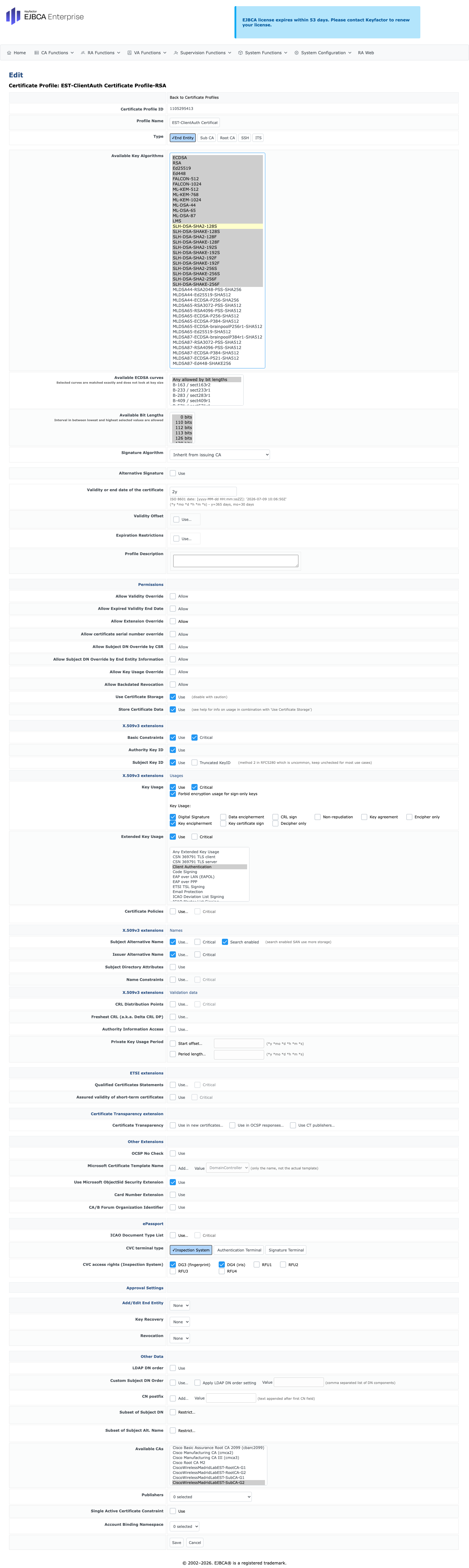
Step 1. Create the EST-ClientAuth Certificate Profile-RSA certificate profile. Go to CA Functions > Certificate Profiles. Duplicate the ENDUSER profile and configure the parameters:
· Set the Profile Name as EST-ClientAuth Certificate Profile-RSA
· Select the Type as End Entity
· Under Available Key Algorithms select RSA
· For Validity or end date of the certificate set 3y (or your desired value)
· Under X.509v3 extensions | Usages for Key Usage disable Non-repudiation
· Under X.509v3 extensions | Usages for Extended Key Usage select only Client Authentication
· Under Other Data, disable Use for LDAP DN order
· Under Other Data for Available CAs, select from the dropdown CiscoWirelessMadridLabEST-SubCA-G2
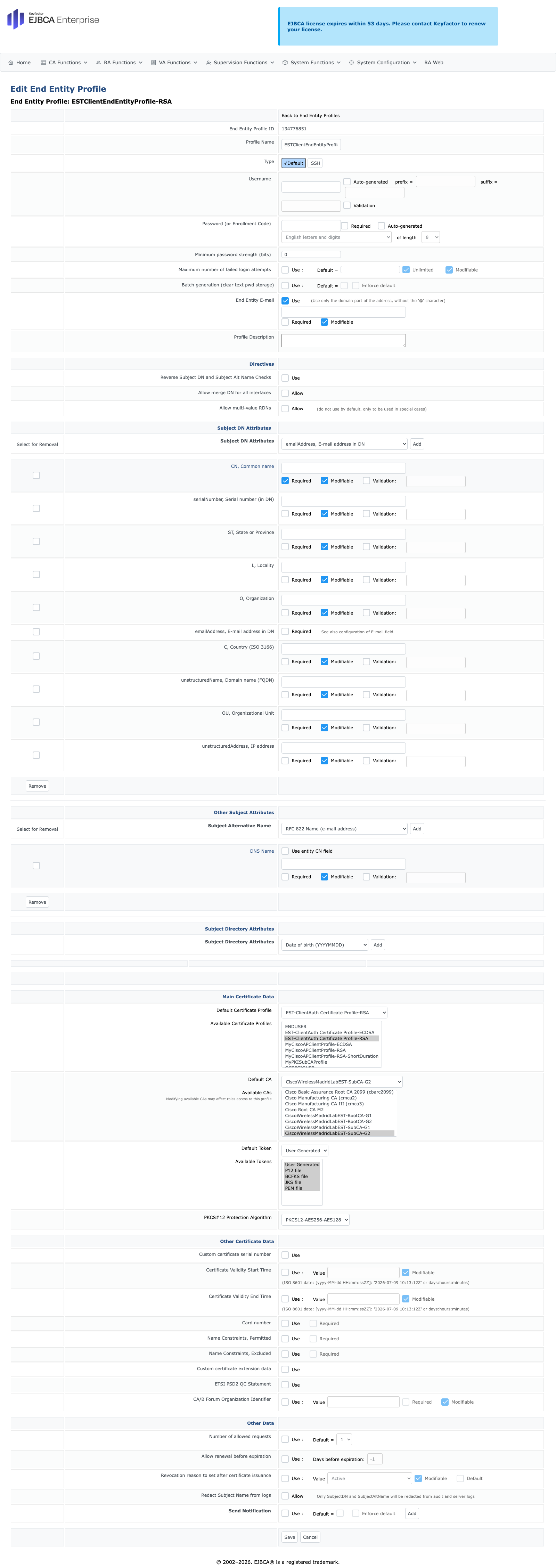
Step 2. Now, let’s create the End Entity Profile. Go to RA Functions > End Entity Profiles and add a profile. Configure it with the following parameters:
· Set the Profile Name as ESTClientEndEntityProfile-RSA
· Under Password (or Enrollment Code) disable Required
· Under Subject DN Attributes, select from the dropdown C, Country (ISO 3166) and add it
· Under Subject DN Attributes, select from the dropdown ST, State or Province and add it
· Under Subject DN Attributes, select from the dropdown L, Locality and add it
· Under Subject DN Attributes, select from the dropdown O, Organization and add it
· Under Subject DN Attributes, select from the dropdown unstructuredName, Domain name (FQDN) and add it
· Under Subject DN Attributes, select from the dropdown emailAddress, E-mail address in DN and add it
· Under Subject DN Attributes, select from the dropdown OU, Organizational Unit and add it
· Under Main Certificate Data, for Default Certificate Profile select EST-ClientAuth Certificate Profile-RSA
· Under Main Certificate Data, for Available Certificate Profiles select EST-ClientAuth Certificate Profile-RSA
· Under Main Certificate Data, for Default CA select CiscoWirelessMadridLabEST-SubCA-G2
· Under Main Certificate Data, for Available CAs select CiscoWirelessMadridLabEST-SubCA-G2
Create the WebServer End Entity Profile
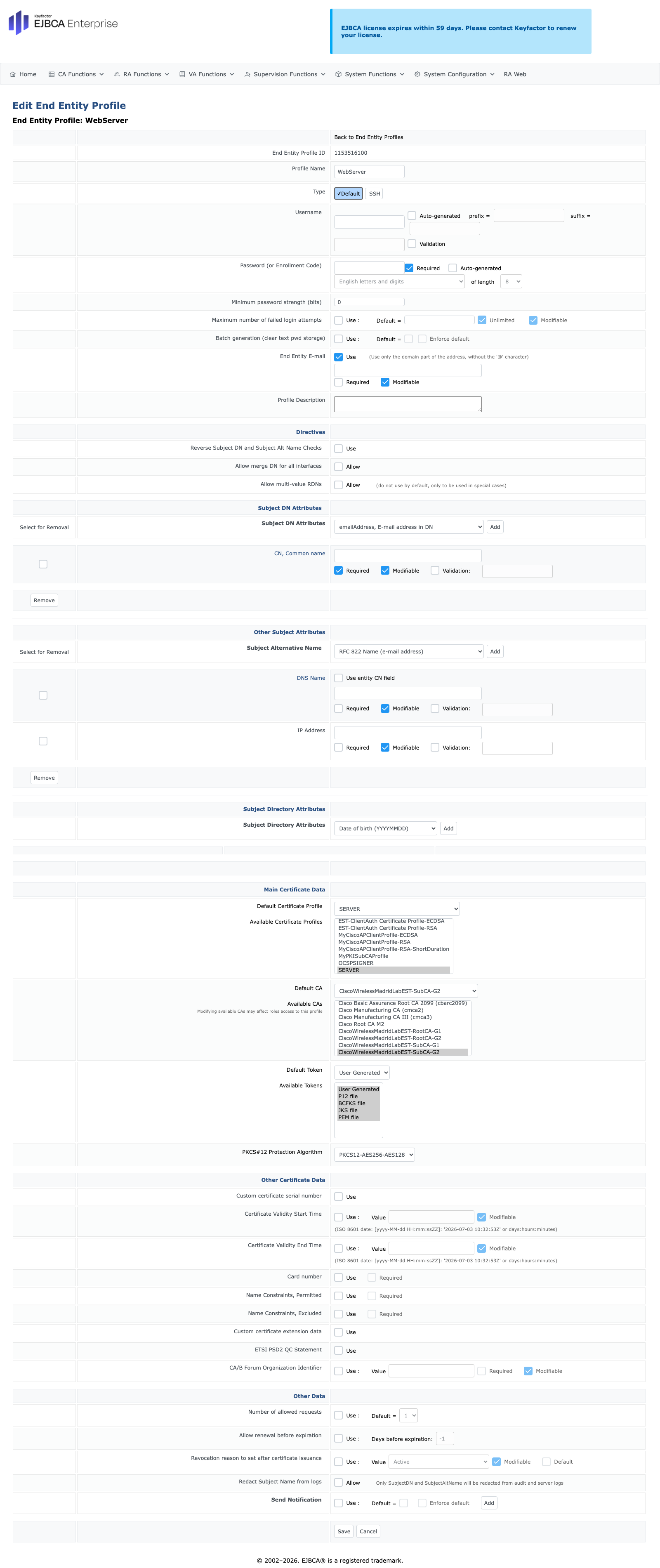
Now create the Web Server End Entity Profile, this will be used to sign the appliance certificate for HTTPS.
Step 3. Create the WebServer End Entity Profile. Go to RA Functions > End Entity Profiles and add a profile. Configure it with the following parameters:
· Set the Profile Name as WebServer
· Under Other Subject Attributes, select from the dropdown DNS Name and add it
· Under Other Subject Attributes, select from the dropdown IP Address and add it
· Under Main Certificate Data, for Default Certificate Profile select SERVER
· Under Main Certificate Data, for Available Certificate Profiles select SERVER
· Under Main Certificate Data, for Default CA select CiscoWirelessMadridLabEST-SubCA-G2
· Under Main Certificate Data, for Available CAs select CiscoWirelessMadridLabEST-SubCA-G2
Sign the Appliance Certificate
We need to sign the appliance HTTPS certificate with the recently created Sub CA.
Step 1. In the appliance configuration (https://<ejbca-hostname>/webconf/), go to Security tab and create a new CSR with the following parameters:
· For Key Algorithm select RSA 4096
· For Domains set the domain name
· Optionally, set the Common Name, State/Province, Country, Locality and Organization
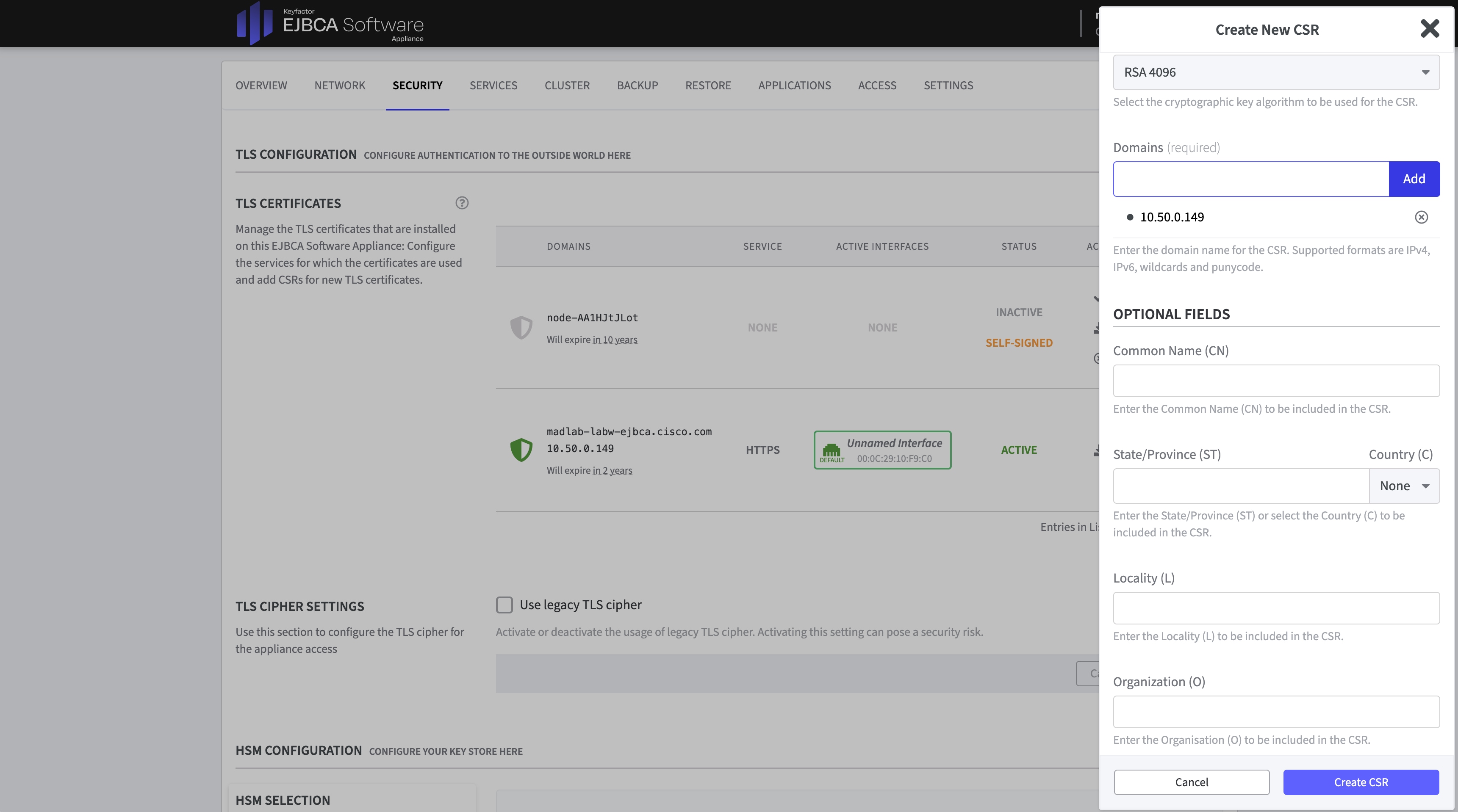
Step 2. Download the CSR. Access the RA Web (https://<ejbca-hostname>/ejbca/ra/), go to Enroll > Make New Request. Use the following parameters:
· Under Certificate Type select the WebServer profile.
· Under Key-pair generation select Provided by the user
· Browse to select the downloaded CSR the file.
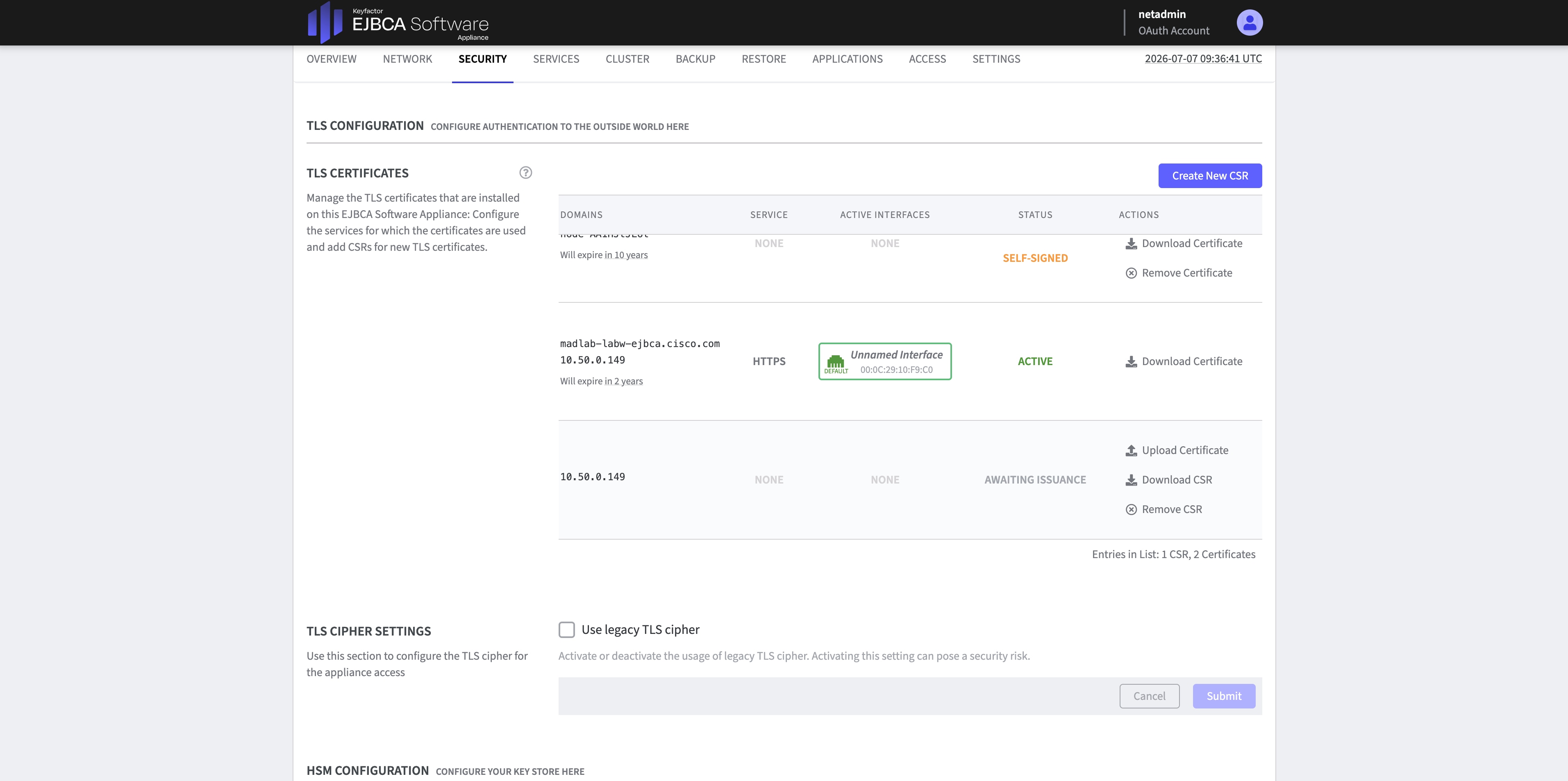
Step 3. Download the signed PEM full chain. Navigate to the appliance configuration (https://<ejbca-hostname>/webconf/), go to Security tab, find the already created CSR and Upload the certificate. After that, Activate it on the management interface.
Configure the EST alias and mTLS role
We are going to create the EST alias to receive the requests and authenticate, authorize and issue the certs appropriately. This example will be using mTLS, it can also be optionally complemented with username / password (will not be covered in this section). In the appendix an alternative method without certificates and just using username / password can be found under Configure with Username and Password Only, also another method using the SUDI certificate can be found under Configure with SUDI Certificate.
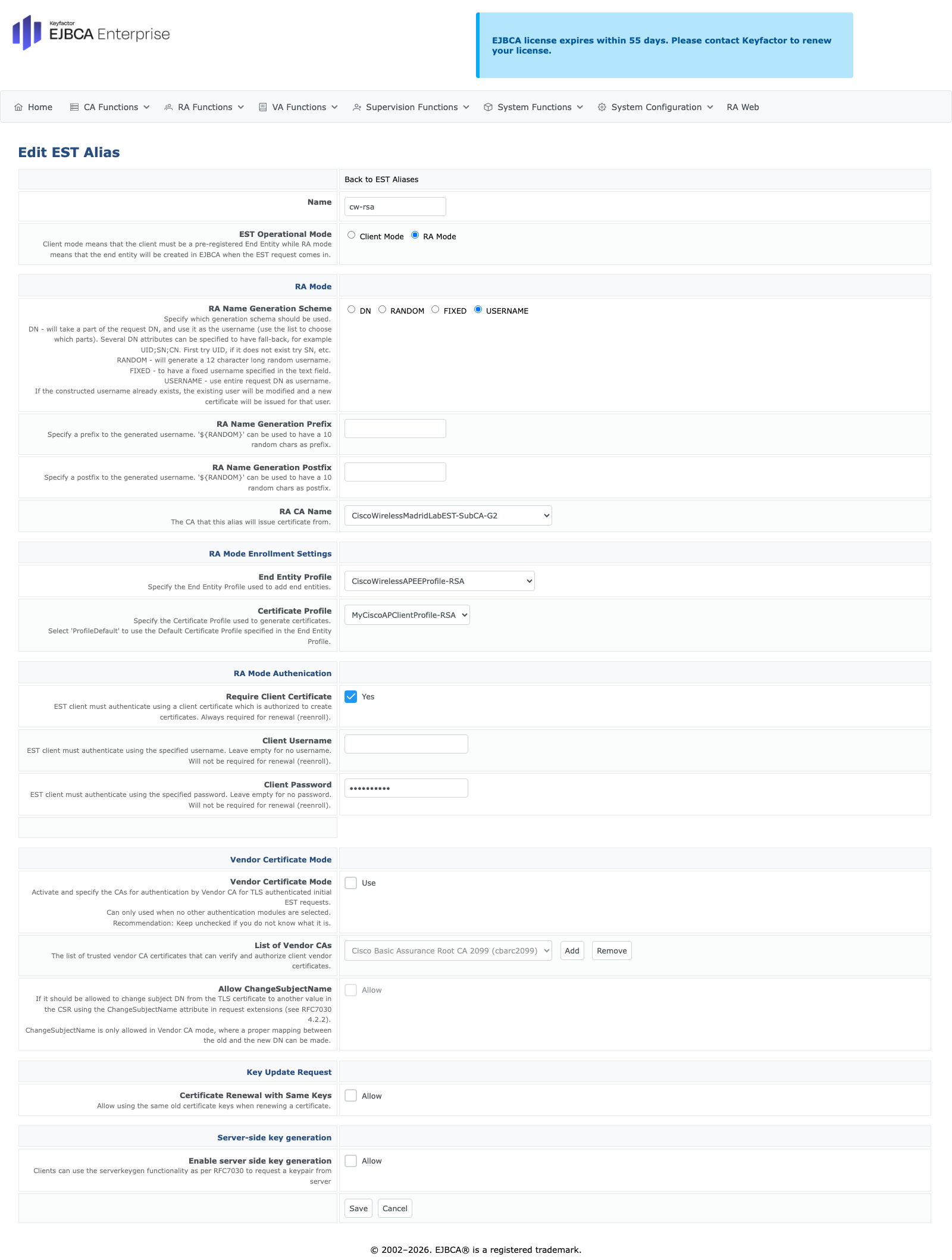
Step 1. Create the EST alias that will be used by the WLC to request certificates. In System Configuration > EST Configuration, create a new alias. Configure it with the following parameters:
· Set the Name as cw-rsa (all lowercase!)
· Under RA Mode for RA Name Generation Scheme, select Username (or your desired generation scheme)
· Under RA Mode for RA CA Name, select from the dropdown CiscoWirelessMadridLabEST-SubCA-G2
· Under RA Mode Enrollment Settings for End Entity Profile, select from the dropdown CiscoWirelessAPEEProfile-RSA
· Under RA Mode Enrollment Settings for Certificate Profile, select from the dropdown MyCiscoAPClientProfile-RSA
· Under RA Mode Authentication for Require Client Certificate, select Yes
· Under RA Mode Authentication leave Client Username and Client Password empty
Step 2. Create the EST mTLS role, this role will be used to authenticate requests coming in. Navigate to System Functions > Roles and Access Rules. Create a new role with the Role Name as EST-mTLS-Cisco-Access-Role.
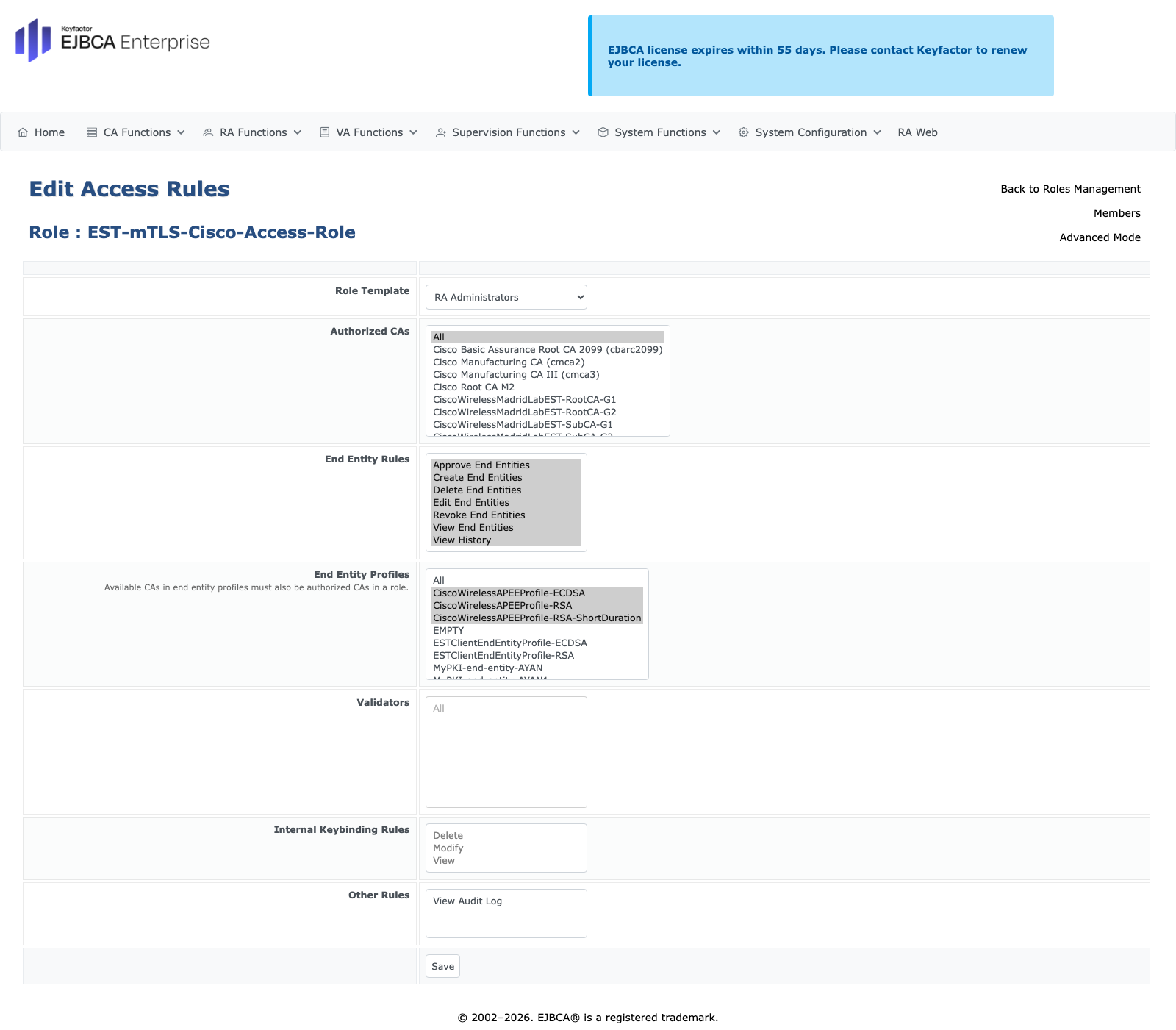
Step 3. Once the role is created, in the EST-mTLS-Cisco-Access-Role row, under the column Details click on Access Rules, configure it with the following parameters:
· Under Role Template, select from the dropdown RA Administrators
· Under Authorized CAs select All
· Under End Entity Profiles select CiscoWirelessAPEEProfile-RSA
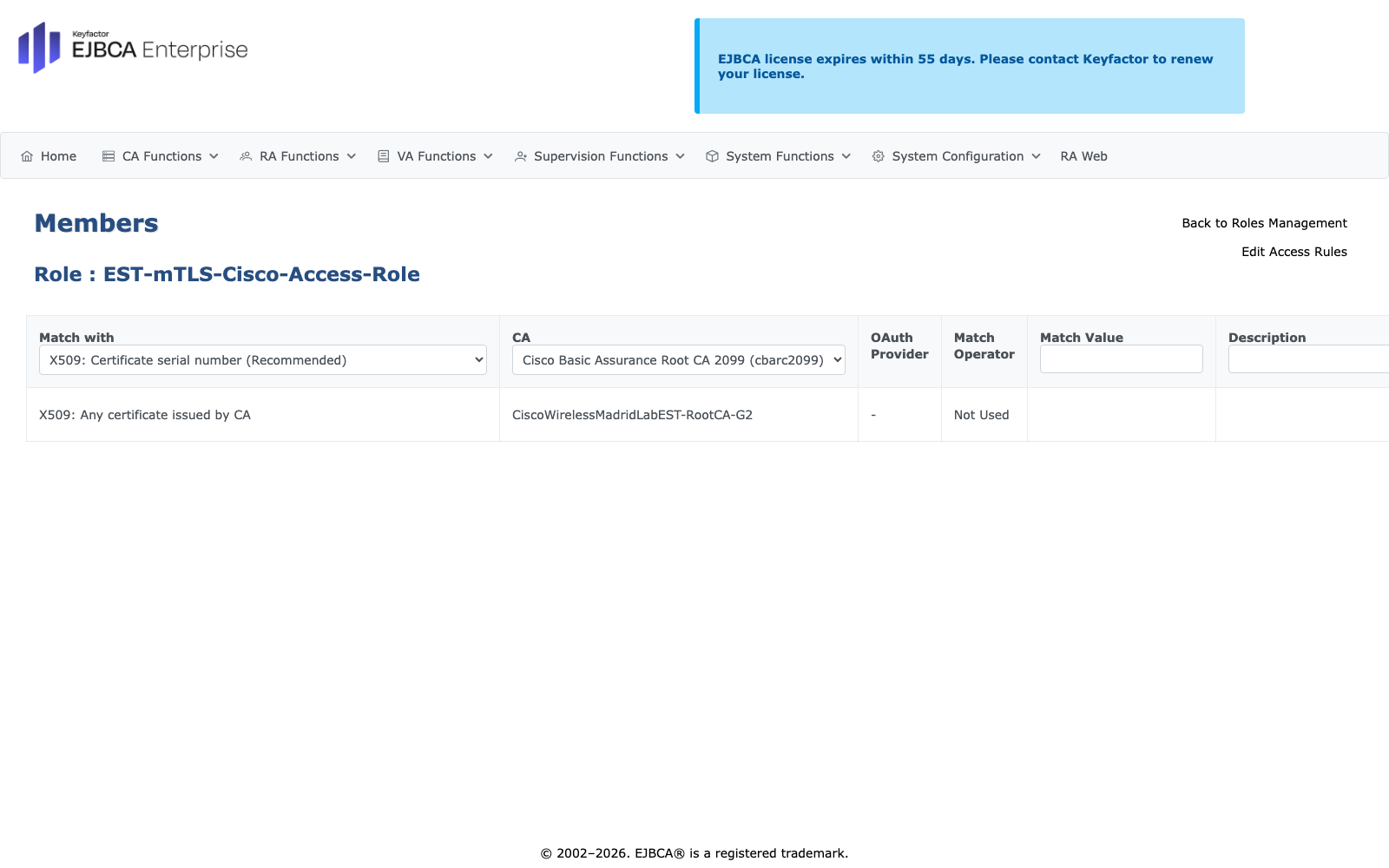
Step 4. In the EST-mTLS-Cisco-Access-Role row, under the column Details click on Members, add a new rule with following parameters (the following security settings make things easier for a lab setup, consult with your security expert for a production scenario)
· Under Match with, select from the dropdown X509: Any certificate issued by CA
· Under CA, select from the dropdown CiscoWirelessMadridLabEST-RootCA-G2
· Under Action, click on Add
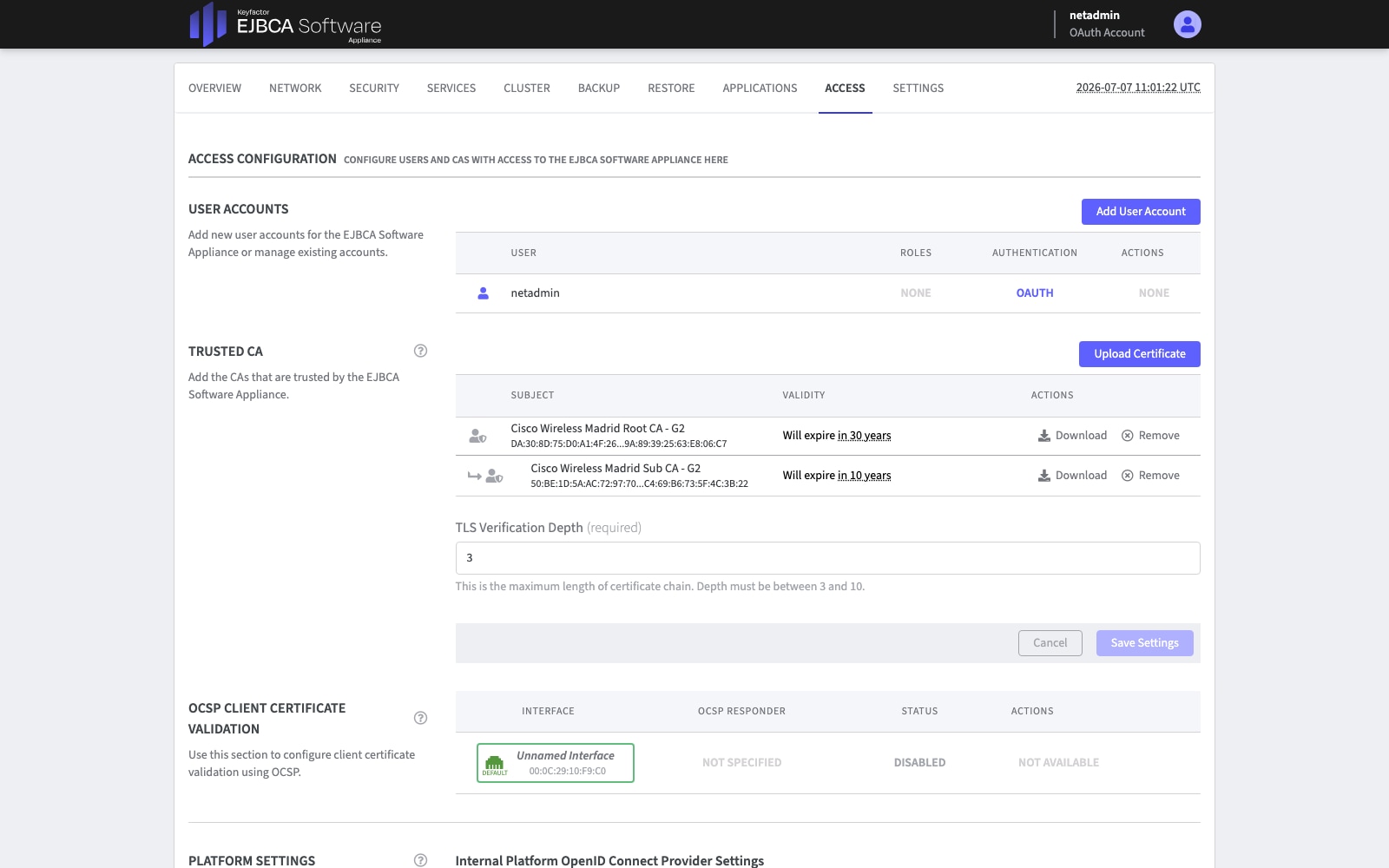
Step 5. In the appliance configuration (https://<ejbca-hostname>/webconf/), go to Access tab and in the Trusted CA section upload the Root CA and the Sub CA you created before. This is necessary so the appliance itself allows EST requests coming from the WLC using a certificate issued by the Sub CA.
Now that all the EJBCA configuration is ready, let’s configure the WLC. We need to configure the WLC to authenticate and enroll an EST trustpoint, then enable AP LSC provisioning. The following steps cover the manual import scenario discussed in the EST Deployment Guide.
We are going to get a certificate signed for the WLC, we will generate a CSR in the WLC and then sign it in EJBCA. After the first-time certificate import, when the trustpoint is enrolled a certificate will be issued to the WLC using EST.
Step 1. To create the CSR in the WLC we first need the private keys.
9800#crypto key generate rsa modulus 4096 label my-4096rsa-key
Now the CSR can be created, here is a sample.
9800(config)#crypto pki trustpoint est_rsa_mTLS
9800(ca-trustpoint)#enrollment terminal pem
9800(ca-trustpoint)#serial-number none
9800(ca-trustpoint)#ip-address none
9800(ca-trustpoint)#subject-name C=ES, ST=Madrid, L=Madrid, O=Cisco, OU=Cisco Wireless TME, CN=LabW-9800CL4.cisco.com, E=madlab@cisco.com
9800(ca-trustpoint)#revocation-check none
9800(ca-trustpoint)#rsakeypair my-4096rsa-key
9800(ca-trustpoint)#hash sha512
Now the CA that will be signing this cert needs to be trusted, for that we need to authenticate the trustpoint we just created.
9800(config)#crypto pki authenticate est_rsa_mTLS
Paste the Base64-encoded certificate for the CA that signed the certificate. For this document the hierarchy has a Sub CA and a Root CA. The Sub CA is the one that signed this certificate so we will paste the Sub CA. You can verify it has been imported correctly by issuing:
9800(config)#do show crypto pki certificate verbose est_rsa_mTLS
Now, display the CSR in the terminal using the enroll command.
9800(config)#crypto pki enroll est_rsa_mTLS
% Start certificate enrollment ..
% The subject name in the certificate will include: C=ES, ST=Madrid, L=Madrid, O=Cisco, OU=Cisco Wireless TME, CN=LabW-9800CL4.cisco.com, E=madlab@cisco.com
% The subject name in the certificate will include: LabW-9800CL4.cisco.com
Display Certificate Request to terminal? [yes/no]: yes
Certificate Request follows:
-----BEGIN CERTIFICATE REQUEST-----
<certificate request details>
-----END CERTIFICATE REQUEST-----
---End - This line not part of the certificate request---
Step 2. Copy the CSR contents, we are going to submit it to the Sub CA for signing. Access the RA Web (https://<ejbca-hostname>/ejbca/ra/), go to Enroll > Make New Request. Use the following parameters:
· Under Certificate Type select the ESTClientEndEntityProfile-RSA profile.
· Under Key-pair generation select Provided by the user
· Paste the contents of the CSR shown in the previous step
Step 3. Click on Upload CSR, verify the Common Name contents.
Step 4. Under Provide User Credentials fill the Username. This username must be unique.
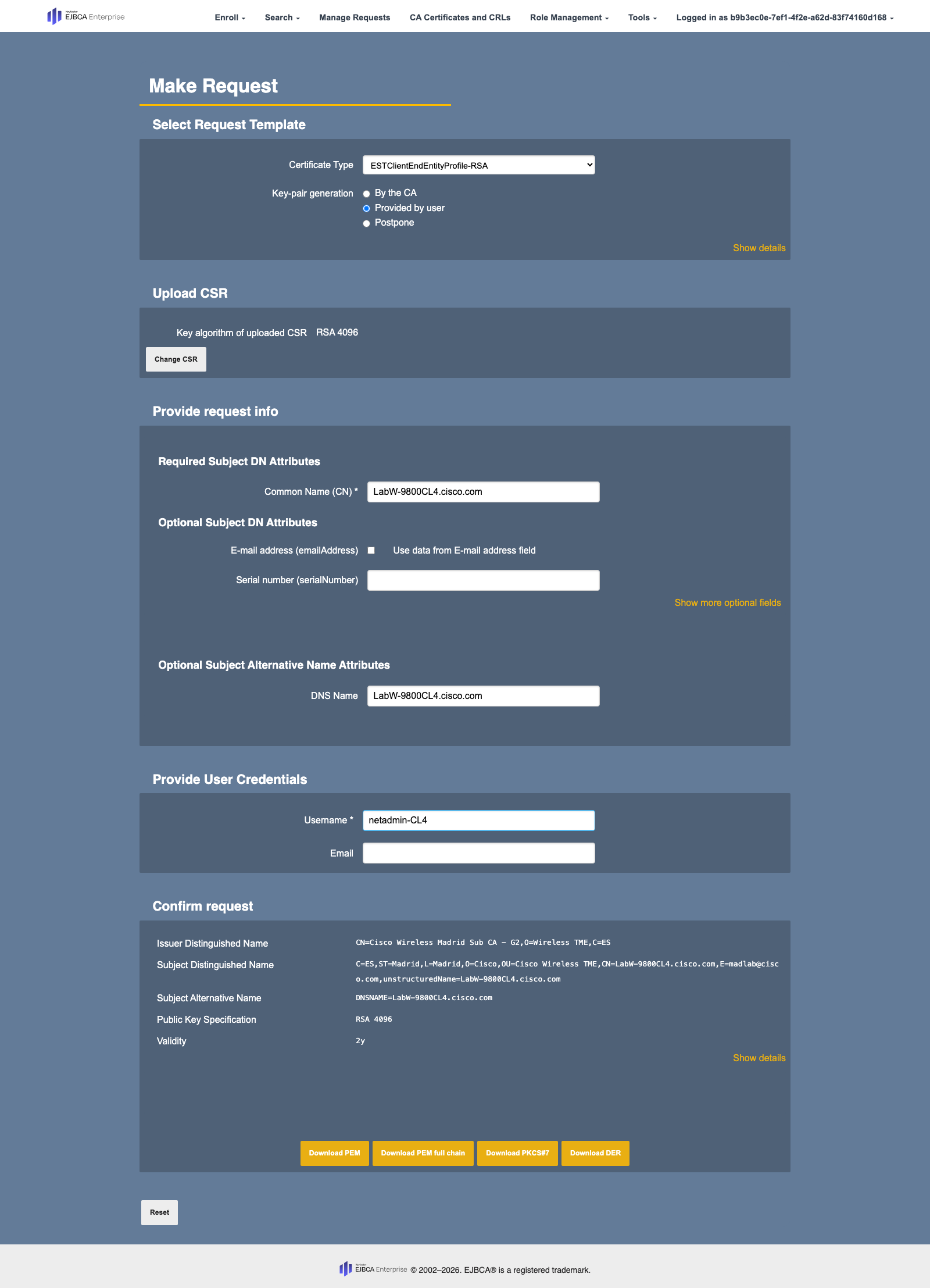
Step 5. To issue the certificate click on any of the Download buttons. For this flow click on Download PEM. Once downloaded, open the file with a text editor and copy from -----BEGIN CERTIFICATE----- to -----END CERTIFICATE----- including them.
Step 6. Now let’s import the signed certificate, paste the Base64-encoded certificate.
9800(config)#crypto pki import est_rsa_mTLS certificate
Enter the base 64 encoded certificate.
End with a blank line or the word "quit" on a line by itself
-----BEGIN CERTIFICATE-----
<certificate content>
-----END CERTIFICATE-----
% Router Certificate successfully imported
You can verify that the certificate has been imported correctly with:
9800(config)#do show crypto pki certificate verbose est_rsa_mTLS
Certificate
Status: Available
Version: 3
Certificate Serial Number (hex): 15E7D174744CD89C21EDDCCA757E00158D257ACA
Certificate Usage: General Purpose
Issuer:
cn=Cisco Wireless Madrid Sub CA - G2
o=Wireless TME
c=ES
Subject:
Name: LabW-9800CL4.cisco.com
unstructuredname=LabW-9800CL4.cisco.com
emailaddress=madlab@cisco.com
cn=LabW-9800CL4.cisco.com
ou=Cisco Wireless TME
o=Cisco
l=Madrid
st=Madrid
c=ES
Validity Date:
start date: 10:46:42 UTC Jul 9 2026
end date: 10:46:41 UTC Jul 8 2028
Subject Key Info:
Public Key Algorithm: rsaEncryption
RSA Public Key: (4096 bit)
Signature Algorithm: SHA256 with RSA Encryption
Fingerprint MD5: A3F5C68F 9CD5C2CB FF1A6685 33364E54
Fingerprint SHA1: 36624204 95B2D0AA 3470EB9E 2CAF88C3 111EDFD5
X509v3 extensions:
X509v3 Key Usage: A0000000
Digital Signature
Key Encipherment
X509v3 Subject Key ID: F53465F6 06CBCA82 64445313 32903C33 F079F793
X509v3 Basic Constraints:
CA: FALSE
X509v3 Subject Alternative Name:
LabW-9800CL4.cisco.com
IP Address :
OtherNames :
X509v3 Authority Key ID: 0B32086E E56165FD 42471393 5C229CFC 96E381C0
Authority Info Access:
Extended Key Usage:
Server Auth
Client Auth
Cert install time: 10:58:22 UTC Jul 9 2026
Associated Trustpoints: est_rsa_mTLS
Key Label: my-4096rsa-key
Key storage device: private config
CA Certificate
Status: Available
Version: 3
Certificate Serial Number (hex): 1CC0466F4E4E2CCFC9D5015B4B1B78B37A1380D3
Certificate Usage: Signature
Issuer:
cn=Cisco Wireless Madrid Root CA - G2
o=Wireless TME
c=ES
Subject:
cn=Cisco Wireless Madrid Sub CA - G2
o=Wireless TME
c=ES
Validity Date:
start date: 15:17:54 UTC Apr 18 2026
end date: 15:17:53 UTC Apr 15 2036
Subject Key Info:
Public Key Algorithm: rsaEncryption
RSA Public Key: (4096 bit)
Signature Algorithm: SHA256 with RSA Encryption
Fingerprint MD5: FFBE4281 8B1ED4D5 9F3D34CB DF0E8988
Fingerprint SHA1: 89D20B7B E11D57AB 6385AF7C 66E12EE9 22129D85
X509v3 extensions:
X509v3 Key Usage: 86000000
Digital Signature
Key Cert Sign
CRL Signature
X509v3 Subject Key ID: 0B32086E E56165FD 42471393 5C229CFC 96E381C0
X509v3 Basic Constraints:
CA: TRUE
X509v3 Authority Key ID: 1C8349E3 C135E482 9EC115B0 F0658E26 9A8D1F2A
Authority Info Access:
Cert install time: 16:06:05 UTC Jul 8 2026
Associated Trustpoints: est_rsa_mTLS
Storage: nvram:CiscoWireles#80D3CA.cer
Now to finish this step, we need to also create a trustpoint for the Root CA. This trustpoint provides the Root CA for validation of the EST server certificate chain.
9800(config)#crypto pki trustpoint est_RootCA
9800(ca-trustpoint)#enrollment terminal pem
9800(ca-trustpoint)#revocation-check none
You should already have the Root CA downloaded from previous steps, but you can also download it by going to from EJBCA by accessing the RA Web (https://<ejbca-hostname>/ejbca/ra/), go to CA Certificates and CRLs you will see the list of CAs, download the Root CA. Paste the Base64-encoded certificate for the Root CA.
9800(config)#crypto pki authenticate est_RootCA
Enter the base 64 encoded CA certificate.
End with a blank line or the word "quit" on a line by itself
-----BEGIN CERTIFICATE-----
<certificate content>
-----END CERTIFICATE-----
Certificate has the following attributes:
Fingerprint MD5: F13CEE78 75BF15BC 8F209305 2C9B5AA4
Fingerprint SHA1: F7F02806 E1053995 3BDCB989 AEEB0627 63E46833
% Do you accept this certificate? [yes/no]: yes
Trustpoint CA certificate accepted.
% Certificate successfully imported
You can check that it was imported successfully running:
9800(config)#do show crypto pki certificate verbose est_RootCA
CA Certificate
Status: Available
Version: 3
Certificate Serial Number (hex): 137978CA3BE24803A45697155FA35F9F543EF4FC
Certificate Usage: Signature
Issuer:
cn=Cisco Wireless Madrid Root CA - G2
o=Wireless TME
c=ES
Subject:
cn=Cisco Wireless Madrid Root CA - G2
o=Wireless TME
c=ES
Validity Date:
start date: 15:09:45 UTC Apr 18 2026
end date: 15:09:44 UTC Apr 10 2056
Subject Key Info:
Public Key Algorithm: rsaEncryption
RSA Public Key: (4096 bit)
Signature Algorithm: SHA256 with RSA Encryption
Fingerprint MD5: F13CEE78 75BF15BC 8F209305 2C9B5AA4
Fingerprint SHA1: F7F02806 E1053995 3BDCB989 AEEB0627 63E46833
X509v3 extensions:
X509v3 Key Usage: 86000000
Digital Signature
Key Cert Sign
CRL Signature
X509v3 Subject Key ID: 1C8349E3 C135E482 9EC115B0 F0658E26 9A8D1F2A
X509v3 Basic Constraints:
CA: TRUE
Authority Info Access:
Cert install time: 16:05:54 UTC Jul 8 2026
Associated Trustpoints: est_RootCA est-rsa-root-ca
Storage: nvram:CiscoWireles#F4FCCA.cer
Step 7. Create an enrollment profile for EST using the manual certificate we just created, this is done by indicating the enrollment credential. In the enrollment urls, you need to specify the enrollment url/alias provided by your PKI software. The following (“/.well-known/est/cisco-wireless”) is just an example.
9800(config)#crypto pki profile enrollment est-profile-cert
9800(ca-profile-enroll)#method-est
9800(ca-profile-enroll)#enrollment credential est_rsa_mTLS
9800(ca-profile-enroll)#enrollment url https://10.50.0.149:443/.well-known/est/cw-rsa
9800(ca-profile-enroll)#reenrollment url https://10.50.0.149:443/.well-known/est/cw-rsa
Note: The reenrollment url is used for the WLC to go back to the EST server and ask for a new certificate when it is time to reenroll.
Step 8. Now, create a new trustpoint, this is the EST trustpoint that will leverage the previously created enrollment profile. The enrollment profile will use the certificate we just manually imported. This trustpoint will enroll with the EST server and get a certificate for the WLC. First a new key is needed for the CSR that will be sent under the hood.
9800#crypto key generate rsa modulus 4096 label autorenewal-key
Now the trustpoint can be created.
9800(config)#crypto pki trustpoint est-cert-autorenewal
9800(ca-trustpoint)#enrollment profile est-profile-cert
9800(ca-trustpoint)#serial-number none
9800(ca-trustpoint)#ip-address none
9800(ca-trustpoint)#fqdn none
9800(ca-trustpoint)#subject-name CN=LabW-9800CL4.cisco.com, C=ES, ST=Madrid, L=Madrid, O=Cisco, OU=Cisco Wireless TME, E=madlab@cisco.com
9800(ca-trustpoint)#revocation-check none
9800(ca-trustpoint)#rsakeypair autorenewal-key
9800(ca-trustpoint)#hash sha512
9800(ca-trustpoint)#eku request client-auth
9800(ca-trustpoint)#auto-enroll 80 regenerate
The auto-enroll is what tells the trustpoint that at 80% of the certificate lifetime it should auto-enroll and then generate new keys. Now, authenticate the trustpoint.
9800(config)#crypto pki authenticate est-cert-autorenewal
Jul 9 12:34:57.259: %PKI-4-NOCONFIGAUTOSAVE: Configuration was modified. Issue "write memory" to save new IOS PKI configuration
Jul 9 12:35:01.398: %PKI-6-CERT_ENROLL_AUTO: Auto initial enrollment for trustpoint est-cert-autorenewal
Jul 9 12:35:01.497: yang-infra: Configured netconf trustpoint (est-cert-autorenewal) created
Note: If this step fails, check the Troubleshooting section for some guidance on how to debug it.
Since auto enroll is configured, there is no need to manually trigger enrollment as it will happen automatically. To check the result, you may run the following command.
9800(config)#do show crypto pki certificate verbose est-cert-autorenewal
Certificate
Status: Available
Version: 3
Certificate Serial Number (hex): 4AB53499DF73016AD5D57C45812FCC5DD2E7D2A8
Certificate Usage: General Purpose
Issuer:
cn=Cisco Wireless Madrid Sub CA - G2
o=Wireless TME
c=ES
Subject:
Name: LabW-9800CL4.cisco.com
emailaddress=madlab@cisco.com
cn=LabW-9800CL4.cisco.com
ou=Cisco Wireless TME
o=Cisco
l=Madrid
st=Madrid
c=ES
Validity Date:
start date: 12:25:05 UTC Jul 9 2026
end date: 12:25:04 UTC Jul 8 2029
renew date: 12:25:03 UTC Dec 1 2028
Subject Key Info:
Public Key Algorithm: rsaEncryption
RSA Public Key: (4096 bit)
Signature Algorithm: SHA256 with RSA Encryption
Fingerprint MD5: BCE226B8 C74029C1 C857BB0F 1B3080F0
Fingerprint SHA1: 0F2CC057 F2988782 55843D4D 9E3A2077 ABDA0FB6
X509v3 extensions:
X509v3 Key Usage: A0000000
Digital Signature
Key Encipherment
X509v3 Subject Key ID: 81C9A49F 3B8CFB69 DB071D4F DE697F2E 47EBC14B
X509v3 Basic Constraints:
CA: FALSE
X509v3 Subject Alternative Name:
LabW-9800CL4.cisco.com
IP Address :
OtherNames :
X509v3 Authority Key ID: 0B32086E E56165FD 42471393 5C229CFC 96E381C0
Authority Info Access:
Extended Key Usage:
Client Auth
Cert install time: 12:35:01 UTC Jul 9 2026
Associated Trustpoints: est-cert-autorenewal
Key Label: autorenewal-key
CA Certificate
Status: Available
Version: 3
Certificate Serial Number (hex): 1CC0466F4E4E2CCFC9D5015B4B1B78B37A1380D3
Certificate Usage: Signature
Issuer:
cn=Cisco Wireless Madrid Root CA - G2
o=Wireless TME
c=ES
Subject:
cn=Cisco Wireless Madrid Sub CA - G2
o=Wireless TME
c=ES
Validity Date:
start date: 15:17:54 UTC Apr 18 2026
end date: 15:17:53 UTC Apr 15 2036
Subject Key Info:
Public Key Algorithm: rsaEncryption
RSA Public Key: (4096 bit)
Signature Algorithm: SHA256 with RSA Encryption
Fingerprint MD5: FFBE4281 8B1ED4D5 9F3D34CB DF0E8988
Fingerprint SHA1: 89D20B7B E11D57AB 6385AF7C 66E12EE9 22129D85
X509v3 extensions:
X509v3 Key Usage: 86000000
Digital Signature
Key Cert Sign
CRL Signature
X509v3 Subject Key ID: 0B32086E E56165FD 42471393 5C229CFC 96E381C0
X509v3 Basic Constraints:
CA: TRUE
X509v3 Authority Key ID: 1C8349E3 C135E482 9EC115B0 F0658E26 9A8D1F2A
Authority Info Access:
Cert install time: 16:06:05 UTC Jul 8 2026
Associated Trustpoints: est-cert-autorenewal est_rsa_mTLS est-rsa-usrn-lsc
Storage: nvram:CiscoWireles#80D3CA.cer
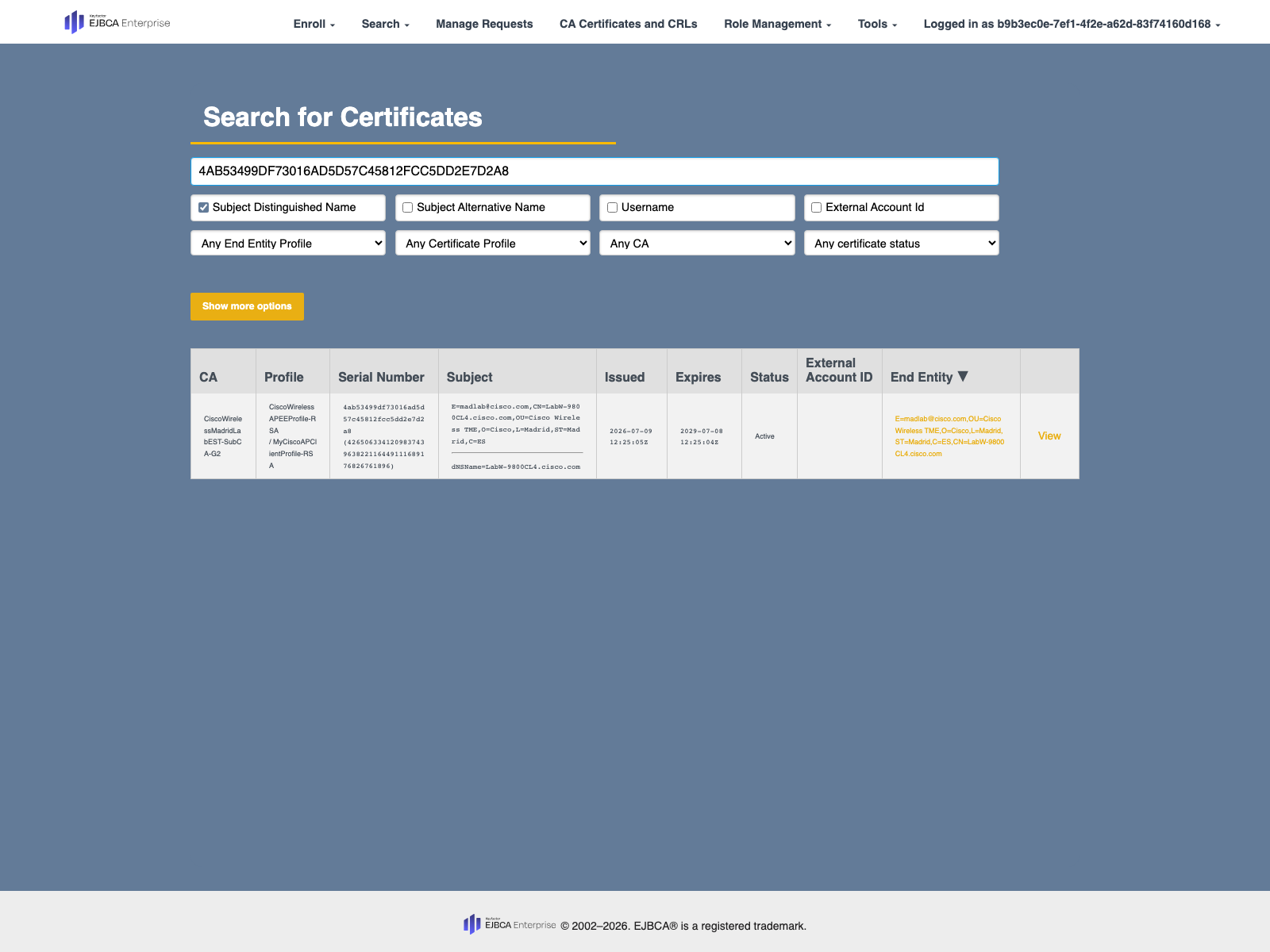
You have been able to successfully issue a certificate to the WLC using EST. You can check this certificate in the RA Web (https://<ejbca-hostname>/ejbca/ra/), go to Search > Certificates, copy the serial number from the previous output and paste it, then press Enter.
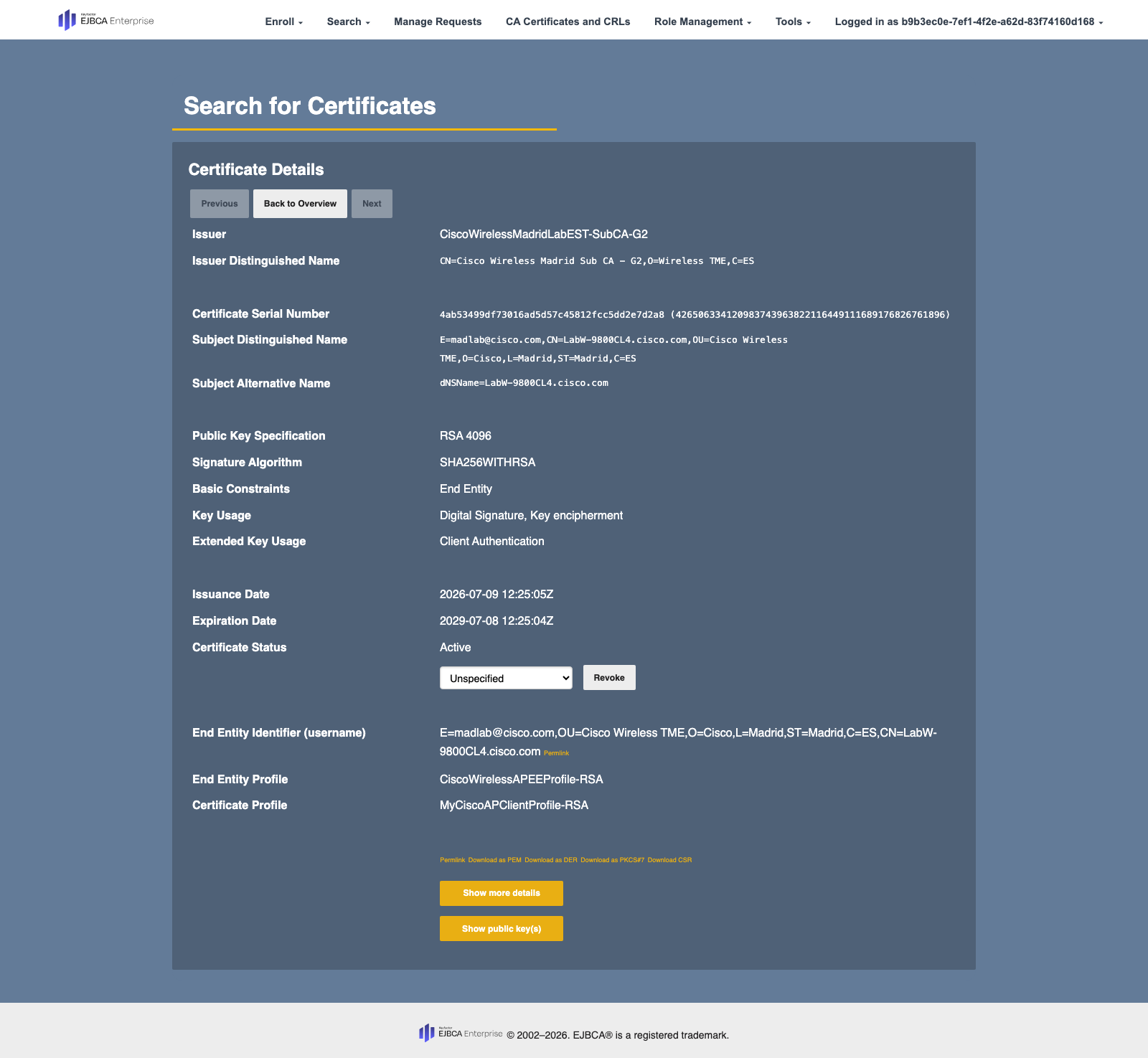
Step 9. Now that the EST trustpoint is ready, we can configure LSC to use it. Before doing that, it is important to understand that the LSC certificate can also be used for CAPWAP. This is configured in the AP Join Profile and by default it is set to use CAPWAP DTLS.
ap profile default-ap-profile
dot1x lsc-ap-auth-state capwap-dtls
The possibilities are:
dot1x lsc-ap-auth-state {CAPWAP-DTLS | Dot1x-port-auth | both }
And they mean:
· CAPWAP-DTLS: Uses LSC only for CAPWAP DTLS.
· Dot1x-port-auth: Uses LSC only for dot1x authentication with port.
· Both: Uses LSC for both CAPWAP-DTLS and Dot1x authentication with port.
If the Wireless Management Trustpoint is not set to a certificate issued by our Sub CA and the AP tries to establish CAPWAP using its LSC certificate, it will fail. Hence, the recommendation is that before proceeding, the AP Join Profile you use is adjusted so the AP only uses the LSC certificate for 802.1X (Dot1x-port-auth option):
9800(config)#ap profile <your-ap-profile>
9800(config-ap-profile)#dot1x lsc-ap-auth-state dot1x-port-auth
Step 10. Now, let’s configure LSC, we will test with only 1 AP to start with, that’s why we set the MAC address:
9800(config)#ap lsc-provision join-attempt 3
9800(config)#ap lsc-provision subject-name-parameter country ES state Madrid city Madrid domain labwirelessmadrid.cisco.com org Cisco email-address madlab@cisco.com
9800(config)#ap lsc-provision trustpoint est-cert-autorenewal
9800(config)#ap lsc-provision mac-address aabb.1122.ccdd
Step 11. Once LSC is configured, you can trigger LSC provision for the MAC addresses added:
9800(config)#ap lsc-provision provision-list
You will observe the following in the AP console:
[*07/09/2026 13:56:57.3345] ....+.+.....................+...+...+++++++++++++++++++++++++++++++++++++++*....+...............+..+.........+.+...........+..................+............+............+.+..+....+.........+......+++++++++++++++++++++++++++++++++++++++*..+...+....+...+..+.........+....+........+....+...+...........+.+......+..+...+....+...+...+........+.......+..+...+...+...................+...+.....+...++++++
[*07/09/2026 13:56:57.4054] .......+.+.....+++++++++++++++++++++++++++++++++++++++*..+.....+....+........+...+...+....+......+......+...+...+++++++++++++++++++++++++++++++++++++++*..+.........+...........+......+................+.....+............+...+...............+...+.+........+............+...+.+..+...+.+........+.......+...+......+..+.......+..+..........+.........+..+....+...+......+............+..+.......+.....+.........+.+......+..+..........+...+...+..+...+.........+...+............+...+.......+...+.........+...+...+..+.+...........+....+..+....+.....+......+.......+..+.............+..+.+.........+.....+................+..+.......+...+..+.+..+.+......+..............+............+...+.......+.....+...++++++
[*07/09/2026 13:56:57.6321] -----
[*07/09/2026 13:56:57.7962] LSC_ENABLE: saving ROOT_CERT
[*07/09/2026 13:56:57.7962]
[*07/09/2026 13:56:57.8055] lsc_issuer_hash: /tmp/lsc/cert.1.pem exists, write issuer cert hash
[*07/09/2026 13:56:57.8084] LSC_ENABLE: saving DEVICE_CERT
[*07/09/2026 13:56:57.8084]
[*07/09/2026 13:56:57.8250] LSC certs and private key verified
[*07/09/2026 13:56:57.8250]
[*07/09/2026 13:56:59.2148] LSC private key written to hardware TAM
Note: In versions prior to 26.2.1 the AP will reboot to apply the certificate. In 26.2.1 and afterwards, CAPWAP will reset but the AP will not reboot.
To check the certificate in the AP itself:
AP8C88.814F.FCF0#show crypto | b LSC
LSC: Enabled
----------------------------- Device Certificate -----------------------------
Certificate:
Data:
Version: 3 (0x2)
Serial Number:
6e:b5:78:d6:d9:08:e5:94:c3:3d:e2:9f:80:25:e2:36:33:fd:29:f3
Signature Algorithm: sha256WithRSAEncryption
Issuer: C=ES, O=Wireless TME, CN=Cisco Wireless Madrid Sub CA - G2
Validity
Not Before: Jul 9 13:46:57 2026 GMT
Not After : Jul 8 13:46:56 2029 GMT
Subject: C=ES, ST=Madrid, L=Madrid, O=Cisco, CN=ap3g4-8C88814FFCF0, emai
lAddress=madlab@cisco.com
Subject Public Key Info:
Public Key Algorithm: rsaEncryption
Public-Key: (2048 bit)
Modulus:
00:ac:95:20:53:2d:9b:45:02:93:f9:6b:f5:81:33:
9c:3a:15:5b:75:f9:2e:20:c5:6c:48:d3:89:0d:bb:
c2:6a:d2:1b:ab:5c:d0:6a:10:58:58:d5:95:c1:46:
d6:5c:21:c9:82:4f:06:2f:8d:84:2a:c4:f0:be:ff:
4f:04:cb:43:60:32:c4:0c:33:25:da:fd:ac:95:b1:
3c:f8:d4:fc:22:8f:89:e6:ec:7c:27:01:8c:fb:07:
7d:a9:c7:b4:cc:59:75:4a:5e:8c:87:32:d8:aa:b9:
24:9b:8b:13:5c:2c:e5:87:37:4d:1f:f8:48:76:6a:
d7:be:bc:3f:a1:62:c8:f8:3f:f1:51:27:62:b0:e8:
b6:95:b3:97:75:7a:3f:ea:29:f4:3a:1b:3f:c1:12:
fc:38:ce:76:a2:d8:cd:e5:b6:12:cd:1f:48:7e:77:
2b:cc:01:20:23:b0:2c:c8:93:f4:b6:8b:00:99:61:
7c:53:52:24:f4:64:81:ec:0e:c6:0e:eb:11:6b:3a:
8e:be:e1:5f:e2:94:00:8a:a4:99:c8:e5:bb:5e:c3:
28:66:be:47:34:e5:3a:50:bd:ba:74:49:1a:62:c4:
49:e8:ba:1c:9e:a8:18:83:08:bf:4f:6c:c4:88:ea:
8b:00:15:72:35:79:d1:fb:af:ac:d3:45:4a:81:fb:
2c:59
Exponent: 65537 (0x10001)
X509v3 extensions:
X509v3 Basic Constraints: critical
CA:FALSE
X509v3 Authority Key Identifier:
0B:32:08:6E:E5:61:65:FD:42:47:13:93:5C:22:9C:FC:96:E3:81:C0
X509v3 Extended Key Usage:
TLS Web Client Authentication
X509v3 Subject Key Identifier:
E1:B1:47:16:D9:1E:00:17:4C:4F:9F:79:94:1D:44:45:80:7E:95:08
X509v3 Key Usage: critical
Digital Signature, Key Encipherment
Signature Algorithm: sha256WithRSAEncryption
Signature Value:
06:c4:74:27:e3:48:09:c9:e2:c8:44:77:dc:15:20:1c:50:1a:
e0:f8:6d:2e:a6:aa:8f:2f:fb:d1:fb:f7:18:90:bc:9f:84:7c:
70:9b:ed:93:54:34:bc:52:bb:8a:6e:02:6a:47:dc:c0:49:26:
fe:33:c8:a0:6a:da:49:50:07:ab:9e:98:c0:d3:0c:e3:9e:af:
0f:1d:0d:63:1f:fe:46:82:c3:35:ee:4b:e2:2c:4f:f1:fd:79:
5c:08:fd:b7:e8:1d:ab:72:17:e9:57:06:5c:2b:e0:0e:b4:2b:
bd:2a:d4:81:5b:ad:56:19:48:41:17:eb:b1:b8:91:d8:b3:56:
3f:0f:73:84:7a:10:4c:1e:fb:9c:88:97:4b:65:59:ae:a0:c3:
55:eb:01:f6:20:93:e6:85:ed:4e:8d:2e:a9:35:f3:01:44:4c:
ae:2d:0b:fb:5f:37:5b:fa:6d:af:59:75:43:82:79:32:92:3f:
6b:92:c3:9f:c6:47:04:4a:24:b6:b3:28:7d:03:9f:af:14:f3:
08:d1:34:0c:ca:86:93:19:28:84:f6:33:99:79:46:54:70:d7:
e6:5a:fd:57:97:af:1f:9f:f3:d2:10:05:c2:b6:b4:41:51:7a:
b4:9c:df:3d:f1:2e:bf:49:8e:4a:88:c8:b8:09:36:52:e8:a8:
65:7a:36:61:9b:71:ac:11:cb:76:74:fc:b5:a2:63:74:91:ad:
ca:45:94:d6:2d:22:7f:51:1c:b0:d2:29:0c:e3:2e:c3:04:89:
89:83:23:43:53:57:ca:3e:b6:8c:fb:40:bb:8a:2c:c6:4b:70:
ae:34:0f:f4:c1:d9:48:ea:dd:ef:4d:8c:31:bb:ec:67:54:70:
2f:6b:65:4b:82:09:c6:ad:4c:f2:a7:44:3f:14:e5:66:4f:b9:
87:e6:4d:14:45:5a:12:40:54:82:04:42:25:ee:8e:c3:5d:a8:
00:be:15:0f:e2:13:e1:4b:29:60:bf:f6:5d:29:97:9e:be:13:
c0:c7:63:56:4b:22:c9:64:8d:a9:8f:42:b1:17:d0:85:6b:61:
8f:0c:af:aa:c8:95:62:b9:93:98:8d:92:1b:cf:b3:77:64:37:
a0:6e:0d:0b:57:26:bf:55:f0:b8:a2:1a:3a:6a:31:b9:cc:4b:
41:85:4e:87:64:f8:0c:2a:64:77:f7:ee:c1:34:a8:df:5e:17:
4a:29:3f:2a:74:80:44:5b:9f:12:5a:b1:3b:ab:50:f0:c9:09:
b8:44:82:cf:73:49:33:96:cf:14:47:53:3f:58:37:5b:42:0d:
d5:93:75:8d:82:54:95:85:46:38:3e:be:8b:68:f9:ad:28:a4:
67:f3:67:cd:b0:12:3a:ae
------------------------------------------------------------------------------
----------------------------- Issuer Certificate 1----------------------------
Certificate:
Data:
Version: 3 (0x2)
Serial Number:
1c:c0:46:6f:4e:4e:2c:cf:c9:d5:01:5b:4b:1b:78:b3:7a:13:80:d3
Signature Algorithm: sha256WithRSAEncryption
Issuer: C=ES, O=Wireless TME, CN=Cisco Wireless Madrid Root CA - G2
Validity
Not Before: Apr 18 15:17:54 2026 GMT
Not After : Apr 15 15:17:53 2036 GMT
Subject: C=ES, O=Wireless TME, CN=Cisco Wireless Madrid Sub CA - G2
Subject Public Key Info:
Public Key Algorithm: rsaEncryption
Public-Key: (4096 bit)
Modulus:
00:b5:6e:71:10:e7:fd:52:d6:f0:e0:75:7d:0b:8d:
61:93:39:c1:6c:8d:e2:15:df:6a:fa:1c:15:e7:c6:
b3:41:d0:7e:d8:2b:93:5d:76:12:49:da:9c:22:23:
10:11:5b:d9:ec:02:32:82:68:e1:c4:09:fd:a7:3b:
5f:7b:7c:53:f2:96:7a:cf:91:ea:10:43:3f:c5:92:
de:da:86:d1:98:b6:ab:d9:fb:94:fb:ac:8b:11:c9:
fa:c2:e8:2f:32:15:16:06:27:b6:cd:a1:c4:13:e1:
50:10:74:57:cd:67:bd:7f:47:e4:1c:eb:98:59:f8:
08:cf:c3:cb:11:63:e3:53:68:8a:2a:61:ef:fc:c7:
5d:82:3f:98:ed:a2:9d:52:9e:d6:67:dc:59:29:b0:
4c:7a:6b:f8:6d:d1:24:2a:d9:07:c5:ae:23:6d:97:
1f:bd:35:1f:24:54:12:a0:fe:b3:38:c6:d7:69:56:
64:fe:46:ca:13:c6:5c:eb:7d:76:53:9d:9a:47:b4:
2f:81:8a:fa:3e:19:7c:58:e6:67:a7:9c:c6:79:e9:
04:be:62:2f:91:73:93:ed:94:ca:e1:6e:a0:fc:ed:
9e:58:4b:d1:82:8b:92:69:ee:21:1f:00:56:7b:90:
52:ef:92:80:4b:bf:ab:8e:e6:3e:a6:03:78:46:78:
21:4d:fa:1f:cc:aa:69:74:68:21:8c:86:5e:38:d0:
69:55:84:24:76:c7:1a:79:2d:2a:ee:36:10:c3:60:
da:e3:c6:75:4d:56:15:9d:a6:5a:3e:03:05:9c:6a:
4b:06:9d:4e:b1:61:d0:62:7c:03:fc:9d:32:8d:13:
fd:72:c7:83:d0:c1:7f:6c:69:35:7d:af:5e:39:38:
db:46:e9:68:03:a7:09:3f:25:1b:e2:17:4c:49:a7:
43:49:8d:bc:ad:4a:33:12:6e:c5:9b:66:df:27:4f:
dc:a0:ab:1c:46:32:04:f4:72:fe:99:1d:37:dc:e7:
fa:d9:09:56:be:79:22:03:c0:be:cc:0b:17:66:7f:
a7:2e:0b:2d:93:38:6f:de:55:00:d8:e3:9e:85:eb:
f9:12:0b:1e:e1:91:ac:32:67:4a:bc:cf:09:2a:42:
3a:23:61:97:70:84:35:56:ff:81:42:2d:3a:87:1f:
f7:26:60:6e:8c:f8:4e:82:99:27:b8:ba:6a:95:87:
68:db:9a:6d:30:aa:f1:a5:21:95:96:fc:6e:97:f6:
01:bb:57:5e:64:57:93:d6:4f:f1:1a:b7:c6:b0:ba:
5c:4e:76:5e:7e:02:11:b9:eb:d7:78:ba:e4:a9:39:
50:9d:33:b8:d5:0f:bb:0d:56:b0:3f:f4:dd:46:5a:
a3:78:b1
Exponent: 65537 (0x10001)
X509v3 extensions:
X509v3 Basic Constraints: critical
CA:TRUE
X509v3 Authority Key Identifier:
1C:83:49:E3:C1:35:E4:82:9E:C1:15:B0:F0:65:8E:26:9A:8D:1F:2A
X509v3 Subject Key Identifier:
0B:32:08:6E:E5:61:65:FD:42:47:13:93:5C:22:9C:FC:96:E3:81:C0
X509v3 Key Usage: critical
Digital Signature, Certificate Sign, CRL Sign
Signature Algorithm: sha256WithRSAEncryption
Signature Value:
76:3b:1d:eb:6c:16:36:0d:3d:55:c9:ec:0c:85:2a:17:ad:28:
b1:a5:67:9d:e8:c6:55:73:75:aa:49:08:3b:c8:8a:b7:a4:97:
9d:09:cc:32:29:0f:3a:1a:5b:43:33:08:16:7b:6b:b6:5e:64:
4d:55:64:6f:42:c5:e0:2c:60:d2:ff:48:77:53:fa:7f:f1:bf:
04:37:a7:33:60:44:54:d1:42:d5:a7:66:68:23:7e:14:13:dd:
e1:d5:41:cc:cc:93:c6:f5:00:08:92:c4:2e:96:34:1f:50:af:
03:1f:c5:66:fa:16:e8:cf:ba:f4:68:0f:f0:04:95:9c:c0:ea:
ea:7e:05:f5:46:8b:20:7a:a9:e6:70:24:75:bd:c6:28:7c:10:
89:8e:cc:c0:65:a8:d9:c4:db:75:db:ca:aa:d5:d7:cb:43:fc:
de:a3:51:2a:06:58:8e:4f:12:f9:98:b6:ec:75:90:ed:88:ad:
b1:ea:b2:0f:ab:98:8e:9f:1c:9a:c6:85:13:a4:2c:63:ac:65:
3f:6f:be:69:84:82:85:f2:e6:58:84:31:2f:2e:6c:b2:93:ef:
f1:de:88:6b:2a:4a:69:3c:f8:09:39:ca:c8:f6:a3:5e:c9:dd:
c4:49:7a:2f:00:a7:b6:40:14:cd:6c:96:44:da:04:0b:72:9c:
3a:3a:99:4a:c8:be:14:25:0c:e3:bc:d6:f3:d0:68:ab:5c:6f:
ff:69:c2:f1:e3:81:69:1e:4f:25:1f:86:2c:e0:77:2e:3b:7a:
79:22:41:bb:99:fc:60:3c:03:ff:f7:43:fa:c0:32:f8:c8:77:
46:33:01:a6:5a:0a:ef:21:be:d4:36:87:1c:0a:ff:e1:a1:15:
90:5d:23:fd:33:07:39:5d:66:cd:9e:0e:53:37:73:14:57:69:
9e:f4:ec:d8:34:2e:47:7d:25:fd:ff:bd:91:75:91:22:e6:b6:
f8:ed:ec:8c:a4:87:bc:fe:20:2e:81:74:46:11:38:c6:d6:88:
7d:90:ba:47:68:e6:10:8e:ed:91:b0:e0:6c:d4:55:65:9e:69:
0c:6e:65:9f:d6:8f:41:fa:ff:af:7f:6f:ab:03:e9:ad:8e:8c:
6d:55:42:76:1f:32:ba:1d:f2:5b:60:d2:0a:be:2d:a2:d2:8d:
16:4a:be:59:af:db:e1:a2:14:6a:67:7d:c4:c4:a2:73:7b:05:
d2:b3:dd:d5:9d:f9:db:d9:ac:cf:eb:03:ff:17:2f:dc:e6:16:
1a:d1:68:38:10:5b:a3:6b:9a:67:af:e6:32:39:e4:76:64:20:
40:40:70:d7:5d:f1:9f:20:4a:15:f2:8d:ff:f9:a4:84:f4:0a:
ff:94:6e:11:36:e2:20:a8
------------------------------------------------------------------------------
----------------------------- Issuer Certificate 2----------------------------
Certificate:
Data:
Version: 3 (0x2)
Serial Number:
13:79:78:ca:3b:e2:48:03:a4:56:97:15:5f:a3:5f:9f:54:3e:f4:fc
Signature Algorithm: sha256WithRSAEncryption
Issuer: C=ES, O=Wireless TME, CN=Cisco Wireless Madrid Root CA - G2
Validity
Not Before: Apr 18 15:09:45 2026 GMT
Not After : Apr 10 15:09:44 2056 GMT
Subject: C=ES, O=Wireless TME, CN=Cisco Wireless Madrid Root CA - G2
Subject Public Key Info:
Public Key Algorithm: rsaEncryption
Public-Key: (4096 bit)
Modulus:
00:c4:20:63:ce:55:ec:3d:17:6f:53:48:33:7e:22:
83:40:54:c9:a9:2a:23:b7:0b:f9:31:36:87:b6:33:
2d:3d:e2:f4:1e:d4:67:a5:86:a7:19:cd:13:54:3b:
84:a8:c0:a5:9d:39:d1:cc:6c:c4:16:bf:e6:f9:44:
b5:6d:c6:3e:42:76:0a:dd:e1:5a:5b:16:2f:6c:37:
e9:0e:00:89:cb:4f:7a:70:9a:fe:4d:d8:ca:8d:16:
ae:d1:d5:3d:3d:93:98:25:4a:c9:aa:87:2d:83:cb:
04:c6:4e:cf:88:ed:1f:3b:1d:46:1c:11:1b:c9:24:
bd:73:f2:43:e1:bc:a3:7e:fb:52:33:69:55:70:46:
b0:93:17:91:8b:56:2f:e9:65:b3:bd:78:10:70:1f:
23:ad:87:b1:aa:d0:ea:3a:37:ce:5a:bc:f7:10:00:
6e:ac:4b:1a:a2:d1:53:92:19:df:e2:06:68:e7:69:
ae:ff:43:c0:de:3c:7c:c5:79:29:4c:08:bd:c8:a8:
e4:df:27:7a:fe:8a:04:01:4e:b0:2a:16:45:84:63:
f1:f7:5d:42:4a:79:26:fe:5a:0a:00:67:e2:04:e3:
c9:62:da:64:7b:25:55:e9:b8:d1:96:99:8e:80:77:
ca:8d:e3:39:31:8d:d1:08:a1:a8:9c:10:99:11:1c:
bf:0c:f6:73:d3:76:d4:ba:29:ed:ac:bd:ab:d8:25:
71:07:fc:eb:84:b7:9e:7e:d3:9f:0a:c0:97:20:42:
da:c3:52:ca:2c:cc:9c:8b:c4:78:08:c6:5e:10:a3:
68:1f:71:03:e1:ba:2b:4e:74:3c:1f:77:f5:99:a6:
45:f2:c3:ca:51:7c:62:3b:88:af:d9:a2:20:67:31:
6f:8a:1e:bf:ce:96:16:41:9e:e8:ca:d4:c4:98:a8:
05:3b:3a:23:ea:c6:81:82:5d:98:dd:2e:73:91:76:
6a:21:32:e5:c6:eb:e8:13:8d:12:81:dc:28:af:73:
7c:9b:f4:6b:10:9c:ff:4b:70:d3:28:e4:4e:11:96:
db:9c:1f:14:bf:79:50:a4:15:0d:39:05:c1:2e:ed:
b0:ac:47:14:22:ea:e1:f0:15:07:c7:9f:8e:60:bb:
e6:7b:95:e1:d8:02:35:b1:bb:89:c8:5f:10:8d:5d:
8e:1a:4e:f0:61:9b:c0:58:cc:43:53:98:dd:a4:4c:
57:3d:d8:9f:39:83:24:1c:5c:22:8e:c8:11:9f:ec:
ef:b8:69:24:b5:22:54:a7:e6:cb:70:08:57:31:39:
69:7e:62:ce:23:f9:13:6e:18:7d:4d:22:1a:2b:94:
dd:79:e3:62:98:83:26:43:43:cc:24:0f:7c:cb:02:
dc:ba:b1
Exponent: 65537 (0x10001)
X509v3 extensions:
X509v3 Basic Constraints: critical
CA:TRUE
X509v3 Subject Key Identifier:
1C:83:49:E3:C1:35:E4:82:9E:C1:15:B0:F0:65:8E:26:9A:8D:1F:2A
X509v3 Key Usage: critical
Digital Signature, Certificate Sign, CRL Sign
Signature Algorithm: sha256WithRSAEncryption
Signature Value:
5c:c8:10:58:d1:da:35:93:d0:b5:a9:4d:cc:ef:d1:c3:01:f2:
cf:69:ad:50:71:cd:da:b0:31:ed:46:63:df:21:d6:b5:7e:2a:
b1:31:a4:6f:12:83:52:1c:f5:2d:2b:bd:0b:09:57:40:50:b6:
67:1a:d6:12:f9:d8:a0:08:69:17:c5:5e:5a:58:4f:5b:31:32:
e9:7f:ca:af:72:ca:71:44:a8:f3:6e:07:24:36:57:78:d1:68:
38:ad:b4:d3:e5:5c:a0:ba:5e:4b:36:05:a0:ec:8e:00:a8:22:
bc:c3:e6:e9:bd:48:a7:f8:cb:06:0b:1e:e0:41:97:27:82:02:
39:db:e0:b3:97:13:ed:ca:00:ef:3a:4c:e7:c1:dc:9f:cd:6f:
b4:16:89:0c:d0:f3:64:c2:b2:ad:26:d7:f9:0e:f7:c3:13:60:
ca:7c:5d:21:fa:9c:b4:eb:6b:5e:55:e3:c1:7a:46:09:9e:42:
db:aa:7f:90:17:26:f1:ec:f2:5f:45:bd:cc:da:9d:0d:26:90:
d0:2b:53:5a:78:54:f6:0c:bf:da:91:59:38:ac:b2:15:39:f7:
2d:76:e5:2d:87:91:52:a9:08:59:be:8d:cd:77:5b:db:a0:37:
8f:cf:9d:81:f9:62:07:45:4f:b8:df:d6:3a:54:db:60:94:7c:
5b:8c:55:c6:3c:79:91:5b:fc:7a:eb:1f:9a:bf:19:27:78:58:
80:76:c2:dc:73:fb:52:a5:4e:3b:e4:26:c6:4d:5e:94:77:ad:
f0:6b:6f:29:f9:60:99:11:01:a4:45:7c:93:16:29:11:b6:58:
5b:38:14:dd:9e:14:71:7f:b2:ad:b2:8d:14:33:ff:7b:16:03:
30:d9:81:37:2f:00:bf:95:5a:9d:4d:de:c4:ef:86:d7:79:24:
97:be:5f:88:87:b0:56:95:e7:67:0d:cc:de:8b:43:90:31:de:
28:fd:7a:59:11:00:be:a8:21:d9:e1:b4:59:33:66:23:a2:d3:
67:b5:e1:5e:9d:4b:e0:06:07:16:d9:6a:df:61:be:be:89:34:
e7:03:49:91:81:11:70:26:4c:a2:1c:e4:10:64:1a:9b:54:fa:
12:b4:e0:f1:8d:50:ff:2f:87:fa:ed:98:d2:21:5b:a1:ef:d5:
ca:92:e3:2c:de:46:f0:91:2c:6d:c5:40:73:c9:9d:ee:94:ec:
98:cd:5b:e1:8d:f6:05:ea:ae:35:17:35:1d:5a:82:cb:96:3c:
a0:c9:0d:f0:ff:b1:a8:d5:b4:8d:e0:10:08:f2:c2:c1:e5:6a:
0a:ce:1f:ce:10:d8:b2:32:94:2e:c8:f1:83:97:f0:31:8c:fa:
73:fa:57:43:41:77:89:c4
Let’s check also in EJBCA, access the RA Web (https://<ejbca-hostname>/ejbca/ra/), go to Search > Certificates, copy the serial number from the previous output and paste it (remove the colon), then press Enter:
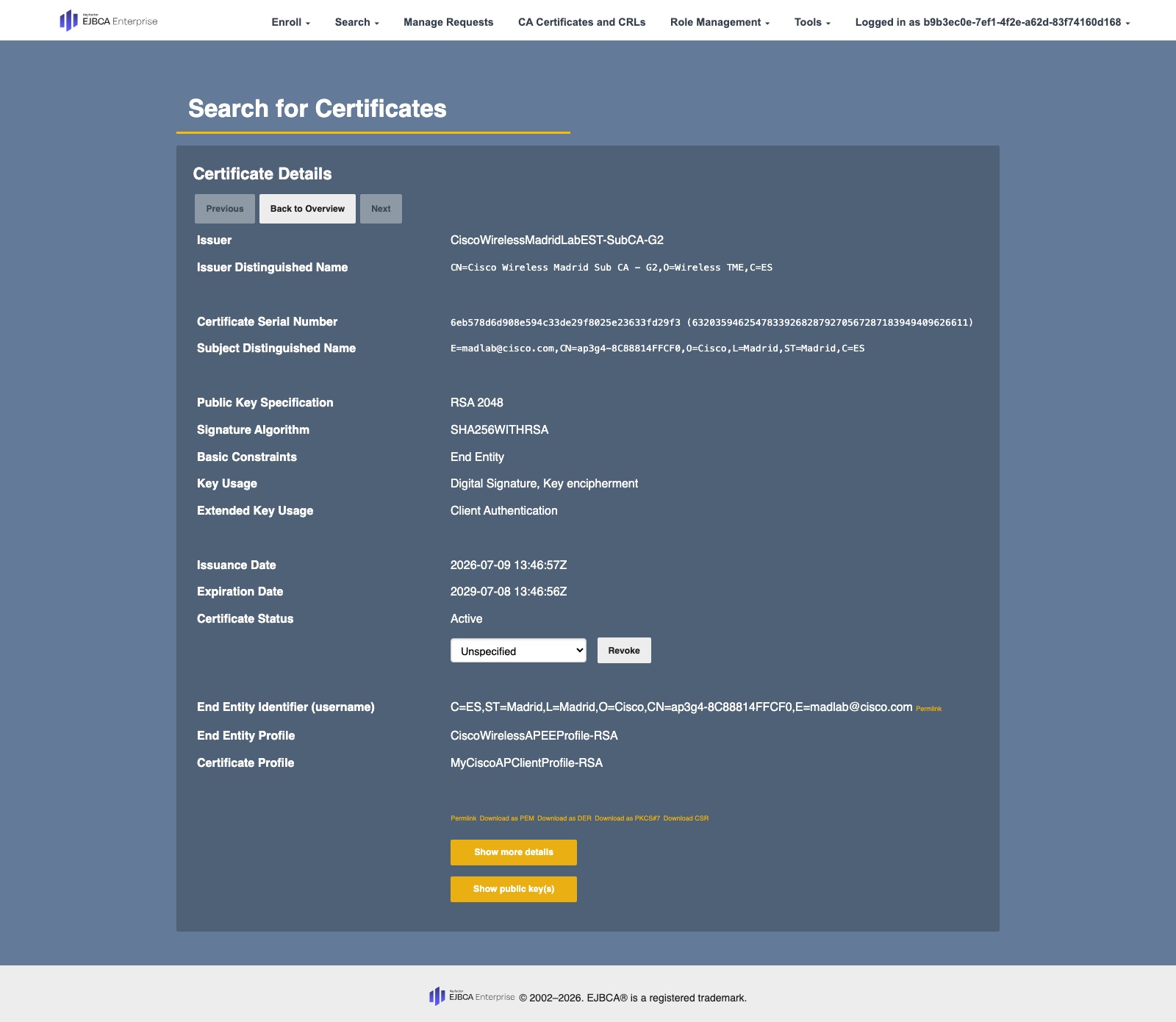
Step 12. You can also verify the status from the WLC itself:
9800#show ap lsc-provision summary
AP LSC-provisioning : Enabled for provision-list APs
Trustpoint used for LSC-provisioning : est-cert-autorenewal
Certificate chain status : Available
Number of certs on chain : 3
Certificate hash : 0f2cc057f298878255843d4d9e3a2077abda0fb6
Maximum join attempts before LSC revert : 3
AP LSC Parameters :
Country : ES
State : Madrid
City : Madrid
Orgn : Cisco
Dept : labwirelessmadrid.cisco.com
Email : madlab@cisco.com
Key Size : 2048
EC Key Size : 384 bit
AP LSC-provision List :
Total number of APs in provision list: 3
Mac Addresses :
--------------
8c88.814f.fcf0
9800#show ap lsc-provision info
Number of AP LSCs: 1
AP Name Ethernet MAC Radio MAC LSC authentication LSC workflow Certificate expiry Last renew attempt Last renew failure
----------------------------------------------------------------------------------------------------------------------------------------------------------------------------------
AP8C88.814F.FCF0 8c88.814f.fcf0 f0d8.056a.15c0 Port-802.1x WLC proxy enroll 07/08/2029 13:46:56 N/A -
Step 13. The AP has the LSC certificate installed, now you can enable 802.1X using EAP-TLS in the AP Join Profile. Configure the AP Join Profile the following way:
9800(config)#ap profile dot1x-tls-ap-profile
9800(config-ap-profile)#dot1x eap-type eap-tls
9800(config-ap-profile)#dot1x lsc-ap-auth-state dot1x-port-auth
9800(config-ap-profile)#dot1x username ap password 0 <your-password>
Note: Even though EAP-TLS doesn’t require a username, it is necessary to configure it for it to work.
The AP will now start trying to negotiate 802.1X against the switch.
Step 14. To finish the configuration, we can optionally change the enrollment profile to use the recently EST-issued WLC certificate instead of the manual certificate. This means that we will be authenticating against the EST server using the certificate that was just issued to the WLC instead of the manual one.
9800(config)#crypto pki profile enrollment est-profile-cert
9800(ca-profile-enroll)#enrollment credential est-cert-autorenewal
Step 15. You might optionally delete the manual certificate and its keys since they are not needed anymore.
9800(config)#no crypto pki trustpoint est_rsa_mTLS
9800(config)# crypto key zeroize rsa my-4096rsa-key
The following table covers the most common issues you might encounter while trying to set this up. After the table you can find some logs for the symptoms.
Table 1. Common EST and LSC issues
| Symptom |
Debugs Required |
Likely Cause |
Resolution |
| EST doesn’t answer |
Yes, see WLC Debug Commands Sample logs Sample of EST Not Answering |
EJBCA appliance is not configured to trust the chain for the cert used by WLC |
Configure the EJBCA Appliance via webconf to trust the appropriate CAs |
| EST alias not found (HTTP 400 Bad Request in /cacerts) |
Yes, see WLC Debug Commands Sample logs Sample of EST Alias not found |
Alias does not exist or the name does not match (remember the alias is case sensitive) |
Correct the alias name in both EJBCA and WLCcisco-wireless (all lowercase) in EJBCA and the WLC enrollment URL |
| CSR rejected (HTTP 400 Bad Request in WLC /simpleenroll) |
Yes, see WLC Debug Commands Sample logs Sample of CSR Rejected
To find the exact attribute see Enable EJBCA Debug Logging |
There is an attribute missing in the End Entity Profile |
Download the EJBCA logs and locate the missing attribute. Or compare the attributes you have configured in the WLC and the ones in EJBCA |
| EST authentication fails |
Client cert not trusted by EST role |
Configure EST role Members to allow the certificate used by the WLC |
|
| SUDI enrollment fails |
Manufacturing CA not trusted by appliance or EJBCA |
Import Cisco Manufacturing CA into EJBCA CAs and the appliance configuration as trusted CA store. Also modify the EST Members to allow it. |
|
| LSC provision fails after EST succeeds |
|
If using the SUDI method, remember that you need to also trust EST Root/Sub CA in appliance trust store |
Upload Root CA and Sub CA under appliance Access > Trusted CA |
If you need to understand what’s happening in the EJBCA appliance to debug, here are the steps:
Step 1. Access the appliance configuration (https://<ejbca-hostname>/webconf/), go to Settings tab and section Additional Application Settings. Change the Application Log Level to DEBUG and save.
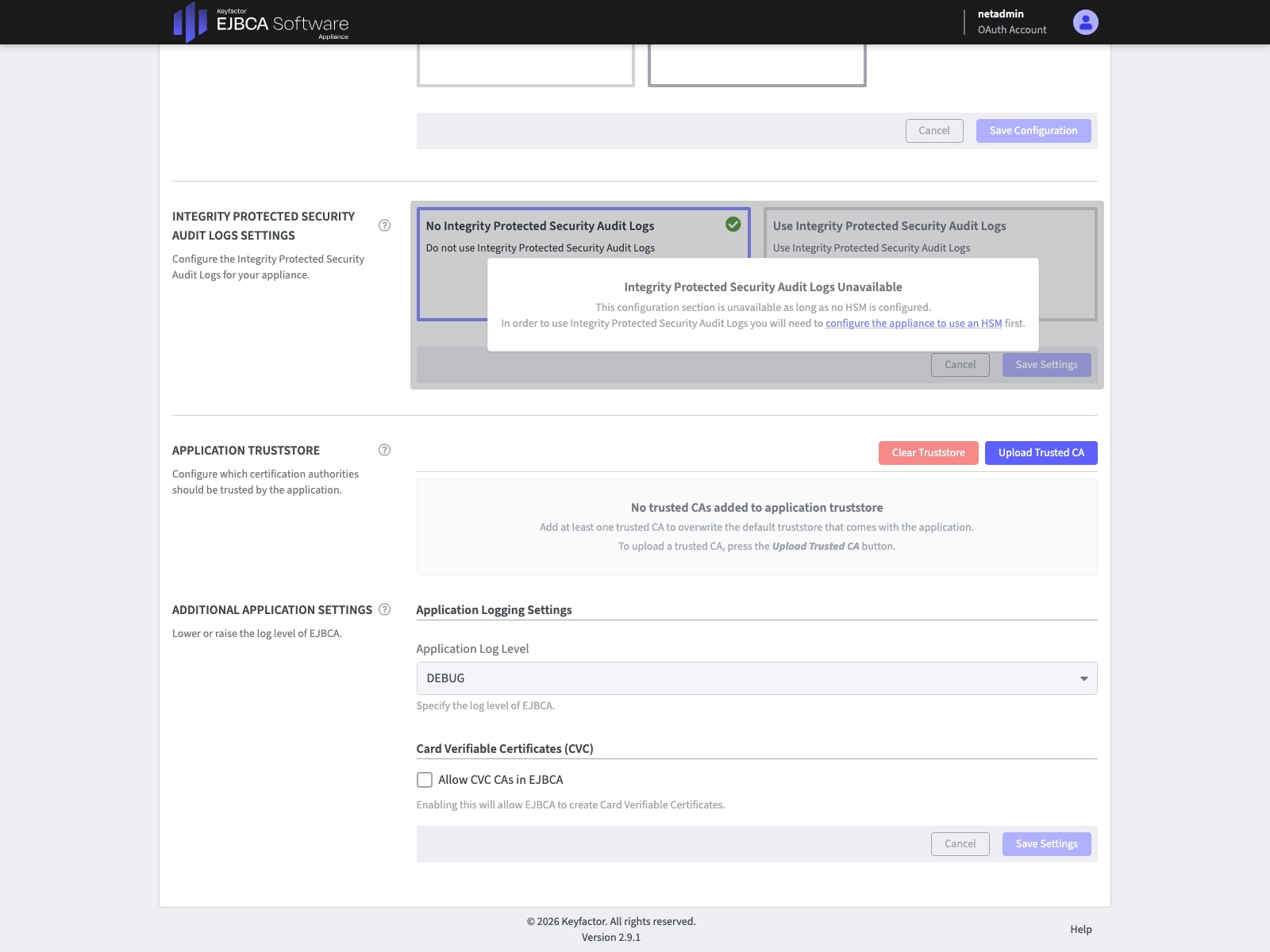
Step 2. Reproduce the failure, then in the appliance configuration (https://<ejbca-hostname>/webconf/), go to Settings tab and section Support Packages. Click on Create Support Package, wait and download it.
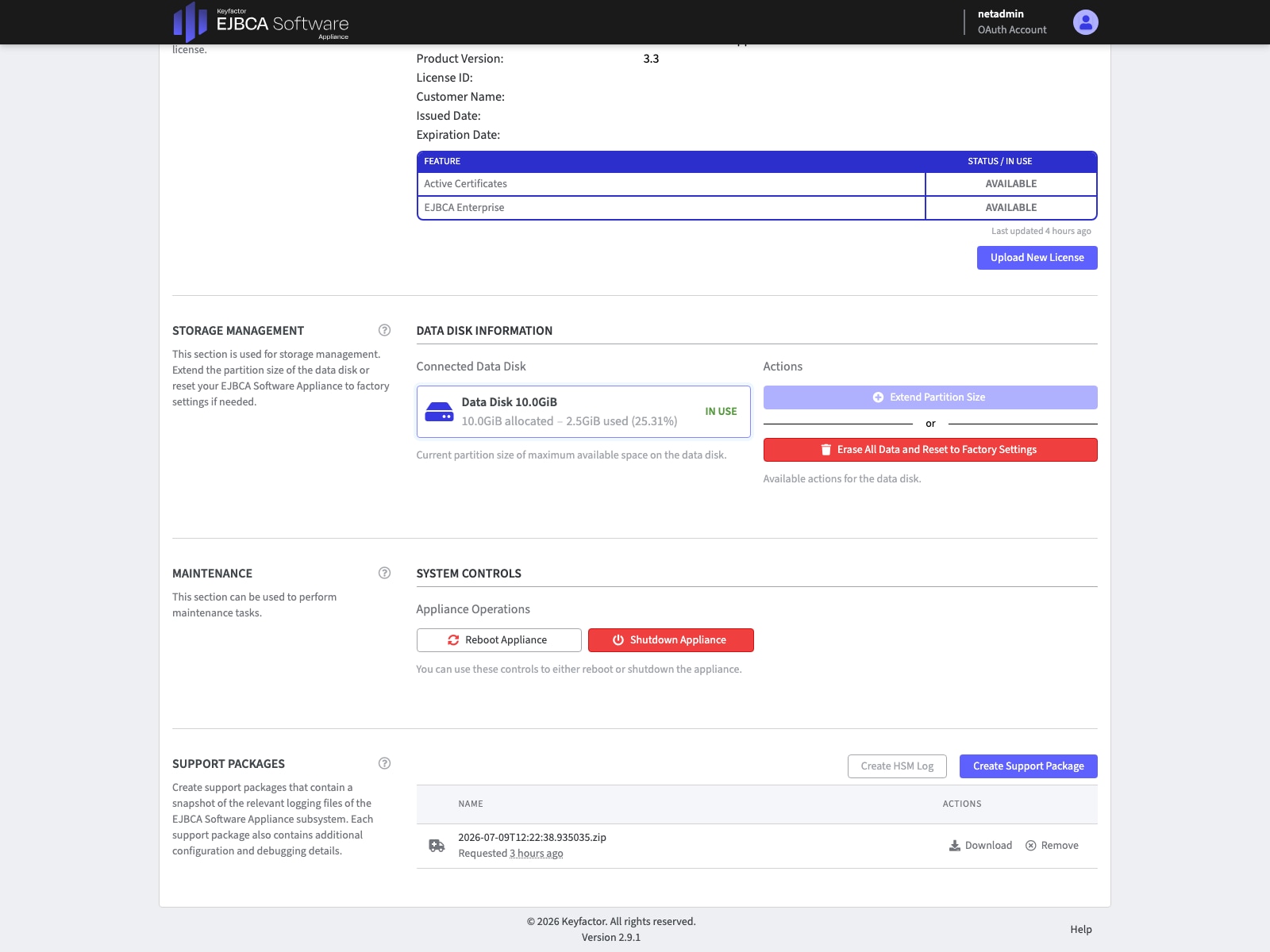
Step 3. Unzip it and open folder syslog, open the file named syslog.log. To find the relevant information in the logs a best practice is to search by IP address of the WLC or any known attribute of the CSR.
9800#debug crypto pki transactions
9800#debug crypto pki verbose
9800#debug wireless ap auth
9800#show logging
9800(config)#ap lsc-provision trustpoint est-cert-autorenewal
To provision all APs at once
9800(config)#ap lsc-provision
To provision some APs
9800(config)#ap lsc-provision mac-address aa11.bb22.cc33
9800(config)#ap lsc-provision provision-list
To force an AP to renew its certificate
9800#ap name <AP-Name> lsc renew
9800#show crypto pki certificate verbose est-cert-autorenewal
9800#show ap profile name <profile-name> detailed
9800#show wireless management trustpoint
9800#show ap lsc-provision summary
9800#show ap lsc-provision info
9800#show ap name <AP-Name> config general | be Certificate
AP#show ap authentication status
AP#show crypto | be LSC
AP#show capwap cli config | in lsc
AP#show dtls connection
Useful links:
● Cisco Wireless EST On-Prem Deployment Guide: https://www.cisco.com/c/en/us/td/docs/wireless/controller/9800/technical-reference/est-on-prem-dg.html
● Cisco Catalyst 9800 Series Wireless Controller Software Configuration Guide, Chapter Locally significant certificates: https://www.cisco.com/c/en/us/td/docs/wireless/controller/9800/17-18/config-guide/b_wl_17_18_cg/m_locally_significant_certificates.html
● Understand Certificate and Trustpoint Types on the 9800 WLC: https://www.cisco.com/c/en/us/support/docs/wireless/catalyst-9800-series-wireless-controllers/221047-understand-certificate-and-trustpoint-ty.html
● Generate and Download CSR Certificates on Catalyst 9800 WLCs: https://www.cisco.com/c/en/us/support/docs/wireless/catalyst-9800-series-wireless-controllers/213917-generate-csr-for-third-party-certificate.html
● Configure 802.1X on APs for PEAP or EAP-TLS with LSC: https://www.cisco.com/c/en/us/support/docs/wireless/catalyst-9100-access-points/221127-configure-locally-significant-certificat.html
● Security and VPN Configuration Guide, Cisco IOS XE 17.x: https://www.cisco.com/c/en/us/td/docs/routers/ios/config/17-x/sec-vpn/b-security-vpn/m_sec-est-client-supp-pki.html
Configure with Username and Password Only
If you want to configure EST authentication based on just username and password, there’s a few things you need to configure. This is also explained in more detail in the EST Deployment Guide section Configuration Using Username and Password.
This section only contains the differences compared to the main flow described in the Configure chapter.
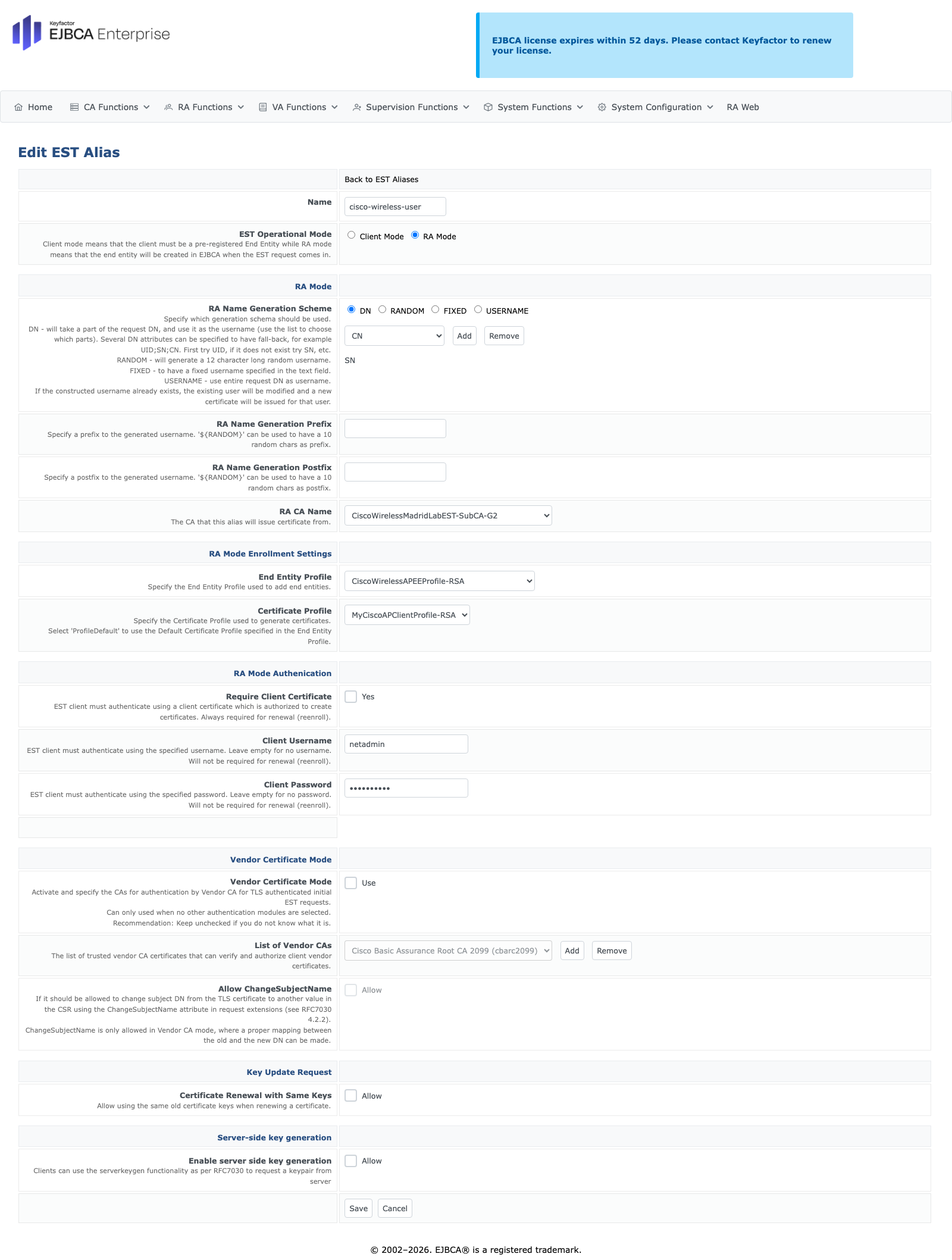
Step 1. Create a new EST alias that will be used by the WLC to request certificates. In System Configuration > EST Configuration, create a new alias. Configure it with the following parameters:
· Set the Name as cisco-wireless-user (all lowercase!)
· Under RA Mode for RA Name Generation Scheme, select Username (or your desired generation scheme)
· Under RA Mode for RA CA Name, select from the dropdown CiscoWirelessMadridLabEST-SubCA-G2
· Under RA Mode Enrollment Settings for End Entity Profile, select from the dropdown CiscoWirelessAPEEProfile-RSA
· Under RA Mode Enrollment Settings for Certificate Profile, select from the dropdown MyCiscoAPClientProfile-RSA
· Under RA Mode Authenication for Require Client Certificate, select No
· Under RA Mode Authenication set Client Username and Client Password to your desired values
Step 2. Now, there are a few tweaks needed in the WLC configuration. Create a dummy trustpoint, without it, the WLC will use any of its certificates to authenticate against the EST server and will fail. The dummy trustpoint tells the WLC to use an empty certificate:
9800(config)#crypto pki trustpoint dummy-empty
Step 3. Now let’s create the enrollment profile using the username and password.
9800(config)#crypto pki profile enrollment est-profile-username
9800(ca-profile-enroll)#method-est
9800(ca-profile-enroll)#enrollment http username <username> password 0 <password>
9800(ca-profile-enroll)#enrollment credential dummy-empty
9800(ca-profile-enroll)#enrollment url https://10.50.0.149:443/.well-known/est/cisco-wireless
9800(ca-profile-enroll)#reenrollment url https://10.50.0.149:443/.well-known/est/cisco-wireless
Step 4. Now you can proceed with the trustpoint and LSC configuration as shown earlier in this guide. Optionally, once the WLC EST trustpoint is enrolled, you can modify the enrollment profile to stop using username and password and switch to mTLS, don’t forget to change the EST alias as well.
Configure with SUDI Certificate
This alternative method can simplify the deployment for physical appliances (the only ones that have SUDI certificates). By using the SUDI certificate for the EST authentication, we avoid having to manually provision a certificate in the WLC. This is also explained in more detail in the EST Deployment Guide section Configuration Using SUDI Certificate.
We are going to use the SUDI certificate named CISCO_IDEVID_CMCA3_SUDI, which is signed by the Sub CA Cisco Manufacturing CA III (cmca3) which is signed by Cisco Basic Assurance Root CA 2099 (cbarc2099). The certificates for those can be downloaded from https://www.cisco.com/security/pki/.
Let’s look at the configuration, starting with the EJBCA steps followed by the WLC. This section only contains the differences compared to the main flow described in the Configure chapter.
Step 1. The EJBCA application needs to be aware of the SUDI Sub CA at least, for that we need to import it. Navigate to CA Functions > Certificate Authorities and click on Import CA certificate…, select the Cisco Manufacturing CA III file you downloaded.
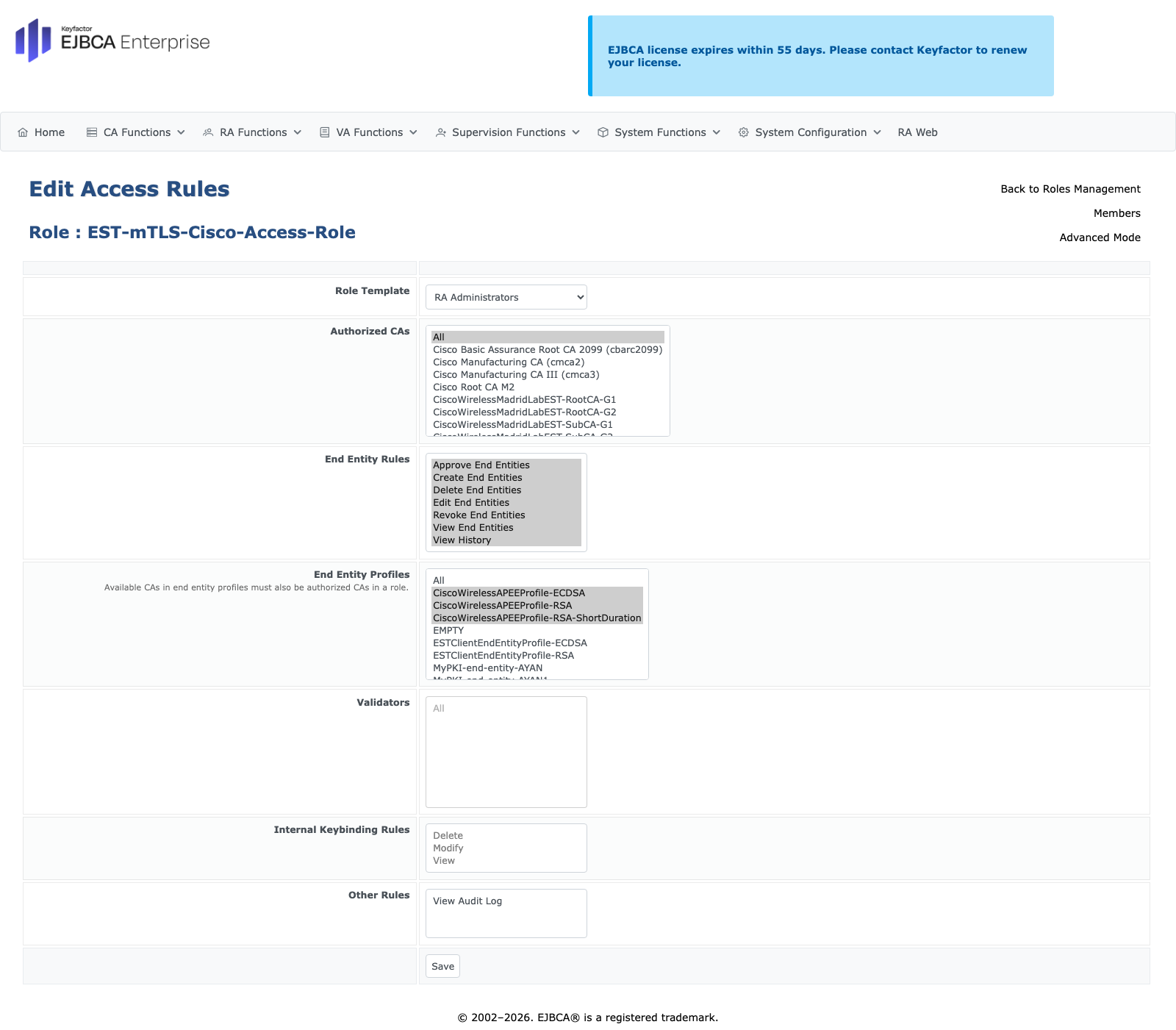
Step 2. We need to change the Role to allow requests coming from clients using SUDI certificates. You can modify an existing role or create a new one. As an example, let’s modify the EST mTLS role, this role will be used to authenticate requests coming in from both SUDI and your CA. Navigate to System Functions > Roles and Access Rules. Modify (or create) a new role with the Role Name as EST-mTLS-Cisco-Access-Role.
Step 3. Once the role is created, in the EST-mTLS-Cisco-Access-Role row, under the column Details click on Access Rules, configure it with the following parameters:
· Under Role Template, select from the dropdown RA Administrators
· Under Authorized CAs select All
· Under End Entity Profiles select CiscoWirelessAPEEProfile-RSA
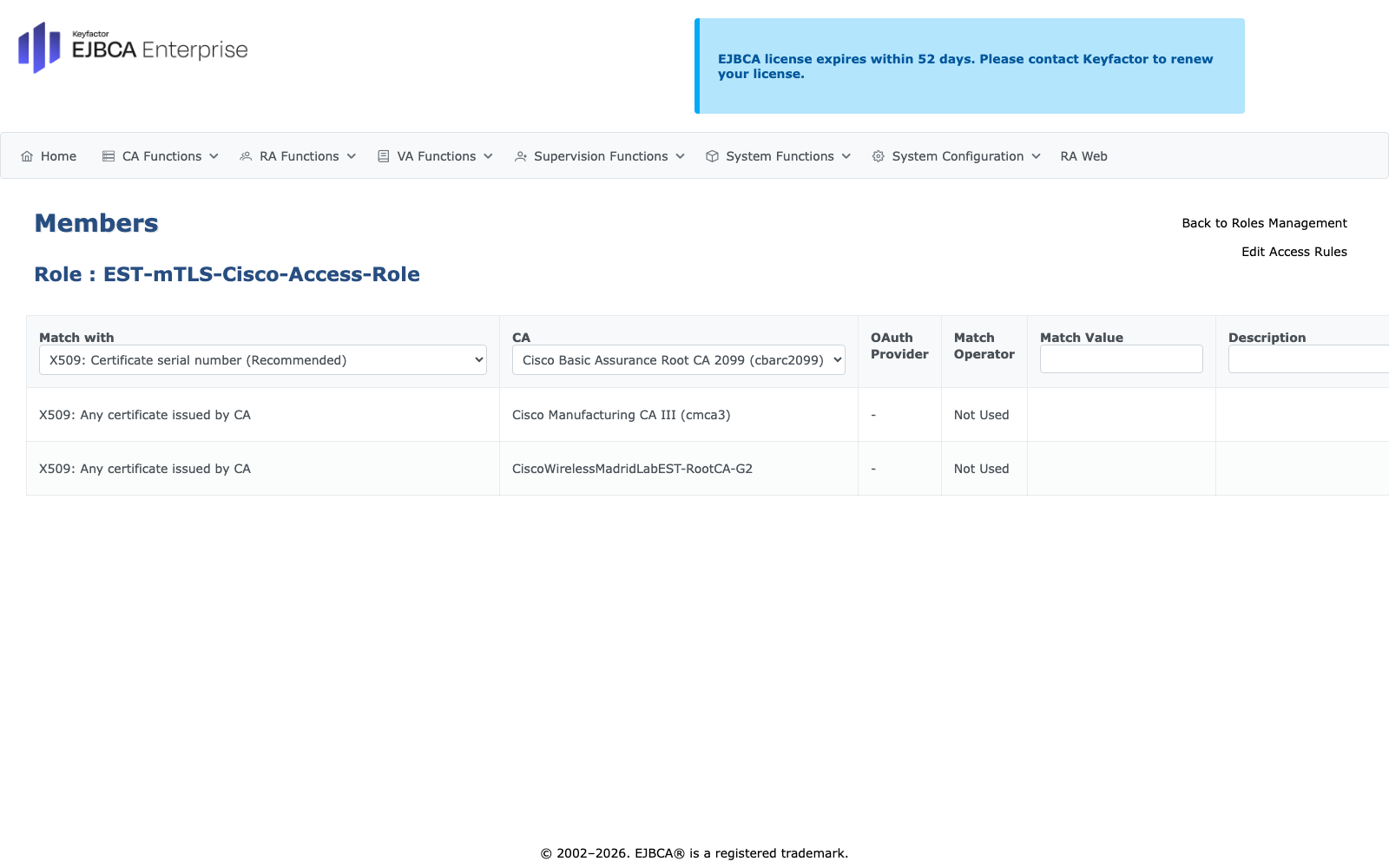
Step 4. We need to add both the EST CAs (just in case we switch to them later) and the SUDI CAs. In the EST-mTLS-Cisco-Access-Role row, under the column Details click on Members, add a new rule with following parameters (the following security settings make things easier for a lab setup, consult with your security expert for a production scenario).
· Under Match with, select from the dropdown X509: Any certificate issued by CA
· Under CA, select from the dropdown CiscoWirelessMadridLabEST-RootCA-G2
· Under Action, click on Add
· Under Match with, select from the dropdown X509: Any certificate issued by CA
· Under CA, select from the dropdown Cisco Manufacturing CA III (cmca3)
· Under Action, click on Add
Note: Cisco Manufacturing CA III is the Sub CA that signs the SUDI certificate in the WLC. It is not required to add the Root CA that signs it, Cisco Basic Assurance Root CA 2099.
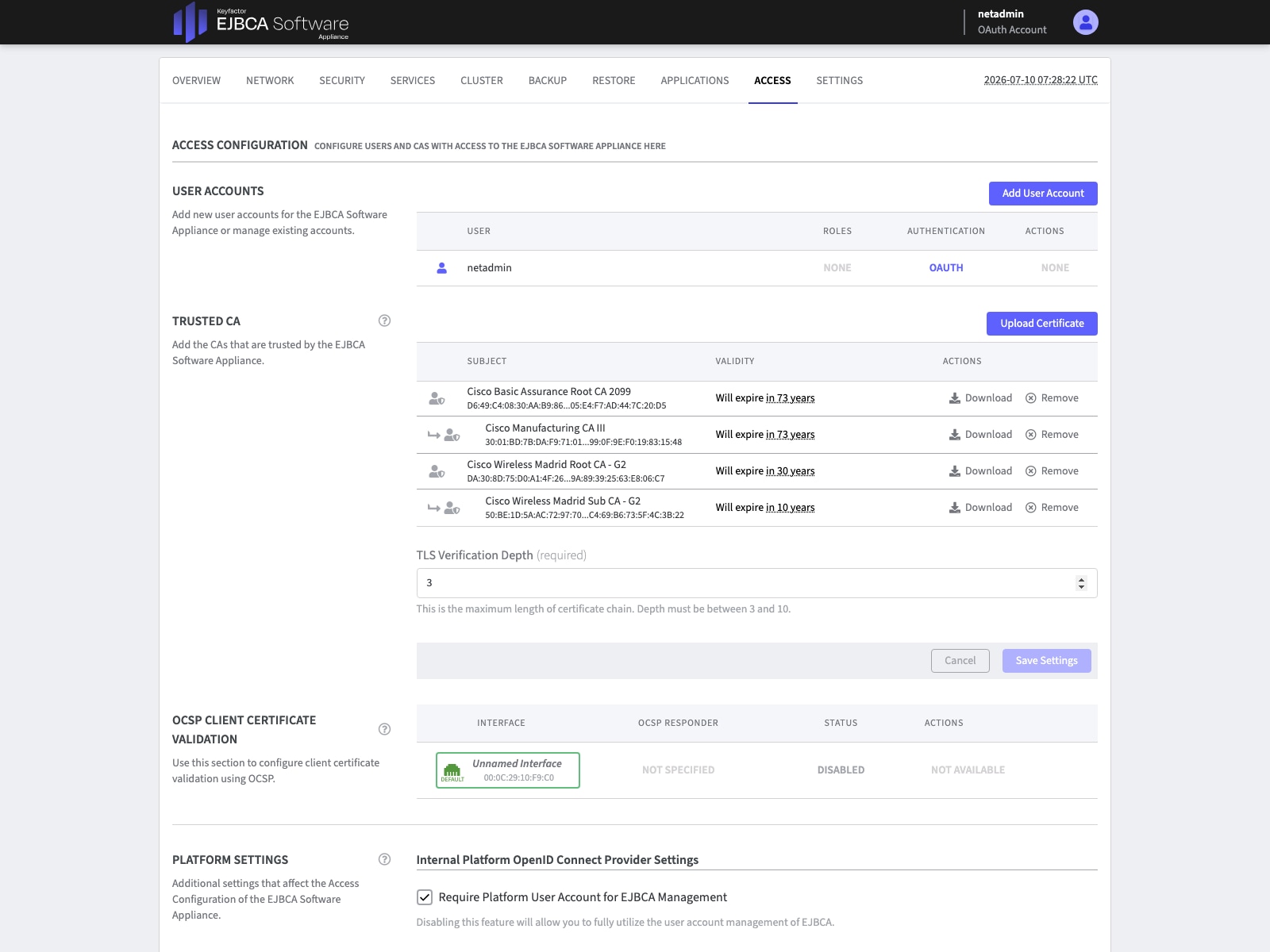
Step 5. Now, we need to configure the appliance, so it allows requests coming from the WLC using the SUDI certificate. In the appliance configuration (https://<ejbca-hostname>/webconf/), go to Access tab and in the Trusted CA section upload the Cisco Basic Assurance Root CA 2099 and Cisco Manufacturing CA III.
Step 6. With the previous steps all the necessary configurations in EJBCA are finished. Now it is time to configure the WLC, let’s create the enrollment profile using the SUDI cert.
9800(config)#crypto pki profile enrollment est-profile-cert
9800(ca-profile-enroll)#method-est
9800(ca-profile-enroll)#enrollment credential CISCO_IDEVID_CMCA3_SUDI
9800(ca-profile-enroll)#enrollment url https://10.50.0.149:443/.well-known/est/cisco-wireless
9800(ca-profile-enroll)#reenrollment url https://10.50.0.149:443/.well-known/est/cisco-wireless
Step 7. Now you can proceed with the trustpoint and LSC configuration as shown earlier in this guide. Optionally, once the WLC EST trustpoint is enrolled, you can modify the enrollment profile to stop using SUDI and switch to the EST-created trustpoint.
Sample of EST not answering from (status code: 0) WLC
LabW-9800L3(ca-trustpoint)#crypto pki authenticate est-cert-autorenewal
LabW-9800L3(config)#est-cert-autorenewal:Enrollment: EST
Jul 10 08:09:15.056: CRYPTO_PKI: (A0044) Session started - identity selected (est-cert-autorenewal)est-cert-autorenewal:refcount after increment = 1
Jul 10 08:09:15.056: CRYPTO_PKI: Begin trustpoint info get.
Jul 10 08:09:15.056: CRYPTO_PKI: setting CISCO_IDEVID_CMCA3_SUDI to Trustpoint credential
Jul 10 08:09:15.056: CRYPTO_PKI: resetting enrollment vrf to NULL
Jul 10 08:09:15.056: CRYPTO_PKI: resetting profile source interface to NULL
Jul 10 08:09:15.056: CRYPTO_PKI: Successfully got trustpoint info.est-cert-autorenewal:EST authentication pending.
Jul 10 08:09:15.056: EST_CLIENT: Process queue event:EST CLIENT queue event.est-cert-autorenewal:Processing EST retrieve CA certs.
Jul 10 08:09:15.056: EST Process retrieve CA certs
Jul 10 08:09:15.057: EST_CLIENT: URL formed is https://10.50.0.149:443/.well-known/est/cw-rsa-sudi/cacerts
Jul 10 08:09:15.057: EST_CLIENT: Send http request:EST sending http request.:EST URL:https://10.50.0.149:443/.well-known/est/cw-rsa-sudi/cacerts.
Jul 10 08:09:15.057: EST_CLIENT: transaction 6 addedest-cert-autorenewal:Transaction added successfully.
Jul 10 08:09:15.058: CRYPTO_PKI: (90045) Session started - identity selected (CISCO_IDEVID_CMCA3_SUDI)CISCO_IDEVID_CMCA3_SUDI:refcount after increment = 1
Jul 10 08:09:15.058: CRYPTO_PKI: Begin local cert chain retrieval.
Jul 10 08:09:15.059: CRYPTO_PKI: Done with local cert chain fetch 0.
Jul 10 08:09:15.059: CRYPTO_PKI: Rcvd request to end PKI session 90045.
Jul 10 08:09:15.059: CRYPTO_PKI: PKI session 90045 has ended. Freeing all resources.CISCO_IDEVID_CMCA3_SUDI:unlocked trustpoint CISCO_IDEVID_CMCA3_SUDI, refcount is 0
Jul 10 08:09:15.059: CRYPTO_PKI: PKI session 90000 has ended. Freeing all resources completed
Jul 10 08:09:15.095: CRYPTO_PKI: (90046) Session started - identity not specified
Jul 10 08:09:15.095: CRYPTO_PKI: (90046) Adding peer certificate
Jul 10 08:09:15.096: CRYPTO_PKI: Added x509 peer certificate - (1436) bytes
Jul 10 08:09:15.096: CRYPTO_PKI: (90046) Adding peer certificate
Jul 10 08:09:15.096: CRYPTO_PKI: Added x509 peer certificate - (1430) bytes
Jul 10 08:09:15.096: CRYPTO_PKI: (90046) Adding peer certificate
Jul 10 08:09:15.096: CRYPTO_PKI: Added x509 peer certificate - (1400) bytes
Jul 10 08:09:15.096: CRYPTO_PKI: ip-ext-val: IP extension validation not required:Incrementing refcount for context id-6 to 1
Jul 10 08:09:15.096: CRYPTO_PKI: create new ca_req_context type PKI_VERIFY_CHAIN_CONTEXT,ident 6
Jul 10 08:09:15.096: CRYPTO_PKI: (90046)validation path has 2 certs
Jul 10 08:09:15.096: CRYPTO_PKI: (90046) Check for identical certs
Jul 10 08:09:15.096: CRYPTO_PKI : (90046) Validating non-trusted cert
Jul 10 08:09:15.096: CRYPTO_PKI: (90046) Create a list of suitable trustpoints
Jul 10 08:09:15.096: CRYPTO_PKI: Found a issuer match
Jul 10 08:09:15.096: CRYPTO_PKI: (90046) Suitable trustpoints are: est_RootCA,
Jul 10 08:09:15.096: CRYPTO_PKI: (90046) Attempting to validate certificate using est_RootCA policy
Jul 10 08:09:15.096: CRYPTO_PKI: (90046) Using est_RootCA to validate certificate
Jul 10 08:09:15.097: CRYPTO_PKI: Added 1 certs to trusted chain.
Jul 10 08:09:15.097: CRYPTO_PKI: Prepare session revocation service providers
Jul 10 08:09:15.097: CRYPTO_PKI: check if signed by sudi : issuer name of cert: cn=Cisco Wireless Madrid Root CA - G2,o=Wireless TME,c=ES
Jul 10 08:09:15.097: CRYPTO_PKI: Deleting cached key having key id 15
Jul 10 08:09:15.097: CRYPTO_PKI: Attempting to insert the peer's public key into cache
Jul 10 08:09:15.097: CRYPTO_PKI:Peer's public inserted successfully with key id 16
Jul 10 08:09:15.098: CRYPTO_PKI: Expiring peer's cached key with key id 16
Jul 10 08:09:15.098: CRYPTO_PKI: (90046) Certificate is verified
Jul 10 08:09:15.098: CRYPTO_PKI: Remove session revocation service providers
Jul 10 08:09:15.098: CRYPTO_PKI: Remove session revocation service providersest_RootCA:validation status - CRYPTO_VALID_CERT_WITH_WARNING
Jul 10 08:09:15.098: CRYPTO_PKI: (90046) Certificate validated without revocation check
Jul 10 08:09:15.099: CRYPTO_PKI: (90046) Check for identical certs
Jul 10 08:09:15.099: CRYPTO_PKI : (90046) Validating non-trusted cert
Jul 10 08:09:15.099: CRYPTO_PKI: (90046) Attempting to validate certificate using est_RootCA policy
Jul 10 08:09:15.099: CRYPTO_PKI: (90046) Using est_RootCA to validate certificate
Jul 10 08:09:15.099: CRYPTO_PKI: Prepare session revocation service providers
Jul 10 08:09:15.099: ../VIEW_ROOT/cisco.comp/pki_ssl/src/ca/provider/path/pkix/pkixpath.c(5787) : E_PATH_PROVIDER : path provider specific warning (BasicConstraints extension found in end entity cert)
Jul 10 08:09:15.099: CRYPTO_PKI: Deleting cached key having key id 16
Jul 10 08:09:15.099: CRYPTO_PKI: Attempting to insert the peer's public key into cache
Jul 10 08:09:15.099: CRYPTO_PKI:Peer's public inserted successfully with key id 17
Jul 10 08:09:15.100: CRYPTO_PKI: Expiring peer's cached key with key id 17
Jul 10 08:09:15.100: CRYPTO_PKI: (90046) Certificate is verified
Jul 10 08:09:15.100: CRYPTO_PKI: Remove session revocation service providers
Jul 10 08:09:15.100: CRYPTO_PKI: Remove session revocation service providersest_RootCA:validation status - CRYPTO_VALID_CERT_WITH_WARNING
Jul 10 08:09:15.100: CRYPTO_PKI: (90046) Certificate validated without revocation check:cert refcount after increment = 1
Jul 10 08:09:15.101: CRYPTO_PKI: Populate AAA auth data
Jul 10 08:09:15.101: CRYPTO_PKI: Unable to get configured attribute for primary AAA list authorization.
Jul 10 08:09:15.101: CRYPTO_PKI: (90046)chain cert was anchored to trustpoint est_RootCA, and chain validation result was: CRYPTO_VALID_CERT_WITH_WARNING
Jul 10 08:09:15.101: CRYPTO_PKI: (90046) Removing verify context
Jul 10 08:09:15.101: CRYPTO_PKI: destroying ca_req_context type PKI_VERIFY_CHAIN_CONTEXT,ident 6, ref count 1:Decrementing refcount for context id-6 to 0
Jul 10 08:09:15.101: CRYPTO_PKI: ca_req_context released
Jul 10 08:09:15.101: CRYPTO_PKI: (90046) Validation TP is est_RootCA
Jul 10 08:09:15.101: CRYPTO_PKI: (90046) Certificate validation succeeded
Jul 10 08:09:15.101: CRYPTO_PKI: Rcvd request to end PKI session 90046.
Jul 10 08:09:15.101: CRYPTO_PKI: PKI session 90046 has ended. Freeing all resources.:cert refcount after decrement = 0
Jul 10 08:09:15.101: CRYPTO_PKI: PKI session 90000 has ended. Freeing all resources completed
LabW-9800L3(config)#
Jul 10 08:09:15.101: CRYPTO_PKI: Deleting cached key having key id 4
Jul 10 08:09:15.101: CRYPTO_PKI: Attempting to insert the peer's public key into cache
Jul 10 08:09:15.101: CRYPTO_PKI:Peer's public inserted successfully with key id 5
Jul 10 08:09:15.118: EST_CLIENT: have http response 381 tid
Jul 10 08:09:15.118: status_code : 0
Jul 10 08:09:15.118: status_string :
Jul 10 08:09:15.118: content_type :
Jul 10 08:09:15.118: content_encoding :
Jul 10 08:09:15.118: content_length : 4294967295
Jul 10 08:09:15.118: Location :
Jul 10 08:09:15.118: Server :
:EST http response for tid 381 : :Transaction found by id. 381.
Jul 10 08:09:15.119: EST_CLIENT: HTTP response callback command: 4
Jul 10 08:09:15.119: CRYPTO_PKI: Expiring peer's cached key with key id 5
Jul 10 08:09:15.119: EST_CLIENT: Process queue event:EST CLIENT queue event.:Processing EST process CA certs response.
Jul 10 08:09:15.119: CRYPTO_PKI: Rcvd request to end PKI session A0044.
Jul 10 08:09:15.119: CRYPTO_PKI: PKI session A0044 has ended. Freeing all resources.est-cert-autorenewal:unlocked trustpoint est-cert-autorenewal, refcount is 0
Jul 10 08:09:15.119: CRYPTO_PKI: PKI session A0000 has ended. Freeing all resources completed
Jul 10 08:09:15.119: EST_CLIENT: transaction 6 removedest-cert-autorenewal:Transaction removed successfully.est-cert-autorenewal:Transaction destroyed successfully.
LabW-9800L3(config)#
Sample of EST alias not found (HTTP 400 Bad Request in /cacerts) from WLC
LabW-9800CL4(ca-trustpoint)#crypto pki authenticate est-cert-autorenewal
Jul 9 11:29:02.203: CRYPTO_PKI: Adding LabW-9800CL4.cisco.com to subject-alt-name field
Jul 9 11:29:02.219: CRYPTO_PKI: CA cert not found in crl cache clear
LabW-9800CL4(ca-trustpoint)#crypto pki authenticate est-cert-autorenewal
LabW-9800CL4(config)#est-cert-autorenewal:Enrollment: EST
Jul 9 11:29:05.873: CRYPTO_PKI: (A142C) Session started - identity selected (est-cert-autorenewal)est-cert-autorenewal:refcount after increment = 1
Jul 9 11:29:05.873: CRYPTO_PKI: Begin trustpoint info get.
Jul 9 11:29:05.873: CRYPTO_PKI: setting est_rsa_mTLS to Trustpoint credential
Jul 9 11:29:05.873: CRYPTO_PKI: resetting enrollment vrf to NULL
Jul 9 11:29:05.873: CRYPTO_PKI: resetting profile source interface to NULL
Jul 9 11:29:05.873: CRYPTO_PKI: Successfully got trustpoint info.est-cert-autorenewal:EST authentication pending.
Jul 9 11:29:05.873: EST_CLIENT: Process queue event:EST CLIENT queue event.est-cert-autorenewal:Processing EST retrieve CA certs.
Jul 9 11:29:05.874: EST Process retrieve CA certs
Jul 9 11:29:05.874: EST_CLIENT: URL formed is https://10.50.0.149:443/.well-known/est/cisco-wireless/cacerts
Jul 9 11:29:05.874: EST_CLIENT: Send http request:EST sending http request.:EST URL:https://10.50.0.149:443/.well-known/est/cisco-wireless/cacerts.
Jul 9 11:29:05.874: EST_CLIENT: transaction 8 addedest-cert-autorenewal:Transaction added successfully.
Jul 9 11:29:05.878: CRYPTO_PKI: (9142D) Session started - identity selected (est_rsa_mTLS)est_rsa_mTLS:refcount after increment = 1
Jul 9 11:29:05.878: CRYPTO_PKI: Begin local cert chain retrieval.
Jul 9 11:29:05.881: CRYPTO_PKI: Done with local cert chain fetch 0.
Jul 9 11:29:05.883: CRYPTO_PKI: Rcvd request to end PKI session 9142D.
Jul 9 11:29:05.883: CRYPTO_PKI: PKI session 9142D has ended. Freeing all resources.est_rsa_mTLS:unlocked trustpoint est_rsa_mTLS, refcount is 0
Jul 9 11:29:05.883: CRYPTO_PKI: PKI session 90000 has ended. Freeing all resources completed
Jul 9 11:29:05.905: CRYPTO_PKI: (9142E) Session started - identity not specified
Jul 9 11:29:05.905: CRYPTO_PKI: (9142E) Adding peer certificate
Jul 9 11:29:05.906: CRYPTO_PKI: Added x509 peer certificate - (1436) bytes
Jul 9 11:29:05.906: CRYPTO_PKI: (9142E) Adding peer certificate
Jul 9 11:29:05.907: CRYPTO_PKI: Added x509 peer certificate - (1430) bytes
Jul 9 11:29:05.907: CRYPTO_PKI: (9142E) Adding peer certificate
Jul 9 11:29:05.907: CRYPTO_PKI: Added x509 peer certificate - (1400) bytes
Jul 9 11:29:05.907: CRYPTO_PKI: (9142E) num certs in peer list 3
Jul 9 11:29:05.908: CRYPTO_PKI: App did not specify any validation list. So, the trusted cert is validated successfully
Jul 9 11:29:05.908: CRYPTO_PKI: App did not specify any validation list. So, the trusted cert is validated successfully
Jul 9 11:29:05.908: CRYPTO_PKI: (9142E) num certs in sorted_chain 1
Jul 9 11:29:05.908: CRYPTO_CS_OPENSSL: get cert ip addr extension (rfc3779): cert has no ip addr extension (rfc3779)
Jul 9 11:29:05.908: CRYPTO_PKI: ip-ext-val: IP extension validation not required
Jul 9 11:29:05.908: CRYPTO_PKI: (9142E) Validation Options received from client:0x1
:Incrementing refcount for context id-116 to 1
Jul 9 11:29:05.908: CRYPTO_PKI: create new ca_req_context type PKI_VERIFY_CHAIN_CONTEXT,ident 116
Jul 9 11:29:05.908: CRYPTO_PKI: (9142E) index(0) sub(cn=LabW-EJBCA) issuer(cn=Cisco Wireless Madrid Sub CA - G2,o=Wireless TME,c=ES)
Jul 9 11:29:05.908: CRYPTO_PKI: Found issuer in trusted certificates
Jul 9 11:29:05.908: CRYPTO_PKI: (9142E) issuer found sub(cn=Cisco Wireless Madrid Sub CA - G2,o=Wireless TME,c=ES) issuer(cn=Cisco Wireless Madrid Root CA - G2,o=Wireless TME,c=ES)
Jul 9 11:29:05.908: CRYPTO_PKI: (9142E) Verify Certificate - current index:0 flags:0x0 options:0x1
Jul 9 11:29:05.908: CRYPTO_PKI: (9142E) Check for identical certs
Jul 9 11:29:05.908: CRYPTO_PKI: (9142E) Validating non-trusted cert index 0
Jul 9 11:29:05.908: CRYPTO_PKI: (9142E) Create a list of suitable trustpoints
Jul 9 11:29:05.908: CRYPTO_PKI: Found a issuer match
Jul 9 11:29:05.908: CRYPTO_PKI: (9142E) Suitable trustpoints are: est-rsa-usrn-lsc,est_rsa_mTLS,
Jul 9 11:29:05.908: CRYPTO_PKI: (9142E) Attempting to validate certificate using est-rsa-usrn-lsc policy
Jul 9 11:29:05.908: CRYPTO_PKI: (9142E) Using est-rsa-usrn-lsc to validate certificate
Jul 9 11:29:05.909: CRYPTO_PKI: Added 1 certs to trusted chain.
Jul 9 11:29:05.909: CRYPTO_PKI: (9142E) flags = 0x0
Jul 9 11:29:05.909: CRYPTO_PKI: (9142E) Setting first revoke option
Jul 9 11:29:05.909: CRYPTO_PKI: check if signed by sudi : issuer name of cert: cn=Cisco Wireless Madrid Sub CA - G2,o=Wireless TME,c=ES
Jul 9 11:29:05.909: CRYPTO_PKI: (9142E) Validate Certificate - current index:0 flags:0x0 options:0x1
Jul 9 11:29:05.909: CRYPTO_PKI: (9142E) Validate Certificate - default case: revoke option:3
Jul 9 11:29:05.909: CRYPTO_PKI: (9142E) Validate Certificate - Certificate added to store
Jul 9 11:29:05.909: CRYPTO_PKI: Deleting cached key having key id 154
Jul 9 11:29:05.909: CRYPTO_PKI: Attempting to insert the peer's public key into cache
Jul 9 11:29:05.909: CRYPTO_PKI:Peer's public inserted successfully with key id 155
Jul 9 11:29:05.910: CRYPTO_PKI: (9142E) Validate Certificate - Certificate verified successfully rc = 1024
Jul 9 11:29:05.910: CRYPTO_PKI: (9142E) Certificate verification status CRYPTO_VALID_CERT:cert refcount after increment = 1
Jul 9 11:29:05.910: CRYPTO_PKI: Populate AAA auth data
Jul 9 11:29:05.910: CRYPTO_PKI: Unable to get configured attribute for primary AAA list authorization.
Jul 9 11:29:05.910: CRYPTO_PKI: (9142E) Removing verify context
Jul 9 11:29:05.910: CRYPTO_PKI: Expiring peer's cached key with key id 155
Jul 9 11:29:05.910: CRYPTO_PKI: destroying ca_req_context type PKI_VERIFY_CHAIN_CONTEXT,ident 116, ref count 1:Decrementing refcount for context id-116 to 0
Jul 9 11:29:05.910: CRYPTO_PKI: ca_req_context released
Jul 9 11:29:05.910: CRYPTO_PKI: (9142E) Validation TP is est-rsa-usrn-lsc
Jul 9 11:29:05.910: CRYPTO_PKI: (9142E) Certificate validation succeeded
Jul 9 11:29:05.910: CRYPTO_PKI: Rcvd request to end PKI session 9142E.
Jul 9 11:29:05.910: CRYPTO_PKI: PKI session 9142E has ended. Freeing all resources.:cert refcount after decrement = 0
Jul 9 11:29:05.911: CRYPTO_PKI: PKI session 90000 has ended. Freeing all resources completed
Jul 9 11:29:05.911: CRYPTO_PKI: Deleting cached key having key id 155
Jul 9 11:29:05.911: CRYPTO_PKI: Attempting to insert the peer's public key into cache
Jul 9 11:29:05.911: CRYPTO_PKI:Peer's public inserted successfully with key id 156
Jul 9 11:29:06.050: EST_CLIENT: have http response 186 tid
Jul 9 11:29:06.050: status_code : 400
Jul 9 11:29:06.050: status_string : Bad Request
Jul 9 11:29:06.050: content_type : text/html;charset=UTF-8
Jul 9 11:29:06.050: content_encoding :
Jul 9 11:29:06.050: content_length : 98
Jul 9 11:29:06.050: Location :
Jul 9 11:29:06.050: Server : Apache
:EST http response for tid 186 : Bad Request:Transaction found by id. 186.
Jul 9 11:29:06.052: EST_CLIENT: HTTP response callback command: 4
Jul 9 11:29:06.053: CRYPTO_PKI: Expiring peer's cached key with key id 156
Jul 9 11:29:06.054: EST_CLIENT: Process queue event:EST CLIENT queue event.:Processing EST process CA certs response.
LabW-9800CL4(config)#
Jul 9 11:29:06.054: CRYPTO_PKI: Rcvd request to end PKI session A142C.
Jul 9 11:29:06.054: CRYPTO_PKI: PKI session A142C has ended. Freeing all resources.est-cert-autorenewal:unlocked trustpoint est-cert-autorenewal, refcount is 0
Jul 9 11:29:06.054: CRYPTO_PKI: PKI session A0000 has ended. Freeing all resources completed
Jul 9 11:29:06.054: EST_CLIENT: transaction 8 removedest-cert-autorenewal:Transaction removed successfully.est-cert-autorenewal:Transaction destroyed successfully.
Sample of CSR rejected (HTTP 400 Bad Request in WLC /simpleenroll) from WLC
LabW-9800CL4(ca-trustpoint)#crypto pki authenticate est-cert-autorenewal
Jul 9 12:22:19.578: CRYPTO_PKI: Creating trustpoint est-cert-autorenewal
Jul 9 12:22:19.578: CRYPTO_PKI: handle 1073741925 associated with trustpoint est-cert-autorenewal
Jul 9 12:22:19.578: %PKI-6-TRUSTPOINT_CREATE: Trustpoint: est-cert-autorenewal created successfully
LabW-9800CL4(ca-trustpoint)#crypto pki authenticate est-cert-autorenewal
Jul 9 12:22:19.744: CRYPTO_PKI: Adding LabW-9800CL4.cisco.com to subject-alt-name field
Jul 9 12:22:19.762: CRYPTO_PKI: CA cert not found in crl cache clear
LabW-9800CL4(ca-trustpoint)#crypto pki authenticate est-cert-autorenewal
LabW-9800CL4(config)#est-cert-autorenewal:Enrollment: EST
Jul 9 12:22:23.601: CRYPTO_PKI: (A1436) Session started - identity selected (est-cert-autorenewal)est-cert-autorenewal:refcount after increment = 1
Jul 9 12:22:23.601: CRYPTO_PKI: Begin trustpoint info get.
Jul 9 12:22:23.601: CRYPTO_PKI: setting est_rsa_mTLS to Trustpoint credential
Jul 9 12:22:23.601: CRYPTO_PKI: resetting enrollment vrf to NULL
Jul 9 12:22:23.601: CRYPTO_PKI: resetting profile source interface to NULL
Jul 9 12:22:23.601: CRYPTO_PKI: Successfully got trustpoint info.est-cert-autorenewal:EST authentication pending.
Jul 9 12:22:23.601: EST_CLIENT: Process queue event:EST CLIENT queue event.est-cert-autorenewal:Processing EST retrieve CA certs.
Jul 9 12:22:23.601: EST Process retrieve CA certs
Jul 9 12:22:23.601: EST_CLIENT: URL formed is https://10.50.0.149:443/.well-known/est/cw-rsa/cacerts
Jul 9 12:22:23.602: EST_CLIENT: Send http request:EST sending http request.:EST URL:https://10.50.0.149:443/.well-known/est/cw-rsa/cacerts.
Jul 9 12:22:23.602: EST_CLIENT: transaction 11 addedest-cert-autorenewal:Transaction added successfully.
Jul 9 12:22:23.605: CRYPTO_PKI: (91437) Session started - identity selected (est_rsa_mTLS)est_rsa_mTLS:refcount after increment = 1
Jul 9 12:22:23.606: CRYPTO_PKI: Begin local cert chain retrieval.
Jul 9 12:22:23.609: CRYPTO_PKI: Done with local cert chain fetch 0.
Jul 9 12:22:23.610: CRYPTO_PKI: Rcvd request to end PKI session 91437.
Jul 9 12:22:23.610: CRYPTO_PKI: PKI session 91437 has ended. Freeing all resources.est_rsa_mTLS:unlocked trustpoint est_rsa_mTLS, refcount is 0
Jul 9 12:22:23.610: CRYPTO_PKI: PKI session 90000 has ended. Freeing all resources completed
Jul 9 12:22:23.632: CRYPTO_PKI: (91438) Session started - identity not specified
Jul 9 12:22:23.632: CRYPTO_PKI: (91438) Adding peer certificate
Jul 9 12:22:23.633: CRYPTO_PKI: Added x509 peer certificate - (1436) bytes
Jul 9 12:22:23.633: CRYPTO_PKI: (91438) Adding peer certificate
Jul 9 12:22:23.633: CRYPTO_PKI: Added x509 peer certificate - (1430) bytes
Jul 9 12:22:23.633: CRYPTO_PKI: (91438) Adding peer certificate
Jul 9 12:22:23.634: CRYPTO_PKI: Added x509 peer certificate - (1400) bytes
Jul 9 12:22:23.634: CRYPTO_PKI: (91438) num certs in peer list 3
Jul 9 12:22:23.634: CRYPTO_PKI: App did not specify any validation list. So, the trusted cert is validated successfully
Jul 9 12:22:23.634: CRYPTO_PKI: App did not specify any validation list. So, the trusted cert is validated successfully
Jul 9 12:22:23.634: CRYPTO_PKI: (91438) num certs in sorted_chain 1
Jul 9 12:22:23.634: CRYPTO_CS_OPENSSL: get cert ip addr extension (rfc3779): cert has no ip addr extension (rfc3779)
Jul 9 12:22:23.634: CRYPTO_PKI: ip-ext-val: IP extension validation not required
Jul 9 12:22:23.634: CRYPTO_PKI: (91438) Validation Options received from client:0x1
:Incrementing refcount for context id-119 to 1
Jul 9 12:22:23.634: CRYPTO_PKI: create new ca_req_context type PKI_VERIFY_CHAIN_CONTEXT,ident 119
Jul 9 12:22:23.634: CRYPTO_PKI: (91438) index(0) sub(cn=LabW-EJBCA) issuer(cn=Cisco Wireless Madrid Sub CA - G2,o=Wireless TME,c=ES)
Jul 9 12:22:23.634: CRYPTO_PKI: Found issuer in trusted certificates
Jul 9 12:22:23.634: CRYPTO_PKI: (91438) issuer found sub(cn=Cisco Wireless Madrid Sub CA - G2,o=Wireless TME,c=ES) issuer(cn=Cisco Wireless Madrid Root CA - G2,o=Wireless TME,c=ES)
Jul 9 12:22:23.634: CRYPTO_PKI: (91438) Verify Certificate - current index:0 flags:0x0 options:0x1
Jul 9 12:22:23.634: CRYPTO_PKI: (91438) Check for identical certs
Jul 9 12:22:23.634: CRYPTO_PKI: (91438) Validating non-trusted cert index 0
Jul 9 12:22:23.634: CRYPTO_PKI: (91438) Create a list of suitable trustpoints
Jul 9 12:22:23.634: CRYPTO_PKI: Found a issuer match
Jul 9 12:22:23.634: CRYPTO_PKI: (91438) Suitable trustpoints are: est-rsa-usrn-lsc,est_rsa_mTLS,
Jul 9 12:22:23.634: CRYPTO_PKI: (91438) Attempting to validate certificate using est-rsa-usrn-lsc policy
Jul 9 12:22:23.634: CRYPTO_PKI: (91438) Using est-rsa-usrn-lsc to validate certificate
Jul 9 12:22:23.635: CRYPTO_PKI: Added 1 certs to trusted chain.
Jul 9 12:22:23.635: CRYPTO_PKI: (91438) flags = 0x0
Jul 9 12:22:23.635: CRYPTO_PKI: (91438) Setting first revoke option
Jul 9 12:22:23.636: CRYPTO_PKI: check if signed by sudi : issuer name of cert: cn=Cisco Wireless Madrid Sub CA - G2,o=Wireless TME,c=ES
Jul 9 12:22:23.636: CRYPTO_PKI: (91438) Validate Certificate - current index:0 flags:0x0 options:0x1
Jul 9 12:22:23.636: CRYPTO_PKI: (91438) Validate Certificate - default case: revoke option:3
Jul 9 12:22:23.636: CRYPTO_PKI: (91438) Validate Certificate - Certificate added to store
Jul 9 12:22:23.636: CRYPTO_PKI: Deleting cached key having key id 158
Jul 9 12:22:23.636: CRYPTO_PKI: Deleting cached key having key id 159
Jul 9 12:22:23.636: CRYPTO_PKI: Attempting to insert the peer's public key into cache
Jul 9 12:22:23.636: CRYPTO_PKI:Peer's public inserted successfully with key id 160
Jul 9 12:22:23.637: CRYPTO_PKI: (91438) Validate Certificate - Certificate verified successfully rc = 1024
Jul 9 12:22:23.637: CRYPTO_PKI: (91438) Certificate verification status CRYPTO_VALID_CERT:cert refcount after increment = 1
Jul 9 12:22:23.637: CRYPTO_PKI: Populate AAA auth data
Jul 9 12:22:23.637: CRYPTO_PKI: Unable to get configured attribute for primary AAA list authorization.
Jul 9 12:22:23.637: CRYPTO_PKI: (91438) Removing verify context
Jul 9 12:22:23.637: CRYPTO_PKI: Expiring peer's cached key with key id 160
Jul 9 12:22:23.637: CRYPTO_PKI: destroying ca_req_context type PKI_VERIFY_CHAIN_CONTEXT,ident 119, ref count 1:Decrementing refcount for context id-119 to 0
Jul 9 12:22:23.637: CRYPTO_PKI: ca_req_context released
Jul 9 12:22:23.637: CRYPTO_PKI: (91438) Validation TP is est-rsa-usrn-lsc
Jul 9 12:22:23.637: CRYPTO_PKI: (91438) Certificate validation succeeded
Jul 9 12:22:23.637: CRYPTO_PKI: Rcvd request to end PKI session 91438.
Jul 9 12:22:23.637: CRYPTO_PKI: PKI session 91438 has ended. Freeing all resources.:cert refcount after decrement = 0
Jul 9 12:22:23.637: CRYPTO_PKI: PKI session 90000 has ended. Freeing all resources completed
Jul 9 12:22:23.637: CRYPTO_PKI: Deleting cached key having key id 160
Jul 9 12:22:23.637: CRYPTO_PKI: Attempting to insert the peer's public key into cache
Jul 9 12:22:23.637: CRYPTO_PKI:Peer's public inserted successfully with key id 161
Jul 9 12:22:23.715: EST_CLIENT: have http response 190 tid
Jul 9 12:22:23.715: status_code : 200
Jul 9 12:22:23.715: status_string : OK
Jul 9 12:22:23.715: content_type : application/pkcs7-mime
Jul 9 12:22:23.715: content_encoding :
Jul 9 12:22:23.715: content_length : 3895
Jul 9 12:22:23.715: Location :
Jul 9 12:22:23.715: Server : Apache
:EST http response for tid 190 : OK:Transaction found by id. 190.
Jul 9 12:22:23.718: EST_CLIENT: HTTP response callback command: 4
Jul 9 12:22:23.718: EST_CLIENT: Process queue event:EST CLIENT queue event.
Jul 9 12:22:23.718: EST_CLIENT: response data returned is 3895 bytes
Jul 9 12:22:23.718: EST_CLIENT: response data segemnt is 3895 bytes
Jul 9 12:22:23.718: EST_CLIENT: httpc: all responses received
Jul 9 12:22:23.718: EST_CLIENT: Response
MIAGCSqGSIb3DQEHAqCAMIACAQExADALBgkqhkiG9w0BBwGggDCCBZIwggN6oAMC
AQICFBzARm9OTizPydUBW0sbeLN6E4DTMA0GCSqGSIb3DQEBCwUAMFExCzAJBgNV
BAYTAkVTMRUwEwYDVQQKEwxXaXJlbGVzcyBUTUUxKzApBgNVBAMTIkNpc2NvIFdp
cmVsZXNzIE1hZHJpZCBSb290IENBIC0gRzIwHhcNMjYwNDE4MTUxNzU0WhcNMzYw
NDE1MTUxNzUzWjBQMQswCQYDVQQGEwJFUzEVMBMGA1UEChMMV2lyZWxlc3MgVE1F
MSowKAYDVQQDEyFDaXNjbyBXaXJlbGVzcyBNYWRyaWQgU3ViIENBIC0gRzIwggIi
MA0GCSqGSIb3DQEBAQUAA4ICDwAwggIKAoICAQC1bnEQ5/1S1vDgdX0LjWGTOcFs
jeIV32r6HBXnxrNB0H7YK5NddhJJ2pwiIxARW9nsAjKCaOHECf2nO197fFPylnrP
keoQQz/Fkt7ahtGYtqvZ+5T7rIsRyfrC6C8yFRYGJ7bNocQT4VAQdFfNZ71/R+Qc
65hZ+AjPw8sRY+NTaIoqYe/8x12CP5j**MSG 00001 TRUNCATED**
**MSG 00001 CONTINUATION #01**top1SntZn3FkpsEx6a/ht0SQq2QfFriNt
lx+9NR8kVBKg/rM4xtdpVmT+RsoTxlzrfXZTnZpHtC+Bivo+GXxY5mennMZ56QS+
Yi+Rc5PtlMrhbqD87Z5YS9GCi5Jp7iEfAFZ7kFLvkoBLv6uO5j6mA3hGeCFN+h/M
qml0aCGMhl440GlVhCR2xxp5LSruNhDDYNrjxnVNVhWdplo+AwWcaksGnU6xYdBi
fAP8nTKNE/1yx4PQwX9saTV9r145ONtG6WgDpwk/JRviF0xJp0NJjbytSjMSbsWb
Zt8nT9ygqxxGMgT0cv6ZHTfc5/rZCVa+eSIDwL7MCxdmf6cuCy2TOG/eVQDY456F
6/kSCx7hkawyZ0q8zwkqQjojYZdwhDVW/4FCLTqHH/cmYG6M+E6CmSe4umqVh2jb
mm0wqvGlIZWW/G6X9gG7V15kV5PWT/Eat8awulxOdl5+AhG569d4uuSpOVCdM7jV
D7sNVrA/9N1GWqN4sQIDAQABo2MwYTAPBgNVHRMBAf8EBTADAQH/MB8GA1UdIwQY
MBaAFByDSePBNeSCnsEVsPBljiaajR8qMB0GA1UdDgQWBBQLMghu5WFl/UJHE5Nc
Ipz8luOBw**MSG 00001 TRUNCATED**
**MSG 00001 CONTINUATION #02**DAOBgNVHQ8BAf8EBAMCAYYwDQYJKoZIhvcNAQELBQADggIBAHY7Hets
FjYNPVXJ7AyFKhetKLGlZ53oxlVzdapJCDvIirekl50JzDIpDzoaW0MzCBZ7a7Ze
ZE1VZG9CxeAsYNL/SHdT+n/xvwQ3pzNgRFTRQtWnZmgjfhQT3eHVQczMk8b1AAiS
xC6WNB9QrwMfxWb6FujPuvRoD/AElZzA6up+BfVGiyB6qeZwJHW9xih8EImOzMBl
qNnE23XbyqrV18tD/N6jUSoGWI5PEvmYtux1kO2IrbHqsg+rmI6fHJrGhROkLGOs
ZT9vvmmEgoXy5liEMS8ubLKT7/HeiGsqSmk8+Ak5ysj2o17J3cRJei8Ap7ZAFM1s
lkTaBAtynDo6mUrIvhQlDOO81vPQaKtcb/9pwvHjgWkeTyUfhizgdy47enkiQbuZ
/GA8A//3Q/rAMvjId0YzAaZaCu8hvtQ2hxwK/+GhFZBdI/0zBzldZs2eDlM3cxRX
aZ707Ng0Lkd9Jf3/vZF1kSLmtvjt7Iykh7z+IC6BdEYROMbWiH2Qukdo5hCO7ZGw
4GzUVWWeaQxuZZ/Wj0H6/69/b6sD6a2OjG1VQnYfMrod8ltg0gq+**MSG 00001 TRUNCATED**
**MSG 00001 CONTINUATION #03**LaLSjRZKvlmv
2+GiFGpnfcTEonN7BdKz3dWd+dvZrM/rA/8XL9zmFhrRaDgQW6Nrmmev5jI55HZk
IEBAcNdd8Z8gShXyjf/5pIT0Cv+UbhE24iCoMIIFdDCCA1ygAwIBAgIUE3l4yjvi
SAOkVpcVX6Nfn1Q+9PwwDQYJKoZIhvcNAQELBQAwUTELMAkGA1UEBhMCRVMxFTAT
BgNVBAoTDFdpcmVsZXNzIFRNRTErMCkGA1UEAxMiQ2lzY28gV2lyZWxlc3MgTWFk
cmlkIFJvb3QgQ0EgLSBHMjAgFw0yNjA0MTgxNTA5NDVaGA8yMDU2MDQxMDE1MDk0
NFowUTELMAkGA1UEBhMCRVMxFTATBgNVBAoTDFdpcmVsZXNzIFRNRTErMCkGA1UE
AxMiQ2lzY28gV2lyZWxlc3MgTWFkcmlkIFJvb3QgQ0EgLSBHMjCCAiIwDQYJKoZI
hvcNAQEBBQADggIPADCCAgoCggIBAMQgY85V7D0Xb1NIM34ig0BUyakqI7cL+TE2
h7YzLT3i9B7UZ6WGpxnNE1Q7hKjApZ050cxsxBa/5vlEtW3GPkJ2Ct3hWlsWL2w3
6Q4AictPenCa/k3Yyo0WrtHVPT2TmC**MSG 00001 TRUNCATED**
**MSG 00001 CONTINUATION #04**VKyaqHLYPLBMZOz4jtHzsdRhwRG8kkvXPy
Q+G8o377UjNpVXBGsJMXkYtWL+lls714EHAfI62HsarQ6jo3zlq89xAAbqxLGqLR
U5IZ3+IGaOdprv9DwN48fMV5KUwIvcio5N8nev6KBAFOsCoWRYRj8fddQkp5Jv5a
CgBn4gTjyWLaZHslVem40ZaZjoB3yo3jOTGN0QihqJwQmREcvwz2c9N21Lop7ay9
q9glcQf864S3nn7TnwrAlyBC2sNSyizMnIvEeAjGXhCjaB9xA+G6K050PB939Zmm
RfLDylF8YjuIr9miIGcxb4oev86WFkGe6MrUxJioBTs6I+rGgYJdmN0uc5F2aiEy
5cbr6BONEoHcKK9zfJv0axCc/0tw0yjkThGW25wfFL95UKQVDTkFwS7tsKxHFCLq
4fAVB8efjmC75nuV4dgCNbG7ichfEI1djhpO8GGbwFjMQ1OY3aRMVz3YnzmDJBxc
Io7IEZ/s77hpJLUiVKfmy3AIVzE5aX5iziP5E24YfU0iGiuU3XnjYpiDJkNDzCQP
fMsC3LqxAgMBAAGjQjBAMA8GA1UdEwEB/wQFMAMBAf8wHQYDVR0OBBYEFByDSePB
NeSCnsEV**MSG 00001 TRUNCATED**
**MSG 00001 CONTINUATION #05**sPBljiaajR8qMA4GA1UdDwEB/wQEAwIBhjANBgkqhkiG9w0BAQsFAAOC
AgEAXMgQWNHaNZPQtalNzO/RwwHyz2mtUHHN2rAx7UZj3yHWtX4qsTGkbxKDUhz1
LSu9CwlXQFC2ZxrWEvnYoAhpF8VeWlhPWzEy6X/Kr3LKcUSo824HJDZXeNFoOK20
0+VcoLpeSzYFoOyOAKgivMPm6b1Ip/jLBgse4EGXJ4ICOdvgs5cT7coA7zpM58Hc
n81vtBaJDNDzZMKyrSbX+Q73wxNgynxdIfqctOtrXlXjwXpGCZ5C26p/kBcm8ezy
X0W9zNqdDSaQ0CtTWnhU9gy/2pFZOKyyFTn3LXblLYeRUqkIWb6NzXdb26A3j8+d
gfliB0VPuN/WOlTbYJR8W4xVxjx5kVv8eusfmr8ZJ3hYgHbC3HP7UqVOO+Qmxk1e
lHet8GtvKflgmREBpEV8kxYpEbZYWzgU3Z4UcX+yrbKNFDP/exYDMNmBNy8Av5Va
nU3exO+G13kkl75fiIewVpXnZw3M3otDkDHeKP16WREAvqgh2eG0WTNmI6LTZ7Xh
Xp1L4AYHFtlq32G+vok05wNJkYERcCZMohzkEGQam1T6ErTg8Y1**MSG 00001 TRUNCATED**
**MSG 00001 CONTINUATION #06**Q/y+H+u2Y0iFb
oe/VypLjLN5G8JEsbcVAc8md7pTsmM1b4Y32BequNRc1HVqCy5Y8oMkN8P+xqNW0
jeAQCPLCweVqCs4fzhDYsjKULsjxg5fwMYz6c/pXQ0F3icQAADEAAAAAAAAA
Jul 9 12:22:23.724: The PKCS #7 message contains 2 certificates.
Jul 9 12:22:23.724: Extract first certificate from certificate chain
Jul 9 12:22:23.724: Installing certificate with
issuer_name : /C=ES/O=Wireless TME/CN=Cisco Wireless Madrid Root CA - G2
subject_name : /C=ES/O=Wireless TME/CN=Cisco Wireless Madrid Sub CA - G2
Jul 9 12:22:23.724: CRYPTO_PKI:PKI_ReadSignedPkcs7 found cert
:A CA certificate has been received
Issuer-name : cn=Cisco Wireless Madrid Root CA - G2,o=Wireless TME,c=ES
Subject-name : cn=Cisco Wireless Madrid Sub CA - G2,o=Wireless TME,c=ES
Serial-number: 1CC0466F4E4E2CCFC9D5015B4B1B78B37A1380D3
End-date : 2036-04-15T15:17:53Z
Jul 9 12:22:23.724: EST_CLIENT: Http message command is: 5
Jul 9 12:22:23.725: key type of tp is 1
Jul 9 12:22:23.725: CRYPTO_PKI: trustpoint est-cert-autorenewal authentication status = 0
Jul 9 12:22:23.725: CRYPTO_PKI: (91439) Session started - identity not specifiedest-cert-autorenewal:locked trustpoint est-cert-autorenewal, refcount is 2:Incrementing refcount for context id-120 to 1
Jul 9 12:22:23.725: CRYPTO_PKI: create new ca_req_context type PKI_VERIFY_CHAIN_CONTEXT,ident 120
Jul 9 12:22:23.726: CRYPTO_PKI: Found issuer in trusted certificates
Jul 9 12:22:23.726: CRYPTO_PKI: (91439) Verify Certificate - current index:0 flags:0x0 options:0x0
Jul 9 12:22:23.726: CRYPTO_PKI: (91439) Check for identical certs
Jul 9 12:22:23.726: CRYPTO_PKI: (91439) Validating non-trusted cert index 0
Jul 9 12:22:23.726: CRYPTO_PKI: (91439) Create a list of suitable trustpoints
Jul 9 12:22:23.726: CRYPTO_PKI: Found a issuer match
Jul 9 12:22:23.726: CRYPTO_PKI: (91439) Suitable trustpoints are: est-rsa-root-ca,est_RootCA,
Jul 9 12:22:23.726: CRYPTO_PKI: (91439) Attempting to validate certificate using est-rsa-root-ca policy
Jul 9 12:22:23.726: CRYPTO_PKI: (91439) Using est-rsa-root-ca to validate certificate
Jul 9 12:22:23.727: CRYPTO_PKI: Added 1 certs to trusted chain.
Jul 9 12:22:23.727: CRYPTO_PKI: (91439) flags = 0x0
Jul 9 12:22:23.727: CRYPTO_PKI: (91439) Setting first revoke option
Jul 9 12:22:23.727: CRYPTO_PKI: check if signed by sudi : issuer name of cert: cn=Cisco Wireless Madrid Root CA - G2,o=Wireless TME,c=ES
Jul 9 12:22:23.727: CRYPTO_PKI: (91439) Validate Certificate - current index:0 flags:0x0 options:0x0
Jul 9 12:22:23.727: CRYPTO_PKI: (91439) Validate Certificate - default case: revoke option:3
Jul 9 12:22:23.727: CRYPTO_PKI: (91439) Validate Certificate - Certificate added to store
Jul 9 12:22:23.727: CRYPTO_PKI: Attempting to insert the peer's public key into cache
Jul 9 12:22:23.727: CRYPTO_PKI:Peer's public inserted successfully with key id 162
Jul 9 12:22:23.728: CRYPTO_PKI: (91439) Validate Certificate - Certificate verified successfully rc = 1024
Jul 9 12:22:23.728: CRYPTO_PKI: (91439) Certificate verification status CRYPTO_VALID_CERT
Jul 9 12:22:23.728: CRYPTO_PKI: (91439) Removing verify context
Jul 9 12:22:23.728: CRYPTO_PKI: Expiring peer's cached key with key id 162
Jul 9 12:22:23.728: CRYPTO_PKI: destroying ca_req_context type PKI_VERIFY_CHAIN_CONTEXT,ident 120, ref count 1:Decrementing refcount for context id-120 to 0
Jul 9 12:22:23.728: CRYPTO_PKI: ca_req_context releasedest-cert-autorenewal:unlocked trustpoint est-cert-autorenewal, refcount is 1
Jul 9 12:22:23.728: CRYPTO_PKI: Rcvd request to end PKI session 91439.
Jul 9 12:22:23.728: CRYPTO_PKI: PKI session 91439 has ended. Freeing all resources.
Jul 9 12:22:23.728: CRYPTO_PKI: PKI session 90000 has ended. Freeing all resources completedest-cert-autorenewal:A CA certificate has been installed
Issuer-name : cn=Cisco Wireless Madrid Root CA - G2,o=Wireless TME,c=ES
Subject-name : cn=Cisco Wireless Madrid Sub CA - G2,o=Wireless TME,c=ES
Serial-number: 1CC0466F4E4E2CCFC9D5015B4B1B78B37A1380D3
End-date : 2036-04-15T15:17:53Z
Jul 9 12:22:23.730: CRYPTO_PKI: Setting renewal timers
Jul 9 12:22:23.730: CRYPTO_PKI: set re-enroll timer to 5-secondest-cert-autorenewal:Started reenroll timer for 5 seconds.
Jul 9 12:22:23.730: EST_CLIENT: CA Cert imported successfullyest-cert-autorenewal:EST CA cert imported.:Processing EST process CA certs response.
Jul 9 12:22:23.730: CRYPTO_PKI: Rcvd request to end PKI session A1436.
Jul 9 12:22:23.730: CRYPTO_PKI: PKI session A1436 has ended. Freeing all resources.est-cert-autorenewal:unlocked trustpoint est-cert-autorenewal, refcount is 0
Jul 9 12:22:23.730: %PKI-4-NOCONFIGAUTOSAVE: Configuration was modified. Issue "write memory" to save new IOS PKI configuration:Configuration was modified. Issue "write memory" to save new IOS PKI configuration
Jul 9 12:22:23.730: EST_CLIENT: transaction 11 removedest-cert-autorenewal:Transaction removed successfully.est-cert-autorenewal:Transaction destroyed successfully.
Jul 9 12:22:23.730: CRYPTO_PKI: (A143A) Session started - identity selected (est-cert-autorenewal)est-cert-autorenewal:refcount after increment = 1
Jul 9 12:22:23.730: CRYPTO_PKI: Begin local cert chain retrieval.
Jul 9 12:22:23.730: CRYPTO_PKI: Done with local cert chain fetch 18.
Jul 9 12:22:23.730: CRYPTO_PKI: Begin local cert chain retrieval.
Jul 9 12:22:23.730: CRYPTO_PKI: Done with local cert chain fetch 18.
LabW-9800CL4(config)#
Jul 9 12:22:23.730: CRYPTO_PKI: Begin local cert chain retrieval.
Jul 9 12:22:23.730: CRYPTO_PKI: Done with local cert chain fetch 18.
Jul 9 12:22:23.730: CRYPTO_PKI: Rcvd request to end PKI session A143A.
Jul 9 12:22:23.730: CRYPTO_PKI: PKI session A143A has ended. Freeing all resources.est-cert-autorenewal:unlocked trustpoint est-cert-autorenewal, refcount is 0
Jul 9 12:22:23.730: CRYPTO_PKI: PKI session A0000 has ended. Freeing all resources completed
LabW-9800CL4(config)#
Jul 9 12:22:28.319: %PKI-6-CERT_ENROLL_AUTO: Auto initial enrollment for trustpoint est-cert-autorenewalest-cert-autorenewal:Auto initial enrollment
Jul 9 12:22:28.319: CRYPTO_PKI: using private key autorenewal-key for enrollment
Jul 9 12:22:28.319: CRYPTO_PKI: (A143B) Session started - identity selected (est-cert-autorenewal)est-cert-autorenewal:refcount after increment = 1
Jul 9 12:22:28.319: CRYPTO_PKI: Begin trustpoint info get.
Jul 9 12:22:28.319: CRYPTO_PKI: setting est_rsa_mTLS to Trustpoint credential
Jul 9 12:22:28.319: CRYPTO_PKI: resetting enrollment vrf to NULL
Jul 9 12:22:28.319: CRYPTO_PKI: resetting profile source interface to NULL
Jul 9 12:22:28.319: CRYPTO_PKI: Successfully got trustpoint info.
Jul 9 12:22:28.319: EST_CLIENT: Need to send enroll message
Jul 9 12:22:28.319: CRYPTO_PKI: Begin keypair name get.
Jul 9 12:22:28.319: CRYPTO_PKI: Returning from keypair name get 0.est-cert-autorenewal:EST returning enrollment pending
Jul 9 12:22:28.320: EST_CLIENT: Process queue event:EST CLIENT queue event.
Jul 9 12:22:28.320: EST_CLIENT: Process starting enrollmentest-cert-autorenewal:Processing EST enrollment.
Jul 9 12:22:28.320: EST_CLIENT: Requesting 1 certs
Jul 9 12:22:28.320: CRYPTO_PKI: Signature id set to 4 for trustpoint est-cert-autorenewal
Jul 9 12:22:28.320: CRYPTO_PKI_OPENSSL: add san prefix and suffix: string concatenation success
Jul 9 12:22:28.320: CRYPTO_PKI_OPENSSL: append dns prefix with suffix: successfully appended DNS prefix with suffix (DNS:LabW-9800CL4.cisco.com)
Jul 9 12:22:28.320: CRYPTO_PKI_OPENSSL: get final subject alt name: got final subject_alt_name as (DNS:LabW-9800CL4.cisco.com)
Jul 9 12:22:28.320: CRYPTO_OPENSSL: set subject alt name extension: successfully added subject alt name extension to record
Jul 9 12:22:28.320: CRYPTO_PKI_OPENSSL: set extended key usage: extended key usage TLS Web Client Authentication
Jul 9 12:22:28.372: EST_CLIENT: CSR created successfully
MIIFOjCCAyICAQAwgZ4xHzAdBgkqhkiG9w0BCQEWEG1hZGxhYkBjaXNjby5jb20x
GzAZBgNVBAsTEkNpc2NvIFdpcmVsZXNzIFRNRTEOMAwGA1UEChMFQ2lzY28xDzAN
BgNVBAcTBk1hZHJpZDEPMA0GA1UECBMGTWFkcmlkMQswCQYDVQQGEwJFUzEfMB0G
A1UEAxMWTGFiVy05ODAwQ0w0LmNpc2NvLmNvbTCCAiIwDQYJKoZIhvcNAQEBBQAD
ggIPADCCAgoCggIBALDo39r/CZWJ5H4W8jbTymhRinijrAuS7C+7rsGxvT8C0Vqm
h2p0SHFNMPBzUgl/TEbGICS+ip01DQYLIWKfohjkEm70jR50XTzzNZpzAoNE049c
00oZRbxH+Q2k8rOaeLSG38nn1MjN4F/EQ2qpaWc8mFO2BbTP7D+EvQLs2cQP7lJw
euw7p0Rhu4xTXjkz7fxliLKy5ANqZHMHCBxmQR6M/2/fgbCLFP/VXPPjvA8qL+3W
pRdMUozRAdTxYaN8tU1Z6HFejChdjuZUrAGovXhZZKh4ng0a7ppK0z/QDewe9xIz
qetImgj4JHlrxfc**MSG 00002 TRUNCATED**
**MSG 00002 CONTINUATION #01**4yCfqRNOTc2fv/tIm7DEFdTxYxwGGpUs3JYMzQ+SDsY++TenP
2u8SvRqkyLuZspY85jfKrJ8FYEmYMtzEnwINqDcacTL6CFP2q17uTaKXVskk9Zhy
6pvnuRUgCNooOLeAwl2FP/lwM/Sa1M4qMFks9ay1zuF1X3wttyH0BeQe3BW4X6n+
j95lLdWEi77Vb19lQjOXtcAIzdMVN/QGyQm+jZKpO6J0+3c/bEO8bnDDK6f4RidN
WEdHOJCy6N3agioz2nWM016C8I2pWIOOUumkDJs11HzTxS6aniPFk+WiZtTkiuvJ
UsmZRCKZVqDU2iIsXpIN9OjIHhN83GkbgGB8Z+zCDzdVnn6YDplb8nfzSGqvAgMB
AAGgVjBUBgkqhkiG9w0BCQ4xRzBFMBMGA1UdJQQMMAoGCCsGAQUFBwMCMCEGA1Ud
EQQaMBiCFkxhYlctOTgwMENMNC5jaXNjby5jb20wCwYDVR0PBAQDAgWgMA0GCSqG
SIb3DQEBDQUAA4ICAQAXOoOGOlUKH6+6tBeDOQrQStY9OAbg4K6EpMqZsvczmFUV
5tGKn+6h0/X3X3N9nS/t5kKIRcIewwdQbch4bgGQHzPZZuMaZRrzbkwiCk**MSG 00002 TRUNCATED**
**MSG 00002 CONTINUATION #02**Q5TXIn
1Bjt1OuONH88KBBUIi/hNXS/wfZcZ6xiFjwcUWgioGyUU+C6Jjs3+IYmf/iw9NzX
BxVTA5JU0uYOY/IfCi2HdHffGAtC9Oe/wMKf95UdontGCycoeDfwrOcf3omxwUs/
iRrwh+AfY7tYnsIwzr8E+0FIuiEFWFFWPukZ1HrK33/8p+Xk5zxoGvyuZwQpQbld
5QH6XuE8iS75vMa8oe8l3mCWfSVJ6jyO4ExUmkzLiaruLRsM1pIhET6zBGr1+EKF
ChUkwnvcEReMkDj9CCOMpItyGW8rcWX6EhN0h16H2SJ4yqeBjaazWZk4h7nlh/7z
J0R34N+Og8Jdyka0HBjRX/kMyeChZKTfdcPkhmqSEFB6jqvXc1EAtQ30LPoTdOO+
fnjh0nf4hSv3LCM5YGB0Gwzj0ZzHSLvY5arV+X1VR9Hu655O+lngU/la0vyHRa5i
wa8TwxqrZSflkqL6BNVUAWgUcibl9Oe3I80fBS1wjSlnJ4vsJj0ztlGlDOnl+T2O
ui9XQhaF1mLHgNSbRpTnRjaTZUXGhHuuzfUBPAWttVDV/6syhAig/0ZzEnE4FA==
}_+4Mest-cert-autorenewal:EST CSR created successfully
MIIFOjCCAyICAQAwgZ4xHzAdBgkqhkiG9w0BCQEWEG1hZGxhYkBjaXNjby5jb20x
GzAZBgNVBAsTEkNpc2NvIFdpcmVsZXNzIFRNRTEOMAwGA1UEChMFQ2lzY28xDzAN
BgNVBAcTBk1hZHJpZDEPMA0GA1UECBMGTWFkcmlkMQswCQYDVQQGEwJFUzEfMB0G
A1UEAxMWTGFiVy05ODAwQ0w0LmNpc2NvLmNvbTCCAiIwDQYJKoZIhvcNAQEBBQAD
ggIPADCCAgoCggIBALDo39r/CZWJ5H4W8jbTymhRinijrAuS7C+7rsGxv
Jul 9 12:22:28.373: EST_CLIENT : En/Re enroll URL : https://10.50.0.149:443/.well-known/est/cw-rsa/simpleenroll
Jul 9 12:22:28.373: EST_CLIENT: Send http request:EST sending http request.:EST URL:https://10.50.0.149:443/.well-known/est/cw-rsa/simpleenroll.
LabW-9800CL4(config)#
Jul 9 12:22:28.373: EST_CLIENT: transaction 12 addedest-cert-autorenewal:Transaction added successfully.
Jul 9 12:22:28.415: EST_CLIENT: have http response 191 tid
Jul 9 12:22:28.415: status_code : 400
Jul 9 12:22:28.415: status_string : Bad Request
Jul 9 12:22:28.415: content_type : text/html;charset=UTF-8
Jul 9 12:22:28.415: content_encoding :
Jul 9 12:22:28.415: content_length : 144
Jul 9 12:22:28.415: Location :
Jul 9 12:22:28.415: Server : Apache
:EST http response for tid 191 : Bad Request:Transaction found by id. 191.
Jul 9 12:22:28.416: EST_CLIENT: HTTP response callback command: 0
Jul 9 12:22:28.416: CRYPTO_PKI: Expiring peer's cached key with key id 161
Jul 9 12:22:28.416: EST_CLIENT: Process queue event:EST CLIENT queue event.
Jul 9 12:22:28.416: EST_CLIENT: enrollment response status = 400:Processing EST enrollment response.
Jul 9 12:22:28.416: CRYPTO_PKI: Rcvd request to end PKI session A143B.
Jul 9 12:22:28.416: CRYPTO_PKI: PKI session A143B has ended. Freeing all resources.est-cert-autorenewal:unlocked trustpoint est-cert-autorenewal, refcount is 0
Jul 9 12:22:28.416: CRYPTO_PKI: PKI session A0000 has ended. Freeing all resources completed
Jul 9 12:22:28.416: EST_CLIENT: transaction 12 removed
LabW-9800CL4(config)#est-cert-autorenewal:Transaction removed successfully.est-cert-autorenewal:Transaction destroyed successfully.
LabW-9800CL4(config)#no crypto pki trustpoint est-cert-autorenewal
Sample of missing attribute in EJBCA End Entity Profile
Jul 9 12:21:31 madlab-labw-ejbca api-proxy[1459]: 100.65.1.9 100.65.1.7:8080 - - [09/Jul/2026:12:21:31 +0000] "GET /v1/network/interfaces/default HTTP/1.1" 200 1110
Jul 9 12:21:32 madlab-labw-ejbca ejbca[17331]: 2026-07-09 12:21:32,404+0000 DEBUG [org.ejbca.util.ServiceControlFilter] (default task-3: 35424784) Access to service EST is allowed. HTTP request https://10.50.0.149:443/.well-known/est/cw-rsa/simpleenroll is let through.
Jul 9 12:21:32 madlab-labw-ejbca ejbca[17331]: 2026-07-09 12:21:32,404+0000 INFO [org.ejbca.ui.web.protocol.EstLoggingFilter] (default task-3: 35424784) POST https://10.50.0.149:443/.well-known/est/cw-rsa/simpleenroll received from 10.9.1.30 X-Forwarded-For: null
Jul 9 12:21:32 madlab-labw-ejbca ejbca[17331]: 2026-07-09 12:21:32,407+0000 DEBUG [org.ejbca.ui.web.protocol.EstServlet] (default task-3: 35424784) Using EST configuration alias: cw-rsa
Jul 9 12:21:32 madlab-labw-ejbca ejbca[17331]: 2026-07-09 12:21:32,407+0000 INFO [org.ejbca.ui.web.protocol.EstServlet] (default task-3: 35424784) EST message received from: 10.9.1.30, for EST alias: cw-rsa, for operation: simpleenroll
Jul 9 12:21:32 madlab-labw-ejbca ejbca[17331]: 2026-07-09 12:21:32,415+0000 DEBUG [org.ejbca.core.protocol.est.EstOperationsSessionBean] (default task-3: 35424784) EST alias 'cw-rsa' using RA mode
Jul 9 12:21:32 madlab-labw-ejbca ejbca[17331]: 2026-07-09 12:21:32,415+0000 DEBUG [com.keyfactor.util.keys.KeyTools] (default task-3: 35424784) MaxAllowedKeyLength for DES is: 2147483647
Jul 9 12:21:32 madlab-labw-ejbca ejbca[17331]: 2026-07-09 12:21:32,416+0000 DEBUG [com.keyfactor.util.StringTools] (default task-3: 35424784) Using encrypted EstConfiguration
Jul 9 12:21:32 madlab-labw-ejbca ejbca[17331]: 2026-07-09 12:21:32,422+0000 DEBUG [org.cesecore.internal.CommonCacheBase] (default task-3: 35424784) Updated AuthenticationTokenCacheKey cache. Digest was -1961952419, cacheEntry digest was null
Jul 9 12:21:32 madlab-labw-ejbca ejbca[17331]: 2026-07-09 12:21:32,424+0000 DEBUG [org.cesecore.authorization.AuthorizationSessionBean] (default task-3: 35424784) unstructuredName=LabW-9800CL4.cisco.com,E=madlab@cisco.com,CN=LabW-9800CL4.cisco.com,OU=Cisco Wireless TME,O=Cisco,L=Madrid,ST=Madrid,C=ES has the following access rules:
Jul 9 12:21:32 madlab-labw-ejbca ejbca[17331]: allow /
Jul 9 12:21:32 madlab-labw-ejbca ejbca[17331]:
Jul 9 12:21:32 madlab-labw-ejbca ejbca[17331]: 2026-07-09 12:21:32,424+0000 DEBUG [org.cesecore.authorization.AuthorizationCache] (default task-3: 35424784) Added entry for key 'CertificateAuthenticationToken;648cf84fef84b1968634f60b5b58b5616f4aa24877c679f5d3c53786a10a494a;null'.
Jul 9 12:21:32 madlab-labw-ejbca ejbca[17331]: 2026-07-09 12:21:32,425+0000 INFO [org.cesecore.audit.impl.log4j.Log4jDevice] (default task-3: 35424784) 2026-07-09 12:21:32Z;ACCESS_CONTROL;SUCCESS;ACCESSCONTROL;CORE;unstructuredName=LabW-9800CL4.cisco.com,E=madlab@cisco.com,CN=LabW-9800CL4.cisco.com,OU=Cisco Wireless TME,O=Cisco,L=Madrid,ST=Madrid,C=ES;;;;resource0=/ca/-2077522442
Jul 9 12:21:32 madlab-labw-ejbca ejbca[17331]: 2026-07-09 12:21:32,425+0000 DEBUG [org.cesecore.audit.log.InternalSecurityEventsLoggerSessionBean] (default task-3: 35424784) LogDevice: Log4jDevice Proc: 0
Jul 9 12:21:32 madlab-labw-ejbca ejbca[17331]: 2026-07-09 12:21:32,425+0000 DEBUG [org.cesecore.certificates.certificate.request.PKCS10RequestMessage] (default task-3: 35424784) getRequestDN: E=madlab@cisco.com,OU=Cisco Wireless TME,O=Cisco,L=Madrid,ST=Madrid,C=ES,CN=LabW-9800CL4.cisco.com
Jul 9 12:21:32 madlab-labw-ejbca ejbca[17331]: 2026-07-09 12:21:32,425+0000 DEBUG [org.ejbca.core.model.ra.UsernameGenerator] (default task-3: 35424784) >generateUsername: E=madlab@cisco.com,OU=Cisco Wireless TME,O=Cisco,L=Madrid,ST=Madrid,C=ES,CN=LabW-9800CL4.cisco.com
Jul 9 12:21:32 madlab-labw-ejbca ejbca[17331]: 2026-07-09 12:21:32,425+0000 DEBUG [org.ejbca.core.model.ra.UsernameGenerator] (default task-3: 35424784) <generateUsername, generated username: E=madlab@cisco.com,OU=Cisco Wireless TME,O=Cisco,L=Madrid,ST=Madrid,C=ES,CN=LabW-9800CL4.cisco.com
Jul 9 12:21:32 madlab-labw-ejbca ejbca[17331]: 2026-07-09 12:21:32,426+0000 DEBUG [org.ejbca.core.ejb.ra.EndEntityAccessSessionBean] (default task-3: 35424784) Cannot find user with username='E=madlab@cisco.com,OU=Cisco Wireless TME,O=Cisco,L=Madrid,ST=Madrid,C=ES,CN=LabW-9800CL4.cisco.com'
Jul 9 12:21:32 madlab-labw-ejbca ejbca[17331]: 2026-07-09 12:21:32,426+0000 DEBUG [org.cesecore.certificates.certificate.request.PKCS10RequestMessage] (default task-3: 35424784) got request extension
Jul 9 12:21:32 madlab-labw-ejbca ejbca[17331]: 2026-07-09 12:21:32,430+0000 DEBUG [org.cesecore.configuration.LogRedactionConfigurationCache] (default task-3: 35424784) Updated LogRedactionConfigurationCache.
Jul 9 12:21:32 madlab-labw-ejbca ejbca[17331]: 2026-07-09 12:21:32,430+0000 DEBUG [org.ejbca.core.protocol.est.EstOperationsSessionBean] (default task-3: 35424784) EST: New end entity 'E=madlab@cisco.com,OU=Cisco Wireless TME,O=Cisco,L=Madrid,ST=Madrid,C=ES,CN=LabW-9800CL4.cisco.com', adding userdata. New status '10'.
Jul 9 12:21:32 madlab-labw-ejbca ejbca[17331]: 2026-07-09 12:21:32,432+0000 DEBUG [org.cesecore.configuration.GlobalConfigurationSessionBean] (default task-3: 35424784) Reading Configuration: GLOBAL_EEP_CONFIG
Jul 9 12:21:32 madlab-labw-ejbca ejbca[17331]: 2026-07-09 12:21:32,432+0000 DEBUG [org.cesecore.configuration.GlobalConfigurationSessionBean] (default task-3: 35424784) No default GlobalConfiguration exists. Creating a new one.
Jul 9 12:21:32 madlab-labw-ejbca ejbca[17331]: 2026-07-09 12:21:32,432+0000 INFO [org.cesecore.audit.impl.log4j.Log4jDevice] (default task-3: 35424784) 2026-07-09 12:21:32Z;ACCESS_CONTROL;SUCCESS;ACCESSCONTROL;CORE;unstructuredName=LabW-9800CL4.cisco.com,E=madlab@cisco.com,CN=LabW-9800CL4.cisco.com,OU=Cisco Wireless TME,O=Cisco,L=Madrid,ST=Madrid,C=ES;;;;resource0=/endentityprofilesrules/929236671/create_end_entity;resource1=/ra_functionality/create_end_entity
Jul 9 12:21:32 madlab-labw-ejbca ejbca[17331]: 2026-07-09 12:21:32,433+0000 DEBUG [org.cesecore.audit.log.InternalSecurityEventsLoggerSessionBean] (default task-3: 35424784) LogDevice: Log4jDevice Proc: 0
Jul 9 12:21:32 madlab-labw-ejbca ejbca[17331]: 2026-07-09 12:21:32,440+0000 DEBUG [org.cesecore.configuration.GlobalConfigurationSessionBean] (default task-3: 35424784) Reading Configuration: EAB
Jul 9 12:21:32 madlab-labw-ejbca ejbca[17331]: 2026-07-09 12:21:32,440+0000 DEBUG [org.cesecore.configuration.GlobalConfigurationSessionBean] (default task-3: 35424784) No default GlobalConfiguration exists. Creating a new one.
Jul 9 12:21:32 madlab-labw-ejbca ejbca[17331]: 2026-07-09 12:21:32,441+0000 DEBUG [org.ejbca.core.model.ra.raadmin.EndEntityProfile] (default task-3: 35424784) passwordStrengthEstimate=98 getMinPwdStrength=0
Jul 9 12:21:32 madlab-labw-ejbca ejbca[17331]: 2026-07-09 12:21:32,442+0000 INFO [org.cesecore.audit.impl.log4j.Log4jDevice] (default task-3: 35424784) 2026-07-09 12:21:32Z;RA_ADDENDENTITY;FAILURE;RA;CORE;unstructuredName=LabW-9800CL4.cisco.com,E=madlab@cisco.com,CN=LabW-9800CL4.cisco.com,OU=Cisco Wireless TME,O=Cisco,L=Madrid,ST=Madrid,C=ES;-2077522442;;E=madlab@cisco.com,OU=Cisco Wireless TME,O=Cisco,L=Madrid,ST=Madrid,C=ES,CN=LabW-9800CL4.cisco.com;msg=Userdata did not fulfill end entity profile CiscoWirelessAPEEProfile-RSA, dn 'E=madlab@cisco.com,CN=LabW-9800CL4.cisco.com,OU=Cisco Wireless TME,O=Cisco,L=Madrid,ST=Madrid,C=ES': Wrong number of DNSNAME fields in Subject Alternative Name..
Jul 9 12:21:32 madlab-labw-ejbca ejbca[17331]: 2026-07-09 12:21:32,442+0000 DEBUG [org.cesecore.audit.log.InternalSecurityEventsLoggerSessionBean] (default task-3: 35424784) LogDevice: Log4jDevice Proc: 0
Jul 9 12:21:32 madlab-labw-ejbca ejbca[17331]: 2026-07-09 12:21:32,444+0000 INFO [org.ejbca.ui.web.protocol.EstServlet] (default task-3: 35424784) Bad request by EST client with HTTP basic auth username 'null' to EST alias 'cw-rsa': Exception encountered when performing EST operation 'simpleenroll' on alias 'cw-rsa'.
Jul 9 12:21:32 madlab-labw-ejbca ejbca[17331]: 2026-07-09 12:21:32,444+0000 DEBUG [org.ejbca.ui.web.protocol.EstServlet] (default task-3: 35424784) Exception: org.cesecore.certificates.certificate.CertificateCreateException: Exception encountered when performing EST operation 'simpleenroll' on alias 'cw-rsa'.
Jul 9 12:21:32 madlab-labw-ejbca ejbca[17331]: #011at deployment.ejbca.ear.edition-specific-ejb.jar//org.ejbca.core.protocol.est.EstOperationsSessionBean.dispatchRequest(EstOperationsSessionBean.java:223)
<omitted for simplicity>
Jul 9 12:21:32 madlab-labw-ejbca ejbca[17331]: #011at java.base/java.lang.Thread.run(Unknown Source)
Jul 9 12:21:32 madlab-labw-ejbca ejbca[17331]: Caused by: org.ejbca.core.model.ra.raadmin.EndEntityProfileValidationException: Wrong number of DNSNAME fields in Subject Alternative Name.
Jul 9 12:21:32 madlab-labw-ejbca ejbca[17331]: #011at deployment.ejbca.ear//org.ejbca.core.model.ra.raadmin.EndEntityProfile.checkIfForIllegalNumberOfFields(EndEntityProfile.java:2791)