Understand Certificate and Trustpoint Types on the 9800 WLC
Available Languages
Introduction
This document describes the different types of certificates and trustpoints that can be used on the 9800 WLC.
Prerequisites
Requirements
Cisco recommends that you have basic knowledge of:
- Cisco Wireless LAN Controller (WLC) 9800 series
- Digital Certificates, Certificate Authorities (CAs) as well as the Public Key Infrastructure (PKI)
Components Used
This document is not restricted to specific hardware or software versions.
The information in this document was created from the devices in a specific lab environment. All of the devices used in this document started with a cleared (default) configuration. If your network is live, ensure that you understand the potential impact of any command.
Certificates
What is a Certificate?
A certificate is a unique document that identifies a device to ensure it is legitimate. A certificate must be verified by a Certificate Authority (CA) to validate the identity.
Types of Certificates on the 9800
Access Points (APs) and the WLC require a way to validate each identity. When a new AP joins the WLC, the AP validates the WLCs certificate to ensure it is not only legitimate, but it is still valid. This way, APs can trust the appliance they are joining for the first time.
Manufacturer Installed Certificate (MIC)
This certificate is by default installed on the physical appliances—such as the 9800-80, 9800-40, and the 9800-L. As the names implies, it is factory installed and cannot be modified. This certificate is used when the AP joins for the first time to the WLC.
To check if a MIC certificate is installed on the 9800, you can run the show wireless management trustpoint command.
9800#show wireless management trustpoint
Trustpoint Name  : CISCO_IDEVID_SUDI
Certificate Info : Available
Certificate Type : MIC <-- Private key Info : Available
FIPS suitability : Not Applicable
Self-Signed Certificate (SSC)
For the virtual instance of the controller, the 9800-CL, there is no factory-installed certificate. It uses a self-signed certificate that can be generated automatically through the Day 0 wizard, or through a script where the certificate is manually created. In the virtual instance of the 9800, the SSC is used mainly for the AP join, but also for all HTTP(s), SSH, and NETCONF services.
Physical appliances also contain an SSC, however, as stated before, it is not used for AP join, but for the services instead. To check the SSC certificate on the 9800, run the show wireless management trustpoint command.
9800#show wireless management trustpoint
Trustpoint Name  : 9800-CL-TRUSTPOINT
Certificate Info : Available
Certificate Type : SSC <--
Certificate Hash : e55e61b683181ff0999ef317bb5ec7950ab86c9e
Private key Info : Available
FIPS suitability : Not Applicable
Locally Significant Certificate (LSC)
These certificates are solely used by APs that must prove their identity to the WLC. They do not exist by default on the WLC or APs. The LSC certificates must be signed by a CA and later installed on both the WLC and the APs to mutually validate each other. For more information on how to configure LSCs on the 9800 refer to Locally Significant Certificates.
Trustpoints
What is a Trustpoint?
A trustpoint links a certificate to a specific service. There are two main types of trustpoints; web administration and web authentication. By default, the WLC uses the self-signed certificate for both services, however, this causes a warning message to pop-up stating the site is not secure. This is because the self-signed certificate has not been validated by a CA.
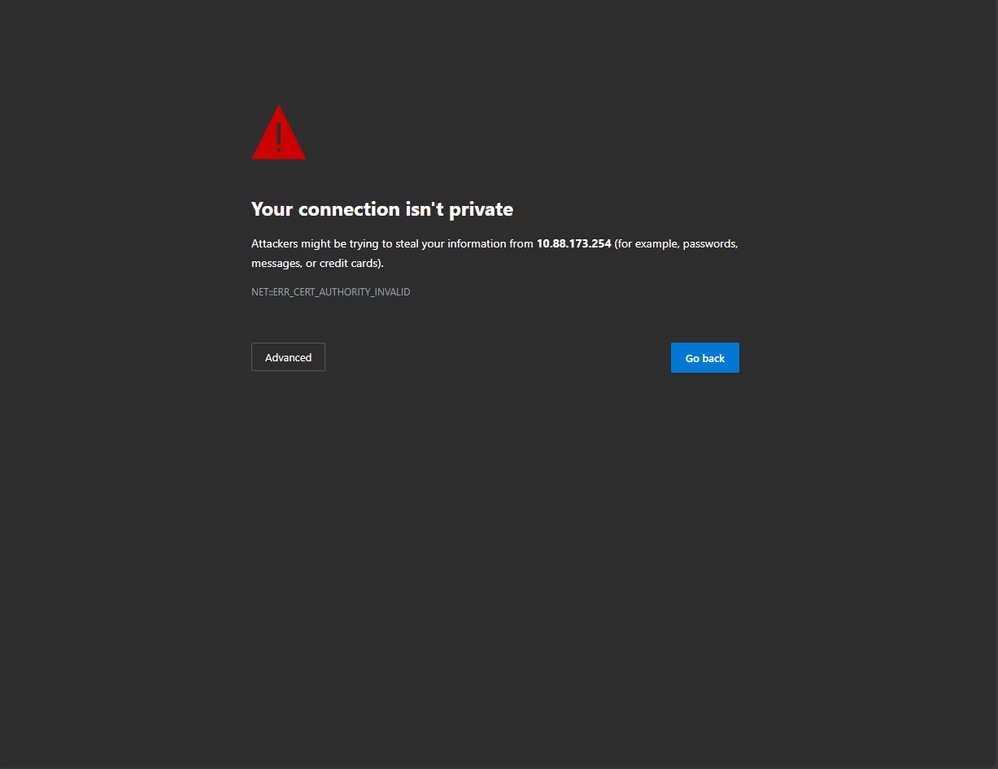 CA Invalid Warning Message on Web Page
To avoid this, a third-party certificate can be used to ensure it has been validated by a CA. For more information on how to generate and upload a certificate to the WLC, refer to Generate and Download CSR Certificate on Catalyst 9800 WLCs.
Web Administration
The trustpoint for the web administration, links the certificate to the user graphical user interface (GUI). The controller selects one of its available certificates, and, if there is no custom certificate uploaded to the WLC, the self-signed certificate is used. If you do not want to use the default certificate, you can use a custom certificate for the trustpoint.
Once the certificate has been uploaded to the 9800, per the document above, the next step is to link the trustpoint to the web administration. Run next command:
configure terminal
ip http secure-trustpoint <custom-cert>.pfx
!Restart HTTP services
no ip http secure services
ip http secure services
end
write
One way to validate the newly installed certificate is now being used as a trustpoint for HTTP services. For example, run the show ip http server status | include trustpoint command:
9800#show ip http server status | include trustpoint
HTTP secure server trustpoint: <trustpoint>.pfx <-- trustpoint configured for HTTP services
HTTP secure server peer validation trustpoint:
Web Authentication
Like web administration, layer 3 authentication can also be used on the 9800. This trustpoint links a certificate to a web portal that is shown to a user as it attempts to authenticate to a WLAN through a guest portal that is automatically presented to the user. Using a trustpoint for web authentication protects user credentials between the WLC and the client is connecting to.
By default, the WLC uses the self-signed certificate. Again, this causes a warning message to pop-up to the client stating the web page is not trusted. To avoid this, a third party certificate can be used like the web administration.
Similar to web administration, once the custom certificate is uploaded to the WLC, it must be linked to the web parameter map as trustpoint.
configure terminal
parameter-map type webauth global
trustpoint <custom-cert>
!Restart HTTP services
no ip http secure services
ip http secure services
end
write
To validate the trustpoint used for web authentication, run the next command:
show run | section parameter-map type webauth global
parameter-map type webauth global
type webauth
virtual-ip ipv4 192.0.2.1
trustpoint <custom-trustpoint> <-- trustpoint configured for web authentication
Automatic Certificate Renewal
The trend is to always have shorter lifetimes in certificates for security reasons. This can lead to extra maintenance in renewing certificates regularly. The AP and WLC certificates can be renewed automatically using SCEP or EST (see the relevant guides in the reference section.)
Related Information
- Locally Significant Certificates
- Generate and Download CSR Certificate on Catalyst 9800 WLCs
- Configure Trustpoints on 9800
- Automated Certificate Renewal with EST on 9800
- Configure LSC for 802.1X on APs
Revision History
| Revision | Publish Date | Comments |
|---|---|---|
2.0 |
04-Aug-2026
|
Updated spelling, grammar inserted horizontal lines to separate sections/readability, fixed URLs. |
1.0 |
06-Oct-2023
|
Initial Release |

 Feedback
Contact Cisco
- Open a Support Case

- (Requires a Cisco Service Contract)