Mobile Agent
Deployments that need connectivity from the agent desktop over the internet without using a VPN is supported using the Reverse Proxy Automated Installer. Refer to the VPN-less Access to Finesse Desktop.
Capabilities
Cisco Unified Mobile Agent Description
Mobile Agent enables an agent to use any PSTN phone and in case you want to use the VPN connection (for agent desktop communications) see VPN-less Access to Finesse Desktop, on page 269.
Unified Mobile Agent supports call center agents using phones that your contact center enterprise solution does not directly control. You can deploy a Mobile Agent as follows:
-
Outside the contact center, by using an analog phone or a mobile phone in the home.
-
On an IP phone connection that is not CTI-controlled by Unified CCE or Packaged CCE, or by an associated Unified Communications Manager.
-
On any voice endpoint of any ACD (including endpoints on other Unified Communication Managers) that the contact center Unified Communication Manager can reach by a SIP trunk.
A Mobile Agent can use different phone numbers at different times; the agent enters the phone number at login time. An agent can access the Mobile Agent functionality using any phone number that is included in the Unified Communications Manager dial plan.
Agent Sign-In Flexibility
Agents can be either local agents or Mobile Agents, depending on how they sign in at various times.
Regardless of whether agents sign in as local or Mobile Agents, their skill groups do not change. Because agents are chosen by existing selection rules and not by how they are connected, the same routing applies regardless of how the agents log in. If you want to control routing depending on whether agents are local or mobile, assign the agents to different skill groups and design your scripts accordingly.
Connection Modes
Cisco Unified Mobile Agent allows system administrators to configure agents to use either call by call dialing or a nailed connection, or the administrator can configure agents to choose a connection mode at login time.
Mobile Agents are defined as agents using phones not directly controlled by Unified CC, irrespective of their physical location. (The term local agent refers to an agent who uses a phone that is under control of Unified CC, irrespective of physical location.)
You can configure Mobile Agents using either of two delivery modes:
-
Call by Call—In this mode, the Mobile Agent's phone is dialed for each incoming call. When the call ends, the Mobile Agent's phone is disconnected before being made ready for the next call.
-
Nailed Connection—In this mode, the agent is called at login time and the line stays connected through multiple customer calls.
 Note |
The administrator can select the Agent chooses option, which allows an agent to select a call delivery mode at login. |
Call by Call
In a call by call delivery mode, the Mobile Agent's phone is dialed for each incoming call. When the call ends, the Mobile Agent's phone disconnects before is it made ready for the next call.
The call by call call flow works as follows:
-
At login, the agent specifies an assigned extension for a CTI port.
-
A customer call arrives in the system and, through normal Unified CCE configuration and scripting, is queued for a skill group or an agent. (This is no different than existing processing for local agents.)
-
The system assigns an agent to the call. If the agent's Desk Setting is Unified Mobile Agent-enabled and configured for either call by call or Agent chooses mode, the router uses the extension of the agent's CTI port as a label.
-
The incoming call rings at the agent's CTI port. The JTAPI Gateway and PIM notice this but do not answer the call.
-
A call to the agent is initiated on another CTI port chosen from a preconfigured pool. If this call fails, Redirect on No Answer processing is initiated.
Note
In call by call mode, the Answer Wait Time is 3 to 15 seconds longer than in a local agent inbound call scenario. Specify a Redirect on No Answer setting large enough to accommodate the extra processing time.
-
When the agent takes the remote phone off-hook to answer the call, the system directs the customer call to the agent's call media address and the agent's call to the customer's call media address.
-
When the call ends, both connections are terminated and the agent is ready to accept another call.
Note |
To configure Mobile Agent in call by call delivery mode, you must set the wrap-up timer to at least one second using the Agent Desktop Settings List tool in the Configuration Manager. In call by call delivery mode, callers often perceive a longer ring time compared to nailed connection delivery mode. This is because callers hear the ringtone during the call flow; ringing stops only after the agent answers. From the Unified CCE reporting perspective, a Mobile Agent in call by call delivery mode has a longer Answer Wait Time for the same reason. |
Nailed Connections
In nailed connection delivery mode, the agent is called once, at login, and the phone line remains connected through multiple customer calls. See the following figure.
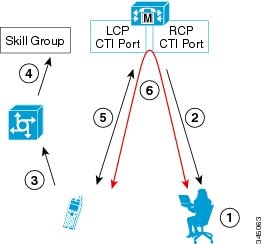
The nailed connection call flow for Unified CCE works as follows:
Call Flow for Unified CCE
-
At login, the agent specifies an assigned extension for a CTI port from a pool.
-
A call to the agent is initiated on another CTI port chosen from a preconfigured pool. The agent answers the call. (The agent must answer this setup call to complete the connection and finalize the login procedure.)
-
A customer's call arrives in the system and, through normal Packaged CCE configuration and scripting, is queued for a skill group or an agent. (This is no different than existing processing for local agents.)
-
The system assigns an agent to the call. If the agent's Desk Setting is Unified Mobile Agent-enabled and configured for either nailed connection or Agent chooses mode, the router uses the extension of the agent's CTI port as a label.
-
The incoming call rings at the agent's CTI port. The JTAPI Gateway and PIM notice this but does not answer the call.
-
The agent desktop indicates a call is ringing and the agent clicks Answer.
-
When the agent indicates that they will answer the phone, the system directs the customer call to the agent's call media address and the agent call to the customer's call media address.
-
When the call ends, the customer connection is terminated and the agent state is set to Ready.
Call Flow for Packaged CCE
-
At login, the agent enters the directory number of the local CTI port (LCP) and the remote phone number in the Desktop.
The remote phone number can be any phone number reachable by Unified CM.
When the agent clicks the Login button, a call is initiated to the agent's remote CTI port (RCP) and the agent's remote phone rings.
-
When the agent answers the call, the call is then nailed up. This means that the agent will remain on this call until the agent logs out or hangs up.
-
A customer's call arrives in the system and, through normal Packaged CCE configuration and scripting, is queued for a skill group/precision queue. (This is no different than existing processing for local agents.)
-
When the agent clicks the Answer button, the voice path between the agent and the customer phone is established, and the two parties can talk.
-
When the system assigns an agent to the call, the call is routed to the agent's LCP port. The agent then hears the connect tone on the headset.
-
When the call ends, the customer connection is terminated and the agent state returns to Ready.
Connect Tone
The Connect Tone feature in the nailed connection mode enables the system to play a tone to the Mobile Agent through the agent's headset to let the agent know when a new call is connected.
Unified CCE—In the nailed connection mode, you can configure an audible connect tone in addition to a call arrival notice (on the desktop only).
Connect Tone is particularly useful when Auto Answer is enabled or the agent is an Outbound agent. Here are its features:
-
An audible tone (two beeps) is sent to the Mobile Agent headset when the call to the nailed connection Mobile Agent is connected. It is a DTMF tone played by Unified CM and cannot be modified.
-
The Connect Tone plays only when the nailed connection Mobile Agent receives a call, as in the following examples:
-
The agent receives a consultation call.
-
The agent receives an outbound call.
-
-
The Connect Tone does not play when the nailed connection Mobile Agent initiates a call, as in the following examples:
-
The agent makes a call.
-
The agent makes the consultation call.
-
Outbound direct preview call is made.
-
Supervisor barge-in call is made.
-
Agent Greeting and Whisper Announcement
The Agent Greeting and Whisper Announcement features are available to Unified Mobile Agents. The following sections explain more about how these features apply to Unified Mobile Agents.
Agent Greeting
You can use the Agent Greeting feature to record a message that plays automatically to callers when they connect to you. Your greeting message can welcome the caller, identify you, and include other useful information.
Limitations
The following limitations apply to the Agent Greeting feature for Mobile Agents.
-
On a Mobile Agent call flow, CUCM may return a 404 error due to the absence of an agent greeting, leading to call failure. For more information and a workaround for this issue, see Agent Greeting Play Script.
-
Unified CCE—If a Mobile Agent hangs up when an Agent Greeting plays, the customer still hears the complete Agent Greeting before the call ends. This applies for both call by call and nailed-up calls.
Note
In the Agent Greeting Call Type Report, this call does not appear as a failed agent greeting call.
-
A supervisor cannot barge in when an Agent Greeting is playing.
-
If a Peripheral Gateway (PG), JTAPI Gateway (JGW), or PIM failover occurs when an Agent Greeting plays for a Mobile Agent, the call fails.
-
If a Mobile Agent hangs up when an Agent Greeting plays, the customer still hears the complete Agent Greeting before the call ends.
Note
In the Agent Greeting Call Type Report, this call does not appear as a failed agent greeting call.
-
Unified CCE—If a Peripheral Gateway (PG), JTAPI Gateway (JGW), or PIM failover occurs when an Agent Greeting plays for a Mobile Agent, the call fails. This applies for both call-by-call and nailed-up calls.
Note |
You can use Agent Greeting for Mobile Agents only with parent/child deployments that are approved by Cisco Assessment-to-Quality (A2Q) with Design Mentoring Services (DMS). |
For more information about Agent Greeting, seeAgent Greeting.
Whisper Announcement
With Whisper Announcement, agents can hear a brief prerecorded message just before they connect with each caller. The announcement plays only to the agent; the caller hears ringing (based on existing ringtone patterns) while the announcement plays. The announcement can contain information about the caller, such as language preference or customer status. This information helps the agent prepare for the call.
Configuration Requirement
For the Whisper Announcement feature for Unified Mobile Agents, you require a Media Termination Point (MTP) resource on an incoming SIP device.
Feature Requirements
Phone Requirements
A Unified Mobile Agent can use an analog, digital, or IP phone to handle calls.
Note |
Packaged CCE—When Unified Mobile Agent phones are located on a cluster and a SIP Trunk is used to connect the cluster to another cluster under Packaged CCE control, you must either use SIP phones as Mobile Agent phones or select mtp required on the Packaged CCE cluster to allow Mobile Agent calls to work. |
Conference Requirements
To use Agent Greeting for Mobile Agents, you must configure external conference-bridge (hardware) resources. To estimate the number of required resources, you can use the following formula:
Number of conference bridge resources = Mobile Agent call rate × Average greeting time (in seconds)
For information about configuring external conference-bridge resources, see the dspfarm profile 1 for conference configuration section in the sample configuration gateway, listed in Media Termination Points Configuration.
CTI Port Requirements
You need two CTI ports (local and remote) for every logged-in Mobile Agent.
Unified Mobile Agent uses Unified CM CTI Port as a proxy for the agent's phone. When this proxy is set up, whenever a Mobile Agent is selected to handle a customer call, the following happens:
-
The call is directed to the CTI port extension.
-
Packaged CCE or Unified CCE, using the JTAPI Gateway, intercepts the call arriving on the CTI Port and directs Unified CM to connect the call to the Mobile Agent.
Unified CCE only—Unified Mobile Agent requires that maximum number of calls is set to 2 and busy trigger is set to 1.
For Unified Mobile Agent to work properly, you must configure two CTI ports:
-
One port to serve as the agent's virtual extension.
-
The other port to initiate calls to the agent.
You must assign these CTI ports to the Unified CCE or to the Packaged CCE application. The ports are recognized by Unified CCE or Packaged CCE, when receiving the Unified CM configuration.
For these CTI ports in IPv6 enabled deployments, you have to set IP Addressing Mode to IPv4 Only. You do this by creating a Common Device Configuration and referencing it to these CTI ports.
Important Considerations
Before you proceed, review the following Unified Mobile Agent limitations and considerations:
Failover
-
During a failover, if an agent in call by call mode answers an alerting call, the call can drop. This occurs because the media cannot be bridged when there is no active Peripheral Gateway (PG).
-
During a prolonged PG failover, if an agent takes call control action for a Unified Mobile Agent-to-Unified Mobile Agent call, the call can drop. This occurs because the activating PG may not have information for all agents and calls at that point.
-
Unified Communications Manager failover causes a Mobile Agent call to be lost.
-
If a call by call Mobile Agent initiates a call (including a supervisor call) and does not answer the remote leg of the call before PG failover, the call fails. The agent must disconnect the remote agent call leg and reinitiate the call.
Performance
-
Unified CCE only—Mobile Agent call processing uses more server resources and therefore reduces the maximum number of supported agents on both Unified CM and the Unified CCE Agent PG.
Unified CCE only—For more information about sizing Mobile Agents, see the Solution Design Guide for Cisco Unified Contact Center Enterprise.
Packaged CCE only—For the total number of supported Unified Mobile Agents and more information about Unified Mobile Agent capability, see Solution Design Guide for Cisco Packaged Contact Center Enterprise at https://www.cisco.com/c/en/us/support/customer-collaboration/packaged-contact-center-enterprise/products-technical-reference-list.html.
-
Because Unified Mobile Agent adds processing steps to Unified CCE/Unified CCH default functionality, Mobile Agents may experience some delay in screen popup windows.
-
From a caller's perspective, the call by call delivery mode has a longer ring time compared with the nailed connection delivery mode. This is because Unified CCE/Unified CCH does not start to dial the Mobile Agent's phone number until after the call information is routed to the agent desktop. In addition, the customer call media stream is not connected to the agent until after the agent answers the phone.
The caller hears a repeated ringtone while Unified CCE/Unified CCH makes these connections.
Configure the Codec Settings
The codec settings on the Peripheral Gateway and Voice Gateway must match. Perform the following procedure:
Procedure
|
Step 1 |
Launch the Peripheral Gateway Setup. |
|
Step 2 |
In the Peripheral Gateway Component Properties, select the UCM PIM and click Edit. |
|
Step 3 |
In the CallManager Parameters section, select the appropriate codec from the Mobile Agent Codec drop down list. 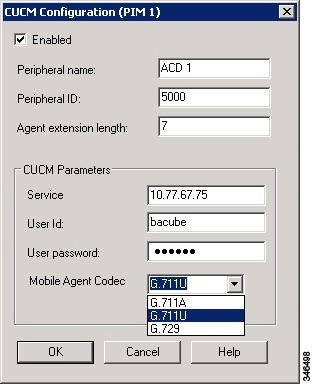 |
Unsupported Features
The following is a list of unsupported features for Mobile Agent:
-
Agent Request
-
Unified CCE only—Blended Collaboration
-
Unified CM-based Silent Monitoring
-
Web Callback
Unified Mobile Agent Reporting
Unified Mobile Agent-specific call data is contained in the following Cisco Unified Intelligence Center reports: Agent Team Historical, Agent Real Time, and Agent Skill Group Historical. These “All Field” reports contain information in multiple fields that show what kind of call the agent is on (nonmobile, call by call, nailed connection) and the Unified Mobile Agent phone number.
Unified CCE Only
Notes about Mobile Agents and reporting:
-
The Mobile Agent must be logged in through the agent desktop for call data to be recorded in Unified CC reports.
-
Service level for Mobile Agent calls might be different than local agent calls, because it takes longer to connect the call to the agent.
For example, a call by call Mobile Agent might have a longer Answer Wait Time Average than a local agent. This is because Unified CCE/Unified CCH does not start to dial the Mobile Agent phone number until after the call information is routed to the agent desktop. In addition, the customer call media stream is not connected to the agent until after the agent answers the phone.
For more information about Unified Mobile Agent fields in the database schema, see Database Schema Handbook for Cisco Unified Contact Center Enterprise.
Packaged CCE Only
Note |
The service level for Unified Mobile Agent calls might be different than the service level for local agent calls, because it takes longer to connect the call to the agent. For example, a call by call Mobile Agent might have a longer Answer Wait Time Average than a local agent. This is because Packaged CCE does not start to dial the Mobile Agent phone number until after the call information is routed to the agent desktop. In addition, the customer call media stream is not connected to the agent until after the agent answers the phone. |
Initial Setup
Summary of Unified Mobile Agent System Configuration Tasks
The following table describes system configuration tasks for Unified Mobile Agent.
|
Task |
See |
|---|---|
|
Configure Unified CM CTI Port pools |
|
|
Configure Unified CM Call Duration Timer |
|
|
Configure Agent Desk Settings |
|
|
Configure Media Termination Points |
Unified CM CTI Port Configuration and Mapping
Unified Mobile Agent must have two CTI ports configured on Unified CM:
-
A local CTI port, which Unified Mobile Agent uses as the agent's virtual extension.
-
A remote CTI port, which Unified Mobile Agent uses to initiate a call to the Mobile Agent's phone.
Naming Conventions for Local and Network Ports
-
The local port must begin with the string LCP
-
The remote port must begin with the string RCP.
-
The remaining characters in the device names for the LCP and RCP pair must match. For example an LCP port named LCP0000 has a corresponding RCP port named RCP0000.
Disable the Hold Tone for Music on Hold
If you want callers to hear music when a Mobile Agent places the caller on hold, you must assign Music on Hold (MoH) resources to the ingress voice gateway or trunk that is connected to the caller (as you do with traditional agents). In this case, the user or network audio source is specified on the local CTI port configuration. Similarly, if a Mobile Agent must hear music when the system puts the agent on hold, you must assign MoH resources to the ingress voice gateway or trunk that is connected to the Mobile Agent. In this case, the user or network audio source is specified on the remote CTI port configuration.
Do not assign MoH resources to local ports and remote CTI ports, because it might affect the system performance.
If a remote Mobile Agent calls over a nailed connection and if there is no active call to the agent, the agent is put on hold. Enable MoH to the Mobile Agent phone for nailed connection calls. If MoH resources are an issue, consider multicast MoH services.
If a remote Mobile Agent calls over a nailed connection, and if MoH is disabled, the hold tone plays to the agent phone during the hold time. This depends on the call processing agent that controls the Mobile Agent remote phone. For Unified CM, the hold tone is enabled by default (it is similar to the Mobile Agent connect tone). Because the hold tone is similar to the connect tone, it can prevent agents from hearing the connect tone. To prevent this issue, disable the hold tone.
Procedure
|
Step 1 |
Log in to Unified CM Administration and navigate to. |
||
|
Step 2 |
From the drop-down list, choose a server. |
||
|
Step 3 |
From the drop-down list choose service. |
||
|
Step 4 |
Scroll down to the Tone on Hold Time field and set the value to 0. |
||
|
Step 5 |
Click Save.
|
Configure Unified CM CTI Ports for Unified Mobile Agent
The following procedure applies to Packaged CCE.
Procedure
|
Step 1 |
In Unified CM Administration, select . |
||
|
Step 2 |
Click Add a New Phone. |
||
|
Step 3 |
From Phone Type, select CTI Port. |
||
|
Step 4 |
In Device Name, enter a unique name for the local CTI Port name; then click OK. Using the naming convention format LCPyyyy:
The name LCP0000 represents the local port. |
||
|
Step 5 |
In Description, enter text that identifies the local CTI port. |
||
|
Step 6 |
Use the Device Pool drop-down list to choose where you want to assign the network CTI port. Do not select Default. The device pool defines sets of common characteristics for devices. |
||
|
Step 7 |
For Device Security Profile, select Cisco CTI Port - Standard SCCP Non-Secure Profile. |
||
|
Step 8 |
Click Save. |
||
|
Step 9 |
Click Apply config. |
||
|
Step 10 |
In the Association section, select Add a New DN. |
||
|
Step 11 |
Add a unique directory number for the CTI port you just created. |
||
|
Step 12 |
In Maximum Number of Calls, enter 2. |
||
|
Step 13 |
In Busy Trigger, enter 1. |
||
|
Step 14 |
When finished, click Save, and click Apply config. |
||
|
Step 15 |
Repeat the preceding steps to configure the network CTI port. In Device Name, using the naming convention format RCPyyyy, where:
The name RCP0000 represents the local port.
|
||
|
Step 16 |
In Description, enter text that identifies the network CTI port. |
||
|
Step 17 |
Use the Device Pool drop-down list to choose where you want to assign the network CTI port. Do not select Default. The device pool defines sets of common characteristics for devices. |
||
|
Step 18 |
Click Save. |
||
|
Step 19 |
In the Association Information section, select Add a New DN. |
||
|
Step 20 |
Add a unique directory number for the CTI port you just created. The extension length can be different from the extension length of the LCP Port if your dial plan requires it. |
||
|
Step 21 |
When finished, click Save, and click Close. |
Map Local and Remote CTI Ports to Peripheral Gateway Users
Unified Mobile Agent must have two CTI ports configured on Unified CM:
-
A local CTI port, which Unified Mobile Agent uses as the agent's virtual extension.
-
A remote CTI port, which Unified Mobile Agent uses to initiate a call to the Mobile Agent's phone.
Naming Conventions for Local and Network Ports
-
The local port must begin with the string LCP.
-
The remote port must begin with the string RCP.
-
The remaining characters in the device names for the LCP and RCP pair must match.
For example an LCP port named LCP0000 has a corresponding RCP port named RCP0000.
The following example applies to Unified CCE:
-
For a local CTI Port pool name, configure a name in the format LCPxxxxFyyyy, where LCP identifies a local CTI Port Pool, xxxx is the peripheral ID for the Unified CM PIM, and yyyy is the number of local CTI Port.
Example: LCP5000F0000 represents CTI Port: 0 in a local CTI Port pool for the Unified CM PIM with the peripheral ID 5000.
-
For a network CTI Port pool name, use the same format, except substitute RCP as the first three characters.
Note
While you do not require a naming convention, the substrings identifying the Unified CM PIM peripheral ID and the CTI Port must match for each local/network pair.
-
Procedure
|
Step 1 |
Add the CTI port as you would for an IP Phone. |
||
|
Step 2 |
Use the naming convention described above to map the local and network CTI ports.
|
||
|
Step 3 |
Add a directory number for the local CTI port (that is, the agent's virtual extension). |
||
|
Step 4 |
Map the local and network CTI ports with the PG user. |
Configure the Maximum Call Duration Timer
By default, Mobile Agents in nailed connection mode log out after 12 hours. This happens because a Unified CM Service Parameter—the Maximum Call Duration Timer—determines the amount of time an agent phone can remain in the Connected state after login.
If you anticipate that Unified Mobile Agent will be logged in longer than 12 hours, use the following instructions to either one of the following:
-
Increase the Maximum Call Duration Timer setting.
-
Disable the timer entirely.
If your Mobile Agent deployment uses intercluster trunks between your CTI ports and your mobile agent's phone, you must set these service parameters on both the local and remote Unified CM clusters.
Procedure
|
Step 1 |
In Unified CM Administration, choose . |
|
Step 2 |
In the Server drop-down list, choose a server. |
|
Step 3 |
In the Service drop-down list, choose Cisco CallManager Service. The Service Parameters Configuration page appears. |
|
Step 4 |
In the Cluster-wide Parameters (Feature - General) section, specify a Maximum Call Duration Timer setting. To disable the timer, enter 0. The default is 720 minutes (12 hours); the maximum setting allowed is 35791 minutes |
|
Step 5 |
Click Save. |
Agent Desk Setting Configuration for Unified Mobile Agent
You can configure Agent Desk Settings through the PCCE Administration tool.
Configure Desk Settings with Unified CCE Administration
Repeat the following procedure for each desk setting in your deployment.
Procedure
|
Step 1 |
In Unified CCE Administration, choose . |
|
Step 2 |
Click New to create a new desk setting or click the name of an existing desk setting to edit it. |
|
Step 3 |
Complete the required fields. |
|
Step 4 |
From the Mobile Agent drop-down list, select one of the following options:
|
|
Step 5 |
Click Save. |
Associate Desk Setting with a Mobile Agent—Packaged CCE
The following procedure applies to Packaged CCE only.
After you have configured agent desk settings, you need to associate the desk setting with a mobile agent.
Procedure
|
Step 1 |
Access Unified CCE Administration. |
|
Step 2 |
Select . The List of Agents window appears. |
|
Step 3 |
Select the agent that you want to associate. The Edit <agent> window appears. |
|
Step 4 |
In the Desk Settings box, select the desk setting that has the Mobile Agent enabled. |
|
Step 5 |
Click Save. |
Media Termination Points Configuration
If you use SIP trunks, you must configure Media Termination Points (MTPs). You must also configure MTPs if you use TDM trunks to create an interface with service providers.
Additionally, MTPs are required for Mobile Agent call flows that involve a Cisco Unified Customer Voice Portal (CVP) solution. Because in DTMF signaling mode the Mobile Agent uses out-of-band signaling, whereas Unified CVP supports in-band signaling, the conversion from out-of-band to in-band signaling requires an MTP resource.
MTPs may be allocated as required in deployments that use a mix of IPv4 and IPv6 connections. MTP resources are allocated provided that the Media Resource Group List is configured on the IPV4 endpoint.
MTPs are available in the following forms, but not all are supported in Mobile Agent environments:
-
Software-based MTPs in Cisco IOS gateways—use these MTPs for Mobile Agent as they provide codec flexibility and improved scalability compared with other MTP options. The following is a sample configuration on a gateway.
sccp local GigabitEthernet0/0 sccp ccm 10.10.10.31 identifier 1 priority 1 version 7.0 sccp ccm 10.10.10.131 identifier 2 priority 2 version 7.0 sccp ! sccp ccm group 1 associate ccm 1 priority 1 associate ccm 2 priority 2 associate profile 3 register gw84xcode associate profile 1 register gw84conf associate profile 2 register gw84mtp ! dspfarm profile 3 transcode codec g729abr8 codec g729ar8 codec g711alaw codec g711ulaw codec g729r8 codec g729br8 maximum sessions 52 associate application SCCP ! dspfarm profile 1 conference codec g729br8 codec g729r8 codec g729abr8 codec g729ar8 codec g711alaw codec g711ulaw maximum sessions 24 associate application SCCP ! dspfarm profile 2 mtp codec g711ulaw maximum sessions software 500 associate application SCCP -
Hardware-based MTPs in Cisco IOS gateways—These MTPs are supported. If you choose these, consider the extra cost, codec restrictions, and scalability constraints.
-
Software-based MTPs using the Cisco IP Voice Media Streaming Application—These MTPs are not supported with Mobile Agents.
Note |
Because Unified CM-based software MTPs are used implicitly, you must add a special configuration to avoid using thcce-in10360-01-pcceucceipv6support-1101em. Create a new Media Resource Group (MRG) as a place holder, and place the software MTPs in that MRG. For instructions, refer to the Unified CM help documentation. |
Note |
Ensure the sccp ccm configuration matches the Cisco Unified CM Group order used in the Device Pool assigned to the Media Termination Point in
CUCM > Media Resource.
|
Configure Media Termination Points in Unified CM
Add MTP Resources to Unified CM
Perform these steps to add media termination points (MTPs) to Unified CM.
Procedure
|
Step 1 |
In Unified CM Administration click . |
|
Step 2 |
Click Add New. |
|
Step 3 |
Choose Cisco IOS Enhanced Software Media Termination Point from the Media Termination Point Type drop-down list. |
|
Step 4 |
Enter an MTP name. This name must match the device name you chose in IOS. In the example in the previous section, the MTP was called gw84mtp, as from the config line: associate profile 2 gw84mtp. |
|
Step 5 |
Choose the appropriate device pool. |
|
Step 6 |
Click Save and then click Apply config. |
|
Step 7 |
Navigate back to Media Termination Point and ensure the newly added MTP is listed as being registered with <Unified CM subscriber IP address> in the Status column. |
|
Step 8 |
Repeat steps 1 through 7 for each Cisco Call Manager server group that you configured on each of your gateways. |
Configure Media Termination Point Resources in Unified CM
The following section explains how to create media resource groups and media resource group lists.
Procedure
|
Step 1 |
Navigate to Media Resources > Media Resource Group in Unified CM Administration. |
|
Step 2 |
Click Add New. |
|
Step 3 |
Specify a name and description. |
|
Step 4 |
From the Available Media Resources that you just created, move the devices from the Available to the Selected list by clicking the down arrow. Ensure that you do not include Unified CM Software resources. For example, type anything that starts with ANN_, MTP_, or MOH_. |
|
Step 5 |
Navigate to Media Resources > Media Resource Group List. |
|
Step 6 |
Click Add New. |
|
Step 7 |
Move the Media Resource Group you just created from the Available Media Resource Groups to the Selected Media Resource Groups. |
|
Step 8 |
Click Save. |
Associate Media Resource Group List with Device Pools
Procedure
|
Step 1 |
Navigate to and click on the device pool that contains the CTI ports for Mobile Agent. If there are multiple pools, perform the next step for each device pool that applies. |
|
Step 2 |
From the Media Resource Group List, select the Media Resource Group list that you just created, click Save and then click Apply config. |
Quarantine Unified CM Software-Based Resources
Unified CM-based software MTPs are used by default. However, Cisco contact center deployments do not support these resources because they may cause performance problems in call processing. You must quarantine them with a special configuration. Perform the following steps:
Procedure
|
Step 1 |
Create a new Media Resource Group (MRG) as a place holder. |
|
Step 2 |
Place the software MTPs in that MRG. For further instructions, refer to the Unified CM help documentation. |
Configure MTPs with SIP Trunks
If you use SIP trunks, you must configure MTPs. Mobile Agent cannot use an MTP with codec pass-through. When you configure the MTP, you must select No pass through. KPML is not supported with Mobile Agent.
Procedure
|
Step 1 |
Log in to Unified CM Administration and select . |
|
Step 2 |
Select the trunk on which you want to configure MTPs. At a minimum all trunks whose destination is unified CVP need to have this configuration. This requirement also applies to all TDM trunks that are used to connect to Mobile Agent phones through service providers. |
|
Step 3 |
Depending on the scenario listed below, perform the corresponding step. Note that if you configure trunk groups to dynamically insert MTPs, only the calls that require MTPs use them.
|
Enable Call Progress Tones for Agent-Initiated Calls
Procedure
|
When MTP Required is not enabled, extra configuration is required to enable an agent to hear call progress tones for agent initiated calls. If instead you have dynamic MTP allocation by forcing mismatched DTMF settings, then configure the Unified Communications Manager to enable Early Offer. For information on configuring the Unified Communications Manager, see the Unified Communications Manager product documentation at https://www.cisco.com/c/en/us/support/unified-communications/unified-communications-manager-callmanager/tsd-products-support-series-home.html. The Cisco Annunciator does not generate ringback and other call progress tones, as it does for regular phones and softphones. Instead, Mobile Agent relies on the called party generating these tones (and the early offer setting triggers sending these tones to the agent).
|
Verify MTP Resource Utilization
Because Unified CM comes preconfigured with software MTP resources, these resources may sometimes be used to provide MTP for Unified Mobile Agent calls without proper configuration. Cisco does not support the use of Unified CM-based software MTPs. For information about how to quarantine the Unified CM-based MTPs, see Quarantine Unified CM Software-Based Resources. To ensure that the IOS-based MTPs are being used for Unified Mobile Agents, perform the following verification steps:
Procedure
|
Step 1 |
Install the Unified CM Realtime monitoring tool. This tool can be downloaded under within Unified CM Administration. |
|
Step 2 |
Place a call to a logged-in Mobile Agent. |
|
Step 3 |
Open the Unified CM Realtime monitoring tool and navigate to . |
|
Step 4 |
Expand the node(s) that are associated with your IOS-based MTP resources and choose Cisco MTP Device. |
|
Step 5 |
Double-click Resources Active and choose all of the available resources to monitor. This includes both IOS and Unified CM-based resources. Ensure that the only resources that are active during the Mobile Agent phone call are the IOS-based resources. Also, ensure that all UCM-based MTP resources are not active. |
|
Step 6 |
Repeat the previous step for each node that has MTP resources associated with it. |
Enable Mobile Agent Connect Tone
In a nailed connection, the system can play a tone to the Unified Mobile Agent through the agent headset to let the agent know when a new call is connected. In the default Installation, the Mobile Agent Connect Tone feature is disabled.
If you require Unified Mobile Agent Connect Tone, you must make the following change in the Windows Registry for the key PlayMAConnectTone under the JTAPI GW PG registry entries.
Before you begin
Associate MTP resources with the CUCM trunk that connects to the Agent Gateway.
Procedure
|
Step 1 |
|
|
Step 2 |
On the PG machine, open the Registry Editor (regedit.exe). |
|
Step 3 |
Navigate to HKEY_LOCAL_MACHINE\SOFTWARE\Cisco Systems, Inc.\ICM\<InstanceName>\PG1A\PG\CurrentVersion\JGWS\jgw1\JGWData\Config\PlayMAConnectTone. The Edit DWORD Value dialog box appears. |
|
Step 4 |
In the Value data: field, enter 1 to enable Mobile Agent Connect Tone and click OK. |
|
Step 5 |
Exit the Registry Editor to save the change, and cycle the PG service. |
Administration and Usage
Cisco Finesse
Finesse provides a browser-based desktop for agents and supervisors. Mobile agents can perform the same call control functions as Packaged CCE agents. Mobile supervisors can perform all call control functions except for silent monitoring.
Sign in to Cisco Finesse Desktop
Procedure
|
Step 1 |
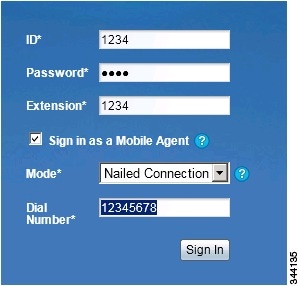
Enter the following URL in your browser: https://FQDN of Finesse server, where FQDN is the fully-qualified domain name of the Finesse server. In an IPv6-enabled environment, you must include the port number in the URL (https://<FQDN of Finesse server>:8445/desktop). |
||||||||||||||
|
Step 2 |
In the ID field, enter your agent ID. |
||||||||||||||
|
Step 3 |
In the Password field, enter your password. |
||||||||||||||
|
Step 4 |
In the Extension field, enter your extension. For a mobile agent, the extension represents the virtual extension for the agent, also known as the local CTI port (LCP). |
||||||||||||||
|
Step 5 |
Check the Sign in as a Mobile Agent check box. The Mode and Dial Number fields appear. |
||||||||||||||
|
Step 6 |
From the Mode drop-down list, choose the mode you want to use. In Call by Call mode, your phone is dialed for each incoming call and disconnected when the call ends. In Nailed Connection mode, your phone is called when you sign in and the line stays connected through multiple customer calls. |
||||||||||||||
|
Step 7 |
In the Dial
Number field, enter the number for the phone you are using.
|
||||||||||||||
|
Step 8 |
Click Sign In.
|
Verify Sign-In to Cisco Finesse
Procedure
|
Check to be sure the Finesse Agent Desktop displays the following in the header:

|
Enable Ready State
You must be in Ready state to process incoming calls.
Procedure
|
Choose Ready from the drop-down list below the agent name.
|
Make a Call
Procedure
|
Step 1 |
From the drop-down list below the agent name, choose Not Ready.
|
||
|
Step 2 |
Click Make a New Call. |
||
|
Step 3 |
Enter the number you want to call on the keypad, and then click Call. If you are in Call by Call mode, the CTI server sends a setup call to your phone. A message appears on the keypad that states the following: A call will be initiated to your phone which must be answered before an outbound call to your destination can be made. After the setup call is answered, the system establishes the outbound call to the destination specified. |
Serviceability
On a Mobile Agent call flow, CUCM may return a 404 error due to the absence of a agent greeting, leading to call failure. To fix this issue, do the following:
-
Create a new Run External Script node. Map the backup media of the script to the agent greeting recording (media file).
-
Add the Run External Script node between the failure path of the AgentGreeting Run External Script node and the End node.
-
Connect the Run External Script node's success path to the existing Release Call node and failure path to the existing End node.
Note |
This fix may add a short delay of one to two seconds to the call flow. For information about Agent Greeting Play Script, on page 32. |
 Feedback