GPU Installation

This appendix has the following topics:

Server Firmware Requirements

The following table lists the minimum server firmware versions for the supported GPU cards.

GPU Card

Cisco IMC/BIOS Minimum Version Required

NVIDIA L4 PCIe, 72W, Gen 4 x8 (UCSC-GPU-L4)

4.1(3)

GPU Card Configuration Rules

Note the following rules when populating a server with GPU cards.

  • Use the UCS power calculator at the following link to determine the power needed based on your server configuration: http://ucspowercalc.cisco.com

  • Do not mix different brands or models of GPU cards in the server.

  • A GPU can be installed in any PCIe riser slot.

  • Some GPUs have a limitation on whether they can support 1 TB or more memory in the server.

Requirement For All GPUs: Memory-Mapped I/O Greater Than 4 GB

All supported GPU cards require enablement of the BIOS setting that allows greater than 4 GB of memory-mapped I/O (MMIO).

In standalone mode, BIOS setting is enabled by default:

Advanced > PCI Configuration > Memory Mapped I/O Above 4 GB > Enabled

Procedure


Step 1

If you need to change this setting, enter the BIOS Setup Utility by pressing F2 when prompted during bootup.

Step 2

Browse to Advanced > PCI Configuration > Memory Mapped I/O Above 4 GB.


Installing a Single-Wide GPU Card

Use the following procedure to install or replace the following supported single-wide GPU cards:

  • NVIDIA L4 PCIe, 72W

Procedure


Step 1

Shut down and remove power from the server as described in Shutting Down and Removing Power From the Server.

Step 2

Slide the server out the front of the rack far enough so that you can remove the top cover. You might have to detach cables from the rear panel to provide clearance.

Caution

 
If you cannot safely view and access the component, remove the server from the rack.

Step 3

Remove the top cover from the server as described in Removing the Server Top Cover.

Step 4

Refer Replacing a PCIe Card to replace single-wide GPU card.

Step 5

Replace the top cover to the server.

Step 6

Replace the server in the rack, replace cables, and then fully power on the server by pressing the Power button.

Step 7

Optional: Continue with Installing Drivers to Support the GPU Cards.

Note


If you installed an NVIDIA Tesla M-series or P-Series GPU, you must install GRID licenses to use the GRID features. See Using NVIDIA GRID License Server For L-Series GPUs.


Using NVIDIA GRID License Server For L-Series GPUs

This section applies to NVIDIA L-Series GPUs.

Use the topics in this section in the following order when obtaining and using NVIDIA GRID licenses.

  1. Familiarize yourself with the NVIDIA GRID License Server.

    NVIDIA GRID License Server Overview

  2. Register your product activation keys with NVIDIA.

    Registering Your Product Activation Keys With NVIDIA

  3. Download the GRID software suite.

    Downloading the GRID Software Suite

  4. Install the GRID License Server software to a host.

    Installing NVIDIA GRID License Server Software

  5. Generate licenses on the NVIDIA Licensing Portal and download them.

    Installing GRID Licenses From the NVIDIA Licensing Portal to the License Server

  6. Manage your GRID licenses.

    Managing GRID Licenses

NVIDIA GRID License Server Overview

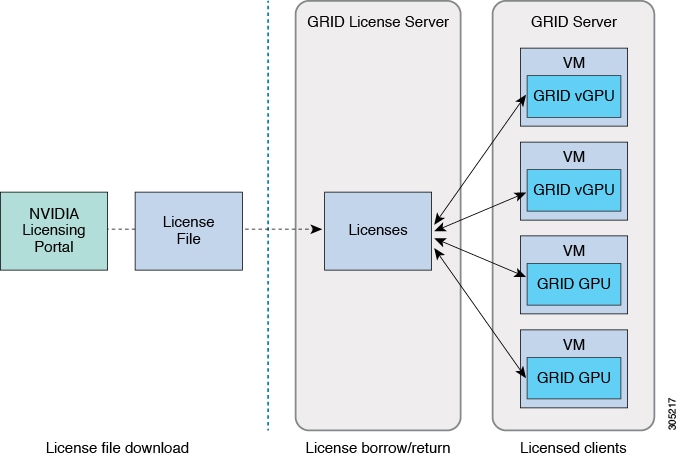
The NVIDIA M-Series GPUs combine Tesla and GRID functionality when the licensed GRID features such as GRID vGPU and GRID Virtual Workstation are enabled. These features are enabled during OS boot by borrowing a software license that is served over the network from the NVIDIA GRID License Server virtual appliance. The license is returned to the license server when the OS shuts down.

You obtain the licenses that are served by the GRID License Server from NVIDIA’s Licensing Portal as downloadable license files, which you install into the GRID License Server via its management interface.

Figure 1. NVIDIA GRID Licensing Architecture

There are three editions of GRID licenses, which enable three different classes of GRID features. The GRID software automatically selects the license edition based on the features that you are using.

GRID License Edition

GRID Feature

GRID Virtual GPU (vGPU)

Virtual GPUs for business desktop computing

GRID Virtual Workstation

Virtual GPUs for midrange workstation computing

GRID Virtual Workstation – Extended

Virtual GPUs for high-end workstation computing

Workstation graphics on GPU pass-through

Downloading the GRID Software Suite

Procedure


Step 1

Return to the NVIDIA Software Licensing Center > Product Information Software dialog.

Step 2

Click the Current Releases tab.

Step 3

Click the NVIDIA GRID link to access the Product Download dialog. This dialog includes download links for:

  • NVIDIA License Manager software

  • The gpumodeswitch utility

  • The host driver software

Step 4

Use the links to download the software.


Registering Your Product Activation Keys With NVIDIA

After your order is processed, NVIDIA sends you a Welcome email that contains your product activation keys (PAKs) and a list of the types and quantities of licenses that you purchased.

Procedure


Step 1

Select the Log In link, or the Register link if you do not already have an account.

The NVIDIA Software Licensing Center > License Key Registration dialog opens.

Step 2

Complete the License Key Registration form and then click Submit My Registration Information.

The NVIDIA Software Licensing Center > Product Information Software dialog opens.

Step 3

If you have additional PAKs, click Register Additional Keys. For each additional key, complete the form on the License Key Registration dialog and then click Submit My Registration Information.

Step 4

Agree to the terms and conditions and set a password when prompted.


Installing NVIDIA GRID License Server Software

For full installation instructions and troubleshooting, refer to the NVIDIA GRID License Server User Guide. Also refer to the NVIDIA GRID License Server Release Notes for the latest information about your release.

http://www.nvidia.com

Platform Requirements for NVIDIA GRID License Server

  • The hosting platform can be a physical or a virtual machine. NVIDIA recommends using a host that is dedicated only to running the License Server.

  • The hosting platform must run a supported Windows OS.

  • The hosting platform must have a constant IP address.

  • The hosting platform must have at least one constant Ethernet MAC address.

  • The hosting platform’s date and time must be set accurately.

Installing GRID Licenses From the NVIDIA Licensing Portal to the License Server

Accessing the GRID License Server Management Interface

Open a web browser on the License Server host and access the URL http://localhost:8080/licserver.

If you configured the License Server host’s firewall to permit remote access to the License Server, the management interface is accessible from remote machines at the URL http://hostname:8080/licserver

Reading Your License Server’s MAC Address

Your License Server’s Ethernet MAC address is used as an identifier when registering the License Server with NVIDIA’s Licensing Portal.

Procedure

Step 1

Access the GRID License Server Management Interface in a browser.

Step 2

In the left-side License Server panel, select Configuration.

The License Server Configuration panel opens. Next to Server host ID, a pull-down menu lists the possible Ethernet MAC addresses.

Step 3

Select your License Server’s MAC address from the Server host ID pull-down.

Note


It is important to use the same Ethernet ID consistently to identify the server when generating licenses on NVIDIA’s Licensing Portal. NVIDIA recommends that you select one entry for a primary, non-removable Ethernet interface on the platform.


Installing Licenses From the Licensing Portal

Procedure

Step 1

Access the GRID License Server Management Interface in a browser.

Step 2

In the left-side License Server panel, select Configuration.

The License Server Configuration panel opens.

Step 3

Use the License Server Configuration menu to install the .bin file that you generated earlier.

  1. Click Choose File.

  2. Browse to the license .bin file that you want to install and click Open.

  3. Click Upload.

    The license file is installed on your License Server. When installation is complete, you see the confirmation message, “Successfully applied license file to license server.”


Viewing Available GRID Licenses

Use the following procedure to view which licenses are installed and available, along with their properties.

Procedure

Step 1

Access the GRID License Server Management Interface in a browser.

Step 2

In the left-side License Server panel, select Licensed Feature Usage.

Step 3

Click on a feature in the Feature column to see detailed information about the current usage of that feature.


Viewing Current License Usage

Use the following procedure to view information about which licenses are currently in-use and borrowed from the server.

Procedure

Step 1

Access the GRID License Server Management Interface in a browser.

Step 2

In the left-side License Server panel, select Licensed Clients.

Step 3

To view detailed information about a single licensed client, click on its Client ID in the list.


Managing GRID Licenses

Features that require GRID licensing run at reduced capability until a GRID license is acquired.

Acquiring a GRID License on Windows

Procedure

Step 1

Open the NVIDIA Control Panel using one of the following methods:

  • Right-click on the Windows desktop and select NVIDIA Control Panel from the menu.

  • Open Windows Control Panel and double-click the NVIDIA Control Panel icon.

Step 2

In the NVIDIA Control Panel left-pane under Licensing, select Manage License.

The Manage License task pane opens and shows the current license edition being used. The GRID software automatically selects the license edition based on the features that you are using. The default is Tesla (unlicensed).

Step 3

If you want to acquire a license for GRID Virtual Workstation, under License Edition, select GRID Virtual Workstation.

Step 4

In the License Server field, enter the address of your local GRID License Server. The address can be a domain name or an IP address.

Step 5

In the Port Number field, enter your port number of leave it set to the default used by the server, which is 7070.

Step 6

Select Apply.

The system requests the appropriate license edition from your configured License Server. After a license is successfully acquired, the features of that license edition are enabled.

Note


After you configure licensing settings in the NVIDIA Control Panel, the settings persist across reboots.


Acquiring a GRID License on Linux

Procedure

Step 1

Edit the configuration file /etc/nvidia/gridd.conf:

sudo vi /etc/nvidia/gridd.conf

Step 2

Edit the Server URL line with the address of your local GRID License Server.

The address can be a domain name or an IP address. See the example file below.

Step 3

Append the port number (default 7070) to the end of the address with a colon. See the example file below.

Step 4

Edit the FeatureType line with the integer for the license type. See the example file below.

  • GRID vGPU = 1

  • GRID Virtual Workstation = 2

Step 5

Restart the nvidia-gridd service.

sudo service nvidia-gridd restart

The service automatically acquires the license edition that you specified in the FeatureType line. You can confirm this in /var/log/messages.

Note


After you configure licensing settings in the NVIDIA Control Panel, the settings persist across reboots.

Sample configuration file:

# /etc/nvidia/gridd.conf - Configuration file for NVIDIA Grid Daemon
# Description: Set License Server URL
# Data type: string
# Format: "<address>:<port>" 
ServerUrl=10.31.20.45:7070
# Description: Set Feature to be enabled
# Data type: integer
# Possible values:
# 1 => for GRID vGPU 
# 2 => for GRID Virtual Workstation
FeatureType=2
 

Using gpumodeswitch

The command line utility gpumodeswitch can be run in the following environments:

  • Windows 64-bit command prompt (requires administrator permissions)

  • Linux 32/64-bit shell (including Citrix XenServer dom0) (requires root permissions)


Note


Consult NVIDIA product release notes for the latest information on compatibility with compute and graphic modes.


The gpumodeswitch utility supports the following commands:

  • --listgpumodes

    Writes information to a log file named listgpumodes.txt in the current working directory.

  • --gpumode graphics

    Switches to graphics mode. Switches mode of all supported GPUs in the server unless you specify otherwise when prompted.

  • --gpumode compute

    Switches to compute mode. Switches mode of all supported GPUs in the server unless you specify otherwise when prompted.


Note


After you switch GPU mode, reboot the server to ensure that the modified resources of the GPU are correctly accounted for by any OS or hypervisor running on the server.


Installing Drivers to Support the GPU Cards

After you install the hardware, you must update to the correct level of server BIOS and then install GPU drivers and other software in this order:

  1. Update the server BIOS.

  2. Update the GPU drivers.

1. Updating the Server BIOS

Install the latest BIOS by using the Host Upgrade Utility.


Note


You must do this procedure before you update the NVIDIA drivers.


Procedure

Step 1

Navigate to the following URL: http://www.cisco.com/cisco/software/navigator.html.

Step 2

Click Servers–Unified Computing in the middle column.

Step 3

Click Cisco UCS C-Series Rack-Mount Standalone Server Software in the right-hand column.

Step 4

Click the name of your model of server in the right-hand column.

Step 5

Click Unified Computing System (UCS) Server Firmware.

Step 6

Click the release number.

Step 7

Click Download Now to download the ucs-server platform-huu-version_number.iso file.

Step 8

Verify the information on the next page, and then click Proceed With Download.

Step 9

Continue through the subsequent screens to accept the license agreement and browse to a location where you want to save the file.

Step 10

Use the Host Upgrade Utility to update the server BIOS.

The user guides for the Host Upgrade Utility are at Utility User Guides.


2. Updating the GPU Card Drivers

After you update the server BIOS, you can install GPU drivers to your hypervisor virtual machine.

Procedure

Step 1

Install your hypervisor software on a computer. Refer to your hypervisor documentation for the installation instructions.

Step 2

Create a virtual machine in your hypervisor. Refer to your hypervisor documentation for instructions.

Step 3

Install the GPU drivers to the virtual machine. Download the drivers from either:

Step 4

Restart the server.

Step 5

Check that the virtual machine is able to recognize the GPU card. In Windows, use the Device Manager and look under Display Adapters.