Access control rules
Within an access control policy, access control rules provide a granular method that
-
handles network traffic across multiple managed devices within an access control policy
-
provides conditions that match traffic in a specified order, and
-
determines actions to monitor, trust, block, or allow matching traffic.
Rule evaluation and traffic handling
The system matches traffic to access control rules in the order you specify. In most cases, the system handles network traffic according to the first access control rule where all the rule's conditions match the traffic.
Each rule also has an action, which determines whether you monitor, trust, block, or allow matching traffic. When you allow traffic, you can specify that the system first inspect it with intrusion or file policies to block any exploits, malware, or prohibited files before they reach your assets or exit your network.
 Note |
Security Intelligence filtering, decryption, user identification, and some decoding and preprocessing occur before access control rules evaluate network traffic. |
This scenario summarizes the ways that traffic can be evaluated by access control rules in an inline, intrusion prevention deployment.
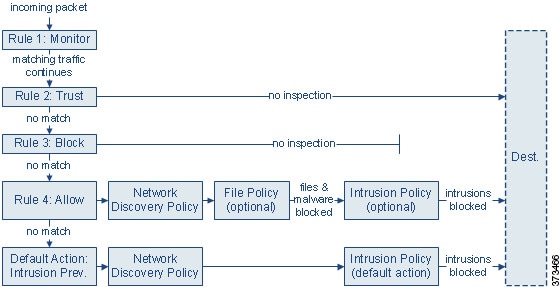
In this scenario, traffic is evaluated as follows:
-
Rule 1: Monitor evaluates traffic first. Monitor rules track and log network traffic. The system continues to match traffic against additional rules to determine whether to permit or deny it. (However, see an important exception and caveat at Access control rule monitor action.)
-
Rule 2: Trust evaluates traffic next. Matching traffic is allowed to pass to its destination without further inspection, though it is still subject to identity requirements and rate limiting. Traffic that does not match continues to the next rule.
-
Rule 3: Block evaluates traffic third. Matching traffic is blocked without further inspection. Traffic that does not match continues to the final rule.
-
Rule 4: Allow is the final rule. For this rule, matching traffic is allowed; however, prohibited files, malware, intrusions, and exploits within that traffic are detected and blocked. Remaining non-prohibited, non-malicious traffic is allowed to its destination, though it is still subject to identity requirements and rate limiting. You can configure Allow rules that perform only file inspection, or only intrusion inspection, or neither.
-
Default Action handles all traffic that does not match any of the rules. In this scenario, the default action performs intrusion prevention before allowing non-malicious traffic to pass. In a different deployment, you might have a default action that trusts or blocks all traffic, without further inspection. (You cannot perform file or malware inspection on traffic handled by the default action.)
Traffic you allow, whether with an access control rule or the default action, is automatically eligible for inspection for host, application, and user data by the network discovery policy. You do not explicitly enable discovery, although you can enhance or disable it. However, allowing traffic does not automatically guarantee discovery data collection. The system performs discovery only for connections involving IP addresses that are explicitly monitored by your network discovery policy; additionally, application discovery is limited for encrypted sessions.
Note that access control rules handle encrypted traffic when your decryption configuration allows it to pass, or if you do not configure decryption. However, some access control rule conditions require unencrypted traffic, so encrypted traffic may match fewer rules. Also, by default, the system disables intrusion and file inspection of encrypted payloads. This helps reduce false positives and improve performance when an encrypted connection matches an access control rule that has intrusion and file inspection configured.
Access control rule management
The rules table of the access control policy editor allows you to add, edit, categorize, search, filter, move, enable, disable, delete, and otherwise manage access control rules in the current policy.
Properly creating and ordering access control rules is a complex task, but one that is essential to building an effective deployment. If you do not plan your policy carefully, rules can preempt other rules, require additional licenses, or contain invalid configurations.
Use the search bar to filter the list of access control policy rules. You can deselect the Show Only Matching Rules option to see all rules. Matched rules are highlighted.
For each access control rule, the policy editor displays its name, a summary of its conditions, the rule action, and icons that communicate the rule’s inspection options or status.
The system provides specific icons to communicate the inspection options or status of each rule:
-
Time Range Option (
 )
)
-
Intrusion policy (
 )
)
-
File policy (
 )
)
-
Logging (
 )
)
-
Warning (
 )
)
-
Errors (
 )
)
-
Rule Conflict (
 )
)
Disabled rules are dimmed and marked (disabled) after the rule name.
To create or edit a rule, refer to Create and edit access control rules .
 Tip |
A right-click menu provides shortcuts to many rule management options, including editing, deleting, moving, enabling, and disabling. |
Access control rule components
In addition to its unique name, each access control rule has basic components that determine how the system processes and handles network traffic.
State
By default, rules are enabled. If you disable a rule, the system does not use it and stops generating warnings and errors for that rule.
Position
Rules in an access control policy are numbered, starting at 1. If you are using policy inheritance, rule 1 is the first rule in the outermost policy. The system matches traffic to rules in top-down order by ascending rule number. With the exception of Monitor rules, the first rule that traffic matches is the rule that handles that traffic.
Rules can also belong to a section and a category, which are organizational only and do not affect rule position. Rule position goes across sections and categories.
Section and category
To help you organize access control rules, every access control policy has two system-provided rule sections, Mandatory and Default. To further organize access control rules, you can create custom rule categories inside the Mandatory and Default sections.
If you are using policy inheritance, the current policy's rules are nested between its parent policy's Mandatory and Default sections.
Conditions
Conditions specify the specific traffic the rule handles. Conditions can be simple or complex; their use often depends on license.
Traffic must meet all of the conditions specified in a rule. For example, if the Application condition specifies HTTP but not HTTPS, the URL category and reputation conditions will not apply to HTTPS traffic.
Applicable time
You can set rules to operate during specified days and times
Action
A rule's action determines how the system handles matching traffic. You can monitor, trust, block, or allow (with or without further inspection) matching traffic. The system does not perform deep inspection on trusted, blocked, or encrypted traffic.
Inspection
Deep inspection options govern how the system inspects and blocks malicious traffic you would otherwise allow. When you allow traffic with a rule, you can specify that the system first inspect it with intrusion or file policies to block any exploits, malware, or prohibited files before they reach your assets or exit your network.
Logging
Logging settings govern records that the system keeps for handled traffic. You can log sessions at connection start, end, or both; log connections to databases, syslog, or SNMP trap servers. You can log connections to the database, as well as to a syslog or an SNMP trap server.
Comments
Each time you save changes to an access control rule, you can add comments.
Access control rule order
Access control rule order is a traffic processing method that
-
numbers rules in an access control policy starting at 1
-
matches traffic to access control rules in top-down order by ascending rule number, and
-
handles network traffic according to the first access control rule where all the rule's conditions match the traffic.
In most cases, except for Monitor rules, the system does not continue to evaluate traffic against additional, lower-priority rules after that traffic matches a rule.
To help you organize access control rules, every access control policy has two system-provided rule sections, Mandatory and Default. To further organize, you can create custom rule categories inside the Mandatory or Default sections. After you create a category, you cannot move it, although you can delete it, rename it, and move rules into, out of, within, and around it. The system assigns rule numbers across sections and categories.
If you use policy inheritance, the current policy's rules are nested between its parent policy's Mandatory and Default rule sections. Rule 1 is the first rule in the outermost policy, not the current policy, and the system assigns rule numbers across policies, sections, and categories.
Any predefined user role that allows you to modify access control policies also allows you to move and modify access control rules within and among rules categories. You can, however, create custom roles that restrict users from moving and modifying rules. Any user who is allowed to modify access control policies can add rules to custom categories and modify rules in them without restriction.
 Caution |
Failure to set up your access control rules properly can have unexpected results, including traffic being allowed that should be blocked. In general, application control rules should be lower in your access control list because it takes longer for those rules to match than rules based on IP address, for example. Access control rules that use specific conditions (such as networks and IP addresses) should be ordered before rules that use general conditions (such as applications). If you're familiar with the Open Systems Interconnect (OSI) model, use similar numbering in concept. Rules with conditions for layers 1, 2, and 3 (physical, data link, and network) should be ordered first in your access control rules. Conditions for layers 5, 6, and 7 (session, presentation, and application) should be ordered later in your access control rules. For more information about the OSI model, see this Wikipedia article. |
Note |
Proper access control rule order reduces the resources required to process network traffic, and prevents rule preemption. Although the rules you create are unique to every organization and deployment, there are a few general guidelines to follow when ordering rules that can optimize performance while still addressing your needs. For more information, refer to Best practices for ordering rules. |
Access control rule actions
An access control rule action is a configuration setting that determines how the system handles and logs matching traffic, with options to monitor, trust, block, or allow traffic with or without further inspection.
Default action behavior
The access control policy's default action handles traffic that does not meet the conditions of any access control rule with an action other than Monitor.
Access control rule monitor action
The Monitor action is an access control rule action that forces connection logging regardless of how matching traffic is eventually handled. It does not affect traffic flow by permitting or denying traffic immediately, and allows traffic to be matched against additional rules to determine the final action.
When a connection matches a monitor rule, the next non-monitor rule that the connection matches determines traffic handling and any further inspection. If there are no additional matching rules, the Firewall Threat Defense device uses the default action.
There is an exception: If a monitor rule contains layer 7 conditions, such as an application condition, the system allows early packets to pass and the connection to be established (or the SSL handshake to complete), even if a subsequent rule would block the connection. Early packets are not evaluated against subsequent rules, so to prevent uninspected traffic, you can specify an intrusion policy for these packets in the access control policy's advanced settings. For more information, refer to Inspection of packets that pass before traffic is identified. After the system completes its layer 7 identification, it applies the appropriate action to the remaining session traffic.
Access control rule trust action
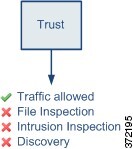
The Trust action is the access control rule action that allows traffic to pass without deep inspection or network discovery, still subjects trusted traffic to identity requirements and rate limiting, and bypasses additional inspection services while maintaining basic security controls.
Note |
|
Access control rule blocking actions
A block action is an access control rule action that denies network traffic without further inspection and prevents the use of file, intrusion, or network discovery policies for blocked traffic.
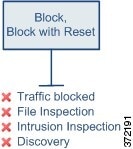
Block and Block with reset actions immediately stop traffic from entering the network. Block with reset rules reset the connection except for web requests met with an HTTP response page. The HTTP response page is used to notify users when their web request is blocked, but it cannot be displayed if the connection is immediately reset.
For more information, refer to HTTP response pages.
Access control rule interactive blocking actions
The Interactive Block and Interactive Block with reset actions are access control rule actions that give web users a choice to continue to their intended destinations.
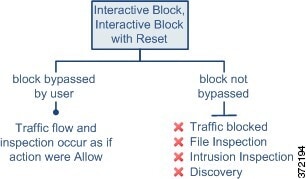
If a user bypasses the block, the rule mimics an allow rule. Therefore, you can associate interactive block rules with file and intrusion policies, and matching traffic is also eligible for network discovery.
If a user does not (or cannot) bypass the block, the rule mimics a block rule. Matching traffic is denied without further inspection.
Note |
If you enable interactive blocking, you cannot reset all blocked connections. This is because the response page cannot display if the connection is immediately reset. Use the Interactive Block with reset action to (non-interactively) block-with-reset all non-web traffic, while still enabling interactive blocking for web requests. |
For more information, refer to HTTP response pages.
Access control rule allow action
An access control rule allow action is a rule action that allows matching traffic to pass. However, traffic is still subject to identity requirements and rate limiting.
Optionally, you can use deep inspection to further inspect and block unencrypted or decrypted traffic before it reaches its destination:
-
You can use an intrusion policy to analyze network traffic according to intrusion detection and prevention configurations, and drop offending packets depending on the configuration.
-
You can perform file control using a file policy. File control allows you to detect and block your users from uploading (sending) or downloading (receiving) files of specific types over specific application protocols.
-
You can perform network-based advanced malware protection (AMP), also using a file policy. malware defense can inspect files for malware, and block detected malware depending on the configuration.
This diagram illustrates the types of inspection performed on traffic that meets the conditions of an Allow rule (or a user-bypassed Interactive Block rule). Notice that file inspection occurs before intrusion inspection; blocked files are not inspected for intrusion-related exploits.
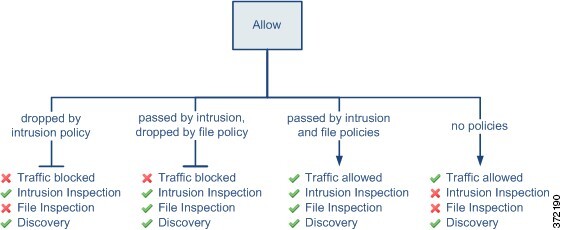
For simplicity, the diagram displays traffic flow for situations where both (or neither) an intrusion and a file policy are associated with an access control rule. You can, however, configure one without the other. Without a file policy, traffic flow is determined by the intrusion policy; without an intrusion policy, traffic flow is determined by the file policy.
Regardless of whether the traffic is inspected or dropped by an intrusion or file policy, the system can inspect it using network discovery. However, permitting traffic does not guarantee that discovery inspection occurs. The system only performs discovery for connections involving IP addresses explicitly monitored by your network discovery policy. Also, application discovery is limited for encrypted sessions.
Deep inspection using file and intrusion policies
Deep inspection is a security mechanism that uses intrusion and file policies as the last line of defense before traffic is allowed to its destination.
Policy types and capabilities
Deep inspection uses two types of policies to analyze traffic:
-
Intrusion policies govern the system's intrusion prevention capabilities.
-
File policies govern the system's file control and malware defense capabilities.
Access control occurs before deep inspection; access control rules and the access control default action determine which traffic is inspected by intrusion and file policies.
By associating an intrusion or file policy with an access control rule, you are telling the system that before it passes traffic that matches the access control rule's conditions, you first want to inspect the traffic with an intrusion policy, a file policy, or both.
In an access control policy, you can associate one intrusion policy with each Allow and Interactive Block rule, as well as with the default action. Every unique pair of intrusion policy and variable set counts as one policy.
Note |
By default, the system disables intrusion and file inspection of encrypted payloads. This helps reduce false positives and improve performance when an encrypted connection matches an access control rule that has intrusion and file inspection configured. |
To associate intrusion and file policies with an access control rule, see:
For more information about intrusion policies, refer to Network Analysis and Intrusion Policy Basics.
For more information about file policies, refer to File Policies for Network Malware Protection.
File and intrusion inspection order
File and intrusion inspection order defines the traffic processing sequence that performs file inspection before intrusion inspection for any single connection handled by an access control rule, preventing files blocked by a file policy from being inspected for intrusions while prioritizing simple file blocking by type over malware inspection.
For a connection matching an Allow or Interactive Block rule, the system determines traffic flow based on the following configurations:
-
Without a file policy, traffic flow is determined by the intrusion policy.
-
Without an intrusion policy, traffic flow is determined by the file policy.
-
Without either, allowed traffic is inspected by network discovery only.
In your access control policy, you can associate multiple Allow and Interactive Block rules with different intrusion and file policies to match inspection profiles to various types of traffic.
Note |
The system does not perform any kind of inspection on trusted traffic. Although configuring an Allow rule with neither an intrusion nor file policy passes traffic like a Trust rule, Allow rules let you perform discovery on matching traffic. |
The diagram below illustrates the types of inspection you can perform on traffic that meets the conditions of either an Allow or user-bypassed Interactive Block access control rule. For simplicity, the diagram displays traffic flow for situations where both (or neither) an intrusion and a file policy are associated with a single access control rule.
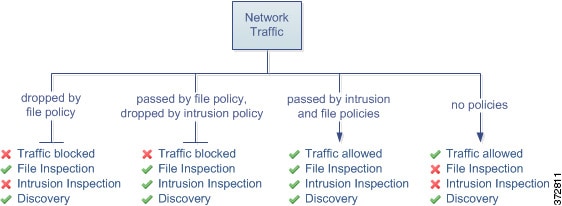
For any single connection handled by an access control rule, file inspection occurs before intrusion inspection. That is, the system does not inspect files blocked by a file policy for intrusions. Within file inspection, simple blocking by type takes precedence over malware inspection and blocking.
For example, consider a scenario where you normally want to allow certain network traffic as defined in an access control rule. However, as a precaution, you want to block the download of executable files, examine downloaded PDFs for malware and block any instances you find, and perform intrusion inspection on the traffic.
You create an access control policy with a rule that matches the characteristics of the traffic you want to provisionally allow, and associate it with both an intrusion policy and a file policy. The file policy blocks the download of all executables, and also inspects and blocks PDFs containing malware:
-
First, the system blocks the download of all executables, based on simple type matching specified in the file policy. Because they are immediately blocked, these files are subject to neither malware nor intrusion inspection.
-
Next, the system performs malware cloud lookups for PDFs downloaded to a host on your network. Any PDFs with a malware disposition are blocked, and are not subject to intrusion inspection.
-
Finally, the system uses the intrusion policy associated with the access control rule to inspect any remaining traffic, including files not blocked by the file policy.
Note |
Until a file is detected and blocked in a session, packets from the session might be subject to intrusion inspection. |
How access control traffic handling works with intrusion and file policies
Summary
This diagram shows the flow of traffic in an inline intrusion prevention and malware defense deployment, as governed by an access control policy that contains four different types of access control rules and a default action.
Workflow
In the scenario above, the first three access control rules in the policy—Monitor, Trust, and Block—cannot inspect matching traffic. Monitor rules track and log but do not inspect network traffic, so the system continues to match traffic against additional rules to determine whether to permit or deny it. (However, see an important exception and caveat at Access control rule monitor action.) Trust and Block rules handle matching traffic without further inspection of any kind, while traffic that does not match continues to the next access control rule.
The fourth and final rule in the policy, an Allow rule, invokes various other policies to inspect and handle matching traffic, in the following order:
- Discovery: Network Discovery Policy—First, the network discovery policy inspects traffic for discovery data. Discovery is passive analysis and does not affect the flow of traffic. Although you do not explicitly enable discovery, you can enhance or disable it. However, allowing traffic does not automatically guarantee discovery data collection. The system performs discovery only for connections involving IP addresses that are explicitly monitored by your network discovery policy.
- malware defense and File Control: File Policy—After traffic is inspected by discovery, the system can inspect it for prohibited files and malware. malware defense detects and optionally blocks malware in many types of files, including PDFs, Microsoft Office documents, and others. If your organization wants to block not only the transmission of malware files, but all files of a specific type (regardless of whether the files contain malware), file control allows you to monitor network traffic for transmissions of specific file types, then either block or allow the file.
- Intrusion Prevention: Intrusion Policy—After file inspection, the system can inspect traffic for intrusions and exploits. An intrusion policy examines decoded packets for attacks based on patterns, and can block or alter malicious traffic. Intrusion policies are paired with variable sets, which allow you to use named values to accurately reflect your network environment.
- Destination—Traffic that passes all the checks described above passes to its destination.
An Interactive Block rule (not shown in the diagram) has the same inspection options as an Allow rule. This is so you can inspect traffic for malicious content when a user bypasses a blocked website by clicking through a warning page.
Traffic that does not match any access control rules in the policy with an action other than Monitor is handled by the default action. In this scenario, the default action is an Intrusion Prevention action, which allows traffic to its final destination as long as it is passed by the intrusion policy you specify. In a different deployment, you might have a default action that trusts or blocks all traffic without further inspection. Note that the system can inspect traffic allowed by the default action for discovery data and intrusions, but not prohibited files or malware. You cannot associate a file policy with the access control default action.
Note |
Sometimes, when a connection is analyzed by an access control policy, the system must process the first few packets in that connection, allowing them to pass, before it can decide which access control rule (if any) will handle the traffic. However, so these packets do not reach their destination uninspected, you can specify an intrusion policy (in the advanced settings for the access control policy) to inspect these packets and generate intrusion events. |


 )
)


 Feedback