Network Map

The following topics describe how to use the network map:

Requirements for using network map

Ensure you meet these requirements before configuring the network map:

Model support

Any Firewall Threat Defense device model is supported.

Supported domains

In a multi domain, deployment, network map configuration is supported only in the Leaf domain.

User roles

You must have one of the following user privileges to configure and use the network map feature:
  • Admin

  • Discovery Admin

Network maps

A network map is a detailed representation of your network that shows its topology, including detected hosts, devices, and their characteristics, based on monitored traffic and related data. It allows you to understand how assets in your network are organized and connected.

The system monitors traffic traveling over your network, analyzes the traffic data, and then compares the data to established operating systems and fingerprints. The system then uses this data to automatically generate a network map. In multidomain deployments, the system creates an individual network map for each leaf domain.

Data gathering and network detection

The system gathers data from managed devices that are defined in the network discovery policy. The managed devices detect network assets directly from monitored traffic and indirectly from processed NetFlow records. When multiple devices detect the same asset, the system combines information into a composite asset representation.

To augment data from passive detection, you can:

  • Actively scan hosts using the open-source scanner, Nmap™, and add the scan results to your network map.

  • Manually add host data from an external application using the host input feature.

Use the network map to:

  • Get an overview of your network.

  • Select different views to suit the analysis you want to perform. Each view uses a hierarchical tree with expandable categories and subcategories. Click a category to display its subcategories.

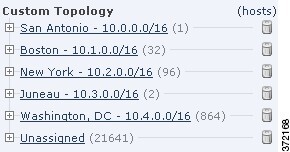
  • Organize and identify subnets via the custom topology feature. For example, if each department in your organization uses a different subnet, you can assign familiar labels to those subnets using the custom topology feature.

  • View detailed information by drilling down to the host profile for any monitored host.

  • Delete an asset when you no longer need to investigate it.


Note


  • If the system detects activity associated with a host you deleted from a network map, it re-adds the host to the network map. Similarly, deleted applications are also re-added to the network map if the system detects a change in the application (such as upgrading an Apache web server). The system reactivates vulnerabilities on specific hosts if a change makes the host vulnerable.

  • To permanently exclude a host or subnet from the network map, modify the network discovery policy. For example, exclude load balancers and NAT devices from monitoring if they generate irrelevant events.


Hosts network map

The network map on the Hosts page displays a host count and a list of host IP addresses and primary MAC addresses. Each address or partial address is a link to the next level. This network map view provides a count of all unique hosts detected by the system, regardless of whether the hosts have one IP address or multiple IP addresses.

Use the hosts network map to view the hosts on your network, organized by subnet in a hierarchical tree, as well as to drill down to the host profiles for specific hosts.

The system can add hosts to the network map from exported NetFlow records, but the available information for these hosts is limited; see Differences between NetFlow and managed device data.

By creating a custom topology for your network, you can assign meaningful labels to your subnets, such as department names, that appear in the hosts network map. You can also view the hosts network map according to the organization you specified in the custom topology.

You can delete entire networks, subnets, or individual hosts from the hosts network map. For example, if you know that a host is no longer attached to your network, you can delete it to simplify your analysis. If the system afterwards detects activity associated with the deleted host, it re-adds the host to the network map. If you want to permanently exclude a host or subnet from the network map, modify the network discovery policy.


Caution


Do not delete network devices from the network map. The system uses them to determine network topology.


On the hosts network map page, you can search only for primary MAC addresses, and the Hosts [MAC] counter includes only primary MAC addresses. For descriptions of primary and secondary MAC addresses, see Basic Host Information in the Host Profile.

Network devices network map

The network map on the Network Devices page displays the network devices (bridges, routers, NAT devices, and load balancers) that connect one segment of your network to another. The map contains two sections listing devices identified by an IP address and devices identified by a MAC address. It also provides a count of all unique network devices detected by the system, whether the devices have one IP address or multiple IP addresses.

If you create a custom topology for your network, the labels you assign to your subnets appear in the network devices network map.

You cannot delete network devices from the network map, because the system uses their locations to determine network topology.

Network device detection methods

Network device detection methods include:

  • Analyzing Cisco Discovery Protocol (CDP) messages to identify network devices and their types (for Cisco equipment)

  • Detecting the Spanning Tree Protocol (STP) to recognize switches and bridges.

  • Identifying multiple hosts using the same MAC address to detect MAC address that belonging to a router.

  • Observing TTL value changes from the client side, or TTL values that change more frequently than a typical boot time, to detect NAT devices and load balancers.


Note


If a network device communicates using CDP, it may have one or more IP addresses. If it communicates using STP, it may only have a MAC address.


Systems section in host profiles

The host profile for a network device has a Systems section, with a Hardware column indicating the hardware platform for mobile devices detected behind the network device. Hardware platform information, when present under Systems, corresponds to mobile devices or devices detected behind the network device. Note that mobile devices may or may not have hardware platform information, but non-mobile devices do not display this information.

Mobile devices network map

The network map on the Mobile Devices page displays mobile devices attached to your network. This network map also provides a count of all unique mobile devices that the system detects, whether the devices have one IP address or multiple IP addresses.

Mobile device identification methods

To identify mobile devices, the system uses these methods:

  • Analyze User-Agent strings in HTTP traffic from the browser on the mobile device.

  • Monitor the HTTP traffic of specific mobile applications.

Each address or partial address is a link to the next level. You can also delete a subnet or IP address. If the system detects the device again, it adds the device to the network map.

If you create a custom topology for your network, the labels you assign to your subnets appear in the mobile devices network map.

Indications of compromise network map

The network map on the Indications of Compromise page displays the compromised hosts on your network, organized by the indication of compromise (IOC) category. Affected hosts are listed beneath each category. Each address or partial address is a link to the next level.

From the indications of compromise network map, you can view the host profile of each compromised host. You can delete (mark as resolved) any IOC category or specific host. This action removes the IOC category from the relevant hosts. For example, delete an IOC category from the network map if you determine that the issue is addressed and unlikely to recur.

Marking a host or IOC category resolved from the network map does not remove it from your network. A resolved host or IOC category reappears in the network map if your system newly detects information that triggers that IOC.

For more information about how the system determines indications of compromise, see Indications of Compromise Data and subtopics.

Application protocols network map

The network map on the Application Protocols tab displays applications running on your network in a hierarchical tree by application name, vendor, version, and hosts running each application.

Application detection and management behavior

The applications that the system detects may change with system software and VDB updates, and if you import any add-on detectors. The release notes or advisory text for each system or VDB update contains information on any new and updated detectors. For a comprehensive up-to-date list of detectors, see the Cisco Support Site (http://www.cisco.com/cisco/web/support/index.html).

From this network map, you can view the host profile of each host that runs a specific application.

You can also delete any application category, any application running on all hosts, or any application running on a specific host. For example, you can delete an application from the network map if you know it is disabled on the host and you want to make sure the system does not use it for impact level qualification.

Deleting an application from the network map does not remove it from your network. A deleted application reappears in the network map if your system detects a change in the application (for example, if an Apache web server is upgraded to a new version) or if you restart your system's discovery function.

Depending on what you delete, the behavior differs:

  • Application Category: Deleting removes the application category from the network map. All applications that reside beneath the category are removed from any host profile that contains the applications.

    For example, if you delete http, all applications identified as http are removed from all host profiles and http no longer appears in the applications view of the network map.

  • Specific Application, Vendor, or Version: Deleting removes the affected application from the network map and from any host profiles that contain it.

    For example, if you expand the http category and delete Apache, all applications listed as Apache with any version listed beneath Apache are removed from any host profiles that contain them. Similarly, if instead of deleting Apache, you delete a specific version (1.3.17, for example), only the version you selected will be deleted from affected host profiles.

  • Specific IP Address: Deleting the IP address removes it from the application list and removes the application itself from the host profile of the IP address you selected.

    For example, if you expand http, Apache, 1.3.17 (Win32), and then delete 172.16.1.50:80/tcp, the Apache 1.3.17 (Win32) application is deleted from the host profile of IP address 172.16.1.50.

Vulnerabilities network map

The network map on the Vulnerabilities page displays vulnerabilities that the system has detected on your network, organized by legacy vulnerability ID (SVID), CVE ID, or Snort ID. From this network map, you can

  • view the details of specific vulnerabilities and the host profile of any host subject to a specific vulnerability, and

  • evaluate the threat posed by vulnerabilities to specific affected hosts.

Vulnerability management features

The vulnerabilities network map provides these management capabilities:

  • Vulnerability deactivation: If a vulnerability is not applicable to the hosts (for example, you have applied a patch), you can deactivate it. Deactivated vulnerabilities still appear on the network map, but the IP addresses of their previously affected hosts appear in gray italics. The host profiles for those hosts show these vulnerabilities as invalid, although you can manually mark them as valid for individual hosts.

  • Identity conflict handling: If there is an identity conflict for an application or operating system on a host, the system lists the vulnerabilities for both potential identities. When the identity conflict is resolved, vulnerabilities remain associated with the current identity.

  • Application vulnerability mapping: By default, the network map displays vulnerabilities of a detected application only if the packet includes vendor and version information. You can configure the system to display the vulnerabilities for applications lacking this data by enabling the vulnerability mapping setting for the application in the Firewall Management Center configuration.

The numbers next to a vulnerability ID (or range of vulnerability IDs) represent two counts:

  • Affected Hosts: The first number and it indicates a count of non-unique hosts that are affected by a vulnerability or vulnerabilities. If a host is affected by more than one vulnerability, it is counted multiple times. Therefore,the count can exceed the total number of hosts. Deactivating a vulnerability decrements this count by the number of hosts that are potentially affected by the vulnerability. If you have not deactivated any vulnerabilities, this count may not be displayed.

  • Potentially Affected Hosts: The second number and it indicates a count of the total number of non-unique hosts that the system has determined are potentially affected by a vulnerability or vulnerabilities.

Deactivating a vulnerability renders it inactive only for the hosts you designate. You can deactivate a vulnerability for all hosts that have been judged vulnerable or for a specified individual vulnerable host. After a vulnerability is deactivated, the applicable hosts' IP addresses appear in gray italics in the network map. In addition, host profiles for those hosts show deactivated vulnerabilities as invalid.

If the system subsequently detects the vulnerability on a host where it has not been deactivated (for example, on a new host in the network map), the system activates the vulnerability for that host. You have to explicitly deactivate the newly discovered vulnerability. Also, if the system detects an operating system or application change for a host, it may reactivate associated deactivated vulnerabilities.

Host attributes network map

The network map on the Host Attributes page displays the hosts on your network organized by either user-defined or compliance allow list host attributes. You can also view the host profile of any host assigned a specific host attribute value.

Choose a host attribute to use to organize hosts. The Firewall Management Center displays the available values for that attribute in the network map and groups hosts based on their assigned values. For example, if you choose to organize your hosts by allow list host attributes, the Firewall Management Center displays them in categories of Compliant, Non-Compliant, and Not Evaluated.


Note


You cannot organize hosts using predefined host attributes in this network map display.


View network maps

View network maps to analyze and monitor network topology, host information, vulnerabilities, and other security-relevant network elements in your environment.

Before you begin

You must be an Admin or Security Analyst role assigned to view the network map.

Procedure


Step 1

Choose Events & Logs > Hosts > Network Map.

Step 2

Click the network map you want to view.

Step 3

Continue as appropriate:

  • Choose domain: In multidomain environments, select a leaf domain from the Domain drop-down list.
  • Filter hosts: To filter by IP address or MAC address, enter an address into the search field. To clear the search, click Clear (clear icon).
  • Drill down: To investigate a category or host profile, drill down through the categories or subnets in the map. If you have defined a custom topology, click (topology) from Hosts to view it. To toggle back to the default view, click (hosts).
  • Delete: Click Delete (delete icon) next to the appropriate element to:
    • Remove an element from the map on Hosts, Network Devices, Mobile Devices, or Application Protocols.

    • Mark an IOC category, compromised host, or group of compromised hosts resolved on Indications of Compromise.

    • Deactivate a vulnerability for all hosts or a single host on Vulnerabilities.

  • Specify vulnerabilities class: On Vulnerabilities, choose the class of vulnerabilities you want to view from the Vulnerabilities drop-down list.
  • Specify organizing attribute: On Host Attributes, choose an attribute from the Attribute drop-down list.

Custom network topologies

A custom network topology is a network organization feature that

  • helps you organize and identify subnets in the network maps of your hosts and network devices

  • allows you to label subnets for different departments within your organization, and

  • lets you view the hosts network map based on the organization you specify.

For example, if each department within your organization uses a different subnet, you can label those subnets using the custom topology feature.

Screenshot of a hosts network map displayed with a custom topology organization

Network specification strategies

You can specify a custom topology's networks using any or all of these strategies:

  • You can import networks from the network discovery policy to add the networks that you configured the system to monitor.

  • You can add networks to your topology manually.

Navigate to Policies > Network Discovery > Custom Topology to veiw your custom topologies and their status. You can activate or deactivate a topology from this page.

Create custom topologies

Custom topologies allow you to organize and manage network discovery by creating logical groupings of networks for targeted monitoring and analysis.

Procedure


Step 1

Choose Policies > + Show more > Advanced > Network Discovery.

In a multidomain deployment, if you are not in a leaf domain, the system prompts you to switch.

Step 2

Click Custom Topology on the toolbar.

Step 3

Click Create Topology.

Step 4

Enter a Name for your topology.

Step 5

Enter a Description. This is optional.

Step 6

Add networks to your topology using any or all of these strategies:

Step 7

Click Save.


What to do next

Import networks from the network discovery policy

Import networks from the Network Discovery Policy to incorporate discovered network topology information into your custom topology configuration. This allows you to leverage automatically discovered network data in your custom topology configurations.

Procedure

Step 1

Access the custom topology to which you want to import networks.

You may create a new custom topology or edit an existing one. To create a custom topology, refer to Create custom topologies. To edit an existing custom topology, refer to Edit custom topologies.

Step 2

Click Import Policy Networks.

Step 3

Click Load.

The Firewall Management Center displays the topology information for the network discovery policy.

Step 4

Refine your topology with these actions.

  • To rename a network in the topology, click Edit (edit icon) next to the network, enter a name, and then click Rename.

  • To remove a network from the topology, click Delete (delete icon) and then click OK to confirm.

Step 5

Click Save.


What to do next

Manually add networks to your custom topology

You can manually add networks by specifying IP address ranges that represent the network segments you want to include in your topology. Custom topologies allow you to create logical groupings of network elements for monitoring purposes.

Procedure

Step 1

Access the custom topology in which you want to add the network.

You may create a new custom topology or edit an existing one. To create a custom topology, refer to Create custom topologies. To edit an existing custom topology, refer to Edit custom topologies.

Step 2

Click Add Network.

Step 3

To add a custom label for the network in the hosts and network devices network maps, type a Name.

Step 4

Enter the IP Address and Netmask (IPv4) that represent the network you want to add.

Step 5

Click Add.

Step 6

Click Save.


What to do next

Activate or deactivate custom topologies

Activate or deactivate custom topologies to to switch between different saved network topologies in Firewall Management Center.

Only one custom topology can be active; activating a new one automatically deactivates the previously active topology.

Procedure


Step 1

Choose Policies > + Show more > Advanced > Network Discovery.

In a multidomain deployment, if you are not in a leaf domain, the system prompts you to switch.

Step 2

Choose Custom Topology.

Step 3

Click the slider next to a topology to activate or deactivate it.


Edit custom topologies

Edit custom topologies to update network discovery settings and modify existing topology configurations.

Changes you make to an active topology take effect immediately.

Procedure


Step 1

Choose Policies > + Show more > Advanced > Network Discovery.

In a multidomain deployment, if you are not in a leaf domain, the system prompts you to switch.

Step 2

Click Custom Topology.

Step 3

Click Edit (edit icon) next to the topology that you want to edit.

Step 4

Edit the topology. For more information, refer to Create custom topologies.

Step 5

Click Save.