Configure the Cisco APIC Integration with the Secure Firewall Management Center

The following topics discuss how to configure the Cisco APIC Integration with the Secure Firewall Management Center.

System requirements for the integration with Cisco APIC

Your system must meet the following requirements:

  • Secure Firewall Management Center version: 10.0.0 and later.

    Essentials license or better required; high availability is supported.

  • Firewall Threat Defense version: 7.2 and later.

  • Cisco APIC version: 3.0(1k) or later.

  • If you use the ACI Endpoint Update App, it must be version 2.6.

Get required information for the integration

This section discusses:

  • Information required to configure the integration

  • Information used in dynamic object names

Cisco ACI Endpoint Update App site prefix and update interval

This information applies to you only if you're currently using the Cisco ACI Endpoint Update App; otherwise, you can skip it.

To find the Cisco ACI Endpoint Update App site prefix and update interval:

  1. Log in to Cisco APIC as a user with admin privileges.

    For more information, see APIC Roles and Privileges Matrix.

  2. Click Apps.

  3. Under ACI Endpoint Update app, click Open.

  4. Click Edit (edit icon).

  5. Write down the values of Update Interval (In seconds) and Site Prefix.

Required to configure the integration: Find a user with appropriate access

To find a user with at least the read-all role with readPriv access and the tenant-admin role with writePriv access for the security domain:

  1. Log in to Cisco APIC.

  2. Click Admin.

  3. In the left pane, click Users.

  4. In the right pane, double-click the name of a user.

  5. Scroll to Security Domains.

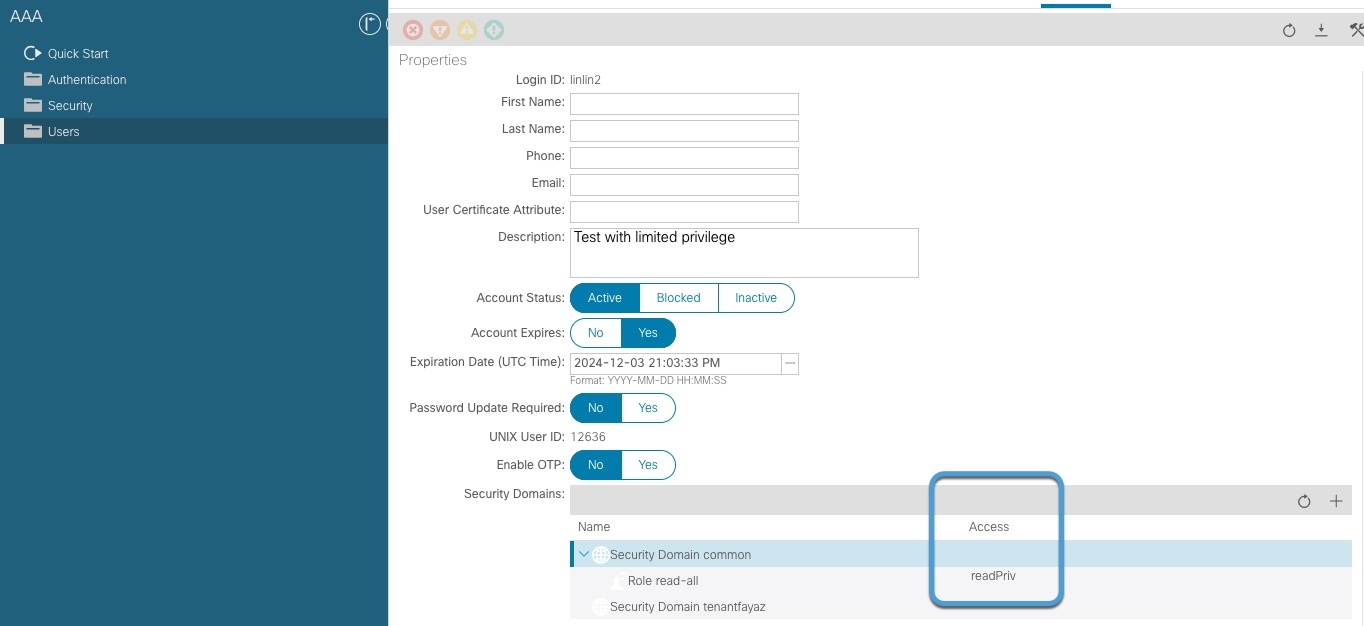
  6. For the relevant security domain, make sure the user has at least the read-all role with readPriv access and the tenant-admin role with writePriv access for the security domain, as the following figure shows.

    Verify the Cisco APIC user defined for the connector has at least the read-all role with readPriv access and the tenant-admin role with writePriv access for retrieving objects from tenants for the relevant security domain

Cisco APIC tenant name

The Cisco APIC tenant name is used in the names of dynamic objects created by this integration. To find it:

  1. Log in to Cisco APIC.

  2. Click Tenants.

  3. Write down the name of the tenant that contains objects to send to the Secure Firewall Management Center.

Cisco APIC application profile name

The Cisco APIC application profile name is used in the names of dynamic objects created by this integration. To find it:

  1. Log in to Cisco APIC.

  2. Click Tenants.

  3. Double-click the name of your tenant.

  4. Expand your tenant.

  5. Expand Application Profiles.

  6. Write down the name of the application profile that contains EPGs and ESGs to integrate with the Secure Firewall Management Center.

EPG name

The Cisco APIC EPG name is used in the names of dynamic objects created by this integration. To find it:

  1. Log in to Cisco APIC.

  2. Click Tenants.

  3. Double-click the name of your tenant.

  4. Expand your tenant.

  5. Expand Application Profiles.

  6. Expand the name of the application profile.

  7. Expand Application EPGs.

  8. Write down the name of the EPG or ESG that has network object groups to send to the Secure Firewall Management Center.

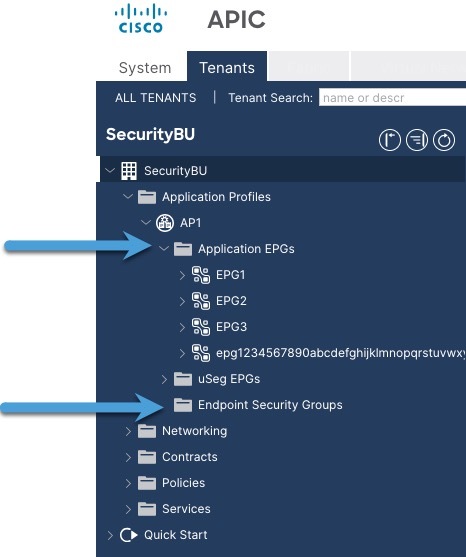
    The following figure shows an example.

    Shows how to locate application EPGs and endpoint security groups in the Cisco APIC console

Create a connector

A connector is an interface with a cloud service. The connector retrieves network information from the cloud service so the network information can be used in policies on the Secure Firewall Management Center.

We support the following:

Table 1. List of supported connectors by dynamic attributes connector version and platform

CSDAC version

AWS

AWS Security Groups

AWS Service Tags

Azure

Azure Service Tags

Cisco APIC

Cisco Cyber Vision

Cisco Multicl. Defense

Generic text

GitHub

Google Cloud

Microsoft Office 365

Tenable

vCenter

Webex

Zoom

Version 1.1 (on-premises)

Yes

No

No

Yes

Yes

No

No

No

No

No

No

Yes

No

Yes

No

No

Version 2.0 (on-premises)

Yes

No

No

Yes

Yes

No

No

No

No

No

Yes

Yes

No

Yes

No

No

Version 2.2 (on-premises)

Yes

No

No

Yes

Yes

No

No

No

No

Yes

Yes

Yes

No

Yes

No

No

Version 2.3 (on-premises)

Yes

No

No

Yes

Yes

No

No

No

No

Yes

Yes

Yes

No

Yes

Yes

Yes

Version 3.0 (on-premises)

Yes

Yes

Yes

Yes

Yes

No

Yes

No

Yes

Yes

Yes

Yes

No

Yes

Yes

Yes

Version 3.1 (on-premises)

Yes

Yes

Yes

Yes

Yes

Yes

Yes

Yes

Yes

Yes

Yes

Yes

No

Yes

Yes

Yes

Cloud-delivered (Security Cloud Control)

Yes

No

No

Yes

Yes

No

No

Yes

No

Yes

Yes

Yes

Yes

No

No

No

Secure Firewall Management Center 7.4.1

Yes

No

No

Yes

Yes

No

No

No

Yes

Yes

Yes

Yes

No

Yes

Yes

Yes

Secure Firewall Management Center 7.6

Yes

Yes

Yes

Yes

Yes

No

Yes

No

Yes

Yes

Yes

Yes

No

Yes

Yes

Yes

Secure Firewall Management Center 7.7

Yes

Yes

Yes

Yes

Yes

No

Yes

No

Yes

Yes

Yes

Yes

No

Yes

Yes

Yes

Secure Firewall Management Center 10.0.0

Yes

Yes

Yes

Yes

Yes

Yes

Yes

No

Yes

Yes

Yes

Yes

No

Yes

Yes

Yes

For more information about connectors, see the configuration guide.

Create a Cisco APIC connector

This topic discusses creating a Cisco APIC connector that gets dynamic objects from a configured endpoint group (EPG) on Cisco APIC.

Procedure


Step 1

Log in to the Secure Firewall Management Center.

Step 2

Click Integration > Dynamic Attributes Connector > Connectors.

Step 3

Do any of the following:

  • Add a new connector: click Add icon (add icon), then click the name of the connector.

  • Edit or delete a connector: Click More (more icon), then click Edit or Delete at the end of the row.

Step 4

Enter the following information.

Value

Description

Name

(Required.) Enter a name to uniquely identify this connector.

Description

Optional description.

Pull Interval

(Default 60 seconds.) Interval at which IP mappings are retrieved from Cisco APIC.

We recommend setting this to 15 seconds.

Site Prefix

Do any of the following:

  • If you're not currently using the Cisco ACI Endpoint Update App, enter a value to be used in dynamic objects created by this integration (for example, APIC).

  • If you're currently using the Cisco ACI Endpoint Update App, enter a Site Prefix value that exactly matches the Cisco ACI Endpoint Update App Site Prefix value you found as discussed in Get required information for the integration.

Site Prefix

Enter a name to identify this connector with the corresponding ASA adapter.

Note


The Site Prefix name you enter here must exactly match all of the following:

This value is not case-sensitive.

IP or Hostname

Enter the fully-qualified domain name or IP address of the Cisco APIC server from which to retrieve dynamic objects from EPGs and ESGs.

Do not enter a scheme (such as https://) and do not include a trailing slash.

Add another cluster IP

(Optional.) Enter the IP address of other servers in the Cisco APIC cluster.

Username

Enter the name of a Cisco APIC user with at least at least the read-all role with readPriv access and the tenant-admin role with writePriv access for the security domain.

Objects from all tenants the user has privileges to can be pushed to Secure Firewall Management Center.

Password

Enter the user's password.

Server Certificate

(Recommended if using fully-qualified domain name.)

You have the following options:

  • Paste the certificate authority (CA) chain you got as discussed in .

  • Click Get Certificate > Fetch to automatically fetch the certificate or, if that is not possible, get the certificate manually as discussed in .

  • Click Get Certificate > Browse from file to upload a certificate chain you downloaded previously.

Step 5

Click Test and make sure the test succeeds before you save the connector.

Step 6

Click Save.

Step 7

Make sure Ok is displayed in the Status column.


Manually get a certificate authority (CA) chain

In the event you cannot automatically fetch the certificate authority chain, use one of the following browser-specific procedures to get a certificate chain used to connect securely to vCenter or, or Firewall Management Center.

The certificate chain is the root certificate and all subordinate certificates.

You can optionally use one of these procedures to connect to the following:

  • vCenter or NSX

  • Firewall Management Center

  • Cisco APIC

Get a Certificate Chain—Mac (Chrome and Firefox)

Use this procedure to get a certificate chain using the Chrome and Firefox browsers on Mac OS.

  1. Open a Terminal window.

  2. Enter the following command.

    security verify-cert -P url[:port]

    where url is the URL (including scheme) to vCenter or, or Firewall Management Center. For example:

    security verify-cert -P https://myvcenter.example.com

    If you access vCenter or, or Firewall Management Center using NAT or PAT, you can add a port as follows:

    security verify-cert -P https://myvcenter.example.com:12345
  3. Save the entire certificate chain to a plaintext file.

    • Include all -----BEGIN CERTIFICATE----- and -----END CERTIFICATE----- delimiters.

    • Exclude any extraneous text (for example, the name of the certificate and any text contained in angle brackets (< and >) as well as the angle brackets themselves.

  4. Repeat these tasks for vCenter, or Firewall Management Center.

Get a Certificate Chain—Windows Chrome

Use this procedure to get a certificate chain using the Chrome browser on Windows.

  1. Log in to vCenter or, or Firewall Management Center using Chrome.

  2. In the browser address bar, click the lock to the left of the host name.

  3. Click Certificate.

  4. Click the Certification Path tab.

  5. Click the top (that is, first) certificate in the chain.

  6. Click View Certificate.

  7. Click the Details tab.

  8. Click Copy to File.

  9. Follow the prompts to create a CER-formatted certificate file that includes the entire certificate chain.

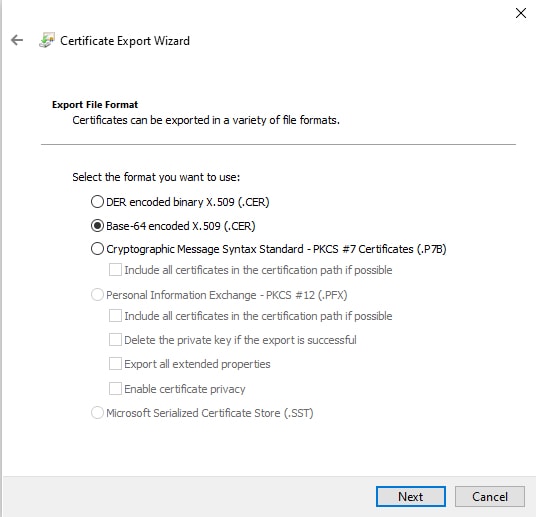
    When you're prompted to choose an export file format, click Base 64-Encoded X.509 (.CER) as the following figure shows.

    In the Certificate Export Wizard, select Base 64 encoded X.509 and export the certificate

  10. Follow the prompts to complete the export.

  11. Open the certificate in a text editor.

  12. Repeat the process for all certificates in the chain.

    You must paste each certificate in the text editor in order, first to last.

  13. Repeat these tasks for vCenter or, or Firewall Management Center.

Get a Certificate Chain—Windows Firefox

Use the following procedure to get a certificate chain for the Firefox browser on either Windows or Mac OS.

  1. Log in to vCenter or, or Firewall Management Center. using Firefox.

  2. Click the lock to the left of the host name.

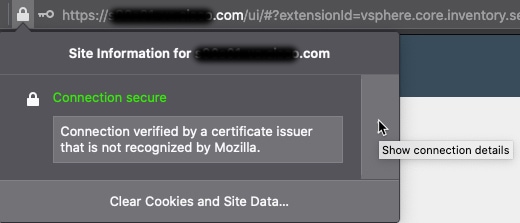
  3. Click the right arrow (Show connection details). The following figure shows an example.

    In Firefox, show the connection details to see the certificate being used to connect to the FMC

  4. Click More Information.

  5. Click View Certificate.

  6. If the resulting dialog box has tab pages, click the tab page corresponding to the top-level CA.

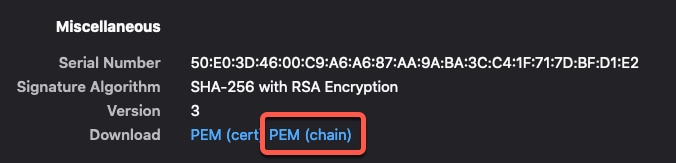
  7. Scroll to the Miscellaneous section.

  8. Click PEM (chain) in the Download row. The following figure shows an example.

    Get the PEM chain to configure the FMC adapter

  9. Save the file.

  10. Repeat these tasks for vCenter or, or Firewall Management Center.