Create a connector
A connector is an interface with a cloud service. The connector retrieves network information from the cloud service so the network information can be used in policies on the Secure Firewall Management Center.
We support the following:
|
CSDAC version |
AWS |
AWS security groups |
AWS service tags |
Azure |
Azure Service Tags |
Cisco APIC |
Cisco Cyber Vision |
Generic Text |
GitHub |
Google Cloud |
Microsoft Office 365 |
vCenter |
Webex |
Zoom |
|---|---|---|---|---|---|---|---|---|---|---|---|---|---|---|
|
Version 1.1 (on-premises) |
Yes |
No |
No |
Yes |
Yes |
No |
No |
No |
No |
No |
Yes |
Yes |
No |
No |
|
Version 2.0 (on-premises) |
Yes |
No |
No |
Yes |
Yes |
No |
No |
No |
No |
Yes |
Yes |
Yes |
No |
No |
|
Version 2.2 (on-premises) |
Yes |
No |
No |
Yes |
Yes |
No |
No |
No |
Yes |
Yes |
Yes |
Yes |
No |
No |
|
Version 2.3 (on-premises) |
Yes |
No |
No |
Yes |
Yes |
No |
No |
No |
Yes |
Yes |
Yes |
Yes |
Yes |
Yes |
|
Version 3.0 (on-premises) |
Yes |
Yes |
Yes |
Yes |
Yes |
No |
Yes |
Yes |
Yes |
Yes |
Yes |
Yes |
Yes |
Yes |
|
Version 3.1 (on-premises) |
Yes |
Yes |
Yes |
Yes |
Yes |
Yes |
Yes |
Yes |
Yes |
Yes |
Yes |
Yes |
Yes |
Yes |
Amazon Web Services connector—About user permissions and imported data
The dynamic attributes connector imports dynamic attributes from AWS to Secure Firewall Management Center for use in policies.
Dynamic attributes imported
We import the following dynamic attributes from AWS:
-
Tags, user-defined key-value pairs you can use to organize your AWS EC2 resources.
For more information, see Tag your EC2 Resources in the AWS documentation
-
IP addresses of virtual machines in AWS.
Minimum permissions required
The dynamic attributes connector requires a user at minimum with a policy that permits ec2:DescribeTags, ec2:DescribeVpcs, and ec2:DescribeInstances to be able to import dynamic attributes.
Create an AWS user with minimal permissions for the dynamic attributes connector
This task discusses how to set up a service account with minimum permissions to send dynamic attributes to Secure Firewall Management Center . For a list of these attributes, see Amazon Web Services connector—About user permissions and imported data.
Before you begin
You must already have set up your Amazon Web Services (AWS) account. For more information about doing that, see this article in the AWS documentation.
Procedure
|
Step 1 |
Log in to the AWS console as a user with the admin role. |
||
|
Step 2 |
From the Dashboard, click . |
||
|
Step 3 |
Click . |
||
|
Step 4 |
Click Add Users. |
||
|
Step 5 |
In the User Name field, enter a name to identify the user. |
||
|
Step 6 |
Click Access Key - Programmatic Access. |
||
|
Step 7 |
At the Set permissions page, click Next without granting the user access to anything. You can grant user access later. |
||
|
Step 8 |
Add tags to the user if desired. |
||
|
Step 9 |
Click Create User. |
||
|
Step 10 |
Click Download .csv to download the user's key to your computer.
|
||
|
Step 11 |
Click Close. |
||
|
Step 12 |
At the Identity and Access Management (IAM) page in the left column, click . |
||
|
Step 13 |
Click Create Policy. |
||
|
Step 14 |
On the Create Policy page, click JSON.
|
||
|
Step 15 |
Enter the following policy in the field: |
||
|
Step 16 |
Click Next. |
||
|
Step 17 |
Click Review. |
||
|
Step 18 |
On the Review Policy page, enter the requested information and click Create Policy. |
||
|
Step 19 |
On the Policies page, enter all or part of the policy name in the search field and press Enter. |
||
|
Step 20 |
Click the policy you just created. |
||
|
Step 21 |
Click . |
||
|
Step 22 |
If necessary, enter all or part of the user name in the search field and press Enter. |
||
|
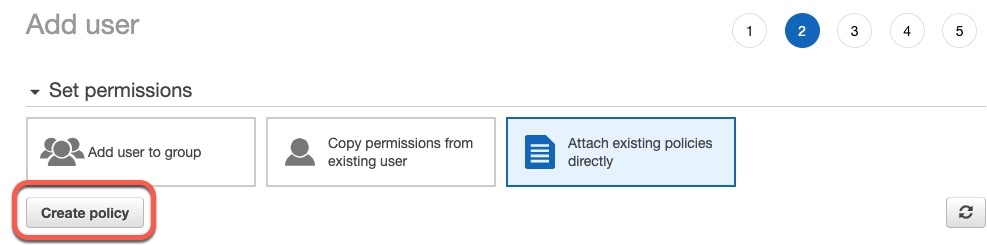
Step 23 |
Click Attach Policy. |
What to do next
Create an AWS connector
This task discusses how to configure a connector that sends data from AWS to the Secure Firewall Management Center for use in policies.
Before you begin
Create a user with at least the privileges discussed in Create an AWS user with minimal permissions for the dynamic attributes connector.
Procedure
|
Step 1 |
Log in to the dynamic attributes connector. |
||||||||||||||
|
Step 2 |
Click Connectors. |
||||||||||||||
|
Step 3 |
Do any of the following:
|
||||||||||||||
|
Step 4 |
Enter the following information.
|
||||||||||||||
|
Step 5 |
Click Test and make sure the test succeeds before you save the connector. |
||||||||||||||
|
Step 6 |
Click Save. |
||||||||||||||
|
Step 7 |
Make sure Ok is displayed in the Status column. |
 )
) )
)Amazon Web Services Security Groups connector—About user permissions
The dynamic attributes connector imports dynamic attributes from AWS to Secure Firewall Management Center for use in policies.
Minimum permissions required
The dynamic attributes connector requires a user at minimum with a policy that permits ec2:DescribeTags, ec2:DescribeVpcs, and ec2:DescribeInstances to be able to import dynamic attributes.
Create an AWS user with minimal permissions for the dynamic attributes connector
This task discusses how to set up a service account with minimum permissions to send dynamic attributes to Secure Firewall Management Center . For a list of these attributes, see Amazon Web Services connector—About user permissions and imported data.
Before you begin
You must already have set up your Amazon Web Services (AWS) account. For more information about doing that, see this article in the AWS documentation.
Procedure
|
Step 1 |
Log in to the AWS console as a user with the admin role. |
||
|
Step 2 |
From the Dashboard, click . |
||
|
Step 3 |
Click . |
||
|
Step 4 |
Click Add Users. |
||
|
Step 5 |
In the User Name field, enter a name to identify the user. |
||
|
Step 6 |
Click Access Key - Programmatic Access. |
||
|
Step 7 |
At the Set permissions page, click Next without granting the user access to anything. You can grant user access later. |
||
|
Step 8 |
Add tags to the user if desired. |
||
|
Step 9 |
Click Create User. |
||
|
Step 10 |
Click Download .csv to download the user's key to your computer.
|
||
|
Step 11 |
Click Close. |
||
|
Step 12 |
At the Identity and Access Management (IAM) page in the left column, click . |
||
|
Step 13 |
Click Create Policy. |
||
|
Step 14 |
On the Create Policy page, click JSON.
|
||
|
Step 15 |
Enter the following policy in the field: |
||
|
Step 16 |
Click Next. |
||
|
Step 17 |
Click Review. |
||
|
Step 18 |
On the Review Policy page, enter the requested information and click Create Policy. |
||
|
Step 19 |
On the Policies page, enter all or part of the policy name in the search field and press Enter. |
||
|
Step 20 |
Click the policy you just created. |
||
|
Step 21 |
Click . |
||
|
Step 22 |
If necessary, enter all or part of the user name in the search field and press Enter. |
||
|
Step 23 |
Click Attach Policy. |
What to do next
Create an AWS Security Groups connector
This task discusses how to configure a connector that sends AWS security groups data to the Secure Firewall Management Center for use in policies.
Before you begin
-
Create AWS security groups as discussed in Work with security groups on the AWS documentation site.
-
Create a user with at least the privileges discussed in Create an AWS user with minimal permissions for the dynamic attributes connector.
Procedure
|
Step 1 |
Log in to the dynamic attributes connector. |
||||||||||||||
|
Step 2 |
Click Connectors. |
||||||||||||||
|
Step 3 |
Do any of the following:
|
||||||||||||||
|
Step 4 |
Enter the following information.
|
||||||||||||||
|
Step 5 |
Click Test and make sure the test succeeds before you save the connector. |
||||||||||||||
|
Step 6 |
Click Save. |
||||||||||||||
|
Step 7 |
Make sure Ok is displayed in the Status column. |
Create an AWS service tags connector
This topic discusses how to create a connector for Amazon Web Services (AWS) service tags to the Secure Firewall Management Center for use in policies.
For more information, see resources like the following on the AWS documentation site:
Procedure
|
Step 1 |
Log in to the dynamic attributes connector. |
||||||||
|
Step 2 |
Click Connectors. |
||||||||
|
Step 3 |
Do any of the following:
|
||||||||
|
Step 4 |
Enter the following information.
|
||||||||
|
Step 5 |
Click Test and make sure Test connection succeeded is displayed before you save the connector. |
||||||||
|
Step 6 |
Click Save. |
||||||||
|
Step 7 |
Make sure Ok is displayed in the Status column. |
Azure connector—About user permissions and imported data
The dynamic attributes connector imports dynamic attributes from Azure to Secure Firewall Management Center for use in policies.
Dynamic attributes imported
We import the following dynamic attributes from Azure:
-
Tags, key-value pairs associated with resources, resource groups, and subscriptions.
For more information, see this page in the Microsoft documentation.
-
IP addresses of virtual machines in Azure.
Minimum permissions required
The dynamic attributes connector requires a user at minimum with the Reader permission to be able to import dynamic attributes.
Create an Azure user with minimal permissions for the dynamic attributes connector
This task discusses how to set up a service account with minimum permissions to send dynamic attributes to Secure Firewall Management Center . For a list of these attributes, see Azure connector—About user permissions and imported data.
Before you begin
You must already have a Microsoft Azure account. To set one up, see this page on the Azure documentation site.
Procedure
|
Step 1 |
Log in to the Azure Portal as the owner of the subscription. |
|
Step 2 |
Click Azure Active Directory. |
|
Step 3 |
Find the instance of Azure Active Directory for the application you want to set up. |
|
Step 4 |
Click . |
|
Step 5 |
In the Name field, enter a name to identify this application. |
|
Step 6 |
Enter other information on this page as required by your organization. |
|
Step 7 |
Click Register. |
|
Step 8 |
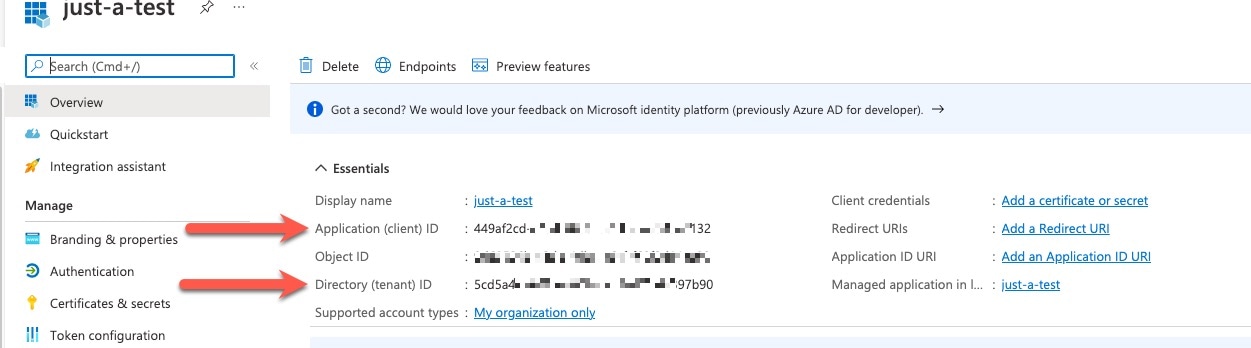
On the next page, write down or copy the Client ID (also referred to as application ID) and the tenant ID (also referred to as the directory ID). A sample follows.
|
|
Step 9 |
Next to Client Credentials, click Add a certificate or secret. |
|
Step 10 |
Click New Client Secret. |
|
Step 11 |
Enter the requested information and click Add. |
|
Step 12 |
Copy the value of the Value field to the clipboard. This value, and not the Secret ID, is the client secret.
|
|
Step 13 |
Go back to the main Azure Portal page and click Subscriptions. |
|
Step 14 |
Click the name of your subscription. |
|
Step 15 |
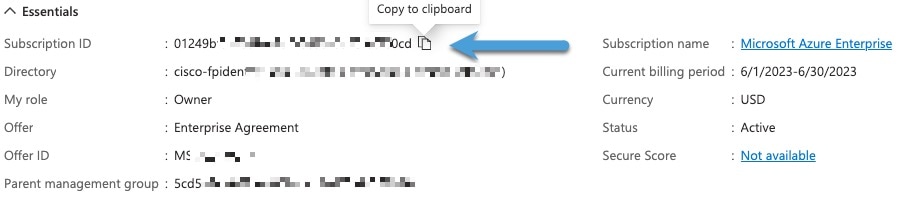
Copy the subscription ID to the clipboard.
|
|
Step 16 |
Click Access Control (IAM). |
|
Step 17 |
Click . |
|
Step 18 |
Click Reader and click Next. |
|
Step 19 |
Click Select Members. |
|
Step 20 |
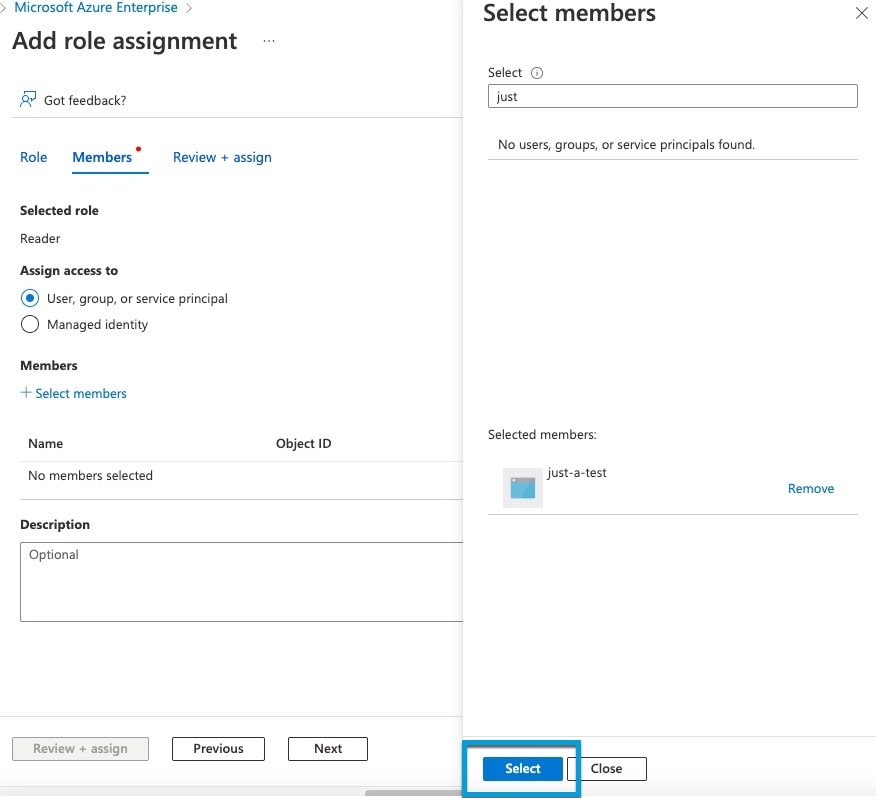
On the right side of the page, click the name of the app you registered and click Select.
|
|
Step 21 |
Click Review + Assign and follow the prompts to complete the action. |

What to do next
Create an Azure connector
This task discusses how to create a connector to send data from Azure to Secure Firewall Management Center for use in policies.
Before you begin
Procedure
|
Step 1 |
Log in to the dynamic attributes connector. |
||||||||||||||||
|
Step 2 |
Click Connectors. |
||||||||||||||||
|
Step 3 |
Do any of the following:
|
||||||||||||||||
|
Step 4 |
Enter the following information.
|
||||||||||||||||
|
Step 5 |
Click Test and make sure Test connection succeeded is displayed before you save the connector. |
||||||||||||||||
|
Step 6 |
Click Save. |
||||||||||||||||
|
Step 7 |
Make sure Ok is displayed in the Status column. |
Create an Azure Service Tags connector
This topic discusses how to create a connector for Azure service tags to the Secure Firewall Management Center for use in policies. The IP addresses associated with these tags are updated every week by Microsoft.
For more information, see Virtual network service tags on Microsoft TechNet.
Procedure
|
Step 1 |
Log in to the dynamic attributes connector. |
||||||||||||||||
|
Step 2 |
Click Connectors. |
||||||||||||||||
|
Step 3 |
Do any of the following:
|
||||||||||||||||
|
Step 4 |
Enter the following information.
|
||||||||||||||||
|
Step 5 |
Click Test and make sure Test connection succeeded is displayed before you save the connector. |
||||||||||||||||
|
Step 6 |
Click Save. |
||||||||||||||||
|
Step 7 |
Make sure Ok is displayed in the Status column. |
Cisco APIC connector
The following topics discuss how to configure the Cisco APIC Integration with the Secure Firewall Management Center.
Requirements and prerequisites for
Following are requirements and prerequisits to use Cisco APIC to send dynamic objects to ASA:
-
Network communication: All of the following must be able to communicate with each other securely:
-
ASA 9.16 and later
-
Cisco APIC 4.2(7q) and later
-
Dynamic Attributes Connector virtual machine, version 3.1 and later
-
-
ASA requirements
-
License: Essentials
For more information about licensing, see Smart Software Licensing.
-
FQDN: Supported
-
Multi-context: Supported
-
Multi-instance: Supported
-
High availability: Supported
-
Clustering: Supported
-
-
Permissions required:
-
ASA: privilege 15
-
Cisco APIC: at least the
read-allrole withreadPrivaccess and thetenant-adminrole withwritePrivaccess for the security domain
-
More information
For more information about the , see About the integration with ASA.
System requirements for the integration with Cisco APIC
Your system must meet the following requirements:
-
Secure Firewall Management Center version: 10.0.0 and later.
Essentials license or better required; high availability is supported.
-
Firewall Threat Defense version: 7.2 and later.
-
Cisco APIC version: 3.0(1k) or later.
-
If you use the ACI Endpoint Update App, it must be version 2.6.
Get required information for the integration
This section discusses:
-
Information required to configure the integration
-
Information used in dynamic object names
Cisco ACI Endpoint Update App site prefix and update interval
This information applies to you only if you're currently using the Cisco ACI Endpoint Update App; otherwise, you can skip it.
To find the Cisco ACI Endpoint Update App site prefix and update interval:
-
Log in to Cisco APIC as a user with
adminprivileges.For more information, see APIC Roles and Privileges Matrix.
-
Click Apps.
-
Under ACI Endpoint Update app, click Open.
-
Click Edit (
 ).
).
-
Write down the values of Update Interval (In seconds) and Site Prefix.
Required to configure the integration: Find a user with appropriate access
To find a user with at least the read-all role with readPriv access and the tenant-admin role with writePriv access for the security domain:
-
Log in to Cisco APIC.
-
Click Admin.
-
In the left pane, click Users.
-
In the right pane, double-click the name of a user.
-
Scroll to Security Domains.
-
For the relevant security domain, make sure the user has at least the
read-allrole withreadPrivaccess and thetenant-adminrole withwritePrivaccess for the security domain, as the following figure shows.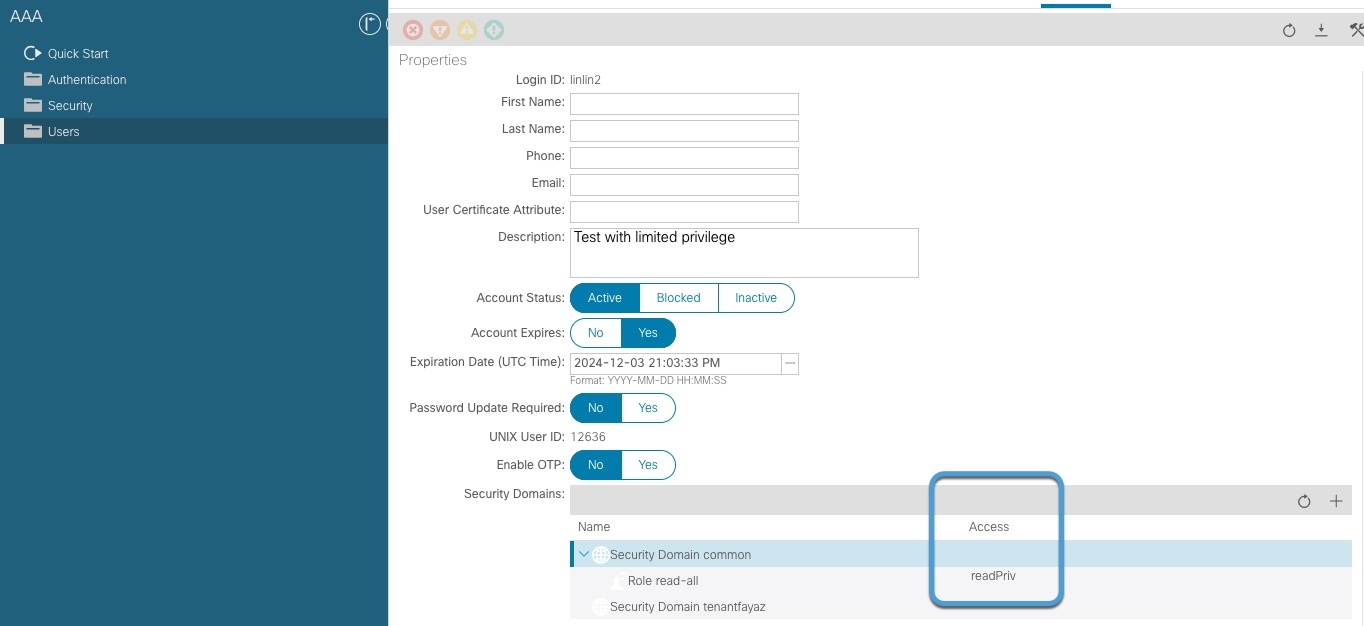
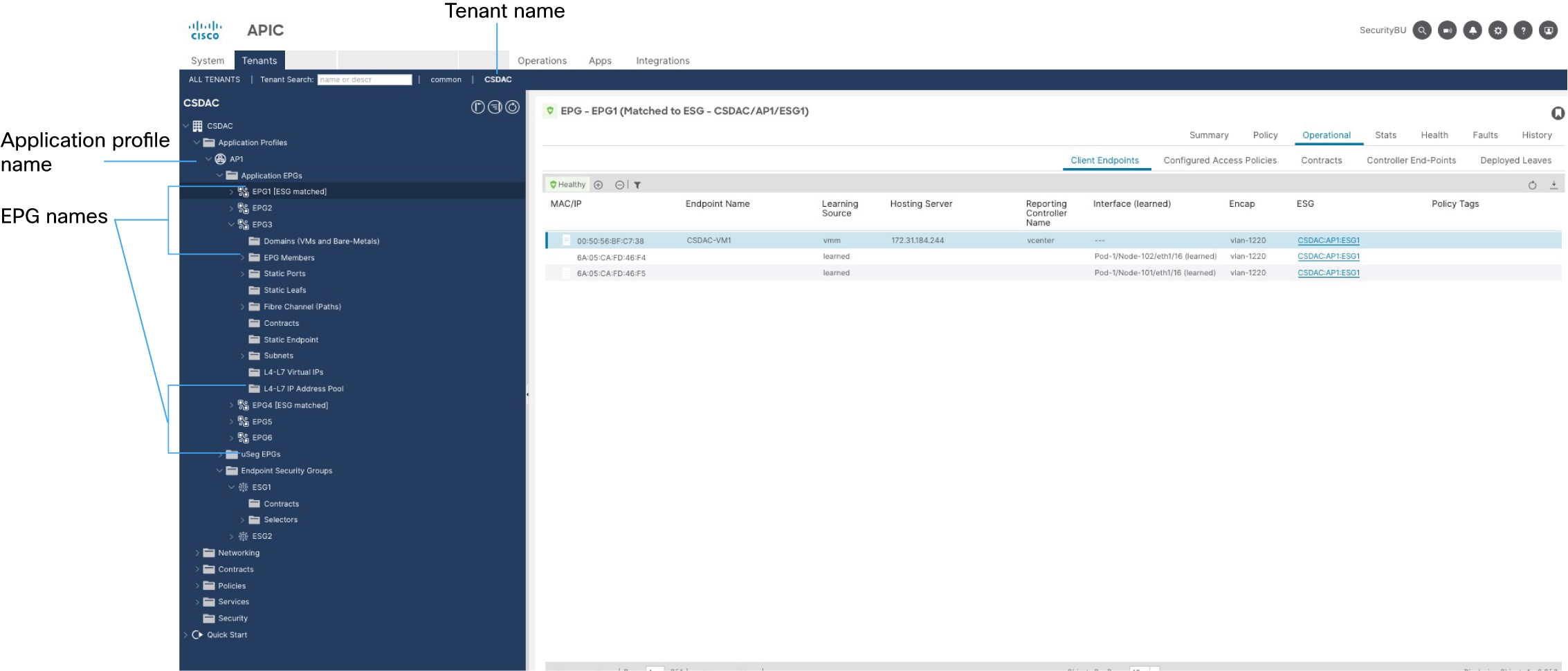
Cisco APIC tenant name
The Cisco APIC tenant name is used in the names of dynamic objects created by this integration. To find it:
-
Log in to Cisco APIC.
-
Click Tenants.
-
Write down the name of the tenant that contains objects to send to .
Cisco APIC application profile name
The Cisco APIC application profile name is used in the names of dynamic objects created by this integration. To find it:
-
Log in to Cisco APIC.
-
Click Tenants.
-
Double-click the name of your tenant.
-
Expand your tenant.
-
Expand Application Profiles.
-
Write down the name of the application profile that contains EPGs and ESGs to integrate with ASA.
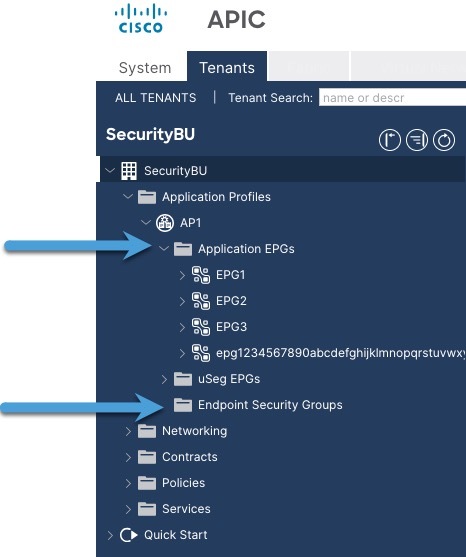
EPG name
The Cisco APIC EPG name is used in the names of dynamic objects created by this integration. To find it:
-
Log in to Cisco APIC.
-
Click Tenants.
-
Double-click the name of your tenant.
-
Expand your tenant.
-
Expand Application Profiles.
-
Expand the name of the application profile.
-
Expand Application EPGs.
-
Write down the name of the EPG or ESG that has network object groups to send to ASA.
The following figure shows an example.
Example
The following figure shows the values in Cisco APIC.
Create a Cisco APIC connector
This topic discusses creating a Cisco APIC connector that gets network object groups from a configured endpoint group (EPG) on Cisco APIC.
Procedure
|
Step 1 |
Log in to the dynamic attributes connector. |
||||||||||||||||||
|
Step 2 |
Click Connectors. |
||||||||||||||||||
|
Step 3 |
Do any of the following:
|
||||||||||||||||||
|
Step 4 |
Enter the following information.
|
||||||||||||||||||
|
Step 5 |
Click Test and make sure the test succeeds before you save the connector. |
||||||||||||||||||
|
Step 6 |
Click Save. |
||||||||||||||||||
|
Step 7 |
Make sure Ok is displayed in the Status column. |
What to do next
Manually get a certificate authority (CA) chain
In the event you cannot automatically fetch the certificate authority chain, use one of the following browser-specific procedures to get a certificate chain used to connect securely to vCenter, Firewall Management Center, Cisco APIC, or .
The certificate chain is the root certificate and all subordinate certificates.
You can optionally use one of these procedures to connect to the following:
-
vCenter or NSX
-
Firewall Management Center
-
Cisco APIC
Get a Certificate Chain—Mac (Chrome and Firefox)
Use this procedure to get a certificate chain using the Chrome and Firefox browsers on Mac OS.
-
Open a Terminal window.
-
Enter the following command.
security verify-cert -P url[:port]where url is the URL (including scheme) to vCenter Firewall Management Center, or Cisco APIC, or . For example:
security verify-cert -P https://myvcenter.example.comIf you access vCenter Firewall Management Center, or Cisco APIC, or using NAT or PAT, you can add a port as follows:
security verify-cert -P https://myvcenter.example.com:12345 -
Save the entire certificate chain to a plaintext file.
-
Include all
-----BEGIN CERTIFICATE-----and-----END CERTIFICATE-----delimiters. -
Exclude any extraneous text (for example, the name of the certificate and any text contained in angle brackets (
<and>) as well as the angle brackets themselves.
-
-
Repeat these tasks for vCenter, Firewall Management Center, Cisco APIC, or .
Get a Certificate Chain—Windows Chrome
Use this procedure to get a certificate chain using the Chrome browser on Windows.
-
Log in to vCenter, Firewall Management Center, Cisco APIC, or using Chrome.
-
In the browser address bar, click the lock to the left of the host name.
-
Click Certificate.
-
Click the Certification Path tab.
-
Click the top (that is, first) certificate in the chain.
-
Click View Certificate.
-
Click the Details tab.
-
Click Copy to File.
-
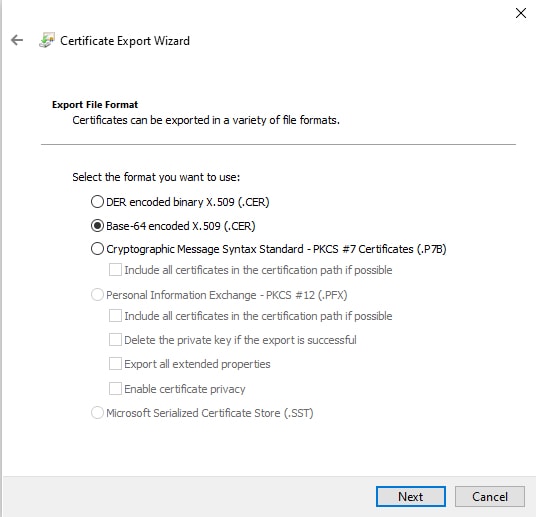
Follow the prompts to create a CER-formatted certificate file that includes the entire certificate chain.
When you're prompted to choose an export file format, click Base 64-Encoded X.509 (.CER) as the following figure shows.
-
Follow the prompts to complete the export.
-
Open the certificate in a text editor.
-
Repeat the process for all certificates in the chain.
You must paste each certificate in the text editor in order, first to last.
-
Repeat these tasks for vCenter, Firewall Management Center, Cisco APIC, or .
Get a Certificate Chain—Windows Firefox
Use the following procedure to get a certificate chain for the Firefox browser on either Windows or Mac OS.
-
Log in to vCenter, Firewall Management Center, Cisco APIC, or . using Firefox.
-
Click the lock to the left of the host name.
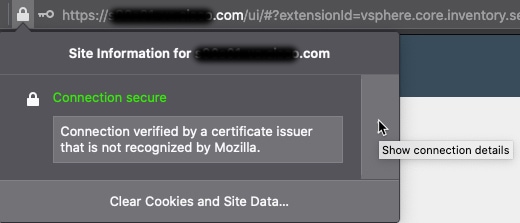
-
Click the right arrow (Show connection details). The following figure shows an example.
-
Click More Information.
-
Click View Certificate.
-
If the resulting dialog box has tab pages, click the tab page corresponding to the top-level CA.
-
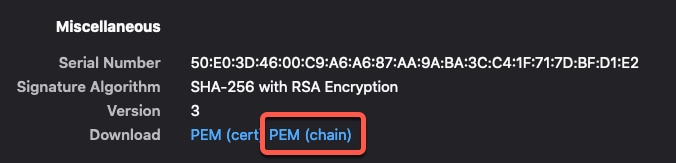
Scroll to the Miscellaneous section.
-
Click PEM (chain) in the Download row. The following figure shows an example.
-
Save the file.
-
Repeat these tasks for vCenter, Firewall Management Center, Cisco APIC, or ASA.
Create a Cisco Cyber Vision connector
This task discusses how to send data from Cisco Cyber Vision to the Secure Firewall Management Center .
Before you begin
Cisco Cyber Vision must be reachable from the machine on which the dynamic attributes connector is running. You must know its IP address, port, and API key.
To find the API key in the Cyber Vision management console, click , then click Show to display the token and  to copy the token to the clipboard.
Procedure
|
Step 1 |
Log in to the dynamic attributes connector. |
||||||||||||||||
|
Step 2 |
Click Connectors. |
||||||||||||||||
|
Step 3 |
Do any of the following:
|
||||||||||||||||
|
Step 4 |
Enter the following information.
|
||||||||||||||||
|
Step 5 |
Click Test and make sure the test succeeds before you save the connector. |
||||||||||||||||
|
Step 6 |
Click Save. |
||||||||||||||||
|
Step 7 |
Make sure Ok is displayed in the Status column. |
Create a generic text connector
This task discusses how to create an ad hoc list of IP addresses you maintain manually and retrieve at an interval you select (30 seconds by default). You can update the list of addresses anytime you want.
Before you begin
Create text files with IP addresses and put it on a web server that is accessible from the Secure Firewall Management Center . IP addresses can include CIDR notation. The text file must have only one IP address per line.
For example, you might have a list of IP addresses for an "allow list" in access control rules and another list of IP addresses for a "block list" in access control rules.
You can specify up to 10,000 IP addresses per text file.
Procedure
|
Step 1 |
Log in to the dynamic attributes connector. |
||||||||||||||||||
|
Step 2 |
Click Connectors. |
||||||||||||||||||
|
Step 3 |
Do any of the following:
|
||||||||||||||||||
|
Step 4 |
Enter the following information:
|
||||||||||||||||||
|
Step 5 |
Click Test and make sure the test succeeds before you save the connector. |
||||||||||||||||||
|
Step 6 |
Click Save. |
||||||||||||||||||
|
Step 7 |
Make sure Ok is displayed in the Status column. |
Create a GitHub connector
This section discusses how to create a GitHub connector that sends data to the Secure Firewall Management Center for use in policies. The IP addresses associated with these tags are maintained by GitHub. You do not have to create a dynamic attributes filters.
For more information, see About GitHub's IP addresses.
 Note |
Do not change the URL because doing so will fail to retrieve any IP addresses. |
Procedure
|
Step 1 |
Log in to the dynamic attributes connector. |
|
Step 2 |
Click Connectors. |
|
Step 3 |
Do any of the following:
|
|
Step 4 |
Enter a Name and an optional description. |
|
Step 5 |
(Optional.) In the Pull Interval field, change the frequency, in seconds, at which the dynamic attributes connector retrieves IP addresses from GitHub. The default is 21,600 seconds (6 hours). |
|
Step 6 |
Click Test and make sure the test succeeds before you save the connector. |
|
Step 7 |
Click Save. |
|
Step 8 |
Make sure Ok is displayed in the Status column. |
Google Cloud connector—About user permissions and imported data
The dynamic attributes connector imports dynamic attributes from Google Cloud to Secure Firewall Management Center for use in policies.
Dynamic attributes imported
We import the following dynamic attributes from Google Cloud:
-
Labels, key-value pairs you can use to organize your Google Cloud resources.
For more information, see Creating and Managing Labels in the Google Cloud documentation.
-
Network tags, key-value pairs associated with an organization, folder, or project.
For more information, see Creating and Managing Tags in the Google Cloud documentation.
-
IP addresses of virtual machines in Google Cloud.
Minimum permissions required
The dynamic attributes connector requires a user at minimum with the permission to be able to import dynamic attributes.
Create a Google Cloud user with minimal permissions for the dynamic attributes connector
This task discusses how to set up a service account with minimum permissions to send dynamic attributes to Secure Firewall Management Center . For a list of these attributes, see Google Cloud connector—About user permissions and imported data.
Before you begin
You must already have set up your Google Cloud account. For more information about doing that, see Setting Up Your Environment in the Google Cloud documentation.
Procedure
|
Step 1 |
Log in to your Google Cloud account as a user with the owner role. |
|
Step 2 |
Click . |
|
Step 3 |
Enter the following information:
For more information about service accounts, see Understanding Service Accounts in the Google Cloud documentation. |
|
Step 4 |
Click Create and Continue. |
|
Step 5 |
Follow the prompts on your screen until the Grant users access to this service account section is displayed. |
|
Step 6 |
Grant the user the role. |
|
Step 7 |
Click Done. A list of service accounts is displayed. |
|
Step 8 |
Click More ( |
|
Step 9 |
Click Manage Keys. |
|
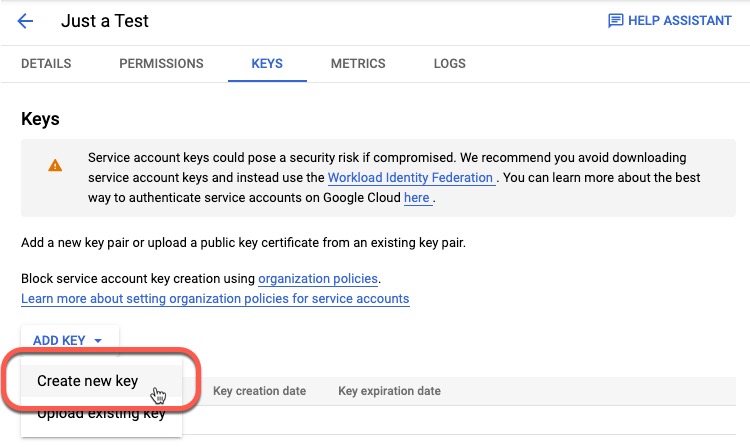
Step 10 |
Click .
|
|
Step 11 |
Click JSON. |
|
Step 12 |
Click Create. The JSON key is downloaded to your computer. |
|
Step 13 |
Keep the key handy when you configure the GCP connector. |
What to do next
Create a Google Cloud connector
Before you begin
Have your Google Cloud JSON-formatted service account data ready; it's required to set up the connector.
Procedure
|
Step 1 |
Log in to the dynamic attributes connector. |
||||||||||||
|
Step 2 |
Click Connectors. |
||||||||||||
|
Step 3 |
Do any of the following:
|
||||||||||||
|
Step 4 |
Enter the following information.
|
||||||||||||
|
Step 5 |
Click Test and make sure the test succeeds before you save the connector. |
||||||||||||
|
Step 6 |
Click Save. |
||||||||||||
|
Step 7 |
Make sure Ok is displayed in the Status column. |
Create an Office 365 connector
This task discusses how to create a connector for Office 365 tags to send data to the Secure Firewall Management Center for use in policies. The IP addresses associated with these tags are updated every week by Microsoft. You do not have to create a dynamic attributes filter to use the data.
For more information, see Office 365 URLs and IP address ranges on docs.microsoft.com.
Procedure
|
Step 1 |
Log in to the dynamic attributes connector. |
||||||||||||||
|
Step 2 |
Click Connectors. |
||||||||||||||
|
Step 3 |
Do any of the following:
|
||||||||||||||
|
Step 4 |
Enter the following information.
|
||||||||||||||
|
Step 5 |
Click Test and make sure the test succeeds before you save the connector. |
||||||||||||||
|
Step 6 |
Click Save. |
||||||||||||||
|
Step 7 |
Make sure Ok is displayed in the Status column. |
vCenter connector—About user permissions and imported data
The Dynamic Attributes Connector imports dynamic attributes from vCenter to Secure Firewall Management Center for use in policies.
Dynamic attributes imported
We import the following dynamic attributes from vCenter:
-
Operating system
-
MAC address
-
IP addresses
-
NSX tags
Minimum permissions required
The Dynamic Attributes Connector requires a user at minimum with the Read Only permission to be able to import dynamic attributes.
Create a vCenter user with minimal permissions for the dynamic attributes connector
This task discusses how to set up a service account with minimum permissions to send dynamic attributes to Secure Firewall Management Center . For a list of these attributes, see vCenter connector—About user permissions and imported data.
Before you begin
You must already have set up your vCenter Server account. For more information about doing that, see About vCenter Server Installation and Setup in the vCenter documentation.
Procedure
|
Step 1 |
Log into vCenter as an administrator. |
|
Step 2 |
Click . |
|
Step 3 |
In the left pane, click . |
|
Step 4 |
From the Domain list, click the name of a domain to add the user. |
|
Step 5 |
Click Add User. |
|
Step 6 |
Enter the requested information and click Add. |
|
Step 7 |
In the left pane, click . |
|
Step 8 |
Click Add( |
|
Step 9 |
From the User field, click the name of the vCenter domain in which you created the user. |
|
Step 10 |
In the search field, enter part of the user's name. |
|
Step 11 |
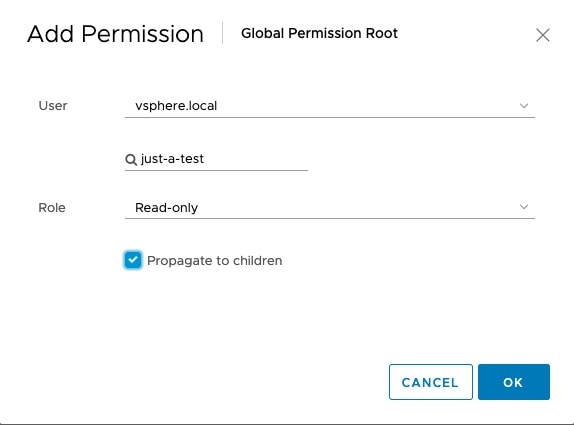
From the Role list, click Read-only. |
|
Step 12 |
Select the Propagate to children check box.
|
|
Step 13 |
Click OK. |
 ).
).
What to do next
Create a vCenter connector
This task discusses how to create a connector for VMware vCenter to send data to the Secure Firewall Management Center for use in policies.
Before you begin
If you use non-trusted certificates to communicate with vCenter, see Manually get a certificate authority (CA) chain.
Procedure
|
Step 1 |
Log in to the dynamic attributes connector. |
||||||||||||||||||||||||
|
Step 2 |
Click Connectors. |
||||||||||||||||||||||||
|
Step 3 |
Do any of the following:
|
||||||||||||||||||||||||
|
Step 4 |
Enter the following information.
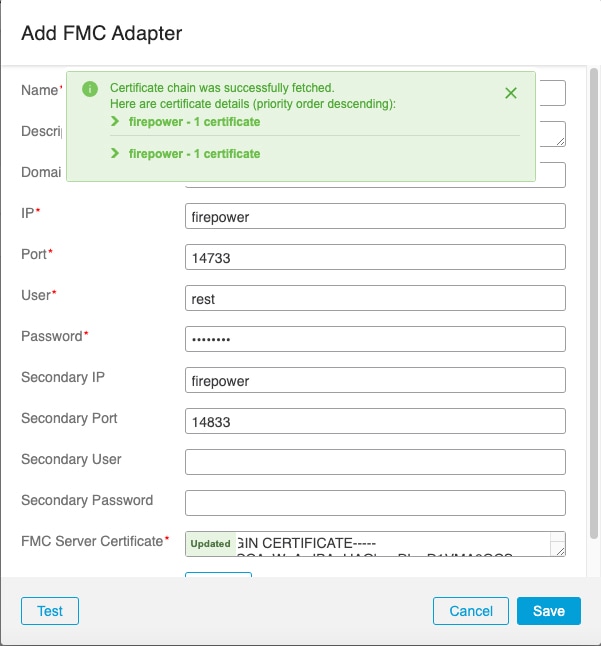
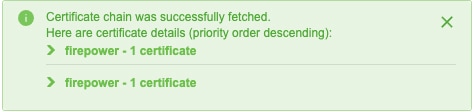
Expanding the certificate CA chain at the top of the dialog box displays the certificates similar to the following.
If it's not possible to fetch the certificate this way, you can get the certificate chain manually as discussed in Manually get a certificate authority (CA) chain. |
||||||||||||||||||||||||
|
Step 5 |
Click Test and make sure Test connection succeeded is displayed before you save the connector. |
||||||||||||||||||||||||
|
Step 6 |
Click Save. |
Create a Webex connector
This section discusses how to create a Webex connector that sends data to the Secure Firewall Management Center for use in policies. The IP addresses associated with these tags are maintained by Webex. You do not have to create a dynamic attributes filters.
For more information, see Port Reference for Webex Calling.
Procedure
|
Step 1 |
Log in to the dynamic attributes connector. |
||||||||||
|
Step 2 |
Click Connectors. |
||||||||||
|
Step 3 |
Do any of the following:
|
||||||||||
|
Step 4 |
Enter the following information.
|
||||||||||
|
Step 5 |
Click Test and make sure the test succeeds before you save the connector. |
||||||||||
|
Step 6 |
Click Save. |
||||||||||
|
Step 7 |
Make sure Ok is displayed in the Status column. |
Create a Zoom Connector
This section discusses how to create a Zoom connector that sends data to the Secure Firewall Management Center for use in policies. The IP addresses associated with these tags are maintained by Zoom. You do not have to create a dynamic attributes filters.
For more information, see Zoom network firewall or proxy server settings.
Procedure
|
Step 1 |
Log in to the dynamic attributes connector. |
||||||||||
|
Step 2 |
Click Connectors. |
||||||||||
|
Step 3 |
Do any of the following:
|
||||||||||
|
Step 4 |
Enter the following information.
|
||||||||||
|
Step 5 |
Click Test and make sure the test succeeds before you save the connector. |
||||||||||
|
Step 6 |
Click Save. |
||||||||||
|
Step 7 |
Make sure Ok is displayed in the Status column. |



 Feedback