Cisco Identity Services Engine Installation Guide, Release 3.5

PDF

Install Cisco ISE using Cisco Integrated Management Interface

Want to summarize with AI?

Log in

Overview

Provides detailed instructions for installing Cisco ISE on both SNS hardware appliances and virtual machines. It covers system requirements, Cisco IMC setup for appliance management, VM configuration including VMware OVA templates, ISO image download and boot procedures, management interface configuration, and Zero Touch Provisioning for automated installations.

Use these high-level steps to install Cisco ISE.

Before you begin

Procedure

1.

Installation Overview

  • For Cisco SNS Appliances

    1. Install the hardware appliance.

    2. Connect to Cisco IMC for server management.

  • For Virtual Machines

    1. Confirm your VM configuration matches the requirements.

2.

Download Software: Download the Cisco ISE ISO image.

  1. Go to http://www.cisco.com/go/ise. You need valid Cisco.com login credentials to access the site.

  2. Click Download Software for this Product.

    The Cisco ISE image includes a pre-installed 90-day evaluation license, which enables you to test all Cisco ISE services after completing installation and initial configuration.

3.

Booting the appliance or VM

  • Cisco SNS appliance:
    1. Connect to Cisco IMC and log in using the Cisco IMC credentials.

    2. Launch the KVM console.

    3. Select Virtual Media > Activate Virtual Devices.

    4. Select Virtual Media > Map CD/DVD, select the Cisco ISE ISO image, and click Map Device.

    5. Select Macros > Static Macros > Ctrl-Alt-Del to boot the appliance with the Cisco ISE ISO image.

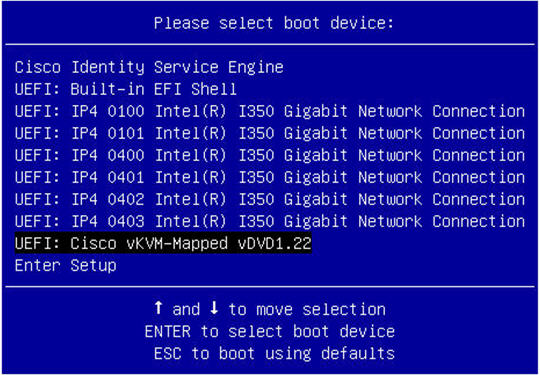
    6. Press F6 to open the boot menu. A similar screen appears:

      Figure 1. Selection of boot device
      Selection of boot device for Cisco ISE installation
      Note

      For remote SNS appliances without physical access, installation through Cisco IMC may take several hours. To speed up installation, copy the ISO file to a USB drive and use it during installation.

      Installation time may vary (approximately 30 minutes) depending on network speed, stability, TCP segmentation, and operating system factors.

      If the system enters an emergency shell during initial boot due to incomplete hardware initialization, reboot to allow initialization to complete and continue installation.

  • Virtual Machine:
    1. Map the CD/DVD to an ISO image. A similar screen appears. The installation menu appears with the message.

      Welcome to the Cisco Identity Services Engine Installer
      Cisco ISE Version: 3.x.x.xxx
      
      
      Available boot options:
      
      Cisco ISE Installation (Serial Console)
      Cisco ISE Installation (Keyboard/Monitor)
      System Utilities (Serial Console)
      System Utilities (Keyboard/Monitor)
      
4.

At the boot prompt, press 1 and Enter to install Cisco ISE using a serial console.

If you want to use a keyboard and monitor, use the arrow key to select the Cisco ISE Installation (Keyboard/Monitor) option. The message appears.

**********************************************
Please type 'setup' to configure the appliance
**********************************************
5.

Setup program: At the prompt, type setup to start the setup program. See Run the setup program of Cisco ISE for details about the parameters that the setup program uses.

6.

After you enter the network configuration parameters in the setup mode, the appliance automatically reboots, and returns to the shell prompt mode.

7.

Exit shell prompt mode. The appliance starts.

8.

Proceed to Verify the Cisco ISE installation process.


Installation metrics for Cisco ISE

The table outlines the installation duration and network latency metrics for various mount types for Cisco ISE.

Table 1. Latency and installation metrics for Cisco ISE

Mount type

Time taken for installation

Approximate latency

NFS-CIMC Mount

7 hours

Average round-trip time is less than 1 millisecond

CD or DVD - KVM Mount

4 hours

-

USB

1 hour

-