Deploy the Firewall Threat Defense Virtual on OpenStack

Overview

This guide describes how to deploy the Firewall Threat Defense Virtual in an OpenStack environment. OpenStack is a free open standard cloud computing platform, mostly deployed as infrastructure-as-a-service (IaaS) in both public and private clouds where virtual servers and other resources are made available to users.

This deployment uses a KVM hypervisor to manage virtual resources. KVM is a full virtualization solution for Linux on x86 hardware containing virtualization extensions (such as Intel VT). It consists of a loadable kernel module, kvm.ko, that provides the core virtualization infrastructure and a processor specific module, such as kvm-intel.ko.

You can run multiple virtual machines running unmodified OS images using KVM. Each virtual machine has private virtualized hardware: a network card, disk, graphics adapter, and so forth.

Because devices are already supported on the KVM hypervisor, no additional kernel packages or drivers are needed to enable OpenStack support.


Note


Firewall Threat Defense Virtual on OpenStack can be installed on any optimized multi-node environment.


End-to-End Procedure

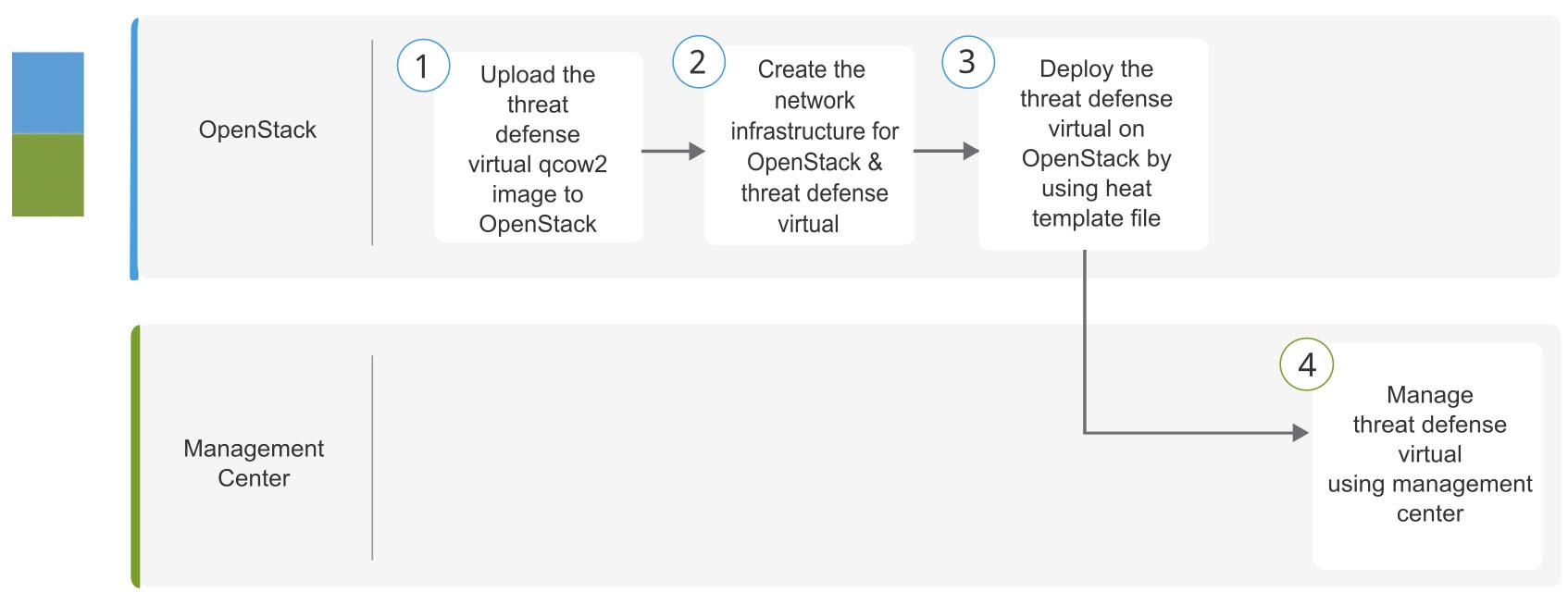
The following flowchart illustrates the workflow for deploying threat defense virtual on OpenStack.

Workspace

Steps

OpenStack

Deploy the Threat Defense Virtual on OpenStack: Upload the threat defense virtual image to OpenStack.

OpenStack

Deploy the threat defense Virtual on OpenStack: Create the network infrastructure for OpenStack and threat defense virtual.

OpenStack

Deploy the threat defense Virtual on OpenStack: Deploy the threat defense virtual on OpenStack by using threat defense virtual heat template file.

Management Center

Manage the threat defense virtual by using the Management Center

Prerequisites

  • Get the qcow2 Firewall Threat Defense Virtual image from software.cisco.com.

  • Firewall Threat Defense Virtual supports deployment on opensource OpenStack environment and Cisco VIM managed OpenStack environment.

    Set up the OpenStack environment according to the OpenStack guidelines.

  • A Cisco Smart Account. You can create one at Cisco Software Central.

  • License the Firewall Threat Defense Virtual.

    • Configure all license entitlements for the security services from the Firewall Management Center.

    • See “Licensing” in the Secure Firewall Management Center Admin Guide for more information about how to manage licenses.

  • Interface requirements:

    • Management interfaces (2) — One used to connect the Firewall Threat Defense Virtual to the Firewall Management Center, second used for diagnostics; cannot be used for through traffic.

    • Inside and outside interfaces — Used to connect the Firewall Threat Defense Virtual to inside hosts and to the public network.

  • Communications paths:

    • Floating IPs for access into the Firewall Threat Defense Virtual.

  • Minimum supported the Firewall Threat Defense Virtual version:

    • Version 7.0

  • For OpenStack requirements, see System Requirements.

  • For Firewall Threat Defense Virtual system requirements, see Cisco Secure Firewall Threat Defense Compatibility Guide.

Guidelines and Limitations

Supported Features

The Firewall Threat Defense Virtual on OpenStack supports the following features:

  • Deployment of Firewall Threat Defense Virtual on the KVM hypervisor running on a compute node in your OpenStack environment.

  • OpenStack CLI

  • Heat template-based deployment

  • OpenStack Horizon dashboard

  • IPv6

  • High availability

  • Licensing – Only BYOL is supported

  • Firewall Threat Defense Virtual management using the Firewall Management Center only.

  • Drivers - virtIO and SR-IOV

Performance Tiers for Firewall Threat Defense Virtual Smart Licensing

The Firewall Threat Defense Virtual supports performance-tiered licensing that provides different throughput levels and VPN connection limits based on deployment requirements.

Table 1. Firewall Threat Defense Virtual Licensed Feature Limits Based on Entitlement

Performance Tier

Device Specifications (Core/RAM)

Rate Limit

RA VPN Session Limit

FTDv5

4 core/8 GB

100Mbps

50

FTDv10

4 core/8 GB

1Gbps

250

FTDv20

4 core/8 GB

3Gbps

250

FTDv30

8 core/16 GB

5Gbps

250

FTDv50

12 core/24 GB

10Gbps

750

FTDv100

16 core/32 GB

16Gbps

10,000

See the "Licensing" chapter in the Secure Firewall Management Center Admin Guide for guidelines when licensing your Firewall Threat Defense Virtual device.

Performance Optimizations

To achieve the best performance out of the Firewall Threat Defense Virtual, you can make adjustments to the both the VM and the host. See Virtualization Tuning and Optimization on OpenStack for more information.

Receive Side Scaling—The Firewall Threat Defense Virtual supports Receive Side Scaling (RSS), which is a technology utilized by network adapters to distribute network receive traffic to multiple processor cores. Supported on Version 7.0 and later. See Multiple RX Queues for Receive Side Scaling (RSS) for more information.

Deployment

The Threat Defense virtual instance running Version 7.4.3 or later carries out several initialization tasks during its first boot, which causes the console to become available after about five minutes. This delay is normal. If the device is powered off within approximately two minutes of the first boot, important initialization steps may be interrupted, possibly leading to incomplete setup and unexpected behavior.

To resolve this issue, you must reinstall the virtual platform with a new image.

Snort

  • If you are observing abnormal behavior such as Snort taking a long time to shut down, or the VM being slow in general or when a certain process is executed, collect logs from the Firewall Threat Defense Virtual and the VM host. Collection of overall CPU usage, memory, I/O usage, and read/write speed logs will help troubleshoot the issues.

  • High CPU and I/O usage is observed when Snort is shutting down. If a number of Firewall Threat Defense Virtual instances have been created on a single host with insufficient memory and no dedicated CPU, Snort will take a long time to shut down which will result in the creation of Snort cores.

Unsupported Features

The Firewall Threat Defense Virtual on OpenStack does not support the following:

  • Autoscale

  • Cluster

System Requirements

The OpenStack environment must conform to the following supported hardware and software requirements.

Table 2. Hardware and Software Requirements for Open Source OpenStack

Category

Supported Versions

Notes

Server Hardware

UCS C240 M5

2 UCS servers are recommended, one each for os-controller and os-compute nodes.

Drivers

VIRTIO, IXGBE, and I40E

These are the supported drivers.

Operating System

Ubuntu Server 20.04

This is the recommended OS on UCS servers.

OpenStack Version

Wallaby release

Details of the various OpenStack releases are available at:

https://releases.openstack.org/

Threat Defense Virtual Software Releases and Supported Operating Systems:

  • For Threat Defense Virtual Release 10.0 (Caracal):

    The Caracal release supports deployment on the following operating systems:

    • Ubuntu 20.04, 22.04, and 24.04

    • RHEL version 8.4 with CVIM/HVIM version: 5.0.3

  • For Threat Defense Virtual Releases prior to 7.2.9 (Wallaby):

    The Wallaby release supports deployment on:

    • Ubuntu 20.04

    • RHEL version 8.4 with CVIM/HVIM version: 5.0.3

Table 3. Hardware and Software Requirements for Cisco VIM Managed OpenStack

Category

Supported Versions

Notes

Server Hardware

UCS C220-M5/UCS C240-M4

5 UCS servers are recommended, three each for os-controller and Two or more for os-compute nodes.

Drivers

VIRTIO, IXGBE, and I40E

These are the supported drivers.

Cisco VIM Version

Cisco VIM 4.4.3

Supported on:

  • Operating System - Red Hat Enterprise Linux 8.4

  • OpenStack version - OpenStack 16.2 (Train Release)

See Cisco Virtualized Infrastructure Manager Documentation, 4.4.3 for more information.

OpenStack Platform Topology

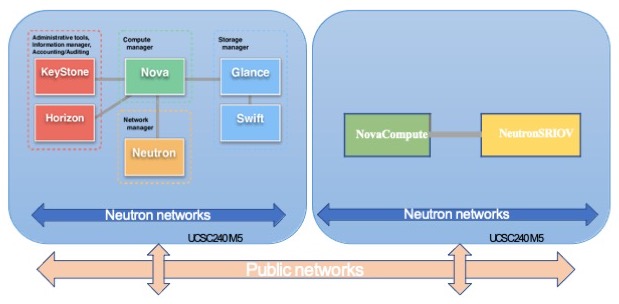
The following figure shows the recommended topology to support deployments in OpenStack using two UCS servers.

Figure 1. OpenStack Platform Topology

Network Topology Example for Firewall Threat Defense Virtual on OpenStack

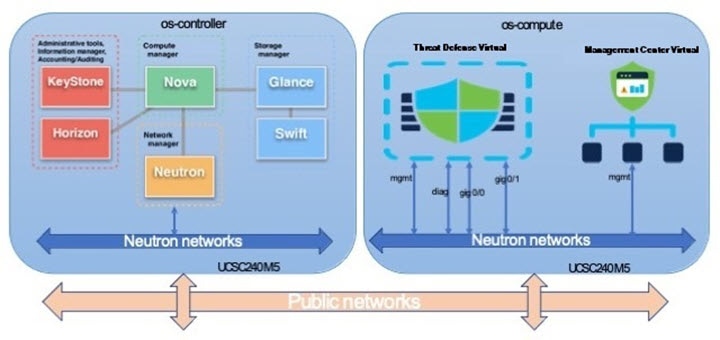
The following figure shows an example network topology for the Firewall Threat Defense Virtual in Routed Firewall Mode with 4 subnets configured in OpenStack for the Firewall Threat Defense Virtual (management, diagnostic, inside, and outside).

Figure 2. Topology Example with Firewall Threat Defense Virtual and Firewall Management Center Virtual on OpenStack

How to Manage Secure Firewall Threat Defense Virtual Device

You have two options to manage your Secure Firewall Threat Defense Virtual.

Secure Firewall Management Center

If you are managing large numbers of devices, or if you want to use the more complex features and configurations that the Firewall Threat Defense allows, use the Firewall Management Center to configure your devices instead of the integrated Firewall Device Manager. For detailed information, see Managing the Secure Firewall Threat Defense Virtual with the Secure Firewall Management Center


Important


You cannot use both the Firewall Device Manager and the Firewall Management Center to manage the Firewall Threat Defense device. Once the Firewall Device Manager integrated management is enabled, it won't be possible to use the Firewall Management Center to manage the Firewall Threat Defense device, unless you disable the local management and re-configure the management to use the Firewall Management Center. On the other hand, when you register the Firewall Threat Defense device to the Firewall Management Center, the Firewall Device Manager onboard management service is disabled.


Caution


Currently, Cisco does not have an option to migrate your Firewall Device Manager configuration to the Firewall Management Center and vice-versa. Take this into consideration when you choose what type of management you configure for the Firewall Threat Defense device.


Secure Firewall Device Manager

The Firewall Threat Defense instances on OpenStack can be managed using Firewall Device Manager from version 7.6.4. The Firewall Device Manager is a web interface included on most Firewall Threat Defense devices. It lets you configure the basic features of the software that are most commonly used for small networks. It is especially designed for networks that include a single device or just a few, where you do not want to use a high-powered multiple-device manager to control a large network with many devices. For detailed information, see Managing the Secure Firewall Threat Defense Virtual with the Secure Firewall Device Manager


Note


See the Cisco Secure Firewall Threat Defense Compatibility Guide for list of devices that support the Firewall Device Manager.


Deploy the Firewall Threat Defense Virtual

Cisco provides sample heat templates for deploying the Firewall Threat Defense Virtual. Steps for creating the OpenStack infrastructure resources are combined in a heat template (deploy_os_infra.yaml) file to create networks, subnets, and router interfaces. At a high-level, the Firewall Threat Defense Virtual deployment steps are categorized into the following sections.

  • Upload the Firewall Threat Defense Virtual qcow2 image to the OpenStack Glance service.

  • Create the network infrastructure:

    • Network

    • Subnets

    • Router interface

  • Create the Firewall Threat Defense Virtual instance:

    • Flavor

    • Security Groups

    • Floating IP

    • Instance

You can deploy the Firewall Threat Defense Virtual on OpenStack using the following steps.

Upload the Firewall Threat Defense Virtual Image to OpenStack

Copy the Firewall Threat Defense Virtual qcow2 image to the OpenStack controller node, and then upload the image to the OpenStack Glance service.

Before you begin

Download the Firewall Threat Defense Virtual qcow2 file from Cisco.com and put it on your Linux host:

https://software.cisco.com/download/navigator.html


Note


A Cisco.com login and Cisco service contract are required.


Procedure


Step 1

Copy the qcow2 image file to the OpenStack controller node.

Step 2

Upload the Firewall Threat Defense Virtual image to the OpenStack Glance service.

root@ucs-os-controller:$ openstack image create <image_name> --public --disk-
format qcow2 --container-format bare --file ./<ftdv_qcow2_file>

Step 3

Verify if the Firewall Threat Defense Virtual image upload is successful.

root@ucs-os-controller:$ openstack image list

Example:

root@ucs-os-controller:$ openstack image list
+--------------------------------------+-------------------+---------+
| ID                                   | Name              | Status |+
| 06dd7975-0b6e-45b8-810a-4ff98546a39d | ftdv-7-0-image    | active |+
The uploaded image and it's status is displayed.

What to do next

Create the network infrastructure using the deploy_os_infra.yaml template.

Create the Network Infrastructure for OpenStack and Firewall Threat Defense Virtual

Before you begin

Heat template files are required to create the network infrastructure and the required components for Firewall Threat Defense Virtual, such as flavor, networks, subnets, router interfaces, and security group rules:

  • deploy_os_infra.yaml

  • env.yaml

Templates for your Firewall Threat Defense Virtual version are available from the GitHub repository at FTDv OpenStack heat template.


Important


Note that Cisco-provided templates are provided as open source examples, and are not covered within the regular Cisco TAC support scope. Check GitHub regularly for updates and ReadMe instructions.


Procedure


Step 1

Deploy the infrastructure heat template file.

root@ucs-os-controller:$ openstack stack create <stack-name> -e <environment files name> -t <deployment file name>

Example:

root@ucs-os-controller:$ openstack stack create infra-stack -e env.yaml -t deploy_os_infra.yaml

Step 2

Verify if the infrastructure stack is created successfully.

root@ucs-os-controller:$ openstack stack list


What to do next

Create the Firewall Threat Defense Virtual instance on OpenStack.

Deploy the Firewall Threat Defense Virtual on OpenStack

Use the sample Firewall Threat Defense Virtual heat template to deploy the Firewall Threat Defense Virtual on OpenStack.

Before you begin

A heat template is required to deploy the Firewall Threat Defense Virtual on OpenStack:

  • deploy_ftdv.yaml

Templates for your Firewall Threat Defense Virtual version are available from the GitHub repository at FTDv OpenStack heat template.


Important


Note that Cisco-provided templates are provided as open source examples, and are not covered within the regular Cisco TAC support scope. Check GitHub regularly for updates and ReadMe instructions.


Procedure


Step 1

Deploy the Firewall Threat Defense Virtual heat template file (deploy_ftdv.yaml) to create the Firewall Threat Defense Virtual instance.

root@ucs-os-controller:$ openstack stack create ftdv-stack -e env.yaml-t deploy_ftdv.yaml

Example:

+---------------------+-----------------------------+
| Field               | Value                                |
+---------------------+--------------------------------------+
| id                  | 14624af1-e5fa-4096-bd86-c453bc2928ae |
| stack_name          | ftdv-stack                           |
| description         | FTDvtemplate                         |
| updated_time        | None                                 |
| stack_status        | CREATE_IN_PROGRESS                   |
| stack_status_reason | Stack CREATE started                 |
+---------------------+--------------------------------------+

Step 2

Verify that your Firewall Threat Defense Virtual stack is created successfully.

root@ucs-os-controller:$ openstack stack list

Example:

+--------------------------------------+-------------+----------------------------------+--------+
| ID                                   | Stack Name  | Project                          | Stack Status    |
+--------------------------------------+-------------+----------------------------------+-----------------+
| 14624af1-e5fa-4096-bd86-c453bc2928ae | ftdv-stack  | 13206e49b48740fdafca83796c6f4ad5 | CREATE_COMPLETE |
| 198336cb-1186-45ab-858f-15ccd3b909c8 | infra-stack | 13206e49b48740fdafca83796c6f4ad5 | CREATE_COMPLETE |
+--------------------------------------+-------------+----------------------------------+-----------------+